37. Budget preparation, approval and reports
Screenshots show the Turkish interface of Prozence with fictional "Örnek Teknoloji A.Ş." data; the English interface has the same layout.
You prepare the company's annual budget department by department. The budget owner of each department writes their own budget on the items of the category tree, split into 12 months, or uploads it with the Excel plan template, and sends it for approval. The budget manager approves the submitted budgets or requests a correction; the approved budgets are combined and the version takes effect. If a change is necessary during the year, a revision (a new version) is opened. In Reports → Budget, the budget is compared with the actual amounts uploaded from accounting.
This chapter is for the people who prepare and approve the budget and read its reports. For turning on the module, permissions, categories, rates, allocation keys and personnel cost, see 38. Budget management: setup, permissions and personnel cost. For uploading actuals from accounting, see 39. Budget actuals: accounting upload.
Who: Budget manager · Department budget owner · Accounting officer · HR officer · Viewer
In this chapter
- Opening the Budget screen and its tabs
- Who sees and does what
- Period, version and statuses
- Starting a budget period
- Preparing a department budget
- Adding and editing rows
- Recurring row: filling the amount into the months
- Assumption note
- Shared costs budget
- Downloading the Excel plan template
- Filling in the Excel plan template
- Uploading from Excel, change preview and error report
- Sending a budget for approval
- Approving a budget or requesting a correction
- Giving the second approval of a budget
- Sending a budget again after a correction request
- Putting a version into effect
- Opening a revision
- Budget in Reports
- Results table
- Variance
- Year-end forecast
- Version comparison
- Monthly trend
- Personnel report
- Exporting the budget report (Excel and CSV)
Before you start: The Budget and actuals module is in the Professional package and is off by default in the company. The module must be on and you must have a budget role. The screens in this chapter were prepared with the fictional "Örnek Teknoloji A.Ş." data.
Opening the Budget screen and its tabs
Who: People with a budget role · Where: On a computer, left menu → Budget (on a phone, Profile → Budget)
What it does: Opens the budget period, the department budgets, the approvals and the other parts of the budget on one screen.
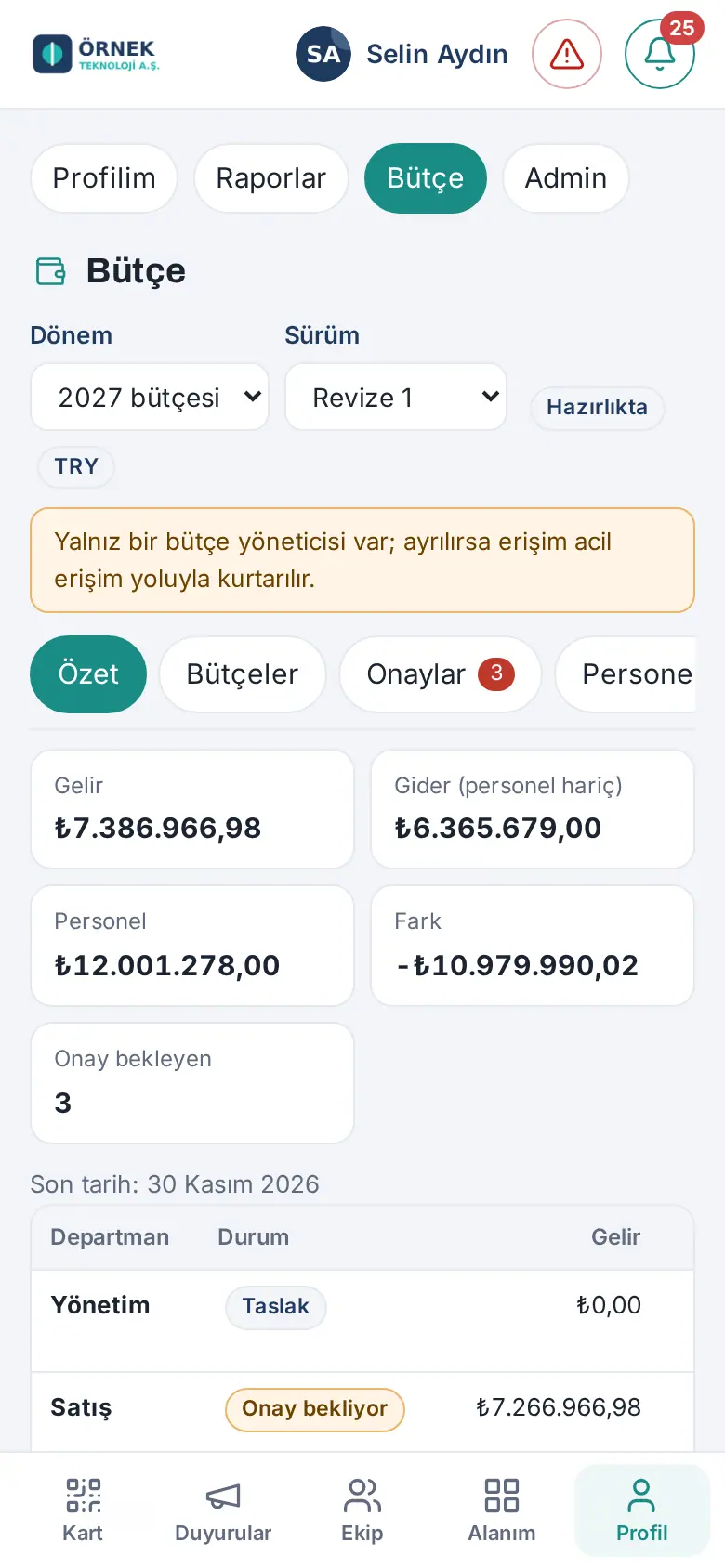
- On a computer, click Budget in the left menu. On a phone, tap Profile in the bottom menu and select Budget in the strip at the top (in the strip, it is between Reports and Admin). Budget shows only to people with a budget role and to the technical Admin.
- The top bar shows the Period (e.g. "2027 budget"), the version badge (e.g. Initial budget and In preparation) and the currency badge of the period (e.g. TRY). If the period has more than one version, a Version list shows instead of the badge; the version in effect has ✓ next to its name. The names that the system gives (Initial budget, "Revision 1", "2027 budget") show in the language of the app; the names that you give stay as they are.
- Select a section from the tabs below. Which tabs you see depends on your role:
| Tab | What it has | Who sees it |
|---|---|---|
| Overview | The totals of the period, the department table, period and version actions | Everyone with a budget role (except a person who has only the HR officer role; 1.6.1) |
| Budgets / My department | The editor of the department and Shared costs budgets. For a person who sees and writes the budget of only one department, its name is My department | People with budget read permission |
| Approvals | Budgets awaiting approval; a badge on the tab shows the number waiting | Budget manager |
| Personnel | Personnel plan (see 38. Budget management: setup, permissions and personnel cost) | People who see the personnel total or its details |
| Actuals | Accounting uploads; if HR enters the personnel actuals, the Personnel (HR) view (1.6.1; see 39. Budget actuals: accounting upload) | Budget manager, accounting officer, department budget owner, viewer; the HR officer only the personnel actuals (1.6.1) |
| Categories | Revenue / Expense item tree; the budget manager edits it, the others read it | Everyone with a budget role (except a person who has only the HR officer role; 1.6.1) |
| Rates and keys | Planning rates and allocation keys for shared costs | Budget manager, accounting officer |
| Excel | Downloading and uploading the plan template | People with permission to download or upload the template |
| Permissions | Role holders and granting permissions (see 38. Budget management: setup, permissions and personnel cost) | Budget manager; the accounting officer sees the names of the role holders (updated in 1.6.1) |
| Audit | The audit log of budget actions | Budget manager, accounting officer, department budget owner (each sees the records in their own scope; the HR officer does not see it since 1.6.1) |
| Settings | Module settings, currency, variance threshold | Budget manager |
A person who has only the HR officer role sees only the Personnel and Actuals tabs on the Budget screen (1.6.1). If the person also has another budget role, the tabs of that role also show.
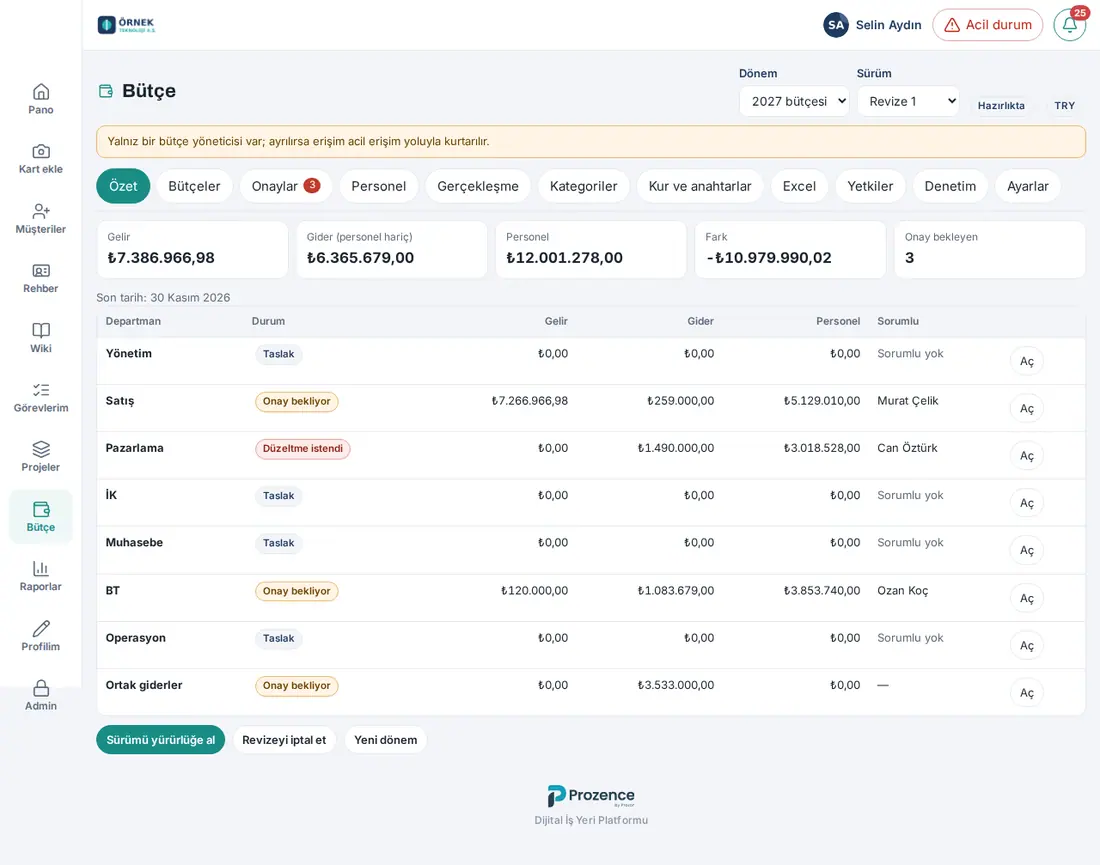
On the Overview tab:
- Boxes: Revenue, Expenses (excl. personnel), Personnel (there is no box for a person who does not see the personnel amount), Difference and, for the budget manager, Awaiting approval. Budgets with the Excluded status are not added to the boxes; their names show below the boxes in the line "Not included in the company budget (excluded): …".
- Department table: Department, Status, Revenue, Expenses, Personnel, Owner and, at the end of the row, Open (a budget that you can write) or View. For a person who does not see the personnel amount, the Personnel cell shows "Hidden". For a department without an assigned owner, it shows "No owner".
- If a deadline was entered for the period, the "Deadline: …" line (in the language of the app, e.g. "Deadline: 30 November 2026").
- For the budget manager, at the bottom, the Put version into effect (while the version is in preparation), Open revision (while the version is in effect), Cancel revision (while a revision is in preparation) and New period buttons.
On a phone: Select Budget in the Profile strip. The boxes show in two columns; in the department table, the Personnel and Owner columns are hidden and the table scrolls sideways; the row editor opens full screen.
Common messages:
- "No budget period has been opened for this year yet." — The budget manager has not started the period.
- "To access budget data, the budget manager needs to grant you permission." — You are the technical Admin but you do not have a budget role; you only see the Permissions and Audit tabs.
- "The budget module is off." — The budget manager turned off the module; the data is not deleted.
Who sees and does what
Who: People with a budget role · Where: Budget
What it does: Summarizes what the budget roles can do in the actions in this chapter. The budget manager gives the roles in Budget → Permissions; for the details and scopes (department, item branch, personnel level, export), see 38. Budget management: setup, permissions and personnel cost.
| Action | Budget manager | Accounting officer | HR officer | Department budget owner | Viewer |
|---|---|---|---|---|---|
| Starting a period, putting into effect, revision | Yes | — | — | — | — |
| Writing a department budget | Yes | Reads | — | Own department | Reads (scope) |
| Writing the Shared costs budget | Yes | Yes | — | Reads | Reads (scope) |
| Sending for approval | Yes | Shared costs | — | Own department | — |
| Approving, requesting a correction | Yes (except the department they own and a budget they sent for approval themselves) | — | — | — | — |
| Downloading the plan template | Yes | Yes | — | Own department | If they have export permission |
| Uploading the plan template | Yes | Shared costs | — | Own department | — |
| Uploading, correcting the personnel actuals (1.6.1) | Yes | Reads | Yes (scope) | Reads (own department) | Reads (scope) |
| Undoing a personnel actuals upload (1.6.1) | Every upload | — | Only their own upload | — | — |
| Reports → Budget | All sub-tabs | All sub-tabs | Only Personnel | Own department | Scope |
| Exporting reports | Yes | Yes | — | Yes | If they have export permission |
Important:
- If the technical Admin (the Admin of the app) does not have a budget role, they do not see the budget amounts. The budget manager is a separate role.
- Only the budget manager and the HR officer see the salaries per person; for the other roles, the personnel amount shows as a department total or as "Hidden".
- If your scope is limited (e.g. only one item branch), the budget header shows the "Your scope is limited" badge, and the reports show "Total for your scope".
Period, version and statuses
Who: People with a budget role · Where: Budget → top bar and Overview
What it does: Explains the structure of the budget and the meaning of the status badges that you see on the screen.
- A Period is a calendar year (January–December). A period has a currency; all the amounts in the period are kept in this currency.
- A Version is the budget of the period. The name of the first version is Initial budget. Each revision that is opened for a change during the year is a separate version ("Revision 1", "Revision 2" …). In a period, only one version at a time can be in preparation.
- In each version, each department has a budget, and there is one Shared costs budget. Budget rows are written on the items at the lowest level of the category tree (leaves).
Version statuses:
| Badge | Meaning |
|---|---|
| In preparation | The departments write their budgets and send them for approval |
| In effect | The approved budgets were combined and locked; the reports use this version by default |
| Superseded | A new version took effect in its place |
| Cancelled | The revision in preparation was cancelled |
Statuses of a department budget:
| Badge | Meaning |
|---|---|
| Draft | Being prepared; can be written |
| Awaiting approval | Sent for approval; cannot be changed |
| Correction requested | The budget manager (or the second approver) sent it back with a note; can be written again |
| In second approval | 1.7.0: the budget manager approved, the second approver's decision is awaited; cannot be changed (see Giving the second approval of a budget) |
| Approved | Approved; the approval can be withdrawn until the version takes effect |
| Locked | The version took effect |
| Excluded | The version was put into effect with missing approvals; this budget was not included in the company budget |
Starting a budget period
Who: Budget manager · Where: Budget → Overview
What it does: Opens the budget period of the new year and its first version (Initial budget). After this, the department owners can write their budgets.
Before you start: Check the reporting currency in Settings; the period is fixed to the currency at the moment it is opened (see 38. Budget management: setup, permissions and personnel cost).
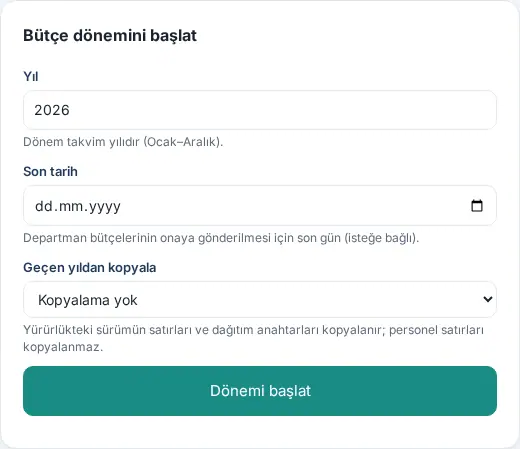
- Open Budget → Overview. If there is no period, the Start the budget period form shows. To open a new one while a period exists, click New period at the bottom of the Overview.
- Check the Year field: starting from this year, the first year whose period is not opened yet is suggested (e.g. 2026 if 2027 is open). You can type another year. The period is a calendar year (January–December). From October on, the suggestion starts from next year (1.8.8).
- If you want, select the Deadline: the last day for sending the department budgets for approval. The Currency list below shows the currency of the period; it is filled with the reporting currency in Settings. All amounts of the period are entered in this currency and it cannot be changed after the period is opened (1.8.8).
- If you opened a period before, you can select a period from the Copy from last year list. The rows, assumption notes and allocation keys of the version in effect of that period are copied; personnel rows are not copied. If you do not want to copy, keep Don’t copy.
- Click Start period. The period opens with the name "<yıl> budget" (e.g. "2027 budget"), and the Initial budget version opens with the In preparation status.
Common messages:
- "A period is already open for this year." — The period of the same year exists; select it from the Period list in the top bar.
- "The year must be between 2000 and 2100."
- "Enter the deadline as YYYY-MM-DD."
Important: You can only copy from a period that has the same currency and a version in effect. The category tree does not depend on the period; all periods use the same tree.
Preparing a department budget
Who: Department budget owner · Budget manager · Where: Budget → My department (or Budgets)
What it does: You write the revenue and expenses of your department item by item, split into 12 months.
- Open Budget → My department. If you see more than one budget, the name of the tab is Budgets; from the Budget list at the top, select the department or Shared costs. Clicking Open in the department row in the Overview also opens the same budget.
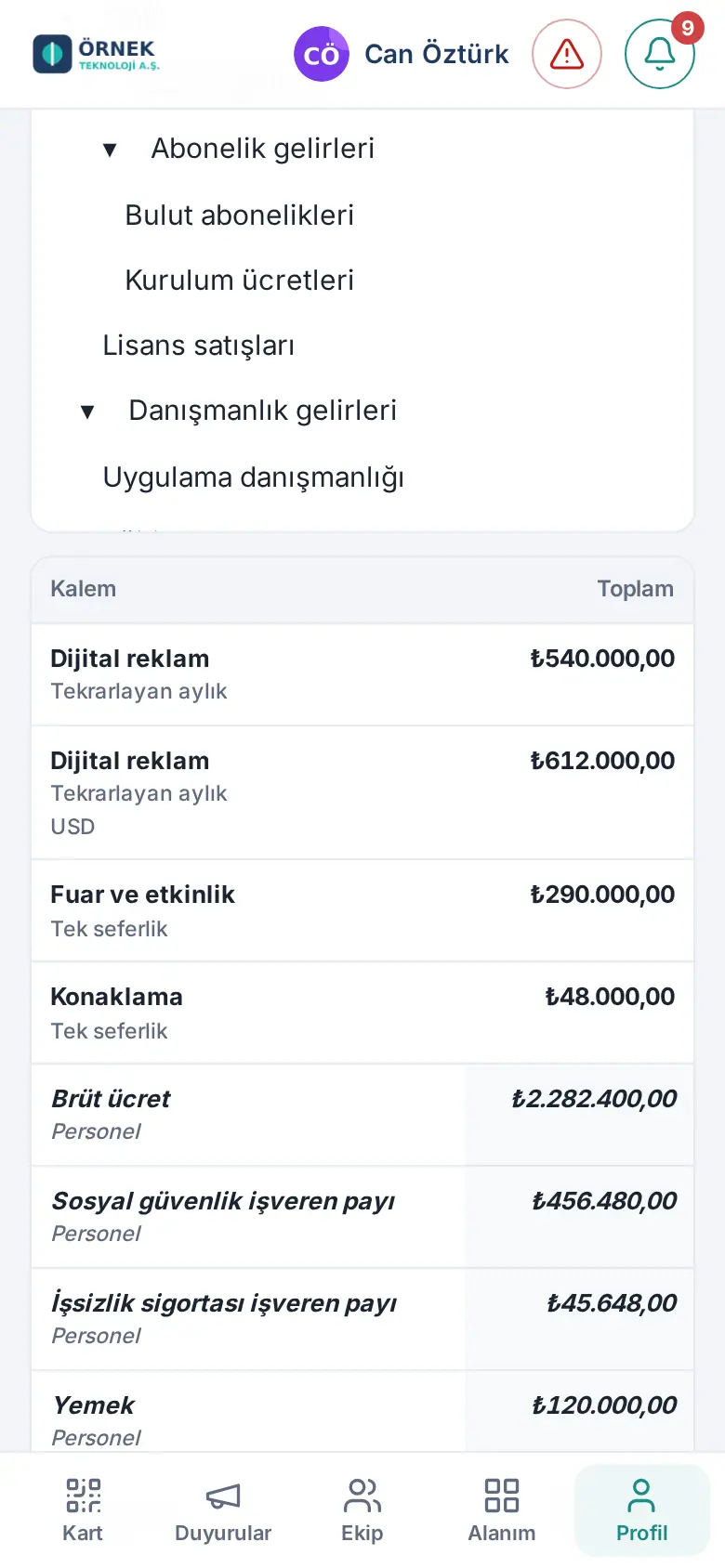
- The header shows the name of the department and the status badge; below it, the Revenue, Expenses (excl. personnel) and Personnel boxes show.
- On the left is the category tree. When you click an item branch, the table on the right shows only the rows of that branch; to see all of them, click All items. The amount next to a node is the total of the rows below it. You open and close the branches with ▸ / ▾; your choice is remembered in this browser.
- The table on the right shows the Line item, the Description, the 12 months and the Total of each row. If the row type is not Manual, the type shows below the item name (e.g. "Recurring monthly").
- To add a row, click Add row at the bottom; to edit a row, click the row (see Adding and editing rows).
- When the budget is ready, click Send for approval (see Sending a budget for approval).
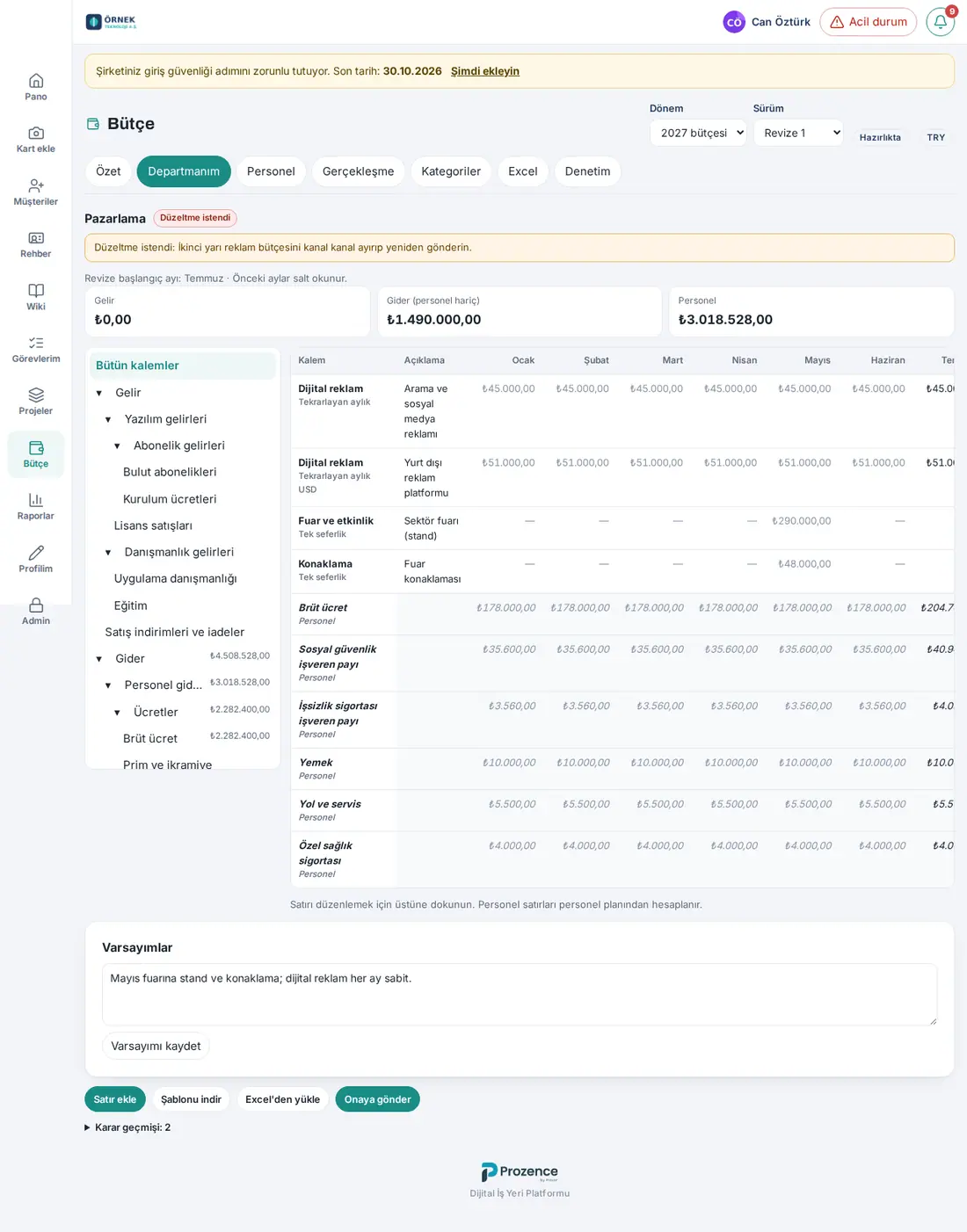
Buttons in the bottom bar: Add row · Download template (the blank template of this department) · Upload from Excel (opens the Excel tab) · Send for approval. On a submitted budget, the budget manager sees Approve and Request correction; on an approved budget, Withdraw approval.
Decision history: Below the budget, the Decision history: N line opens; it shows the time of each change, who made it, the old and new status and the note.
On a phone: The category tree is above the table. The table shows only Line item and Total; the month columns are hidden. When you tap a row, the edit window opens full screen.
Important:
- Personnel rows (items whose amount comes from the personnel plan) are read-only on this screen; they do not open when you click them. For a person who does not see the personnel amount, these rows are combined into one "Personnel (hidden)" row.
- A budget can only be written while it is in the Draft or Correction requested status and the version is in preparation. In the other statuses, the bottom of the screen shows "Read-only view.".
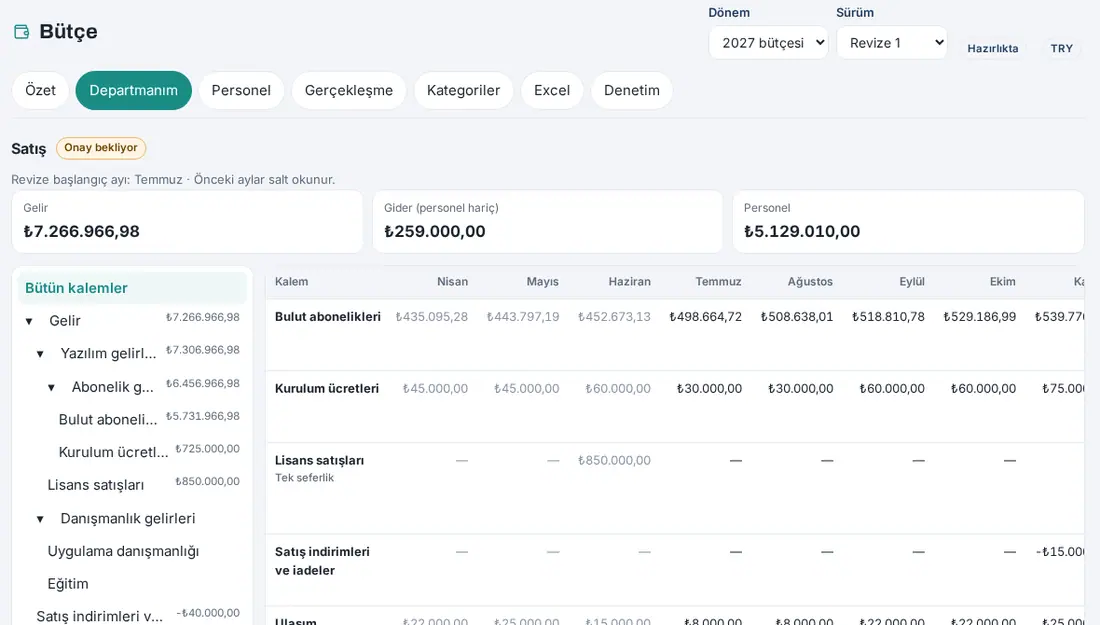
- In a revision, below the header it shows "Revision start month: … · Earlier months are read-only."; the months before that month show in gray and cannot be changed.
Adding and editing rows
Who: Department budget owner · Budget manager · Accounting officer (Shared costs) · Where: Budget → My department → Add row or click a row
What it does: You write the 12-month budget of an item.
- Click Add row. If an item branch is selected on the left and it is a leaf item, that item comes selected in the window.
- Select the item from the Line item list. The list has only the active, non-personnel items at the lowest level (in the Shared costs budget, only the shared cost items).
- Select the Row type: Manual, Recurring monthly, Recurring yearly or One-off. For the recurring types, the window fills the amount into the months (see Recurring row: filling the amount into the months); for the other types, you write the monthly amounts yourself.
- Write the Description (a maximum of 200 characters; e.g. "Existing subscriber base").
- If a planning rate was entered for the period, the Currency list shows. If you will write the amount in a foreign currency, select the currency; the amount is converted to the reporting currency with the planning rate of the period.
- Write the amounts in the boxes of the 12 months. An empty month counts as 0. There are two helper buttons:
- Same amount every month: writes the amount of the first month to all the other months.
- Split yearly amount: in the window that opens, write the Yearly amount and click Split; the amount is divided equally between the months, and the remainder that cannot be divided is added to the last month.
- If you want, write the basis of the row in the Note / assumption field (a maximum of 1,000 characters).
- Click Save. The row shows in the table, and the totals in the boxes and in the tree are updated.
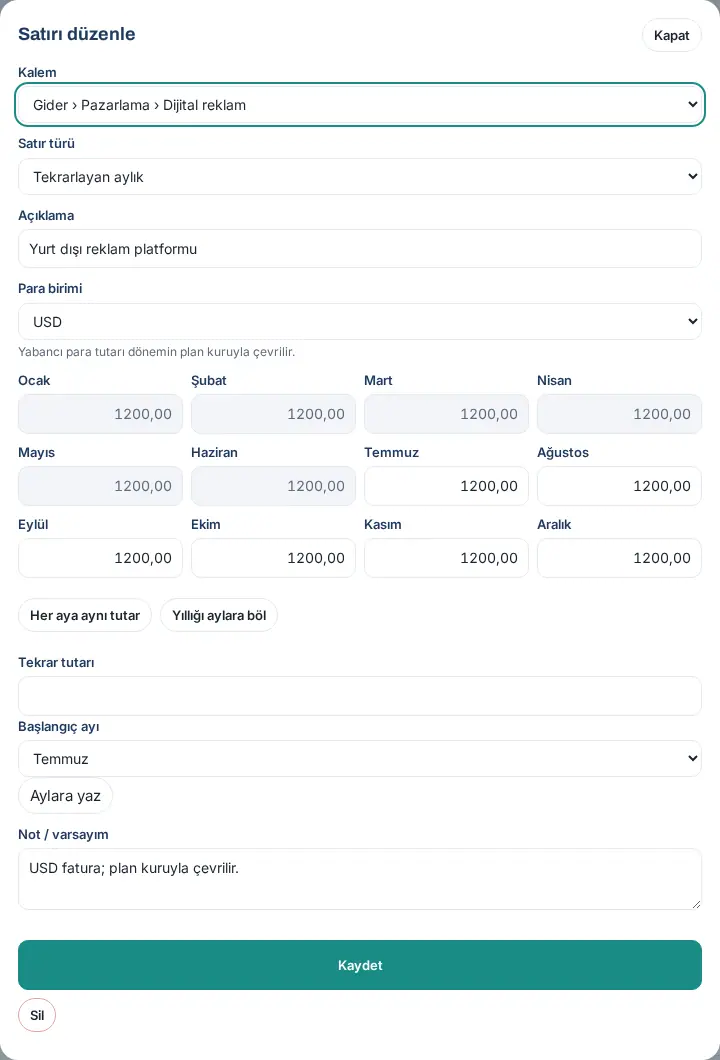
Deleting a row: Click the row, click Delete in the window, and click Delete in the "Delete this row?" question.
On a phone: The window opens full screen; the month boxes are in two columns, and when you tap a box, the number keyboard opens.
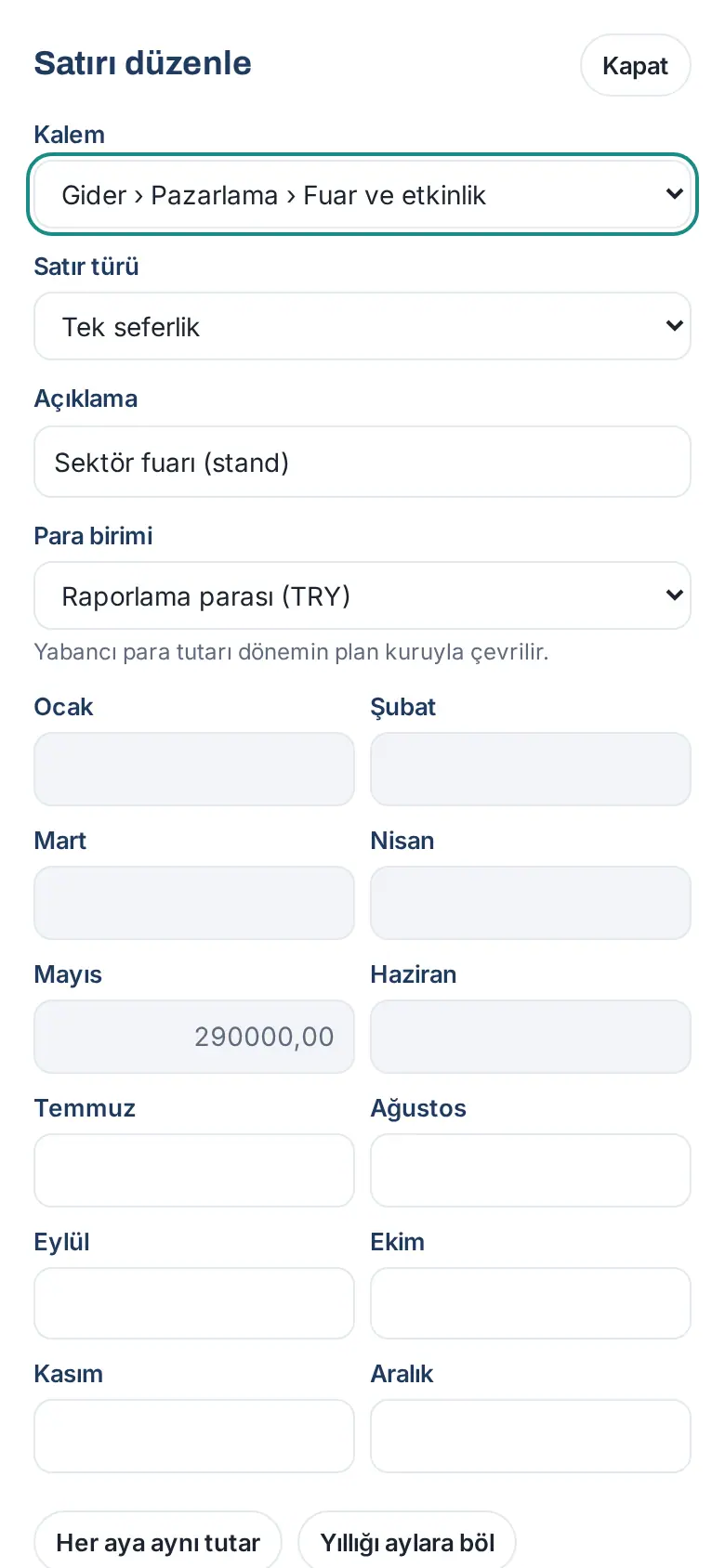
Common messages:
- "Select an item."
- "Negative amounts are not allowed for this item." — You can write a negative amount only on items that allow negatives (e.g. sales discounts and returns).
- "A month’s amount can be at most 10 billion."
- "There is no 2027 planning rate for USD." — You selected a foreign currency, but no planning rate was entered for that currency. The accounting officer or the budget manager enters the rate in Rates and keys.
- "Extra decimals were rounded." — You wrote more decimals than the currency allows; the amount was rounded and saved.
- "This budget was changed in another tab or by someone else. Refresh the page and try again."
- "This month is before the start of the revision and can’t be changed."
- "This budget was sent for approval; a correction must be requested before it can be changed."
Tip: Write the amounts in the format of the app language (in Turkish, a decimal comma: 12500,50). You do not need to write a thousands separator.
Recurring row: filling the amount into the months
Who: Department budget owner · Budget manager · Accounting officer (Shared costs) · Where: Budget → My department → row window → Recurring amount
What it does: You write expenses that are the same every month (rent, subscription) or that are paid once a year (annual license) with one amount; the window distributes the amount into the months.
- Click Add row (or open a row) and select the Line item.
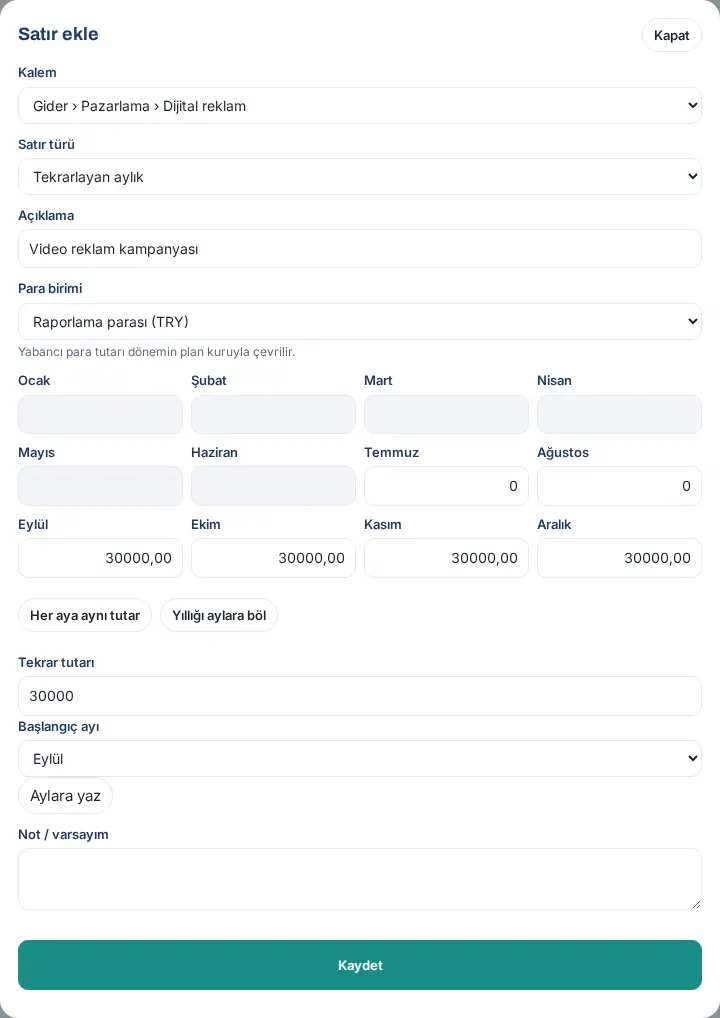
- From the Row type list, select Recurring monthly or Recurring yearly. Below the month boxes, the Recurring amount field, a month list and the Fill months button show.
- In Recurring amount, write the amount of one month (e.g. 30000).
- Select the month:
- For Recurring monthly, the Start month: the amount is written to every month from this month to December; the earlier months become 0.
- For Recurring yearly, the Payment month: the amount is written only to this month; the other months become 0.
- Click Fill months and check the month boxes.
- Click Save.
What you need to know:
- If you do not change the month boxes manually after Fill months, the rule is saved with the row; when you open the row again, Recurring amount and the month come filled in. If you change the boxes manually, the rule is dropped and the amounts are saved as you wrote them.
- In a revision, the month list starts from the start month of the revision; read-only (gray) months do not change with Fill months.
- If a foreign currency is selected, the amount is written in that currency and converted with the planning rate.
- If the recurring amount is empty or cannot be read, it shows "The amount could not be read.".
- Manual and One-off rows do not have this field; use the Same amount every month and Split yearly amount helpers.
In the Excel template: On a row whose Row type is "Recurring monthly", if only one month is filled in and the following months are empty, the amount is written to every month from that month to December at upload, and a warning is given: "On the monthly recurring row, the single amount was filled into every following month." A cell with 0 written in it does not count as empty. On "Recurring yearly" rows, the amounts stay as they are in the file.
Assumption note
Who: Department budget owner · Budget manager · Where: Budget → My department → Assumptions
What it does: Collects the general basis of the budget (e.g. "2027'de iki yeni müşteri, kira artışı Temmuz'da" — two new customers in 2027, rent increase in July) in a note that the approver will read.
- Write your note in the Assumptions box below the department budget (a maximum of 5,000 characters).
- Click Save assumptions. It shows "Saved.".
Tip: For the basis of a single row, use the Note / assumption field in the row window; this note goes to the Note / assumption column in the Excel template.
Shared costs budget
Who: Accounting officer · Budget manager · Where: Budget → Budgets → Budget: Shared costs
What it does: Collects the expenses that do not belong to a department, such as rent, energy and cleaning, in one budget. In the reports, these amounts are distributed to the departments with an allocation key (headcount, square meters, revenue share or manual percentage) and show as Allocated shared costs.
- Open Budget → Budgets and select Shared costs from the Budget list.
- Add rows with Add row. The Line item list has only the shared cost items.
- When the budget is ready, the accounting officer (or the budget manager) clicks Send for approval. The approval is given by a budget manager other than the person who sent it for approval (see Approving a budget or requesting a correction).
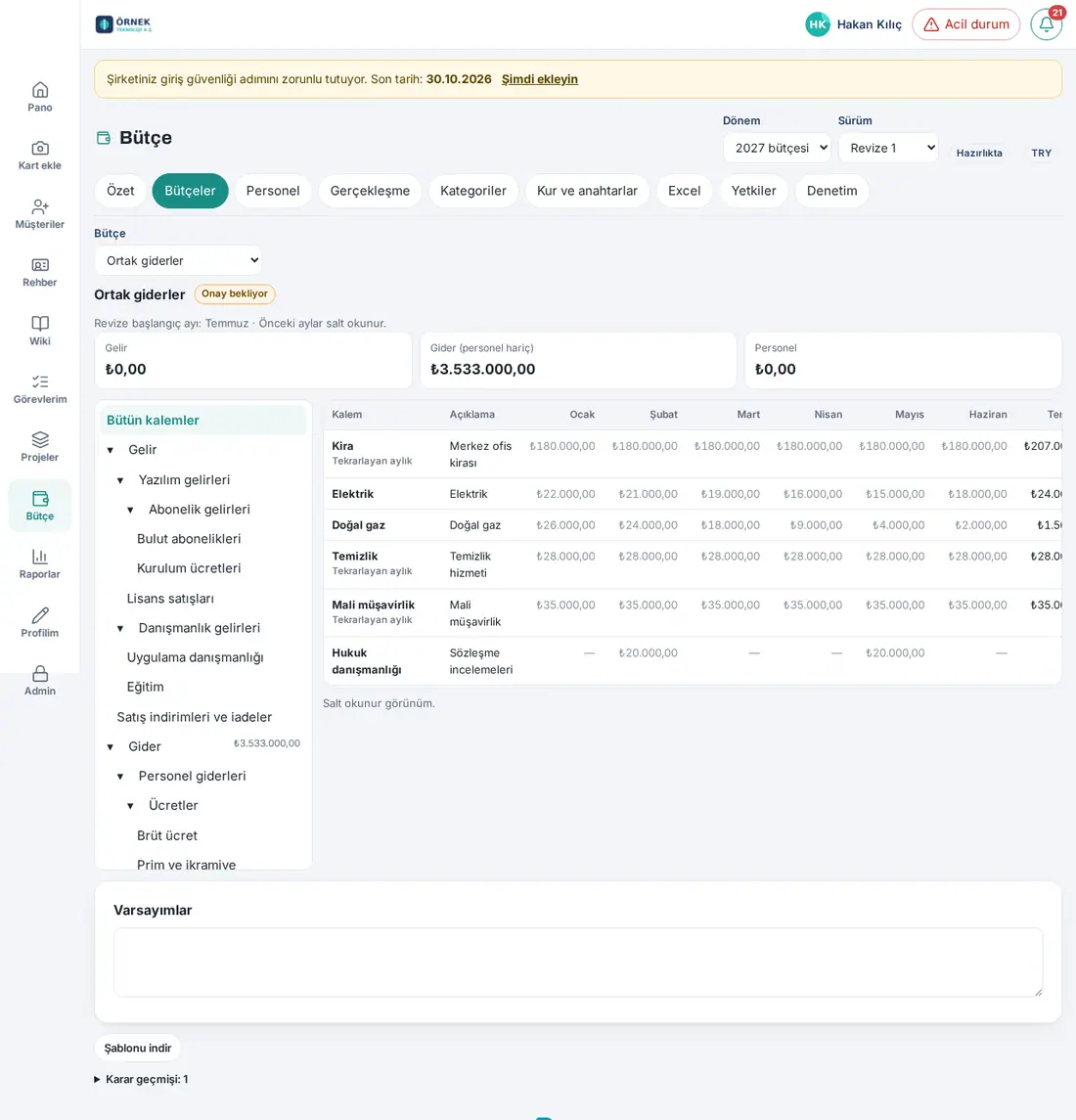
Important: Which item is a shared cost and which key distributes it are set in the Categories and Rates and keys tabs (see 38. Budget management: setup, permissions and personnel cost). The department owner sees the share of the shared costs that falls to their department in the reports.
Downloading the Excel plan template
Who: Department budget owner · Budget manager · Accounting officer · Viewer (if they have export permission) · Where: Budget → Excel
What it does: You download a template to prepare the budget in Excel. There are two types:
- Blank template: comes with your own category tree and the current budget rows of the departments in your scope. If there are no rows, the Plan sheet is empty.
- Sample template: has the same structure; the Categories sheet comes from the sample tree, and the Plan sheet is filled with rows of the fictional "Örnek Teknoloji A.Ş.". The purpose is to show how to fill it in.
- Open Budget → Excel.
- In the Plan template section, click Download blank template or Download sample template.
- The file downloads: the blank template as
butce-plan-<yıl>-<departman>.xlsx(for more than one department,butce-plan-<yıl>-departmanlar.xlsx), the sample template asbutce-plan-ornek.xlsx.
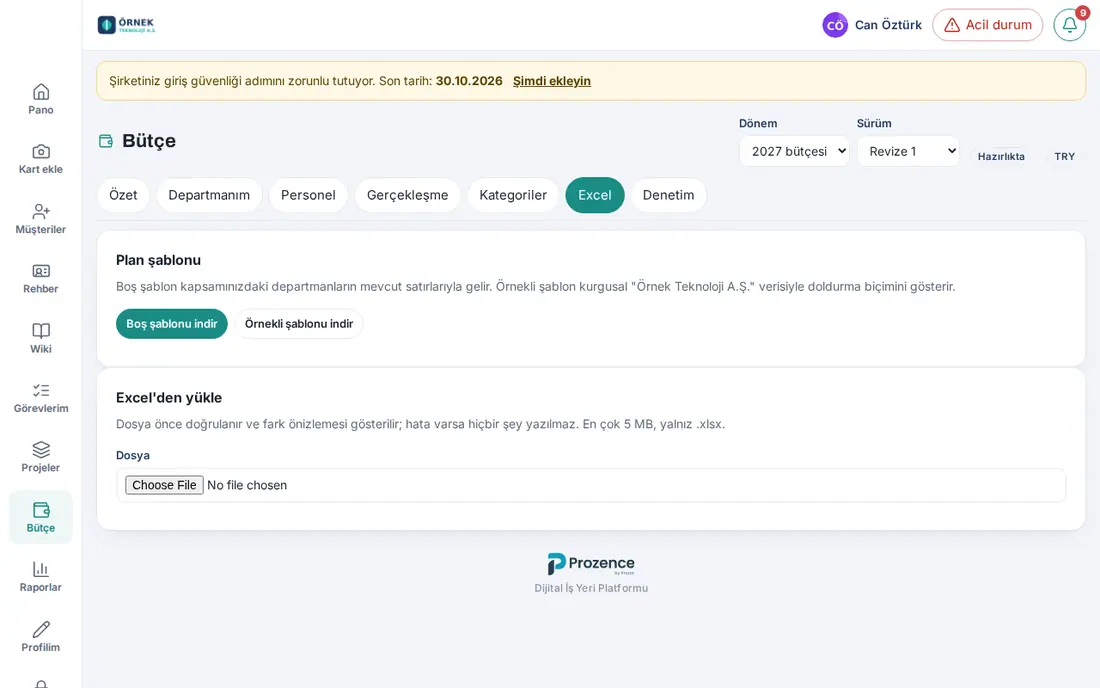
Tip: Download template at the bottom of the My department screen downloads only the blank template of that department.
Important:
- The blank template is specific to you and your scope (the file has a signed template ID). You cannot upload a template that someone else downloaded.
- Downloading a template is written to the audit log.
Filling in the Excel plan template
Who: Department budget owner · Budget manager · Accounting officer · Where: The Excel file that you downloaded
What it does: Explains the sheets of the template and the rules for filling it in.
Sheets:
| Sheet | Content |
|---|---|
| Instructions | Company, period, version, reporting currency, template type and the 10 rules for filling it in; the template ID at the bottom |
| Plan | Each row is a budget row. The first five columns and the header row are fixed |
| Categories | The item tree: code, parent code, name, item path, level, type (Revenue / Expense), leaf or not, negatives allowed, personnel item, shared cost item. It is protected; the intermediate nodes are gray and bold |
| Personnel | Created only for people with personnel details permission (HR officer, budget manager) (see 38. Budget management: setup, permissions and personnel cost) |
| Sample error report | Only in the sample template: the format of the error report |
There is also a hidden Listeler sheet (drop-down lists and the template ID); do not change it.
Columns of the Plan sheet: Item code · Item path (formula) · Department · Row type · Description · January 2027 … December 2027 · Total (formula) · Note / assumption.
- In the Item code cell, select a code from the drop-down list. The list has only the non-personnel items that take rows (leaves). The Item path (formula) column shows the full path of the item; if the code is wrong, it shows "⚠ Code not found".
- Select the department from the Department list. For a Shared costs row, select "(Shared costs)".
- Select the type from the Row type list (Manual, Recurring monthly, Recurring yearly, One-off).
- Write the Description; enter the amounts of the 12 months. Total (formula) is calculated automatically.
- If you want, write the basis of the row in the Note / assumption column.
- The "Revenue total", "Expense total — excl. personnel" and "Difference" rows below the rows are formulas; they are not imported.
- Save the file as
.xlsx.
Rules for filling it in (from the Instructions sheet):
- The amounts are written excluding VAT and in the reporting currency. The decimal separator depends on the language setting of Excel.
- A negative amount is accepted only on items where Negatives allowed = Yes.
- No amounts are written to the personnel items from the Plan sheet; these amounts come from the personnel plan.
- A department owner can only upload the rows of their own department.
- Do not change the Categories and Listeler sheets; a new item is added in the app (Budget → Categories).
- The rows in the uploaded file replace the manually entered rows of the related departments: a row that you delete from the file is also deleted from the budget.
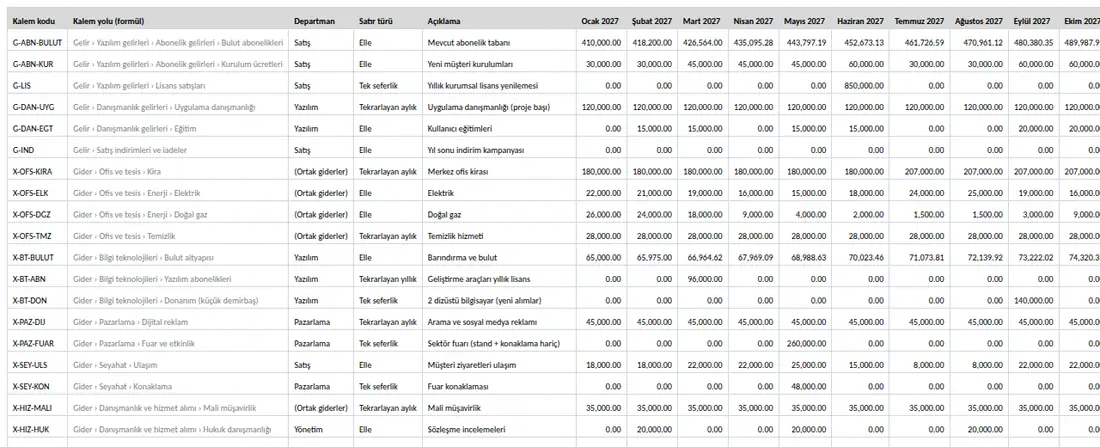
Important: Do not change the order and the headers of the columns or the sheet names; the upload gives an error.
Uploading from Excel, change preview and error report
Who: Department budget owner · Budget manager · Accounting officer (Shared costs) · Where: Budget → Excel → Upload from Excel
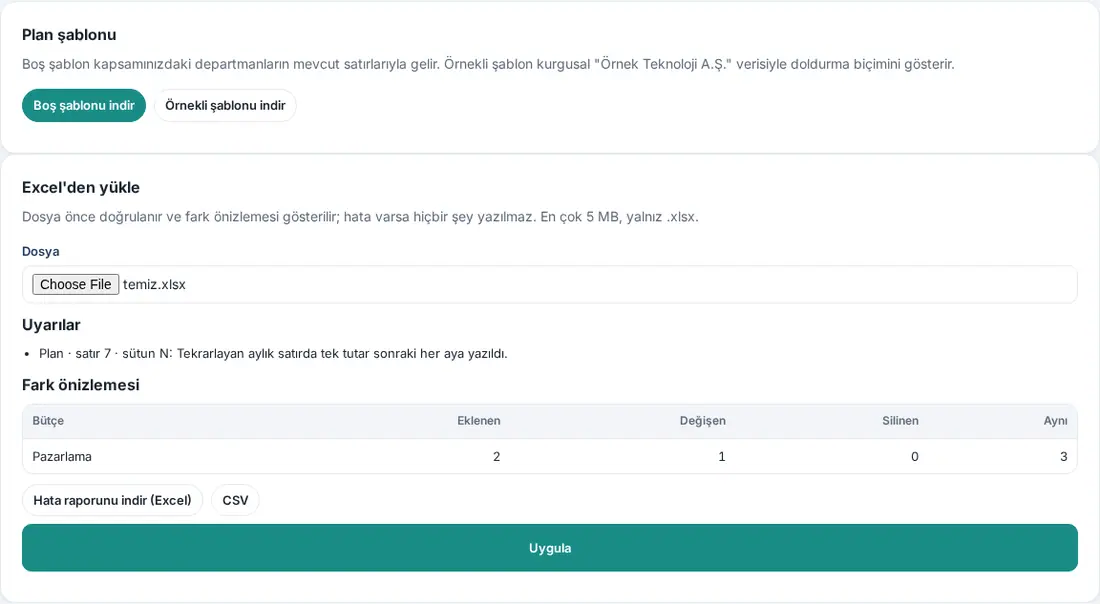
What it does: You write the template that you filled in to the budget. The file is first validated and what will change is shown; nothing is written until you click Apply.
- Open Budget → Excel (or click Upload from Excel in My department).
- In the Upload from Excel section, select the template in the File field (only
.xlsx, a maximum of 5 MB). It shows "Verifying…". - Read the result:
- If there are errors, it shows "N errors found; nothing was saved." and the error table (Sheet, Row, Column, Value, Message, Suggestion) shows. The screen shows a maximum of 50 errors; all of them are in the error report.
- The Warnings list does not stop the upload. At the start of each warning, its location shows (e.g. "Plan · row 12 · column Q: Extra decimals were rounded (₺1.500,56)."). Examples: rounding of extra decimals, the same row written twice, a recurring row spread into the months.
- The Change preview table shows the number of Added, Changed, Deleted and Unchanged rows for each budget.
- If the file is the same as the budget on the screen, it shows "No changes: the file matches the budget on screen.".
- If there are errors or warnings, download the report with Download error report (Excel) or CSV, correct the file and upload it again from step 2.
- If there are no errors, click Apply. It shows "Applied: X added, Y changed, Z deleted.".
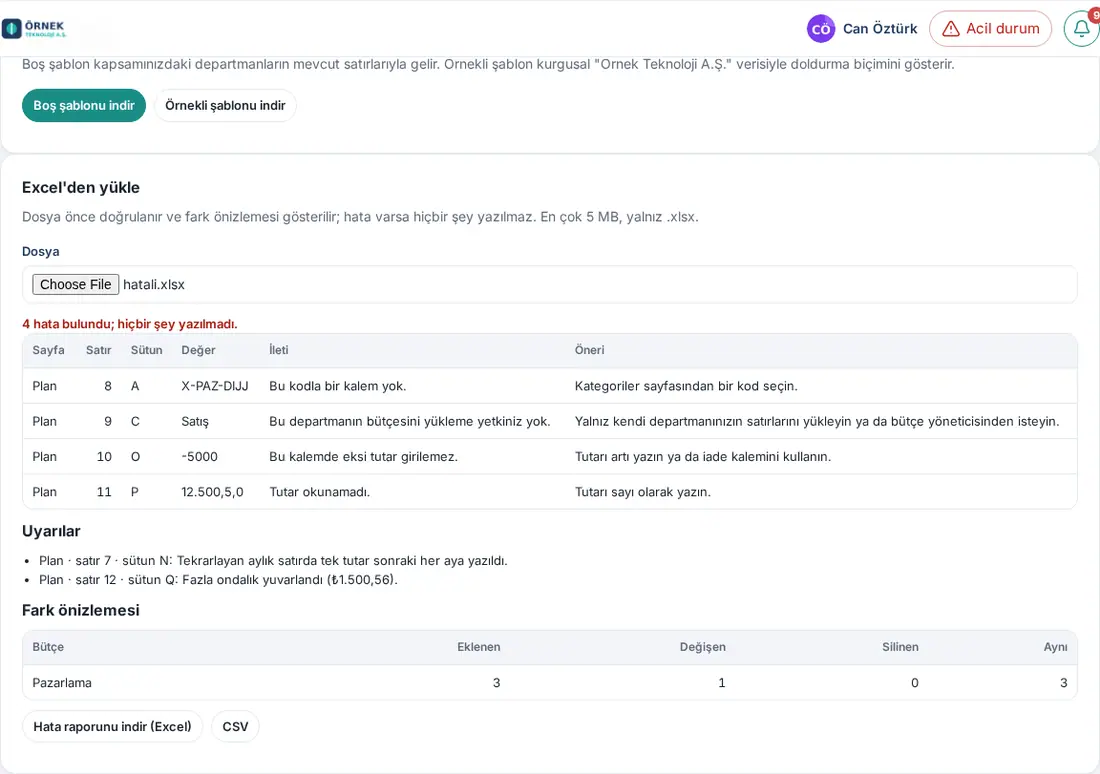
Additional confirmations:
- If the budget changed on the screen after you downloaded the template, the "Screen changed" window opens after Apply: the rows in the file replace the rows on the screen. To continue, click Apply anyway.
- If you upload the sample template, you answer the question "The sample rows will be written to your real budget." with Write.
- If the Categories sheet in the file has items that are not in your tree, the budget manager can add them with Add missing items to the tree (N); it shows "N items added. Select the file again.".
Common errors:
| Message | What to do |
|---|---|
| "This file is not a Prozence budget template (no template ID)." | Download the template again from Budget → Excel |
| "Invalid template signature: the file was created for another person or scope, or the Listeler sheet was changed." | Download the template again with your own account |
| "This template was created for another version." | Download the template of the open version (e.g. after a revision is opened) |
| "Column header is not as expected: …" | Do not change the order and the headers of the columns |
| "No item has this code." / "Item code is empty." | Select a code from the Categories sheet |
| "Rows can only be written to items at the lowest level (leaves)." | Instead of an intermediate node, select an item below it |
| "Personnel items can’t get amounts on the Plan sheet." | Personnel amounts come from the personnel plan |
| "You don’t have permission to upload this department’s budget." | Upload only the rows of your own department |
| "A “(Shared costs)” row uses an item that is not a shared cost item." | On a Shared costs row, select a shared cost item |
| "The amount could not be read." | Write the amount as a number |
| "Negative amounts are not allowed for this item." | Write the amount as a positive number or use the returns item |
| "The … budget was sent for approval or is locked and can’t be changed." | Wait for a correction to be requested |
| "This month is before the start of the revision and can’t be changed." | In a revision, do not change the months before the start month |
Important:
- If there are errors, no row is written. If one of the budgets in the file cannot be written (e.g. it was sent for approval), none of them is written.
- You can make a maximum of 30 previews per hour. A preview is valid for 30 minutes; when the time runs out, it shows "The preview has expired; upload the file again.".
- Excel 97-2003 (
.xls) files and files with macros are not accepted.
Sending a budget for approval
Who: Department budget owner · Budget manager · Where: Budget → My department → Send for approval
What it does: Sends the budget that you prepared for the approval of the budget manager.
- At the bottom of My department, click Send for approval.
- Read the totals in the window: "Revenue: … · Expenses: … · Personnel: …". If there are rows with an amount of 0, their number also shows ("Rows with a zero amount: N").
- If you want, write a note to the approver in the Note (optional) field.
- Click Send for approval. The status becomes Awaiting approval; the budget managers get the "Budget sent for approval" notification.
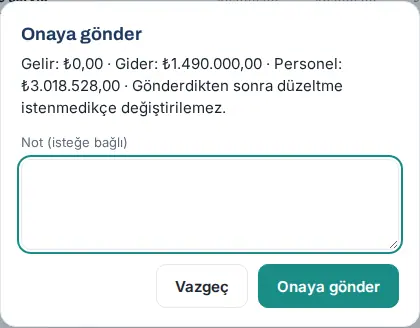
Important: After you send it, the budget cannot be changed unless a correction is requested. If you try to write a row on a budget that was sent for approval, it shows "This budget was sent for approval; a correction must be requested before it can be changed.".
Approving a budget or requesting a correction
Who: Budget manager · Where: Budget → Approvals (or the buttons below the budget)
What it does: You approve a submitted department budget or send it back with a note.
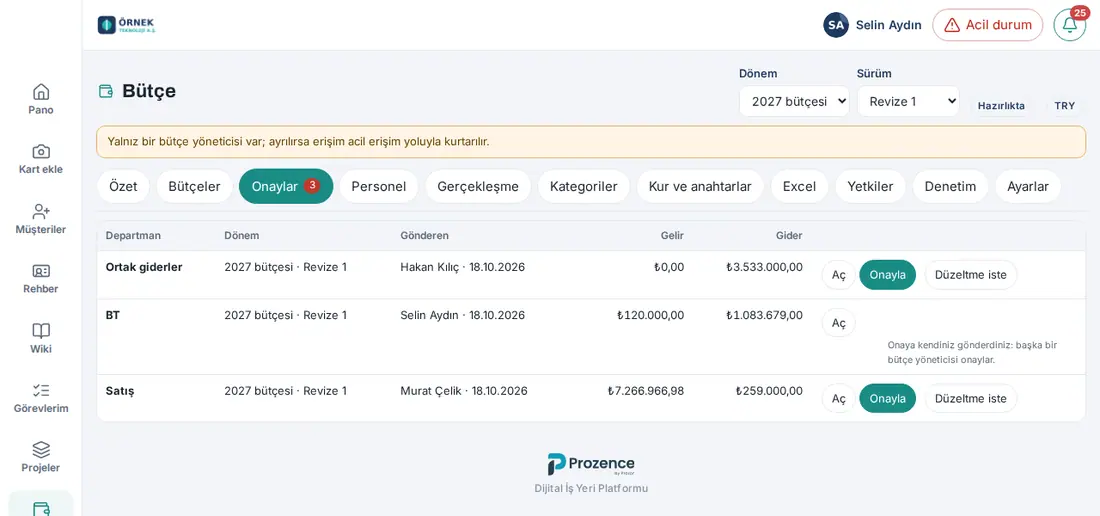
- Open Budget → Approvals. The badge on the tab is the number of budgets awaiting approval. The table shows Department, Period, Sender (and the day of submission), Revenue and Expenses.
- To examine the rows, click Open; the department budget opens.
- To approve, click Approve. In the window, write a Note if you want, and click Approve. The status becomes Approved; the person who prepared the budget and the person who sent it get the "Budget approved" notification. If the budget second approval is on in your company, the status becomes In second approval and the second approver gets the "Budget awaiting your second approval" notification (updated in 1.7.0; see Giving the second approval of a budget).
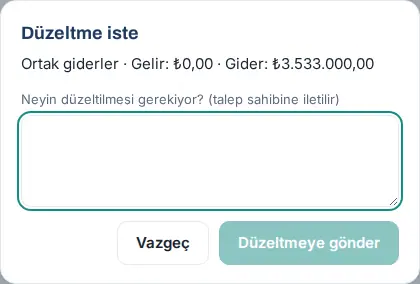
- To send it back, click Request correction. In the What needs to be corrected? (sent to the requester) field, write a note of at least 5 characters and click Send back for correction. The status becomes Correction requested; the person who prepared it gets the "Budget correction requested" notification with the note.
Withdrawing an approval: Before the version takes effect, on an approved budget, click Withdraw approval, fill in the Reason (sent to the owner) field and click Undo. The budget goes back to the Correction requested status; the person who prepared it gets the "Budget approval withdrawn" notification.
Important:
- You cannot approve the budget of a department that you own. In Approvals, that row shows "Your own department: another budget manager approves it."; another budget manager must approve it.
- You also cannot approve a budget that you sent for approval yourself (separation of duties). In Approvals and below the budget, instead of Approve, it shows "You sent this for approval yourself: another budget manager approves it.". If you are the only budget manager, the message tells you what to do: "You cannot approve a budget you sent for approval yourself. You are the only budget manager: request a correction and have the department’s budget owner send it, or appoint a second budget manager." (for Shared costs: "… have the accounting officer send Shared costs, or assign a second budget manager.").
- A correction cannot be requested without a note: "Enter a reason (at least 5 characters)."
- If two people decide at the same time, the second one sees "This budget’s status has changed; refresh the page.".
- If there is no budget awaiting approval, it shows "No budgets awaiting approval.".
Giving the second approval of a budget
Who: Second approver (budget manager or budget viewer) · Budget manager · Where: Budget → Approvals
What it does: If your budget manager turned on the Budget second approval template in workflows, a department budget goes to the selected second approver after the budget manager's approval. The budget becomes Approved only after the second approval. Which budgets go to the second approval is decided by the Scope in the template (All departments or Selected departments only), the Include shared costs box and the expense threshold. The template comes turned off; for turning it on and the settings, see 38. Budget management: setup, permissions and personnel cost.
As the second approver:
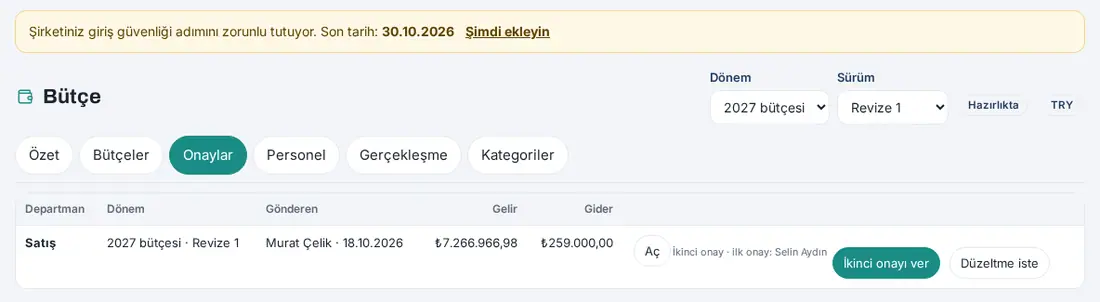
- Tap the "Budget awaiting your second approval" notification (below it says "<department> budget") or open Budget → Approvals. Even if you are not a budget manager (e.g. a viewer), you see the Approvals tab; only the budgets awaiting your second approval are listed.
- The row says "Second approval · first approval: <name>". To review the budget, click Open.
- If it is acceptable, click Give second approval, write a note if you want and approve. The status becomes Approved; the sender, the preparer and the first approver get the "Budget second approval given" notification.
- If it is not acceptable, click Request correction, write a note of at least 5 characters and send it. The status becomes Correction requested; the "The second approver requested budget corrections" notification goes with the note. When the department corrects and sends the budget again, it goes through both approvals again.
As the budget manager:
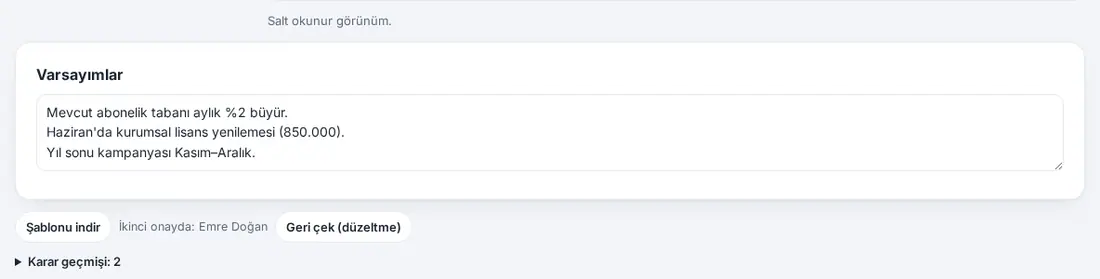
- If a budget you approved moves to the second approval, its status becomes In second approval; the "Budget approved" notification is not sent yet. Below the budget it says "In second approval: <name>".
- While the version is in preparation, to withdraw the budget, click Withdraw (correction) and write the reason; the budget becomes Correction requested.
- If the template was turned off later, the budget says "The second approval template was turned off; this unit stays with the second approver under the rule it started with."; if necessary, take it back with Withdraw (correction).
Common errors:
- "You gave this budget’s first approval; someone else gives the second approval."
- "You cannot give the second approval for a budget you submitted yourself."
- "You have already given this budget’s second approval; the next approver decides." (if two second approvers were selected)
- "This budget’s second approval is not with you."
- "Enter a reason (at least 5 characters)."
Important:
- The second approver list is written to the budget at the moment of the budget manager's first approval; even if the template changes later, that budget finishes with the same approvers.
- If the second approver has left the company or lost the permission to see that department, the decision falls to the fallback (the fallback selected in the template, otherwise the other budget managers); the screen shows "(fallback)" next to the name.
- A budget that is In second approval counts as unapproved: the version does not take effect until all budgets are Approved.
Sending a budget again after a correction request
Who: Department budget owner · Where: Budget → My department
What it does: You correct the budget according to the note of the budget manager and send it again.
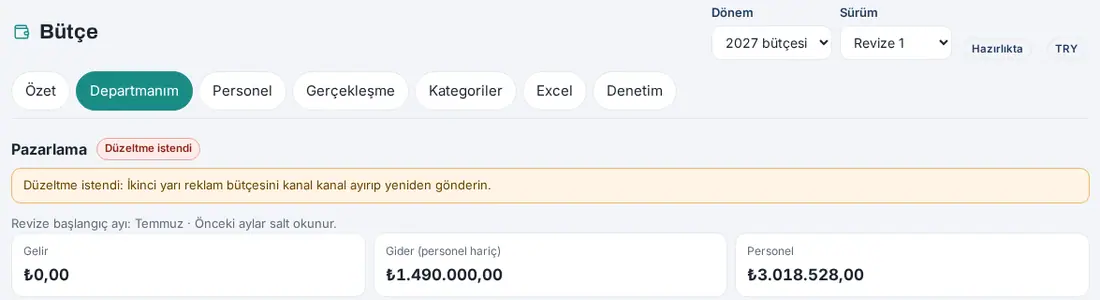
- Tap the "Budget correction requested" notification or open Budget → My department. The status badge is Correction requested.
- Read the note of the budget manager in the "Correction requested: …" line below the header.
- Correct the rows (on the screen or by uploading from Excel).
- Click Send for approval. The status becomes Awaiting approval again.
Putting a version into effect
Who: Budget manager · Where: Budget → Overview → Put version into effect
What it does: Combines the approved department budgets; the version takes effect and the budgets are locked. After this, the reports use this version.
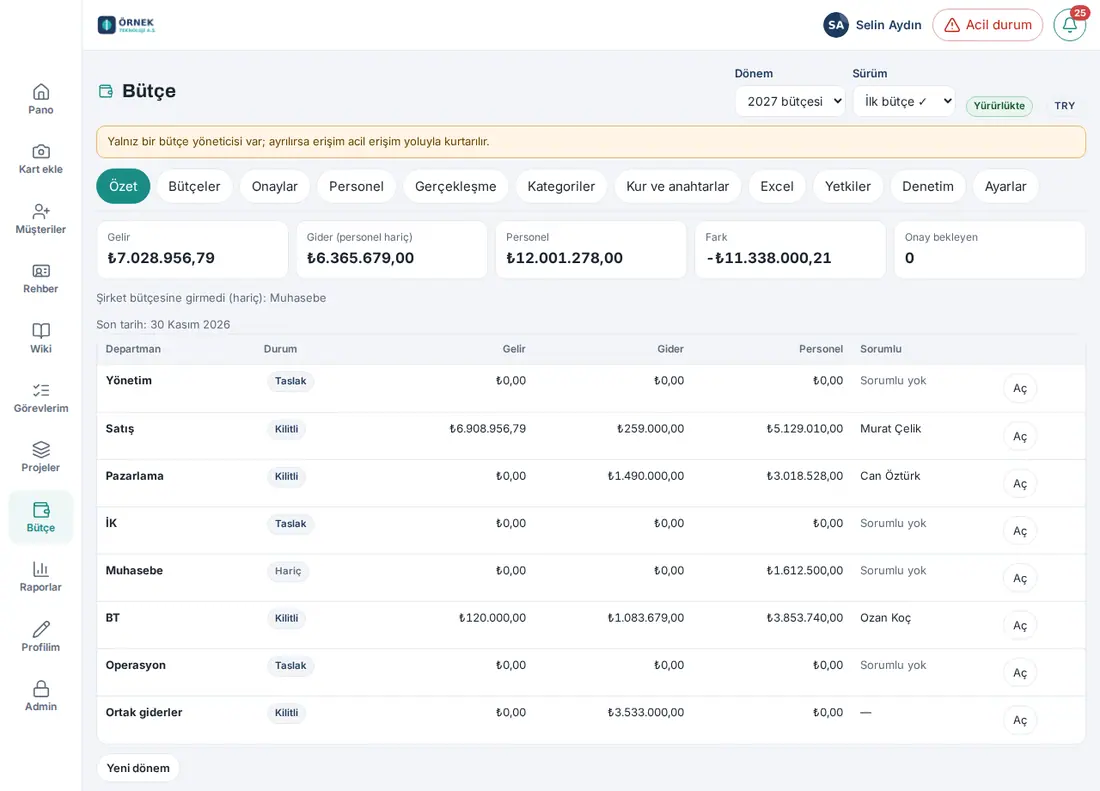
- In Budget → Overview, check the statuses in the department table.
- Click Put version into effect. In the question "Approved department budgets are combined, the version takes effect and is locked. The previous version becomes “superseded”.", click Put into effect.
- If all budgets are approved, the version becomes In effect, the approved budgets become Locked, and everyone with a budget role gets the "Budget in effect" notification.
- If there are budgets that are not approved, the Missing approvals window opens: "Budgets not approved: …. Their rows won’t be included in the company budget. Put it into effect anyway?" To continue with the missing ones, click Put into effect without them; to wait, click Cancel.

Important:
- When a version is put into effect with missing approvals, the budgets that are not approved become Excluded; their rows are not included in the company budget. These departments are not copied to the revision; they write their budgets again in the revision and send them for approval.
- Draft budgets with no rows do not count as missing; they continue to show as Draft in the Overview.
- Excluded budgets are not added to the boxes of the Overview and to the reports (Reports → Budget). In the department table, their status shows as Excluded; below the boxes, it shows "Not included in the company budget (excluded): …".
- If there is no approved budget, the version does not take effect: "There are no approved department budgets."
- The budgets of the version in effect cannot be changed ("This version is in effect or closed and can’t be changed."). For a change, open a revision.
Opening a revision
Who: Budget manager · Where: Budget → Overview → Open revision
What it does: To update the budget during the year, opens a new version that is a copy of the version in effect. The past months stay locked; the departments change only the remaining months and send them for approval again.
- In Budget → Overview, click Open revision (it shows while the version is in effect and no other version is in preparation).
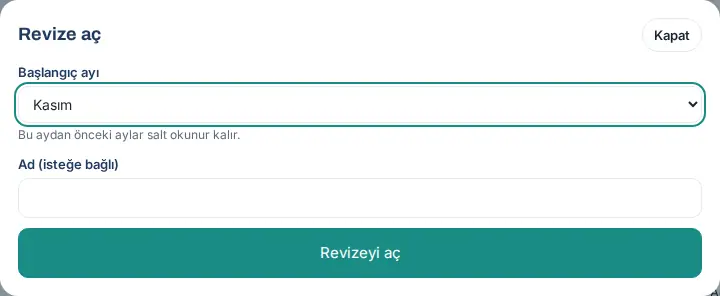
- Select the Start month (February–December). The months before this month stay read-only.
- If you want, write a name in the Name (optional) field. If you leave it empty, the name is "Revision 1", "Revision 2" ….
- Click Open revision. The rows (including personnel) and the assumption notes of the version in effect are copied to the new version (Excluded budgets are not copied); the department budgets open in the Draft status. The Version list shows in the top bar.
- The department owners update their budgets and send them for approval; the budget manager approves them and puts the version into effect. The previous version becomes Superseded.
Cancelling a revision: On a revision in preparation, click Cancel revision at the bottom of the Overview and confirm with Cancel. The rows of the revision are kept, but it cannot take effect; the version in effect does not change.
Common messages:
- "A revision needs a version in effect."
- "This period already has a version in preparation."
- "This row has amounts in months before the revision start, so it can’t be deleted." — In a revision, a row with an amount in a past month cannot be deleted; set the remaining months to 0.
Tip: You see the difference between two versions in Reports → Budget → Version comparison (see Version comparison).
Budget in Reports
Who: People with a budget role · Where: Reports → Budget
What it does: Compares the budget and the actuals uploaded from accounting by department and by item. The tab shows only while the Budget module is on and you have a budget role.
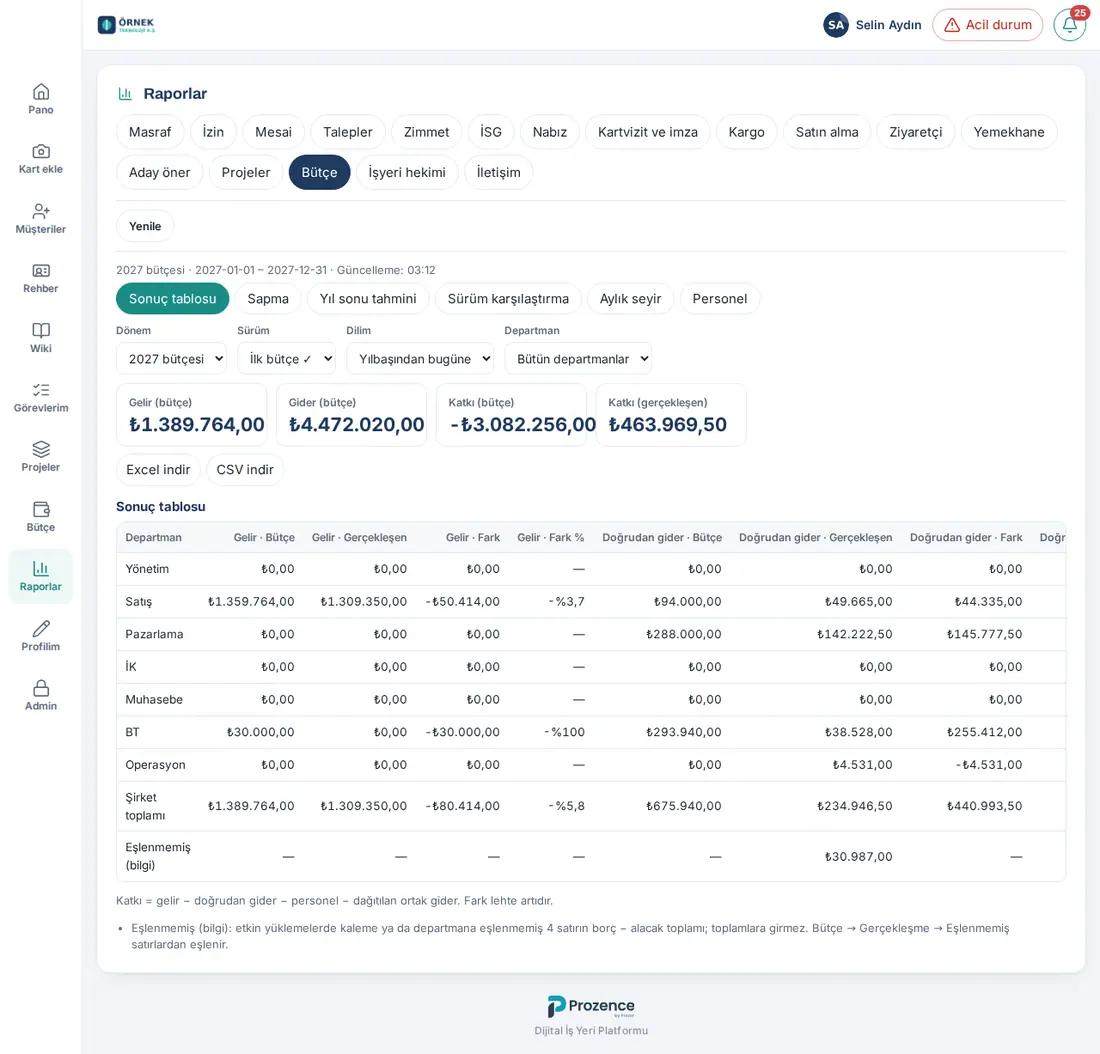
- Click Reports in the left menu and select the Budget tab.
- Select one of the sub-tabs at the top: Results table, Variance, Year-end forecast, Version comparison, Monthly trend, Personnel.
- Select the filters:
- Period and Version (default: the period of this year, or if there is none, the newest period; the version in effect, or if there is none, the last version). The general Period list of the reports does not show on this tab.
- Range: Year, Year to date (up to the last month whose actuals were uploaded), Quarter (then the Quarter list) or Month (then the Month list).
- Department: All departments (if your scope is limited, Departments in my scope) or a single department.
- Breakdown (in Variance, Year-end forecast and Version comparison): Level 1 … Level 4 or Items. The default is Level 2.
- The amounts are shown in the currency of the period and in the language of the app. On this tab, there is no My reports / Management choice; your budget role and your scope decide what you see.
Who sees what?
- The budget manager and the accounting officer see the whole company.
- The department budget owner and the viewer see only the departments and items in their scope. Below the report, it shows "Totals for your scope are shown (departments and items outside your permission are excluded).".
- The HR officer sees only the Personnel sub-tab.
- For a person who does not see the personnel amount, the personnel items are combined in one row: "Personnel items are combined in the “Hidden” row."
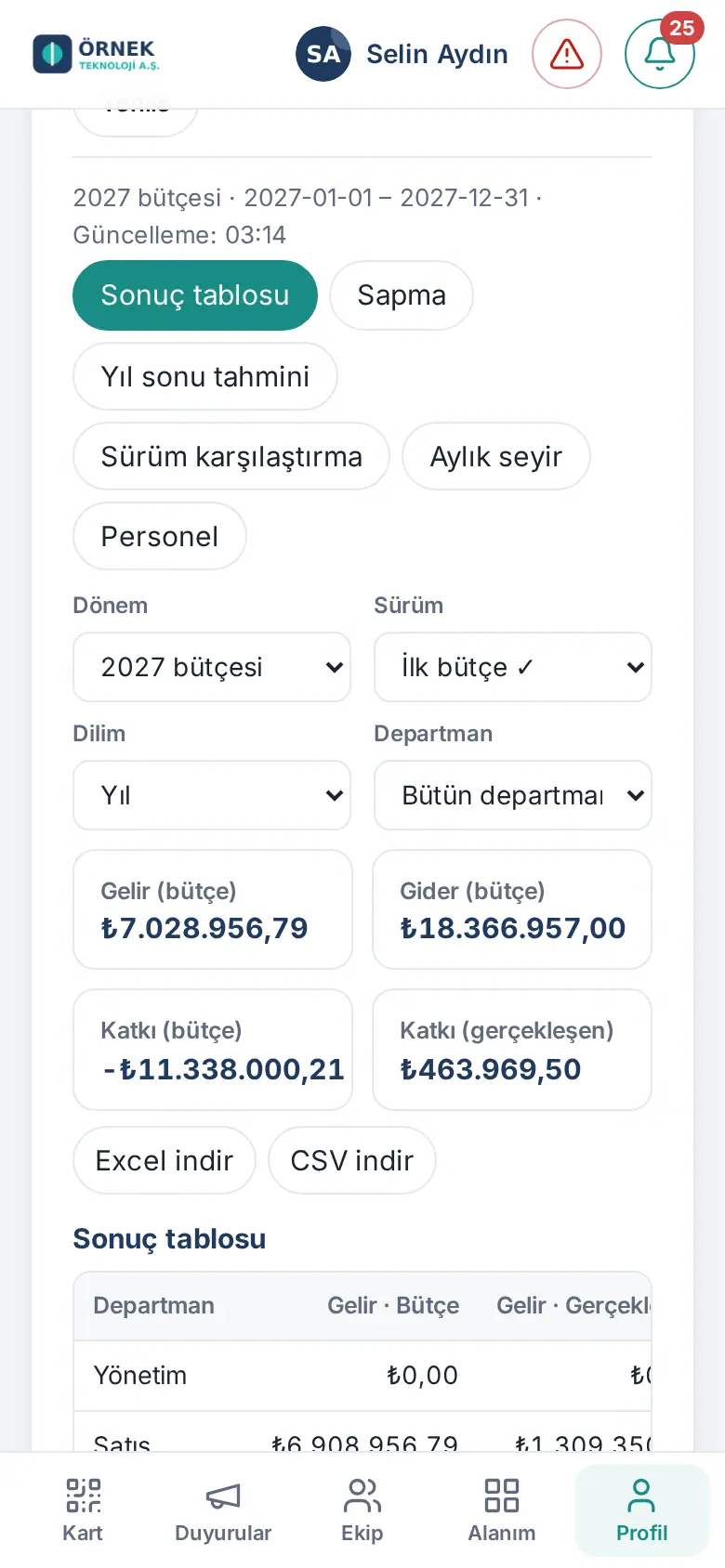
On a phone: Profile → Reports → Budget. Wide tables scroll sideways.
Important:
- The actual amounts come from the trial balance that the accounting officer uploads (see 39. Budget actuals: accounting upload). Expenses and purchase requests are not deducted from the company budget.
- If HR enters the personnel actuals (1.6.1), the actuals of the personnel items come from HR's payroll summary upload from the start month on; the personnel amounts in the accounting upload are not counted in these months, so the same amount is not counted twice. Below the report, the note "Source of actuals: personnel items from HR’s payroll summary upload, other items from the accounting upload (excluding personnel)." shows. If the start month is in the middle of the period, it also shows a note such as "HR enters personnel actuals from March 2027; for earlier months, personnel amounts are taken from the accounting upload."; months whose accounting was uploaded but whose personnel actuals were not uploaded are listed in the line "Months with personnel actuals not uploaded yet: April, May." (see 39. Budget actuals: accounting upload).
- For all periods, the reports use the current category tree: if an item is moved, the breakdown of past reports changes, not their total.
- The report is kept in a cache for a short time; it is refreshed when the budget or the actuals change.
Results table
Who: Budget manager · Accounting officer · Department budget owner · Viewer · Where: Reports → Budget → Results table
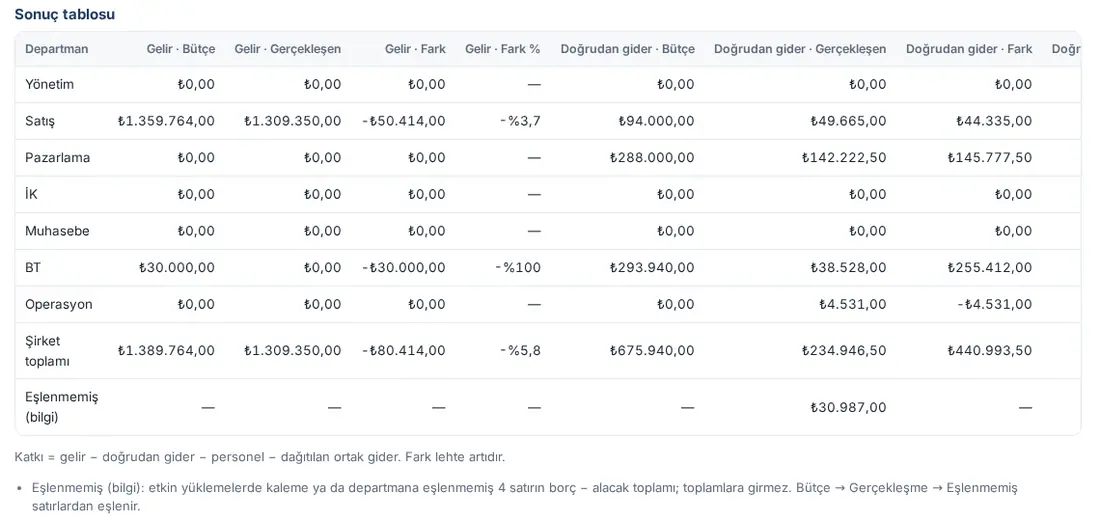
What it does: Shows the revenue, expenses and contribution of each department side by side, as budget and actual.
- Boxes: Revenue (budget), Expenses (budget), Contribution (budget), Contribution (actual).
- Results table: each department is a row; below come Unallocated (shared costs whose key stays at zero; if any) and Company total (if the scope is limited, Total for your scope).
- Unmapped (info) row (budget manager and accounting officer; while no department is selected): the debit − credit total of the rows in the actuals uploads of the selected months that are not mapped to an item or a department. The amount shows in the Direct expenses · Actual column and is not added to the totals. The note below the report shows the number of rows; these rows are mapped in Budget → Actuals (see 39. Budget actuals: accounting upload).
- Column groups: Revenue, Direct expenses, Personnel, Allocated shared costs and Contribution; each has Budget, Actual, Difference and Difference %.
- Contribution = revenue − direct expenses − personnel − allocated shared costs. A favorable difference is positive: for revenue, actual − budget; for expenses, budget − actual.
Variance
Who: Budget manager · Accounting officer · Department budget owner · Viewer · Where: Reports → Budget → Variance
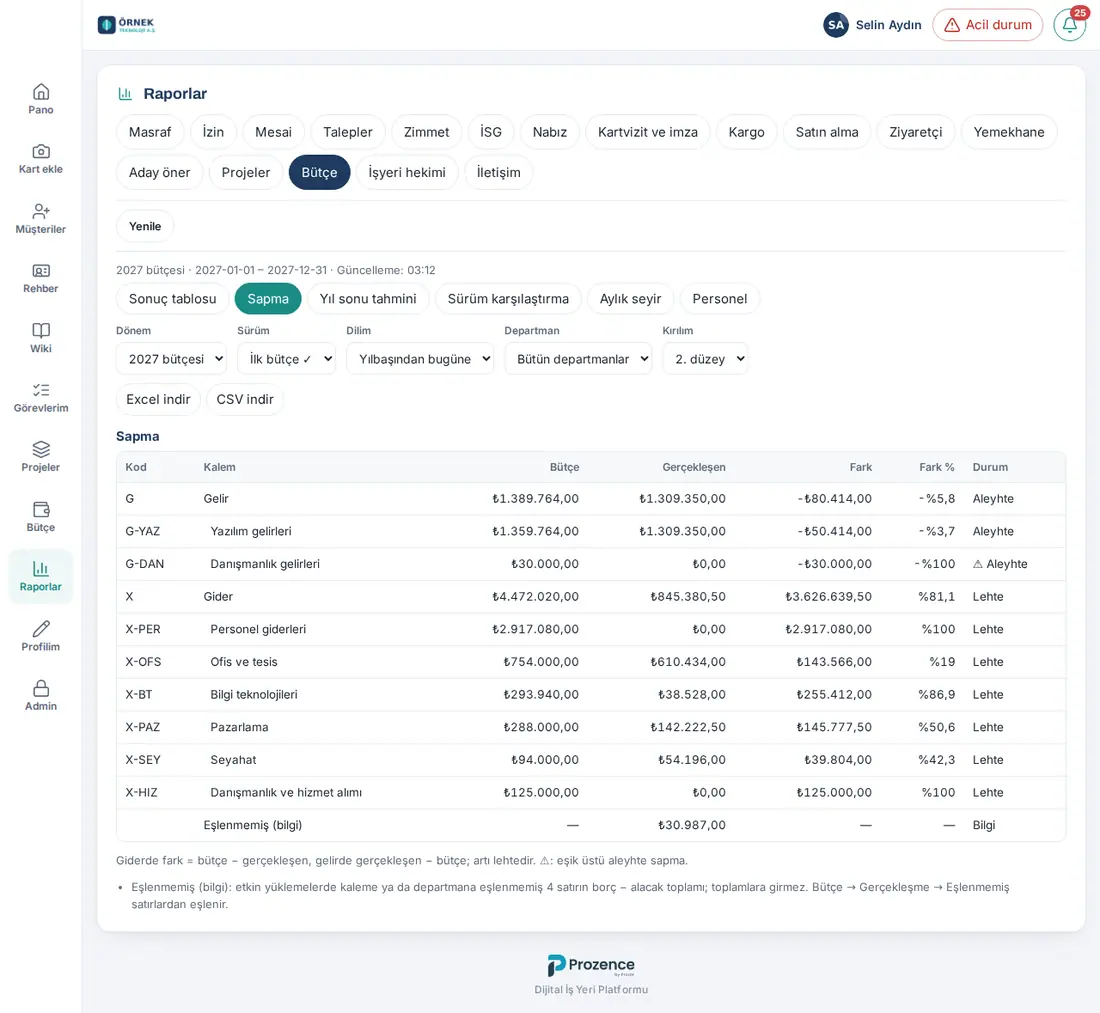
What it does: Shows the difference between the budget and the actual along the category tree and marks the unfavorable variances that exceed the threshold.
- Columns: Code, Line item (indented by level), Budget, Actual, Difference, Difference %, Status.
- Status: Favourable, Unfavourable, Unbudgeted (budget 0, there is an actual) or "—". An unfavorable variance that exceeds the threshold has ⚠ at the start.
- The budget manager and the accounting officer see the Unmapped (info) row at the end of the table (Status: "Info"; not added to the totals; see Results table).
- The threshold is the Variance threshold (%) value in Budget → Settings (default 10%) and the optional Variance threshold (amount) value; if an amount threshold was entered, both must be exceeded.
- With Breakdown, select down to which level the table shows; Items shows only the leaf items.
Year-end forecast
Who: Budget manager · Accounting officer · Department budget owner · Viewer · Where: Reports → Budget → Year-end forecast
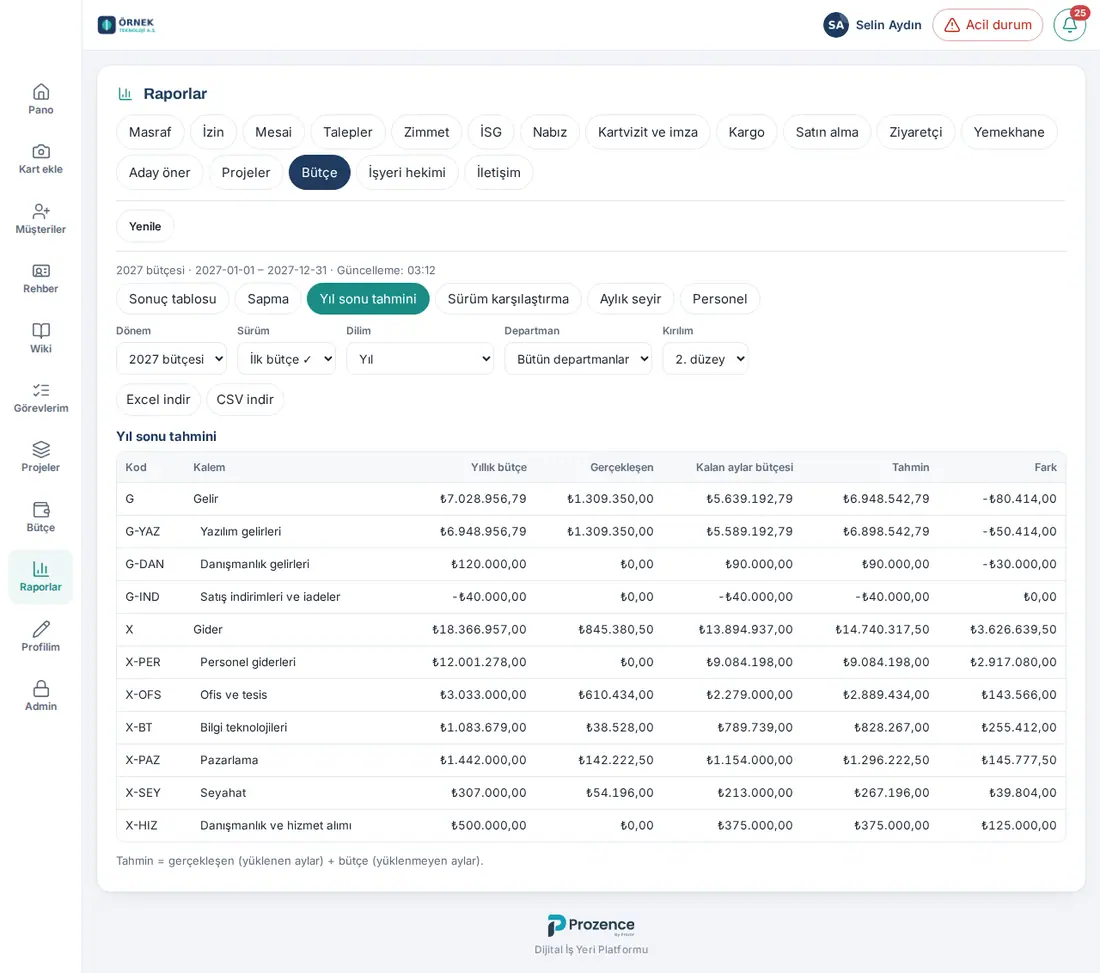
What it does: Forecasts how the year will close: it adds up the actual in the months whose actuals were uploaded and the budget in the other months.
- Columns: Code, Line item, Annual budget, Actual, Budget for remaining months, Forecast, Difference.
- Forecast = actual (uploaded months) + budget (months not uploaded). This report uses the whole year, independently of the Range selection.
- If there is a month in between whose actuals were not uploaded (e.g. April was uploaded before March), a note is added: "Months in between with no actuals uploaded were counted at budget: …".
- If HR enters the personnel actuals (1.6.1), an "uploaded month" is counted separately by source: the personnel items by the months that HR uploaded, the other items by the months of the accounting upload. For months whose accounting was uploaded but whose personnel actuals were not uploaded, a note is added: "In months without personnel actuals (HR), personnel items were counted at budget: …".
Version comparison
Who: Budget manager · Accounting officer · Department budget owner · Viewer · Where: Reports → Budget → Version comparison
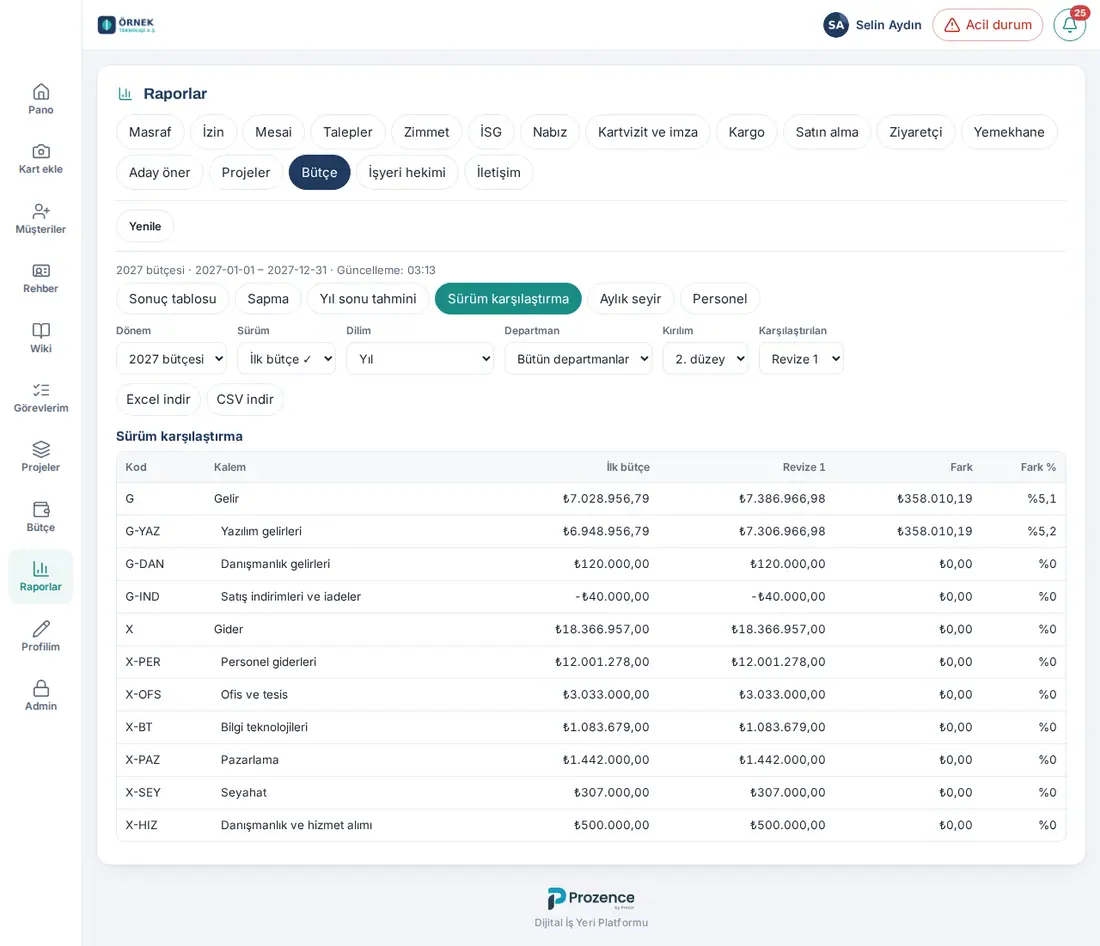
What it does: Compares two budget versions (e.g. Initial budget and "Revision 1") item by item.
- Select the first version from the Version list.
- Select the second version from the Compared with list. If you do not select one, it shows "Select a second version to compare.".
- The table shows Code, Line item, one column with the name of each version, Difference (second − first) and Difference %.
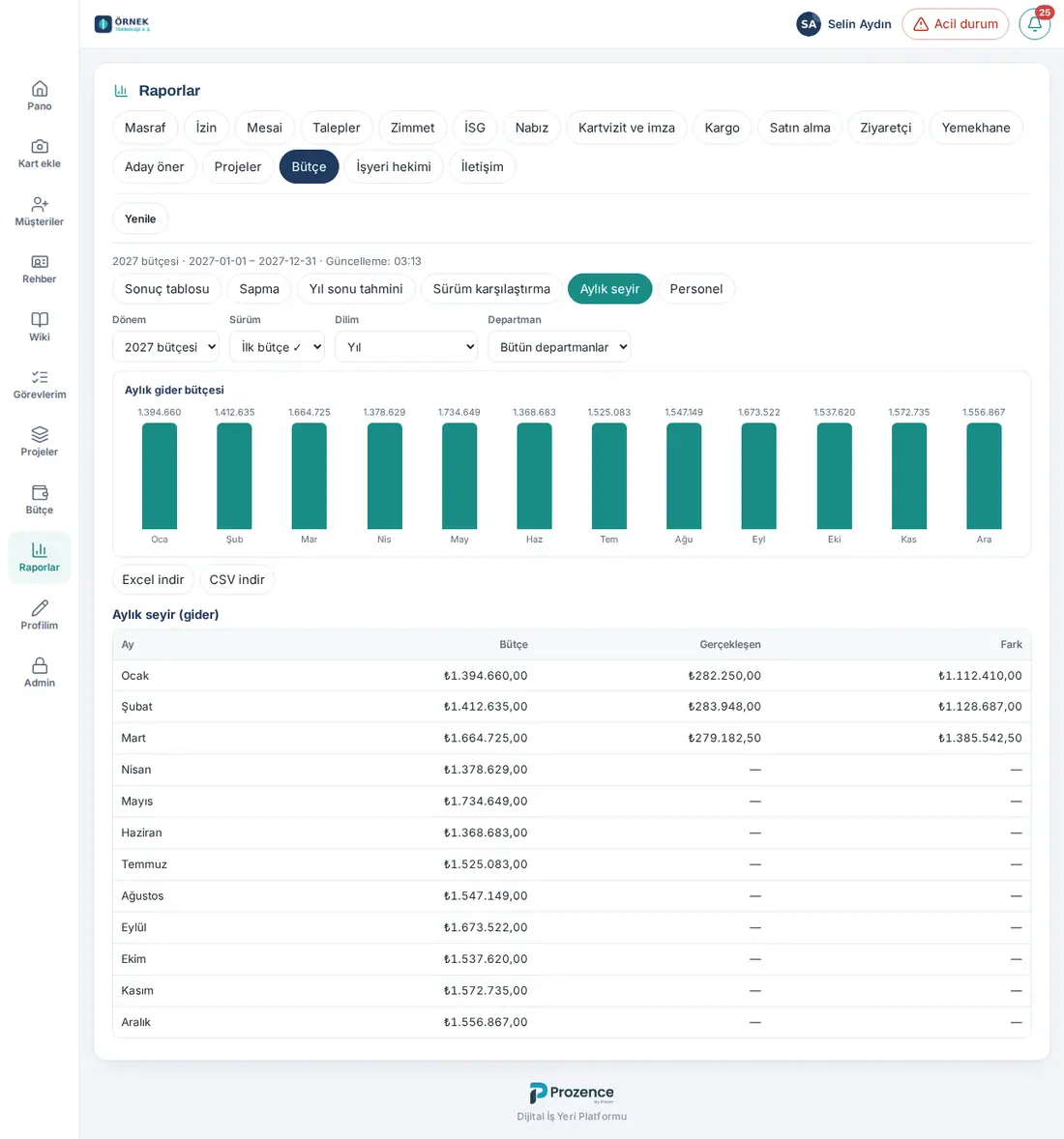
Monthly trend
Who: Budget manager · Accounting officer · Department budget owner · Viewer · Where: Reports → Budget → Monthly trend
What it does: Shows the budget and the actual of the expenses month by month.
- Chart: Monthly expense budget.
- Monthly trend (expenses) table: Month, Budget, Actual, Difference (budget − actual). Actual and difference are filled in only for the months whose actuals were uploaded.
- Revenue items are not included in this report. To see the trend of a single department, use the Department filter.
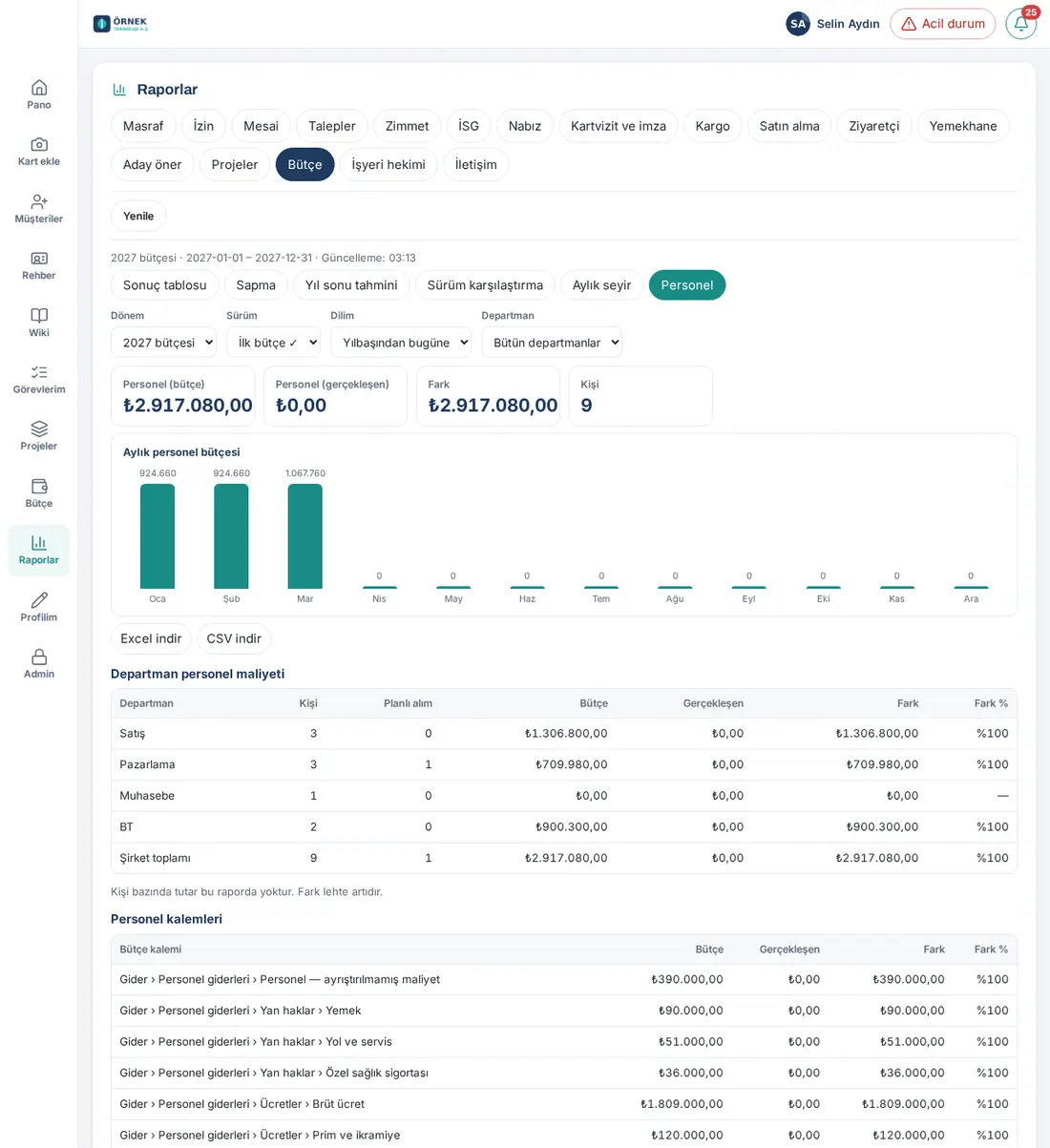
Personnel report
Who: Budget manager · HR officer · Accounting officer · Department budget owner · Viewer · Where: Reports → Budget → Personnel
What it does: Shows the budget and the actual of the personnel cost per department, the headcount and the planned hires. This report does not have amounts per person.
- Boxes: Personnel (budget); if actuals were uploaded, Personnel (actual) and Difference; Person.
- Chart: Monthly personnel budget.
- Personnel cost by department table: Department, Person, Planned hire, Budget, Actual, Difference, Difference %.
- Personnel items table: Budget item, Budget, Actual, Difference, Difference %.
- If no actuals were uploaded yet, it shows "No actuals have been uploaded yet.".
- If HR enters the personnel actuals, the Actual columns come from HR's payroll summary upload from the start month on (1.6.1).
Important: If the small department threshold is on (see 38. Budget management: setup, permissions and personnel cost), the headcount is not shown for the departments below the threshold, and these departments are not included in the item table. The personnel plan itself is in Budget → Personnel.
Exporting the budget report (Excel and CSV)
Who: Budget manager · Accounting officer · Department budget owner · Viewer (if they have export permission) · Where: Reports → Budget → Download Excel / Download CSV
What it does: Downloads the tables of the sub-tab on the screen as a file, with the same filters.
- Select the sub-tab and the filters.
- Click Download Excel or Download CSV below the filters.
- The file downloads with the name
butce-rapor-<alt sekme>.xlsx(or.csv). In Excel, each table is on a separate sheet; the header of the amount columns shows the currency (e.g. "Budget (TRY)").
Important:
- On this tab, there is no Download CSV button above the tables; the export is made on the server and is written to the audit log.
- The file contains only the departments and items in your scope.
- A maximum of 50 reports can be exported per day: "At most 50 reports can be exported per day."
- If you do not have export permission, the buttons do not show.


