40. Workflows
Screenshots show the Turkish interface of Prozence with fictional "Örnek Teknoloji A.Ş." data; the English interface has the same layout.
The Workflows module runs the jobs that companies repeat often, automatically and with ready-made templates: when a new employee arrives, it opens tasks for IT and facilities; when an employee leaves, it has their access and assets followed up; it adds an additional approval to purchases above a threshold; at month end, it reminds people of what is still open; it takes role and pay changes through approval; it tracks the expiry dates of documents; and it adds a second approval to budgets. Every workflow runs in the same order: trigger → condition → approval → action → notification. The company does not write code: it turns on a ready-made template and fills in its settings (threshold, people, deadlines, texts, optional steps).
For jobs that have an approval, the decision is always given on that job's own screen: the additional purchasing approval in Purchasing, the budget second approval in Budget. The workflow only decides who takes part in that approval and follows the job. This way the same decision is never asked for in two places.
Who: Admin · Workflows module admin · Operator · Viewer · Workflow owner · Budget manager (budget second approval only)
In this chapter
- Turning on the module
- Template cards: turning on and off
- Template settings
- Texts and preview
- Test: trying a workflow without side effects
- Draft, publishing and versions
- New employee template (T1)
- Leaving employee template (T2)
- Purchasing template (T3)
- Month-end close template (T4)
- Role and pay change template (T5)
- Document and certificate expiry template (T6)
- Budget second approval template (T7)
- History and workflow details
- Approvals and tasks assigned to you
- Errors: retrying, skipping a step, transferring and cancelling
- Documents: adding a document, uploading a CSV and downloading
- Starting manually
- Audit log
- Module settings and rollback check
- Who sees what?
- Limits and FAQ
Before you start: The Workflows module is in the Professional package. The module and all templates come turned off; until they are turned on, no module changes its behavior. On a computer, click Admin in the left menu and select Workflows in the Modules group. On a phone, tap the Profile → Admin strip, then select Workflows from the list of sections; windows open full screen on the phone. The screens in this chapter were prepared with data from the fictional company "Örnek Teknoloji A.Ş."; the people, amounts and dates are examples.
Turning on the module
Who: Admin · Workflows module admin · Where: Admin → Modules → Workflows → Templates
What it does: When the module is turned on, the ready-made templates are listed. The templates still come turned off; you turn on each one separately.
-
Click Admin in the left menu and select Workflows in the Modules group.
-
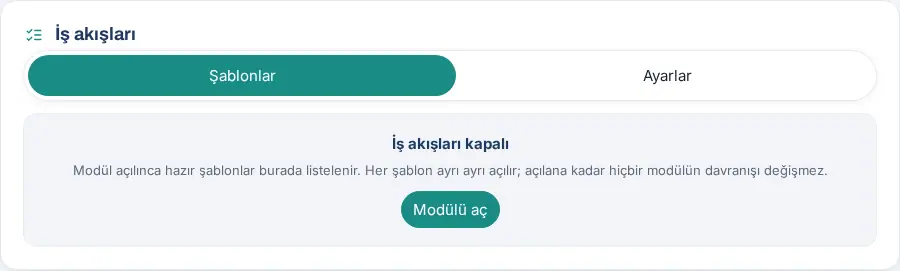
If the module is off, the Workflows are off box shows. Click Turn on module.
-
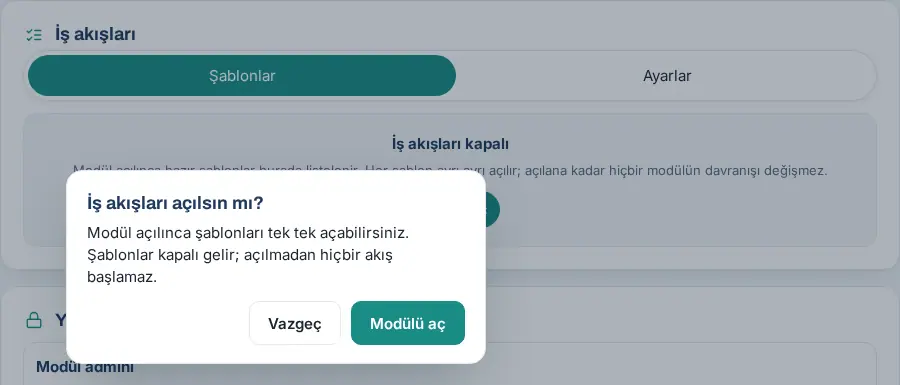
In the Turn on Workflows? question, click Turn on module. The message "Workflows module turned on." appears and the template cards show.
While the module is on, these sub-tabs are at the top: Templates, History, Errors, Documents (only while the document template is on), Settings (module admin only) and Audit (module admin, Operator and workflow owner). Only the module admin sees the Permissions section at the bottom of the screen (see Who sees what?).
Important: While the module is off, only the module admin sees the screen; for other people, Workflows does not appear in the Admin menu at all.
Template cards: turning on and off
Who: Module admin · Workflow owner (own template) · Where: Admin → Modules → Workflows → Templates
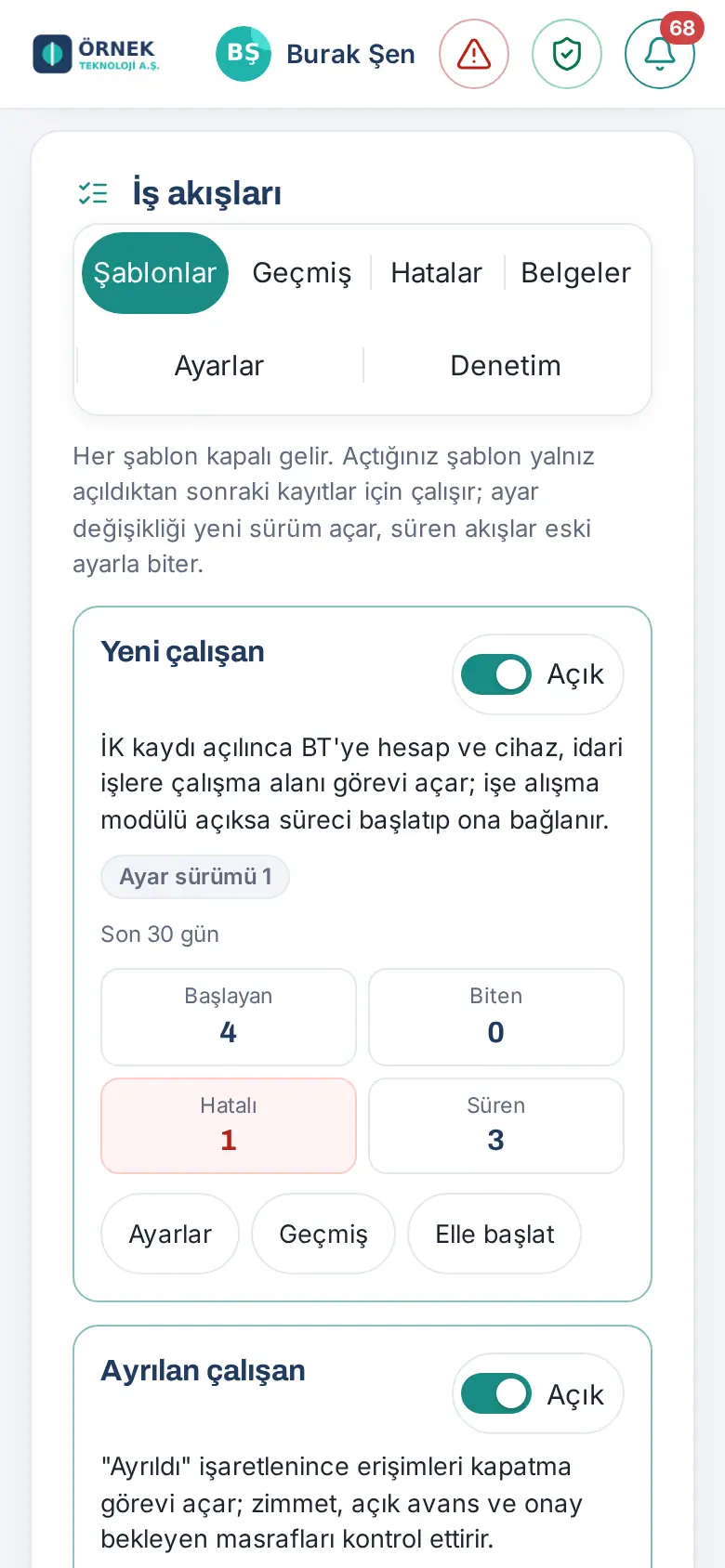
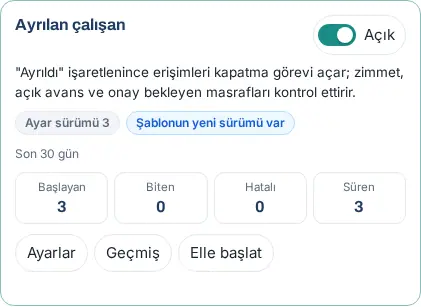
What it does: Each template is a card. The card shows the template's name, a one-sentence description, the On / Off switch, the Settings version badge, the A new version of the template is available badge if there is one (updated in 1.7.0; see Draft, publishing and versions) and the numbers of the last 30 days (Started, Finished, Failed, In progress). Below the card are the Settings, History and, depending on the template, Start manually or Open request buttons.
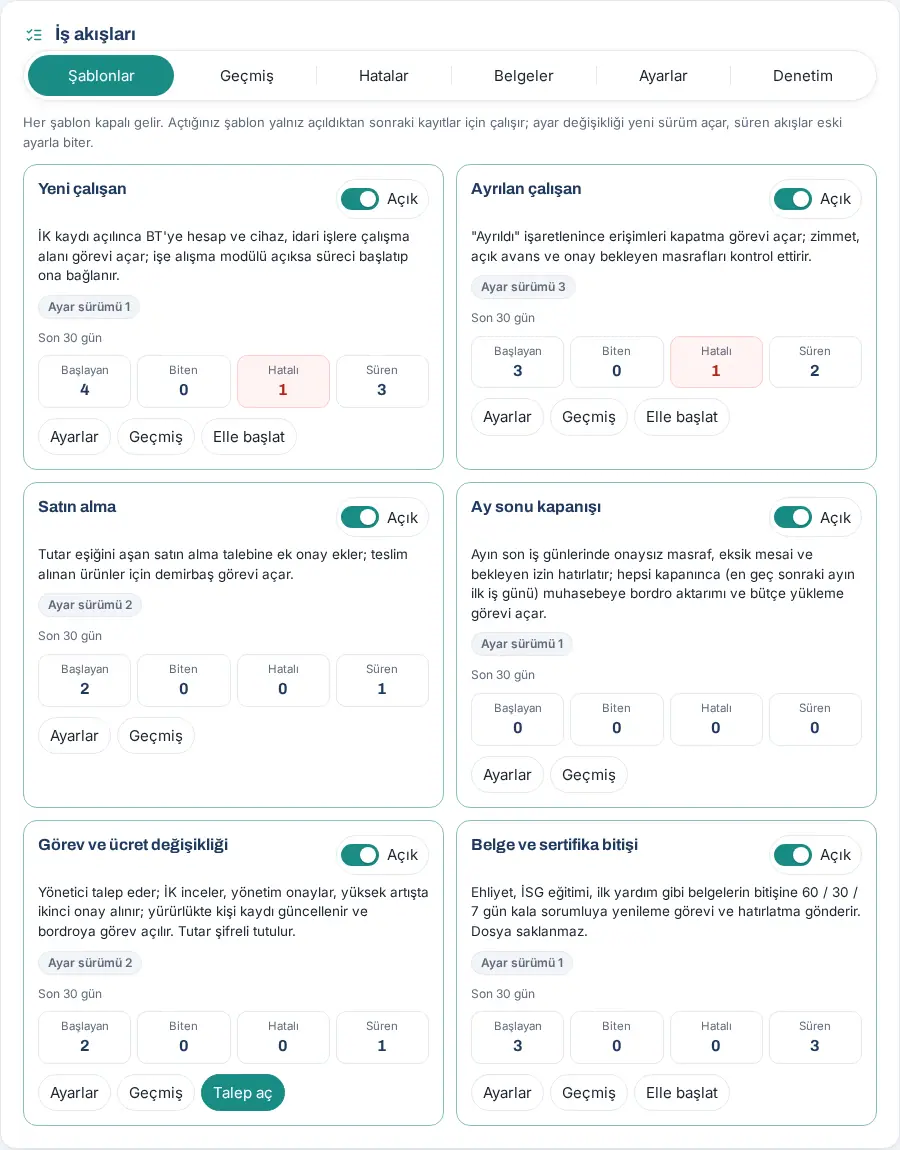
To turn a template on:
-
On the card, click the Off switch.
-
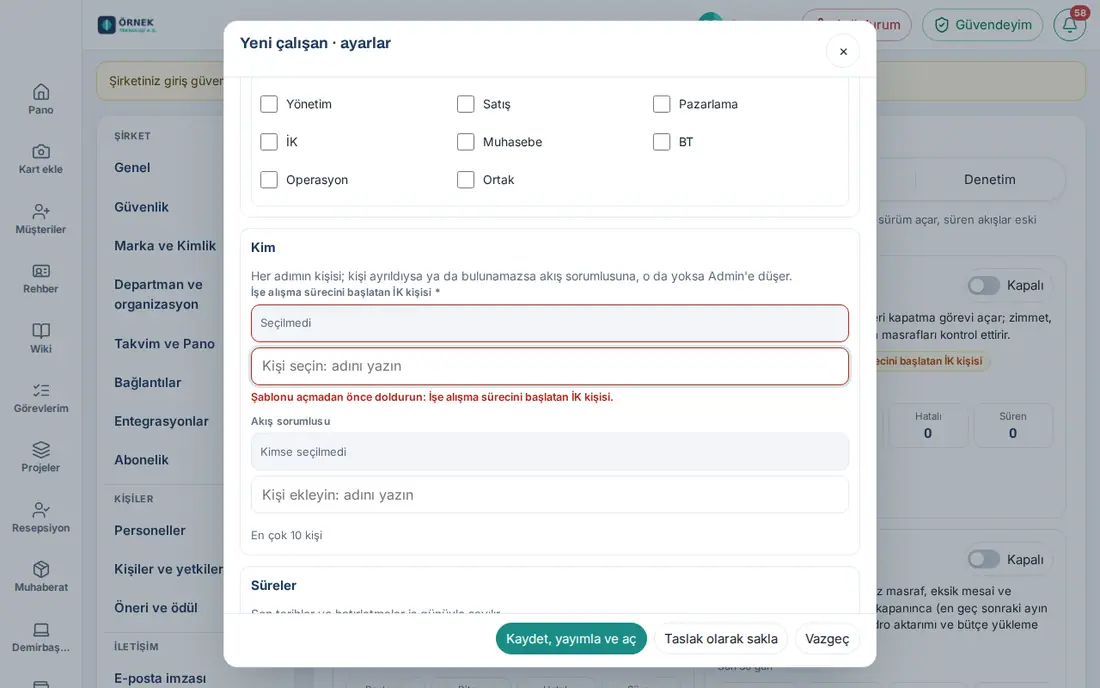
If a required setting of the template is blank, the card shows the Required setting missing: … badge. When you click the switch, the settings window opens before any request is sent; the missing field is marked in red and the message "Fill in before turning the template on: …" shows.
-
Fill in the missing field and click Save, publish and turn on. The message "Published: settings version 1 · Template turned on." appears and the switch becomes On.
To turn a template off:
- Click the On switch. In the Turn off "<template name>"? question, click Turn off template: "No new workflows will start; running workflows continue with their current settings."
- If the template has running workflows, a second question follows: Running workflows. If you want the running workflows to continue, click Keep running. To stop them too, fill in the Reason for cancelling (at least 10 characters) field and click Cancel.
Important:
- A template you turn on works only for records created after it was turned on; no workflow starts for older records. If a workflow is needed for an older record, see Starting manually.
- If the module a template depends on is not in your plan, the card comes with the Locked: the … module is not in your plan badge and the switch is inactive.
- Only the budget manager sees and manages the budget second approval template; this card is not in the technical Admin's list (see Budget second approval template (T7)).
- Tasks created by cancelled workflows are not closed; a note is added to the tasks.
Template settings
Who: Module admin · Workflow owner (own template) · Where: Admin → Modules → Workflows → Templates → Settings on the card
What it does: The workflow structure of a template (the order of the steps) does not change; you only give its settings: threshold, people, deadlines, texts and optional steps.
- On the card, click Settings. The title of the window becomes "<template name> · settings". At the top you see the status (On / Off), Settings version and, if there are any, the N workflows running on old settings or Unpublished draft badges.
- Fill in the sections in order. Each section expands and collapses:
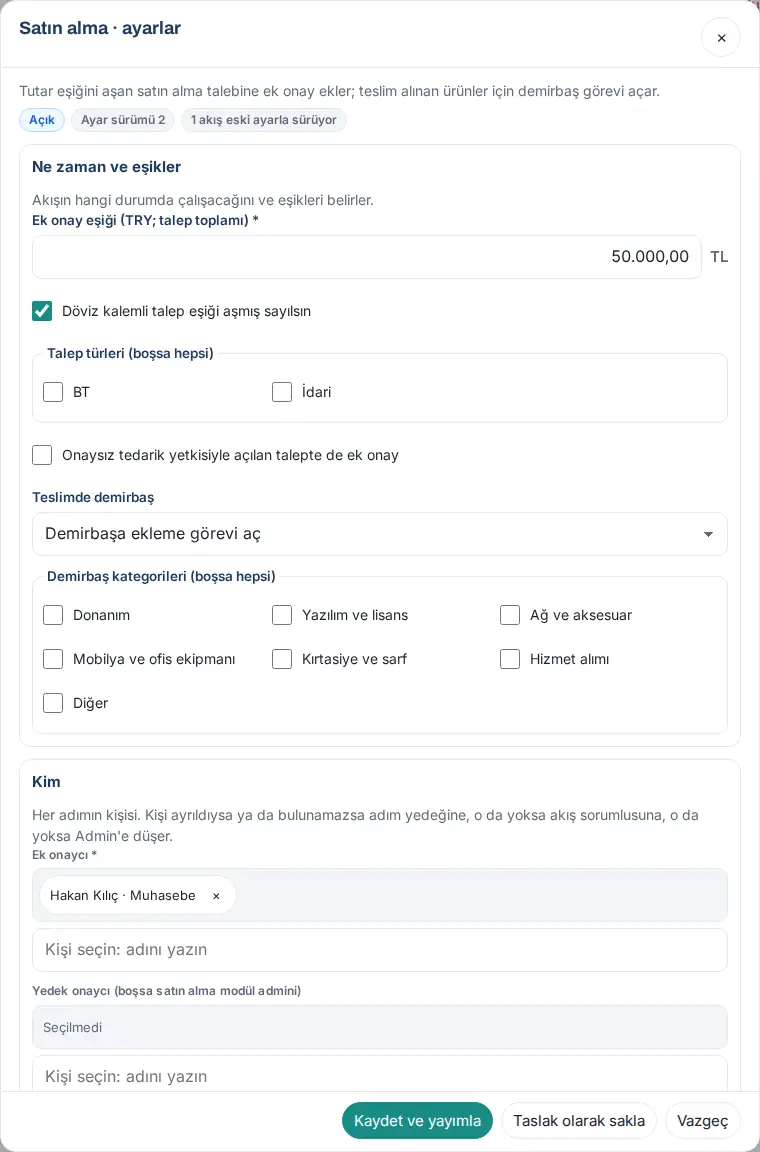
- When and thresholds: which records the workflow runs for, and the thresholds (e.g. Additional approval threshold (TRY; request total), Departments (blank = all), check boxes).
- Who: the person of each step and the Workflow owner (at most 10 people). To choose a person, type their name in the field and select from the suggestions; the selected person shows as a chip and is removed with ×. The labels of required fields carry *. The description of the section says, per template, who the step goes to if no person is found: in most templates to the fallback, otherwise to the workflow owner, otherwise to Admin; in role and pay change, if there is no fallback the workflow fails (the step does not fall to the technical Admin); in budget second approval to the fallback approvers, otherwise to the other budget managers (the technical Admin never takes part in budget decisions).
- Deadlines: deadlines (counted in working days), Reminder frequency (working days) (default 2; 1–7) and Maximum reminders (default 3; 0–5). An approval or task that passes its deadline gets one reminder on the deadline; the following ones go at this frequency, counted in working days. If Maximum reminders is 0, no reminder is sent. The last reminder also goes to the workflow owner (see Approvals and tasks assigned to you).
- Texts, Optional steps, Test and Versions (the tasks below).
- If you want, write a Change note (optional) at the very bottom.
- Click Save and publish. The message "Published: settings version N" appears.
What does the workflow owner do? They receive the template's error and timeout notifications, a step falls to them if its person cannot be found, they can change the settings of their own template and intervene in its workflows. If a template has no workflow owner, the General workflow owner in the Settings tab is used.
Optional steps: In some templates a step can be turned off (e.g. the facilities task in new employee, the notice to the employee in role and pay change). A step whose box you clear does not run: "A step you turn off does not run in this template; the workflow continues with the next step."
Important:
- Values are checked again on the server. For an invalid value, a message appears at the top of the window and the field is marked (e.g. "…: cannot be less than 1.", "…: at most 2 people.", "…: must be a time in HH:MM format (e.g. 09:30).").
- A person who has left or cannot be found cannot be selected.
- If you close the window without saving, the Changes not saved question follows: Go back or Close.
- For a person who can only view the settings, the button is View settings and the fields are inactive.
- In 1.7.0, conditions (field / operator / value) are not written on the screen; a template is changed only with the settings above.
Texts and preview
Who: Module admin · Workflow owner · Where: the template's settings window → Texts
What it does: You change the titles of tasks and the texts of notifications to suit your company.
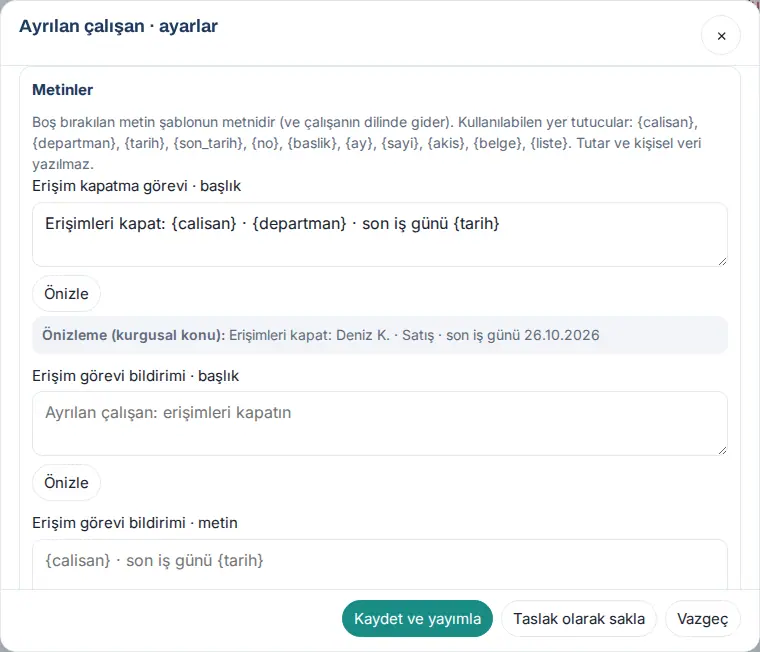
- In the settings window, open the Texts section. The name of each box says where the text is used (e.g. Access closing task · title, Access task notification · text). The template's own text shows faintly in the box.
- Write your own text in the box you want to change. Add record information with placeholders: {calisan}, {departman}, {tarih}, {son_tarih}, {no}, {baslik}, {ay}, {sayi}, {akis}, {belge}, {liste}.
- Click Preview. The "Preview (fictional subject): …" row shows the text filled with a sample record.
- Click Save and publish.
Important:
- A text you leave blank is the template's text and goes in the employee's app language. The text you write is not translated; it goes to everyone as you wrote it.
- Amounts and personal data are not written into notifications. Placeholders such as {tutar}, {ucret}, {eposta}, {telefon}, {tc}, {iban} are not accepted: "The {tutar} placeholder cannot be used: amounts, pay and personal data are never written into notifications …". For a placeholder that is not in the list, the message "Unknown placeholder: …" appears.
- A text can be at most 300 characters; HTML tags are deleted.
- {calisan} is filled with the name only if the recipient is allowed to see that person; otherwise "an employee" is written.
Test: trying a workflow without side effects
Who: Module admin · Workflow owner · Where: the template's settings window → Test
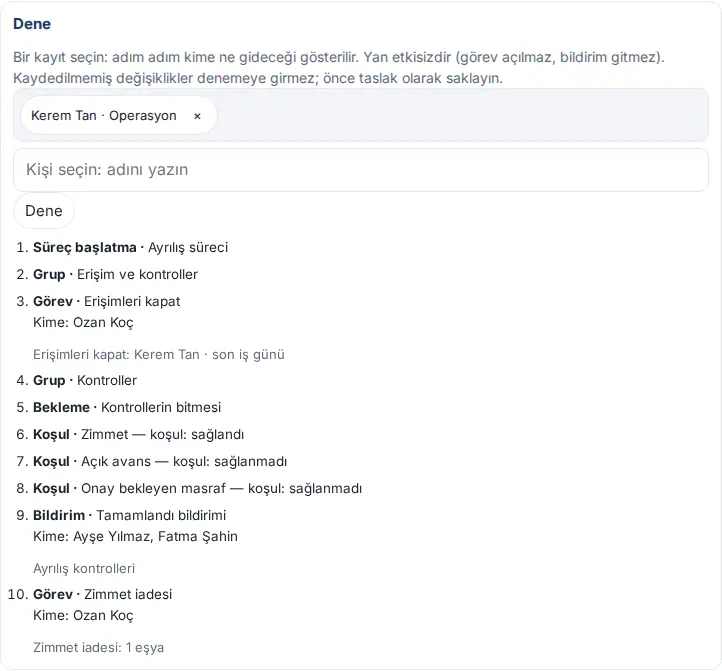
What it does: You select a real record; you see which step would go to whom if the workflow ran on that record. No task is opened, no notification is sent.
- In the settings window, open the Test section.
- In the employee templates, select the employee; in the other templates, enter the Record number.
- Click Test. The steps are listed in order: the type of the step (Task, Notification, Condition, Group …) and its name (e.g. "Close access", "Asset"), whether the condition is "met" or "not met", To: and the task title.
Important:
- Unsaved changes are not included in the test; first click Save as draft.
- If no person is found for a step, the To: row says, depending on the template, "(no one found; falls to the workflow owner)", in role and pay change "(no one found; the workflow fails)", in budget second approval "(no one found; goes to the other budget managers)". Correct the setting before a workflow starts.
Draft, publishing and versions
Who: Module admin · Workflow owner · Where: the template's settings window → Save as draft / Save and publish / Versions
What it does: You can keep settings without putting them into effect immediately, and you can see the record of every setting you published.
- Save as draft: The settings are saved but do not take effect ("Draft saved."). The Unpublished draft badge shows in the window; when you open the window again, your draft comes back.
- Save and publish: The settings take effect as a new version ("Published: settings version N").
- Versions: Open the section; the number, date, publisher and change note of each version are listed.
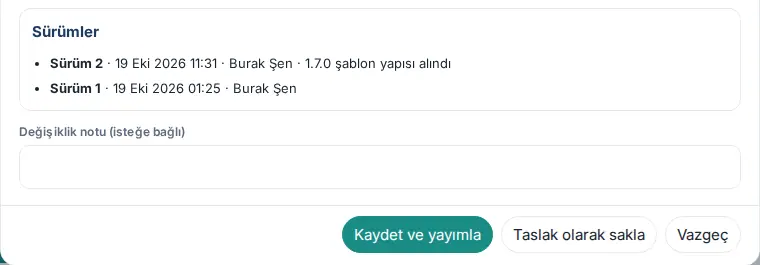
A new version of the template is available (updated in 1.7.0): When a plugin update changes the structure of a template (its steps, conditions, text keys), the blue A new version of the template is available badge shows on the card; the badge appears if the structure changed, even if the template's version number did not increase. To adopt the new structure, click Settings on the card and publish a new settings version with Save and publish (you do not need to change the settings; if you want, write a Change note (optional)). The badge disappears, the new version is listed in Versions; running workflows finish with the structure they started with. On a site that moves to 1.7.0, this badge shows on all published templates at the first opening; each template is published once again.
Important: New settings apply only to workflows that start from then on. Running workflows finish with the version they started with; the N workflows running on old settings badge in the window shows this. If a running workflow must work with the new settings, cancel the workflow and start it again (see Starting manually).
New employee template (T1)
Who: Module admin · Workflow owner · HR · IT · Facilities · Where: Admin → Modules → Workflows → New employee
What it does: When a new employee record is created, it opens an accounts and device task for IT and a workspace task for facilities. If the onboarding module is on, it starts the onboarding process and links to it.
When it starts: When an employee is added from Admin → Employees, or arrives through SCIM, Google / Microsoft sync, the setup wizard or the WordPress user screen. It also starts when a person who arrived as a draft is published for the first time. A second workflow is not opened for the same person. If the person is deleted, the workflow is cancelled.
What it does:
- If the person has no start date, the Enter the start date task goes to HR (deadline 2 days). When the date is written in the employee record, the task closes by itself. If the start date is more than 60 days in the past (e.g. you added a long-standing employee to the system later), no new-employee preparation is needed: the workflow becomes Completed without opening tasks or a process. In History, the note of the Past start date step says "The start date is more than 60 days in the past: no new-employee preparation is needed; the workflow ended without opening tasks." This is not an error.
- If the onboarding module is on, an onboarding process is started (started by: the HR person in the settings). If the person has an open process, a new one is not opened; the workflow links to it. The IT and facilities tasks are then opened by the onboarding process.
- If onboarding is off, or Also open IT / Facilities tasks without onboarding is ticked, two tasks are opened at the same time: "Prepare accounts and device: {calisan} · starts {tarih}" for IT, "Prepare the workspace: {calisan} · {tarih}" for facilities. The task is first opened in Requests (IT / Administrative category); if that is not available, in My tasks; if that is not available either, it becomes a workflow task.
- When onboarding is completed or the tasks are finished, the notification "Start-date preparation completed: {calisan}" goes to the manager and HR. If the preparation is not finished in 30 days, this notification is not sent; instead "Start-date preparation not completed within 30 days: {calisan}. Open tasks: {liste}" goes to the manager and HR (1.8.8).
Key settings:
- HR person who starts the onboarding process (required): select an HR person who is an onboarding owner.
- Onboarding template (blank = suggested), Also start for draft records, Record sources (blank = all), Departments (blank = all).
- IT / Facilities deadline (working days relative to start): default −2 (2 working days before the start; −10…0). The deadline does not fall before today.
- Optional step: the facilities task.
Who gets the tasks: The IT task goes to the IT people in the onboarding settings; otherwise to the owners of the IT category in Requests; otherwise to the workflow owner. Facilities is found in the same order.
Important: If the workflow has not finished 30 days after the start date, the notification "New employee workflow not completed within 30 days: {calisan}" goes to the workflow owner. For the onboarding process, see 14. Services and human resources management.
Leaving employee template (T2)
Who: Module admin · Workflow owner · HR · IT · Asset officer · Accounting · Where: Admin → Modules → Workflows → Leaving employee
What it does: When an employee is marked "Left", it opens a task to close their access; it has the assets, open advances and expenses awaiting approval checked.
When it starts: When the person is marked "Left" (WordPress user screen, an account closed with SCIM) or when an offboarding process starts — whichever comes first. The second one links to the same workflow. If the "Left" mark is removed, the workflow is cancelled with the reason "Leaving status withdrawn.". Since 1.8.8 it also starts when a departure is entered from Admin → Employees. For a departure with a future date, the workflow starts when the departure is planned and {tarih} is the planned date; if the plan is cancelled and entered again with the same date, the workflow does not start a second time.
What it does:
- Offboarding process: if the onboarding module is on, an offboarding process is started or the workflow links to the open process. If the last working day is more than 60 days in the past or more than 180 days ahead, an onboarding process cannot be opened: the step becomes Skipped and its note says "Last working day (…) is outside the range the onboarding process accepts (at most 60 days before or 180 days after today); the process was not started." The workflow does not fail; it continues with the next steps.
- Jobs that start at the same time:
- Close access: "Close access: {calisan} · last working day {tarih}" for IT. If the process has a "Close accounts" task, a new task is not opened; the workflow links to that task. If there is no offboarding process (skipped, onboarding off or the process has no such task), the task is opened in order in Requests (IT category), otherwise in My tasks, otherwise as a workflow task. The deadline is the last working day.
- Asset: if there are open assets, "Asset return: items: {sayi}" for the asset officer (links to the device collection task in the process; if there is no process, it is opened as a workflow task). When all assets are returned, the task closes by itself.
- Open advances: "Close open advances: {calisan} · advances: {sayi}" for accounting. The text has no amount; the details are on the Expense screen.
- Expenses awaiting approval: a notification to the approvers of the expense and the task "Check the leaving employee’s expenses: {calisan}" for accounting.
- When all are finished, the notification "Offboarding checks completed: {calisan}" goes to HR and the manager. If the checks are not finished in 30 days, this notification is not sent; instead "Offboarding checks not finished within 30 days: {calisan}. Open tasks: {liste}" goes to HR and the manager (1.8.8).
Key settings: HR person who starts the offboarding process (required), Offboarding template (blank = default), Access closing deadline (days after the last working day) (0–2), Departments (blank = all).
Important:
- The person who left cannot sign in to the app; no task is assigned to them.
- If the checks have not finished 30 days after the last working day, the notification "Offboarding checks not finished within 30 days: {calisan}" goes to the workflow owner.
- If the HR person you selected is not an onboarding owner, the workflow stops with the error "The HR person who starts the process (onboarding owner) could not be found." (see Errors).
- For the offboarding process, see 14. Services and human resources management.
- The "not completed" notification is in version 3 of the New employee template and version 2 of the Leaving employee template (1.8.8). {liste} contains the names of the open task steps and of the unfinished tasks of the linked onboarding / offboarding process (at most 5 names, followed by "ve N görev daha" — "and N more tasks"). The card of a template you published earlier shows the A new version of the template is available badge; after you publish it again, new workflows use this version, while running older workflows may still send the old text when they time out.
Purchasing template (T3)
Who: Module admin · Workflow owner · Additional approver · Asset officer · Where: Admin → Modules → Workflows → Purchasing
What it does: Adds an additional approval to purchase requests above the amount threshold; opens an asset task for received products.
How it works:
- The moment a purchase request is opened, its total is compared with the threshold. If the total is above the threshold, the additional approver is written into the request's approval chain. If it is equal, there is no additional approval.
- When the purchasing approver approves, the request goes to the Awaiting additional approval status and the notification "Purchase request awaiting your additional approval: SA-…" goes to the additional approver. The additional approver decides on the Purchasing screen (see 24. Parcels, mailroom and purchasing).
- When the product is fully received, the task "Add to assets: {no} · {baslik}" is opened for the asset officer (deadline 5 days). When the lines are added to the fixed assets, the task closes by itself.
Key settings:
- Additional approval threshold (TRY; request total) (required): default 50,000.00 TL.
- Treat requests with foreign-currency lines as above the threshold: default on. Because there is no exchange rate in purchasing, a request with a USD or EUR line counts as above the threshold.
- Additional approver (required, one person) and Fallback approver (blank = Purchasing module admin).
- Request types (blank = all) (IT, Administrative), Additional approval also for requests opened with the no-approval purchasing permission (default off).
- Assets on delivery: Open an add-to-assets task (default), Create a draft asset record and open a task or No asset step.
- Asset categories (blank = all): the asset task is opened only for the purchasing categories you select (e.g. Donanım, Mobilya ve ofis ekipmanı). The list comes from the categories in the Purchasing settings; if there is no category, "No purchasing categories. First add a category in Admin → Purchasing settings." shows.
Important:
- The chain is fixed the moment the request is opened. Even if you turn off the template or change the settings later, that request finishes with its own chain.
- The requester and the person who gave the management approval on the request cannot give the additional approval. If the additional approver has left, the approval falls to the fallback and this is written in the request's history.
- If the delivery does not arrive within 120 days, the notification "Purchase not received within 120 days: {no}" goes to the workflow owner.
- The expense module's own approval thresholds are in the Expense settings; this template does not add an approver to expenses.
Month-end close template (T4)
Who: Module admin · Workflow owner · Accounting · Payroll owner · Where: Admin → Modules → Workflows → Month-end close
What it does: On the last working days of the month, it reminds people of unapproved expenses, missing work time and pending leave; when all are closed (at the latest on the first working day of the next month), it opens the payroll export and budget upload tasks for accounting.
How it works:
-
On the last 3 working days of the month, every morning at 09:30, a reminder goes to the people who still have work left:
- to the expense approver "Month end: expenses awaiting your approval: {sayi}", to the expense owner "Month end: you have unsent expense drafts ({sayi})";
- to the employee "Month end: days with missing work time records: {sayi}", to the approver "Month end: work time corrections / overtime awaiting approval: {sayi}";
- to the leave approver "Month end: leave requests awaiting your approval: {sayi}".
If several reminders fall to one person on the same day, they are combined in one notification: "Ay sonu: 2 masraf onayı, 1 izin onayı bekliyor" ("Month end: 2 expense approvals, 1 leave approval pending").
-
When no expense in approval, missing / unapproved work time or pending leave is left, the close happens. Even if some remain open, the close is forced at 12:00 on the 1st working day of the next month.
-
At the close, the task "Run the payroll export: {ay}" is opened for the payroll owner (deadline: the 2nd working day of the next month). When the timesheet file is downloaded, the task closes. If the close was forced, the description says "Açık kalanlar: …" ("Still open: …") (without names and amounts).
-
If the budget module is on, the task "Upload the budget actuals Excel: {ay}" is opened for accounting, and, if HR uploads the personnel actuals, the task "Upload the personnel summary: {ay}" for HR.
-
When finished, the notification "Month-end close completed: {ay}" goes to the workflow owner.
Key settings: Remind on how many last working days of the month (default 3; 1–5), Reminder time (09:30), Latest closing time on the first working day of the next month (12:00), Payroll export deadline (working day of the next month) (default 2; 1–10).
Important:
- Working days are counted according to the working days and the public holiday list in the Leave settings. A day that falls on a holiday is skipped.
- No reminder is sent for a module that is off.
- The budget's own "month not uploaded" reminder and the morning notifications of Work time continue separately.
Role and pay change template (T5)
Who: Module admin · Workflow owner · HR · Management approver · Second approver · Payroll owner · Where: Admin → Modules → Workflows → Role and pay change
What it does: A manager requests a job title, department, manager or pay change for a person on their team. HR reviews, management approves, and for a high increase a second approval is obtained. On the effective date the employee record is updated and a task is opened for payroll. The amount is kept encrypted.
Who opens the request: The person's manager, their manager's manager, HR and Admin. The request is opened with Request role / pay change from the person's row in the Our team list in the Team box of Team Square on the Board. The module admin can also open the form by clicking Open request on the template card and selecting the employee. For the manager's and HR's steps, see 08. Directory and organization and review and approval.
Form: What is changing? (Job title, Department, Manager, Pay; more than one can be selected), Effective date (between today and 180 days from now), Reason (at least 20 characters; no amount). The New manager name is typed and selected from the list; the employee themselves and the people on their team are not in the list. If Pay is selected: New gross monthly amount or Increase rate (%), Currency and Current gross amount (optional) ("Leave blank if you don’t know; HR will fill it in."). When the request is sent, the message "Request sent for HR review." appears.
Steps:
- HR review: "Role change request under HR review: {calisan}" to HR.
- Management approval: to the management approver in the settings; if blank, to the requester's manager.
- Second approval: if the pay increase is equal to or above the threshold (default 20%), to the second approver in the settings.
- When the Effective date arrives, the job title, department and manager are updated in the employee record.
- Record in payroll: "Record in payroll: {calisan} · effective {tarih}" to the payroll owner. The task has no amount; it says "Ayrıntı: İş akışları → #… (yalnız yetkililer görür)" ("Details: Workflows → #… (only authorized people can see it)").
- "Role change completed: {calisan}" to the requester. The notification "Your job details have been updated" to the employee is optional and off by default (no amount).
The decision in the approval steps: Approve, Send back for correction (returns to the requester; the requester opens the filled form with Correct and resend the request in the workflow window, enters the pay and the reason again; the workflow starts again from HR review), Reject ("Your role change request was rejected: {calisan}" to the requester). A note is required when rejecting or sending back (at least 3 characters). See Approvals and tasks assigned to you.
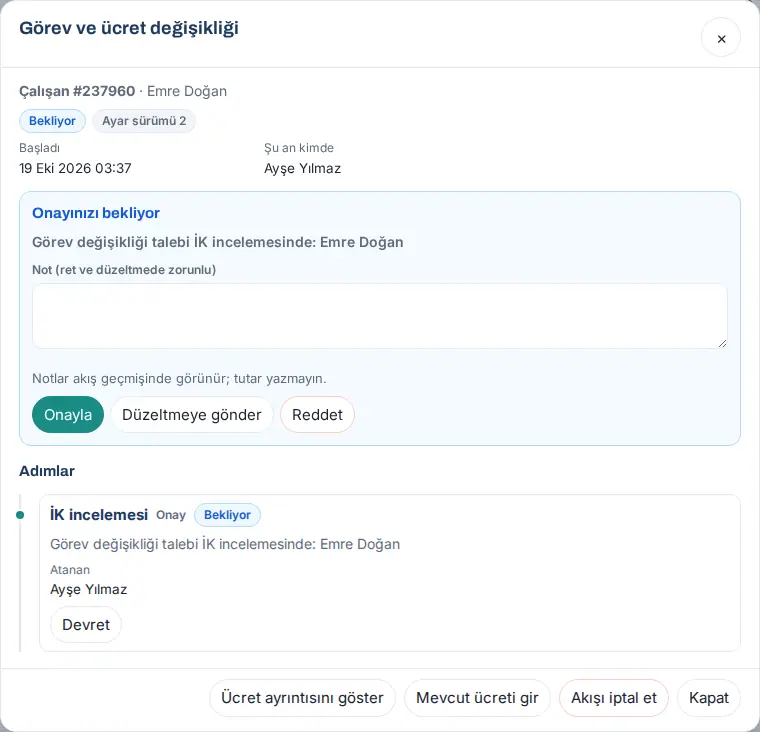
Current pay: If the request has no current gross amount, the assignee of the HR review step clicks Enter current pay at the bottom of the window, enters the amount in the Current gross monthly (…) field and clicks Save ("Current pay saved."). If an amount has been entered, the button becomes Correct current pay. The button shows only while the HR review is in progress, only for the person assigned to that step, and only in a request where a pay change is selected; the requester, the technical Admin and the workflow owner cannot see it. The change rate in the pay details is calculated from this amount.
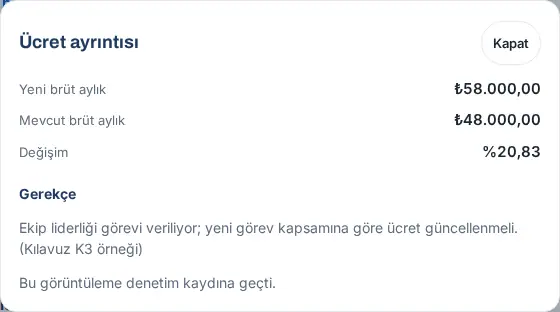
Pay details: In the workflow's details window, click Show pay details and confirm with Show. The new and current gross monthly amounts, the change rate and the reason show; "This view has been recorded in the audit log."
Who sees the pay and who cannot:
- Only the requester and the people assigned to the steps of this workflow (HR, management approver, second approver, the owner of the payroll task) can open the amount. Each opening is written in the audit log as "Pay details viewed"; the log has no amount.
- The technical Admin cannot see the amount. The module admin, the workflow owner (if not the assignee of a step) and the viewer cannot see it either. These people see only a summary in the workflow: "Only participants can see the details of this workflow." and the progress row (e.g. "Progress: 0 steps completed · Current step: HR review"). The summary has no amount, note or reason.
- The employee themselves never sees the workflow; even if they are a manager, they cannot see the amount.
- The amount is not written in any notification, task or email. There is no approval from the notification: no decision is given without seeing the amount.
- The amount is deleted 90 days after the workflow ends (setting: Pay details retention (days after the workflow ends), 30–365). Only the information "pay changed" remains in the workflow record.
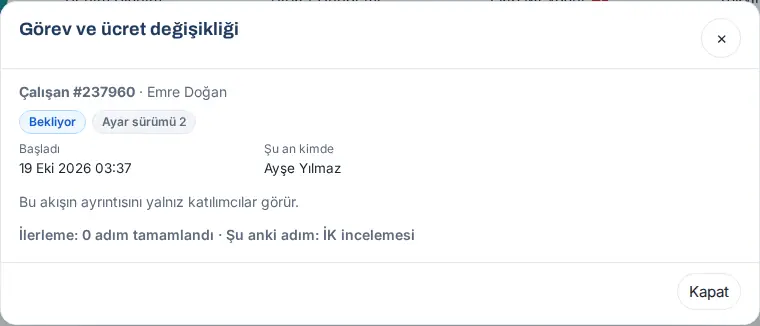
Key settings: Management approver (blank = requester’s manager), Second approver (high increase) (required), Second approval threshold (basis points; 2000 = 20%), Pay details retention (days after the workflow ends).
Important:
- The requester cannot decide on their own request. The same person cannot pass both the HR and the management step (if there is another candidate).
- If the current amount was entered neither in the request nor by HR, the increase rate is unknown; the safe side is taken and a second approval is required.
- When the request is corrected and sent again, the current pay entered by HR is kept (if it is the same employee, the pay change is still selected and the currency is the same; updated in 1.7.0). If the requester entered a current amount themselves, theirs applies. If the currency changed, the old amount is cleared: the notification Current pay must be re-entered goes to the assignee of the HR review step, the warning "The currency changed while the request was being corrected; the current pay you entered earlier was cleared. Re-enter the current pay." shows to HR in the workflow's details window, and HR enters it again with Enter current pay. If the pay change was removed and added again, the amount is also cleared; no notification is sent, the warning "The pay change was removed and added again while the request was being corrected; …" shows in the details. The requester, the technical Admin and the workflow owner do not see the warning. The audit log says "mevcut ücret korundu" ("current pay kept") / "mevcut ücret silindi (para birimi değişti)" ("current pay cleared (currency changed)") / "mevcut ücret silindi (ücret türü kaldırıldı)" ("current pay cleared (pay type removed)"); none of them has an amount.
- Notes appear in the workflow history; do not enter amounts. If a note has an amount or currency sign, the Amount in note question follows.
- If the person of a step cannot be found in this template, the step does not fall to Admin; the workflow fails and the workflow owner corrects the setting.
- If the new manager selection creates a manager loop (e.g. the person is linked to their own report), the employee record is not updated; the notification "Employee record could not be updated; fix it manually: {calisan}" goes to HR.
Document and certificate expiry template (T6)
Who: Module admin · Workflow owner · Document owners · Health officers · Where: Admin → Modules → Workflows → Document and certificate expiry
What it does: 60 / 30 / 7 days before documents such as a driving licence, OHS training or first aid expire, it sends a renewal task and reminders to the owner. The file is not stored; only the expiry date is kept.
How it works: Every day at 07:10, the documents are scanned.
- At the first threshold, the task "Document renewal: {calisan} · {belge} · expires {tarih}" is opened for the document's owner. If Also notify the employee (except health) is on, "Your document expires on {tarih}: {belge}" goes to the employee.
- At the following thresholds, the reminder "Reminder: days until document expiry: {sayi}: {calisan}" goes.
- If the expiry date passes, the notification "Document has expired: {calisan}" goes to the owner and the workflow owner.
- When you move the document's expiry date forward (renewed), the task closes by itself and the count starts again from the new date.
Who is the owner: The owner of the document type (e.g. Driving licence owner, OHS training owner); if blank, HR; otherwise the workflow owner.
Key settings: Tracked document types (Driving licence, Basic OHS training, First aid certificate, Professional qualification / SRC and Other come on by default; the medical certificate type comes off), First warning (days before expiry) (60), Second warning (days before expiry) (30), Final warning (days before expiry) (7), Also notify the employee (except health), type owners.
Medical certificate type:
- The "Periodic medical examination / medical certificate" type comes turned off.
- To turn it on, tick the I confirm that health data is a special category of personal data and that only the selected people will see it (KVKK Art. 6) box and select at least one person in the Who sees health records (OHS officer, occupational physician, selected HR) field. If something is missing, the message "To turn on the medical certificate type, tick the KVKK confirmation box." or "Choose who will see health records …" appears.
- Only these people see and write health records. Admin, the module admin, the HR writer and the employee themselves cannot see them.
- In the health type, the task text becomes "Periodic check-up date approaching: {calisan}"; the type name and document name are not written, and no notification goes to the employee.
Important:
- Warning days must go from largest to smallest: "Warning days must go from largest to smallest (e.g. 60 / 30 / 7)."
- Documents of a person who has left and removed documents are not scanned.
- A document added 20 days before expiry gets only the 30-day warning; that is its first warning.
- The first aid certificate is also tracked by the emergency team in the Emergency module. So that two warnings do not go out, use the first aid type in this template only for employees outside the emergency team.
- For recording documents, see Documents.
Budget second approval template (T7)
Who: Budget manager · Where: Admin → Modules → Workflows → Budget second approval
What it does: After the budget manager's approval, it sends the department budget to the selected second approver. Only the budget manager turns it on and off.
- As the budget manager, open Admin → Modules → Workflows. Only the Budget second approval card shows in the list.
- Click Settings and select one or two people in the Second approvers (in order; budget manager or viewer) field.
- Select the Scope: All departments or Selected departments only. For the second, tick the departments in Selected departments. Only the Include shared costs box decides about the shared costs budget (there is no "Ortak" ("Shared") option in the list); if the box is ticked, shared costs go to the second approval in both scopes. Expense total threshold (reporting currency; 0 = every unit) is optional.
- Click Save and publish and set the switch on the card to On.
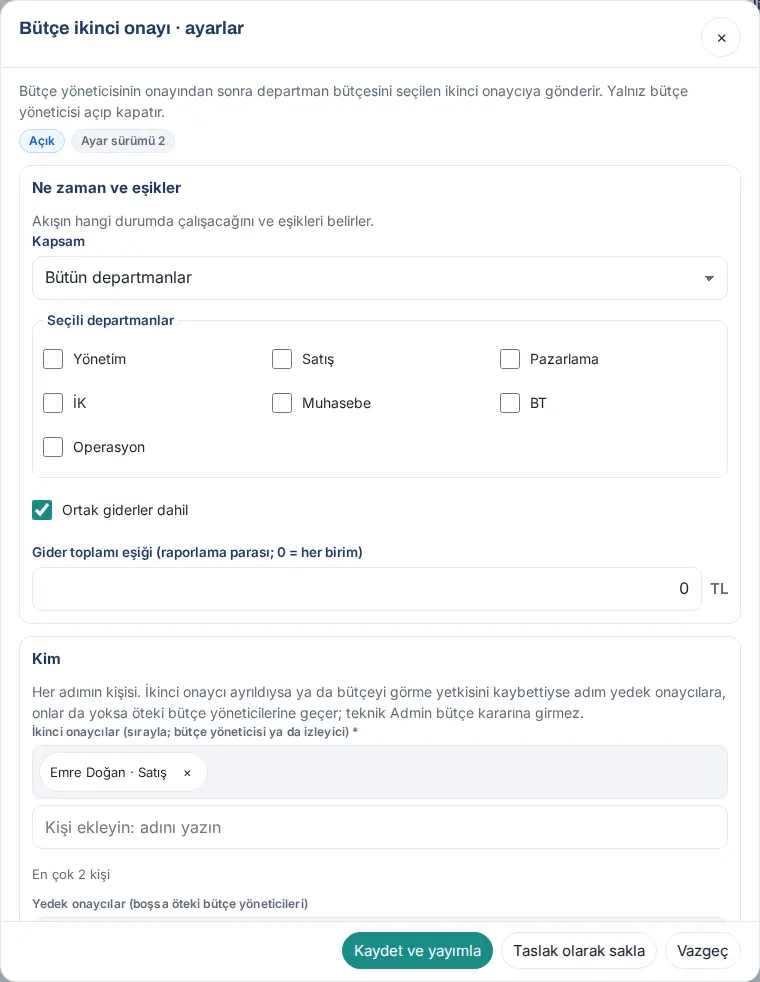
What happens next: When the budget manager approves a department budget, the budget goes to the In second approval status and the notification "Budget awaiting your second approval" goes to the second approver. The second approver decides on the Budget screen (see 37. Budget preparation, approval and reports).
Important:
- The template comes turned off; while it is off, budget approval has one step, as in version 1.6.
- The second approver must have the budget manager or viewer role in Budget: "The second approver must have the budget manager or viewer role in Budget (no approval without seeing the data)." The second approver cannot be the first approver, the person who sent the budget or the department's budget owner.
- The technical Admin cannot see or change this template. If they try, the message "This template is managed by the budget manager." appears and a notification goes to the budget managers.
- When you turn off the template, budgets waiting in second approval stay with the second approver; if necessary, the budget manager withdraws them.
History and workflow details
Who: Module admin · Operator · Viewer · Workflow owner · Where: Admin → Modules → Workflows → History
What it does: You see all workflows that started and the step-by-step progress of each workflow.
-
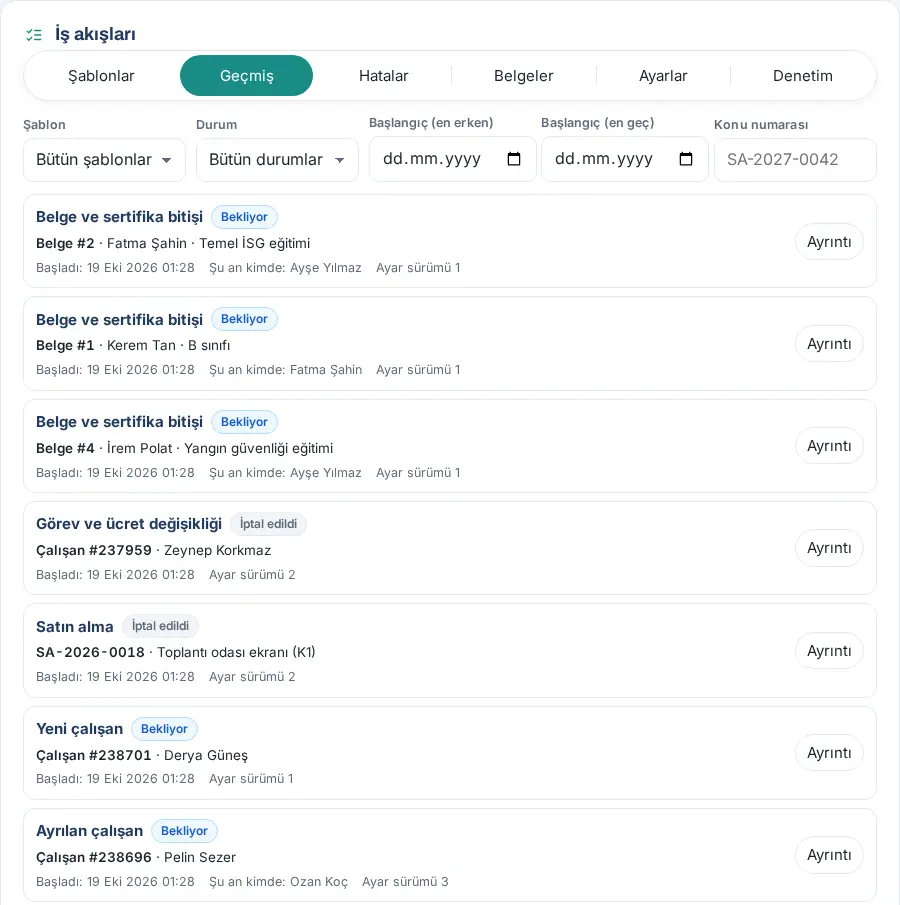
Click the History tab. The History button on a template's card opens the list filtered by that template.
-
Filter the list: Template, Status (In progress, Pending, Suspended, Failed, Completed, Cancelled), Start (earliest), Start (latest). In the Subject number field, enter the record's number (e.g. SA-…) or its name.
-
Each row shows the template, status, subject (employee, purchase request, document …), Started, Currently with and Settings version. There are 50 workflows per page.
-
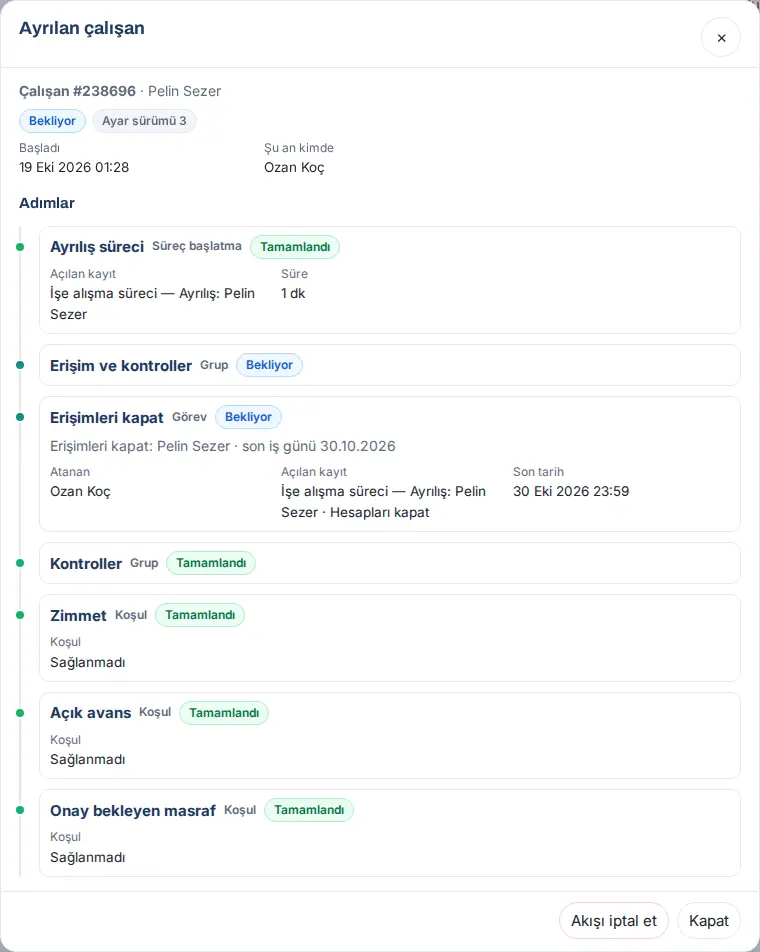
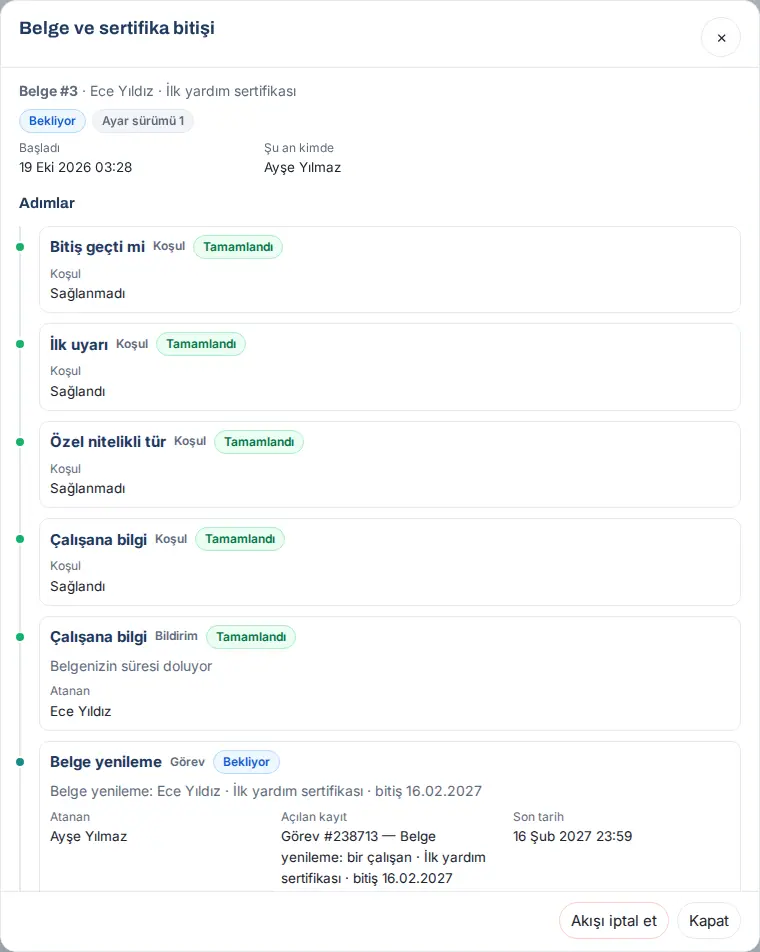
Click Details in a row. In the window, the steps are listed in a vertical timeline: the step's name, type (Task, Approval, Notification, Condition, Group, Wait, Start process), status (Upcoming, Pending, Completed, Skipped, Failed …), Assignee, Decided by and Note, Created record, Deadline and Duration.
- Created record shows the record the workflow created or linked to, by name (e.g. "Onboarding process — Ayrılış: Pelin Sezer · Hesapları kapat", "Task #… — Belge yenileme: …", "Request T-… — …").
- The Error: row under a step shows only in a failed step. Information in a finished step is written as Note: (e.g. "Note: yedek: asıl kural boş, yedek kişilere düştü" ("fallback: the main rule was empty, fell to the fallback people")). In a skipped or cancelled step, the old error text is not shown.
Tip: When you tap a notification or the row on Today, the same details window opens.
Important: A viewer sees the name of a record only if they are allowed to see that record in its own module; otherwise only its number shows. In the Created record row too, a person without permission sees only the number, such as "Onboarding process — Süreç #…"; the person and task names are not written.
Approvals and tasks assigned to you
Who: Everyone who is assigned a workflow step · Where: on a phone My Space → Today; on a computer Board → Today; Waiting for you in the bell
What it does: The workflow's own approvals (role and pay change) and its own tasks ("workflow task") are assigned to you. Tasks opened in Requests or My tasks show there; the workflow does not list them a second time.
-
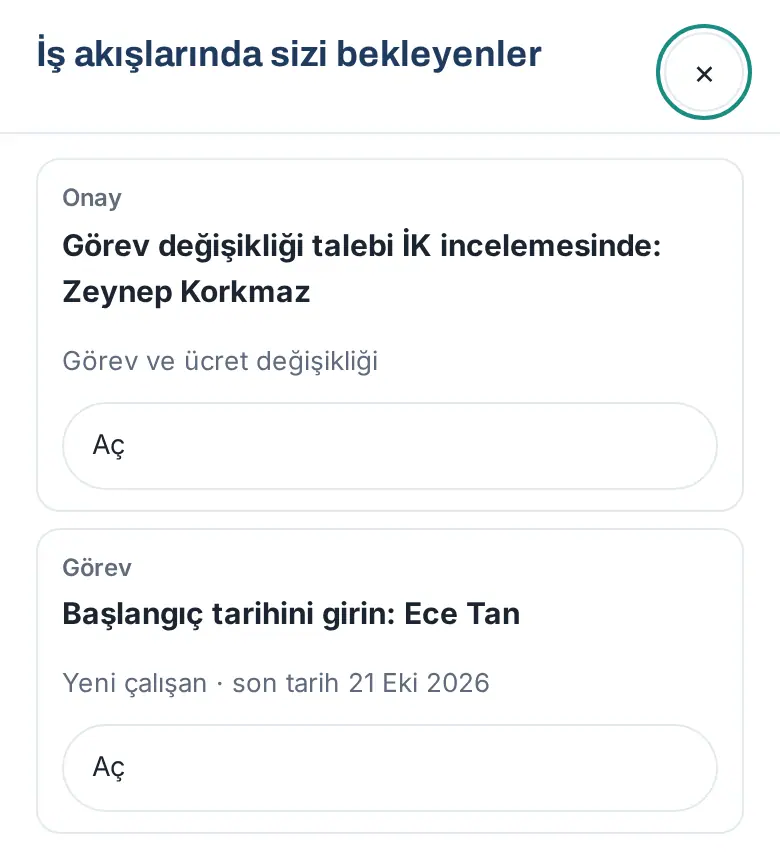
On Today, the row "Awaiting your approval: …" shows under Awaiting your approval, the row "Task: …" under your to-dos. If there is more than one record, the row becomes "N workflow steps are awaiting your approval" and opens the Waiting for you in workflows list.
-
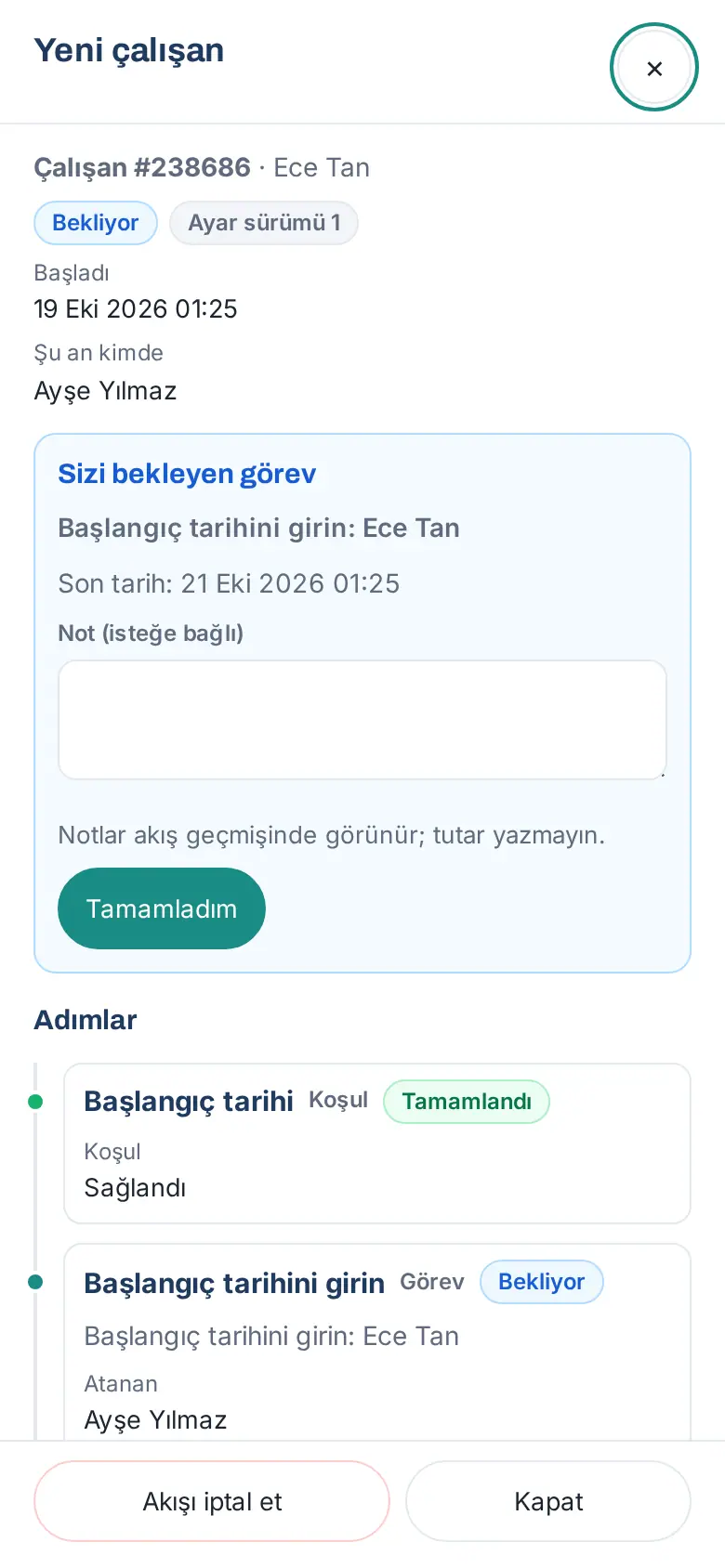
Tap the row or Open in the list. The workflow's details window opens; at the top is the Awaiting your approval or Task waiting for you box.
-
For an approval, write a note if you want and tap Approve, Send back for correction or Reject. For a task, after you do the work, tap Mark as done.
Important:
- "Notes appear in the workflow history; do not enter amounts."
- A note is required when rejecting or sending back: "A note is required when rejecting or sending back (at least 3 characters)."
- If someone else has just acted on the same step, the message "This step was just acted on; refresh the screen." appears.
- When the deadline passes, the notification "Reminder: … — deadline …" goes to the assignee: one on the deadline, then at the interval of the template's Reminder frequency (working days) (default every 2 working days), at most Maximum reminders times (default 3). The last reminder also goes to the workflow owner. The frequency and count are read from the settings version the workflow started with. An approval is never given automatically.
- While you are on leave, the person covering for you can also decide ("on behalf of … (deputy)").
- For the Today screen, see 06. Board and intranet.
Errors: retrying, skipping a step, transferring and cancelling
Who: Module admin · Operator · Workflow owner (own template) · Where: Admin → Modules → Workflows → Errors
What it does: If a step cannot run (e.g. the person was not found, the HR person who is to start the process is not an onboarding owner), the workflow becomes Failed. The workflow owner gets one notification; on the Today screen of HR and Admin, the row "A workflow has an error" shows under Operations. You resolve the error here.
-
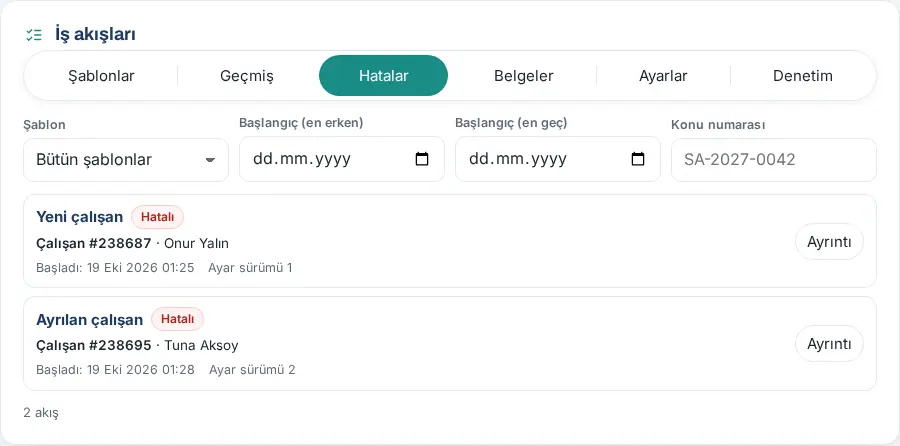
Click the Errors tab. Failed workflows are listed with the oldest at the top.
-
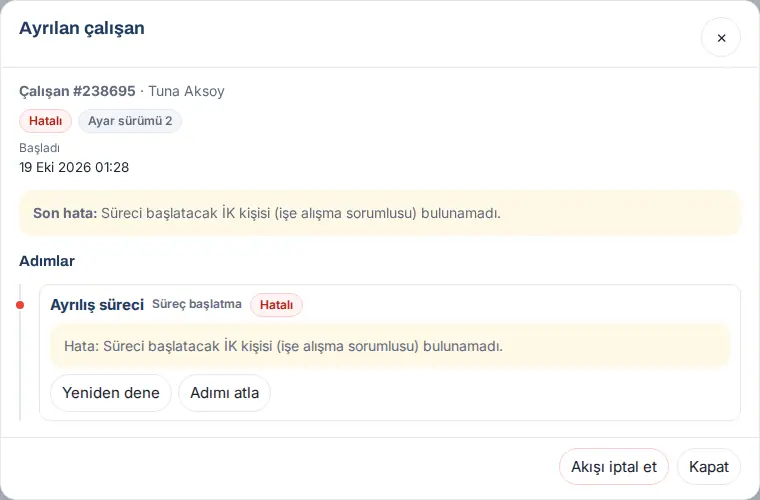
Click Details on the workflow. The Last error: row is at the top, the Error: row is in the failed step.
-
Choose one, depending on the cause of the error:
-
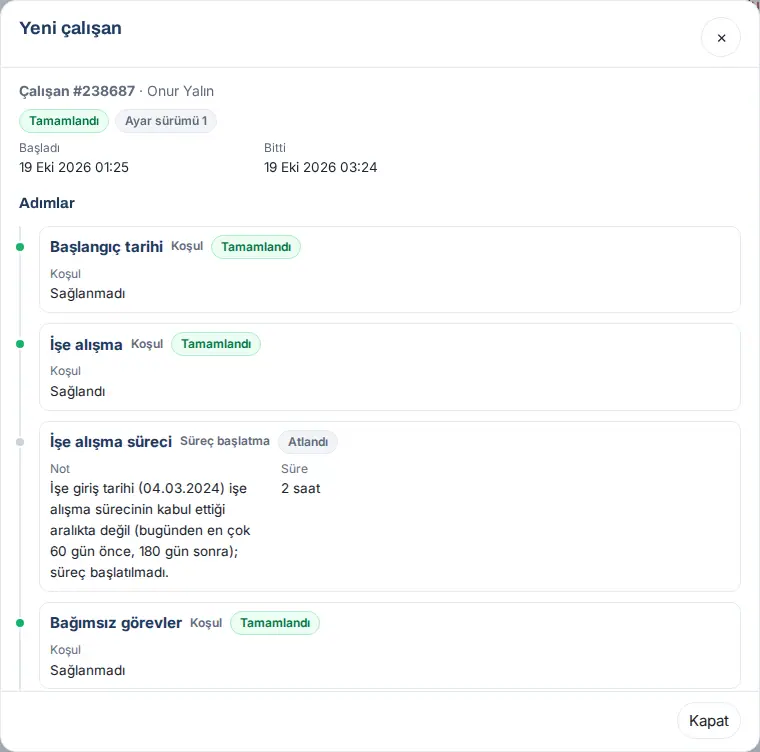
Try again: First remove the cause (e.g. give the HR person selected in the workflow the owner role in the Onboarding module), then click Try again. The message "Step retried." appears and the step runs again. Temporary errors (connection, lock) are retried automatically at most 6 times, at intervals of 5 min, 15 min, 1 h, 4 h and 12 h. In the example below, a new employee workflow that failed with an old version was retried: because the start date was outside the range onboarding accepts, the process step was Skipped with a note and the workflow was completed.
-
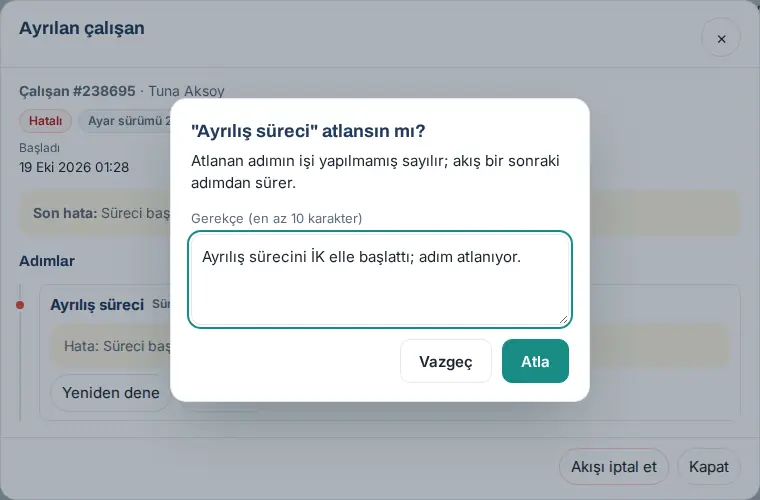
Skip step: If the work of the step was done outside the workflow, click Skip step, write a Reason (at least 10 characters) and click Skip. "The work of a skipped step counts as not done; the workflow continues with the next step." This button shows only in steps that can be skipped (e.g. starting a process); approval steps cannot be skipped.
-
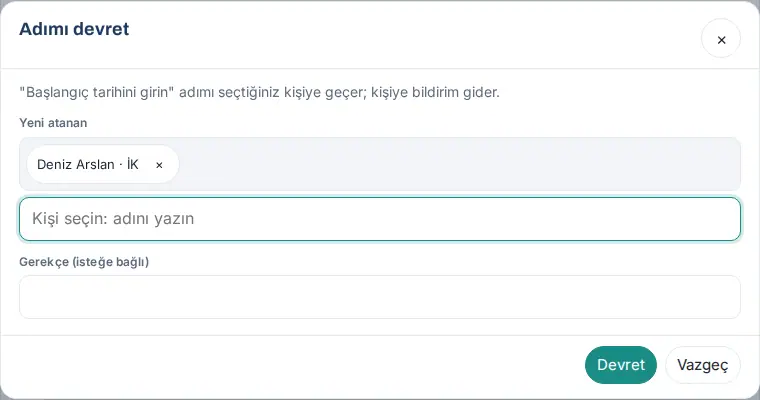
Transfer: Gives a pending approval or workflow task to someone else. Click Transfer, select the New assignee, write a Reason (optional) if you want and click Transfer. A notification goes to the new person.
-
Cancel workflow: Click Cancel workflow at the bottom of the window, write a Reason (at least 10 characters) and click Cancel. "Tasks created by a cancelled workflow are not closed; a note is added to them. This cannot be undone."
-
Important:
- Correcting the setting does not fix the failed workflow: the workflow continues with the settings version it started with. Correct the setting, then resolve the failed workflow with Try again or, if necessary, by cancelling it and starting it again.
- If you skip the Offboarding process step in a leaving employee workflow, the workflow does not stop: the Close access task is opened without a process, in order in Requests (IT category), otherwise in My tasks, otherwise as a workflow task; if there are open assets, Asset return becomes a workflow task. The step fails only if there is a permanent obstacle (e.g. permission).
- If the assignee of a step leaves, the step is transferred automatically to their manager, their manager's manager, the workflow owner or, last, Admin. In role and pay change this transfer is not done; the workflow fails.
- If the module is turned off, running workflows become Suspended; when the module is turned on again, they continue where they left off and the time spent suspended is added to the deadlines.
Documents: adding a document, uploading a CSV and downloading
Who: Module admin · Operator · Workflow owner of the document template (writes) · Viewer (reads) · Health officers · Where: Admin → Modules → Workflows → Documents
What it does: You enter the dates that the document and certificate expiry template tracks. The tab shows only while this template is on.
Reading the list:
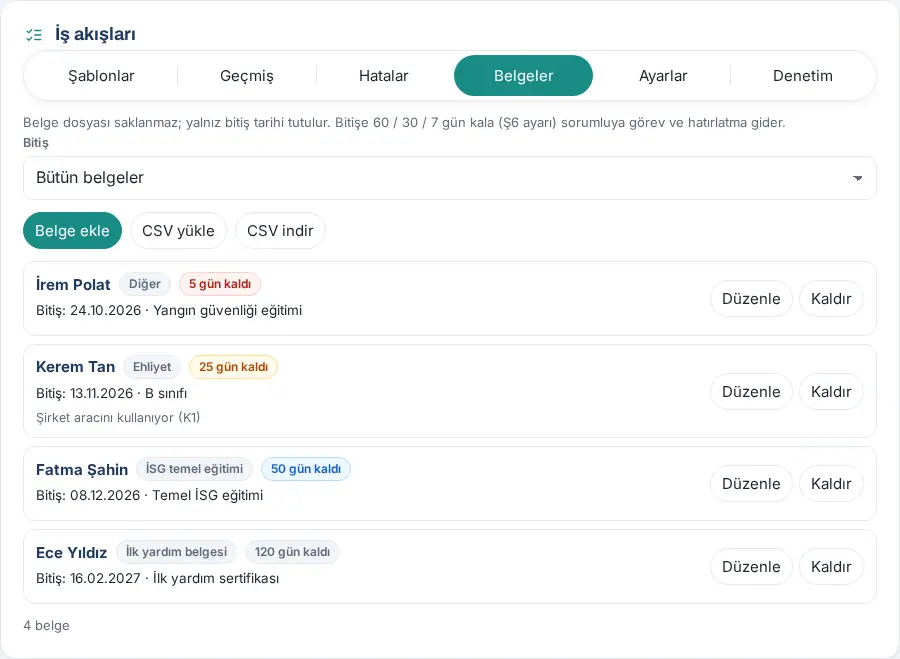
- Click the Documents tab. Each row shows the employee, document type, days-left badge ("25 days left", "Expires today", "Expired (… days ago)"), End: and the document name.
- Filter with the End list: All documents, Expiring within 60 days, Expiring within 30 days, Expiring within 7 days.
Adding a document:
- Click Add document.
- Select the Employee, select the Type, write a Document name (optional) if you want (e.g. B sınıfı) and enter the Expiry date.
- Click Save. The message "Document saved." appears.
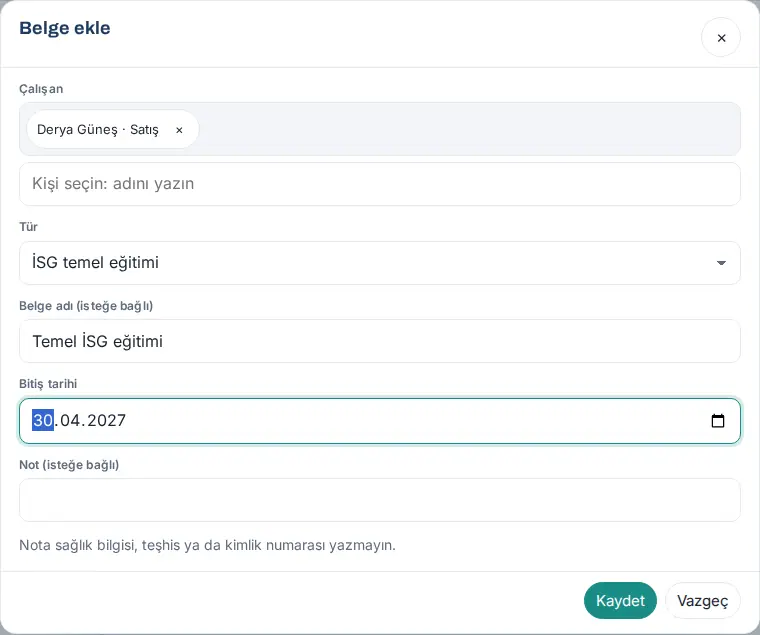
When a document is renewed, click Edit in the row and enter the new expiry date. To stop tracking a document, click Remove: "The document leaves the list and its expiry reminder stops. The record is kept for audit."
Uploading in bulk with a CSV:
- Prepare a CSV file. The columns are separated with semicolons:
sicil;tür;bitiş;ad;not(name and note are optional). An email address also works instead of the employee number. The type can be the key (e.g.ehliyet) or the name (e.g. Ehliyet). The date is YYYY-MM-DD or DD.MM.YYYY. - Click Upload CSV, select the File and click Upload.
- The result row shows: "Added … · updated … · unchanged …". Rows that could not be uploaded are listed with their number (e.g. "Row 3: Sicil bulunamadı ya da birden çok çalışanla eşleşti." ("Employee number not found or matched more than one employee."), "Row 4: Belge türü tanınmadı." ("Document type not recognized.")).
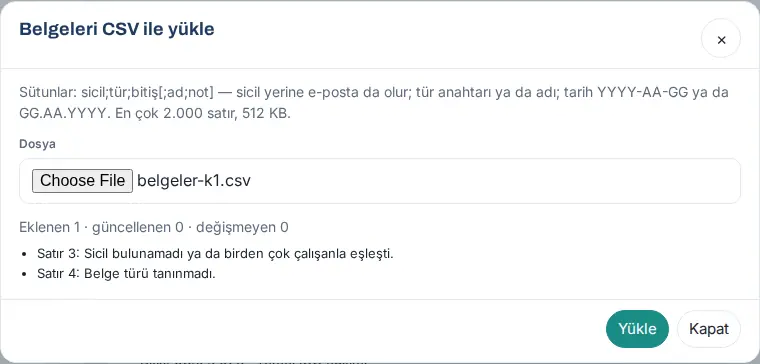
Downloading a CSV: Click Download CSV. The list is downloaded as a CSV file that opens in Excel.
Important:
- "Do not enter health information, diagnoses or ID numbers in the note."
- A file can have at most 2,000 rows and 512 KB.
- Rows of the health type reach only the health officers; they do not show in other people's list, form or downloaded CSV.
- A person who is only a health officer (e.g. the occupational physician) sees only the Documents tab on the Workflows screen.
Starting manually
Who: Module admin · Operator · Workflow owner · Where: Admin → Modules → Workflows → Templates → Start manually on the card
What it does: You start a workflow manually for a record from before the template was turned on, or to start a workflow you cancelled again. The Start manually button is only on the New employee, Leaving employee and Document and certificate expiry cards that are turned on.
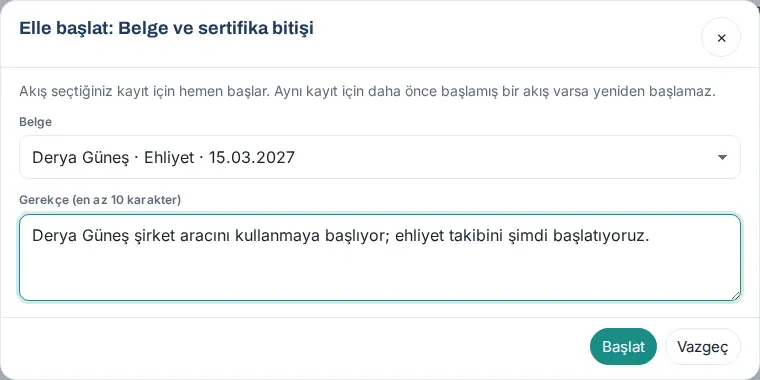
- On the card, click Start manually.
- In new employee and leaving employee, select the Employee; in the document template, select the Document.
- Write a Reason (at least 10 characters) and click Start. The message "Workflow started." appears and the workflow's details open.
Important:
- If there is an open workflow for the same record, a new one does not start: "Bu kayıt için açık bir "…" akışı zaten var." ("There is already an open "…" workflow for this record.")
- Starting manually is written in the audit log with its reason.
- When you start the document template manually, the task "Document renewal: … · expires …" is opened for the owner immediately, even if the document's expiry is far from the first warning day (if turned on, the employee is informed too). The daily scan does not open a second renewal task for the same expiry date; on the following warning days only reminders go. If you move the expiry date forward, the count starts again.
Audit log
Who: Module admin · Operator · Workflow owner (own template) · Budget manager (budget second approval) · Where: Admin → Modules → Workflows → Audit
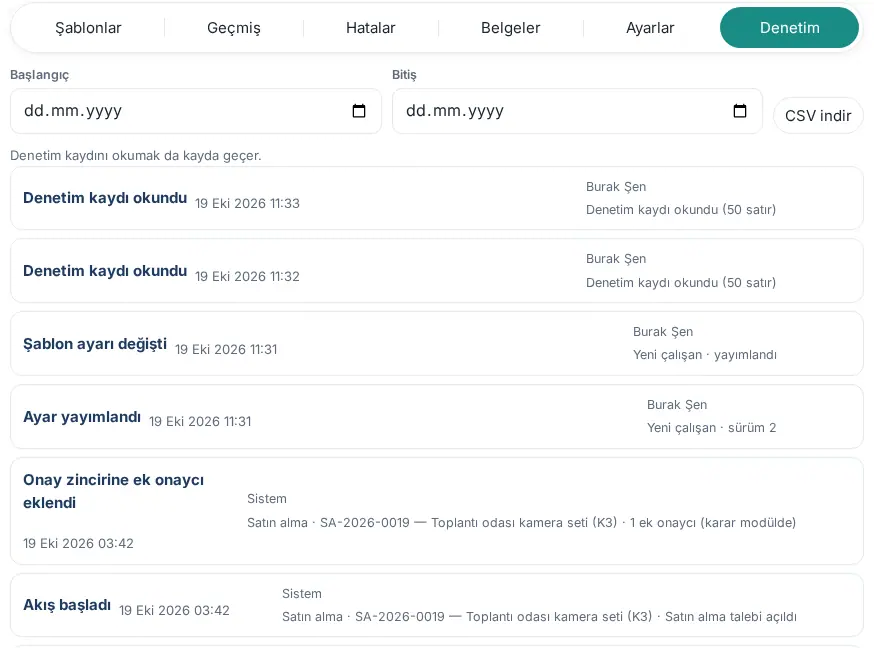
What it does: Every action in the module is written in a record that cannot be changed: turning a template on and off, publishing settings, the start and end of a workflow, decisions, transfers, skips, retries, cancellations, opened tasks and processes, document actions, viewing the pay details and unauthorized attempts.
- Click the Audit tab. Each row shows the action (e.g. Workflow started, Started manually, Task opened, Linked to the onboarding process, Retried, Rollback check), the date, the person ("System": the engine itself) and the details. For an action with an unknown name, Other action is written. The details are in readable form (updated in 1.7.0): the template name, step name, event name, record name and result are written separated with " · " (e.g. "Yeni çalışan · sürüm 2" ("New employee · version 2"), "Satın alma · SA-2026-0019 — Toplantı odası kamera seti (K3) · Satın alma talebi açıldı" ("Purchasing · SA-2026-0019 — Meeting room camera set (K3) · Purchase request opened"), "Akış #18 mevcut ücret girildi" ("Workflow #18 current pay entered")). You see the name of the person or process in the record only if you are allowed to see that record; without permission, only the number is written (e.g. "Süreç #9" ("Process #9"), "Employee #12"). The CSV has the same format.
- Filter with the Start and End dates.
- To download the log, click Download CSV (module admin only).
Important:
- "Reading the audit log is also logged."
- The log has no amounts or personal data; for documents of the health type, "özel" ("special category") is written instead of the type name.
- The log is kept for 5 years by default (see Module settings and rollback check).
Module settings and rollback check
Who: Admin · Module admin · Where: Admin → Modules → Workflows → Settings
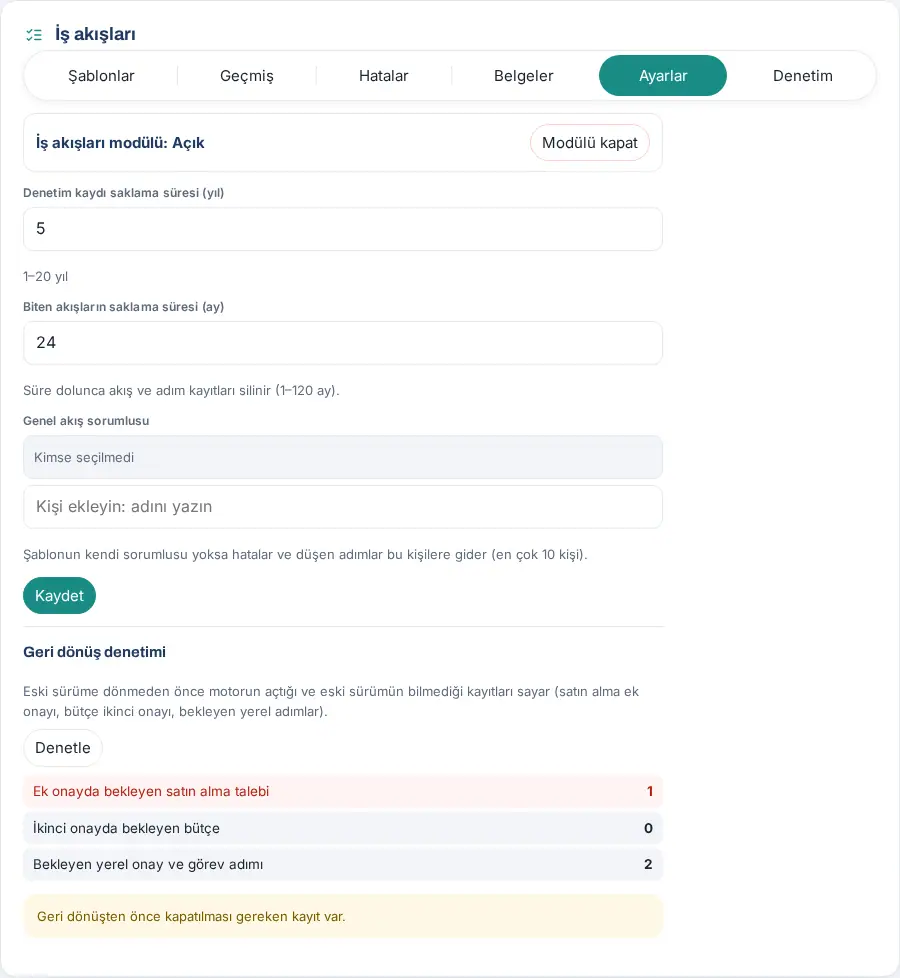
What it does: You turn the module on and off, and set the retention periods and the general workflow owner.
- Click the Settings tab. At the top are the Workflows module: On row and the Turn off module button.
- Fill in the fields:
- Audit log retention (years): default 5 (1–20).
- Retention of finished workflows (months): default 24 (1–120). "When the period ends, workflow and step records are deleted."
- General workflow owner: if a template has no owner of its own, errors and fallen steps go to these people (at most 10 people).
- Click Save. The message "Settings saved." appears.
Turning the module off: Click Turn off module and confirm with Turn off module in the Turn off Workflows? question: "When the module is off, no new events are processed and running workflows are suspended. When it is turned back on, they continue where they left off." Additional approvals added to purchasing and budget are not affected; those records finish in their own module.
Rollback check: Before you roll the plugin back to an older version, click Check. The older version does not recognize the additional approvals that workflows added to purchasing and budget; the check counts them:
- Purchase request waiting in additional approval (including requests waiting for the additional approver's question to be answered),
- Budget waiting in second approval,
- Pending local approval and task steps.
If the first two have records, the row is marked in red and "Some records must be closed before rolling back." shows. Finalize these requests in Purchasing and the budgets in Budget (approval, rejection or withdrawal) and check again. If nothing blocks, "Nothing blocks a rollback." shows. The result has only numbers; no request number, title or amount is shown. Each check is written in the audit log.
Who sees what?
Who: Admin · Module admin · Where: Admin → Modules → Workflows → Permissions
What it does: Workflow roles are given with Prozence's module permission table. Admin counts as module admin in every module.
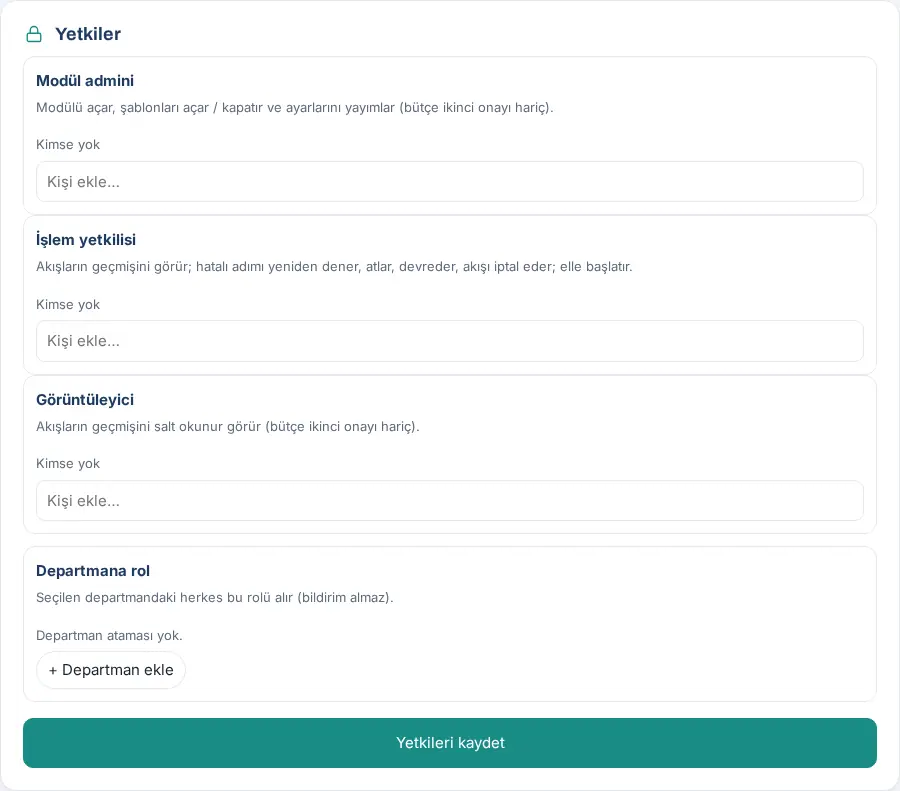
Giving a role:
- In the Permissions section at the bottom of the screen, type the person's name in the role's box and select it: Module admin, Operator or Viewer. To give a role to everyone in a department, Role by department → + Add department.
- Click Save permissions.
| Who | What they do | What they cannot see |
|---|---|---|
| Module admin (including Admin) | Turns the module on / off; turns templates on, publishes their settings (except budget second approval); history, errors, intervention, starting manually; documents; audit and CSV; module settings | The budget second approval template; the pay amount; health records |
| Operator | History; retries, skips, transfers a failed step, cancels a workflow; starts manually; writes documents; reads the audit log (cannot download the CSV) | Cannot change template settings; the rollback check; the pay amount; health records |
| Viewer | Sees the history and documents, read-only | Budget second approval; the pay amount; health records |
| Workflow owner (template setting) | The settings, errors and timeout notifications of their own template; intervention; starting manually; the audit log of their own template | Other templates; the pay amount unless they are a step assignee |
| Step assignee | Decides on their own approval, completes their own task; sees the workflow's details | Other workflows |
| Budget manager | Manages only the budget second approval template | Other templates (without a role) |
| Health officer (document template setting) | Sees and writes documents of the health type | Other tabs (without a role) |
| Employee | The steps assigned to them | The role and pay change workflow about themselves |
Privacy summary:
- The technical Admin and the employee themselves cannot see the pay amount. Only the requester and the people assigned to the workflow's steps can open the amount; each opening is logged.
- The medical certificate type comes turned off. If it is turned on, only the selected OHS officer, occupational physician and HR see it; Admin and the module admin cannot.
- Workflow records, notifications and the audit log keep no names, email addresses, phone numbers, ID numbers, health information or amounts; names are shown on the screen according to the reader's permission.
Limits and FAQ
Who: Admin · Module admin
Limits (1.7.0):
- There are only ready-made templates and their settings; a template's steps and conditions are not changed on the screen (a free workflow designer comes in a later version).
- A template is set up once per company. In multi-company accounts, the company separation is done with the department filters in the settings; month-end close opens one workflow per site.
- Company-based HR scope (1.8.10): if the scope is on (Admin → People and permissions → Company-based HR scope), the HR and payroll recipients of the steps are the HR and payroll staff of the company of the employee the flow is about, otherwise of the requester, otherwise of the person who started the flow. If that company has no HR, the step goes to the app Admins (except the employee concerned and the requester); in a role and pay change (T5) it does not fall back to an Admin but goes to the flow owner. With the scope off and in flows without a person (month-end close), nothing has changed.
- No approver is added to the leave approval chain or to expenses from a workflow; the expense's additional approval continues with the thresholds in the Expense settings.
- There is no exchange rate in purchasing: the threshold looks at the TRY total; a request with foreign currency counts as above the threshold.
- The document file is not stored; only the expiry date is kept.
- Scheduled jobs (month end, document scan, reminders) run with the site's scheduler; on sites with little traffic they can be delayed by a few hours. Deadlines are at day level.
- The History list has no CSV (the audit log has one). The Subject number search searches only the page on the screen.
FAQ:
- I turned on the template, but no workflow started for older records. The template looks only at events after it was turned on. For an older record, use Starting manually.
- I changed the setting, but the running workflow goes to the old person. Running workflows finish with the settings version they started with. If necessary, give the step to someone else with Transfer.
- Why was the task opened in Requests / My tasks? Tasks are opened in order in Requests, in My tasks (Projects and tasks module), otherwise as a workflow task. A task in Requests is completed in the workflow automatically when the request is resolved, a task in My tasks when it becomes "Done".
- Why does the title of the payroll task opened in My tasks say "an employee"? Role and pay change (T5) is a confidential template; the employee's name is not written in the Record in payroll task in My tasks ("Bordroya işleyin: bir çalışan · yürürlük …" ("Record in payroll: an employee · effective …")), because people who are not participants of the workflow can also see the task record. Open the workflow in the "Ayrıntı: İş akışları → #…" ("Details: Workflows → #…") row of the task's description from Today or History; there you see the name according to your permission. In the tasks that the new employee, leaving employee and document templates open in Requests / My tasks, the name is written (updated in 1.7.0).
- Is a task opened twice for the same person? No. A second workflow is not opened for the same record; if an onboarding process is open, the workflow does not open a separate task but links to the process.
- Can I write an amount into a notification? No. The texts have no placeholder for amounts or personal data.


