36. Task, project and referral management
Screenshots show the Turkish interface of Prozence with fictional "Örnek Teknoloji A.Ş." data; the English interface has the same layout.
This chapter describes the management of two modules: Projects and tasks (the employees' task and project tracking; its old name is İşler, "Work") and Refer a candidate (employees referring candidates for open positions and the referral bonus). You turn on the module, set its settings and decide who does what in the module from the Permissions section on the same screen.
For daily use (adding tasks, projects, recurring projects, manager approval), see 33. Tasks and projects. For a general description of the roles, see 10. Administration and setup.
Who: Admin · Projects and tasks module admin · Refer a candidate module admin
In this chapter
- Turning on the Projects and tasks module
- Projects and tasks settings
- Assigning tasks outside the management chain
- Transferring a project whose owner has left
- Giving permissions for Projects and tasks
- Candidate referral management
- Turning on the Refer a candidate module and its settings
- Giving permissions for Refer a candidate
- Opening, editing and closing a position
- Evaluating referrals and changing the stage
- Approving or cancelling a referral bonus
- Linking the candidate to an employee record and starting onboarding
- Deleting candidate data and the retention period (KVKK)
Before you start: The Projects and tasks module is in the Professional package and is off by default in the company. The screens in this chapter were prepared with the data of the fictional company "Örnek Teknoloji A.Ş.".
Turning on the Projects and tasks module
Who: Admin · Module admin · Where: My tasks or Admin → Modules → Projects and tasks
What it does: When the module is on, My tasks and Projects appear in the employees' menu; employees create projects and add and assign tasks; reminders, overdue alerts and recurring projects start working.
While the module is off: Employees do not see My tasks and Projects in the menu. The module admin and the Admin see them, so that they can turn the module on from there. Instead of the toolbar and the tabs, the screen shows the box "Projects and tasks are not turned on yet".
Turning it on from the My tasks screen:
- In the menu on the left, click My tasks (or Projects).
- In the "Projects and tasks are not turned on yet" box, click Turn on module.
- It says "Projects and tasks turned on." and the page reloads. The menu, the My tasks box on Today and the scheduled jobs are set up for the module that is on. The other settings do not change.
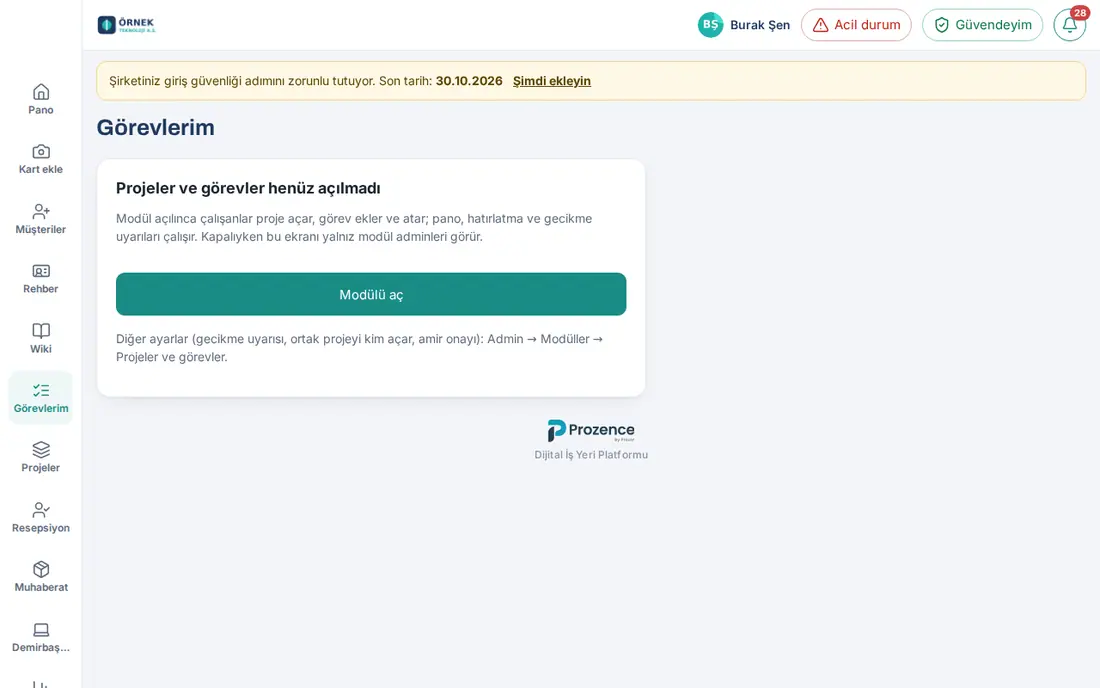
Turning it on from the Admin screen:
- In the menu on the left, click Admin.
- In the Modules group, click Projects and tasks.
- Check the Projects and tasks enabled (employees create projects, add and assign tasks) box and click Save. It says "Saved. The menu change appears when the page is reloaded."
On a phone: Tap Profile → the Admin strip, then select Projects and tasks in the section list.
Tip: You can also turn the module on together with other modules from the Admin → Organization → General → Modules and sample data list; in the list, Projects and tasks is not selected by default (see 10. Administration and setup).
Important:
- Turning the module off does not delete data; the projects and tasks stay and come back when you turn it on again. While it is off, reminders, overdue alerts and the opening of recurring projects do not work.
- An employee cannot turn on a module that is off; the request is rejected with "The Projects and tasks module is turned off for this company."
Projects and tasks settings
Who: Admin · Module admin · Where: Admin → Modules → Projects and tasks
What it does: You set the rules of the module that apply to the whole company.
- Open Admin → Modules → Projects and tasks. At the top there is the Projeler ve görevler ayarları ("Projects and tasks settings") section, and at the bottom the Permissions section.
- Change the settings according to the table below.
- Click Save. It says "Saved. The menu change appears when the page is reloaded."
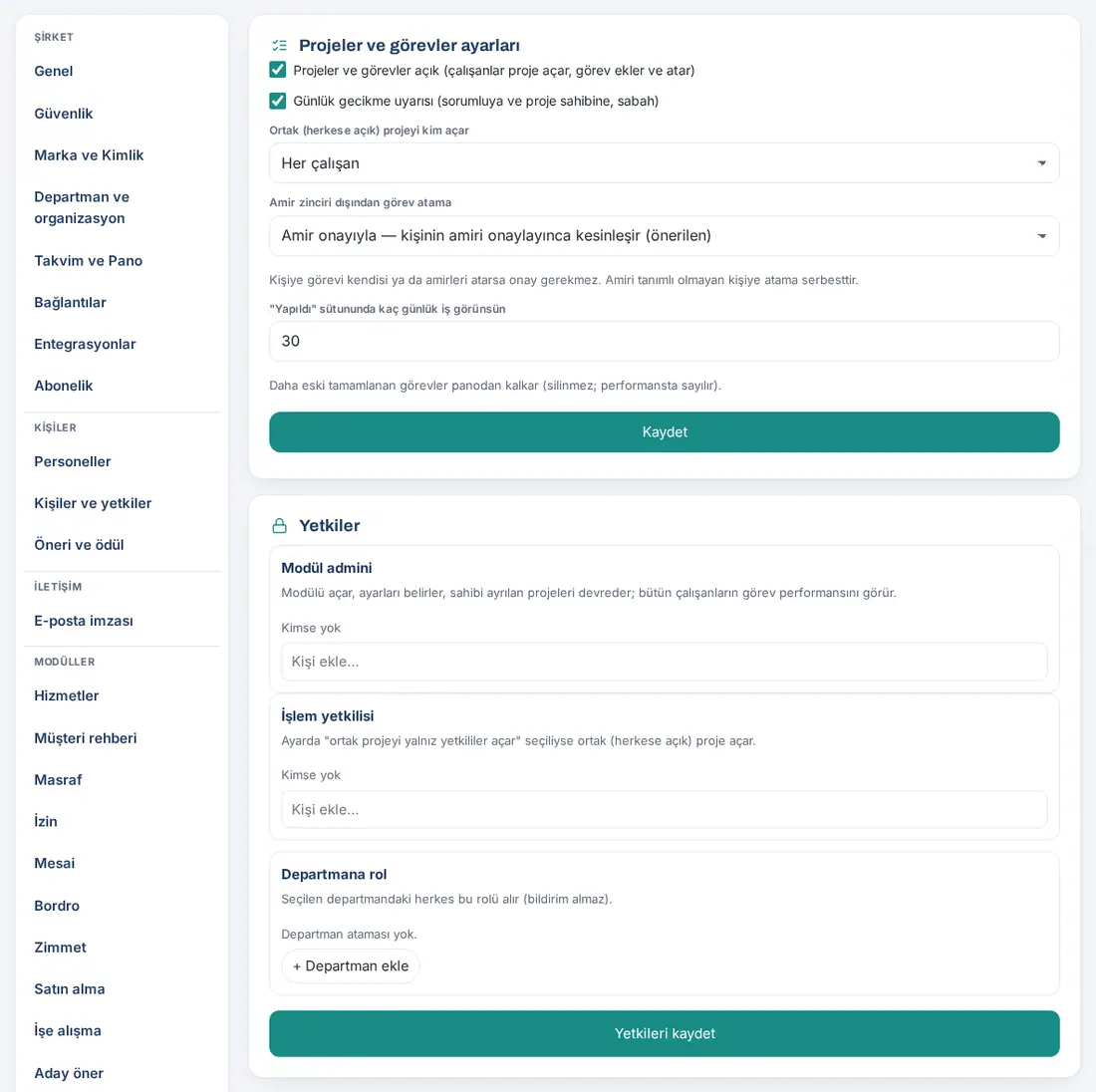
| Setting | What it does | Default |
|---|---|---|
| Projects and tasks enabled (employees create projects, add and assign tasks) | Turns the module on; My tasks and Projects show in the menu and the My tasks box on Today | Off |
| Daily overdue alert (to the assignee and project owner, in the morning) | Every morning (09:05, site time), sends the assignee their own overdue tasks and the project owner the overdue tasks in their project, in one notification. Tasks in the Ideas and Later columns do not count as overdue | On |
| Who can create a shared (public) project | Every employee or Only the module's operators and module admin. With the second one, other employees do not see the Shared option in the project form | Every employee |
| Assigning tasks outside the management chain | What happens when a task is assigned to someone from another team: With manager approval — confirmed when the person's manager approves (recommended), Open — anyone can assign anyone, Off — only the person and their management chain can assign (see below) | With manager approval |
| How many days of work to show in the “Done” column | The tasks closed in how many recent days show in the Done column of the board (1–365). Older completed tasks are removed from the board; they are not deleted and count in performance | 30 |
Common warnings: ""Yapıldı" sütununda gösterilecek gün sayısı 1–365 olmalı." ("the number of days to show in the "Done" column must be 1–365") · "Settings are changed by the Projects and tasks module admin or an Admin."
Good to know (not settings):
- Due date reminders are checked every 10 minutes; a reminder can be at most about 10 minutes late.
- The periods of recurring projects are checked and opened every night (00:05) and when the Projects screen is opened.
- Task notifications go to the phone; if they do not arrive, the email backup works. Each person selects their own notification preference in My tasks → Updates (see 33. Tasks and projects).
- Task files are kept in a protected folder on the server; they show in the Admin → Storage list with the name "Task files".
- While the module is on, the row "Görev ve proje takibi (Projeler ve görevler)" ("task and project tracking (Projects and tasks)") is added to the KVKK processing inventory.
- The 1.5.0 features need no setting: the Timeline shows in every project, and the Effort tab shows automatically in projects with time tracking on; the milestone, the estimate per person, and the Budget (TRY, optional) and Customer (optional) fields in the project form are optional. The Project (optional) selection in the expense and purchase forms shows while this module is on; if the module is turned off, no new link can be made ("The "Projects and tasks" module is off; the record cannot be linked to a project."), and existing links stay (see 33. Tasks and projects).
- The Reports → Projects tab shows while this module is on (see 19. Reports).
Assigning tasks outside the management chain
Who: Admin · Module admin · Where: Admin → Modules → Projects and tasks → Assigning tasks outside the management chain
What it does: You decide whether an employee can give a task to someone from another team and who approves it.
Whatever the option, these assignments are always made directly:
- A person assigning a task to themselves.
- An assignment by someone in the person's management chain (their manager, their manager's manager …).
- An assignment to a person who has no manager defined.
For other assignments:
| Option | What happens |
|---|---|
| With manager approval — confirmed when the person's manager approves (recommended) | The assignment waits; the person's direct manager gets the notification "Your approval is needed: …". If the manager says Approve, the person becomes the assignee; if they say Reject (a reason is required), the person who assigned it is notified. If the manager has left the company, the approval goes one level up the chain |
| Open — anyone can assign anyone | No approval is asked; the assignment takes effect immediately |
| Off — only the person and their management chain can assign | An assignment from outside the chain is rejected: "Only … themselves or their management chain can assign them tasks." |
- Select the option in the Assigning tasks outside the management chain list.
- Click Save.
Important:
- There is no exception for the project owner and the module admin; they also follow this rule.
- In recurring projects, the approval is asked once in the series record; the approved person is assigned directly in the next periods.
- The management chain comes from the manager assignment in Admin → Organization → Departments and organization (see 10. Administration and setup).
- Managers can read the tasks of their direct reports (they cannot change them), so that they can give approvals and for the My team tab.
Transferring a project whose owner has left
Who: Admin · Module admin · Where: Admin → Modules → Projects and tasks → Projects whose owner has left
What it does: You transfer a project whose owner has left the company to an employee; the tasks and assignments stay as they are.
- Open Admin → Modules → Projects and tasks. If there is a project whose owner has left, the Projects whose owner has left list shows below the settings: "The owner of these projects has left. Transfer each project to an employee; tasks and assignments stay as they are."
- On the project's row, select the new owner in the Transfer… list.
- Click Transfer. It says "Project transferred." and the project is removed from the list; the new owner gets the notification "Proje size devredildi" ("the project was transferred to you").
If you click Transfer without selecting a new owner, the warning "Choose the new owner." appears. If the list is empty, there is no project whose owner has left.
Tip:
- The module admin can also archive a project whose owner has left from the Members and settings tab inside the project, or transfer it with Transfer project….
- The module admin sees and manages the recurring projects whose owner has left in the Projects → Recurring projects list (editing, pausing, deleting).
- The task assignments of an employee who left are not deleted; on the screen, "(left)" shows next to their name and they do not get notifications. A new task cannot be assigned to an employee who left.
Giving permissions for Projects and tasks
Who: Admin · Module admin · Where: Admin → Modules → Projects and tasks → Permissions (or Admin → People and permissions → People and permissions → Module permissions)
What it does: You decide who manages the settings in the module and who can create shared projects. This module has two roles:
| Role | What it does |
|---|---|
| Module admin | Turns the module on, sets the settings, transfers projects whose owner has left; sees the task performance of all employees. Sees all projects like a project manager and changes the project status; manages all recurring projects; can delete and edit anyone's time entries (editing 1.5.0; the task history shows "Edited …'s time entry"). Sees and changes the project budget (1.5.0). Opens the Management view in Reports → Projects |
| Operator | If "ortak projeyi yalnız yetkililer açar" ("only authorized people create shared projects") is selected in the settings, creates shared (public) projects. Opens the Management view in Reports → Projects (1.5.0) |
The Viewer role does not exist in this module. Admins have full permissions in every module. In the permission table, the name of the module is Projects and tasks.
- Open Admin → Modules → Projects and tasks and go to the Permissions section below.
- Under Operator, type a name in the Add person… box and select the person in the list. To remove someone, click the × next to the name.
- To give a role to everyone in a department, use + Add department under Role by department (a role given to a department does not get notifications).
- Click Save permissions.
Important:
- Only the Admin gives the Module admin role; the module admin sees this row as read-only (see 10. Administration and setup).
- The roles inside a project (Project manager, Member — sees all tasks, Member — own tasks only) are not module roles; the project owner or the module admin gives them inside the project (see 33. Tasks and projects).
- Apart from the module admin, project owners (their own projects) and managers (their direct reports) see the Performance table; no extra permission is needed.
- In Reports → Projects, the module admin and the Operator also see only the projects they can see: private projects that they are not a member of are not in the report (1.5.0).
Candidate referral management
In the Refer a candidate module, employees refer candidates for open positions, share CVs and, if the candidate is hired and completes the probation period, earn a referral bonus. HR opens positions, evaluates referrals and approves the bonus. The CV and the candidate details are visible only to HR and to the hiring manager of the position; the referrer sees only the stage of their referral. For the screens employees see, see 34. Candidate referral and referral bonus.
Before you start: The Refer a candidate module is in the Professional package and is off by default in the company. While the module is off, employees do not see the Open positions box in Services and the Open positions · Refer a candidate entry on Today; HR and the module admin see the box with the note "Candidate referrals are turned off. Turn them on in Admin → Modules → Refer a candidate.".
Turning on the Refer a candidate module and its settings
Who: Admin · Refer a candidate module admin · Where: Admin → Modules → Refer a candidate
What it does: You turn the module on and set the bonus type, general referrals, the probation and retention periods and the privacy notice email sent to the candidate.
- Click Admin → Modules → Refer a candidate.
- Check the Candidate referrals on (employees see open positions and refer candidates) box.
- Set the settings in the table below.
- Click Privacy notice email sample and check the text that will go to the candidate.
- Click Save. The message "Saved." appears.
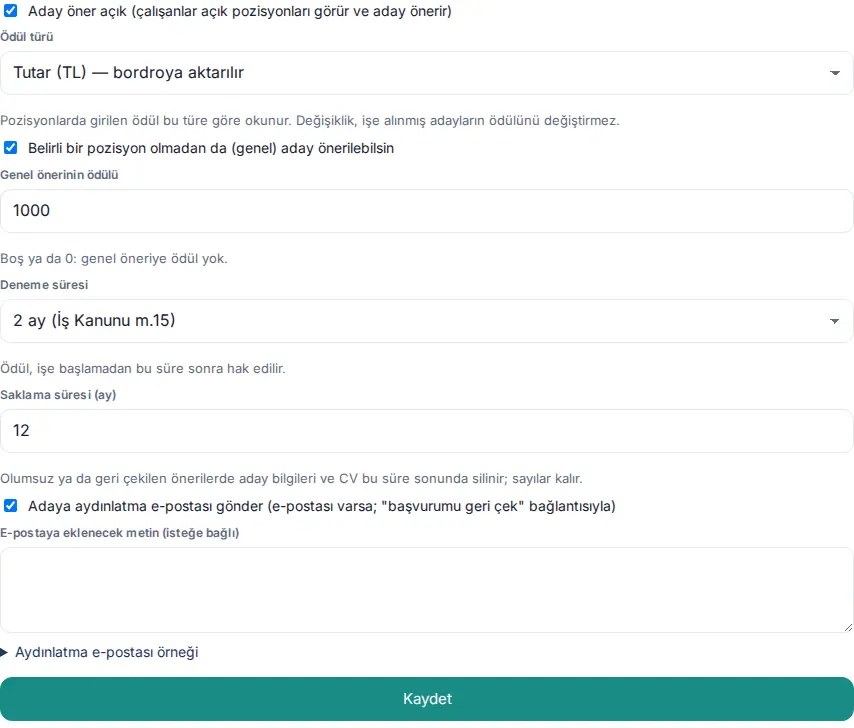
| Setting | What it does | Default |
|---|---|---|
| Candidate referrals on (employees see open positions and refer candidates) | Turns the module on. Employees see Open positions in Services and the Open positions · Refer a candidate entry on Today | Off |
| Bonus type | Amount (TRY) — sent to payroll or Suggestion reward points. The bonus entered in positions is read according to this type. A change does not change the bonus of candidates already hired | Amount (TRY) |
| Allow general referrals without a specific position | Employees can refer a candidate without selecting a position with General referral | On |
| Bonus for general referrals | The bonus for a candidate hired through a general referral. Empty or 0: no bonus for general referrals | Empty (0) |
| Probation period | 1 month, 2 months (Labour Law art. 15), 3 months (collective agreement) or 4 months (collective agreement). The bonus is earned this long after the candidate starts work | 2 months |
| Retention period (months) | For rejected or withdrawn referrals, the candidate details and the CV are deleted at the end of this period; the numbers stay (1–36) | 12 |
| Send the candidate a privacy notice email (if they have an email; with a "withdraw my application" link) | When a referral comes in, a KVKK privacy notice email and a withdrawal link that needs no sign-in go to the candidate | On |
| Text to add to the email (optional) | Added to the end of the privacy notice email (at most 1000 characters) | Empty |
Tip: If no HR operator has been assigned yet, the warning "There is no HR handler yet: new referral notifications go to nobody. Assign one in the Permissions section below." appears below the settings. The data controller address and the application email in the privacy notice email come from the KVKK settings (see 15. Multiple companies, language, KVKK and license).
Common errors:
- "Probation must be 1–4 months (Labour Law art. 15: at most 2; up to 4 by collective agreement)."
- "Retention must be 1–36 months."
- "The bonus amount can be at most 1,000,000 TL." / "Points must be a whole number from 0 to 1000."
- "Settings are changed by the module admin or an Admin."
Important: Choosing a probation period longer than 2 months is correct only if there is a collective agreement. This period only decides when the bonus is earned; the probation period in the onboarding process is a separate setting (see 14. Services and human resources management).
Giving permissions for Refer a candidate
Who: Admin · Module admin · Where: Admin → Modules → Refer a candidate → Permissions (or Admin → People and permissions → People and permissions → Module permissions)
What it does: You decide who sees the referrals and the CVs and who opens positions and approves the bonus. This module has three roles:
| Role | What it does |
|---|---|
| Module admin | Sets the bonus type, the probation and retention periods and the privacy notice email |
| Operator | HR: opens / closes positions, sees the referrals and the CVs, runs the stages, approves the bonus; gets the new referral notification |
| Viewer | Sees the report (without the candidate's name and CV) |
Separately from these, the person selected as the Hiring manager of a position sees the candidates referred for that position and their CVs together with HR and runs their stages; only HR makes the Hired decision. In the permission table, the name of the module is Candidate referral and referral bonus.
- Open Admin → Modules → Refer a candidate and go to the Permissions section below.
- Under Operator, type the name of the HR employee in the Add person… box and select them in the list.
- Add the people who need to see the report under Viewer.
- Click Save permissions.
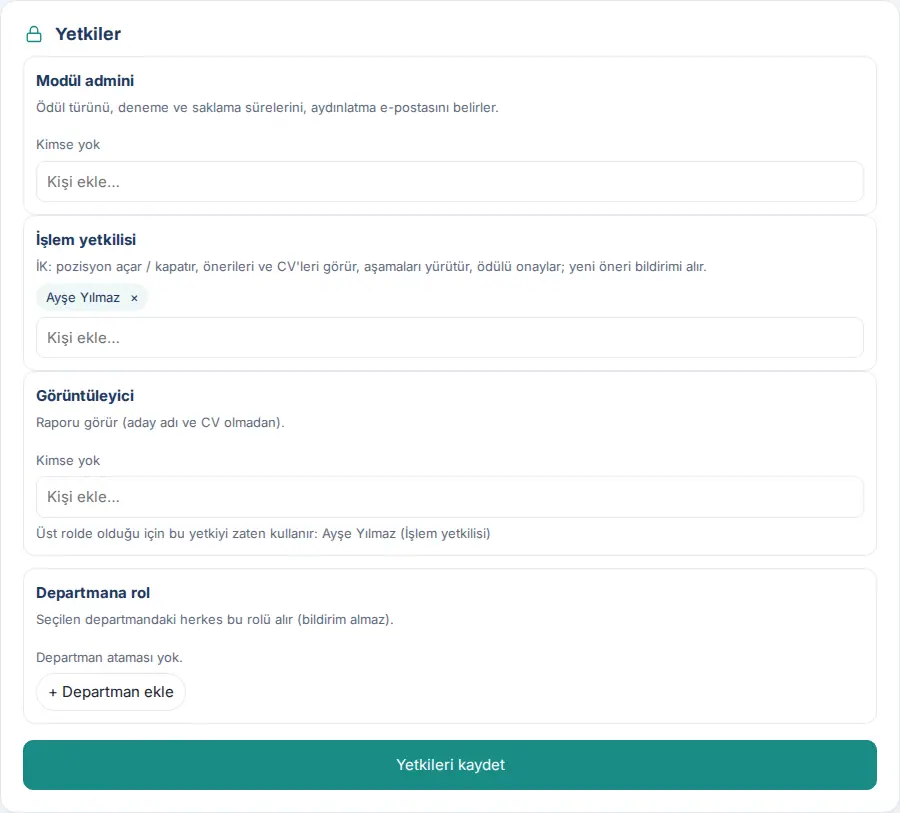
Important: Only the Admin gives the Module admin role. A person in a higher role already uses the permission of the lower role; the screen says "Already has this permission through a higher role: …". CVs are personal data; give the operator permission only to the people who run the hiring. For a general description of the roles, see 10. Administration and setup.
Opening, editing and closing a position
Who: HR (Refer a candidate operator) · Where: My Space → Services → Open positions → Candidates and positions → Positions
What it does: You open the positions for which employees can refer candidates. The bonus of the position, the application deadline and the hiring manager are set here.
- Click Candidates and positions at the top of the Open positions box (if there are new referrals, it says "Candidates and positions (2 new)").
- Go to the Positions tab. Each position shows the status (Open, Expired or Closed), the department, the application deadline, the bonus, the hiring manager and the number of referrals ("2 referrals · 2 in progress").
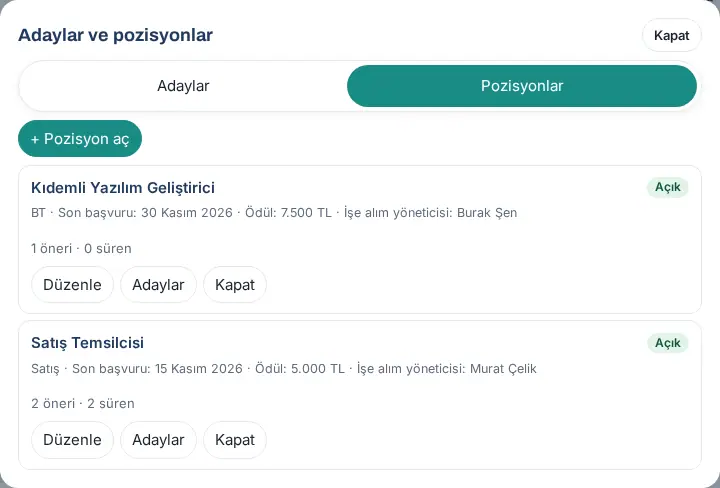
- Click + Open a position. The New position form opens.
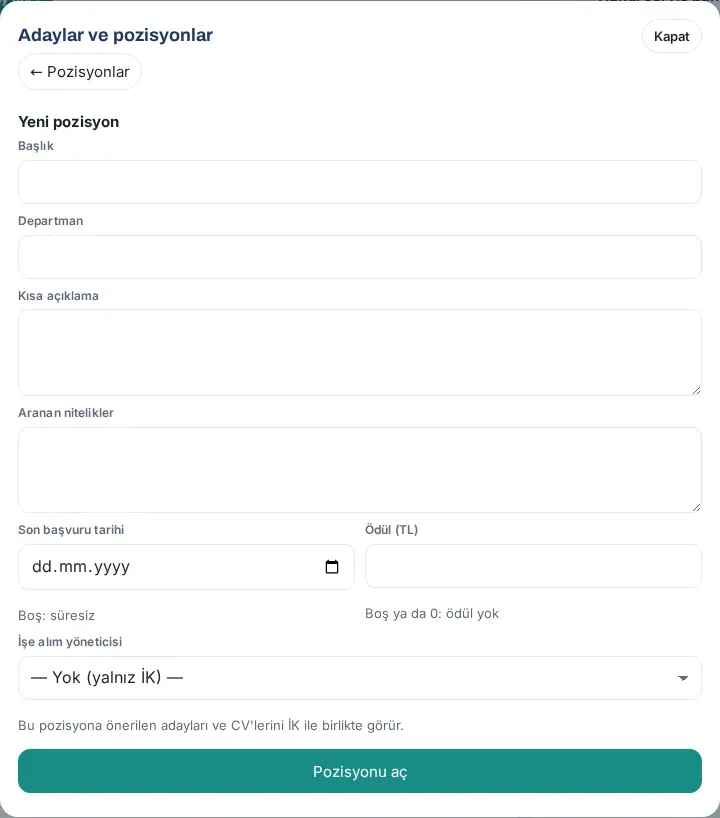
- Fill in the Title, Department, Short description and Requirements boxes.
- Select the Application deadline (empty: no time limit). Type the amount in the Bonus (TRY) box (empty or 0: no bonus; if the bonus type is points, the name of the box becomes Bonus (points)).
- If you want, select a Hiring manager. This person sees the candidates referred for the position and their CVs together with HR; when assigned, they get the notification "You’re now the hiring manager". If you do not select one, — None (HR only) — stays.
- Click Open position. The message "Position opened." appears and the position is added to the employees' list.
Editing and closing a position: With Edit, open the form again and click Save ("Position saved."). Candidates filters the referrals of the position. When you click Close, the question "Close "…"? Employees can no longer refer candidates to this position; existing referrals continue." appears; when you confirm, it says "Position closed.". You open a closed position with Reopen. A position whose application deadline has passed is removed from the employees' list and shows Expired; that night (03:40), it becomes Closed automatically.
Common errors:
- "Enter the position title."
- "The deadline cannot be in the past."
- "To open a position past its deadline, change the deadline first."
- "Choose the hiring manager from the list."
- "HR opens and edits positions."
Important: Changing the bonus amount does not change the bonus of candidates already hired; the bonus is the position bonus at the moment the candidate moves to the Hired stage.
Evaluating referrals and changing the stage
Who: HR · The hiring manager of the position · Where: Candidates and positions → Candidates
What it does: You see the incoming referrals, download the CV and move the candidate forward stage by stage. Each stage change is notified to the referrer and written to the history.
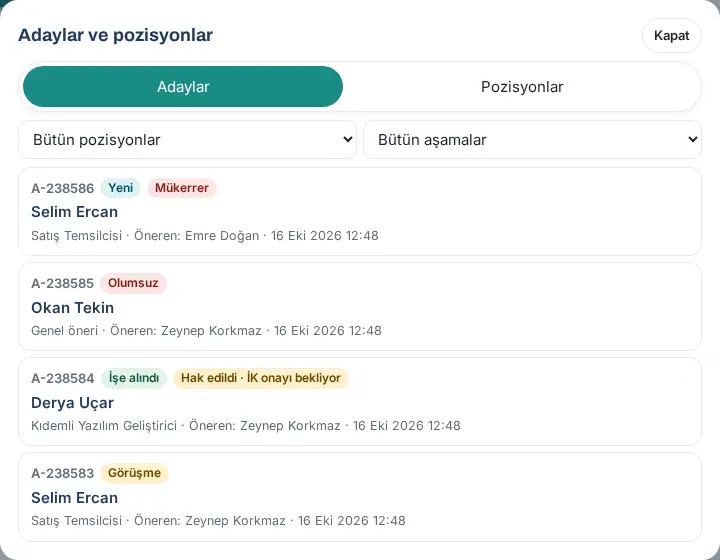
- Click Candidates and positions. On the Candidates tab, the referrals are listed with the number, the stage, the candidate's name, the position, the referrer and the date. If the same candidate was referred before, the Duplicate badge shows.
- To narrow the list, select the position in the list on the left (All positions, General referrals or a position) and the stage in the list on the right (All stages, In progress or a stage).
- Click a referral. The details show the Position, Proposed by, Relationship, Email, Phone, Referral, Data protection statement and Privacy notice email (the date, if it was sent) rows and the Why they refer text.
- To see the CV, click Download CV (PDF · 57 KB). Who downloaded the CV is recorded and shows under Who downloaded the CV.
- Under Change stage, select the new stage in the Stage list (Under review, Interview, Offer, Hired, Rejected, Candidate withdrew) and, if you want, write a Note (interview summary, reason for the decision).
- If you selected Rejected, a reason is required; if you want the reason to be shown to the referrer too, check the Also show the reason to the referrer box.
- If you selected Hired, enter the Start date; the probation period for the bonus is counted from this date.
- Click Save stage and confirm. A message such as "Stage saved: Interview." appears; the referrer gets the notification "Your referral: Interview".
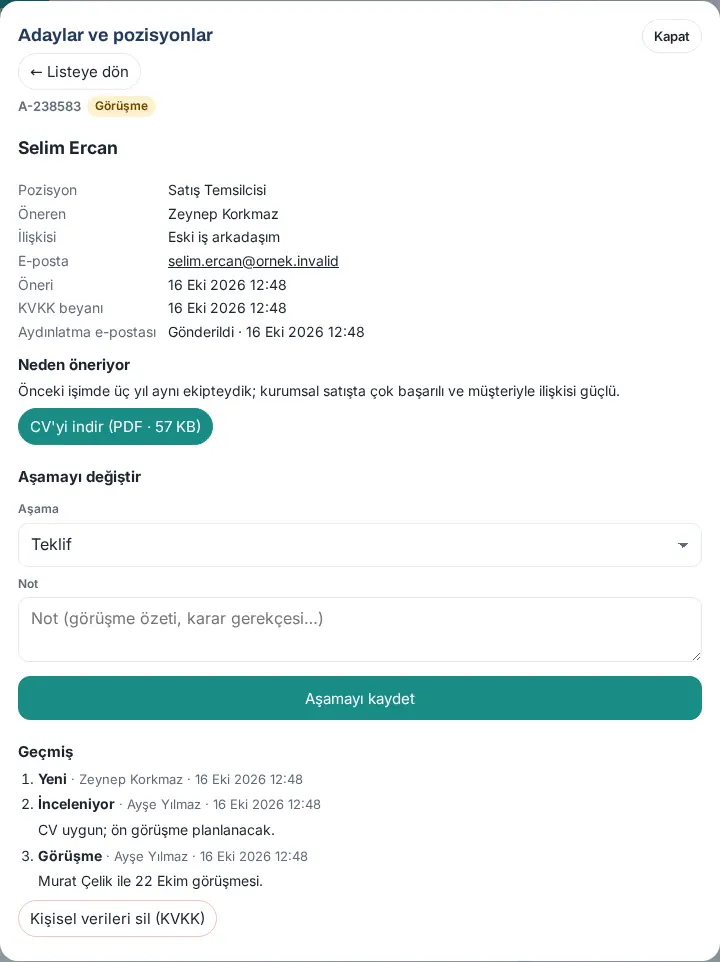
Tip: The History list shows each stage, who changed it, the date and the note; if the reason was shown to the referrer, it says "gerekçe önerene gösterildi" ("reason shown to the referrer"). When a new referral comes in, HR gets the notification "New candidate referral" and the row "Refer a candidate: 1 new referral(s)" appears in the Waiting for you list in the bell. The notes are not visible to the referrer; only the rejection reason you marked is visible.
Common errors:
- "Choose the new stage." / "Write the reason for the rejection." / "Enter the start date."
- "The start date can be at most one year before or after today."
- "Öneri bu arada "…" aşamasına geçti; ekranı yenileyin." ("the referral moved to the "…" stage in the meantime; refresh the screen"): another HR user changed the stage at the same time.
- "This referral is closed (…).": a referral in the Hired, Rejected or Candidate withdrew stage is not reopened.
- ""İşe alındı" kararını İK verir." ("HR makes the "Hired" decision"): the hiring manager cannot select this stage.
Important: For a Duplicate referral, the bonus goes to the first referrer; the details say "Duplicate · first referral A-…". Do not hire the same candidate separately through two referrals; move the first referral forward and close the second with Rejected.
Approving or cancelling a referral bonus
Who: HR (Refer a candidate operator) · Where: Candidates and positions → referral → Referral bonus
What it does: When a hired candidate completes the probation period, you mark the bonus as paid; if they leave during the probation period, you cancel the bonus.
Bonus statuses: Waiting for probation to end → (automatically at night when the probation period ends) Earned · awaiting HR approval → Paid; or Cancelled (left during probation). When the bonus is earned, HR gets the notification "Referral bonus awaiting approval" and the row "Refer a candidate: 1 bonus approval(s)" appears in Waiting for you in the bell.
- Open a referral in the Hired stage. Under Referral bonus, the Status, Bonus recipient, Bonus, End of probation and Employee record show.
- If the status is Earned · awaiting HR approval, check the Amount (TRY) box (Points for the points type) and write a Payroll transfer note (e.g. "Kasım 2026 bordrosuna eklenecek" — "to be added to the November 2026 payroll").
- Click Mark as paid and, at the question "Approve the referral bonus for … as 7500 TL?", click Approve. It says "Bonus marked as paid."; the bonus recipient gets the notification "Your referral bonus was approved". For the points type, the points are added to the suggestion-reward points table.
- If the candidate left during the probation period, click Left during probation, enter the Leaving date and the Description, and click Cancel bonus → Cancel bonus (the "Düşür" button in the confirmation). It says "Bonus cancelled."; the bonus recipient gets the notification "Referral bonus cancelled".
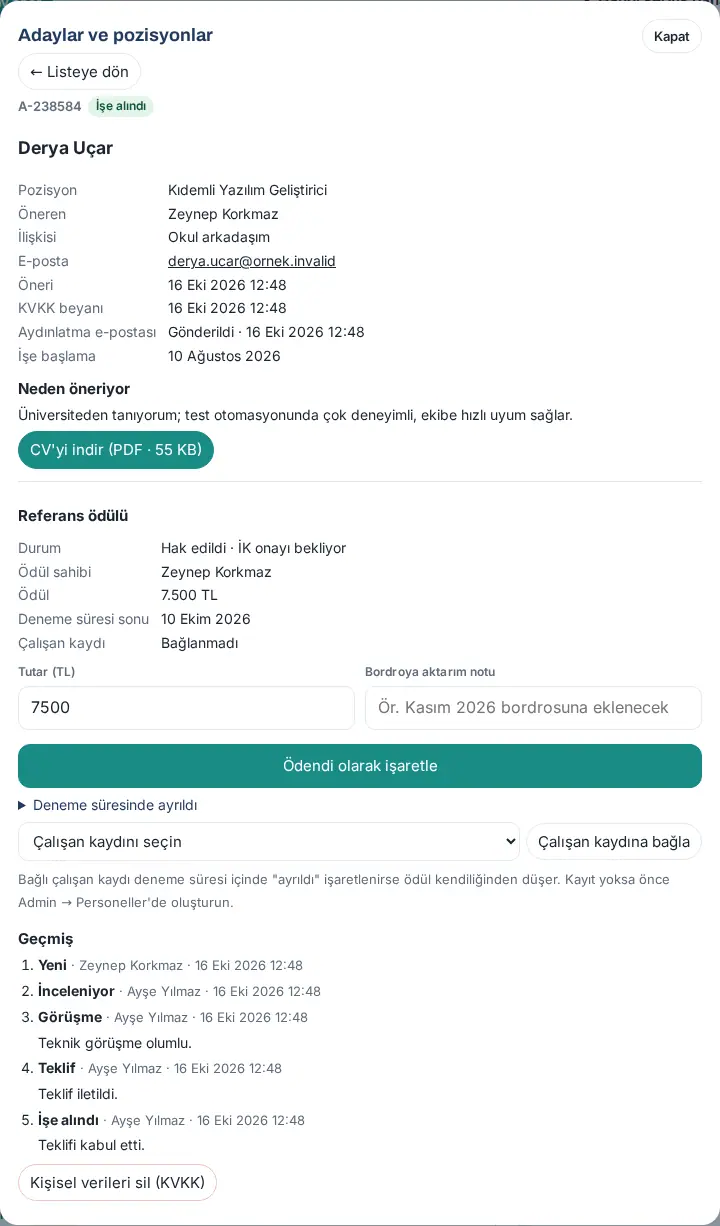
Tip: The app does not make the payment itself; you pass the amount to payroll. The Payment row shows the amount, the approval date and the approver. If the candidate is linked to an employee record and the record is marked as "left" during the probation period, the bonus is cancelled automatically at night.
Common errors:
- "Enter the leaving date." / "Write a short note."
- "The leaving date cannot be before the start date."
- "The leaving date is after probation ended (…); the bonus stays.": a leaving after the probation period does not cancel the bonus.
- "HR approves the bonus."
Linking the candidate to an employee record and starting onboarding
Who: HR · Where: Candidates and positions → referral → Referral bonus
What it does: You link the hired candidate to the employee record in Employees. This way the bonus follows whether the employee leaves, and the onboarding process starts with one button.
- First, create the candidate's employee record in Admin → Employees (see 10. Administration and setup).
- In the referral, select the person in the Choose the employee record list and click Link to employee record. It says "Employee record linked.".
- If the onboarding module is on, click Start onboarding (if there are several templates, select the template first) and confirm with Start. The process starts with the start date; it says "Onboarding started.". For the process, see 14. Services and human resources management.
Common errors:
- "First link the candidate’s employee record (create it in Admin → Employees)."
- "An employee record can only be linked to a hired candidate."
- "The onboarding process has already been started."
Deleting candidate data and the retention period (KVKK)
Who: HR · Where: Candidates and positions → referral → Delete personal data (data protection)
What it does: You delete the candidate's personal data upon a KVKK request, or when needed, without waiting for the retention period.
- Open the referral and click Delete personal data (data protection) at the very bottom.
- At the question "The candidate's name, contact details, referral note, notes and CV are permanently deleted; counts and stage history remain.", click Delete. It says "Personal data deleted."; in the list, "Personal data deleted" shows instead of the candidate's name.
Automatic deletion: For referrals in the Rejected or Candidate withdrew stage, the personal fields and the CV are deleted at night once the Retention period (months) after the referral closed runs out. If the candidate withdraws with the link in the privacy notice email, the data is deleted immediately; HR gets the notification "Candidate withdrew their application". The module adds the row "Çalışan adayı (çalışanın önerdiği)" ("job candidate (referred by an employee)") to the KVKK processing inventory.
Reports: In Reports → the Refer a candidate tab, the number of referrals per position, the distribution of stages, the hired candidates and the bonuses paid show; it can be downloaded as CSV. The report does not contain the candidate's name or CV (see 19. Reports).
Important: Deletion cannot be undone. Do not delete the data of a hired candidate here; the employee record and the onboarding process continue independently of this data.


