33. Tasks and projects
Screenshots show the Turkish interface of Prozence with fictional "Örnek Teknoloji A.Ş." data; the English interface has the same layout.
You follow work task by task: you open tasks for yourself or a teammate, change their status by dragging them on a five-column board, and add a due date, a reminder, subtasks, a checklist and files. Tasks can be collected in a project; your tasks without a project are in your Personal project. For work that repeats every month, every week or every working day, you define a recurring project: when its period comes, the project opens automatically together with its task set.
Since 1.5.0, you see a project on the Timeline (with milestones), compare the estimated and the spent time on the Effort tab, and link a budget and a customer to a project. When expenses and purchase requests are linked to a project, their amounts are added up on the budget card of the project.
This chapter is for employees, project owners and managers who follow their team's tasks. For turning on the module and the settings, see 36. Task, project and referral management.
Who: Employee · Project owner · Manager
In this chapter
- Opening the My tasks screen
- Tabs, search and project chips
- Board and list view
- Moving a task: drag and drop and the Move menu
- Adding a task
- Task details
- Editing a task: dates, reminder and repeat
- Subtasks and parent task
- Checklist
- Order: the task that must finish first
- Logging work time
- Attaching files
- Writing messages and mentioning people
- Completing or deleting a task
- Manager approval: assigning a task to someone from another team
- Rating
- Updates and notification preference
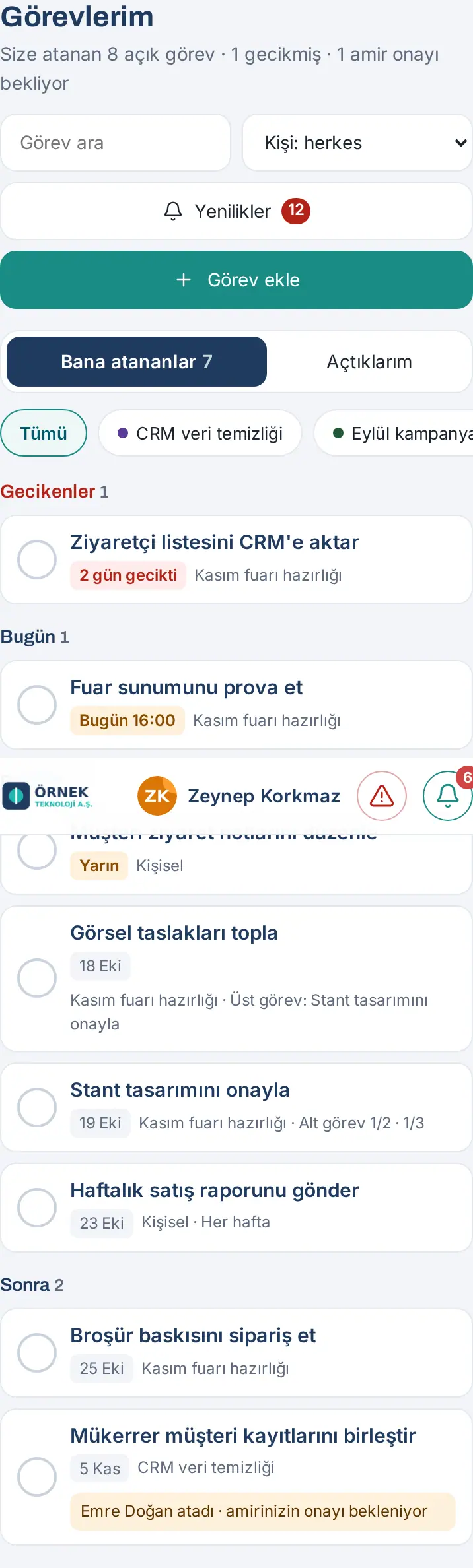
- Overdue, Today and This week on a phone
- Performance
- Projects screen and filters
- Creating a new project
- Inside a project: Board, List, Timeline, Effort, Activity, Members and settings
- Timeline
- Milestone
- Effort: estimated and spent time
- Project budget and the budget card
- The customer of a project
- Task visibility and project roles
- Changing the project status and completing a project
- Archiving, transferring and deleting a project
- Setting up a recurring project
- Task set
- Daily recurring project and working days only
- Periods: opening the next period and items left from the previous period
- Pausing a series and deleting it with its periods
- Creating a task from a request
- Task notifications
Before you start: The projects and tasks module is off by default in the company and is in the Professional package. If you do not see My tasks and Projects in the menu, the module is off; ask your manager or your IT team. The screens in this chapter were prepared with the fictional "Örnek Teknoloji A.Ş." data. The old name of the module is Work (1.2.0); since 1.3.0 there are two entries in the menu: My tasks and Projects.
Opening the My tasks screen
Who: Employee · Where: My Space → My tasks (on a computer, My tasks in the menu on the left)
What it does: Shows the tasks assigned to you, the tasks you opened and (if you are a manager) your team's tasks on one screen.
- On a phone, tap My Space in the bottom menu and select My tasks in the strip at the top. Projects is right next to it in the strip.
- On a computer, click My tasks in the menu on the left.
- Below the title, a summary shows, e.g. "8 open tasks assigned to you · 1 overdue · 1 awaiting manager approval".
From the Today screen: The My tasks box in Today shows the number of your open and overdue tasks. You can come directly by tapping Assigned to me or + Add task. Since 1.4.0, your tasks that are due today and your overdue tasks also show with their names in the "Your to-dos for today" list on the Today card (see 06. Board and intranet).
Tip: You can also go to My tasks by typing a task or project name in the Board search.
Tabs, search and project chips
Who: Employee · Manager · Where: My tasks
What it does: You select which tasks you see.
- Select one of the tabs at the top:
- Assigned to me — the tasks for which you are the assignee (the screen opens with this tab; the number of open tasks shows next to it).
- Created by me — the tasks that you opened (including the ones you assigned to someone else).
- My team — shows only for managers who have direct reports; your team's tasks. You can read these tasks, but you cannot change them.
- Type a part of the task name in the Search tasks box; the list is filtered as you type.
- Select a person from the Person: everyone list to see only that person's tasks.
- Click one of the chips on the Project: row: All, the projects of the tasks in the list, and Personal (tasks without a project). While a project is selected, Open project opens that project on the Projects screen.
You can also move between the tabs with the arrow keys.
Board and list view
Who: Employee · Where: My tasks → List view / Board view
What it does: You see the tasks in columns by their status, or in one table.
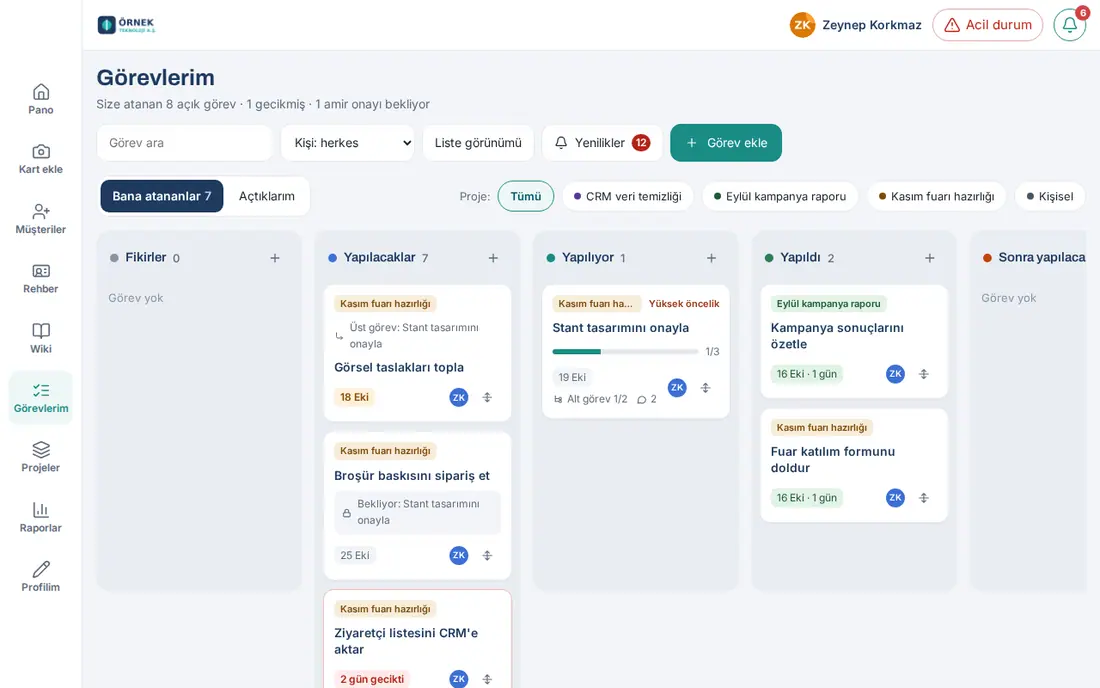
The board has five columns:
| Column | What it means |
|---|---|
| Ideas | Work that is not in the plan yet |
| To do | Work whose turn has come |
| In progress | Work that is being done |
| Done | Closed work (Completed or Not completed); by default the last 30 days show |
| Later | Postponed work; it does not count as overdue |
Each card shows: the project label, High priority, the title, the "Parent task: …" row, the manager approval note, the "Bekliyor: …" ("waiting: …") lock (the previous task is not finished), the checklist progress (e.g. 1/3), the due date ("2 days overdue", "Today 16:00", "Tomorrow", a date), "Subtask 1/2", the repeat ("Every week"), the number of messages and files, and the initials of the assignees. An overdue card has a red frame. The initials of an employee who left are gray and "(left)" shows next to the name.
- To change to the table, click List view at the top. The table has the Task, Project, Status, Owner and End columns.
- To go back to the board, click Board view. Your choice is remembered on this device.
Moving a task: drag and drop and the Move menu
Who: The assignee of the task, the person who opened it, or a member of the project · Where: My tasks or the project board
What it does: You change the status of the task. A task dropped on Done counts as Completed and its completion time is recorded.
With the mouse: Hold the card, drag it to another column and drop it.
On a phone: Press and hold the card for a short moment (about one third of a second), then drag it. When you come to the edge of the screen, the board scrolls automatically. A short tap opens the task.
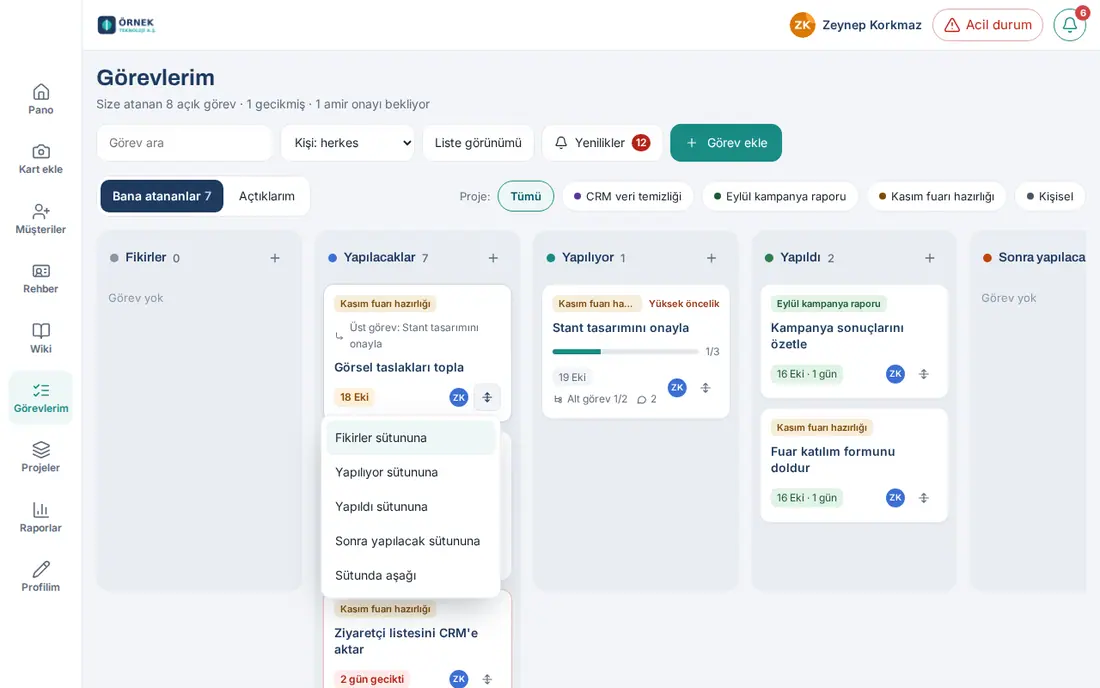
With the Move menu (keyboard and phone):
- Click the Move button (four-direction arrow) at the bottom right of the card.
- Select from the menu: the other columns, such as "To In progress", Up in the column, To the top of the column, Down in the column.
- In the menu, you move with the arrow keys and Home / End, and close it with Esc.
The move is done on the screen first, then saved. If it is not saved, the card goes back to its old place and the reason shows.
Common warnings:
- "This task cannot start before the previous tasks are done: "…"." — until the previous task in the Order section of the task is finished, the task does not move to In progress or Done (see Order: the task that must finish first).
- Subtasks are not finished: "Open subtasks: N. Complete anyway?" — you moved a task with open subtasks to Done. Select Complete anyway or Go back.
- "Bu görevi taşıyamazsınız (proje üyesi, sorumlu ya da görevi açan taşır)." ("You cannot move this task (a project member, the assignee or the person who opened the task moves it).")
- If someone else changed the task in the meantime, the card goes back and the board is loaded again in its current state.
Adding a task
Who: Employee · Where: My tasks → Add task (also with + in a column header)
What it does: You quickly open a task for yourself or a teammate.
- Click Add task at the top right. To add it to a specific column, click + in the header of that column.
- Type the title in the Task box (2–200 characters).
- Select the Project. If you select Personal, only you and the assignee see the task. The list contains the projects to which you can add tasks.
- If you want, select a task in the same project from Parent task; the new task becomes its subtask.
- Select the Column (default To do).
- Select the Owner ("assignee"): the default is Me (your name); or an employee from the list, or Nobody (assign later).
- If you want, enter the End (optional) date and tick High priority.
- Click Add. "Task added." shows and the form is cleared; you can add tasks one after another. To open the task as soon as you add it, tick Open the details after adding.
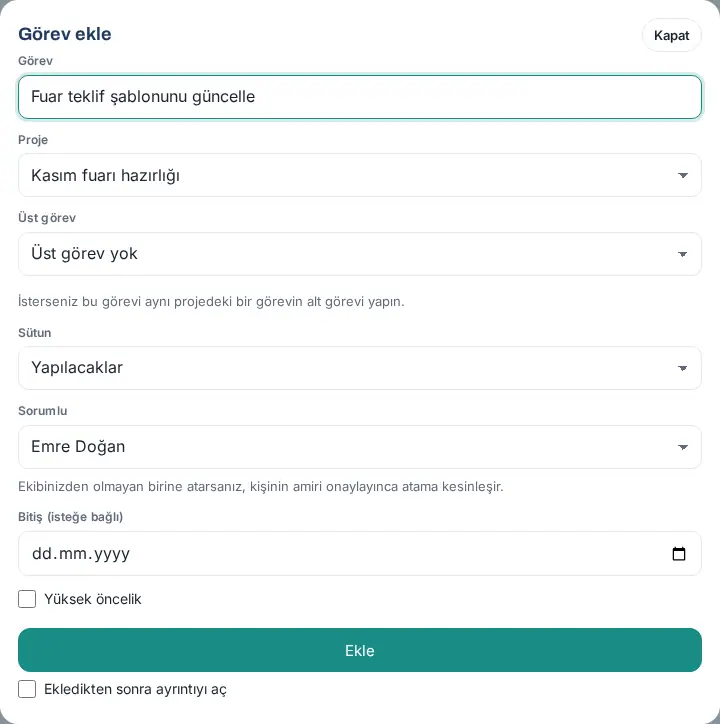
Important: If you select someone who is not in your team as the assignee, the form shows "If you assign someone outside your team, the assignment is confirmed once their manager approves." and after the task is added, the message "Task added; the assignment awaits manager approval." appears (see Manager approval).
Common warnings: "Enter a title for the task." · "You must be a member of the project to add tasks to it."
Task details
Who: Everyone who can see the task · Where: Click the title of the card
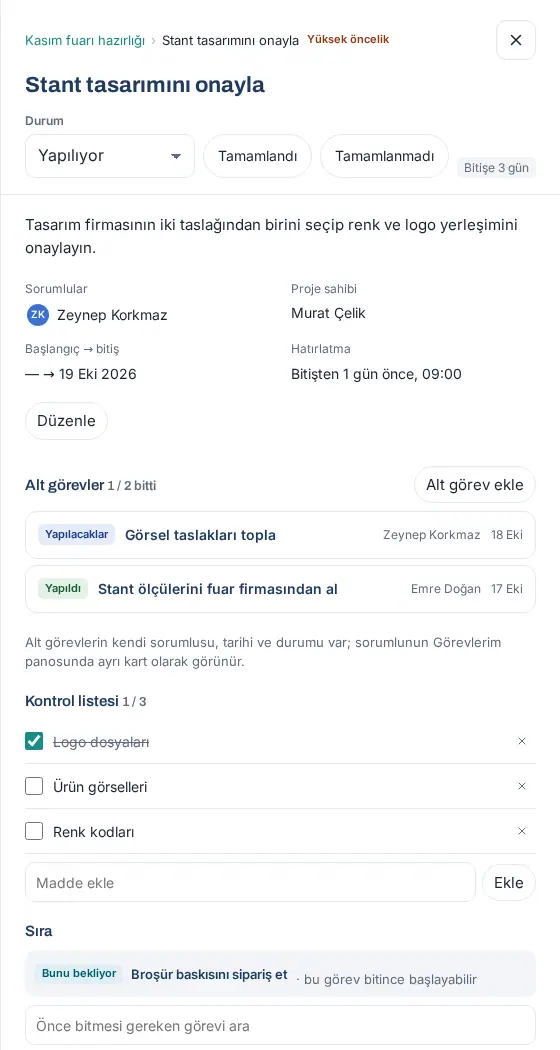
What it does: All the information, subtasks, checklist, order, time, files and messages of the task are in one panel.
- Click the title of the card. On a computer, the details open in a panel from the right; on a phone, they open in full screen.
- At the very top, the breadcrumb shows: Project › Parent task › Task. Click the project name to open the project.
- From the Status list, you can change the column of the task, and close the task with Completed or Not completed. Next to it, "Due in 3 days" or "2 days overdue" shows.
- Below are the description and the details: Assignees, Department, Project owner, Start → due, Reminder, Repeat.
- Then the Subtasks, Checklist, Order, Time worked (only in a project with time tracking on), Files, Ratings and Messages and history sections come in order. If the task is a milestone, the details also show the line "Milestone: Yes · shown as a diamond on the timeline" (1.5.0).
- At the very bottom, the opening time and the first start time show; if it is done, the completion time; and, if there is one, the Bağlı talep ("linked request").
- Close the panel with ×, with the Esc key or by clicking outside the panel.
Tip: The link in a notification opens the task directly.
Editing a task: dates, reminder and repeat
Who: The assignee of the task, the person who opened it, or a project member · Where: Task details → Edit
What it does: You change the title, assignees, dates, reminder and repeat of the task.
- In the task details, click Edit below the details.
- Change the Title, Description, Project and Parent task. If the project changes, the subtasks also move to the new project.
- Under Assignees, add people from the Add person… list; to remove someone, click × next to the name.
- Select the Department and Priority (Normal / High).
- Enter the Start, End and Due time.
- If the task is an important stage of the project, select the Milestone checkbox (1.5.0; see Milestone).
- Estimated time (minutes) — shows only in projects with time tracking on (e.g. 6 hours = 360). If the task has two or more assignees, the Estimate per person (minutes, optional) boxes appear below it (1.5.0): you can enter the share of each assignee separately. The ones you leave empty share the rest of the total estimate equally; if you enter it for everyone, the total estimate becomes the sum of the per-person estimates.
- Due reminder (phone notification; email if it doesn’t arrive): tick Reminder, enter the number, select days before or hours before; if you selected days before, also enter the time (e.g. 1 day before, 09:00). A reminder needs a due date.
- Repeat: Does not repeat, Daily, Weekly, Monthly or Yearly and the interval (1–365; e.g. Weekly, interval 2 = every two weeks).
- Click Save. To cancel, click Cancel.
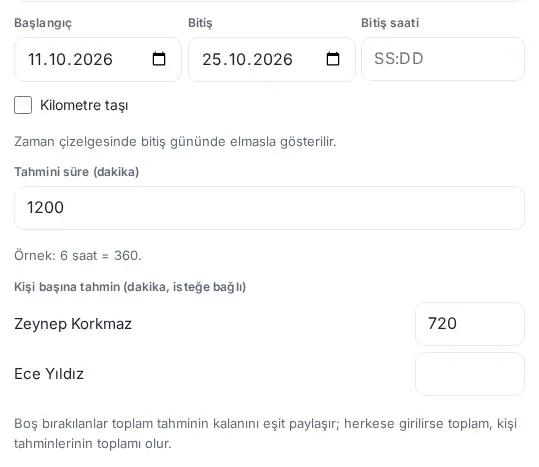
How is the estimate per person calculated? (1.5.0) Example: the Estimated time is 1200 minutes (20 hours), there are two assignees, and 720 was entered only for Zeynep Korkmaz. Zeynep's share is 12 hours, and Ece Yıldız's share is the remaining 8 hours. If no per-person estimate is entered, the total estimate is split equally among the assignees. The per-person estimates are used on the Effort tab and in the "Estimated (share)" and "Estimated time" columns in Reports → Projects. An estimate entered for a person who was removed from the assignees is not counted.
Common warnings (per-person estimate): "Per-person estimates can only be entered for the task's assignees." · "A per-person estimate must be a whole number between 0 and 100,000 minutes." · "You cannot change this task's estimate."
How does a repeating task work? When the task becomes Done, its next copy opens; the dates move forward as much as the rule, and the checklist comes unticked. Files, messages and order links are not copied. If the task is closed late, the missed periods are skipped; the new due date is not before today. For monthly repeats, the day of the month of the first task is kept (31 January → 28 February → 31 March). The copy opens even if the task is closed as Not completed. The details show "Repeats every week"; in the feed, the Open the new task button opens the copy.
Tip: If you want a group of tasks to open together in a period, use a recurring project instead of a repeating task.
Subtasks and parent task
Who: The assignee of the task, the person who opened it, or a project member · Where: Task details → Subtasks → Add subtask
What it does: You divide a big job into parts. A subtask has its own assignee, date and status; it shows as a separate card on its assignee's My tasks board.
- In the task details, click Add subtask next to the Subtasks heading.
- The Add subtask window opens; the project and the parent task come selected. Enter the title, the assignee and the due date and click Add.
- The subtasks show in the list with their status (To do, Done …), assignee and date; the heading shows "1 / 2 done". Click a subtask to open that task.
To put an existing task under another task, open the task with Edit and select the Parent task.
Rules:
- Each task has at most one parent task; the parent and the subtask are in the same project.
- There are at most three levels: task → subtask → subtask of the subtask. A task cannot be put under its own subtask.
- When a task with open subtasks becomes Done, the Subtasks are not finished window asks "Open subtasks: N. Complete anyway?".
Checklist
Who: The assignee of the task, the person who opened it, or a project member · Where: Task details → Checklist
What it does: You keep small items to tick inside the task. Items have no assignee and no date; for work to give to a separate person, open a subtask.
- Type the item in the Add item box and click Add (Enter also works).
- Tick the box of a completed item; the heading shows "1 / 3" and a progress bar shows on the card.
- To delete an item, click × next to it and confirm.
Note: The old "subtask" items in tasks opened in 1.2.0 show here. An old item assigned to you is listed on the phone in Assigned to me with a "checklist" note.
Order: the task that must finish first
Who: The assignee of the task, the person who opened it, or a project member · Where: Task details → Order
What it does: You make sure that a task does not start before another task is finished (e.g. "Broşür baskısını sipariş et" ("order the brochure print") must not start before "Stant tasarımını onayla" ("approve the stand design") is finished).
- Open the details of the task that will wait.
- Type in the Search for a task that must finish first box in the Order section and select the task from the list. It shows "Linked: this task cannot start before "…" is done."
- In the section, the previous task shows with the Must finish first badge (if it is finished, Done first). To remove the link, click × next to it.
- In the details of the previous task, the waiting task shows with the Waiting on this badge.
The card of the waiting task shows "Bekliyor: …" ("waiting: …") with a lock icon. When all the previous tasks are Done, the assignees of the waiting task get the notification "You can start now: …".
Important: A task can be linked to at most 20 tasks. A loop cannot be made (A cannot wait for B while B waits for A).
Logging work time
Who: The assignee of the task, the person who opened it, or a project member · Where: Task details → Time worked
What it does: You log the time you spend on a task day by day. The section shows only in projects with time tracking on (project setting; off by default).
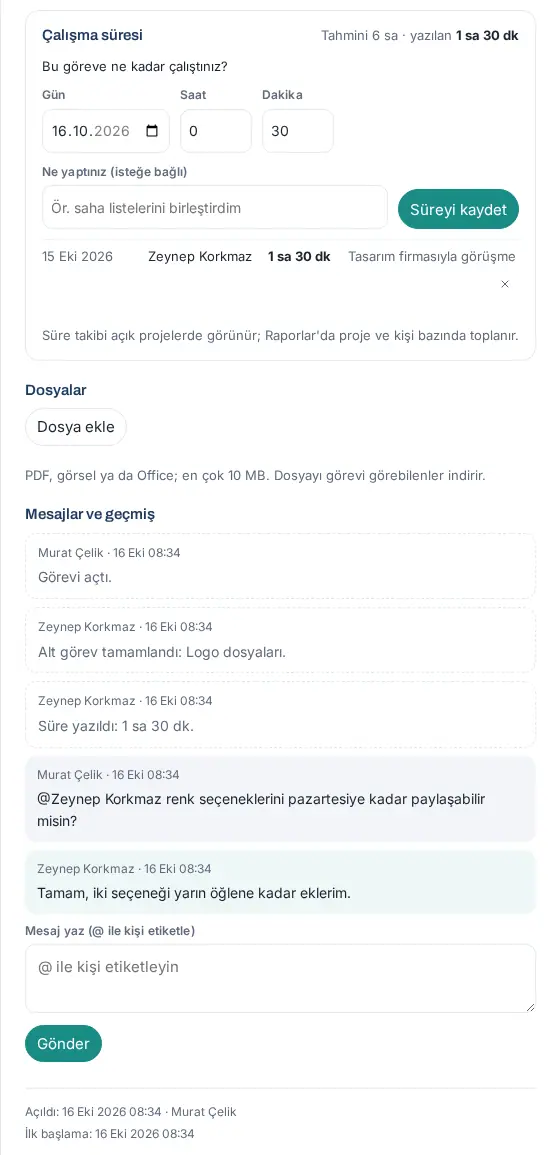
- Under How long did you work on this task?, select the Day (today or the last 60 days).
- Enter the Time (hours) and Minutes (in total between 1 minute and 24 hours).
- If you want, type a short note in the What did you do (optional) box.
- Click Save time. The heading shows a total such as "Estimated 6 h · logged 1 h 30 min"; the entries are listed below with the day, the person and the time.
- You can delete your own entry with × next to it (the module admin can delete any entry).
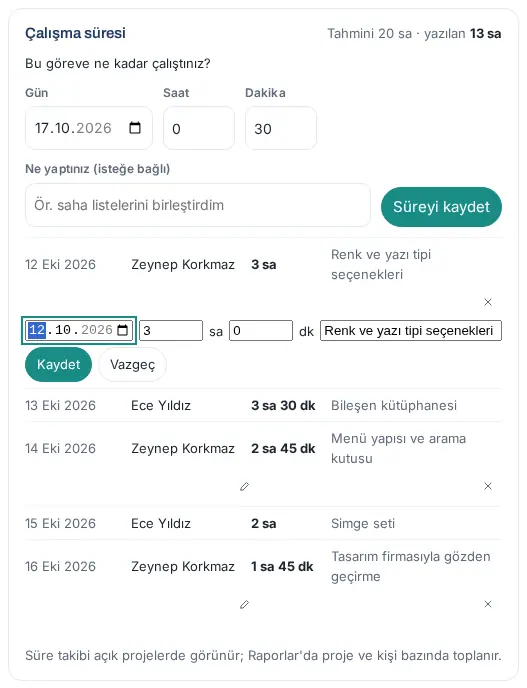
Editing a time entry (1.5.0):
- Click the pencil icon (Edit time entry) next to your own entry. A small form opens on the entry row.
- Correct the day, the hours (h), the minutes (min) and the note.
- Click Save. "Time entry updated." shows. To cancel, click Cancel.
- A line such as "Time entry edited: 2 h 30 min → 2 h 45 min." is added to the Messages and history section of the task.
Who edits? The person who wrote the entry (if they can still edit the task) and the "Projects and tasks" module admin. If the module admin edits someone else's entry, the history shows "Edited Ece Yıldız's time entry: 4 h → 3 h 30 min." with the name of the person who edited it. The project owner and the other members cannot edit or delete someone else's entry.
Common warnings: "Time must be between 1 minute and 24 hours." · "The day must be today or within the last 60 days." · "Only the person who logged the time entry or a module admin can edit it." · "Time entry not found (it may have been deleted)." · "Time tracking is off in this project."
Attaching files
Who: The assignee of the task, the person who opened it, or a project member · Where: Task details → Files
What it does: You add a document or an image to a task; everyone who can see the task can download it.
- In the Files section, click Attach file and select the file. "File added." shows.
- To download it, click the name of the file.
- To delete it, click × next to it and confirm. The person who uploaded the file, the person who opened the task or the project owner can delete it.
Rules: PDF, image (JPG, PNG, GIF, WEBP) or Office (Word, Excel, PowerPoint); at most 10 MB; at most 20 files per task. The content of the file must be of the same type as its extension.
Common warnings: "The file must be a PDF, an image (JPG, PNG, GIF, WEBP) or an Office file (Word, Excel, PowerPoint)." · "The file can be at most 10 MB." · "The file is empty."
Writing messages and mentioning people
Who: Everyone who can see the task · Where: Task details → Messages and history
What it does: You talk about the task; you inform a person by mentioning them with @. The section also shows the history of the task (opened, time logged, subtask completed …) in date order.
- Type your message in the Write a message (mention someone with @) box.
- To mention someone, type @, enter the first letters of the name and select the person from the suggestion list. The people of the task and the project members are suggested first.
- Click Send (or Ctrl + Enter). "Sent; 1 person were notified." shows.
Important: If you mention a person who cannot see the task, they do not get a notification; the screen shows "… was not notified because they cannot see this task." A message is at most 2000 characters.
Completing or deleting a task
Who: The assignee of the task, the person who opened it, or a project member · Where: Task details
What it does: You close the task. Completed counts as completed in performance; Not completed does not.
- At the top of the task details, click Completed. The task moves to the Done column; "Task closed: Completed." shows.
- If the task will be closed without the work being done, click Not completed and confirm with Close as not completed.
- To open the task again, select another column from Status.
Deleting a task: Click Delete task at the very bottom of the details and confirm with Delete. The task is deleted permanently, with its checklist, messages and files. Only the person who opened the task or the project owner can delete it.
Manager approval: assigning a task to someone from another team
Who: Employee who assigns a task · The direct manager of the assigned person · Where: Task details, Updates, the bell, Today
What it does: When you give a task to someone from another team, the assignment is confirmed when the person's manager approves. This way, the manager sees who gives work to their team.
When is approval needed?
- If you assign the task to yourself, or if you are in the person's management chain (their manager, their manager's manager …), no approval is needed.
- Assignment to a person without a defined manager is free.
- In all other cases, the person's direct manager approves. The project owner and the module admin also follow this rule.
- Your company may have set the rule to Open or Off (see chapter 36). With Off, the warning "Only … themselves or their management chain can assign them tasks." appears.
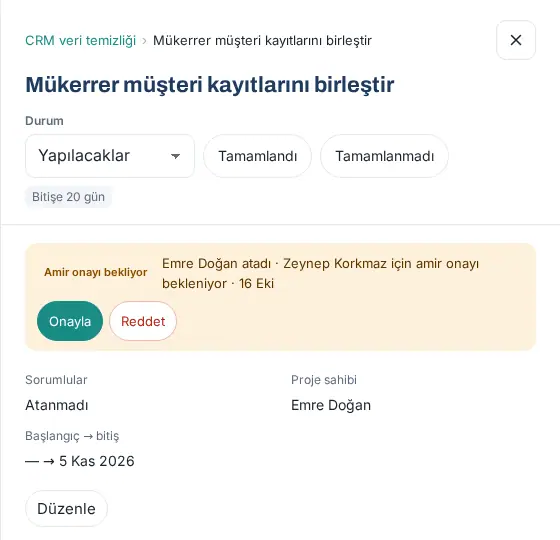
While waiting for approval: The card and the details show "Emre Doğan atadı · awaiting your manager's approval" ("Emre Doğan assigned · …", to the person) or "Awaiting manager approval for …". The person sees the task, but does not count as the assignee yet.
Approving as the manager:
- Tap the "Your approval is needed: …" notification or the row in Updates. In the task details, the Awaiting manager approval box shows. Since 1.4.3, pending assignments also show as the row "N task assignment(s) awaiting your approval" on the Today card (Awaiting your approval), in the bell (Waiting for you) and in the phone's Pending approvals widget; with one task the row opens the task, with several it opens My tasks.
- Click Approve and confirm with Approve assignment. "Assignment approved; … was notified." shows and the person gets the "Task assigned to you" notification.
- Or click Reject, fill in the Reason for rejection (sent to the assigner and the person) box and click Reject assignment. The reason is mandatory.
Tip: In recurring projects, the approval is asked once at series level; an approved person is assigned directly in the next periods.
Rating
Who: Project owner (for a task without a project, the person who opened it) · The assignee's manager · Where: Details of a completed task → Ratings
What it does: You give a completed task a score from 1 to 5 and a note. The scores show as an average in the Performance table.
- Open a task that was closed as Completed.
- In the Ratings section, click a score between 1 and 5.
- If you want, type in the Note (optional; the assignee does not see it) box.
- Click Evaluate. To change it, click Update rating.
Important: A person cannot rate their own task. The assignee of the task does not see the score and the note; only those who can rate and the module admin see them. If the task is opened again or becomes Not completed, the score is deleted.
Updates and notification preference
Who: Employee · Where: My tasks → Updates
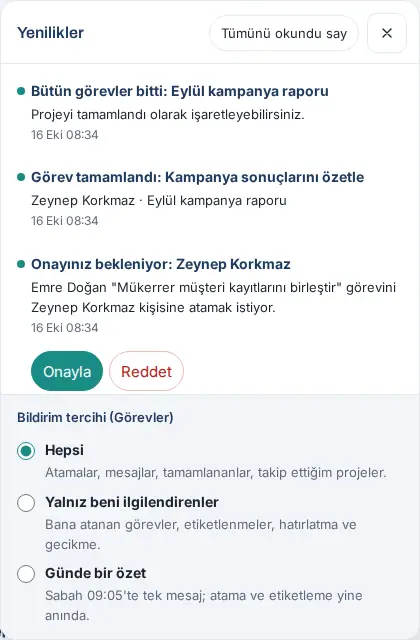
What it does: News about your tasks (assignments, messages, completed tasks, approval requests) is collected here. Even if phone notifications are off, every item of news shows here.
- Click the Updates button in the My tasks header. The button shows the number of unread items.
- When you click an item, the related task or project opens and the item counts as read. To mark all as read, click Mark all as read.
- Approval requests have the Approve and Reject buttons in the row.
- Select one option from Notification preference (Tasks) at the bottom of the panel:
- All — assignments, messages, completed tasks, projects you follow.
- Only what concerns me — tasks assigned to you, mentions, reminders and overdue tasks; the others go only to Updates.
- One daily digest — one message at 09:05 in the morning; assignments and mentions still come immediately.
Tip: News is kept for 30 days (at most 100 per person). If a phone notification does not arrive, the email backup works (see 09. Notifications).
Overdue, Today and This week on a phone
Who: Employee · Where: On a phone, My Space → My tasks → Assigned to me
What it does: On a phone, Assigned to me shows as a to-do list instead of a board; you see your work by date.
- The list has four groups: Overdue, Today, This week (the next 7 days) and After (later or without a date). The number shows next to each group.
- Each row shows the title, the due date ("2 days overdue", "Today 16:00", "Tomorrow", a date), the project, the parent task, the number of subtasks and the repeat.
- To finish a task, tap the circle on the left of the row. The row shows Completed; within 6 seconds you can undo it by tapping Undo.
- For the details, tap the name of the task.
Tip: To change to the board view, use the Created by me tab or a project board; drag and drop also works on the phone.
Performance
Who: Project owner · Manager with direct reports · Module admin · Where: My tasks → Performance
What it does: You see the tasks that people completed in the last 90 days and their on-time completion rates.
- Click Performance in the My tasks header. The button shows only for those who can see it.
- From Scope, select All tasks or a project you own.
- The table shows for each person: Completed (+ not completed), On time (for tasks with a due date, the rate of those closed on or before the due date), Avg. completion (from the first "In progress" to closing), Vs. estimate (for tasks with an estimated and a logged time), Ratings (average score and count).
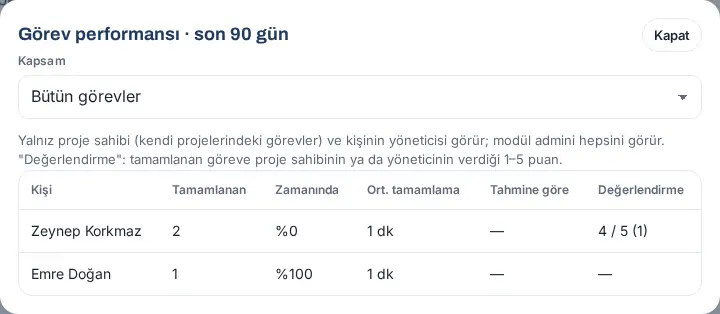
Who sees what? The project owner sees the tasks in their own projects, a manager sees the tasks of their direct reports, and the module admin sees all of them.
Tip: For the project list, the workload per person, the tasks completed in the period, the effort and CSV, use Reports → Projects (1.5.0; see 19. Reports).
Projects screen and filters
Who: Employee · Where: My Space → Projects (on a computer, Projects in the menu on the left)
What it does: You see the projects that you can see, by their status.
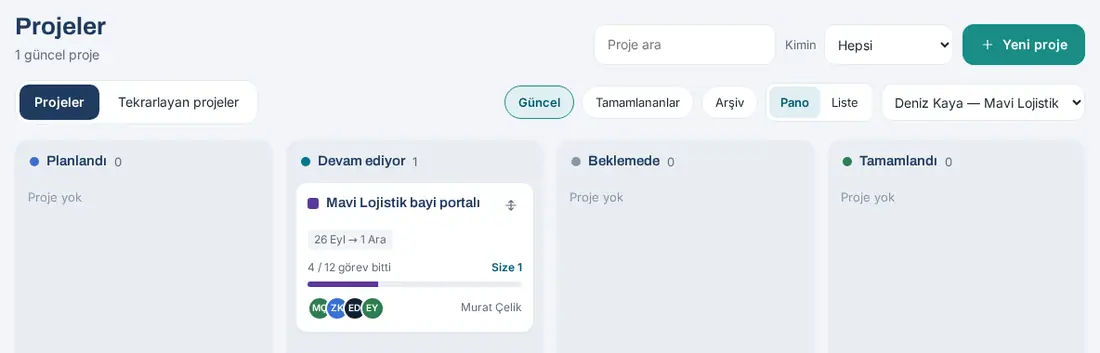
- Open Projects. There are two tabs at the top: Projects and Recurring projects.
- On the Projects tab, the board has four columns: Planned, In progress, On hold, Completed. To change to the table, click List (the columns are Project, Status, Date, Progress, Owner).
- Select one of the filters:
- Current — ongoing projects, the opened period of recurring projects and the ones left from the previous period without being completed; in the Completed column, the last 30 days.
- Completed — all completed projects.
- Archive — archived projects.
- From the Whose list, select All, Mine, I'm a member, My department or Shared. Search by name with the Search projects box.
- The card shows the color, the name, the repeat badge (e.g. "Every month · October 2026"), the date, the "2 / 10 tasks done" progress, the number of tasks assigned to you, the members and the owner. The Personal card ("only you") collects your tasks without a project.
- If at least one of the projects that you can see has a customer, a customer list appears at the end of the toolbar (1.5.0). When you select a customer instead of All customers, only the projects of that customer show; meanwhile, the Personal card is not shown (see The customer of a project).
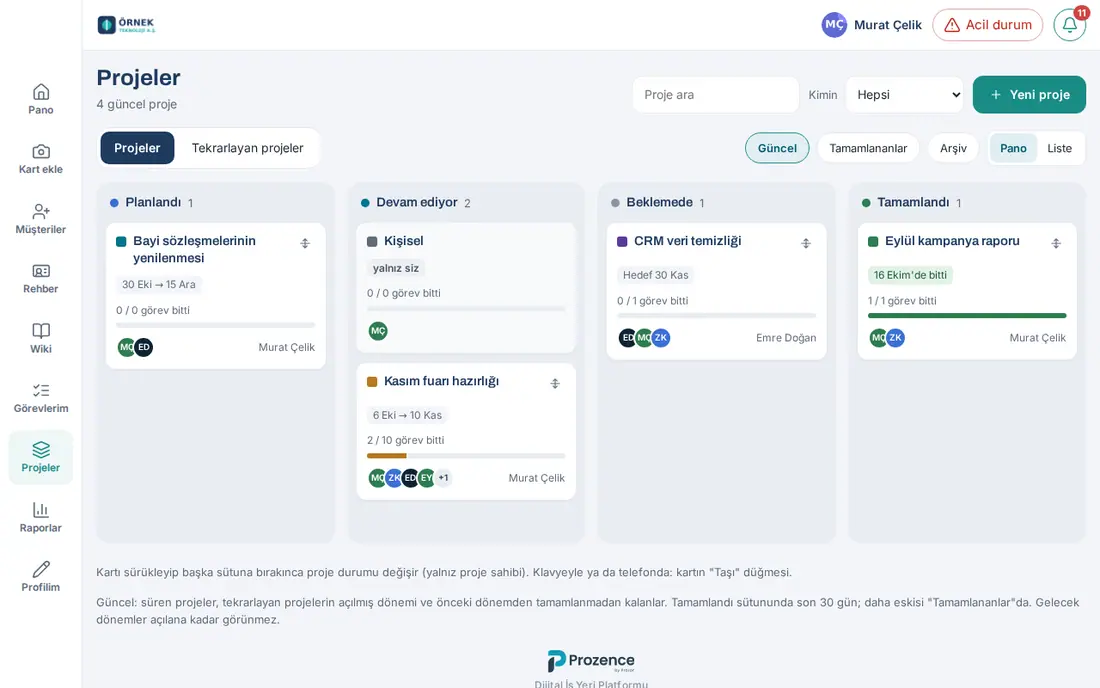
Tip: A project card that is overdue or left from the previous period has a red frame and stays at the top of the column. The future periods of recurring projects do not show in the list until they are opened.
Creating a new project
Who: Employee · Where: Projects → New project
What it does: You open a project with the people you will work with.
- On the Projects tab, click New project at the top right.
- Type the Project name (2–80 characters) and select a Colour.
- Select Who can see:
- Private — owner and members only
- Department — everyone in the department sees and edits (then select the Department)
- Shared — everyone sees and comments; members edit (if your company left shared projects only to authorized people, this option does not show)
- Select the Task visibility: Members see all tasks or Members see only their own tasks (see Task visibility and project roles).
- Under Members, add people from the Add member… list. Members add, move and edit tasks; they follow the project.
- If you want, enter the Start, End and Description (optional).
- If work time will be logged on tasks, tick the Time tracking — tasks show "How long did you work on this task?" and the estimated time box.
- If the project is done for a customer, type at least two letters in the Search customers (name, company) box under Customer (optional) and select the customer from the list (1.5.0). The selected customer shows as a chip; to remove it, click × next to it. The list shows only the records that you can see in the customer directory (at most 12).
- If a spending limit is kept for the project, type the amount in the Budget (TRY, optional) box (1.5.0; e.g. 250.000 or 250000,50). If you leave it empty, no budget is kept (see Project budget and the budget card).
- Click Create project. "Project created." shows and the project opens. The members added to the project get the "Projeye eklendiniz" ("you were added to a project") notification.
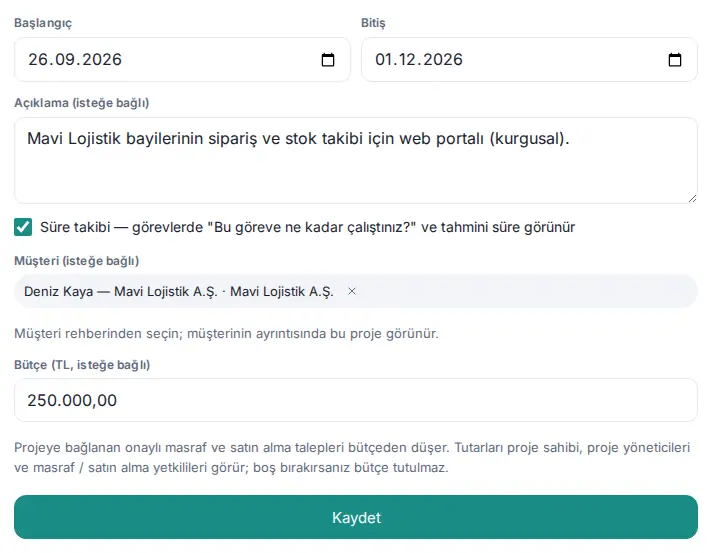
Common warnings: "Enter the project name." · "The end date cannot be before the start date." · "Ortak (herkese açık) projeyi bu şirkette yalnız yetkililer açar." ("In this company, only authorized people can create a shared (public) project.") · "The budget must be a TRY amount (e.g. 250.000 or 250000,50)." · "The budget must be greater than zero; leave the field empty to remove the budget." · "The budget can be at most 100 billion TRY." · "Customer not found, or you cannot see this customer record." If the budget or the customer is not valid, the project is not created; correct the field and try again.
Inside a project: Board, List, Timeline, Effort, Activity, Members and settings
Who: Everyone who can see the project · Where: Projects → project card
What it does: You see all the tasks, the history and the members of the project.
- Click the name of the project card.
- At the top, the breadcrumb (Projects › Project; in a recurring project, Projects › Series › Period), the project name, Project status, Following / Follow and (for the owner) Edit show.
- Below them, the date range, the owner, the members, who can see it ("Only owner and members can see it"), the customer ("Customer: …"; 1.5.0), the delay and the "2 / 10 tasks done" progress show.
- In a project with a budget, if you have permission, the Budget card shows below the header (1.5.0; see Project budget and the budget card).
- Select one of the sub-tabs:
- Board — the tasks of the project on a five-column board; you drag and move them in the same way as on the My tasks board.
- List — the task tree: parent tasks and subtasks indented, with the Status, Owner, End and Subtasks / order columns.
- Timeline (1.5.0) — the tasks as start–end bars, milestones as diamonds, order links as arrows (see Timeline).
- Effort (1.5.0; only in a project with time tracking on) — the estimated and the spent time, by person and by task (see Effort: estimated and spent time).
- Activity — who did what in the project; to see older items, click Older activity.
- Members and settings — the members and their roles, visibility, task visibility, time tracking, following; for the owner, the project actions.
- To add a task to the project, click Add task to this project.
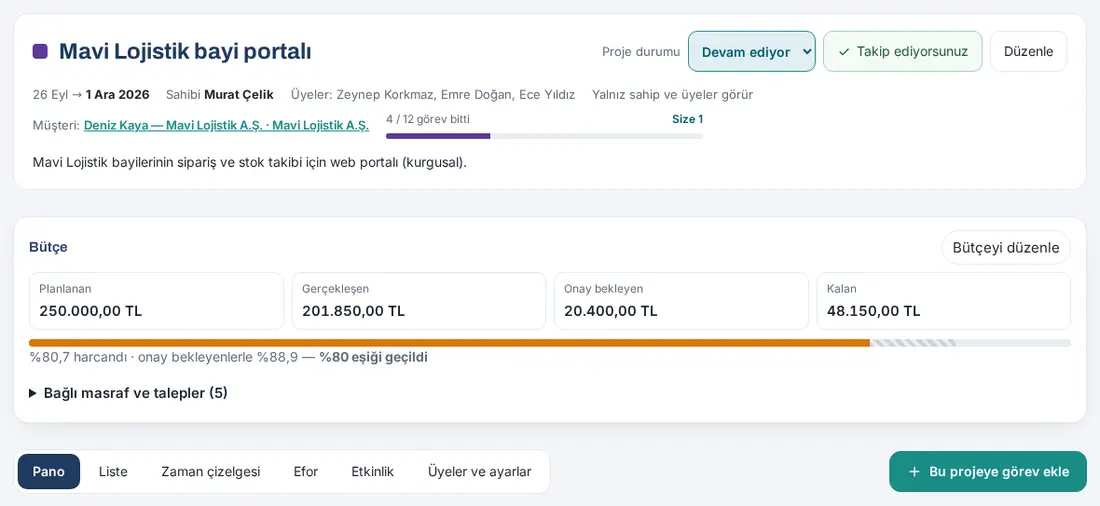
Following: Members follow the project automatically. In a project you follow (if your notification preference is All), task messages and completed tasks are reported to you. To stop, click Following; "Unfollowed." shows.
Timeline
Who: Everyone who can see the project · Where: Project → Timeline
What it does: You see the tasks of the project on a calendar strip: which work starts when and ends when, which one waits for which, where we are today and what is late.
- Open the project and click the Timeline tab.
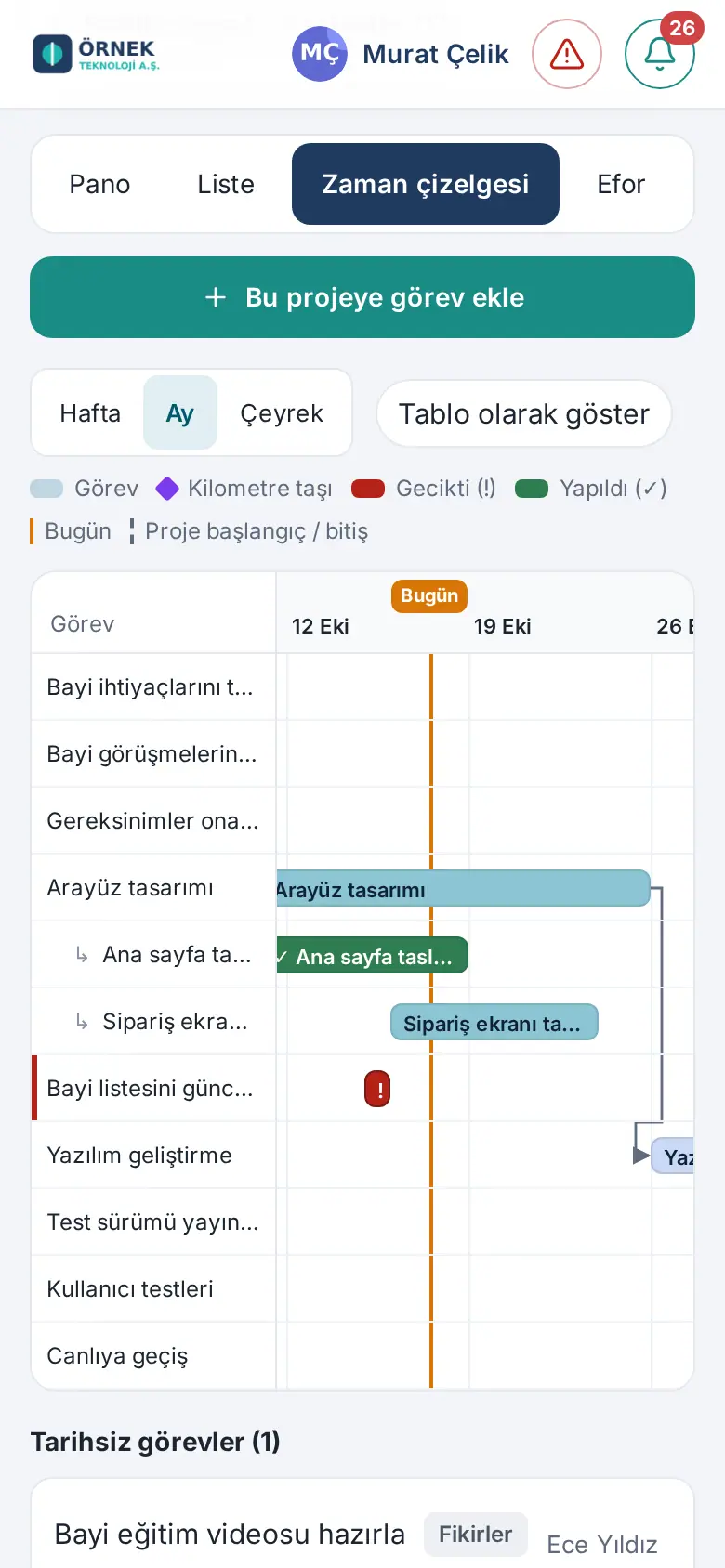
- Select the scale with the Week, Month or Quarter button at the top. Week shows the day numbers and shaded weekends, Month shows weeks, Quarter shows months. Your choice is remembered in this browser.
- Read the timeline:
- Each task is a bar from its start day to its due day. A task with only a due date (or only a start date) becomes a one-day bar.
- Subtasks are directly below the parent task, indented and with ↳.
- Tasks linked in the Order section are joined with arrows: the arrow goes from the task that must finish first to the task that waits for it. If the previous task is finished, the arrow is dashed and gray.
- Milestones show as a diamond (◆) on their due day (see Milestone).
- An overdue task is red and has a ! mark; in the left column, there is a red line next to its name. A done task is green and has a ✓. Color alone does not carry meaning; the marks and the table view give the same information.
- The orange vertical line is Today; the dashed lines are the Start and End dates of the project. The legend line at the top lists these marks.
- To open the details of a task, click its bar or its name on the left (on a phone, tap). The task window opens.
- Tasks without dates are in the Undated tasks (N) list below the timeline; click a name to open the task.
- To see the same information as a table, click Show as table. The table has the Task, Date, Status, Owner, Must finish first and Note columns; the task names are buttons. To go back to the timeline, click Show timeline.
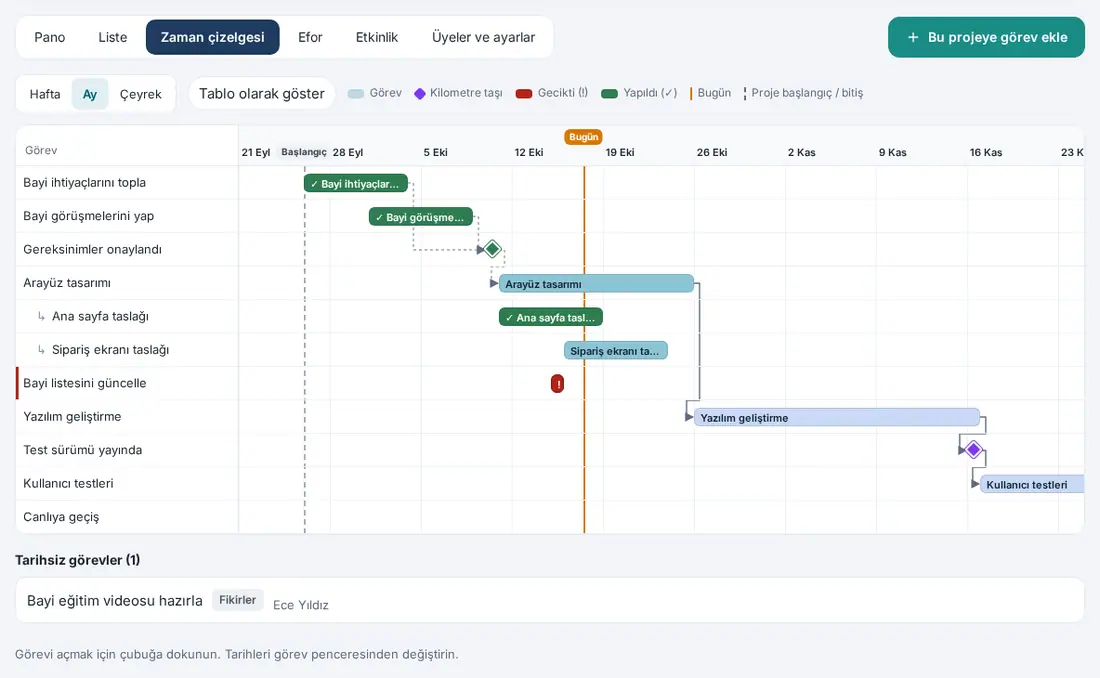
On a phone: The timeline scrolls sideways in its own box; the task names stay fixed on the left. When it opens, the timeline is scrolled to a place near today.
Who sees what? The timeline has only the tasks that you can see. A member with the "Member — own tasks only" role sees only their own tasks and the links between them. If you cannot see the previous task of a task, no arrow is drawn.
Important:
- You do not change dates by dragging the bars; change the dates with Edit in the task window. The note on the screen also reminds you of this: "Tap a bar to open the task. Change dates in the task window."
- The timeline draws at most 1100 days. In a longer project, the note "The timeline shows the first 1100 days; for a longer range use the Quarter scale or the table view." appears.
- If the project has no tasks with dates, "No dated tasks. Tasks appear on the timeline once they have a start or due date." shows. Periods of a recurring project that are not opened yet do not show on the timeline.
Milestone
Who: The assignee of the task, the person who opened it, or a project member · Where: Task details → Edit → Milestone
What it does: You mark an important stage of the project (e.g. "Gereksinimler onaylandı" ("requirements approved"), "Canlıya geçiş" ("go-live")). On the timeline, a milestone shows as a diamond on its due day instead of a bar; so the intermediate goals stand out at a glance.
- Open the task and click Edit.
- Enter the End date of the task (the diamond is placed on the due day).
- Select the Milestone checkbox. Below it, "Shown as a diamond on its due date on the timeline." shows.
- Click Save. The line "Milestone: Yes · shown as a diamond on the timeline" appears in the task details.
A milestone is also an ordinary task: it has an assignee, a status and Order links. For example, you can link the "Gereksinimler onaylandı" milestone to the "Bayi ihtiyaçlarını topla" ("collect dealer needs") and "Bayi görüşmelerini yap" ("hold dealer meetings") tasks, and "Arayüz tasarımı" ("interface design") to this milestone. On the timeline, an overdue milestone shows with a red !, and a completed one with a green ✓. A milestone without a due date is in the Undated tasks list with ◆.
To remove the milestone, clear the checkbox and click Save. The new copy of a recurring task keeps the milestone mark.
Effort: estimated and spent time
Who: Everyone who can see the project · Where: Project → Effort
What it does: You compare how much time was estimated for the tasks in the project and how much was actually worked. The tab shows only in projects with time tracking on (the project owner turns it on with Edit → Time tracking; it is not in the Personal project).
- Open the project and click the Effort tab.
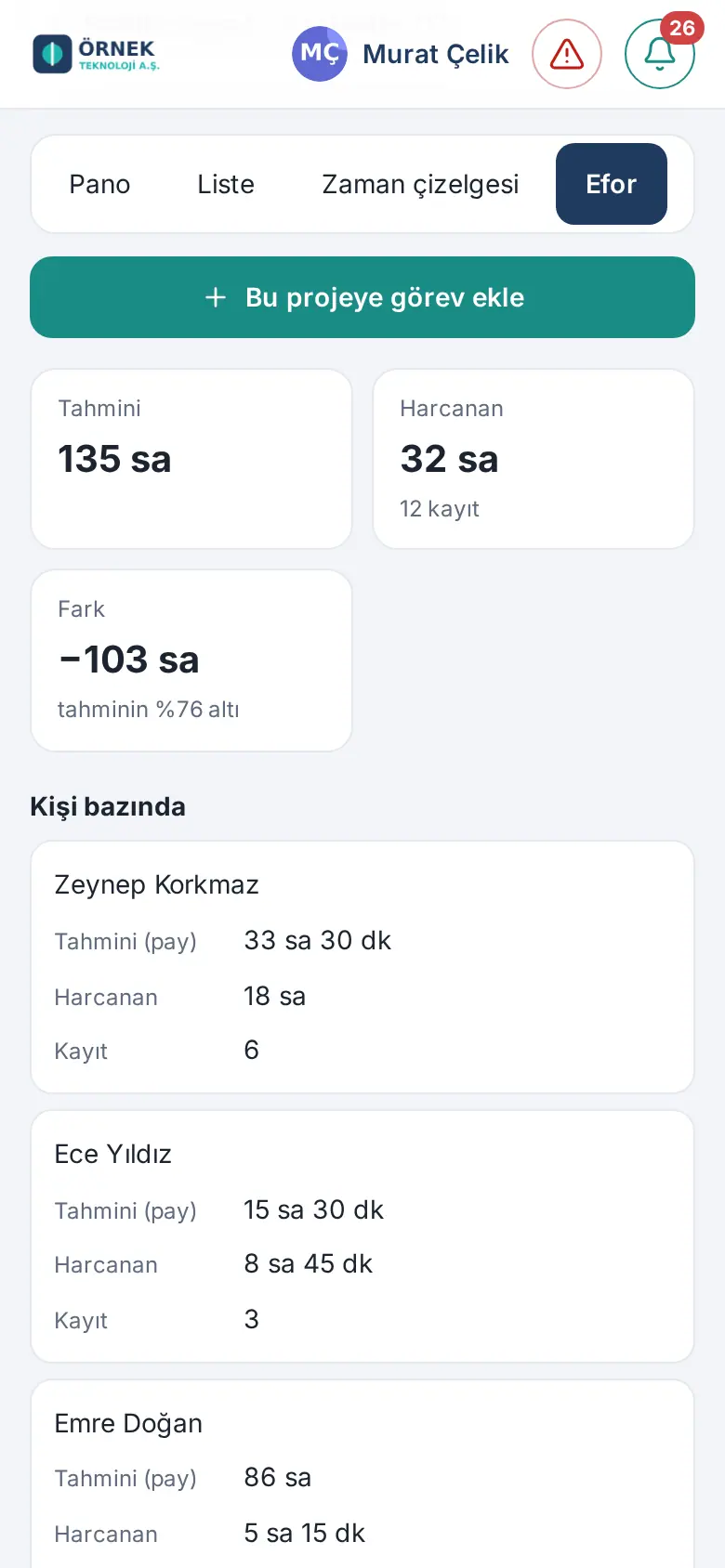
- There are three boxes at the top:
- Estimated — the total of the Estimated time of the tasks.
- Spent — the work time logged on the tasks and the number of entries (e.g. "12 records").
- Difference — the difference between the spent and the estimated time and its rate (e.g. "76% under estimate"). When the spent time goes over the estimate, the box is highlighted. If no estimate was entered, "no estimate" shows.
- The By person table has the Estimated (share), Spent and Record values of each person. The share of a person is the per-person estimate entered for them on the task; if none was entered, the remaining estimate of the task is split equally among the assignees (see Editing a task). Spent is the person's own time entries.
- The By task table has the Status, Estimated, Spent and Difference values of each task. Click a task name to open the task.
Tip: Only the tasks that you can see are counted. For the breakdown by period and person, the monthly totals and the individual time entries, see Reports → Projects → Effort (see 19. Reports).
If time tracking is off: The tab does not show. If it is opened from an old link, "Time tracking is off for this project. The project owner turns it on under Edit → "Time tracking"; when it is on, tasks get estimates and logged time." shows.
Project budget and the budget card
Who: Project owner · Project manager · Module admin · Expense and purchasing operators · Where: Project → Budget card
What it does: You give the project a budget in TL and follow on one card how much of the expenses and purchase requests linked to the project is actual, how much waits for approval and how much budget is left.
Who sees it? The amounts are seen by the project owner who sees the project, the members with the "Project manager" role (and the owner's managers), the "Projects and tasks" module admin and the expense / purchasing operators: for expenses, accounting and the Expense module admin, the fixed additional approvers in the expense settings, the amount threshold approvers, the independent senior approver and the backup accounting approver; for purchasing, the approvers, the purchasing officer and the Purchasing module admin. Regular members, people with only the viewer (watch) role and a person who approves the expense only as department manager do not see the card.
Setting or changing the budget:
- Open the project. On the Budget card below the header, click Set budget (if there is a budget, Edit budget).
- Type the amount in the Planned budget (TRY) box (e.g. 250.000). To remove the budget, empty the box.
- Click Save. "Budget saved." (if you emptied it, "Budget removed.") shows. A line such as "Set the project budget." is added to the Activity feed of the project; the amount is not written in the feed.
The project owner, the project manager and the module admin change the budget. You can also enter the budget in the Budget (TRY, optional) box of the project form.
Reading the card:
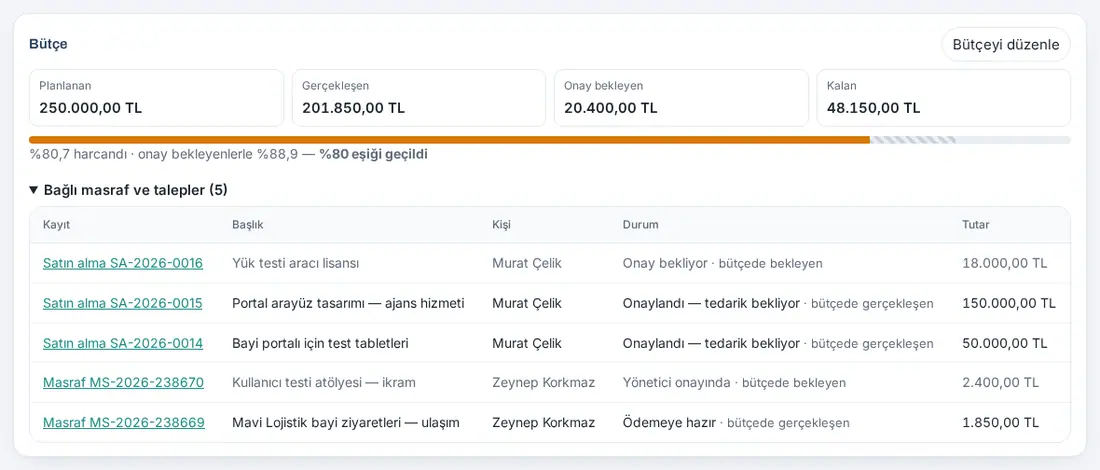
- Planned — the defined budget.
- Actual — approved spending: for expenses, Ready for payment and Paid; for purchasing, requests that are approved, ordered, or partly or fully received.
- Awaiting approval — for expenses, the ones at the manager, additional approval and accounting stages; for purchasing, requests that wait for approval or information. Drafts and rejected and cancelled records are not counted.
- Left — planned minus actual. When the budget is exceeded, the name of the box becomes Overrun.
- The bar shows the actual amount filled and the pending amount hatched. Below it, a line such as "80.7% spent · 88.9% including pending" shows. When the actual amount passes 80% of the budget, the text "80% threshold passed" is added; when it passes 100%, "budget exceeded".
- Click Linked expenses and requests (N) to open the list: Record (expense or purchase number; click it to open the record), Title, Person, Status ("counted as actual" or "pending in budget") and Amount.
Threshold notification: When the actual amount passes 80% of the budget, the notification "80% of the project budget spent: …" is sent; when it passes 100%, "Project budget exceeded: …". The notification goes to the project owner and to the members who have the "Project manager" role in the project, once per person for each threshold; if both are passed at the same time, only the 100% notification is sent. When the budget amount changes, the thresholds are set again according to the new budget.
Linking expenses and requests to a project: When an employee opens an expense or a purchase request, they select the project from the Project (optional) list (see 17. Expenses, business advances and per diem and 24. Parcels, mailroom and purchasing). The list has the projects that the person can see and that are not archived.
Important:
- The budget is in TL only. Because no exchange rate is kept for purchases, USD / EUR requests are not added to the total; the card shows them separately with the note "Foreign-currency requests are not included in the TRY total (no exchange rate is kept for purchases): …". Old non-TL expense items without an exchange rate are not in the total either; the card shows the warning "N expense line(s) have no exchange rate; they were left out of the total.".
- Purchase amounts are the prices in the request; prices with and without VAT can be mixed.
- The budget of an archived project cannot be changed ("The budget of an archived project cannot be changed.") and no new expense or request can be linked to an archived project.
- If you do not have permission, the warning "The project budget is changed by the project owner, a project manager or the "Projects and tasks" module admin." appears.
The customer of a project
Who: Project owner · Project members · Where: Project form → Customer (optional); Customers → person details → Projects
What it does: You link the project to a customer (a person record) in the customer directory. The customer shows in the project header, you filter the project list by customer, and the projects of that customer are listed in the customer's details.
- Open the project and click Edit in the header (for a new project, the form itself).
- Type in the Search customers (name, company) box under Customer (optional) and select the customer from the list. If nothing matches, "No matching customers." shows.
- Click Save. The project header shows "Customer: …". If you can see the customer record, click the customer's name to open the details in Customers. "Set the project's customer." is added to the project feed.
To remove the customer, click × (Remove customer) next to the customer chip in the form and click Save.
Seeing the projects of a customer: In Customers, open the person; the Projects section in the details lists the projects linked to this customer that you can see, with their status, number of open tasks and effort. New project for this customer opens the new project form with this customer selected (see 04. Customer directory).
Important:
- The list shows only the records that you can see in the customer directory. A project member who cannot see the customer record sees only the customer's company name in the header.
- When two customer records are merged, the link of the project moves to the record that stays. If the customer record is in the trash, the header shows "Deleted customer record"; when the record is deleted permanently, the link is removed and the project stays intact.
- The customer link is a person record; projects are not listed in the company view and in the company chart.
Task visibility and project roles
Who: Project owner · Module admin · Where: Project → Members and settings
What it does: You decide who sees which tasks in the project. For example, while the project manager sees all tasks, a member sees only the task given to them; they do not see other people's tasks or the general progress of the project.
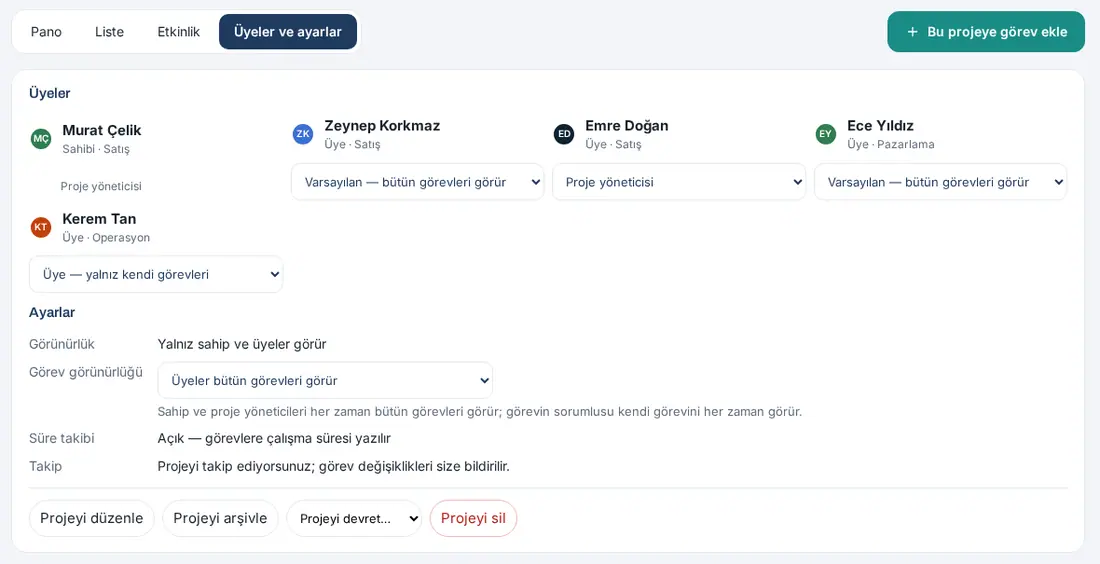
There are three roles in a project:
| Role | What they see and do |
|---|---|
| Project manager | Sees all tasks; changes the project status |
| Member — sees all tasks | Sees all tasks; adds, moves and edits tasks |
| Member — own tasks only | Sees only the tasks for which they are the assignee, which they opened or which wait for their approval; the member list and the general progress are not shown |
The project owner, the owner's managers and the module admin always see like a project manager. The assignee of a task always sees their own task.
- Open the project and click the Members and settings tab.
- From Task visibility under Settings, select the default role of the members: Members see all tasks (default) or Members see only their own tasks. "Task visibility saved." shows.
- To give a member a special role, in the Members list, select Project manager, Member — sees all tasks or Member — own tasks only from the list below their name. The Default — … option applies the project's default. "Role saved." shows.
For a member who sees only their own tasks: The project header shows "In this project you only see tasks assigned to you.", the progress shows as "0 / 1 of your tasks done" and there is no Members and settings tab. The list, the counters, the activity and the search also show only their own tasks.
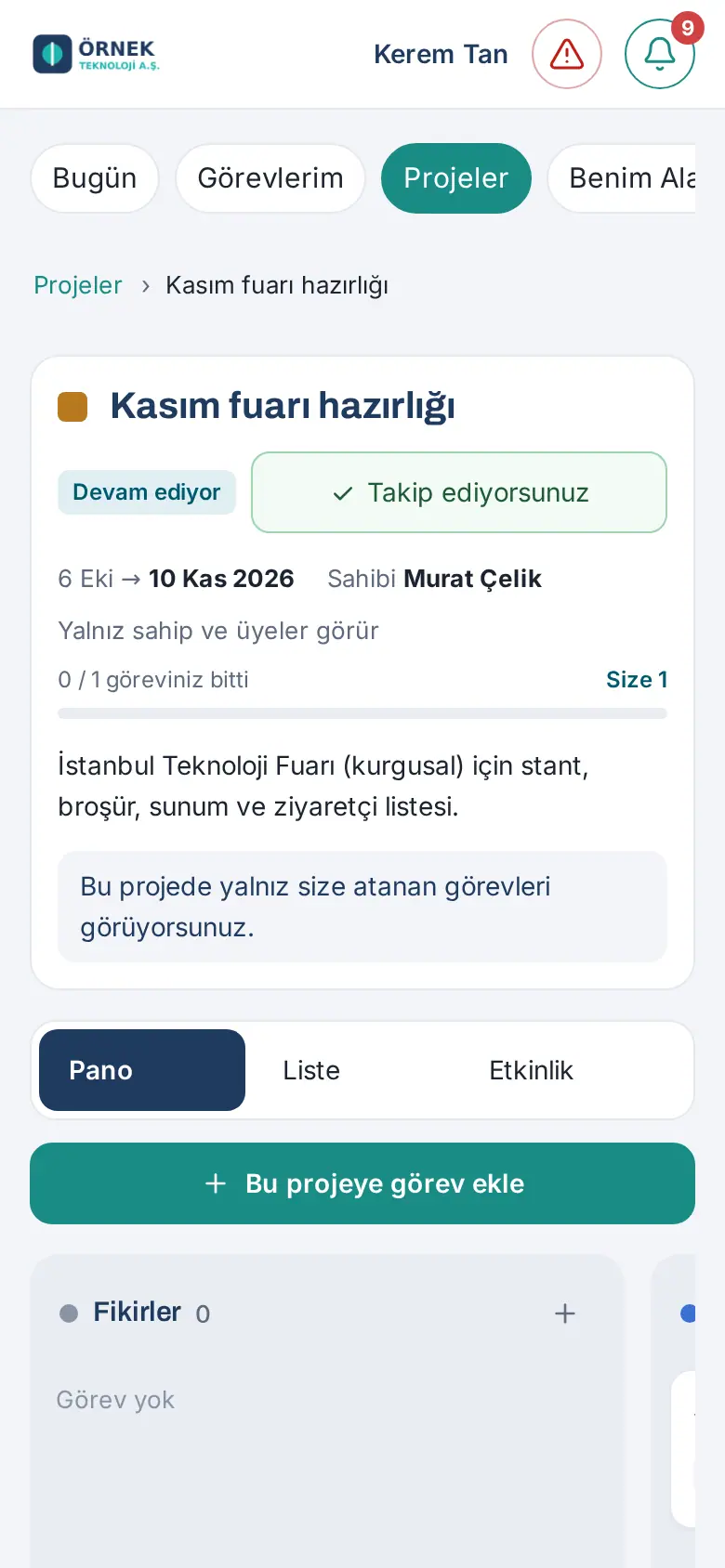
Important: Only the project owner and the module admin change the role and the task visibility. A role change is not sent to the person as a notification.
Changing the project status and completing a project
Who: Project owner · The owner's managers · Project manager · Module admin · Where: Projects board or inside the project → Project status
What it does: You show whether the project is Planned, In progress, On hold or Completed.
- On the Projects board, drag the card to another column, or select the column from the card's Move button (on a phone, the menu also opens when you press and hold the card). The hint at the top of the board reminds you of this: "Drag a card to another column to change the project status. The status can be changed by the project owner, the owner's manager, a member with the "Project manager" role and the Tasks module admin. With the keyboard or on a phone: the card's "Move" button." (1.4.2)
- Or, inside the project, select the new status from the Project status list. "Project status: On hold." shows.
Automatic change: When the first task in the project becomes In progress (or directly Done), the project moves to In progress.
Completing the project: When all tasks in the project are finished, the "All tasks are done." bar and the Complete project button appear inside the project; the owner also gets the "All tasks done: …" notification. Click Complete project; "Project completed." shows. If you move it to Completed while there are open tasks, it asks "The project has N open tasks. Confirm to complete it anyway."; select Complete anyway or Go back.
Important: The status of the Personal project and of an archived project cannot be changed. If you do not have permission, the warning "The project status can be changed by the project owner, the owner's manager, a member with the "Project manager" role or the Tasks module admin." appears.
Archiving, transferring and deleting a project
Who: Project owner · Module admin · Where: Project → Members and settings
What it does: You remove a finished or abandoned project, or give the ownership to someone else.
- To edit it, click Edit project (or Edit in the header); the form is the same as the New project form; save with Save.
- To archive it, click Archive project and confirm with Archive. The tasks of an archived project do not show on the board, and no new tasks can be added. You open it from the Archive filter and restore it with Restore from archive. Only the owner can archive the project (if the owner left, the module admin).
- To transfer it, select the person from the Transfer project… list and confirm with Transfer. The owner or the module admin transfers the project; the old owner stays as a member, and the new owner gets the "Proje size devredildi" ("project transferred to you") notification.
- To delete it, click Delete project and confirm with Delete. Only a project without tasks can be deleted; archive a project that has tasks. Only the owner can delete the project.
- A project with a linked expense or purchase request is not deleted (1.5.0). If an expense or a purchase request is linked to the project (including drafts and rejected and cancelled ones), the Delete project button does not show; instead, the explanation "Expenses / purchase requests linked to this project: N. It cannot be deleted, only archived. Linked records stay intact." appears. Archive the project with Archive project. If deletion is tried anyway, the warning "Linked to this project: 1 expense and 1 purchase request. It cannot be deleted, but you can archive it. Linked records stay intact." appears. On records linked to an archived project, "(archived)" shows next to the project name.
Tip: The module admin transfers a project whose owner left the company from the Admin screen (see chapter 36).
Setting up a recurring project
Who: Employee (the owner of the series) · Where: Projects → Recurring projects → New recurring project
What it does: For work that repeats every period (payroll closing, monthly declaration, quarterly report …), you make the definition once. When the period comes, the project opens automatically together with its task set; the tasks are assigned to their assignees. The project of a future period does not show until its opening day (in October, the project of November does not show).
- On the Projects screen, click the Recurring projects tab, then click New recurring project.
- Type the Project name. Below it, it shows how the period projects will be named (e.g. "The period is appended: "— October 2026"").
- Select the Frequency: Every day, Every week, Every month, Every 3 months, Every 6 months, Every year.
- Select the First period (year and month, quarter, half-year or week; for daily, a date).
- Select the Last period or leave it Indefinite.
- When to open: At the start of the period or Before the period and how many days before (1–90; for daily, 1–7).
- The Project start is always the First day of the period. Select the Project end relative to the start of the period, e.g. Next month + Day 5 of the month → "Day 5 of next month". If the month is short, the last day of the month is used.
- Select Who can see, Colour and Members. Members become members of each period project and are informed when a period opens.
- Select the Task visibility and the Project managers (from the members); both apply to each period project.
- If necessary, tick the Time tracking — work time is logged on tasks box.
- Fill in the Task set (see Task set).
- Click Save. "Recurring project created." shows. Periods whose time has come open immediately; the next ones open when their time comes. At the top right, a preview such as "Next period: November 2026 · opens 27 October" shows.
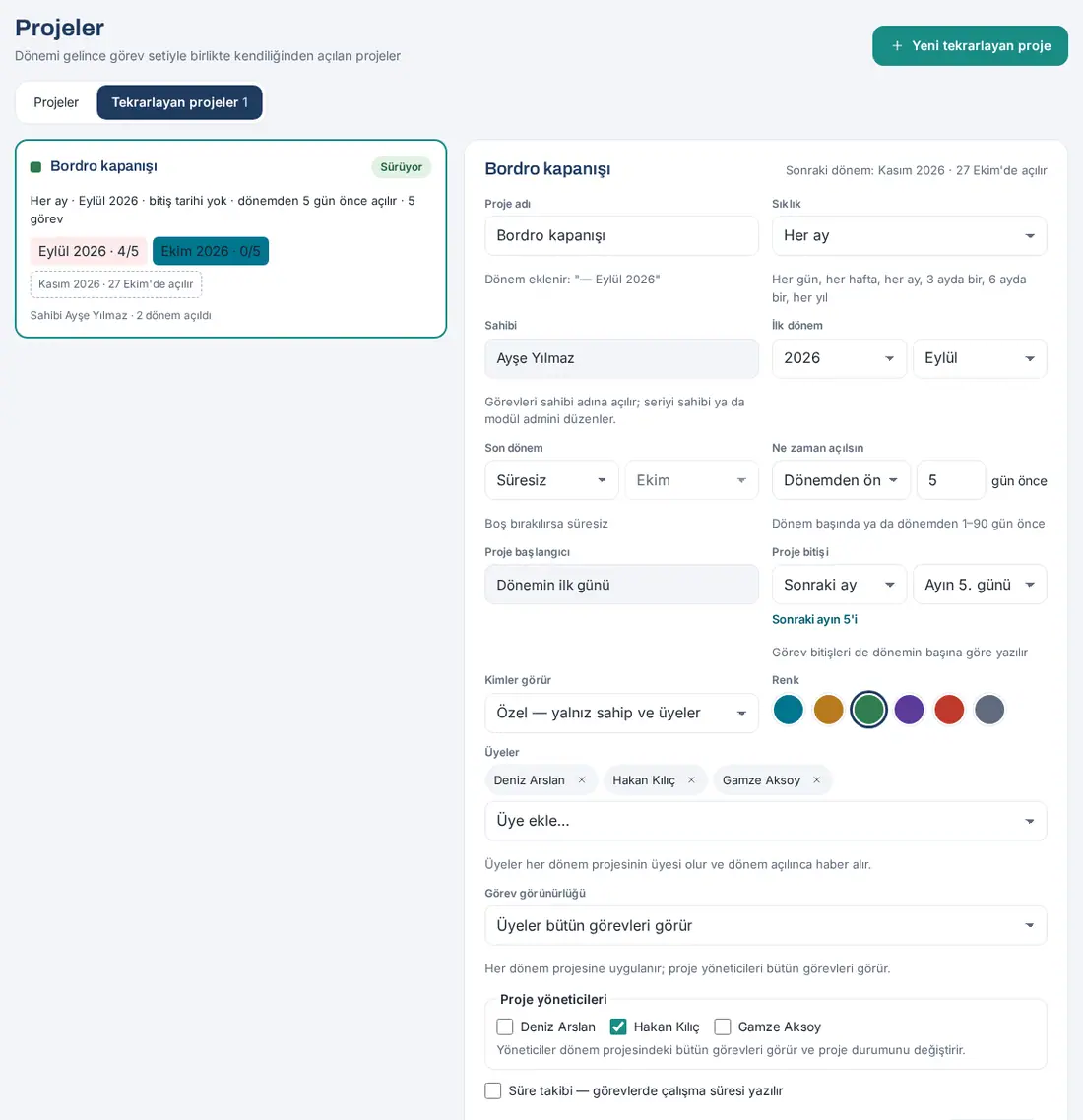
Important:
- Only the owner or the module admin edits the series; the tasks are opened in the owner's name.
- A change applies from the next periods; an opened period does not change.
- The frequency of a series with an opened period does not change ("The frequency of a series with opened periods cannot change; create a new recurring project.").
- In a new series whose first period is in the past, the past periods open in order (at most 12 at a time).
Task set
Who: The owner of the series · Module admin · Where: Recurring project form → Task set
What it does: You define once the tasks, subtasks, assignees, due dates and order that will open in each period.
- Click Add task next to the Task set heading. An editing area opens below the row.
- Type the Task title and, if you want, the Description (optional).
- Under Assignees, select people from the Add assignee… list.
- Select the End relative to the start of the period (e.g. Same month + Day 28 of the month → "Day 28 of the month"; Next month + Day 2 of the month → "Day 2 of next month").
- To make it a subtask, select the Parent task (at most three levels).
- Under Must finish first, tick the tasks that must finish before this task.
- Type the items in the Checklist (one item per line) box; if necessary, tick High priority.
- Click OK. The table shows the Task, Owner, End and Must finish first columns.
- With the buttons in the row, edit the task (pencil), add a subtask below it (+) or remove it from the set (trash can).
- Click Save at the bottom of the form.
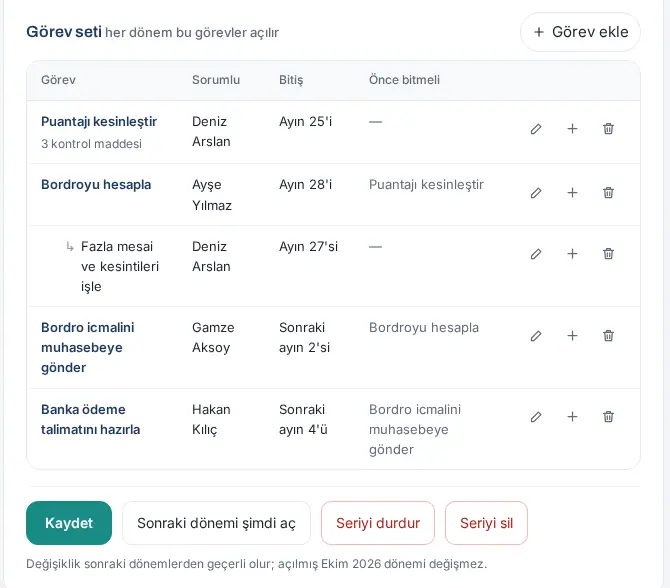
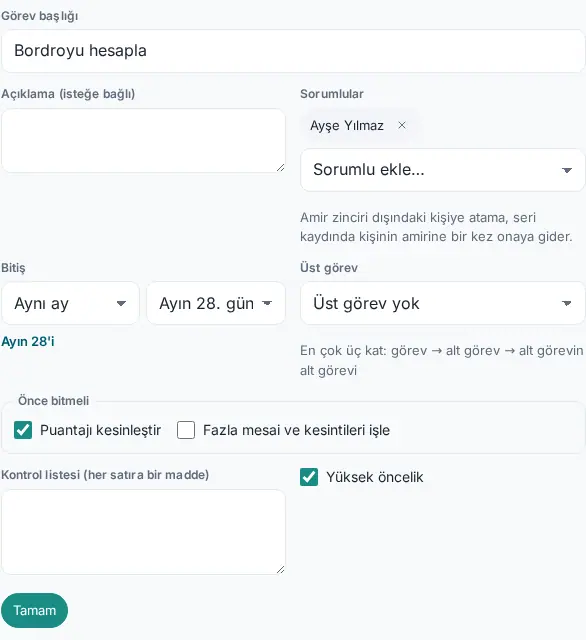
Rules and warnings:
- A set has at most 50 tasks ("A task set can have at most 50 tasks.").
- Each task must have a title ("Enter a title for every task in the set.").
- An assignment to a person outside the management chain goes to the person's manager for approval once, when the series is saved. Pending assignments show at the bottom of the form as "Assignments awaiting manager approval: …".
- A task removed from the set does not affect the opened periods.
Daily recurring project and working days only
Who: The owner of the series · Where: Recurring project form → Frequency: Every day
What it does: For checks that repeat every working day (bank reconciliation, daily cash …), a separate period project opens every day.
- From Frequency, select Every day.
- Enter a date in First period. For Last period, enter a date or leave Indefinite ticked.
- The Working days only (weekends and public holidays are skipped) box is ticked by default. If you want it to open on weekends too, clear the tick.
- In When to open, select At the start of the period or at most 7 days before.
- The Project end and the task due dates are Same day, Next day or after N days (at most 30).
- Click Save.
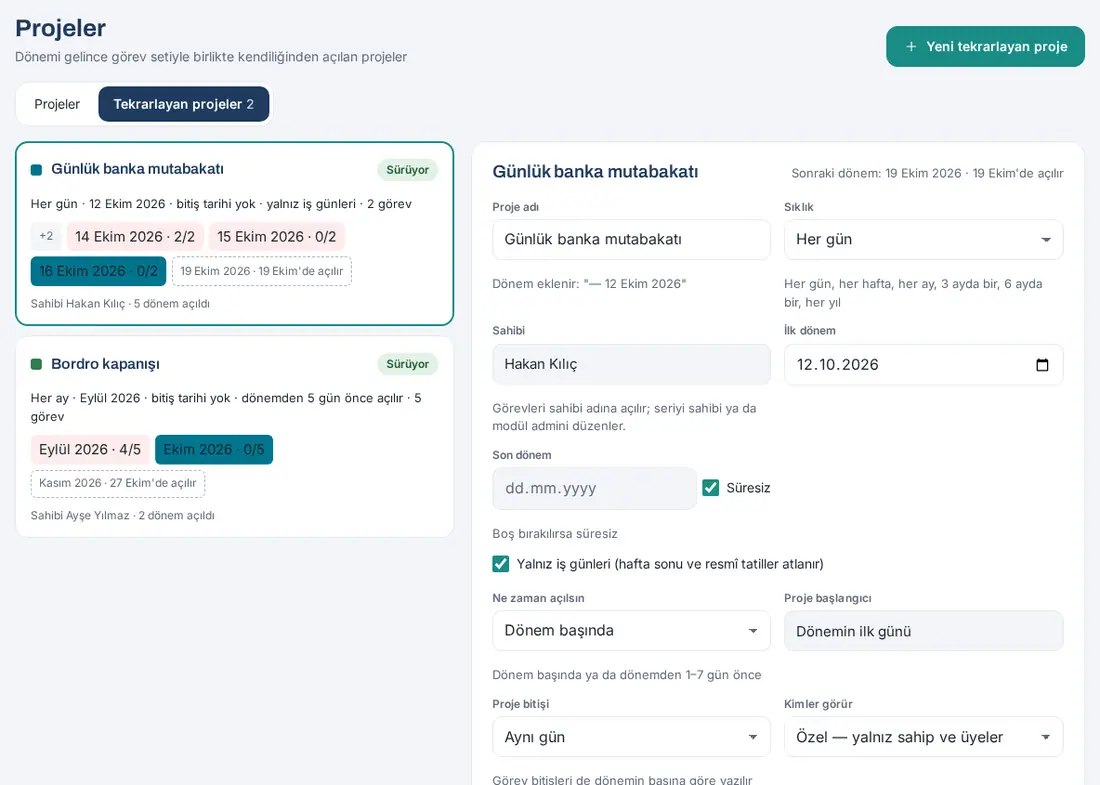
Tip: The period name is the date ("15 October 2026"). In the Current filter, of the completed periods from a daily series, only the last one shows; the others are in Completed. The period strip inside the project shows a few days around it.
Periods: opening the next period and items left from the previous period
Who: The owner of the series · Members · Where: Recurring projects and the period project
What it does: You see which period is finished, which one is running and when the next one opens.
- On the Recurring projects tab, the card of each series shows the rule ("Every month · September 2026 · no end date · opens 5 days before the period · 5 tasks"), the status (In progress / Stopped) and the period strip.
- On the strip, the periods are separated by color: completed ones green, ones left from the previous period without being completed red, the current period dark; the next period has a dashed line and shows "November 2026 · opens 27 October". Click a period to open the period project.
- Inside the period project, there is the same strip: such as "‹ 12 October 2026 · completed", "15 October 2026 ›".
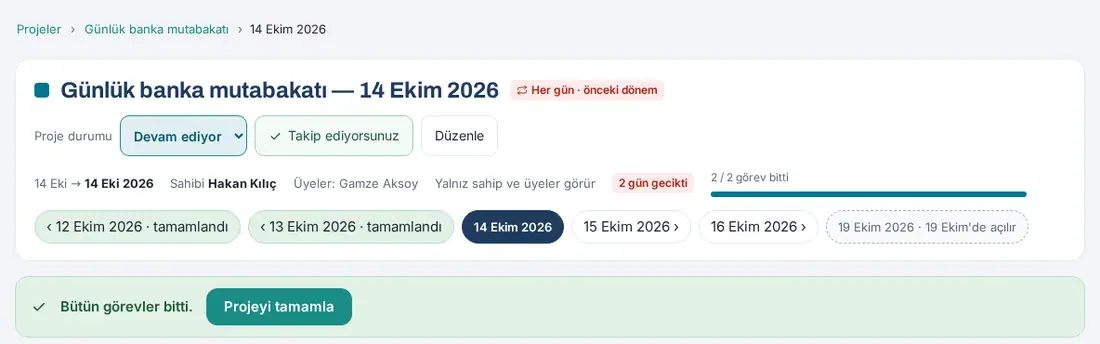
Items left from the previous period: If a new period opens before the project of a period is completed, the old period stays in Current, and its card has the "previous period" badge and a red frame. The summary of the Projects screen shows "N left from a previous period".
Opening the next period now:
- Click Open next period now at the bottom of the series form.
- Confirm the question "Open November 2026 now? The N tasks in the set are assigned to their assignees; an opened period can't be undone." with Open now.
Important: Save the changes first ("Save your changes first; the period opens with the saved task set."). If the next period is already open, if the series was paused, or if the last period has passed, the button is inactive.
Pausing a series and deleting it with its periods
Who: The owner of the series · Module admin · Where: Recurring project form
Pausing: Click Pause series and confirm with Stop. The opened periods stay as they are; no new period opens. To start it again, click Resume series → Resume.
Deleting:
- Click Delete series.
- If no period has opened yet, confirm the question "Delete the recurring project? No period has opened yet, so no project is affected." with Delete.
- If there are opened periods, the warning says "N period projects and their M tasks will also be deleted. This cannot be undone." (if there are completed tasks, their number also shows). Confirm with Delete series and its periods.
- "Recurring project, N period projects and M tasks deleted." shows.
Important: Deleting with periods also deletes completed tasks and cannot be undone. If you only do not want new periods to open, pause the series instead of deleting it.
Creating a task from a request
Who: The person who processes the request (category owner, Requests operator, Admin) · Where: Request details → Convert to task
What it does: You open a task to follow a request that came to the service desk. The request stays unchanged.
- Open the details of the request and click Convert to task.
- Confirm the question "Create a task from this request? The title, description and request link are copied; the task is assigned to you." with Create task. "Task created." shows.
- The task opens with the name "T-2026-0001 · title", assigned to you and without a project; if the priority of the request is high or urgent, the task has High priority. Below the task details, Bağlı talep ("linked request") shows.
- The request details now show "Görev açıldı: <status>." ("Task opened: <status>.") and Go to task; "Görev açıldı: …" ("task opened: …") is added to the feed of the request as an internal note.
Important: Only one task is opened from a request ("A task has already been created from this request."). When the request is resolved or cancelled, the task does not close; a note is added to the feed of the task. For request processing, see 23. Requests.
Task notifications
Who: Employee
The phone notifications (email if they do not arrive) and the Updates entries about tasks are these:
| Notification | Who gets it |
|---|---|
| "Task assigned to you: …" · "Alt görev atandı: …" ("subtask assigned: …") · "You were assigned tasks in a recurring project: …" | The assigned person |
| "Your approval is needed: …" | The direct manager of the assigned person |
| "Assignment approved: …" / "Assignment rejected: …" | The person who assigned the task |
| "… mentioned you" · "New message: …" | The mentioned person · the assignees, the project owner and the followers |
| "Reminder: …" | The assignees (at the time you set; with a delay of at most 10 minutes) |
| "Overdue tasks" | To the assignee, their own overdue tasks; to the project owner, those in their project (every morning, one summary per person) |
| "You can start now: …" | The assignees of the waiting task (when the previous tasks are finished) |
| "You were removed from the task: …" · "Due date changed: …" · "Task reopened: …" | The related assignees (changes within 10 minutes are collected in one notification) |
| "Task completed: …" · "Task not completed: …" | The person who opened the task, the project owner and the followers |
| "You were added to a project: …" · "Project transferred to you: …" | The new member · the new owner |
| "All tasks done: …" | The project owner |
| Weekly project summary | The project owner (Monday morning; not sent for a project with no activity) |
| "80% of the project budget spent: …" · "Project budget exceeded: …" (1.5.0) | The project owner and the members who have the "Project manager" role in the project (once per person at each threshold; the text shows the actual amount, the budget and the percentage) |
Notifications are not sent to the person who makes the change and to an employee who left the company. You select which notifications come to your phone in Updates and notification preference. For the general notification settings, see 09. Notifications.


