01. Digital business card and Identity Kit
Screenshots show the Turkish interface of Prozence with fictional "Örnek Teknoloji A.Ş." data; the English interface has the same layout.
Each employee has a public digital business card page. The other person scans your QR, sees your card and saves it to their contacts with one tap. Your QR and address stay the same even when your details change. The My Identity Kit section has images made with your name, job title and QR:
- phone lock screen;
- meeting background;
- LinkedIn cover;
- print-ready business card;
- NFC tag.
Who: Employee
In this chapter
- Seeing your card and showing your QR
- Sharing your card
- Sharing your card from your profile page
- Sending your card and team cards to a customer
- Tracking sent cards and sending reminders
- Send my card automatically
- Contact card (vCard) and Wallet
- Colleagues suggested on your card
- What does the person who opens the card see?
- Visitors leaving their details
- My Identity Kit: downloading images
- Putting the QR on your lock screen
- Setting the meeting background
- Printed business card
- Writing to an NFC tag
- Corporate profile photo
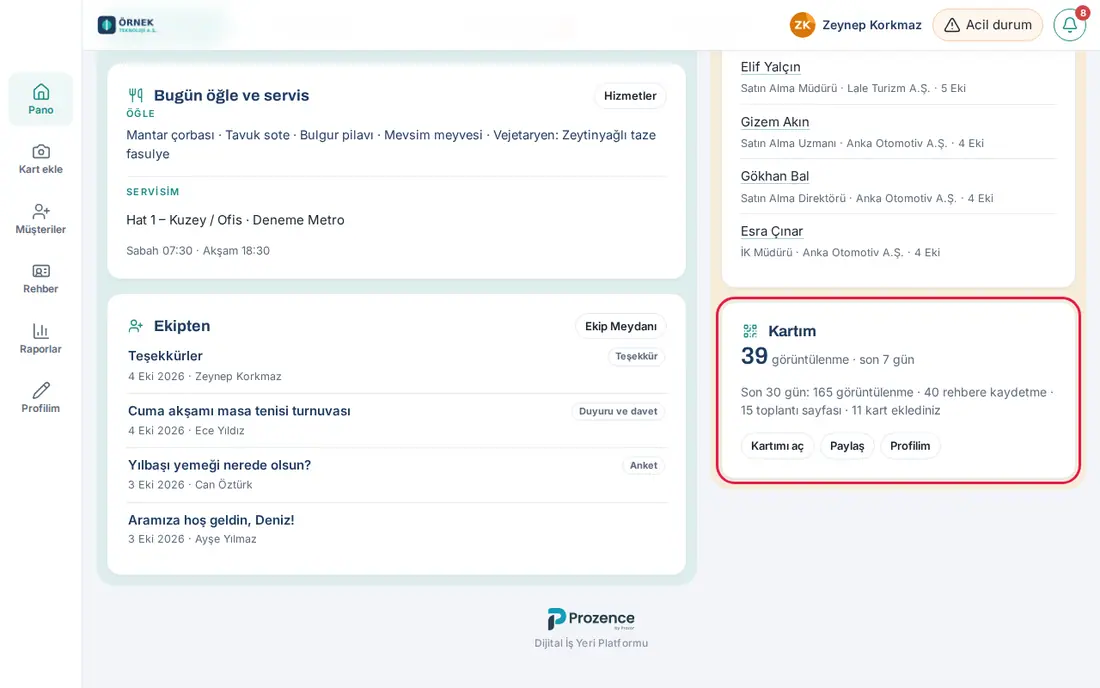
- Card statistics
Seeing your card and showing your QR
Who: Employee · Where: Card in the bottom menu (on a computer, My profile → My card)
- Tap Card in the bottom menu. The My card tab opens.
- Your QR shows in the My QR code section. The other person scans it with their phone camera; your card opens.
- For print or a presentation, download the QR with Download PNG or SVG (for print).
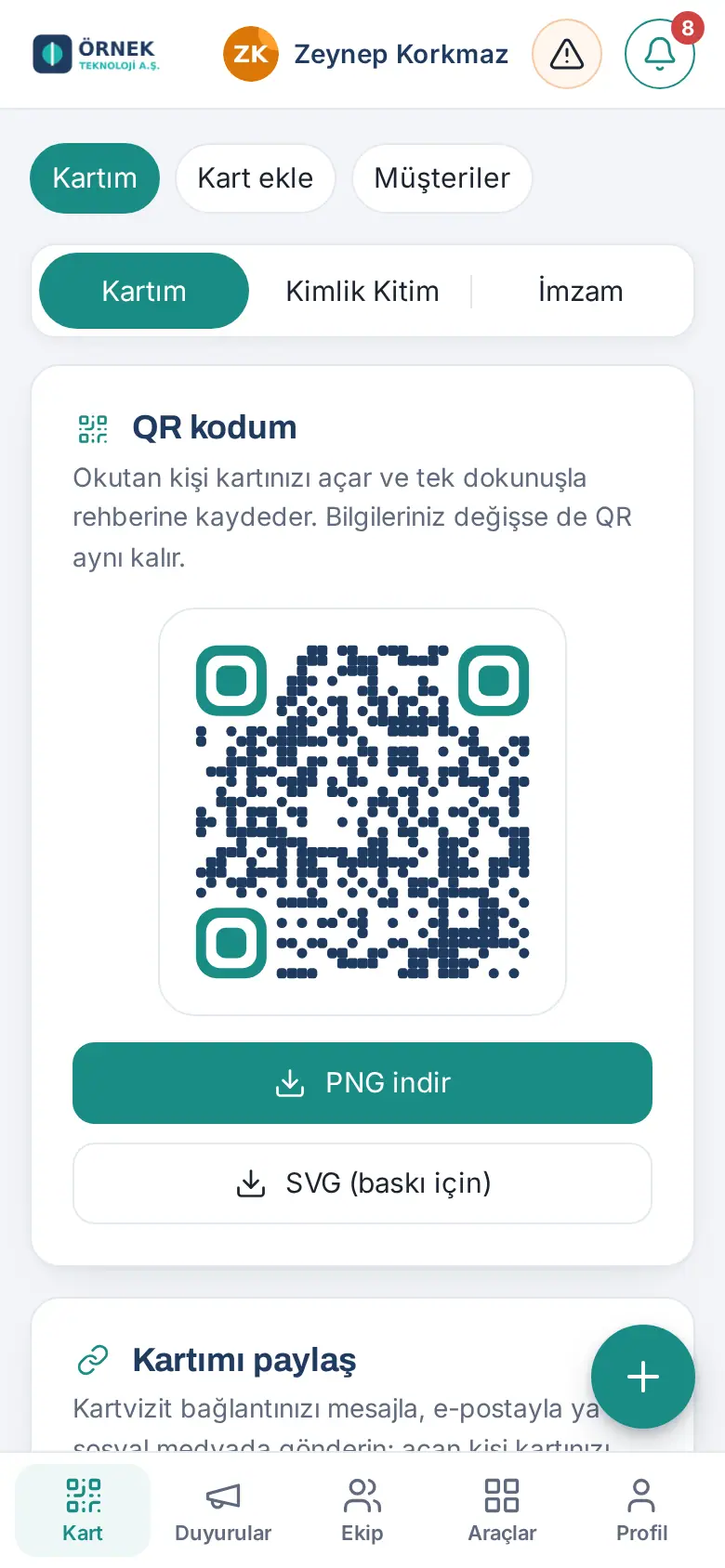
Tip: Your QR stays the same even when your details change. You do not need to reprint your printed business cards.
Tip: You can also open My card by clicking your name in the greeting at the top of the Board (e.g. "Good morning, Ayşe") (0.99.96).
Sharing your card
Who: Employee · Where: My card → Share my card
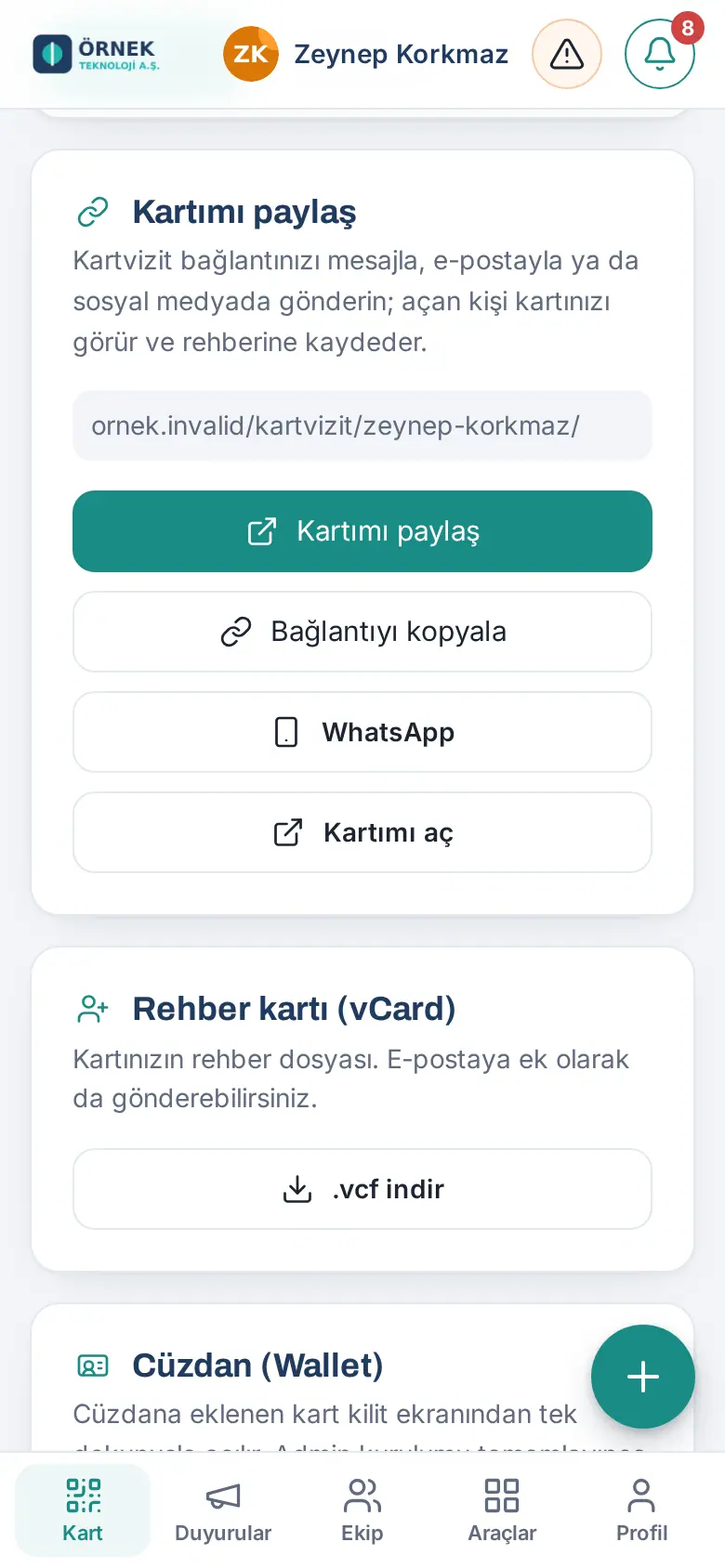
- Go to the Share my card section; your card address is shown there.
- Select a method:
- Copy link: paste the address into an email, a message or social media.
- WhatsApp: send your card directly through WhatsApp.
- Open my card: opens your card as a visitor sees it.
Sharing your card from your profile page
Who: Employee · Where: Profile → My profile → View my profile → Digital business card
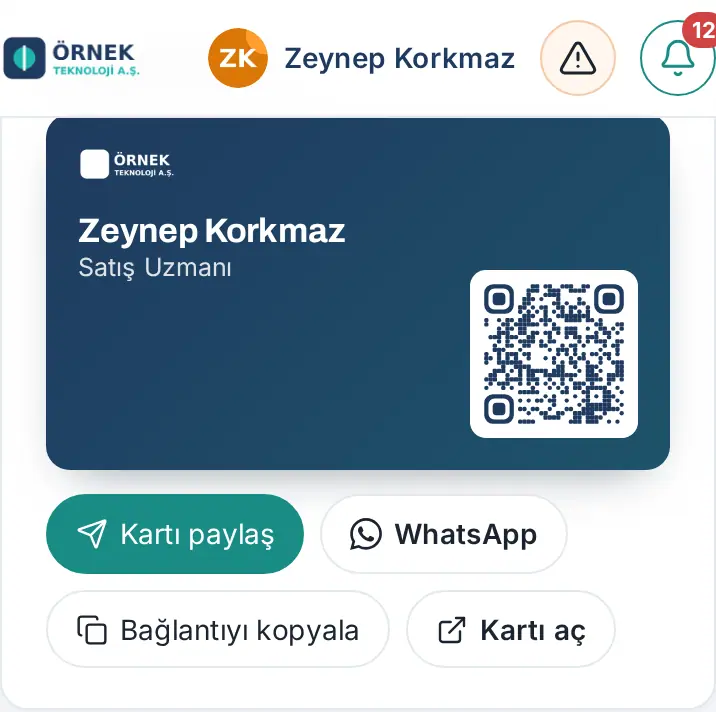
What it does: Your internal profile page also has a view of your business card with the QR. You can share your card from there too. Your colleagues can also open and share your card from your profile.
- Tap View my profile at the top of My profile (see 08. Directory and organization). On a phone, the business card is in the upper part of the page; on a computer, it is in the right column.
- In the Digital business card box, select a method:
- Share card: opens the share menu of the phone. If there is no share menu, the link is copied.
- WhatsApp: sends your card link through WhatsApp.
- Copy link: copies your card address to the clipboard.
- Open card: opens your card as a visitor sees it.
Sending your card and team cards to a customer
Who: Employee · Where: Card → Customers → person → Send my card
What it does: You send your own card by email, WhatsApp or SMS to a person in your customer directory. If you want, you add the cards of up to 5 colleagues to the same message, for example the cards of the sales and support colleagues who will work with the customer.
Before you start: The person's record must have an email or a phone number. If there is no email, the Email button is dimmed; if there is no phone number, the WhatsApp and SMS buttons are dimmed.
- Tap Card in the bottom menu, then Customers at the top.
- Tap the person, then tap Send my card (if you sent it before, the button shows Card sent: …). The Send my card window opens; the person's name, email and phone number are at the top.
- To add team cards, type at least 2 letters in the Add a teammate (name) box under Also send teammates' cards.
- Tap a colleague in the list. The selected person is added as a green button; to remove the person, tap the × on their button.
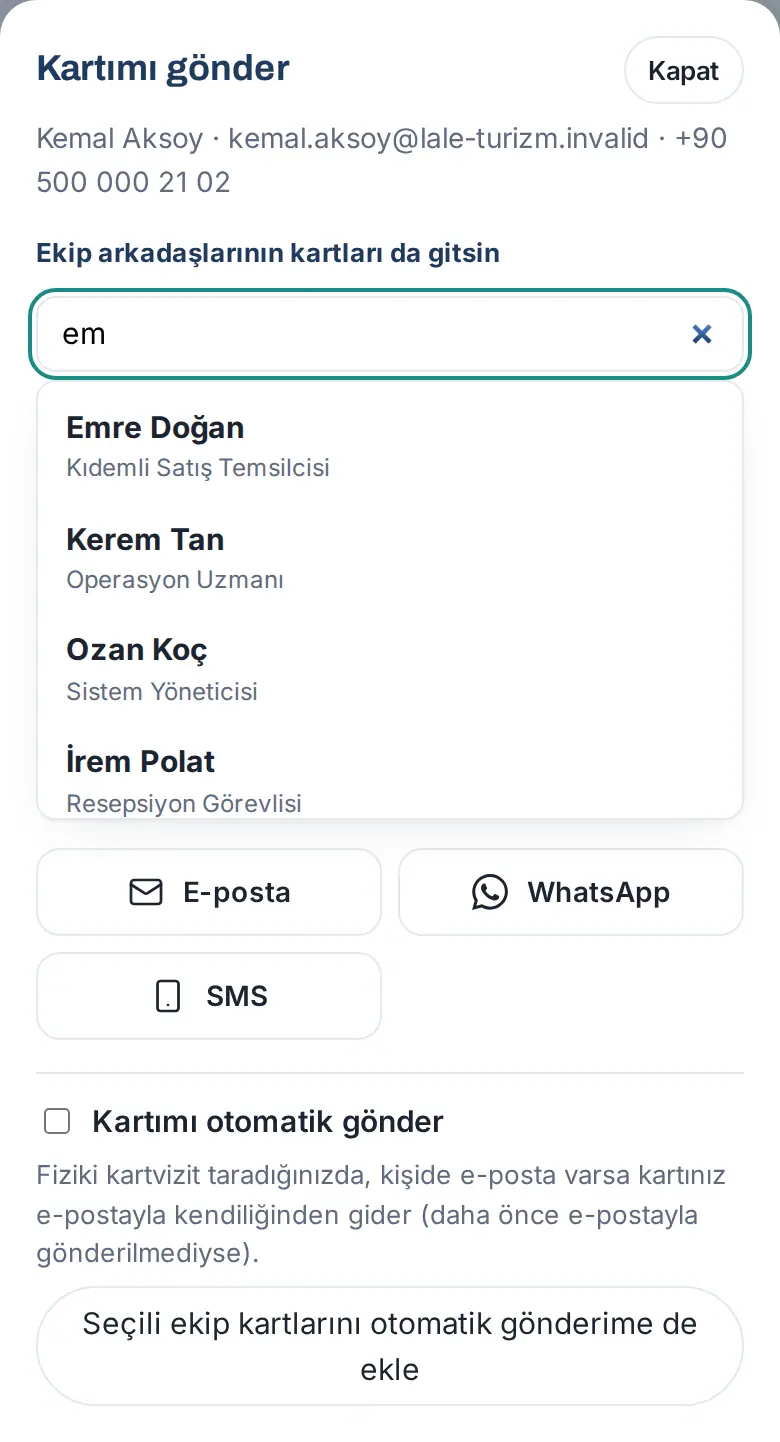
- Select a sending method: Email, WhatsApp or SMS.
- If you selected Email, edit the Subject and Message if necessary and tap Send the email. With WhatsApp or SMS, the message opens ready to send; send it from there.
- Add a "Sent with Prozence" note at the bottom (1.7.2): when ticked, a small note with the Prozence logo — "Sent with Prozence · Digital business card and workplace app" (linking to prozence.com) — is added at the very bottom of the e-mail, after your signature. The note is not written into the message box; it stays in place even if you edit the message. A preview appears under the box; if you untick it, your choice is remembered for later sends. If your company turned the note off, the box is not shown.
Result:
- For each colleague, the email contains the name, the job title, a Dijital kartvizitini aç ("open their digital business card") link and a contact file (.vcf) attachment. Replies to the email come to you.
- Lines "Ekibimizden: Ad (Unvan): bağlantı" ("From our team: Name (Title): link") are added to the WhatsApp and SMS text.
- The sending is recorded on the person's record, and the person is removed from the list of customers going cold (see 04. Customer directory).
Tip: If you did not change the text manually, the team selection shows in the text immediately. If you add team members after you change the text, you must add the team lines yourself.
Important:
- You cannot select an employee who left the company or whose card is not published. You can select a maximum of 5 colleagues ("Up to 5 teammates.").
- You cannot email your card to the same person a second time within 12 hours ("You already emailed your card to this person today."). You can send a maximum of 40 card emails per day ("You reached today's email limit (40).").
Tracking sent cards and sending reminders
Who: Employee · Where: Card → Customers → person → Send my card → Cards sent to this person
What it does: You see whose cards were sent to a customer, and whether the customer opened the card and added it to their contacts. You send a reminder to the people who did not add it.
- Open the Send my card (or Card sent: …) window of the person.
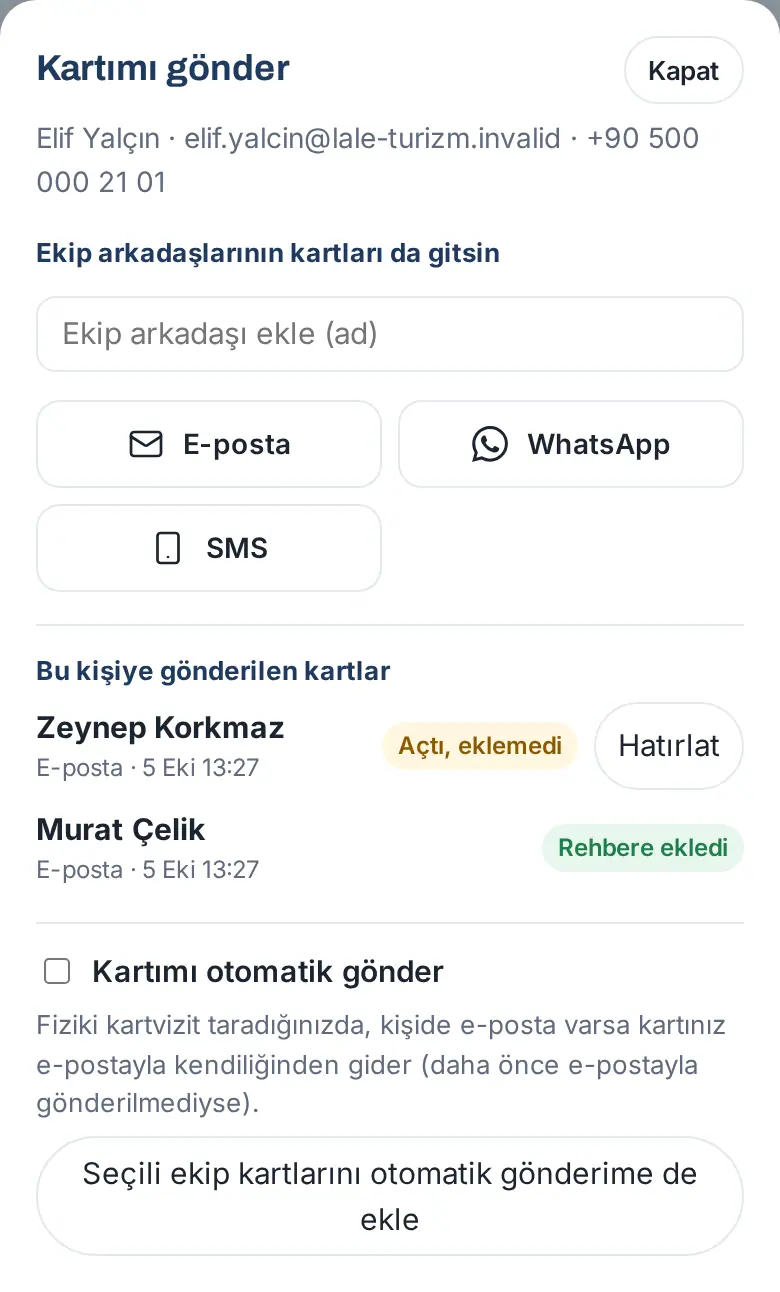
- In the Cards sent to this person list, each row shows whose card it is, how it was sent (e.g. Email), the time of the last sending and, if someone else sent it, Sent by:.
- Look at the status on the right of the row:
- Not opened: the person did not open the card yet.
- Opened, not added: the person opened the card but did not save it to their contacts.
- Added to contacts: the person saved the card to their phone with Save contact.
- For a card that is not added to contacts, tap Remind.
- If the person has an email address, a reminder email is sent: "Reminder email sent." The email contains, in one message, all the cards that the sender of that row sent to this person and that are not added to contacts, with Rehbere ekle ("add to contacts") buttons and .vcf attachments. The email is sent in the name of that sender (if the row shows Sent by:, in the name of that person, not in your name).
- If the person has no email address, a ready reminder text opens in WhatsApp.
Tip:
- Each sending uses a card link that is special to the person; the statuses come from this link. Automatic opens by email security programs are not counted.
- If your company turned it on, a reminder email is sent automatically once to a person who did not add the card within the set time (e.g. 3 days). The automatic reminder works only during working hours (09.00–19.00) and only for sendings from the last 30 days.
Important:
- A reminder is sent to the same person at most once every 20 hours ("A reminder was already sent to this person today."). A maximum of 3 reminders are sent for one card ("At most 3 reminders are sent for this card.").
- If the person already added the card, Remind does not show ("The person already added this card to their contacts.").
Send my card automatically
Who: Employee · Where: Card → Customers → person → Send my card → Send my card automatically at the bottom of the window
What it does: When you scan a business card at a trade fair or in a meeting, your card is emailed to the person automatically. You do not need to tap Send my card separately.
Before you start: Your company must allow automatic sending. If it does not, this option does not show.
- Open the Send my card window of any customer contact.
- Tick the Send my card automatically box at the bottom of the window. The message "Automatic sending is on." appears.
- Add the Prozence note to automatic e-mails (1.7.2): when ticked, the automatically sent e-mail ends with "This e-mail was sent automatically by Prozence when <your name> saved your business card."; you can remove it. If your company turned automatic sending on for everyone by default, the box comes ticked and the line "Your company turned automatic sending on for everyone by default; if you turn it off, it stays off." is shown.
- If you want team cards to be sent too, select the colleagues in the window and tap Also add the selected teammates' cards to automatic sending. The selected people are shown in the "Teammates' cards sent along:" line.
- To turn it off, clear the box ("Automatic sending is off.").
Result: When you scan a business card with a photo or a QR, the result screen shows "Your card is being emailed automatically." (see 03. Adding cards (business card scanning)).
Important:
- Automatic sending works only when you scan a physical business card (photo or QR). Manual entry, adding from an email signature, records that come by email and imports do not send your card.
- The person must have an email address, and your card must not have been emailed to this person before.
- The daily limit of 40 emails is shared with manual sendings.
Contact card (vCard) and Wallet
Who: Employee · Where: My card → Contact card (vCard) / Wallet
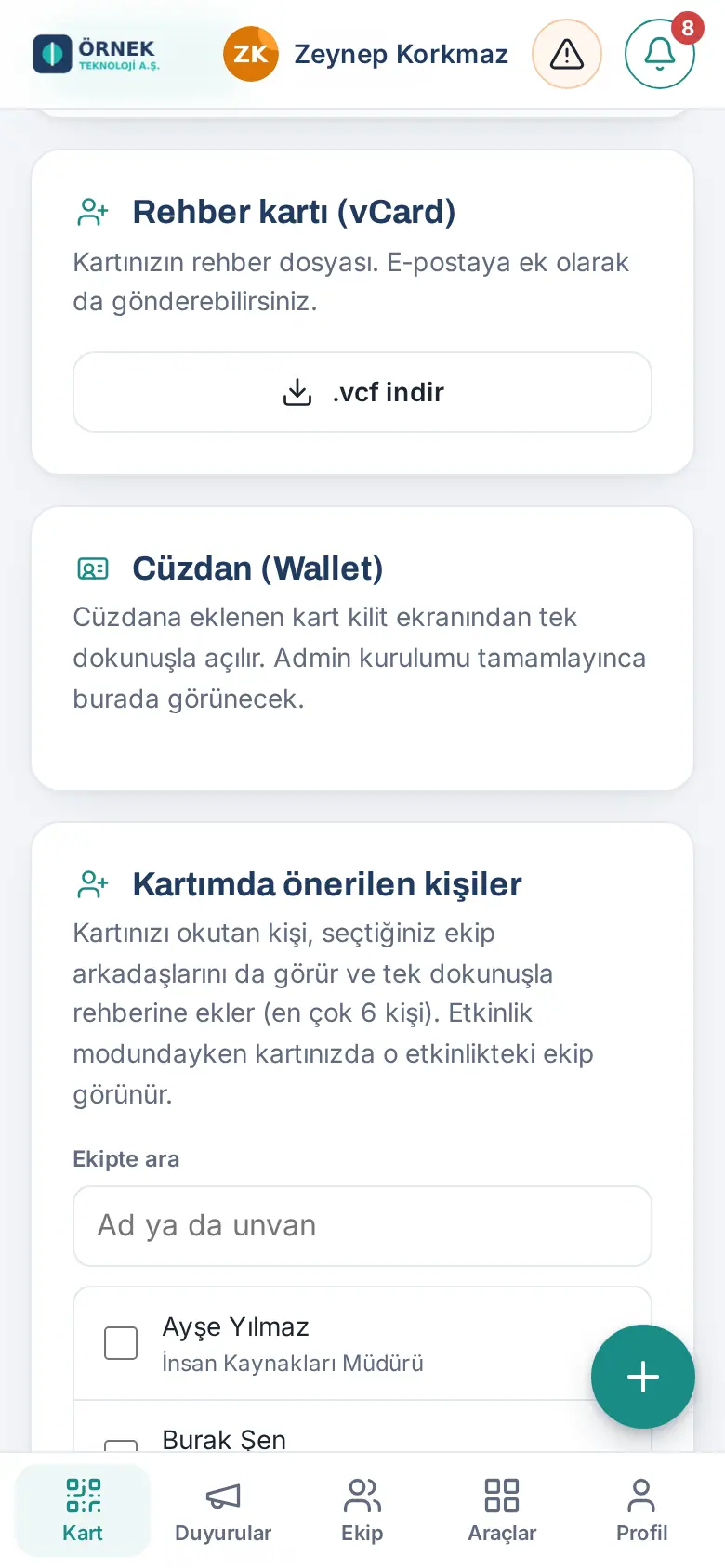
- Download .vcf: the contact file of your card. You can send it as an email attachment; it is compatible with iPhone and Android contacts.
- Wallet: if the administrator completed the setup, the Add to Apple Wallet and Add to Google Wallet buttons show. A card added to the wallet opens with one tap from the lock screen and updates automatically when your details change.
Colleagues suggested on your card
Who: Employee · Where: My card → Suggested people on my card
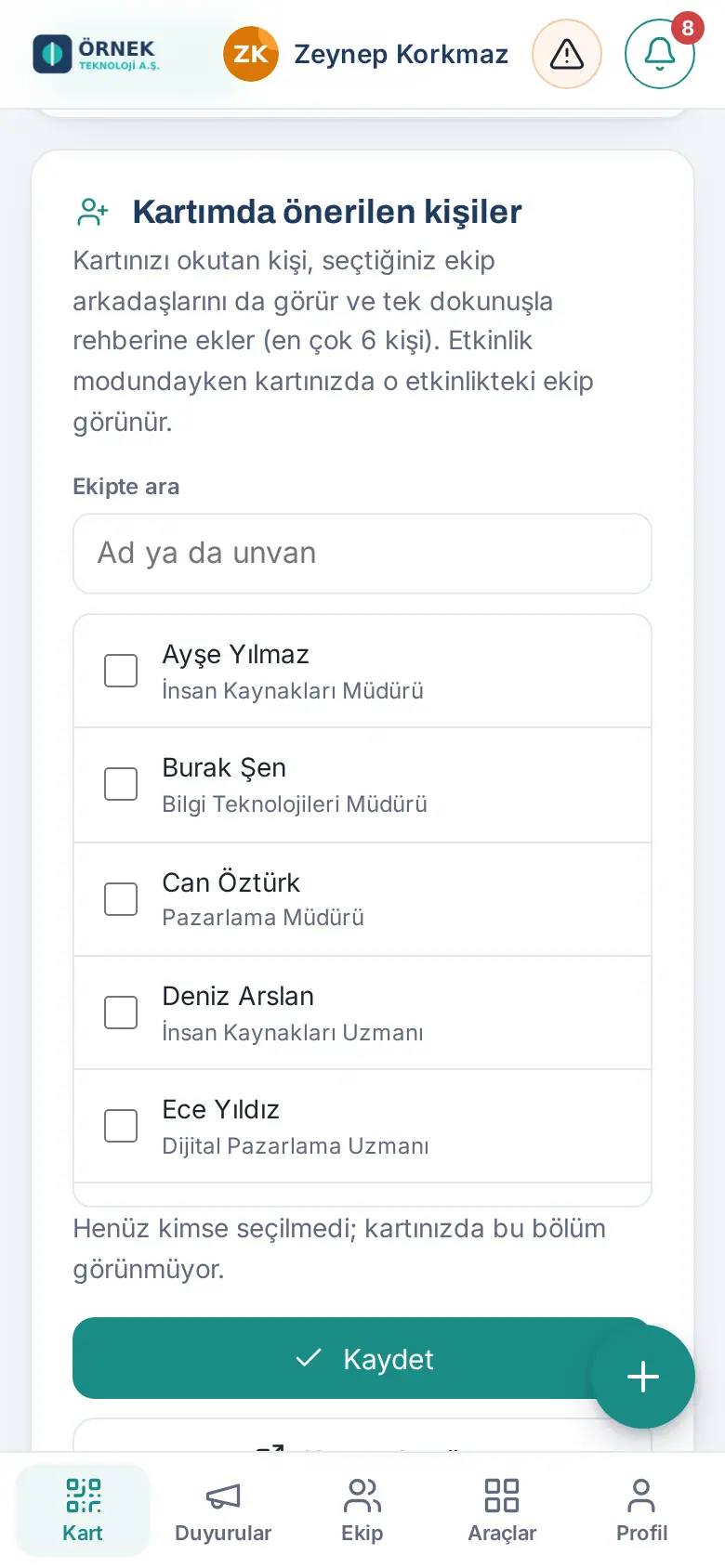
What it does: The person who scans your card also sees the colleagues you select and adds them to their contacts with one tap (maximum 6 people).
- Find and select people with Search the team.
- Tap Save. Check the result with Show on my card.
Tip: While event mode is on, your card shows the team at that event (see 05. Events and trade fairs).
What does the person who opens the card see?
Who: Employee
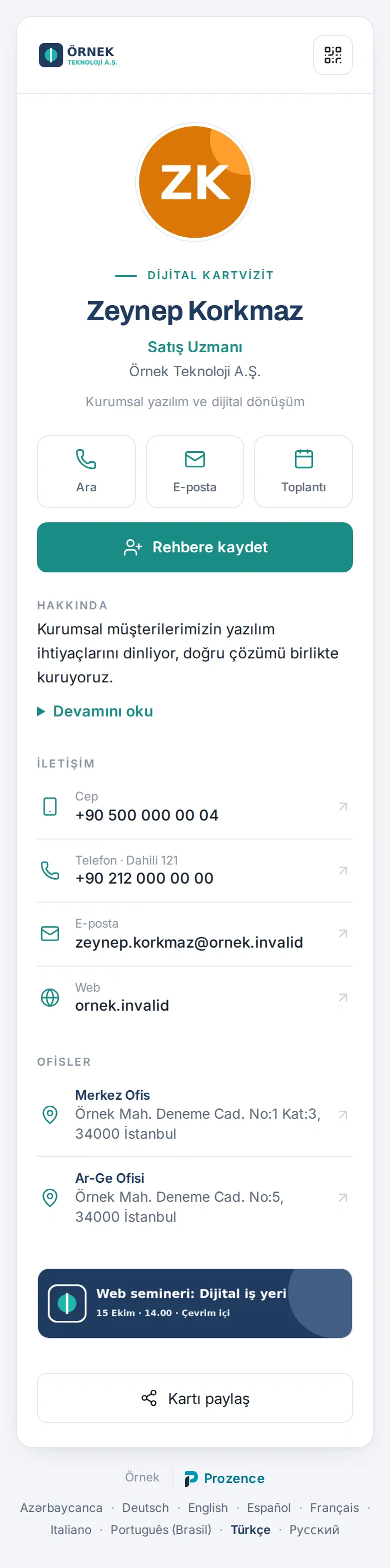
The person who opens your card sees:
- your photo, name, job title, company and contact lines;
- the office addresses and the company's banners;
- quick buttons such as Call, Email, WhatsApp, LinkedIn and Meeting;
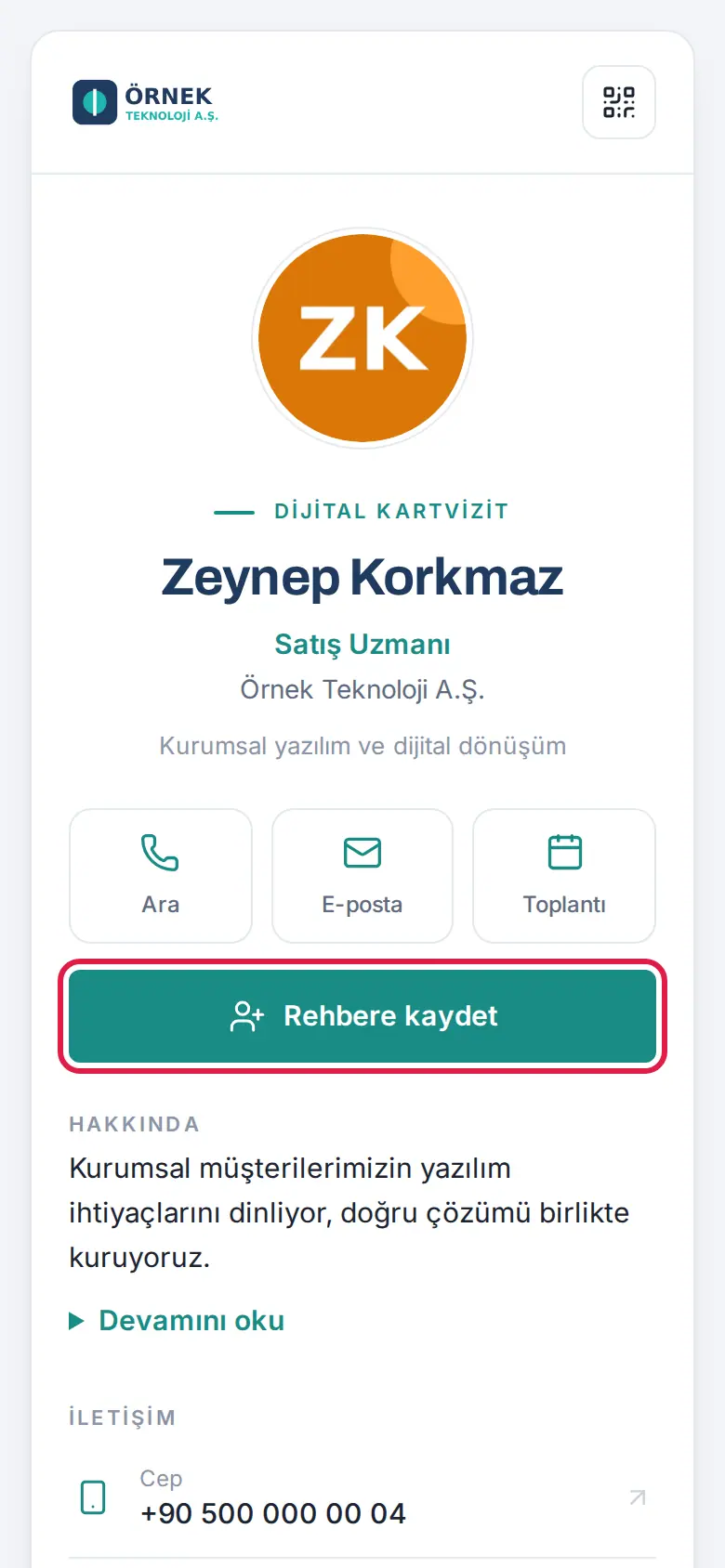
- the Save contact button.
Fields that you leave empty do not show. The card opens in the language of the visitor's browser; there is a language selector at the bottom.
Special cases:
- If you are on leave: if Show people who open my card an "out of office" note and the card of the person covering for me is ticked in the leave and cover section of My profile, the card shows your return date and the person who can help.
- If you leave the company: the old QR and link open a "no longer with the team" page and the card of the person who covers for you. Your contact details are not shown.
Visitors leaving their details
Who: Employee (card owner)
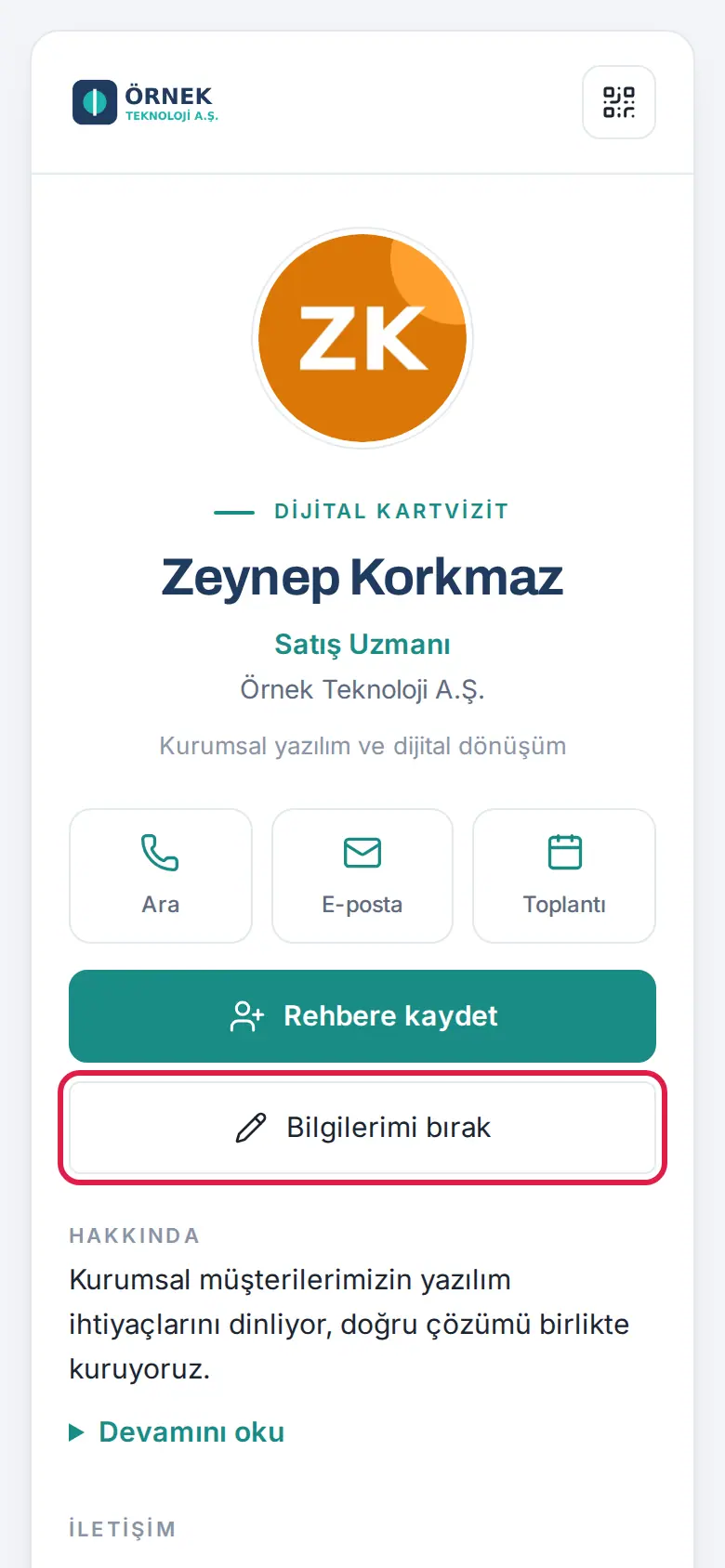
With Leave my details, the person who opens your card can leave their name, company, email or phone and where you met. The record goes to your customer list ("Left details"), you get an email and a follow-up reminder is set.
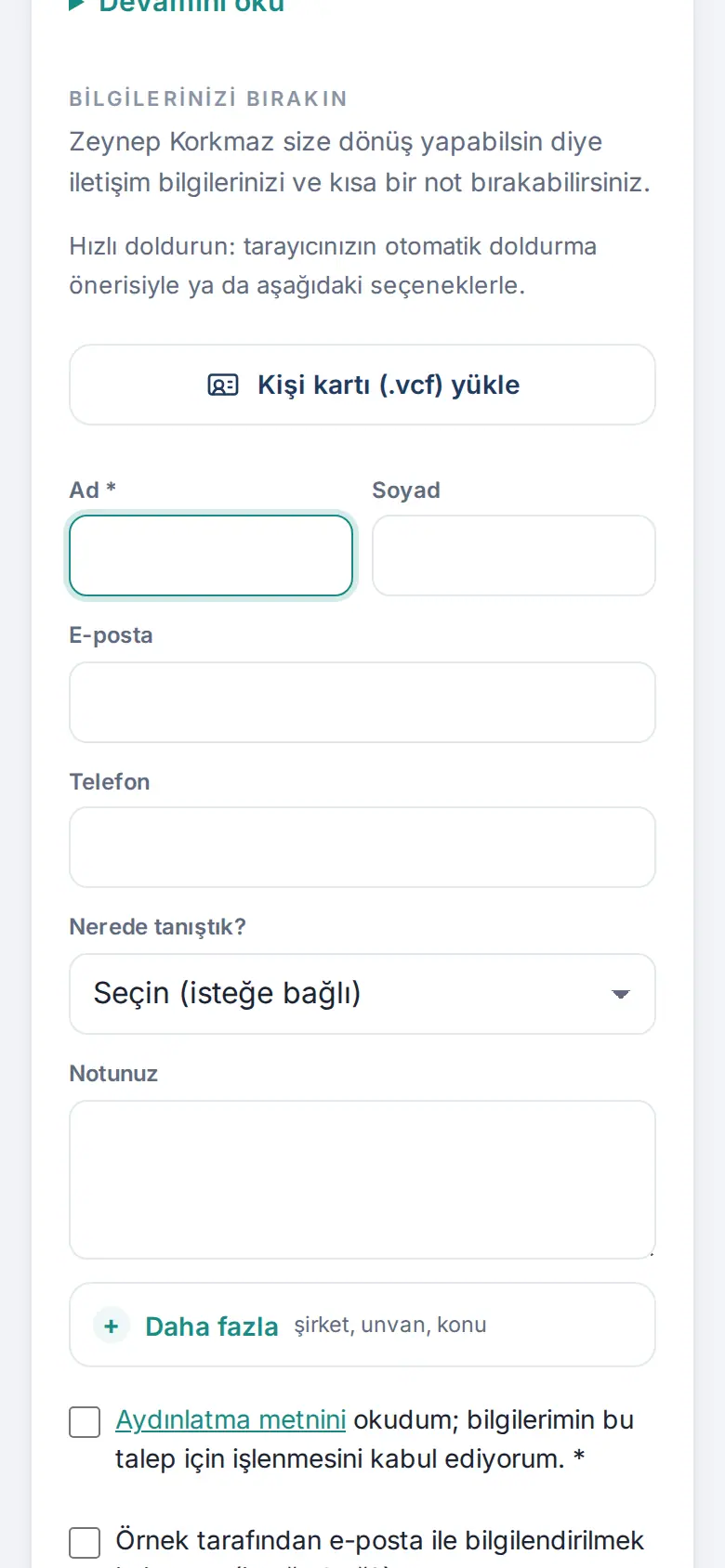
Important: The form opens only if the company's KVKK (Turkey's personal data protection law) privacy notice is set up. The visitor cannot send the form without accepting the notice; consent for commercial messages is separate and optional.
My Identity Kit: downloading images
Who: Employee · Where: My card → My Identity Kit
What it does: You download or share images made with your name, job title and QR. When your details change, the images update automatically.
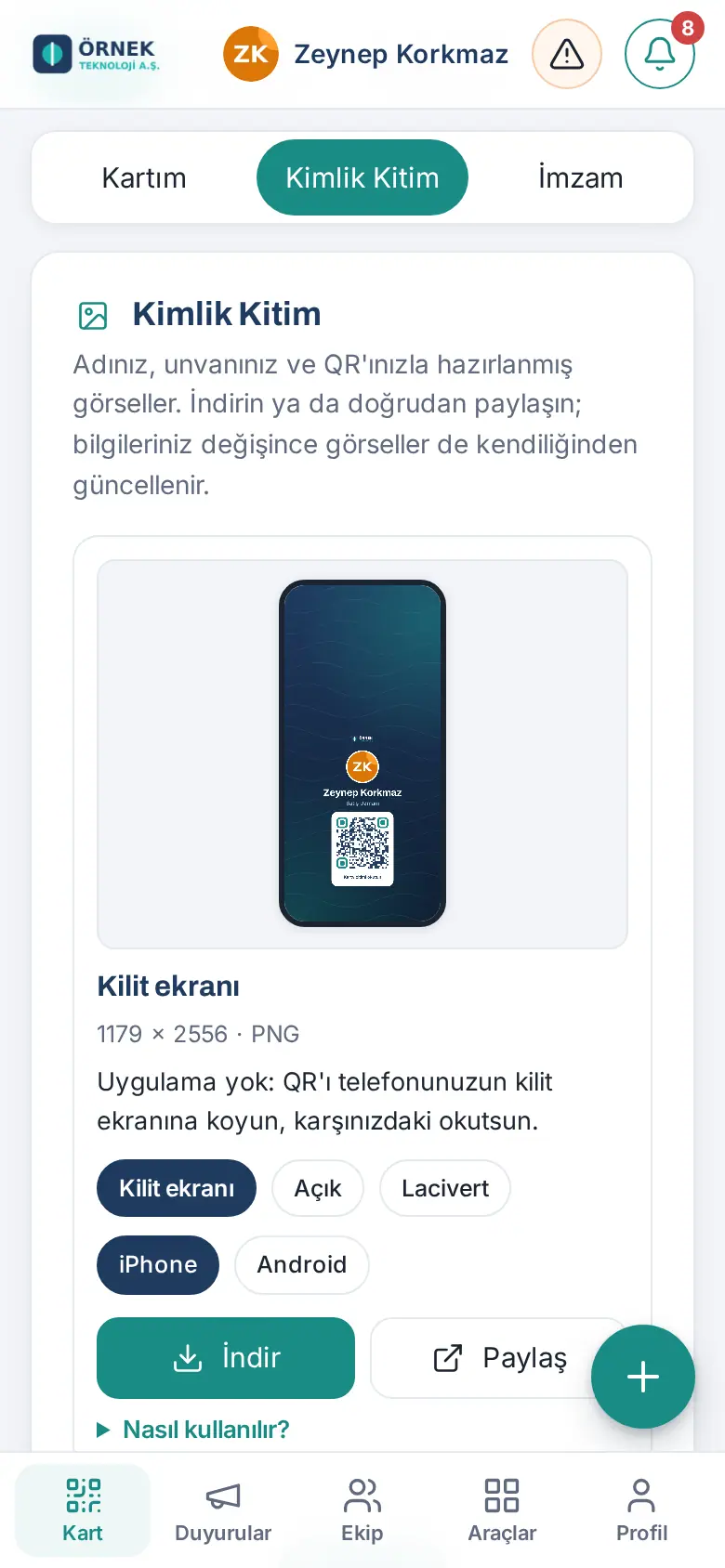
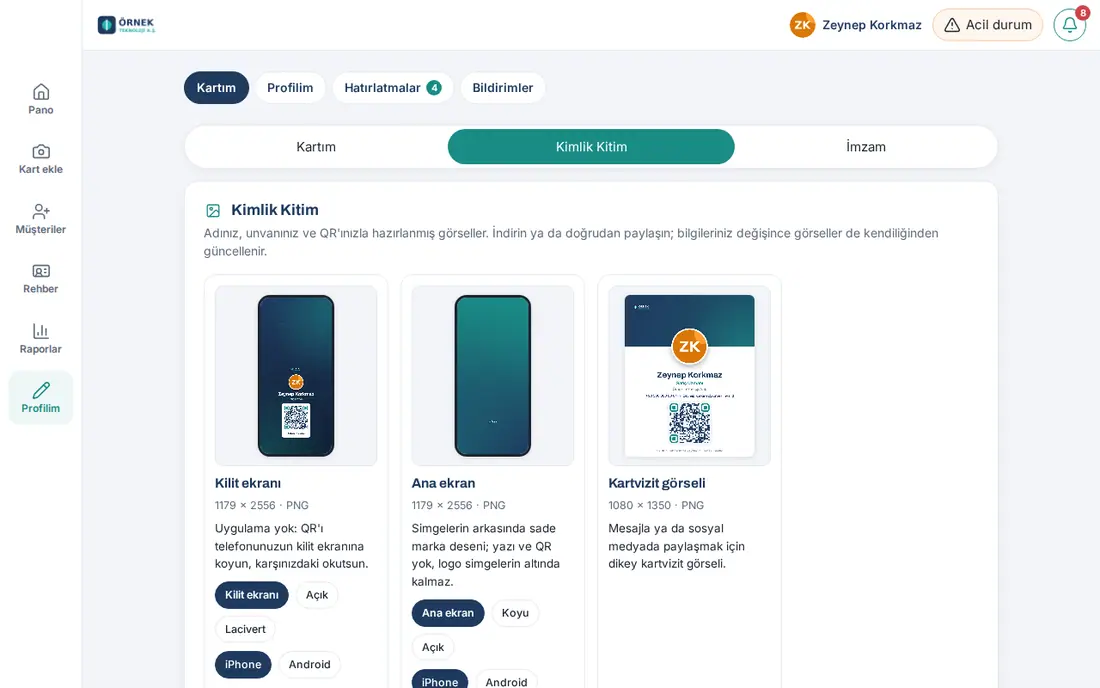
- On the My card screen, tap the My Identity Kit tab (the address ends with
#kimlik-kiti). - Go to the image type you want:
- Lock screen
- Home screen
- Business card image
- Meeting background
- Desktop wallpaper
- LinkedIn cover image
- Printed business card
- NFC tag
- If available, select the template and the color (e.g. Light, Navy, Dark). Company templates are at the top of the list.
- Select the device or the size (e.g. iPhone / Android, 2560 × 1440 / 1920 × 1080).
- Tap Download. On a phone, you can send it directly with Share.
- The How to use it? link tells you how to put that image on your device.
Tip: Your company may have turned on company templates only; in that case the personal variants do not show.
Putting the QR on your lock screen
Who: Employee · Where: My Identity Kit → Lock screen
What it does: You share your card by showing your phone's lock screen, without opening the app.
- On the Lock screen card, select the color (Light / Navy) and the phone (iPhone / Android).
- Tap Download; the image is saved to your photos.
- iPhone: Photos → the image → Share → Use as Wallpaper → Lock Screen. Android: Gallery → the image → ⋮ → Set as wallpaper → Lock screen.
- On the lock screen, the clock and the shortcuts do not cover the QR; the image is made for this.
Setting the meeting background
Who: Employee · Where: My Identity Kit → Meeting background
What it does: In a video meeting, the other person can scan your QR from the screen and add you to their contacts.
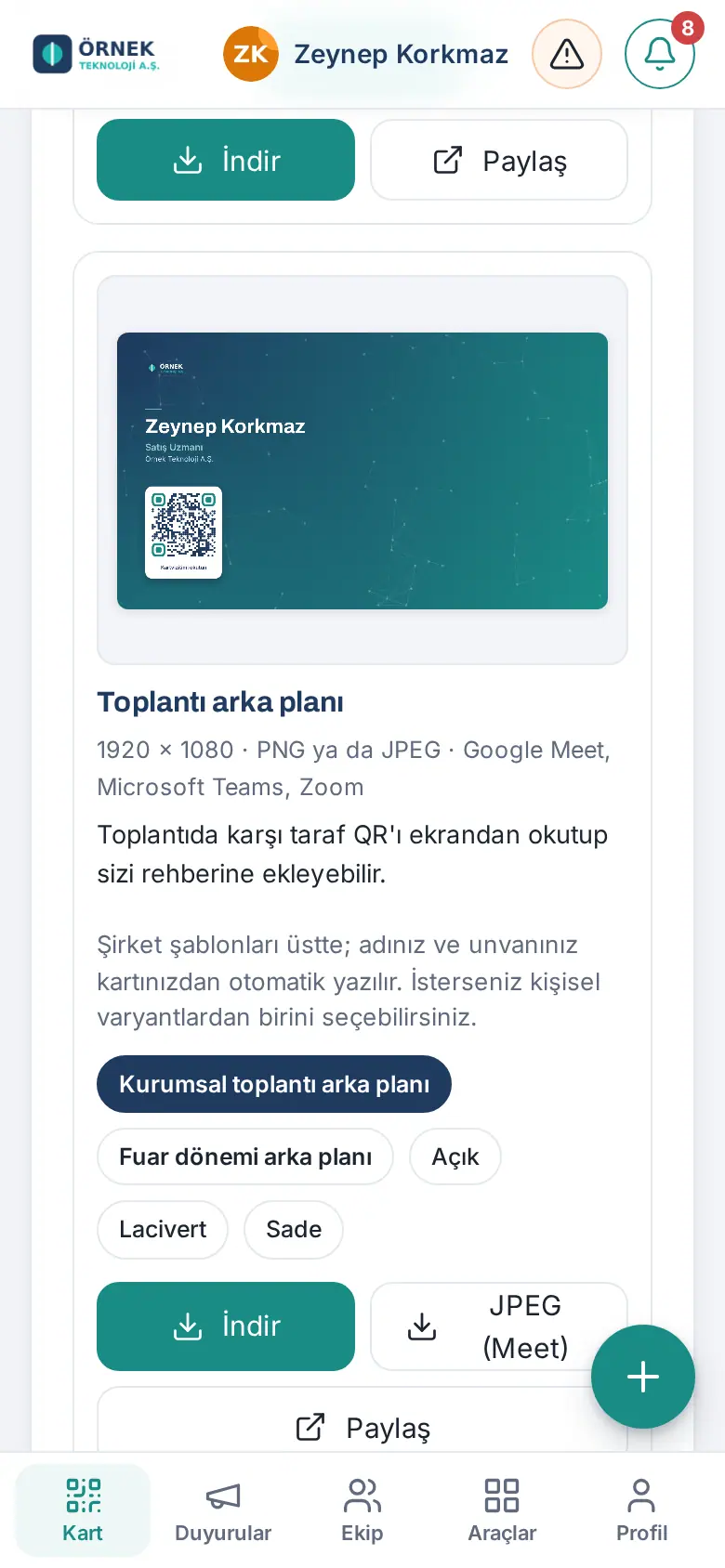
- On the Meeting background card, select the company template (e.g. Kurumsal toplantı arka planı ("corporate meeting background")) or a personal variant.
- Click Download (PNG) or, for Google Meet, JPEG (Meet).
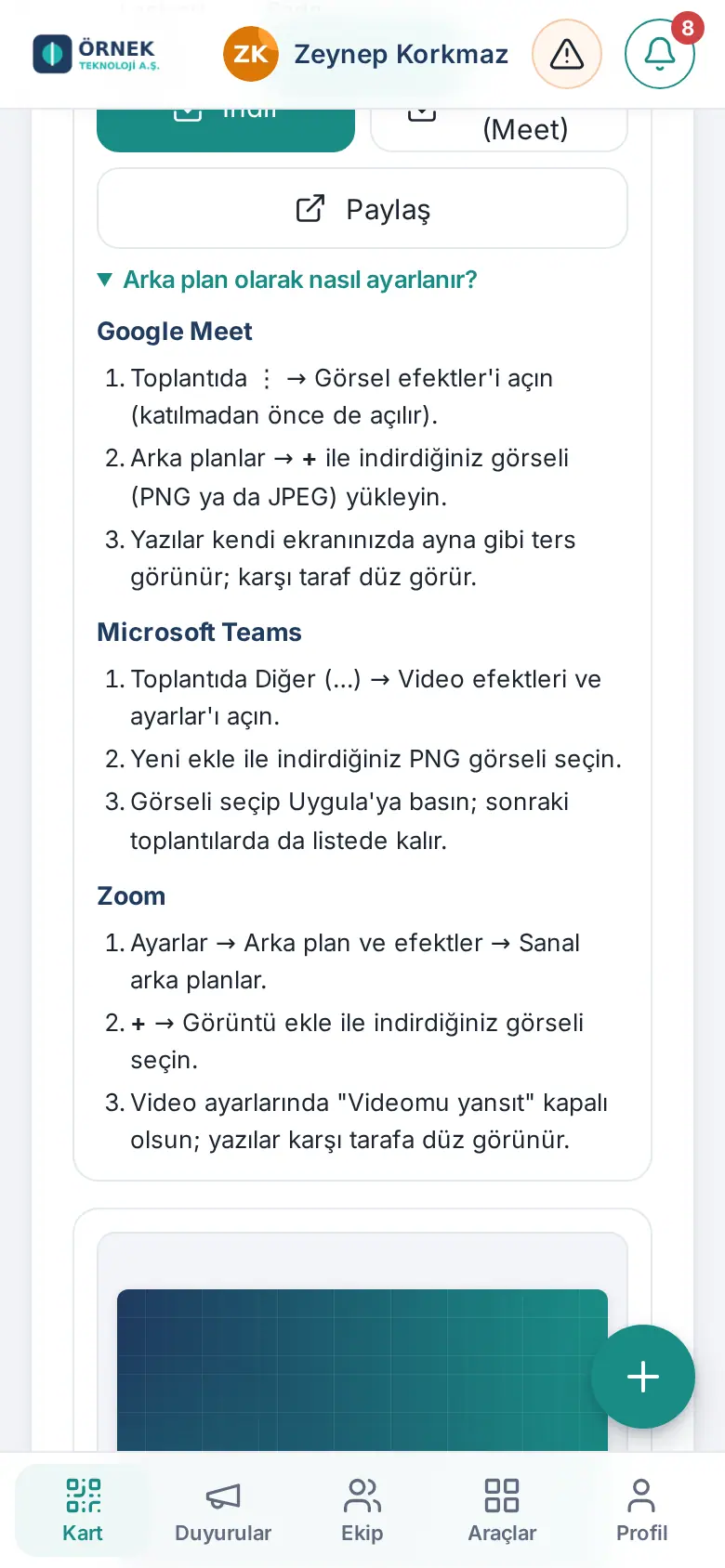
- Follow the steps in the How do I set it as a background? section:
- Google Meet: In the meeting, open ⋮ → Visual effects (you can also open it before you join). Upload the image you downloaded with Backgrounds → +.
- Microsoft Teams: In the meeting, open More (…) → Video effects and settings. Select the PNG image with Add new, then click Apply.
- Zoom: Settings → Background & effects → Virtual backgrounds → + → Add image. In the video settings, make sure "Mirror my video" is off.
- On your own screen the text can look mirrored; the other person sees it the right way round.
Tip: If your company connected Zoom, the Upload to Zoom button shows. The image goes to your Zoom profile and is refreshed automatically when your details change.
Printed business card
Who: Employee · Where: My Identity Kit → Printed business card
- Look at the preview with Front / Back. The dashed line is the cut line.
- Select the color (Dark / Light).
- Click Download PDF (print-ready). The PDF is 85 × 55 mm, with 3 mm bleed and crop marks. With Download PNG you get images of the front and the back.
- Send the PDF to the print shop.
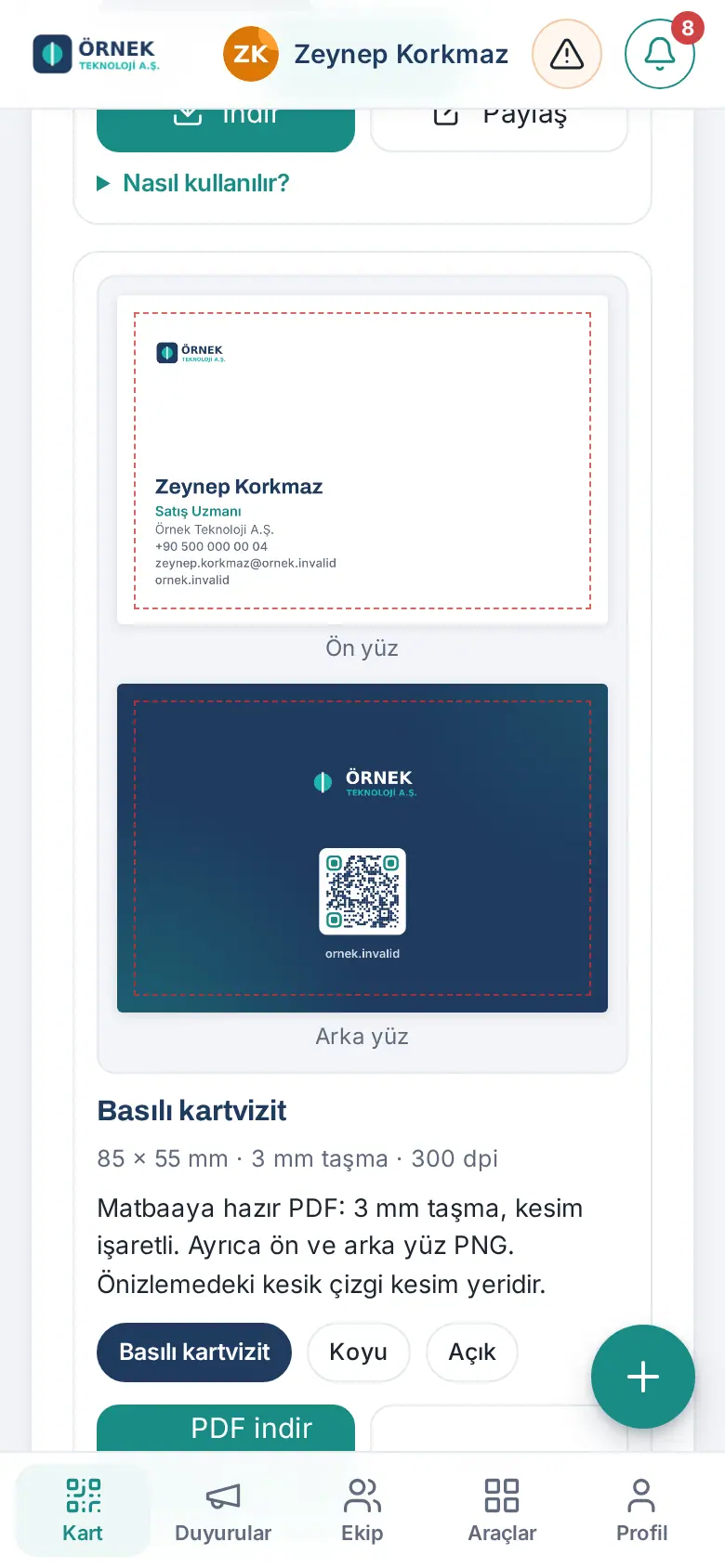
Important: The PDF is in RGB color; an offset print shop does its own conversion.
Writing to an NFC tag
Who: Employee · Where: My Identity Kit → NFC tag
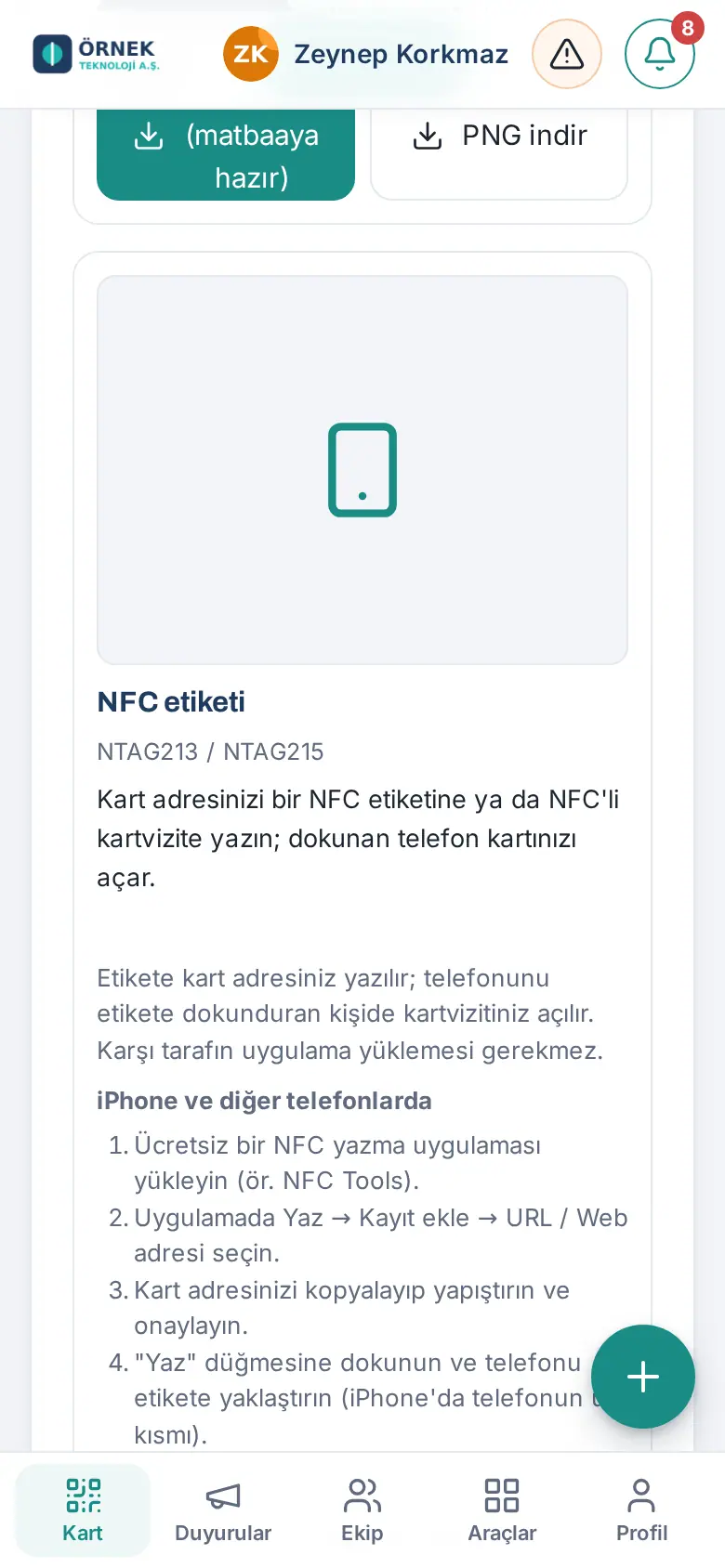
What it does: You write your card address to an NFC tag or to a business card with NFC. When a person touches the tag with their phone, your card opens on their phone; no app is necessary.
- Android (Chrome): Tap Write my card link to an NFC tag and hold the phone near the tag.
- iPhone and other phones:
- Install a free NFC writer app (e.g. NFC Tools).
- In the app, select Write → Add a record → URL / URI.
- Copy and paste your card address and confirm.
- Tap "Write" and hold the phone near the tag (on iPhone, the top part of the phone).
- The Tag and tips section lists suitable tag types (NTAG213 / NTAG215; on metal surfaces, an anti-metal tag).
Corporate profile photo
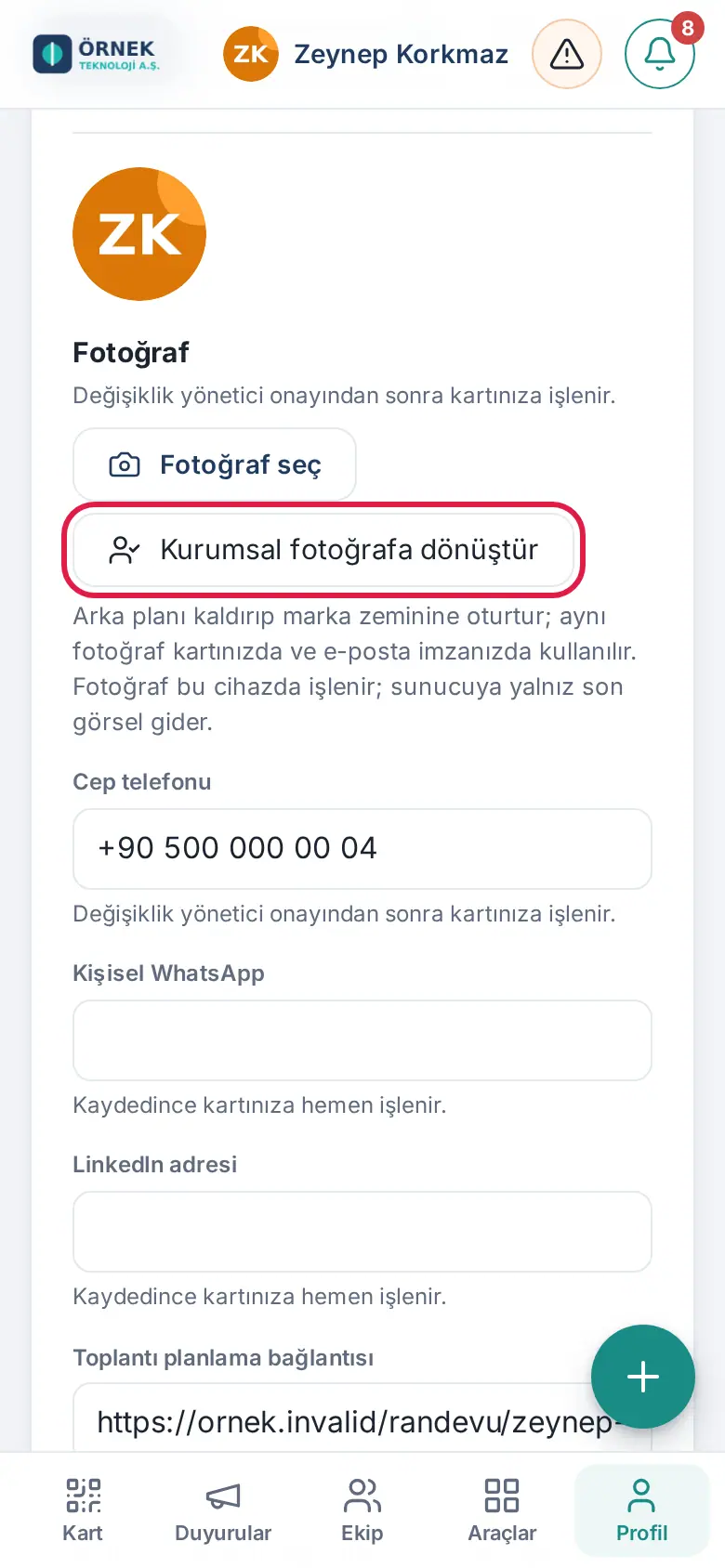
Who: Employee · Where: Profile → My profile → Photo → Convert to corporate photo
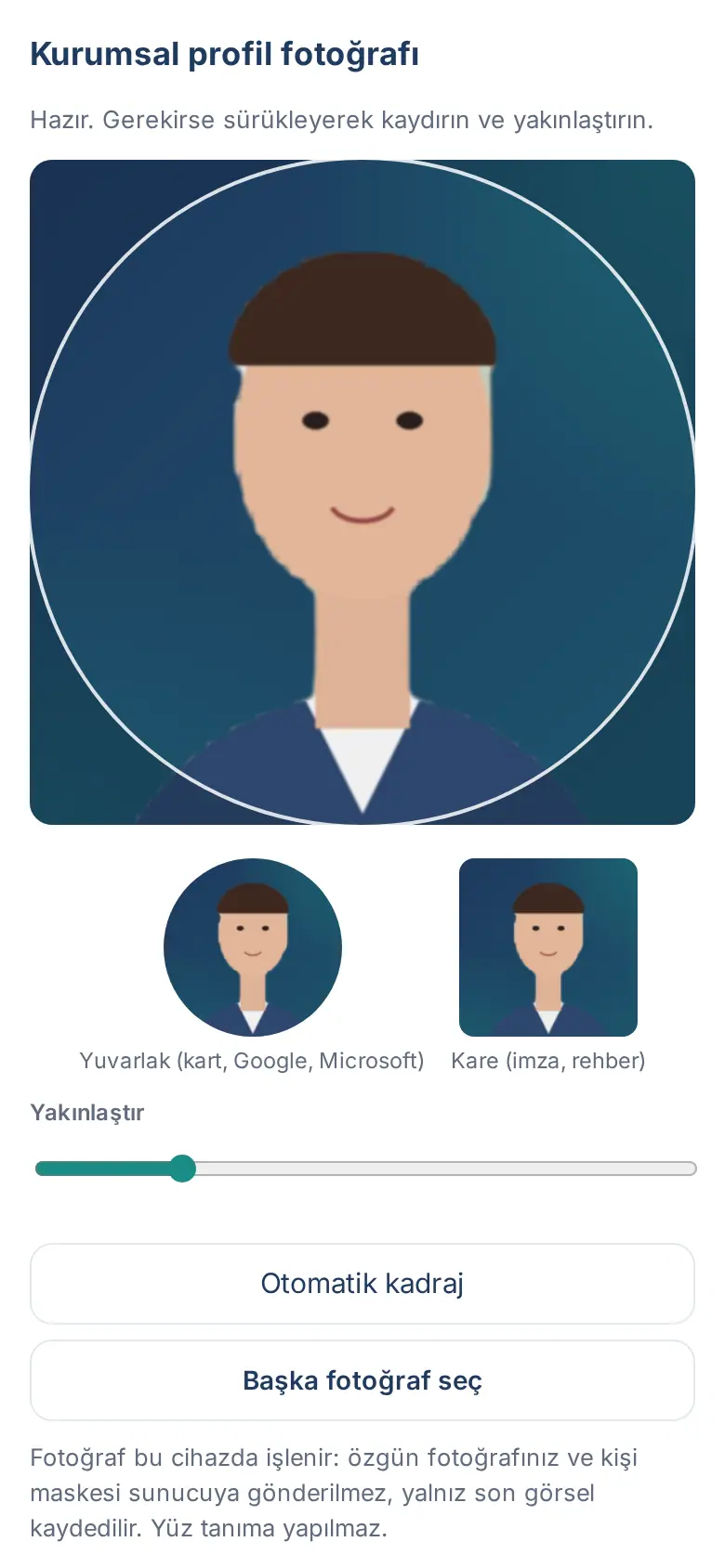
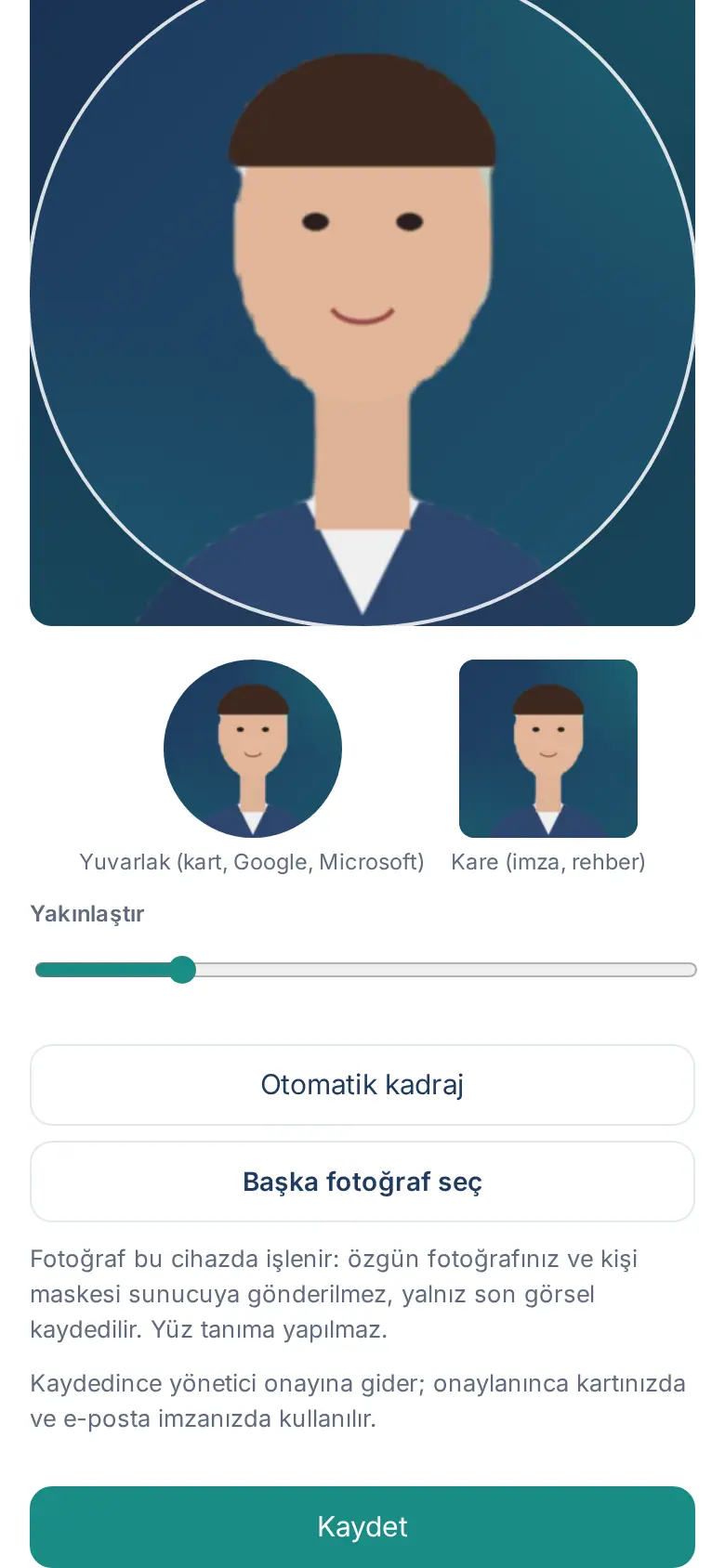
What it does: Removes the background of your photo and puts you on the company's brand background. The same photo is used on your card, in your signature and (if connected) in your Google / Microsoft profile.
- In the Photo section of My profile, tap Convert to corporate photo. Your saved photo opens; if you have no photo, you are asked to choose one.
- To use a different photo, tap Choose another photo in the window that opens. (A photo that you selected with Choose photo but did not save yet is not converted.)
- The background is removed on your device. Your original photo is not sent to the server; only the final image is saved. If necessary, adjust the framing with Auto framing or the zoom.
- Tap Save. If your company requires approval for photo changes, the photo shows when it is approved.
Important: It does not work in old browsers (e.g. before iOS 16.4). Update your phone or try from a computer.
Card statistics
Who: Employee · Where: My Space → Today → My card box (on a computer, Board → Today)
You see how many times your card was opened recently, how many times it was saved to contacts and how many times your meeting page was opened. The identity of visitors is not recorded; there are only daily counts.