20. Prozence mobile app
Screenshots show the Turkish interface of Prozence with fictional "Örnek Teknoloji A.Ş." data; the English interface has the same layout.
You can also use Prozence on your phone with the Prozence app instead of the browser. The app is free for iPhone (App Store) and Android (Google Play). When you open the app for the first time, you type your work email and sign in with the code you receive; you do not need to know the company address. If you want, you can also start by typing your company's Prozence address or by scanning a Prozence QR code.
The screens in the app are the same as the employee app that you see in the browser. For this reason, the phone instructions in the other chapters of this guide also apply in the app. In addition, the app uses phone features such as phone notifications, reading QR codes with the camera and recognizing the office Wi-Fi when you record work time.
Who: Employee
In this chapter
-
Location and office Wi-Fi when you record work time (iPhone and Android)
-
Automatic attendance: the phone detects arriving at and leaving the office (mobile 1.7.0)
-
Phone widgets: Attendance, Quick actions, Pending approvals, Today
Installing the app
Who: Employee · Where: App Store (iPhone) or Google Play (Android)
What it does: You open Prozence on your phone as a separate app. You do not need a browser tab or a home screen shortcut.
Before you start:
- Your company must use Prozence and must have opened an account for you. You cannot open a new account from the app.
- Know your company's Prozence address, or have one of your company's Prozence QR codes ready (e.g. the QR on a colleague's digital business card).
- On iPhone, open the App Store; on Android, open Google Play.
- Type Prozence in the search box.
- Select the Prozence app and install it.
- Tap the Prozence icon on the home screen. Since mobile app 1.4.0, the first screen asks you to start with your work email (see Starting the app with your work email); to connect with the company address instead, tap Continue with company address there and go to the Your company address screen (see Connecting to your company). Since mobile app 1.6.0, the first screens are in your phone's language: the first app language in the phone's language list (Turkish, English, German, French, Spanish, Italian, Portuguese, Russian, Azerbaijani) is used; if there is none, English.
Tip: If you use the app, you do not need to add the browser app to the home screen (see 00. Getting started). You can also use both; they are separate sessions.
Important: The app opens only Prozence addresses. If your company uses Prozence on its own domain, the address may not be enabled in the app yet. In this case, continue in the browser and contact your company's Prozence administrator.
Starting the app with your work email
Who: Employee · Where: First screen of the app → Start with your work email
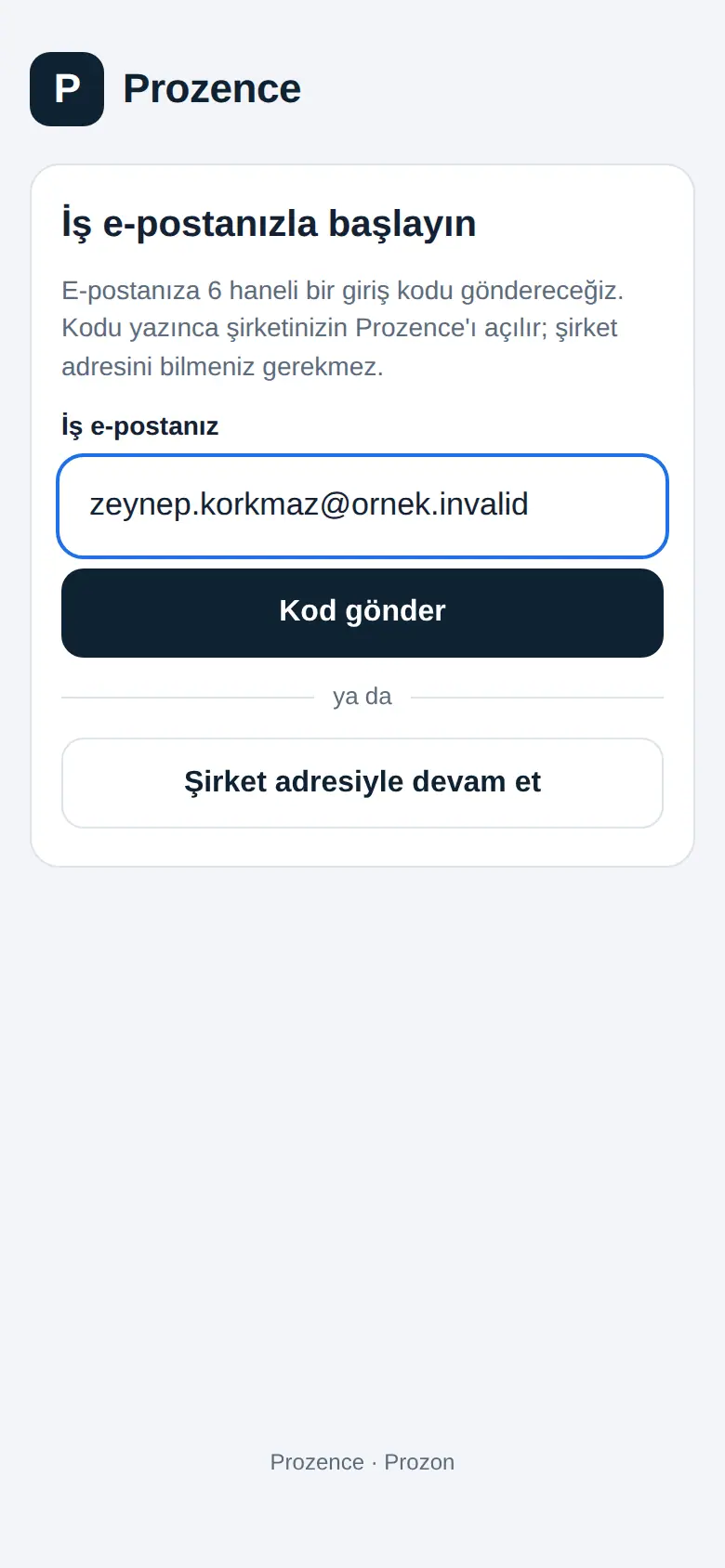
What it does: You sign in with only your work email, without knowing your company's Prozence address. Prozence finds which company your email belongs to, and your company's system sends a 6-digit sign-in code to your email. When you type the code, your company opens in the app and is saved.
- Open the app. The first screen shows Start with your work email.
- In the Work email box, type your company email address (e.g. ad@sirketiniz.com).
- Tap Send code.
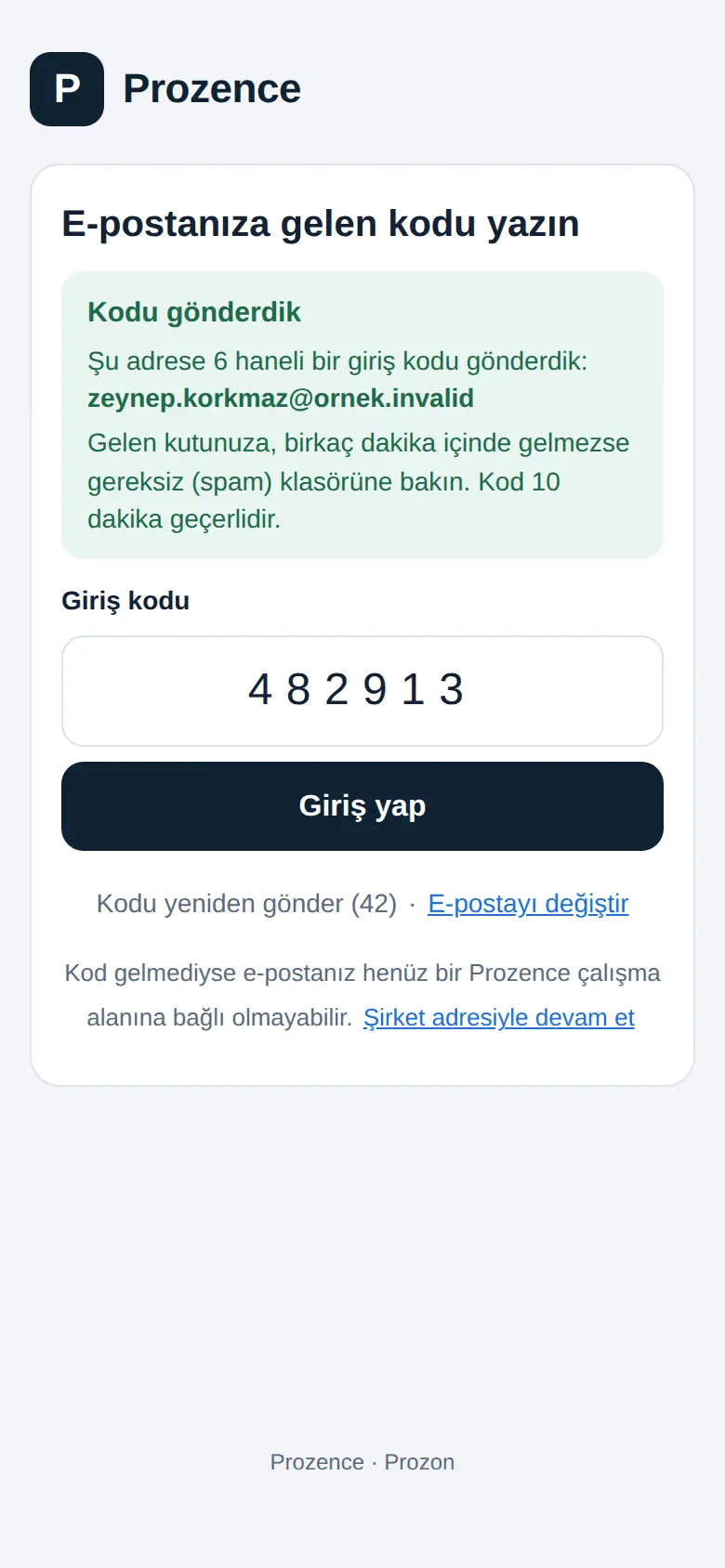
- The Enter the code from your email screen opens: it shows "Code sent" and the address the code was sent to. The code is valid for 10 minutes.
- Type the 6-digit code from your email in the Sign-in code box and tap Sign in. The button shows Signing in….
- Your company opens in the app.
- If you have phone approval or an authenticator app, your company's approval screen opens first (Approve on your phone or Enter your verification code). When you approve, your session opens (1.1.6; see 35. Sign-in security: phone approval and authenticator app).
- The window that asks for permission for phone notifications can appear once (see Turning on phone notifications in the app).
If the code does not arrive:
- Look in the junk (spam) folder. The Resend code link becomes active after a short wait (the number of seconds shows next to it).
- If you typed the address incorrectly, tap Change email.
- "If no code arrives, your email may not be linked to a Prozence workspace yet." In this case, tap Continue with company address and type your company's address (see Connecting to your company).
Common warnings:
- "Enter a valid email address.": type the complete address.
- "Enter the 6-digit code from your email.": the code box is empty.
- "Too many attempts. Try again in a few minutes.": wait a few minutes.
- "This device cannot sign in with email. Continue with the company address.": your phone does not support this sign-in method; tap Continue with company address.
Tip: After you open your company once, the app opens your company automatically the next times you open it; you do not need to type your email again.
Connecting to your company
Who: Employee · Where: First screen of the app → Continue with company address → Your company address
What it does: You tell the app which company's Prozence address to open. You do this once; the next time you open the app, your company opens automatically.
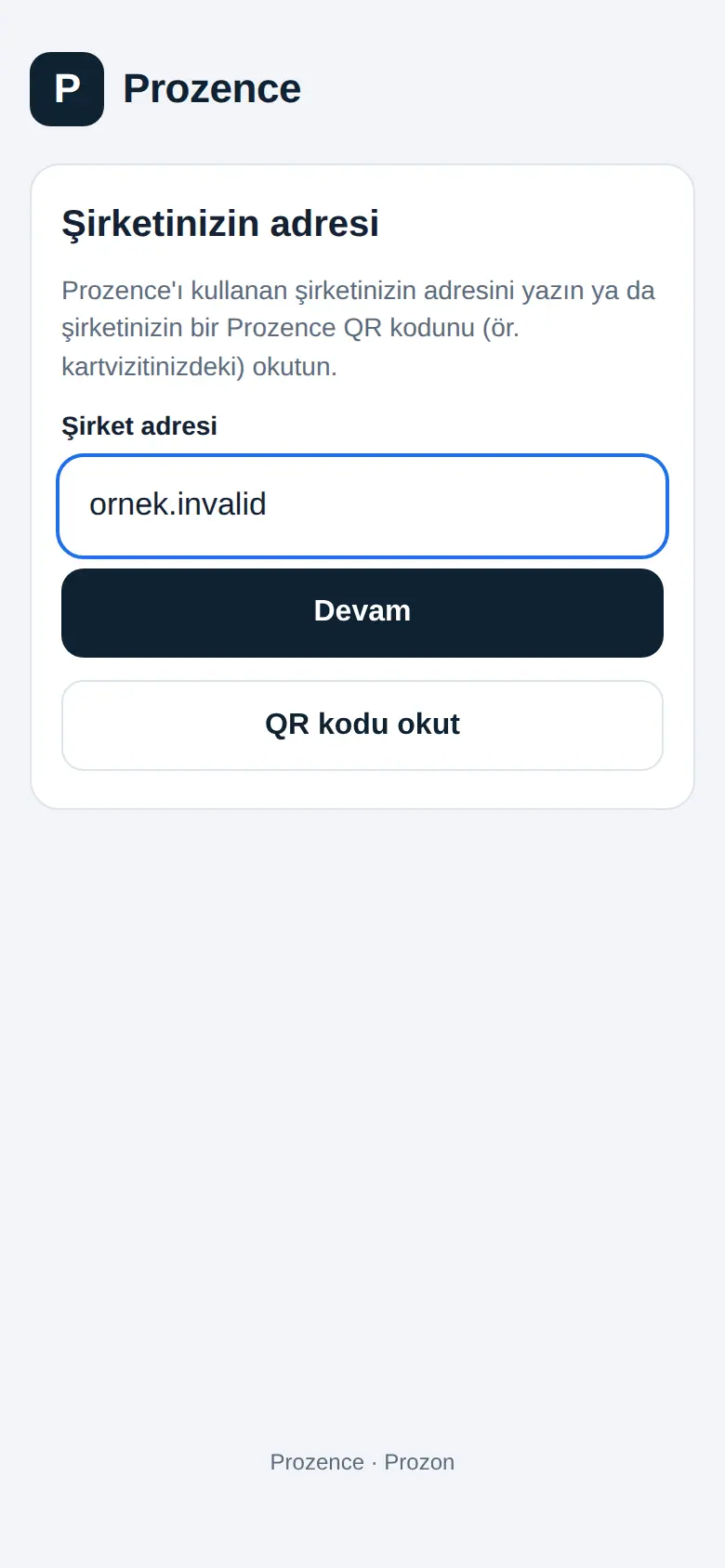
The first screen is Start with your work email. To start with the address, tap Continue with company address on that screen; the Your company address screen opens. To go back to starting with email, tap ← Start with email.
By typing the address:
- In the Company address box, type the Prozence address that your company gave you (e.g.
ornek.prozon.net). You do not need to typehttps://at the start. - Tap Continue. The app checks the address.
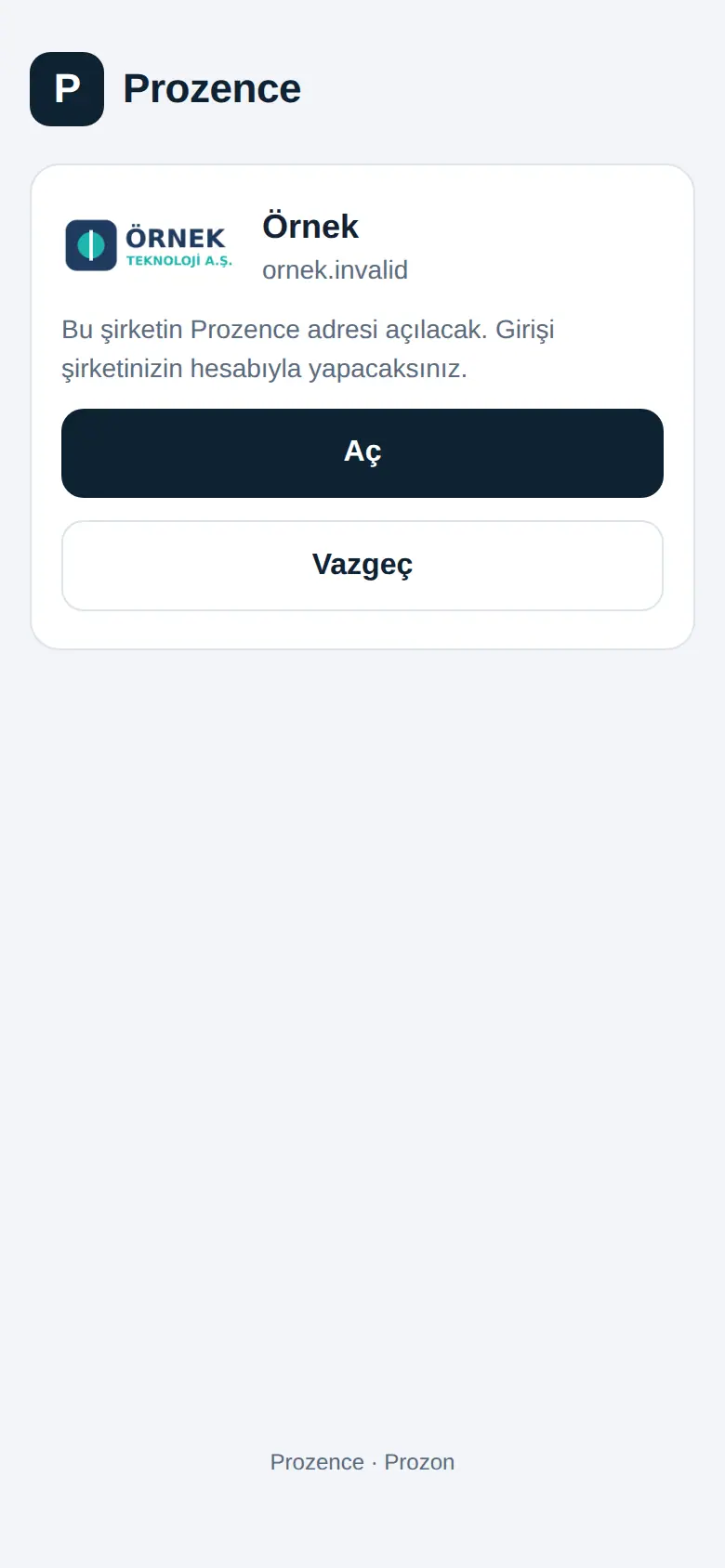
- Your company's name, logo and address show: "This company’s Prozence address will open. You will sign in with your company account."
- If the information is correct, tap Open. If it is the wrong company, tap Cancel and correct the address.
- Your company's sign-in screen opens (see Signing in to the app).
By scanning a QR code:
- Tap Scan QR code. The first time, the phone asks for camera permission; give permission.
- Hold the camera over one of your company's Prozence QR codes ("Scan your company’s Prozence QR code"). The QR on a colleague's digital business card also works.
- The address is typed in the box automatically and checked. Continue from step 3.
Common warnings:
| Warning | What to do |
|---|---|
| Enter your company address. | The box is empty. Type the address or scan a QR code. |
| This does not look like a web address. | Type the address without spelling mistakes, e.g. in the form ornek.prozon.net. |
| This address is not yet enabled in the Prozence app. Contact your company’s Prozence administrator. | The address is not one of the addresses the app can open. Continue in the browser and tell your administrator. |
| No Prozence installation was found at this address. | The address is wrong or there is no Prozence at that address. Ask your company for the correct address. |
| Could not reach this address. Check the address and your connection. | Check your internet connection and the address, and try again. |
| The QR code could not be read. | Scan the QR again from closer, in a well-lit place, or type the address manually. |
Tip: Company addresses are stored only on your phone.
Signing in to the app
Who: Employee · Where: Your company's sign-in screen (inside the app)
What it does: You sign in to the app with your company account. The sign-in methods are the same as in the browser: email code, SMS code, invitation link, Google, Microsoft or single sign-on with your company's identity provider (depending on what your company turned on).
- After you connect to your company, the … employee area sign-in screen opens.
- If you sign in with email or SMS, the steps are the same as in the browser: type your address or your number, request a code, type the 6-digit code that you get and tap Sign in (see 00. Getting started).
- If you sign in with Google or Microsoft, see Signing in with Google or Microsoft (through the browser).
- When the sign-in is complete, the app opens. A window that asks for permission for phone notifications can show once (see Turning on phone notifications in the app).
At the very bottom of the sign-in screen there are two links: Change company (to select another company address) and Privacy policy (the app's privacy policy).
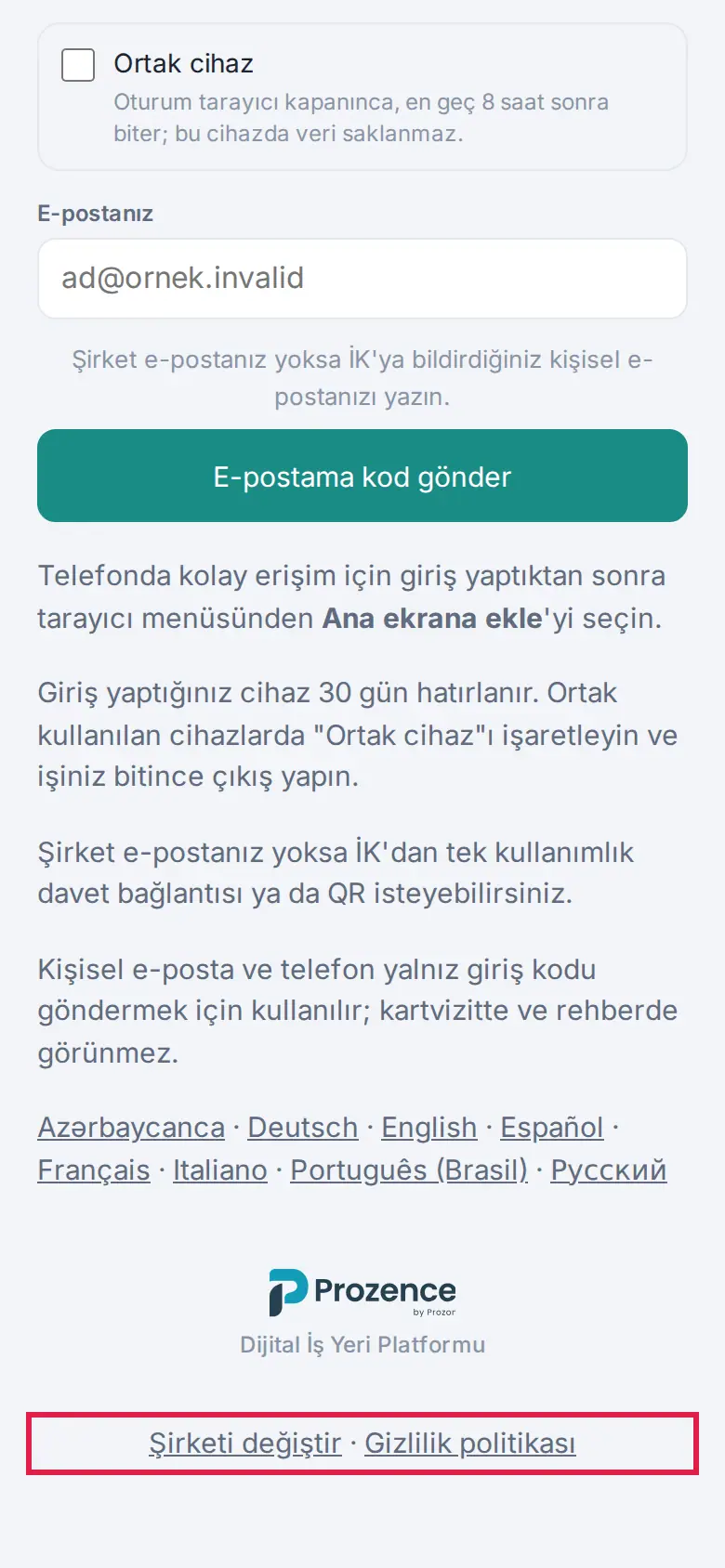
Tip: If you are on a shared phone, tick the Shared device box before you sign in (see 00. Getting started).
Signing in with Google or Microsoft (through the browser)
Who: Employee whose company turned on Google or Microsoft sign-in · Where: Sign-in screen in the app → Sign in with Google / Sign in with Microsoft / Sign in with Google or Microsoft
What it does: Google and Microsoft do not allow sign-in screens that open inside apps. For this reason, this sign-in is done in the phone's browser; when it is complete, you go back to the app.
- On the sign-in screen, tap the Sign in with Google button (depending on your company, Sign in with Microsoft or Sign in with Google or Microsoft). Below the button it says: "For security, sign-in opens in the browser; you return to the app when done."
- If your company turned on single sign-on (SAML), the button shows the identity provider's name (e.g. Sign in with Okta); if Google or Microsoft sign-in is also on, the button is Sign in with company account. The steps are the same (0.99.53).
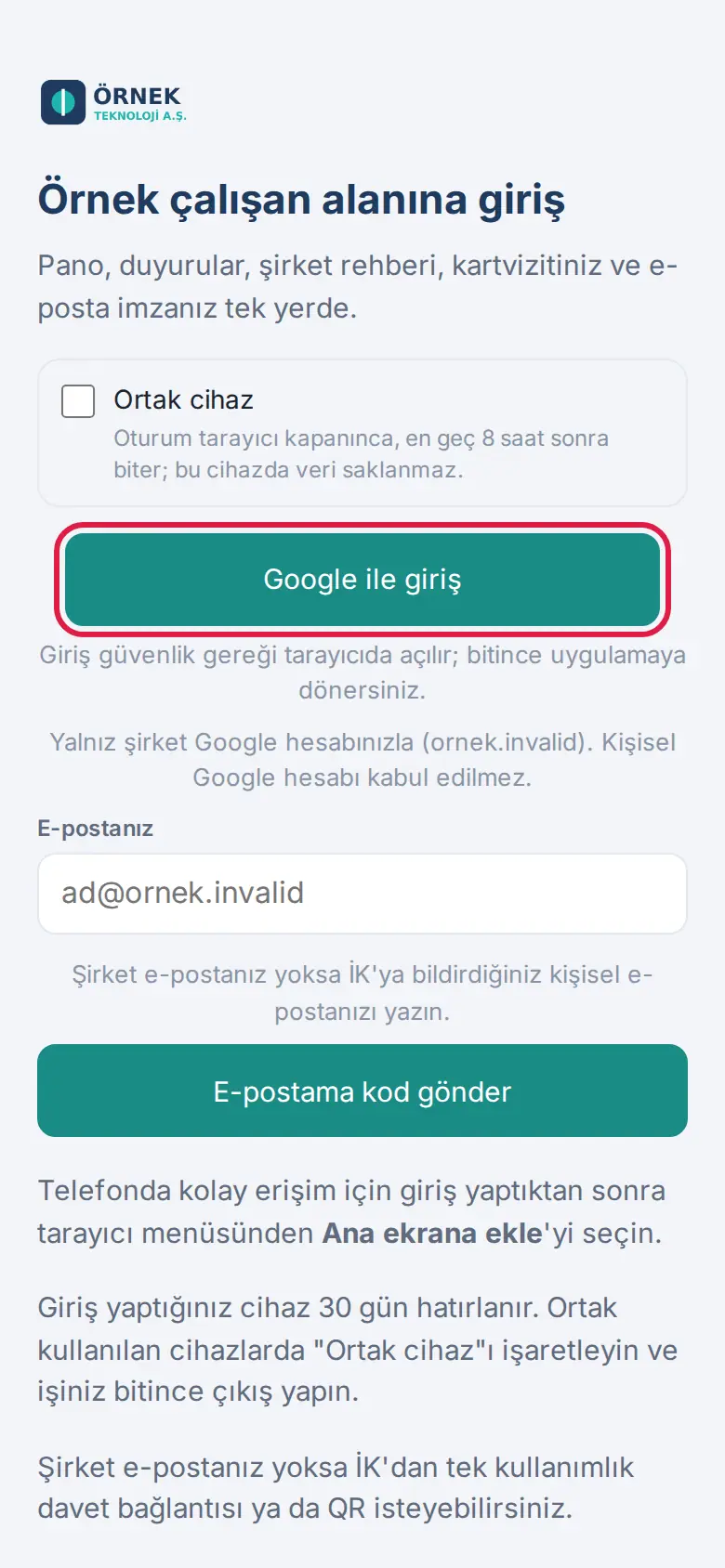
- If your company turned on single sign-on (SAML), the button shows the identity provider's name (e.g. Sign in with Okta); if Google or Microsoft sign-in is also on, the button is Sign in with company account. The steps are the same (0.99.53).
- The sign-in page opens in the phone's browser. At the top, the Sign-in for the Prozence mobile app strip shows: "After signing in you are asked to return to the app; no session is opened in this browser."
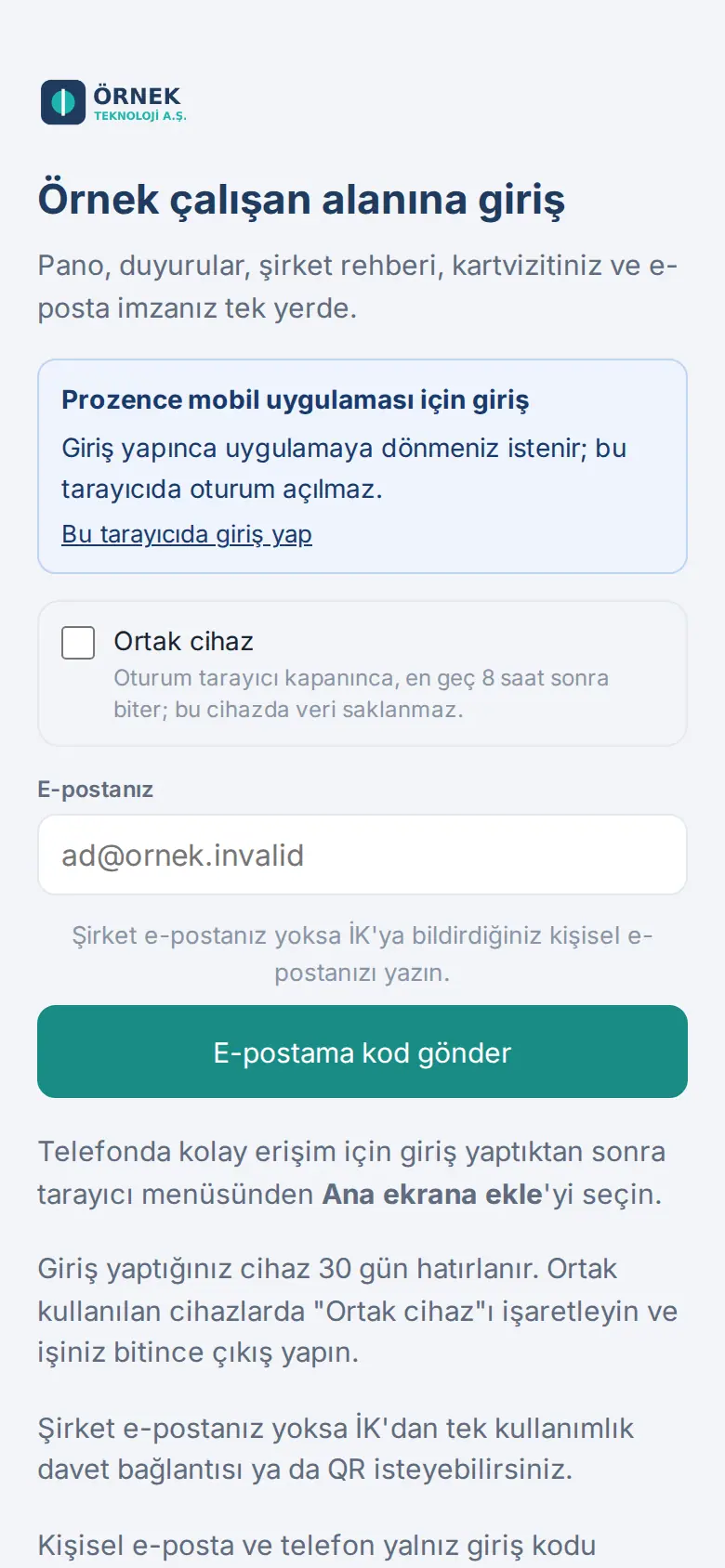
- Sign in with your company Google or Microsoft account (you can also sign in with an email or SMS code).
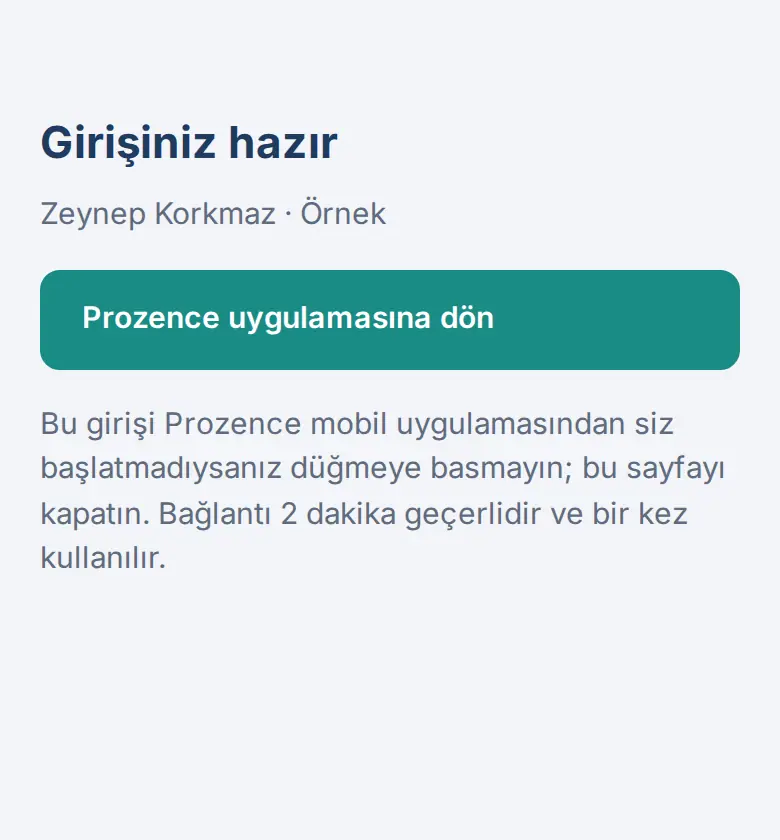
- The Your sign-in is ready page opens; it shows your name and your company's name.
- Tap Return to the Prozence app. If the phone asks 'Open in "Prozence"?', confirm.
- The app opens and your session starts in the app ("Completing sign-in…").
Important:
- The Return to the Prozence app link is valid for 2 minutes and can be used once. If you did not start this sign-in from the app yourself, do not press the button; close the page.
- If the time ran out, the page shows The link has expired. Go back to the app and start the sign-in again.
- Even if you already have a session in the browser, it is not transferred to the app automatically; you sign in again for the app.
- If you want to sign in to Prozence in the browser to use it in the browser, not for the app, tap Sign in in this browser in the strip.
Common messages:
- "Sign-in was not started on this device. Try again.": the sign-in was started on another phone or in an earlier attempt. Tap the sign-in button in the app again.
- "Sign-in was started for another company address." or "This sign-in was started for another company.": the company that is open in the app and the company that you signed in to are different. Select the correct company and try again.
- "The browser could not be opened. Try again.": tap the button again; if the problem continues, close and open the app.
Changing the company and saved companies
Who: Employee · Where: Profile → My profile → Mobile app → Change company (or the bottom of the sign-in screen)
What it does: If you use Prozence in more than one company (e.g. group companies), you switch between the companies or remove a company that was added by mistake.
- In the bottom menu, tap Profile and scroll down to the Mobile app section in My profile. This section shows only inside the app; it shows the open company address and the App version.
- Tap Change company. The Your company address screen opens.
- In the Saved companies list, tap a company; that company opens. To add a new company, type its address and tap Continue.
- To delete a company from the list, tap Remove next to it.
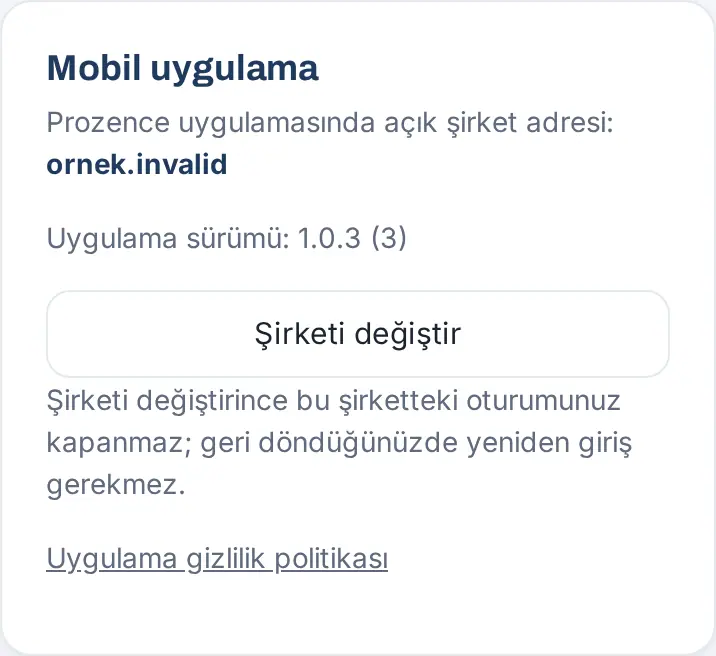
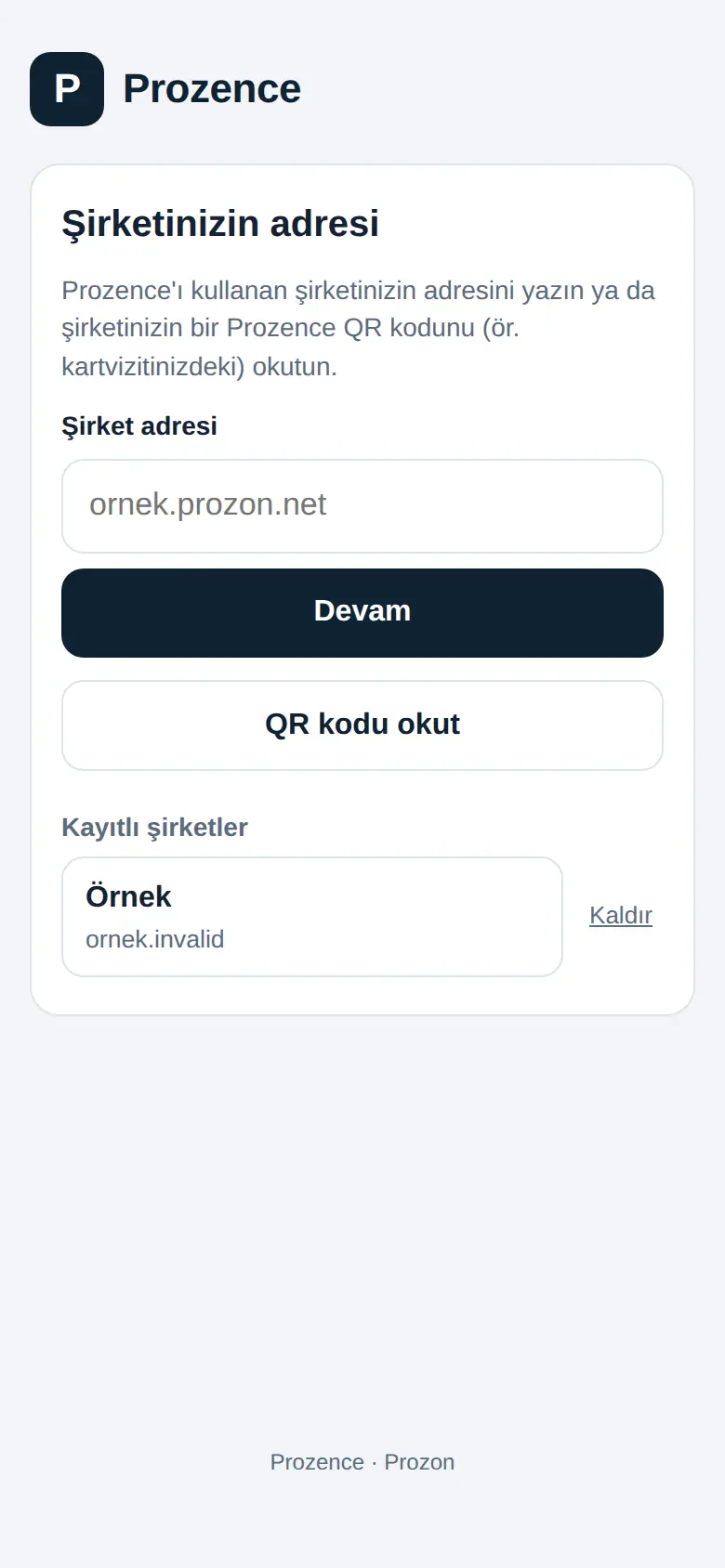
Tip: "Changing company does not end your session here; you will not need to sign in again when you come back."
Important: If the app cannot reach the company address when it opens, the Could not reach the company address screen shows. Check your internet connection and tap Try again, or select another company with Change company.
Turning on phone notifications in the app
Who: Employee · Where: Profile → Notifications
What it does: Tasks that wait for your approval, announcements, people who leave their details on your card and reminders come to your phone as notifications. As in the browser, you select for which events you get notifications in the What should be notified? list.
Before you start: Your company's administrator must have set up phone notifications (see 13. Integrations). If they are not set up, the screen shows "Your company has not set up phone notifications yet; they will start arriving on their own once it does. Email notifications continue."
At first sign-in: After you sign in, the app asks once for notification permission itself. You only need to tap Allow.
To turn them on later:
- In the bottom menu, tap Profile, then the Notifications tab.
- Read the status row: "Notifications are off for this phone." or "Notifications are on for this phone."
- If they are off, tap Turn on notifications on this device and give permission in the phone's permission window.
- The message "Notifications turned on for this phone." appears. To test, tap Send test notification.
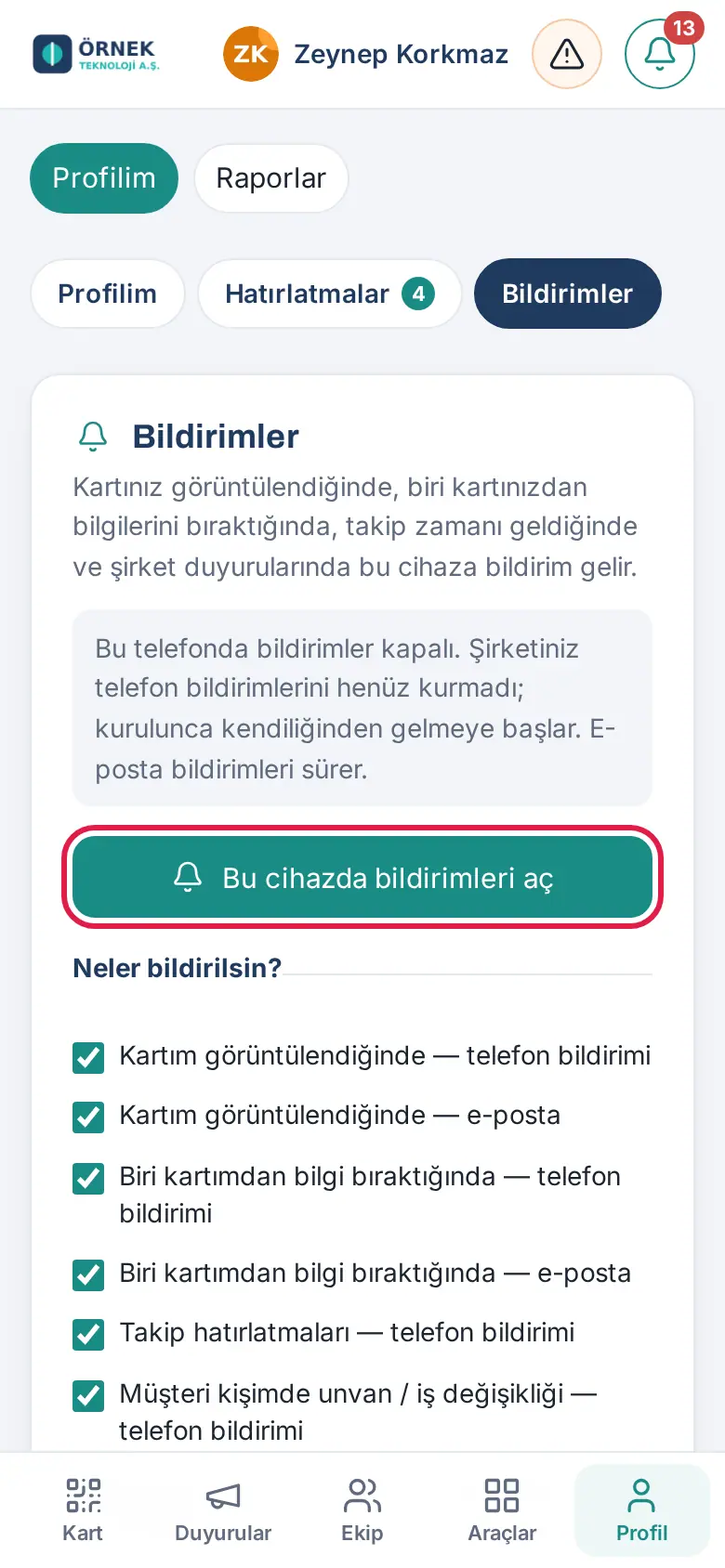
To turn them off: On the same screen, tap Turn off on this device ("Notifications turned off for this phone."). When you turn them off, the phone's registration is also deleted from the company server.
Result: The notification shows in the phone's notification area with your company's name. When you tap the notification, the related screen opens in the app.
Important:
- If you refused the permission before, the screen shows "Notification permission is off. Turn it on in the phone’s Settings → Prozence → Notifications." Turn on the permission in the phone's settings, then go back to the app.
- If the screen shows "Update the Prozence app from the App Store / Google Play to get phone notifications; email notifications continue.", your app is an old version; update it from the store.
- Notifications are text only; there are no images, no action buttons and no number on the icon.
- When phone notifications are off, email notifications come according to your preferences. For preferences, see 09. Notifications.
Location and office Wi-Fi when you record work time (iPhone and Android)
Who: Employee who records work time on the phone · Where: My Space → My Area → Work time
What it does: If your company turned on "office network" confirmation for work time recording, the app confirms that you are at the office: it reads the name of the Wi-Fi network you are connected to and the wireless address of the router (BSSID). The browser cannot read this information; only the Prozence app can read it.
Before you start:
- The Wi-Fi of your phone must be on and connected to the office Wi-Fi network.
- For the Wi-Fi information, location permission is necessary (phones give Wi-Fi network information only with location permission). The permission is asked only while you use the app; the app does not use location in the background unless your company turns on automatic attendance and you give consent.
- When you arrive at the office, open the app.
- In the bottom menu, tap My Space and select My Area.
- In the Work time box, check in with the method your company shows (e.g. I'm at the office).
- The first time you record, the phone asks for location permission. On iPhone, the permission window shows this explanation: "Mesai giriş ve çıkışında ofiste olduğunuzu doğrulamak için konumunuz ve bağlı olduğunuz Wi-Fi ağı kullanılır." ("Your location and the Wi-Fi network you are connected to are used to confirm that you are at the office when you check in and out."). Select Allow While Using App.
- When the record is saved, the message "Checked in: (time) · (office)" shows at the bottom of the screen; if the network was read, "Wi-Fi: (network name)" also shows at the end of the message. In the Work time box, your status becomes At the office.
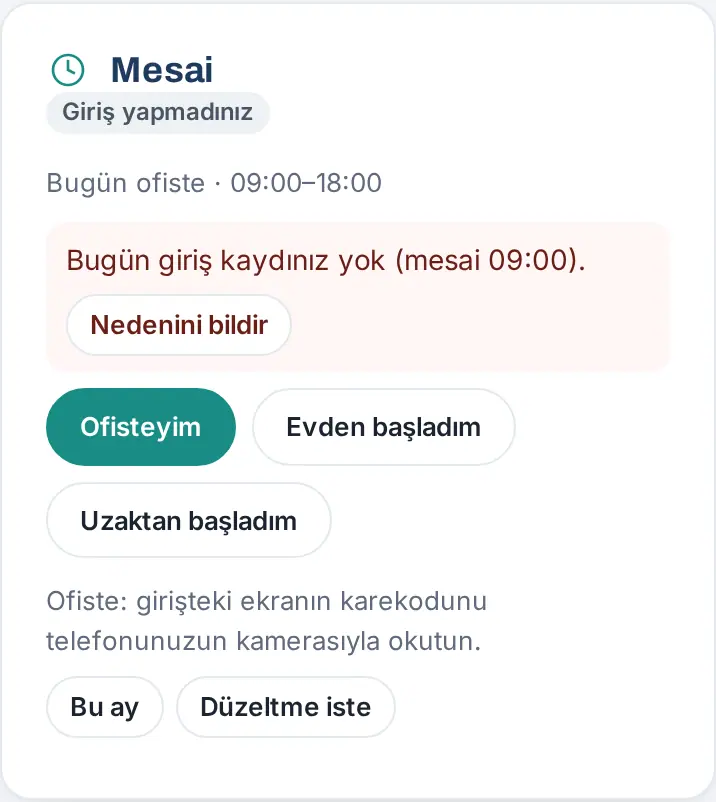
For all the ways to record work time (QR code, office network, location, selfie, working from home and remotely), see 22. Time and attendance.
Important:
- If you refuse location permission, the iPhone does not give the Wi-Fi information; the office network cannot be confirmed. In the phone's Settings → Prozence → Location, set the permission to While Using the App.
- If you are connected with mobile data (4G / 5G) or are on another Wi-Fi network, the office network is not recognized.
- When the app is closed, a record is made automatically when you enter or leave the office only if your company has turned on automatic attendance and you have set it up (mobile 1.7.0; the section below). Otherwise you check in and check out yourself in the app.
- On work-from-home days, full-day leave days and days you said "I can't work today", no Wi-Fi or IP details are written to your records (1.7.1).
Automatic attendance: the phone detects arriving at and leaving the office (mobile 1.7.0)
Who: Employee whom the company included in the automatic attendance scope · Where: My Space → My Area → the Automatic attendance card below the Work time box
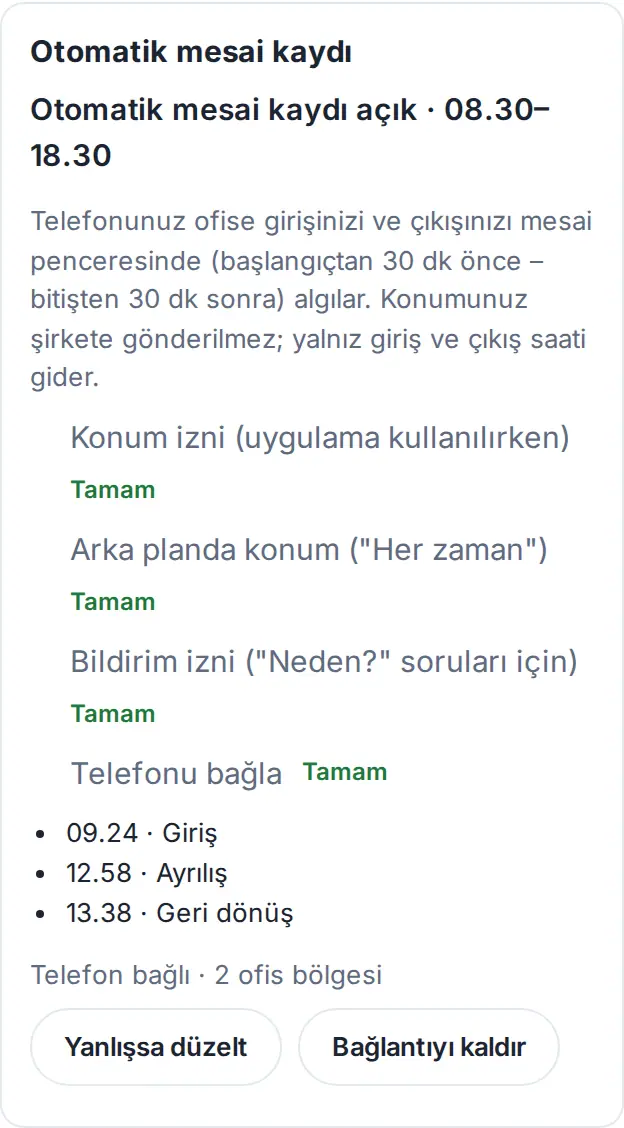
What it does: Through the phone's operating system, the Prozence app detects that you entered or left the zone (geofence) set up around your office — even while the app is closed — and reports your check-in / check-out. Your location stays on the phone: no coordinates or Wi-Fi identifiers go to the company, only the check-in and check-out event and its time. No location is used on work-from-home, leave and holiday days; on a remote work day, location is taken only once, at the check-in and check-out button.
- If your company has turned it on, the Automatic attendance card appears below the Work time box. First read the Privacy notice and the Consent text in the Location tracking (field) section and tap I give explicit consent.
- Complete the steps on the card in order: Location permission (while using the app) → Allow; Background location ("Always") → Continue (first Prozence's explanation screen, then the phone's "Always" permission window); Notification permission (for "Why?" questions) → Allow; Link phone → Link.
- On Android, if the Remove battery restriction (recommended) button appears, turn battery saving off for Prozence; otherwise zone monitoring may be delayed.
- From then on, your phone sends the event when you arrive at and leave the office; depending on the company setting you get a "…: check in?" or "You left the office at …. Why?" notification. For the steps, the daily flow and the "Why?" questions, see 22. Time and attendance.
Important:
- On iPhone, for the "Always" permission the phone first asks for the While Using the App permission and then asks you to raise it to Always in Settings or with its own window; on Android, the "Always" permission is given on the phone's settings screen. These windows belong to the operating system; they are not shown in this guide.
- You can always lower the permission in the phone's Settings → Prozence → Location; automatic attendance stops, manual check-in and check-in over the office network keep working. Remove connection on the card does the same.
- There is no field / visit location every 5 minutes in this version (coming in mobile 1.8.0). Apart from this, the app does not collect location in the background; see The app's privacy policy.
The app's privacy policy
Who: Employee · Where: Profile → My profile → Mobile app → App privacy policy; Privacy policy at the bottom of the sign-in screen
What it does: You read what the app can access on your phone, which data goes where and who is responsible for your data.
- In the bottom menu, tap Profile and scroll down to the Mobile app section in My profile.
- Tap App privacy policy. The policy opens in the in-app browser. You can open the English version with English at the top right.
- To read it without signing in, use the Privacy policy link at the bottom of the sign-in screen.
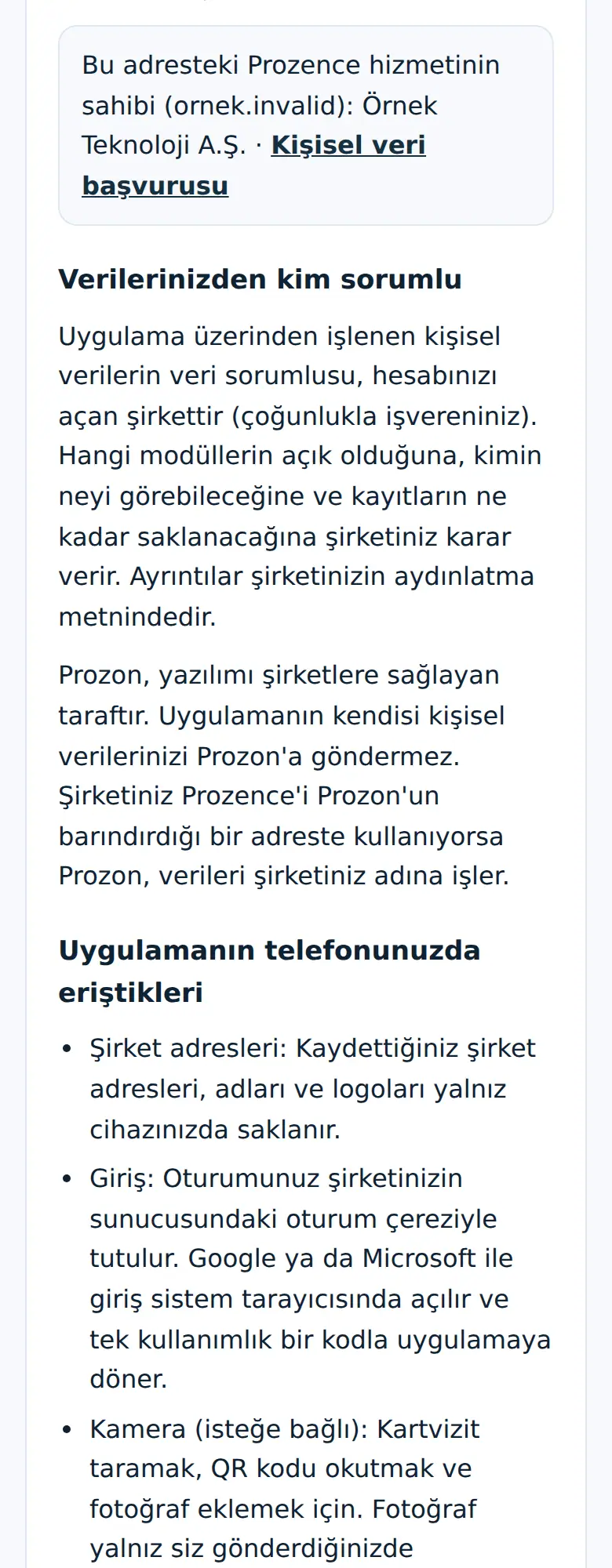
Summary of the policy:
- The data controller is the company that opened your account (usually your employer). At the start of the policy, the owner of the service at this address is shown and, if your company published one, a Kişisel veri başvurusu ("Data protection request") link.
- Stored on the phone: only the company addresses, names and logos that you saved.
- Optional permissions: camera (business card scanning, QR, photos), photos and files (only the file you select), microphone (only for voice notes), location (only when you check in / check out, once, while the app is open), notifications.
- Automatic attendance (1.7.0; optional, only if your company turned it on and you gave explicit consent): with the phone's region monitoring feature, arriving at and leaving the office is detected even while the app is closed, only during your working hours (30 minutes before the start – 30 minutes after the end). No location coordinates or network identifiers are sent to your company; only the check-in or check-out event goes. Events that could not be sent are kept on the phone for at most 3 days. No location is used outside working hours, on work-from-home, leave and holiday days.
- Wi-Fi: when you check in / check out, the network name (SSID) and the access point address (BSSID); on work-from-home days, full-day leave days and days you said "I can't work today", no network details are written to the record (1.7.1).
- No advertising and no tracking; your data is not sold.
- Deletion: to have your account and data deleted, contact your company's administrator or your company's personal data request page.
Tip: Business card, badge or document photos that you take with the camera are not saved to your phone's gallery.
Phone widgets: Attendance, Quick actions, Pending approvals, Today
Who: Employee · Where: The phone's home screen (on iPhone, also the lock screen)
What it does: Without opening the app, you see today's attendance status, the items waiting for your approval and today's meetings, calendar entries and reminders; you jump to frequent actions with one tap. The business card widget ("My business card", QR and your name) stays as it is.
| Widget | Shows | When you tap it |
|---|---|---|
| Attendance | Today's status (e.g. "At the office · in 09:20", "Checked out · 18:05", "Not checked in yet", "You are on leave today"; if you reported a reason with Not coming today / Running late, only the reason you selected, e.g. "Reported: I'm running late"; on a work-from-home day without a check-in, "Work-from-home day · not checked in yet"), net time and today's plan | Board → Attendance |
| Quick actions | Show my card, Scan card, Expense receipt, Request leave buttons | The matching screen |
| Pending approvals | The number of items waiting for you and the first lines (leave, leave cancellation, expenses, purchasing, task assignment approval, suggestions and complaints, policies…) | Board → Waiting for you |
| Today | Today's meeting room bookings (with times), tasks assigned to you that are due today ("Due today · <project>"), calendar entries (e.g. birthdays, company events) and today's customer reminders | Board |
Before you start: You need the Prozence app 1.5.0 or later, and you must be signed in to the app as a personal device. After you add a widget, open the app once; the widget connects to this phone.
To add on iPhone:
- Touch and hold an empty area of the home screen until the icons jiggle.
- Tap + at the top left (or Edit → Add Widget).
- Select Prozence in the list, swipe to find Attendance, Quick actions, Pending approvals or Today, choose a size and tap Add Widget.
- To add one to the lock screen, touch and hold the lock screen → Customize → Lock Screen → the widget area → Prozence (Attendance and Pending approvals).
To add on Android:
- Touch and hold an empty area of the home screen and tap Widgets.
- Find Prozence; touch and hold Attendance, Quick actions, Pending approvals or Today and drag it to the home screen.
Result: Widgets update immediately each time you open the app and about every 30 minutes while the app is closed (the phone may space updates out to save battery). Texts are in your phone's language.
Note:
- You cannot take actions from a widget: check-in, approvals and leave requests are made in the app with the usual checks (office network, location, selfie…). Tapping a widget opens the app on the matching screen.
- While the iPhone is locked, the texts in the Pending approvals and Today widgets are hidden; only the number is shown.
- If you signed in as a Shared device, widgets are not connected. When you sign out, the widget data is deleted from the phone and this phone's widget access is also closed on the company server.
- If a widget says "Open the Prozence app once to connect the widget.", open the app. If you do not open the app for a long time (60 days), the connection lapses; it is renewed automatically when you open the app.
- If your company's licence is locked, the widget only shows "Licence expired; open Prozence."
- Mac: On macOS 14 (Sonoma) and later, iPhone widgets can also be added to the Mac desktop (the Mac and iPhone must use the same Apple Account). Right-click the desktop → Edit Widgets → iPhone Widgets → Prozence.
Signing out in the app
Who: Employee · Where: Profile → My profile → Sign out at the very bottom
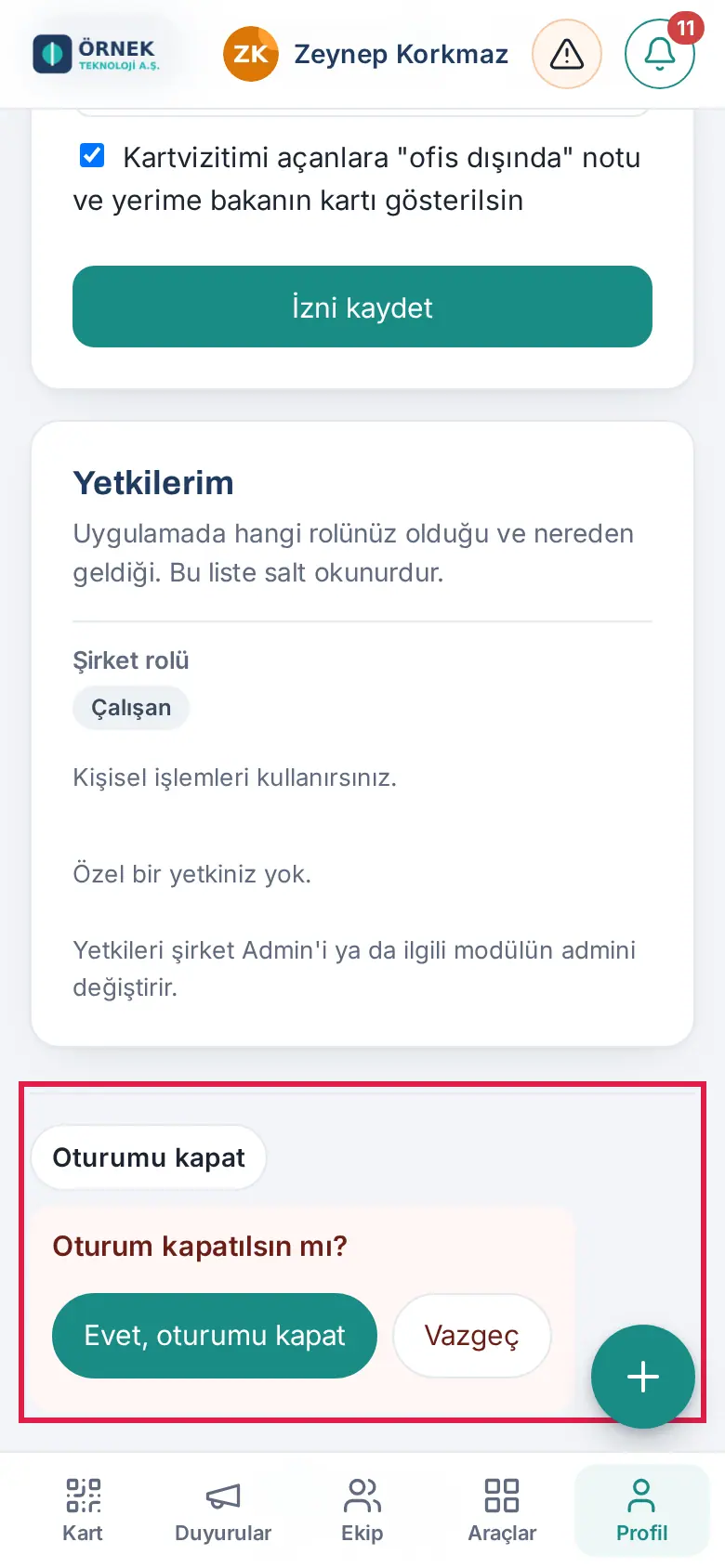
Signing out in the app is the same as in the browser: tap Sign out at the very bottom of My profile and, when asked "Sign out?", select Yes, sign out. For details, see 00. Getting started.
Tip: If you only want to switch to another company, you do not need to sign out; use Change company (see Changing the company and saved companies).
What you need to know in the app
Who: Employee
- The screens are the same: The screens in the app are the phone view of the employee app in the browser. The phone steps in this guide also apply in the app.
- External links: Links that go to another site (e.g. a meeting link, the privacy policy) open in the in-app browser. When you close it, you go back to the app.
- No home screen tips needed: In the app, the card for turning on notifications and the iPhone-specific "add to the home screen" instructions are hidden. The "Add to home screen" note on the sign-in screen also shows in the app; ignore it. The "Add it to your phone's home screen" step in the welcome list counts as completed automatically when you open the app.
- Downloading files: Downloading files that the app creates (e.g. CSV or PDF) may not work on every phone. If necessary, do the same task on a computer or in the browser.
- Android back button: It works with the phone's standard behavior; usually it goes back to the previous page. To move between screens, use the bottom menu.
- Office QR code (mobile 1.6.0): If your company set the office QR code content to "App link", scanning the QR code at the entrance with the phone camera opens the Prozence app on iPhone and on Android and records your work time. If the QR code belongs to another company saved on your phone, the app switches to that company. Some Android camera apps show the QR code only as text; then use Scan QR code in the app (see 22. Time and attendance).
- iPhone return question: When you go back from the browser to the app, the iPhone can ask 'Open in "Prozence"?'; select Open.
- Background location only for automatic attendance (mobile 1.7.0): Unless your company turns it on and you give consent and set it up, location is read only when you record work time, while the app is open. Even with automatic attendance, no coordinates go to the server, only the check-in / check-out event (see Automatic attendance).
- App version: When you ask for support, give the version. The version shows as "App version: …" in Profile → My profile → Mobile app. Keep the app up to date from the App Store / Google Play.
Desktop app (Mac and Windows)
Who it is for: Employee · Where: the Prozence icon on the computer (on Windows in the notification area on the right of the taskbar, on Mac in the menu bar)
The Prozence app for Mac and Windows opens the screens of the employee app you see in the browser; the desktop instructions in this guide also apply in the app. The app also uses the computer's notifications and Downloads folder and works with an icon.
Icon and menu:
- Windows: the Prozence icon is in the notification area on the right of the taskbar (next to the clock). If you cannot see it, click the ^ arrow (hidden icons). Right-clicking the icon opens the menu; left-clicking the icon opens the Prozence window.
- Mac: the Prozence icon is in the menu bar at the top of the screen; clicking the icon opens the menu.
| Menu item | What it does |
|---|---|
| Open Prozence | Opens the Prozence window. |
| Attendance | Opens the window and starts a work time entry (see 22. Time and attendance). |
| Add expense | Opens the window and the expense form (see 17. Expenses, business advances and per diem). |
| Scan business card | Opens the window and starts business card scanning. |
| Change company | Opens the saved companies screen (see Changing the company and saved companies). |
| Start at login | If ticked, Prozence starts by itself when you sign in to the computer. |
| Quit Prozence | Closes the app completely; no notifications arrive. |
If the computer's language is Turkish, the menu is in Turkish (Prozence'ı aç, Mesai, Masraf ekle, Kartvizit tara, Şirketi değiştir, Oturum açılınca başlat, Prozence'tan çık).
Turning Start at login on or off:
- On Windows, right-click the Prozence icon in the notification area (if you cannot see the icon, first click the ^ arrow); on Mac, click the Prozence icon in the menu bar.
- Click Start at login. When it is on, a tick appears next to it; click it again to turn it off.
When it is on, Prozence starts without a window (hidden) the next time you sign in: its icon appears in the notification area or menu bar and notifications arrive. To open the window, click the icon (left-click on Windows) or choose Open Prozence in the menu. The app installed from the Mac App Store starts with its window open at sign-in.
Microsoft Store version: Start at login is tied to Windows startup apps; Prozence also appears in Windows Settings → Apps → Startup and can be turned on or off there. If you turned it off there, Start at login in the menu cannot turn it back on and the tick stays off; turn it on in Settings → Apps → Startup.
When you close the window: the window's close button does not quit the app, it hides it. Prozence keeps running in the background and notifications keep arriving; the first time you close it, the notification "Prozence keeps running in the background so notifications keep arriving. To quit, choose "Quit Prozence" from its icon menu." appears. To quit the app completely, choose Quit Prozence in the menu.


