35. Sign-in security: phone approval and authenticator app
Screenshots show the Turkish interface of Prozence with fictional "Örnek Teknoloji A.Ş." data; the English interface has the same layout.
Sign-in security adds a second step when you sign in to your account: after you use your email code (or your Google or Microsoft account), the session opens only when you approve in the Prozence app on your phone or type the 6-digit code from an authenticator app. Even if someone else gets your password or your email, they cannot enter your account without this step.
You add the second step from the Profile → Security tab. Your company can make this step required for you; then you see a reminder in the app, and after the deadline you cannot use the app without adding the step. For the Admin who manages the settings, see 10. Administration and setup.
Who: Employee · Privileged accounts (Admin, module admins and operators; can be required in your company)
In this chapter
- How sign-in security works
- Opening the Profile → Security tab
- Making your phone an approval device
- Adding an authenticator app
- Backup codes
- Approving a sign-in on your phone
- Typing a verification code at sign-in
- When your company requires it: reminder and enrollment screen
- Approval when you start with email in the mobile app
- Removing an approval device and when you lose your phone
- Signing out on all devices
How sign-in security works
Who: Employee · Where: Sign-in screen and Profile → Security
What it does: Explains the two steps of the sign-in and when the second step is asked for.
- First step: On the sign-in screen, you sign in as usual: with the 6-digit code sent to your email, with your Google or Microsoft account, or with your company's single sign-on (see 00. Getting started).
- Second step: If you added phone approval or an authenticator app, one of these screens opens when you sign in on a new browser:
- Approve on your phone: a notification comes to your phone; you choose the number shown in the browser on your phone and approve with your face or fingerprint (see Approving a sign-in on your phone);
- Enter your verification code: if you have only an authenticator app, you type the 6-digit code from the app (see Typing a verification code at sign-in).
- The browser you approved is remembered for the time your company selected, and during this time the second step is not asked again on the same browser. The Admin selects the time (Remember the approved browser; default 30 days, it can also be "approve every sign-in").
- If you never added a second step and your company does not require it, your sign-in stays a single step as before.
Sign-in code validity (1.1.2): The sign-in code sent to your email is valid for 10 minutes. The time starts when you request the code; typing the code incorrectly does not extend it. You can try at most 5 times for one code; after that, request a new code. If the code does not arrive, see 16. Troubleshooting.
Tip: It is recommended to add both phone approval and an authenticator app. When your phone has no internet or a notification does not arrive, you sign in with the code from the authenticator app.
Important: The second step is asked for whatever your sign-in method is (email code, Google, Microsoft, SAML). Do not share your sign-in code and your verification codes with anyone; the support team and your manager do not ask for these codes.
Opening the Profile → Security tab
Who: Employee · Where: Profile → Security (on a computer, My profile → Security in the menu on the left)
What it does: You see, add and remove your approval devices and your authenticator app in one place. Before 1.1.4, these settings were on the My profile tab.
Before you start: The Security tab shows only in the app (the employee app that you open in the browser or in the Prozence mobile app) and only if your company turned on phone sign-in approval. If you do not see it, this feature is turned off in your company.
- On a phone, tap Profile in the bottom menu. On a computer, click My profile in the menu on the left.
- Select Security from the tabs at the top. If your company requires the second step for you, there is a ! mark next to the tab.
- The Sign-in security box opens. The box shows:
- if your company requires it, a yellow warning: "Your company requires the sign-in security step. Deadline: …";
- your approval devices (phone name, date added, time of the last approval and the Remove button) or "You have no approval device yet; your sign-ins don’t require phone approval.";
- the Authenticator app section.
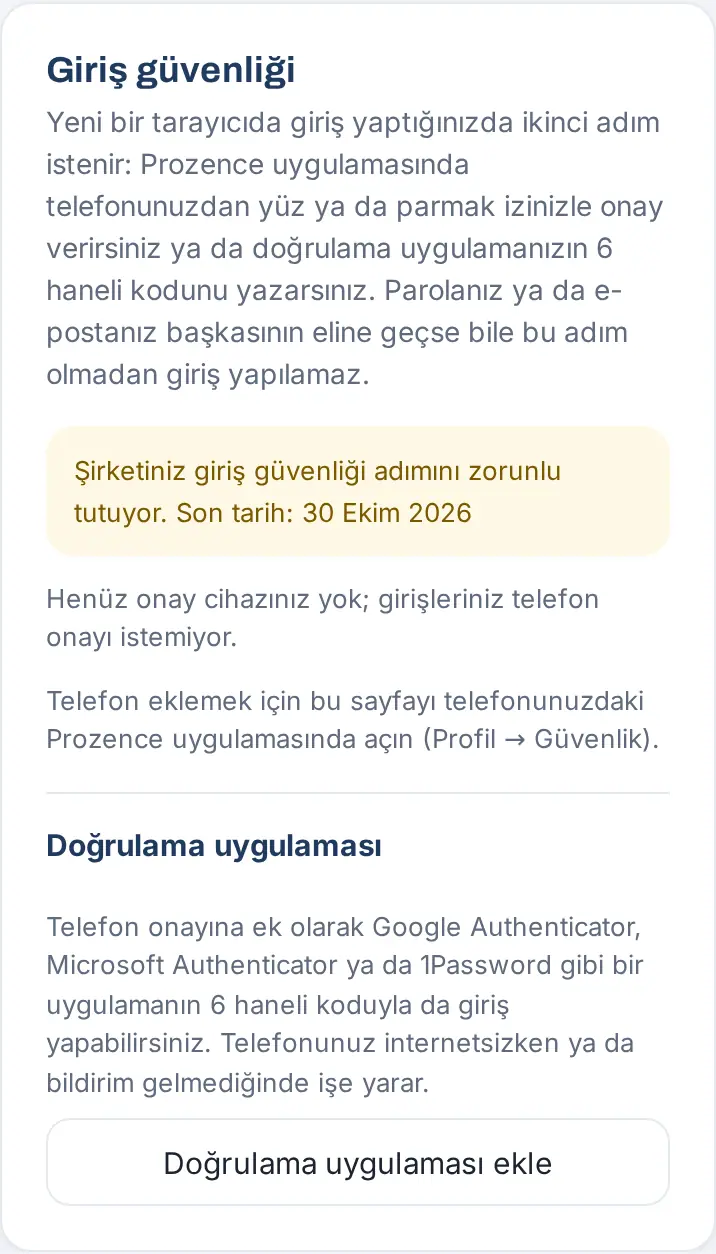
Tip: On a computer, this tab shows "To add a phone, open this page in the Prozence app on your phone (Profile → Security)." Phone approval is added only from the mobile app; you can add the authenticator app from a computer too.
Making your phone an approval device
Who: Employee who uses the Prozence mobile app · Where: In the mobile app, Profile → Security → Make this phone an approval device
What it does: You make your phone the device that approves sign-ins. The phone creates a security key that stays only on the phone; approvals are signed with this key and your face or fingerprint.
Before you start:
- The Prozence mobile app must be installed on your phone and you must be signed in to your company (see 20. Prozence mobile app).
- The screen lock (face recognition, fingerprint or passcode) must be on on your phone.
- You can add at most 3 approval devices.
- In the mobile app, tap Profile in the bottom menu and open the Security tab.
- Tap Make this phone an approval device. The button shows Preparing….
- The phone asks for your identity ("Bu telefonu onay cihazı yap" ("Make this phone an approval device")). Confirm with your face, fingerprint or phone passcode.
- If this is your first approval device, it shows "We sent a 6-digit code to your email for verification." Type the code from your email and tap Verify.
- If you already have another approval device, a number shows instead of a code: "Open the Prozence app on your other registered phone and choose this number:". On your other phone, open the "Add a new approval device?" request and choose the same number.
- The message "This phone is now your approval device." appears. The phone shows in the list with the This phone label. In place of the button, there is now Pending approvals.
Common messages:
- "This version has no phone approval. Update the Prozence app from the store." or "To make this phone an approval device, update the Prozence app from the store.": your app is old; update it from the App Store or Google Play.
- "You can add at most 3 approval devices. Remove one first to add a new phone.": remove one of your old phones from the list.
- "Verification was cancelled.": you cancelled the face or fingerprint confirmation; try again.
- "This phone is already an approval device.": the phone is already in the list.
Important: This step can be done only in the Prozence mobile app; in the app that you open in your phone's browser, the Make this phone an approval device button does not show. The security key of the phone does not leave the phone; if you delete and reinstall the app, you must add the phone again.
Adding an authenticator app
Who: Employee · Where: Profile → Security → Authenticator app → Add authenticator app
What it does: You connect an authenticator app such as Google Authenticator, Microsoft Authenticator or 1Password to your account. At sign-in, you type the 6-digit code of the app, which changes every 30 seconds. It also works when your phone has no internet or a notification does not arrive; if you have no phone approval, it can be your only second step.
Before you start: Install an authenticator app on your phone (Google Authenticator, Microsoft Authenticator, 1Password etc.). You can also do this step from a computer; you scan the QR code with your phone.
- On the Profile → Security tab, go to the Authenticator app section.
- Tap Add authenticator app. For a short time, the button shows Preparing….
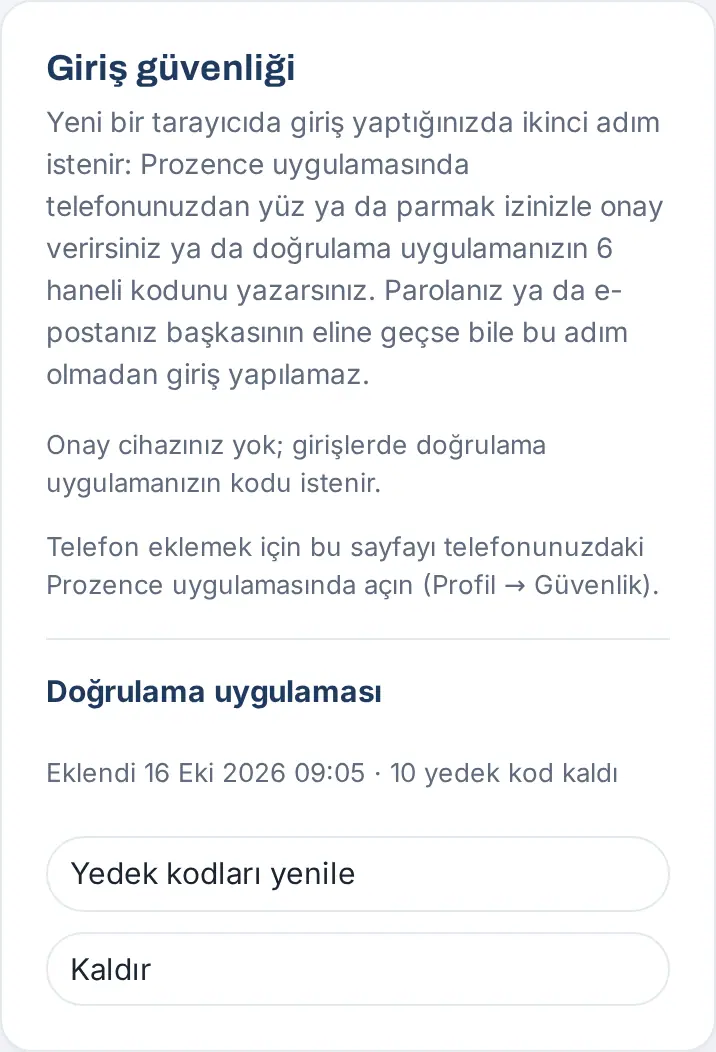
- The screen shows a QR code and, below it, Key:. In your authenticator app, choose "add account" and scan the QR code. If you cannot scan the QR code (e.g. if you are on the same phone), type the key in the app manually.
- A 6-digit code for Prozence shows in your authenticator app. Type this code in the "Enter the 6-digit code shown in the app:" box.
- Tap Turn on. The message "Authenticator app added." appears and your backup codes are shown (see Backup codes).
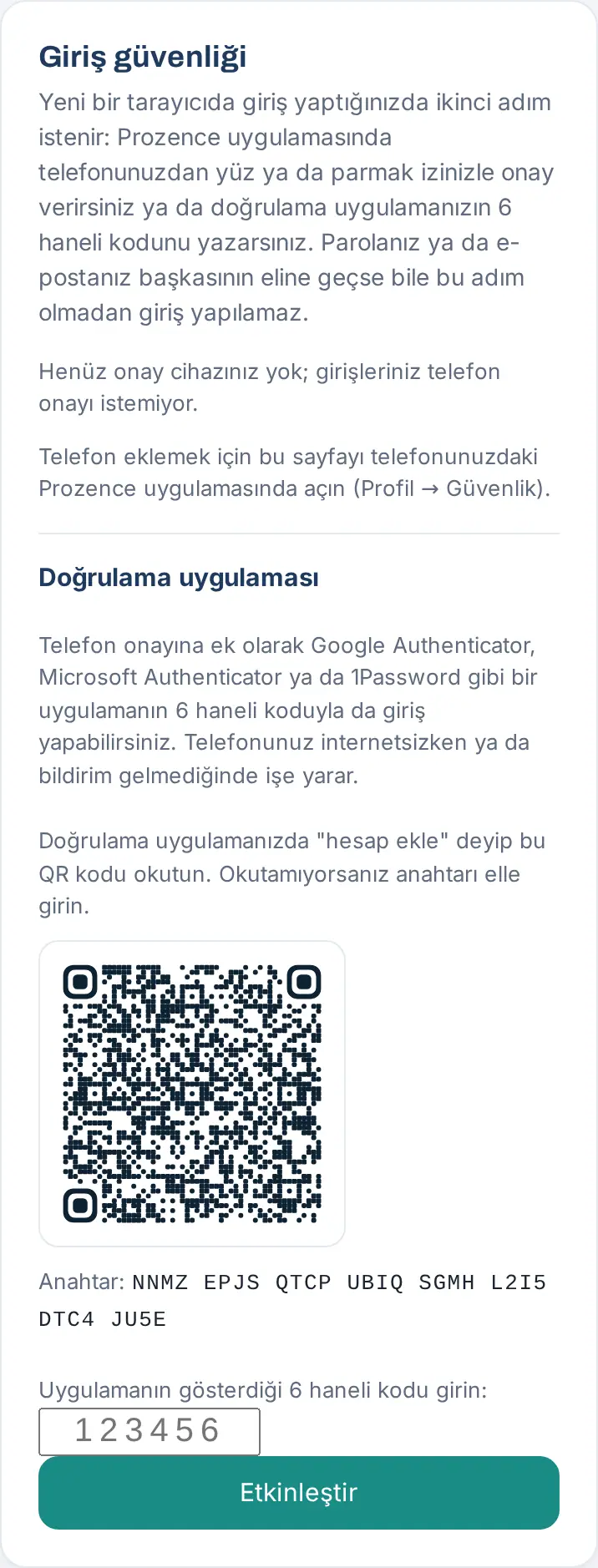
Result: The section shows "Added … · N backup codes left"; the Renew backup codes and Remove buttons show.
Common messages:
- "Enter the 6-digit code from the app.": the code is incomplete or contains letters.
- "The code isn’t correct. Enter the current 6-digit code from the app and make sure your phone’s clock is right.": the code may have expired or your phone's clock is wrong. Set the phone's clock to automatic and type the new code.
- "The setup expired. Start again.": you waited a long time while the QR code was open. Refresh the page and tap Add authenticator app again.
- "Your authenticator app is already added. Remove it first to change it.": to change to a new authenticator app, first remove the old one with Remove.
Removing the authenticator app: Tap Remove, type the code in the "To remove the authenticator app, enter the code from the app or a backup code." box and tap Verify. The message "Authenticator app removed." appears.
Important: Do not share the QR code and the key with anyone, and do not keep a screenshot of them. With this information, someone else can also create your codes.
Backup codes
Who: Employee who added an authenticator app · Where: Profile → Security → Authenticator app
What it does: Gives you 10 one-time codes so that you can sign in when your phone and your authenticator app are not with you. Each code is used once.
- When you turn on the authenticator app, the Your backup codes screen opens: "Save these codes somewhere safe; they are shown only now. …"
- Tap Copy codes and paste the codes somewhere safe (e.g. your password manager). If they cannot be copied, it shows "Couldn’t copy; write the codes down."; write the codes down.
- After you save the codes, tap I’ve saved them.
- At sign-in, you type a backup code in the "xxxx-xxxx" format instead of the verification code (see Typing a verification code at sign-in).
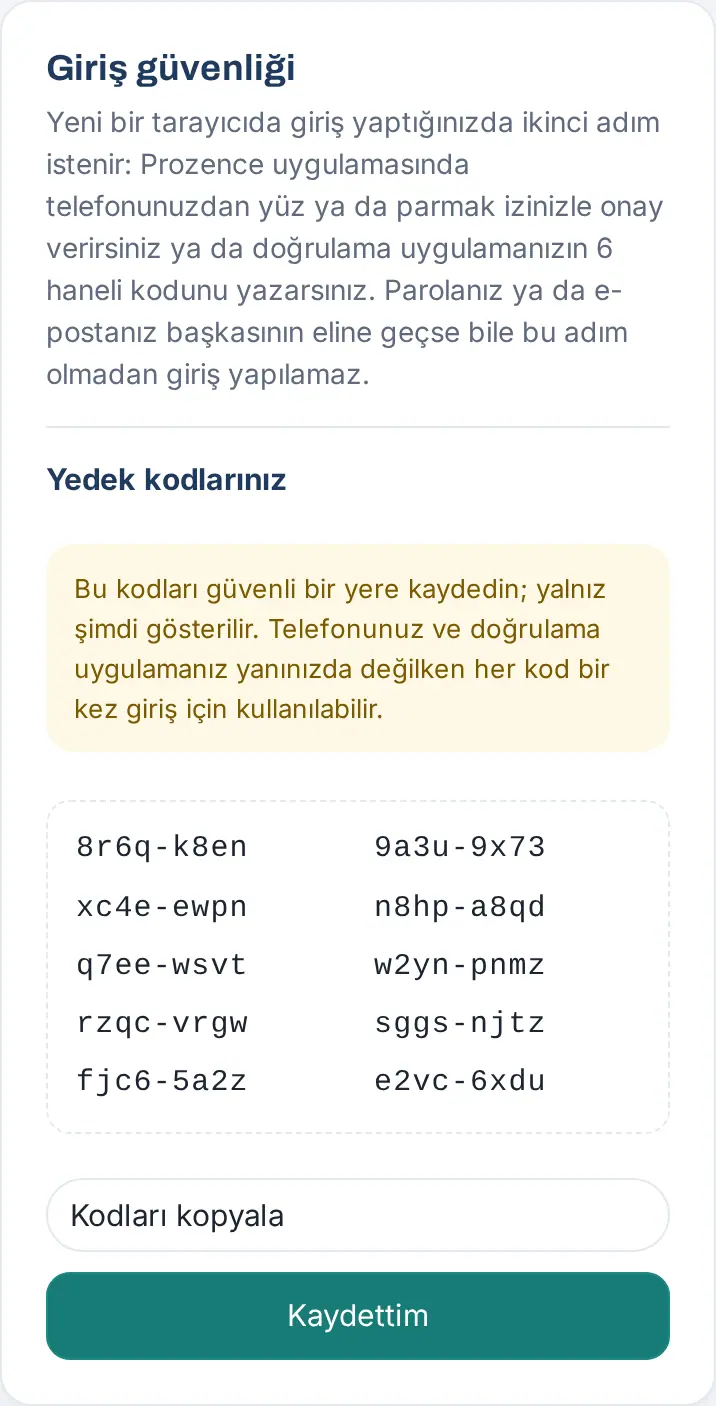
New backup codes: When your codes run low (2 or fewer), the section shows the warning "You’re running low on backup codes. Generate new ones." Tap Renew backup codes, type the code from your authenticator app and tap Verify. 10 new codes are shown; the old codes become invalid.
Important: Backup codes are shown only once, at the moment they are created. If you lose them, create new ones.
Approving a sign-in on your phone
Who: Employee who made their phone an approval device · Where: In the browser, the Approve on your phone screen; on the phone, Prozence app → Sign-in approval
What it does: You approve a sign-in on a new browser from your phone. Number matching confirms that the sign-in is really done on the browser in front of you.
- Sign in on the browser (e.g. type the email code and click Sign in). The Approve on your phone screen opens: "We sent a notification to the Prozence app on your phone. Choose this number in the app to approve the sign-in." Below it, a two-digit number and the remaining time show.
- Tap the notification on your phone. If no notification came, open the Prozence app on the phone; the pending request shows there (or in Profile → Security → Pending approvals).
- On the phone, the Sign-in approval screen shows the title "Someone is signing in to Prozence" and, below it, the name of the browser and its approximate location (IP). If you made this sign-in, tap the one of the three numbers under "Choose the number shown in the browser:" that is the same as the number in the browser.
- The phone asks for your identity ("Prozence girişini onayla" ("Approve the Prozence sign-in")). Confirm with your face, fingerprint or phone passcode.
- The phone shows "Approved. The sign-in is completing in the browser." The browser shows "Approved, redirecting…" and the app opens.
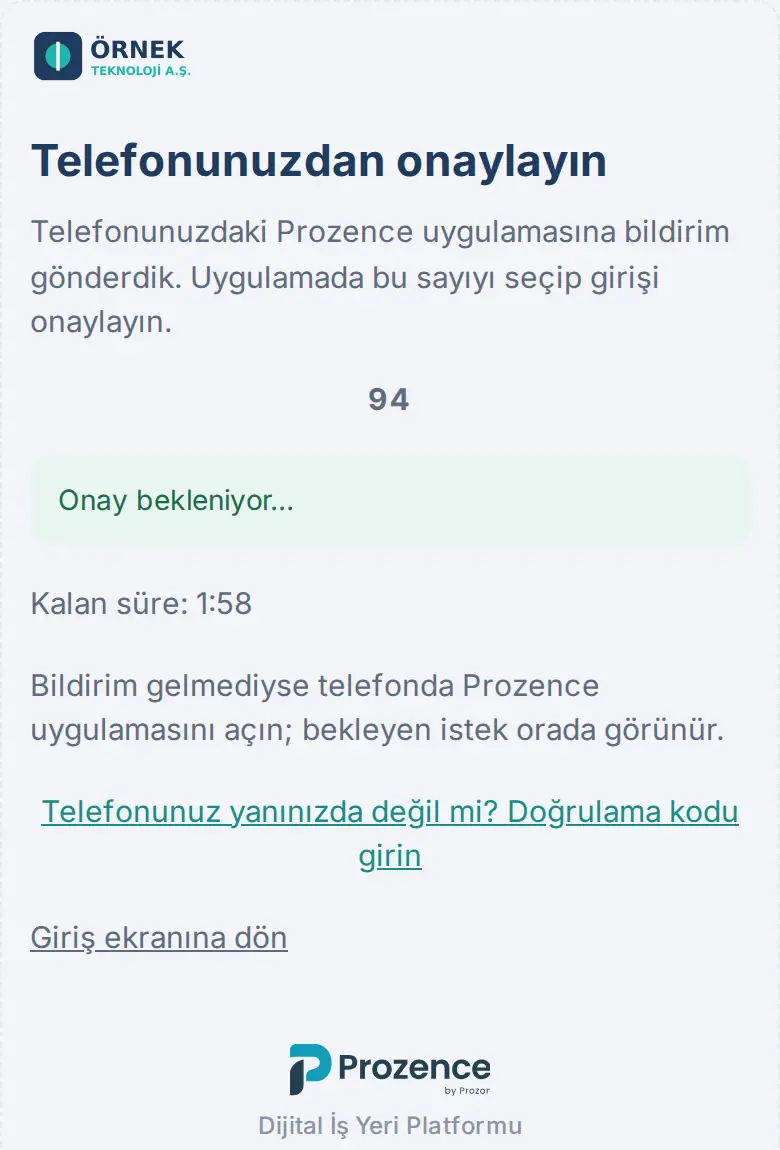
If you did not sign in: On the phone, tap Not me, reject. The phone shows "Rejected. This sign-in won’t go through."; the browser shows "The sign-in was rejected on your phone. If it wasn’t you, change your password and tell your administrator." Tell your manager immediately.
Common messages (in the browser):
- "The approval time ran out. Sign in again.": the approval was not given within 2 minutes. Sign in again with Back to sign-in.
- "A different number was chosen on the phone; the request was cancelled for security. Sign in again.": you tapped the wrong number on the phone. Sign in again and choose the number shown in the browser.
- "This approval request has expired or was started in another browser.": the approval screen was opened in another browser or in an old tab. Sign in again.
Tip: If your phone is not with you and you have an authenticator app, click the Don’t have your phone? Enter a verification code link in the browser (see Typing a verification code at sign-in).
Important: Never approve a sign-in request that you did not start; even if the number matches, tap Not me, reject.
Same phone, no notification and connection errors (1.7.8): If you are signing in on the very phone that is your approval device, inside the Prozence app (for example you started with your email and the session is being reopened), you do not need to pick a number: the screen says "This phone is your approval device", the phone asks for your face / fingerprint or lock, and the sign-in is approved with the same key; if you cancel, retry with Approve on this phone. If the approval device is another phone, the screen reminds you: "Give the approval on the phone you signed in to Prozence with before". If the notification could not be sent to any phone (app removed, notifications off, old phone) you do not wait 2 minutes: the screen says "The notification could not be sent" right away and, if you have an authenticator app, the code field opens directly; otherwise open the app on the registered phone (the pending request appears there) or ask your administrator to reset your approval devices. When the internet drops, the sign-in and approval screens say "Could not connect, retrying…" instead of an English technical error ("Failed to fetch") and retry once by themselves. In the mobile app (1.7.8), if you type an email address into Your company's address, the domain after the @ sign is suggested ("Use prozon.net as the company address?").
Typing a verification code at sign-in
Who: Employee who added an authenticator app · Where: In the browser, the Enter your verification code screen
What it does: Instead of phone approval, you sign in with the code from your authenticator app or with a backup code.
- After you sign in:
- if you have only an authenticator app, the Enter your verification code screen opens: "Enter the 6-digit code from your authenticator app or one of your backup codes.";
- if you also have phone approval, click Don’t have your phone? Enter a verification code on the Approve on your phone screen.
- Open your authenticator app and type the 6-digit code shown for Prozence in the Verification code box. If you use a backup code, type the code in the "xxxx-xxxx" format.
- Click Verify and sign in. It shows "Verified, redirecting…" and the app opens.
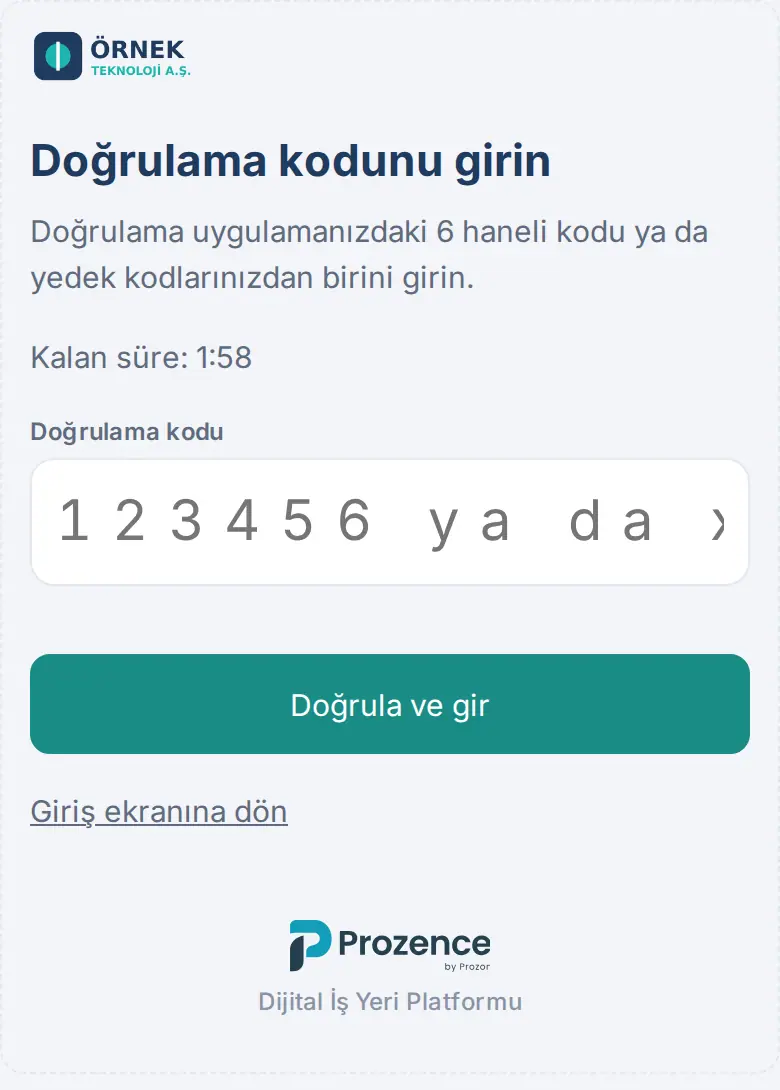
Common messages:
- "Enter the 6-digit code or a backup code in xxxx-xxxx format.": the box is empty or the code is incomplete.
- "The code isn’t correct. Attempts left: N.": you typed the code incorrectly or the code expired. Type the current code from the app.
- "Too many wrong codes; the request was cancelled for security. Sign in again.": a wrong code was typed 5 times. Sign in again with Back to sign-in.
Tip: The code changes every 30 seconds. If the code is about to change (if the counter in the app is about to end), wait for the new one and type it.
When your company requires it: reminder and enrollment screen
Who: Employee for whom the company requires the second step (by default, privileged accounts: Admin, module admins and operators) · Where: The strip at the top of the app; after the deadline, the Complete your sign-in security screen
What it does: If your company made sign-in security required for you, the app reminds you until the deadline, and after the deadline it asks you to add the step.
Before the deadline:
- A yellow strip shows at the very top of the app: "Your company requires the sign-in security step. Deadline: …".
- Tap Add it now in the strip. The Profile → Security tab opens.
- Add phone approval or an authenticator app (see Making your phone an approval device, Adding an authenticator app). When you add one, the strip disappears.
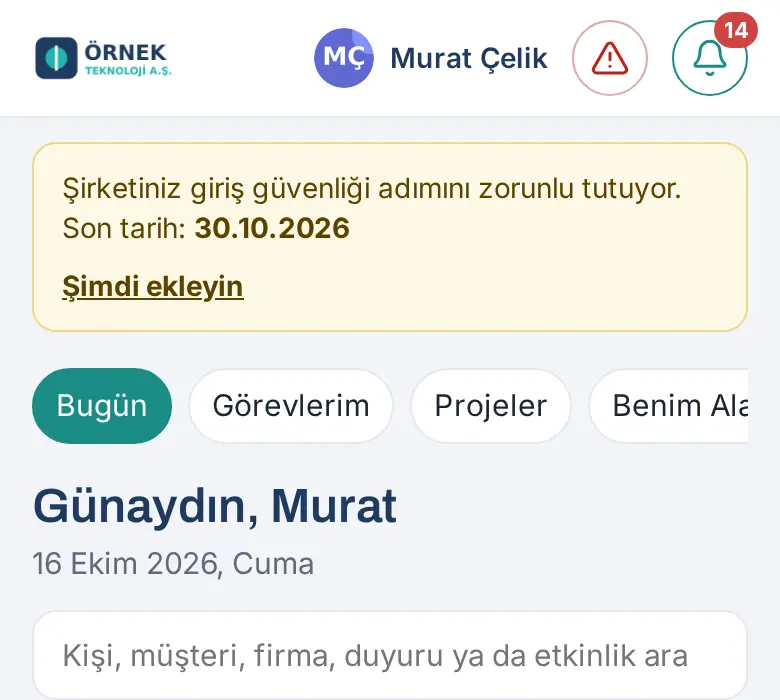
After the deadline:
- If you have no second step, the Complete your sign-in security screen opens instead of the app: "Your company requires a second sign-in step for privileged accounts. To continue to the app, add one of the options below:" (if your company requires it for everyone, it says "for all employees").
- The screen describes two ways: Phone approval (open the page in the Prozence app on your phone and tap Make this phone an approval device) and Authenticator app (can be added in any browser).
- The Security box below it has the same buttons as Profile → Security. Add one of the ways.
- Tap Continue to the app. The app opens.
- If you do not want to add it now, you can sign out with Sign out at the top right; at the next sign-in, the same screen opens again.
Important: While this screen is open, no other screen of the app (leave, work time, expenses…) works. So that you do not miss the deadline, add the step when you see the strip.
Approval when you start with email in the mobile app
Who: Employee who signs in to the Prozence mobile app from the Start with your work email screen and has a second step · Where: First screen of the mobile app → Send code → Sign in
What it does: In the mobile app, you can start with only your work email, without typing the company address (see 20. Prozence mobile app). If you have phone approval or an authenticator app, the second step is asked for on this path too.
- In the mobile app, type your address in the Work email box and tap Send code.
- Type the code from your email in the Sign-in code box and tap Sign in.
- Your company's approval screen opens inside the app:
- if you have phone approval, Approve on your phone: approve the sign-in from the phone that is your approval device (see Approving a sign-in on your phone);
- if you have only an authenticator app, Enter your verification code: type the code from your app and tap Verify and sign in.
- After the approval, your session opens in the mobile app. Because the approval was given on your phone, this phone is also remembered for the time your company selected.
Important: If your company's Prozence is on a version older than 1.1.6, a person with a second step cannot sign in on this path; even if they type the correct code, they see a warning that says the code is wrong. In this case, tap Continue with company address and sign in with the company address.
Removing an approval device and when you lose your phone
Who: Employee · Where: Profile → Security → Remove next to the approval device
What it does: You remove a phone that you no longer use or that you changed from your approval devices.
- On the Profile → Security tab, find the phone that you want to remove and tap Remove next to it.
- Confirm the question "Remove … from your approval devices? Once removed, it can’t approve sign-ins."
- If the phone you remove is not the phone you are using now, it shows "To remove the approval device, enter the 6-digit code from your email." Type the code from your email and tap Verify.
- The message "Approval device removed." appears.
If you lost your phone:
- First sign in on another device and also close the session on the lost phone with Sign out of all sessions (see Signing out on all devices).
- If your authenticator app is on another device or you have backup codes, sign in with them and remove the lost phone with Remove.
- If you have none of these, contact your administrator (Admin). The Admin can remove your devices or give you a 24-hour sign-in without approval; in both cases, you are informed by email. During the 24-hour sign-in without approval, Profile → Security shows "Your administrator turned off phone approval until …. Add your new phone during this time."; add your new phone during this time.
Important: If you remove your last approval device and you have no authenticator app, and your company requires the step, you see the reminder again (see When your company requires it: reminder and enrollment screen).
Signing out on all devices
Who: Employee · Where: Profile → My profile → Sign out of all sessions at the very bottom (below Sign out)
What it does: Closes your Prozence sessions on all your devices at once, including phone, computer and tablet. Use it if you lost a device or suspect that your session is in someone else's hands. Sign out closes only the device you are using (see 00. Getting started).
- Tap Profile and scroll to the very bottom of the page.
- Tap Sign out of all sessions. The question "Sign out of your sessions on all devices?" and the note "You are signed out everywhere, including phones, computers and tablets; you will also need to sign in again on this device." open below it.
- Tap Yes, sign out of all. If you change your mind, tap Cancel; no session is closed.
- The Prozence data on this device is deleted and the sign-in screen opens. Sign in again; your other devices also ask you to sign in the next time they open.
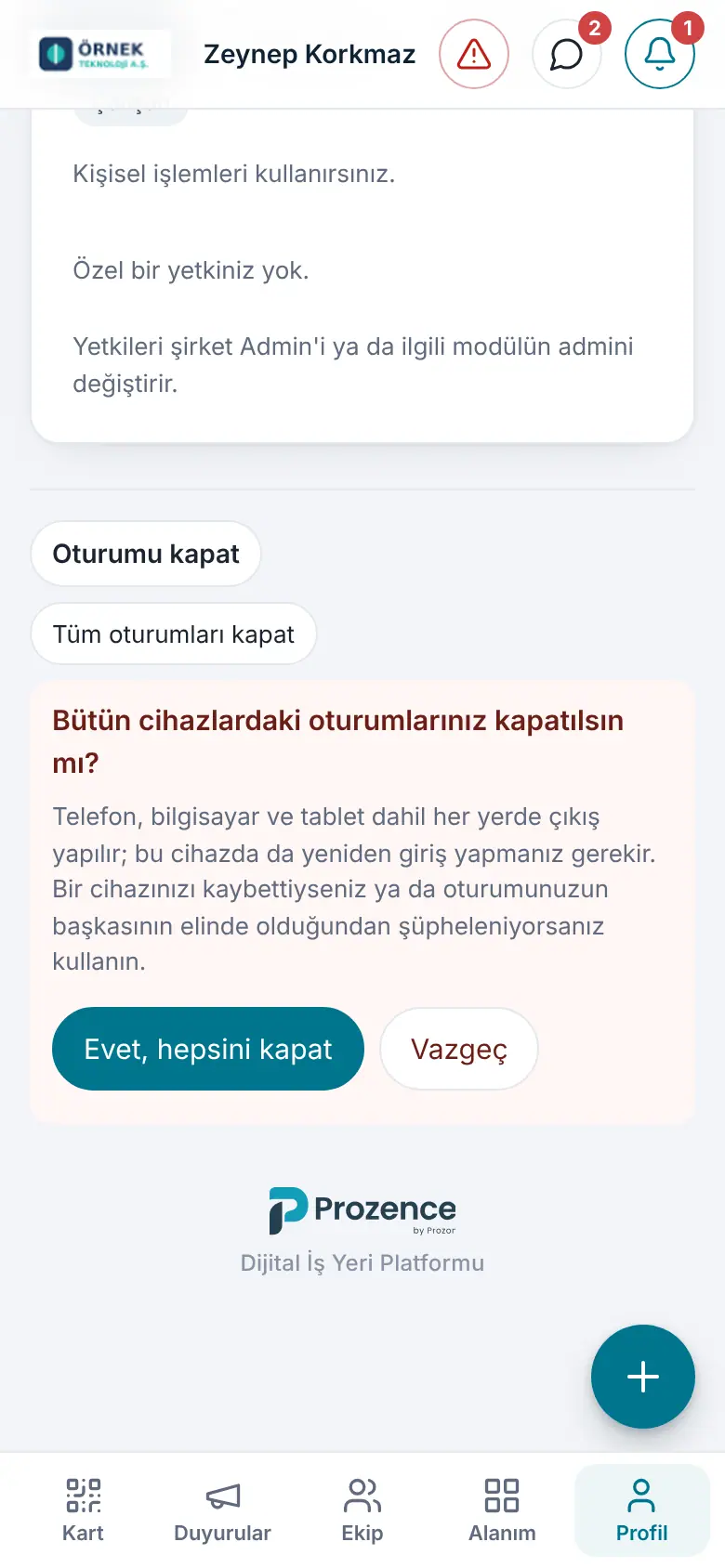
Important:
- The session on this device closes too; the person who presses the button does not get a new session. This way, someone who has taken over a session cannot use this button to get a new one.
- Your approval devices, authenticator app and data are not deleted; remove the lost phone from your approval devices separately with Remove (see Removing an approval device and losing your phone).
- It can be used at most 10 times an hour. The phones' notification registration is not deleted.
- Admin can also close all sessions of an employee from the Employees list (see 10. Administration and setup).


