05. Events and trade fairs
Screenshots show the Turkish interface of Prozence with fictional "Örnek Teknoloji A.Ş." data; the English interface has the same layout.
The cards you collect at a trade fair, a congress or a customer event are linked to the event. You can then send a thank-you email to all of them in one go, set reminders or download the list. A Trade fair is a special event with staff, a stand, interests and qualification questions. During the fair, trade fair mode turns on automatically in the staff's app.
In this chapter
- Employee and trade fair staff:
- Trade fair manager:
Turning on event mode
Who: Employee · Where: Add card → Event mode
- At the top of the Add card screen, in the "Are you at a trade fair or event?" bar, tap Event mode.
- If the list has an event that your team created, tap Select. If not, tap + New event, enter the Event name, Place, Start and End dates, and tap Create and turn on mode.
- The bar shows "Event mode: <name>". The cards you add and the people who leave their details through your business card during this time are linked to the event; the source and note are filled in for you.
- When the event ends, the mode turns off automatically. To turn it off early, tap Manage → Turn off mode.
Tip: If you are a trade fair staff member, trade fair mode is on automatically during the fair. If you turn it off, it does not turn on automatically again for that fair; you can turn it on again with Select in the list.
Adding cards at a trade fair: interest level and qualification questions
Who: Trade fair staff · Where: Add card (in trade fair mode)
- While trade fair mode is on, add the card as usual (see 03. Adding cards (business card scanning)).
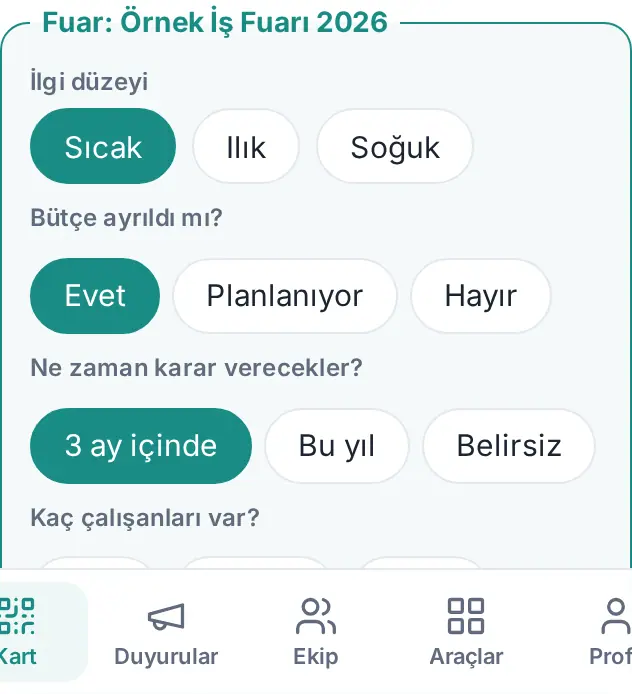
- The review form shows the Trade fair: <fair name> box:
- Interest level: Hot, Warm or Cold.
- Interests: select the topics defined for the fair that the person is interested in (e.g. Leave management, time and attendance (PDKS)).
- Qualification questions (if defined for the fair): tap one option for each question. If you tap the same option again, the selection is cleared.
- The score is calculated live below the box (e.g. "Score: 20 / 22").
- Tap Save. The card is linked to the fair and added to the list of all trade fair staff.
Tip:
- In the customer list, trade fair contacts show the interest level and a "Score 20/22" badge. Hover over the badge to read the answers.
- The answers are also saved for a card you capture without a connection (see Adding a card without a connection).
Trade fair board
Who: Trade fair staff, trade fair manager, trade fair viewer · Where: Event mode → Trade fair board
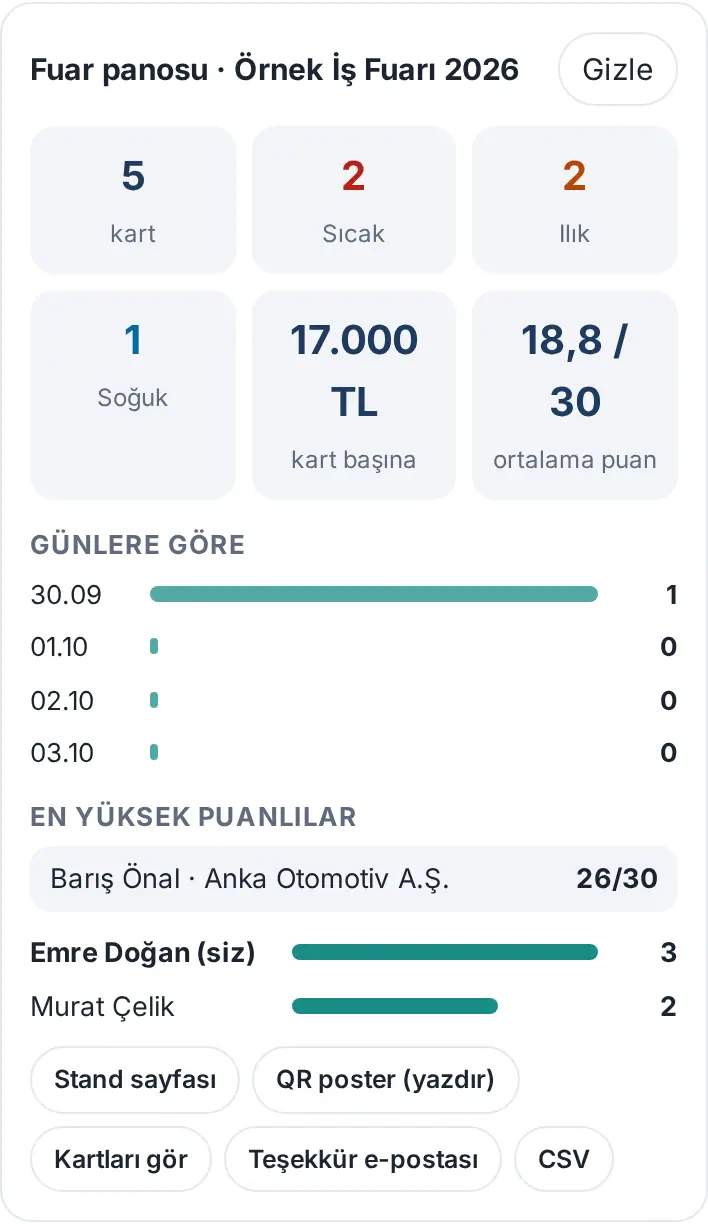
- Open the Event mode window. If you are a staff member, the board of the current fair appears automatically; if not, tap Trade fair board next to the fair in the list.
- The board shows:
- total cards;
- the Hot / Warm / Cold numbers;
- cost per card;
- average score;
- the number of thank-you emails sent, if the fair has ended.
- Below, you see the interests, the card distribution By day, the number of cards per staff member and the Highest scores list.
- Buttons:
- Stand page, QR poster (print);
- See cards, Thank-you email, CSV;
- Edit, if you are authorized.
Important: A trade fair viewer sees the numbers. In the Highest scores list, they see only the people they have access to. Thank-you email is visible only to the staff.
Post-fair thank-you email
Who: Trade fair staff · Where: Trade fair board → Thank-you email
What it does: Sends a thank-you email with the fair's email template to the people you met at the fair. Each visitor gets an email only once per fair: if one staff member has sent it, the others skip that person. There is no automatic sending; you preview and confirm.
- When the fair ends, the reminder "<fair>: N people awaiting a thank-you email" appears on the Board. Tap it, or tap Thank-you email on the trade fair board.
- The panel shows:
- "N people you met";
- "N already emailed";
- what other staff members sent (e.g. "Ayla: sent to 12 people").
- If there are people your colleagues met who have not been thanked yet, you can tick the Also include the N people my colleagues met who have not been thanked yet box.
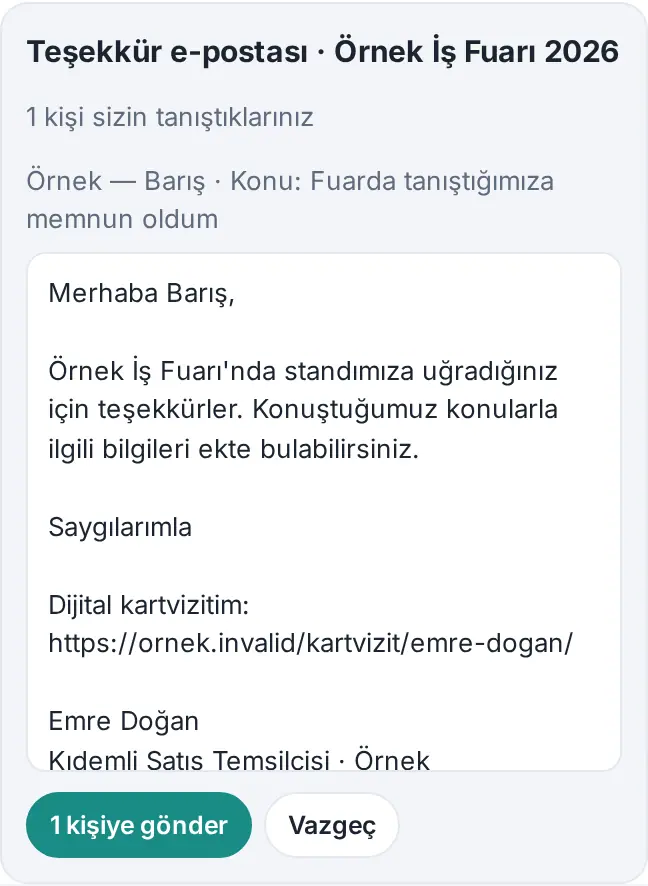
- The subject and text of the email to the first person appear in the preview. The text comes from the fair's template; your signature is added automatically.
- Tap Send to N people. The result appears in a notification (e.g. "Sent to 12 people.").
Important:
- There is a daily limit for trade fair thank-you emails (default 150). If the limit is reached, you send to the remaining people the next day.
- Even if two staff members send at the same time, the same person does not get two emails.
- Emails are sent only to people who have an email address.
Bulk reminders and CSV for event cards
Who: Employee · Where: Event mode → current event box
- See cards: opens the Customers screen filtered by the event.
- Send my card to everyone (for a normal event): sends your card by email to all your contacts from the event. First the count and a sample text are shown; people who already got it are skipped; at most 40 per day.
- Remind everyone (3 days): sets a follow-up reminder in 3 days for all your event cards.
- Download list (CSV): downloads the people from the event as a file that opens in Excel. The file also contains the interest level, interests, score and qualification answers.
Stand page and QR poster
Who: Trade fair staff · Where: Trade fair board → Stand page / QR poster (print)
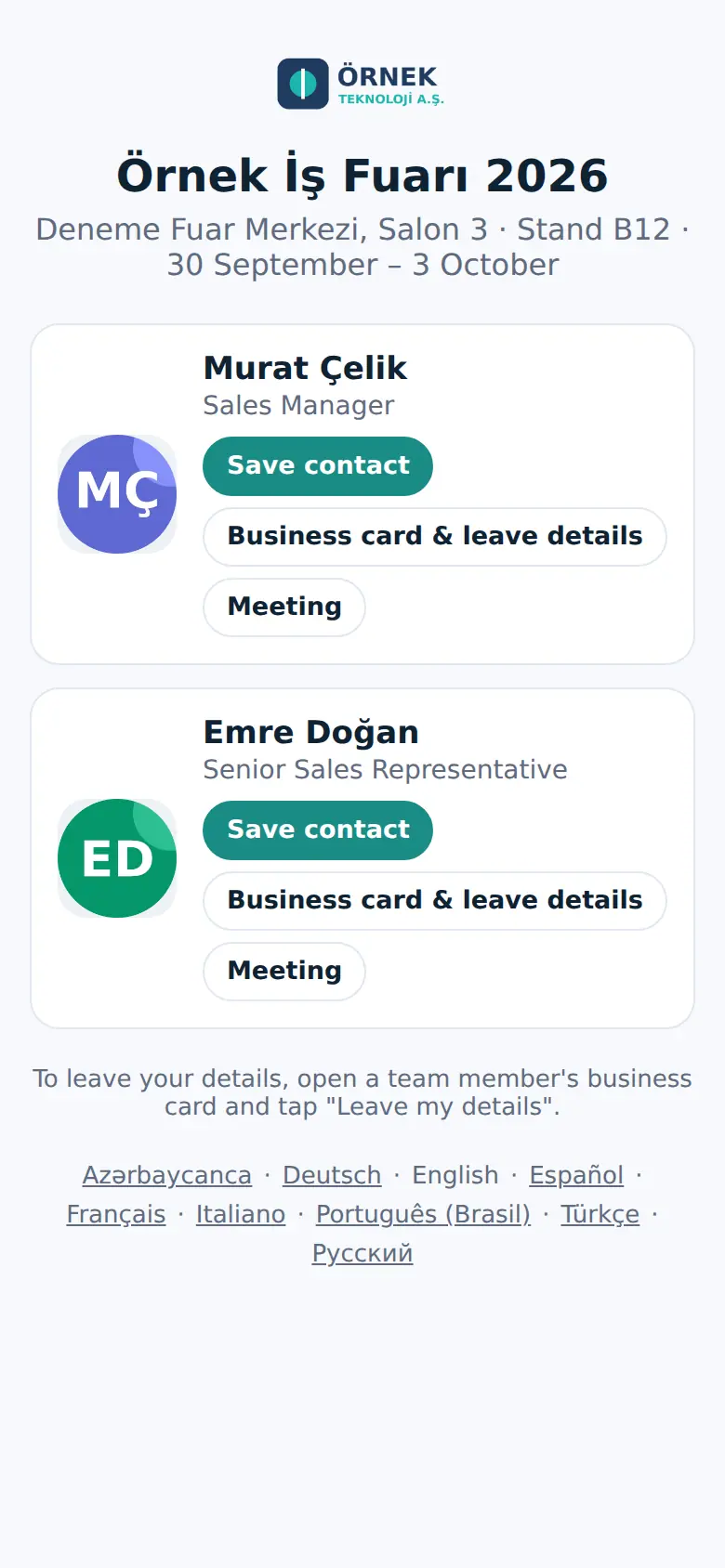
What it does: A visitor who scans the QR poster on your stand sees the staff's cards. Each staff member has the Save contact, Business card & leave details and, if available, Meeting buttons.
- On the trade fair board, tap QR poster (print). The poster opens in a new tab; print it with Print.
- Use Stand page to check the page that the visitor sees.
- The page opens in the language of the visitor's phone (Turkish, English, German …). There is a language selector at the bottom. The staff member's card also opens in the same language.
Tip: The stand page closes 30 days after the end of the fair. It does not appear in search engines. A staff member who has left the company does not appear on the page.
Creating a trade fair
Who: Trade fair manager, Admin · Where: Event mode → + New trade fair
- In the Event mode window, click + New trade fair.
- Enter the Trade fair name, Place, Stand, Start and End dates (at most 31 days).
- Select the Staff:
- The selected people appear at the top.
- Without a search, at most 12 suggestions appear; for others, type the name in the Search employees box.
- Write the Interests (comma-separated) (e.g. "Payroll, HR software, Consulting").
- If you want, fill in the Qualification questions (optional) field (see below).
- Write the Post-fair email subject and Post-fair email text. Fields you can use:
{ad}the person's name,{fuar}the fair's name,{kart}the sender's digital business card. - If you want, enter the Cost (TL, optional). The formats "250.000", "250.000,50" or "250000.50" are read correctly. The cost is used only in the "per card" and "per hot lead" calculations.
- Click Create trade fair. During the fair, trade fair mode is on for the staff automatically.
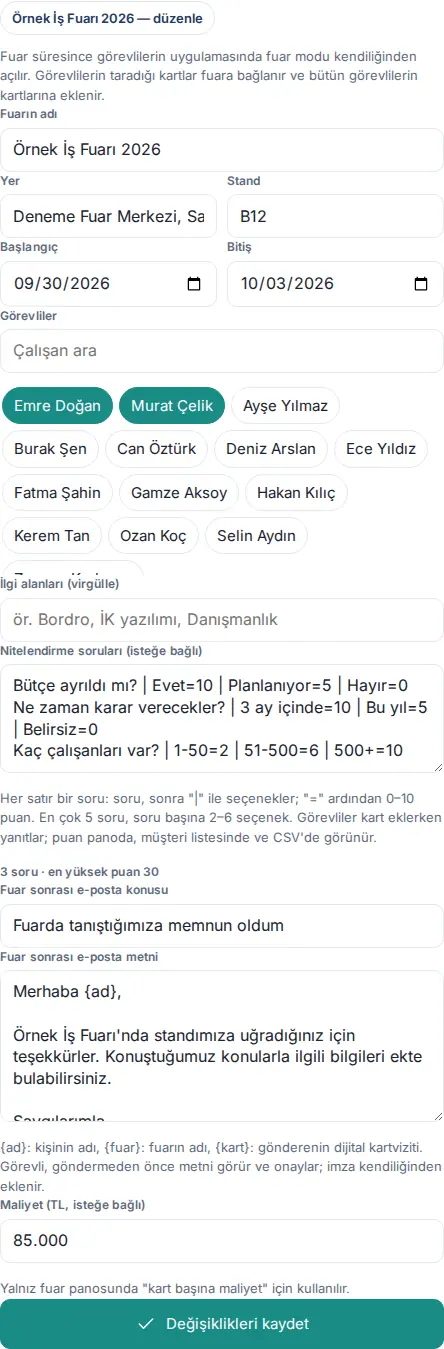
To change a fair, click Edit next to the fair in the list, make the change and click Save changes.
Writing qualification questions
Who: Trade fair manager
What it does: Short questions that the staff answer with a tap when they add a card, to prioritize visitors. Each option has a score; the scores are added up.
Format: Each line is one question. First the question, then the options separated with the | sign. Write the option's score from 0 to 10 after the = sign.
Is there a budget? | Yes=10 | Planned=5 | No=0
When will they decide? | Within 3 months=10 | This year=5 | Unclear=0
How many employees do they have? | 1-50=2 | 51-500=6 | 500+=10
- At most 5 questions, 2–6 options per question.
- An option without a score counts as 0; a score above 10 becomes 10.
- A preview appears below the field (e.g. "3 questions · highest score 30"). If a line has an error, it is shown (e.g. "Line 3: at least two options").
- If you do not change the question text, the old answers are kept. Changing the order does not affect the answers.
Trade fair comparison
Who: Trade fair manager, trade fair viewer, Admin · Where: Event mode → Trade fair comparison
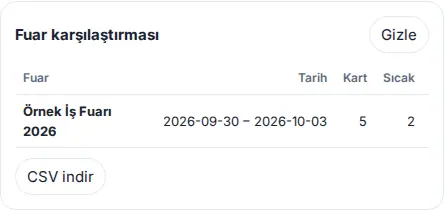
What it does: Compares the fairs of the last year in one table and shows which fair gave a better return.
- In the Event mode window, click Trade fair comparison next to the Events heading.
- For each fair, the table shows:
- Date, Card;
- Hot, Warm, Cold;
- Avg. score;
- Cost (TRY), Per card, Per hot lead;
- Thanks (the number of thank-you emails sent).
- Use Download CSV to take the table to Excel.
Giving trade fair permissions
Who: App administrator · Where: Admin → People and permissions → Module permissions → Trade fairs and events
| Role | What they do |
|---|---|
| Module admin (trade fair manager) | Creates trade fairs, assigns staff, edits all trade fairs, sees the comparison. |
| Viewer | Sees all trade fair boards and the comparison as read-only. Sees the contact list only for the records they have access to. |
App administrators can always create trade fairs. The Yetkiler → Fuar yetkilileri ("Permissions → Trade fair managers") list in WordPress uses the same record as this table.


