09. Notifications
Screenshots show the Turkish interface of Prozence with fictional "Örnek Teknoloji A.Ş." data; the English interface has the same layout.
Prozence informs you in three ways: the bell at the top of the app (the Waiting for you list), phone notifications on your phone or computer, and emails. You select for which events you get a notification or an email.
This chapter describes the bell, turning on phone notifications, notification preferences and the summary emails that the company sends. For announcements, surveys and policies on the Board, see 06. Board and intranet.
Who: Employee
In this chapter
- Bell: Waiting for you
- Turning on phone notifications
- Notifications in the Prozence mobile app
- Turning off notifications on a device
- Selecting notification preferences
- Announcement and board notification preferences
- Weekly summary email
- Cooling customers summary email
Bell: Waiting for you
Who: Employee · Where: Bell icon at the top of each screen
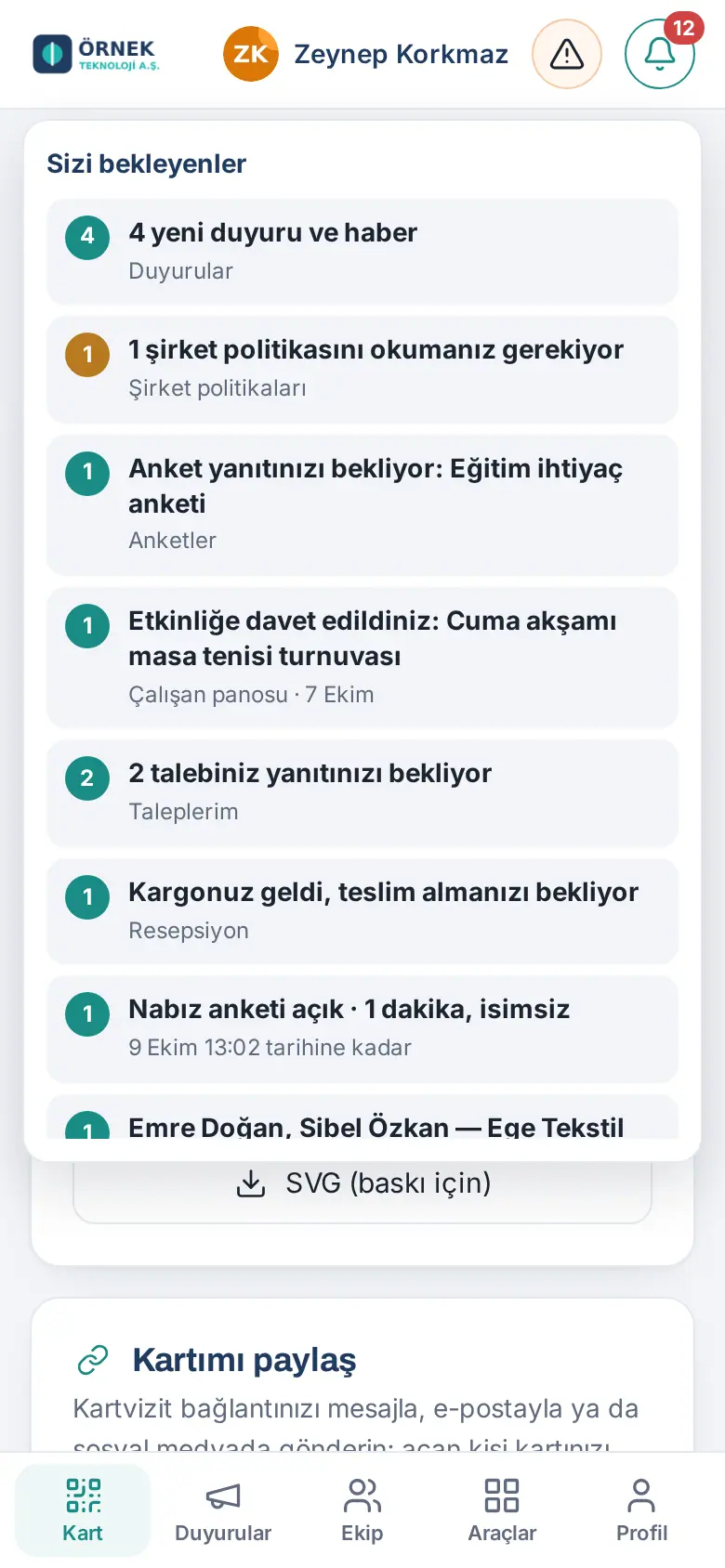
What it does: Shows in one list everything that waits for an action from you. The red number on the bell is the number of waiting tasks.
- Tap the bell icon at the top of the screen. The Waiting for you list opens.
- The list can show (depending on the modules that are on in your company):
- new announcements and news that you have not seen, company policies that you must read,
- surveys that wait for your reply, the open Pulse survey and events that you are invited to,
- your requests that wait for your reply ("Your request needs your reply: …"),
- parcels that arrived for you ("Your parcel has arrived and is waiting for pickup") and assigned assets that wait for your confirmation of receipt,
- requests for access to a customer record,
- work time: "No check-in today (work starts …)" or "Missing check-out: …",
- a signed leave form that you must hand in, items that you must confirm in an inventory count,
- your onboarding tasks and payslips that wait for your confirmation of receipt,
- (if you have the permission) leave, expense, purchase and work time correction requests that wait for your approval, task assignment approvals (1.4.3), profile changes, suggestions / complaints to review, new requests, OHS (occupational health and safety, İSG) reports, visitors expected today and parcel shipping requests.
- Tap a row. The app opens the related screen and highlights the box for a short time.
- To close the list, tap the bell again or tap an empty area.
Tip:
- If nothing is waiting, the list shows "Nothing is waiting for you right now."
- When you complete the task (e.g. when you confirm the policy), the row is removed from the list automatically. The list refreshes itself when you come back to the app or change tabs.
- If you added the app to the home screen, the number of waiting tasks can also show as a badge on the app icon.
Turning on phone notifications
Who: Employee · Where: Profile → Notifications
What it does: Announcements, tasks that wait for your approval and people who leave their details on your card are notified to this device immediately.
Before you start:
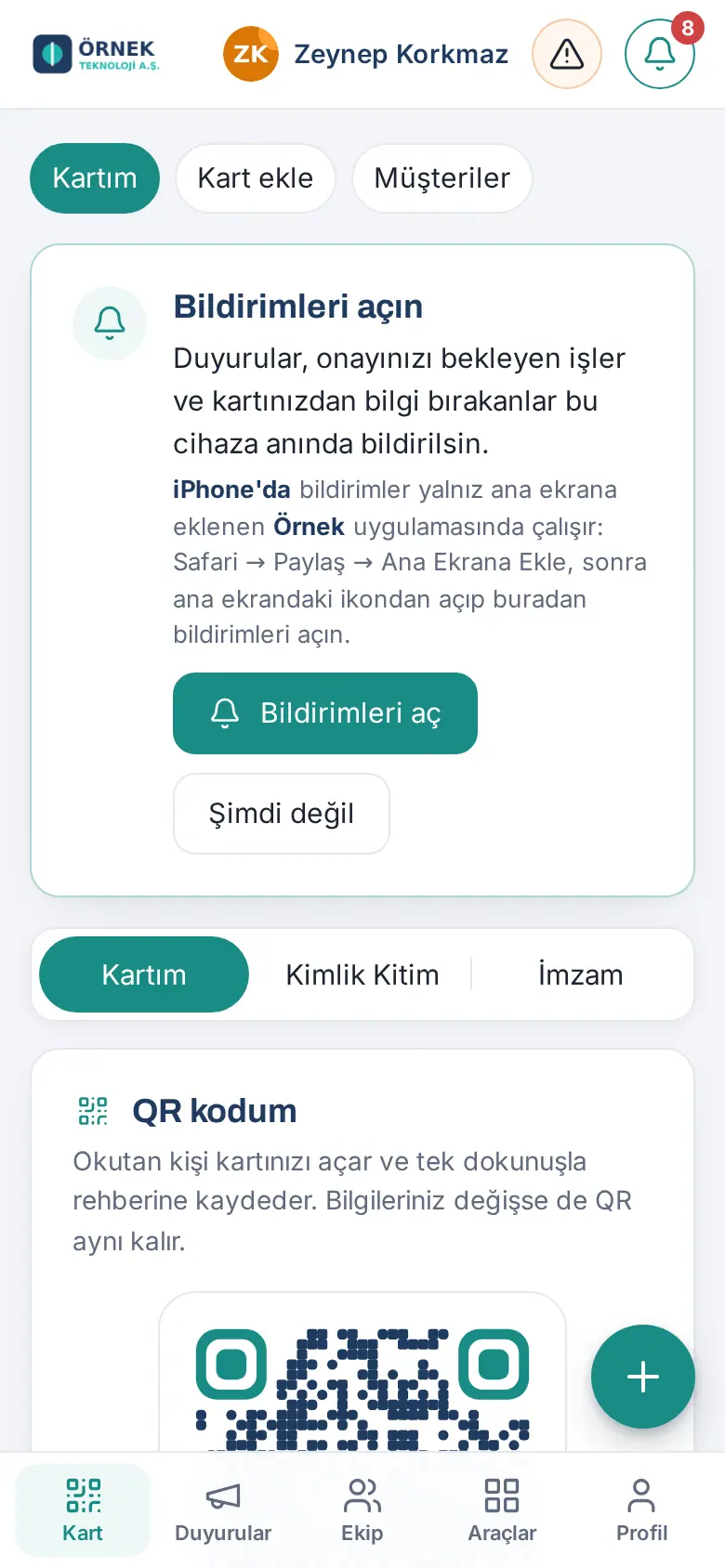
- iPhone: Notifications work only in an app that is added to the home screen (iOS 16.4 and later). First add the app with Safari → Share → Add to Home Screen and open it from the icon on the home screen (see 00. Getting started).
- Android and computer: The browser's notification permission is sufficient.
- Prozence mobile app: In the app, you turn on notifications separately; see Notifications in the Prozence mobile app.
With the card at first sign-in:
- When you open the app on this device for the first time, the Turn on notifications card shows at the top of the screen.
- Tap Turn on notifications.
- In the permission window of the phone or browser, give permission (e.g. "Allow").
- If you do not want to turn them on now, tap Not now. The card does not show again on this device; you can turn on notifications later in Profile → Notifications.
With Profile → Notifications:
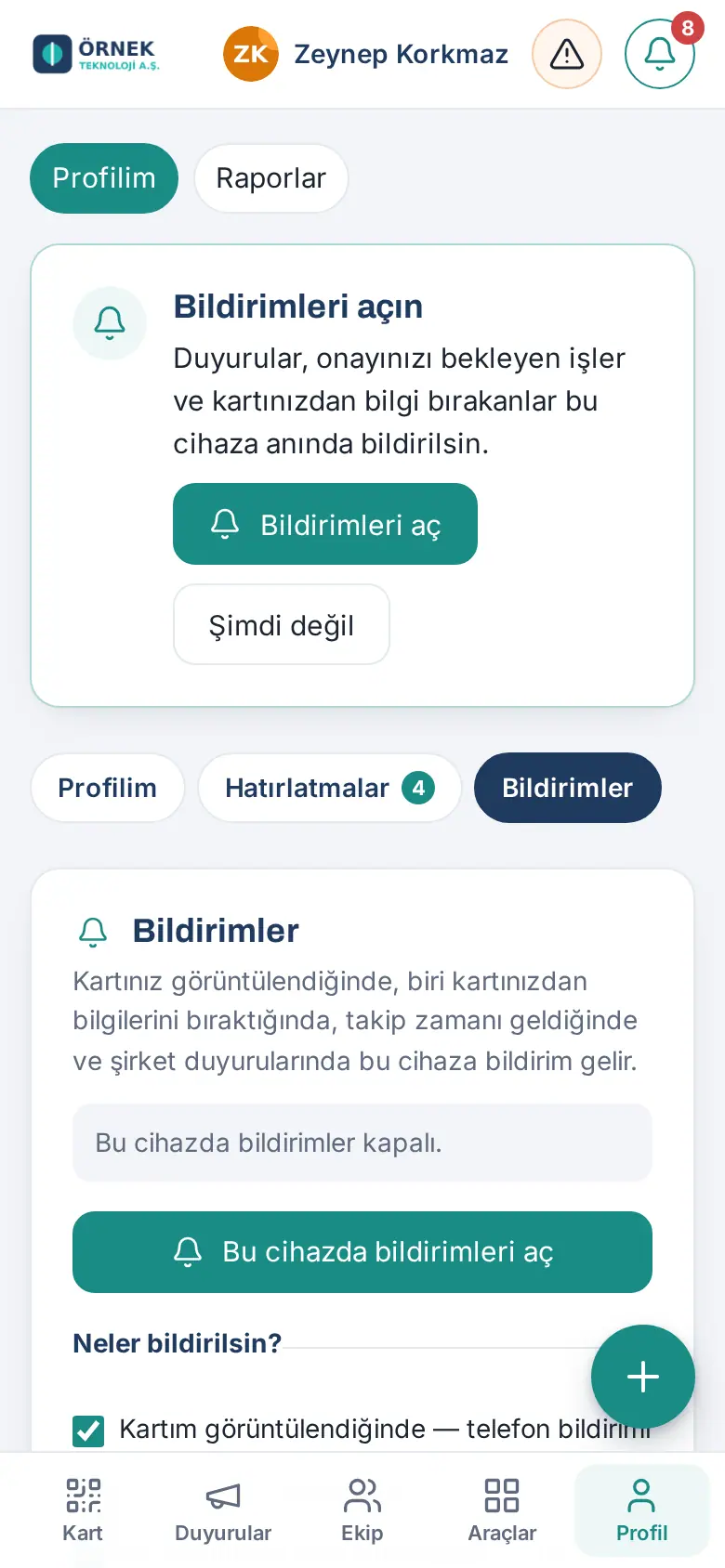
- In the bottom menu, tap Profile, then the Notifications tab.
- The status row shows the status of this device (e.g. "Notifications are off for this device.").
- Tap Turn on notifications on this device and give permission in the permission window.
- The message "Notifications turned on for this device." appears.
- To test, tap Send test notification.
Important:
- Notification permission is given separately on each device. Turn it on separately on your phone and your computer; notifications stay on for a maximum of 10 devices; if you turn them on for an 11th device, the oldest device drops off the list.
- If you refused the permission before, the screen shows "Notifications are blocked on this device." Allow notifications for this site in the phone or browser settings, then refresh the page.
- When phone notifications are off, email notifications continue to come according to your preferences; work notifications (approval, rejection, request…) also come by email (1.1.7; see Selecting notification preferences).
FAQ:
- I do not get notifications. In Profile → Notifications, make sure that the status is "Notifications are on for this device." and try Send test notification. On iPhone, make sure that you open the app from the icon on the home screen, not from a Safari tab. The phone's "Do Not Disturb" or Focus mode can hide notifications.
- In which language do notifications come? In the language you selected in the app (see 00. Getting started).
Notifications in the Prozence mobile app
Who: Employee who uses the Prozence app · Where: In the app, Profile → Notifications
What it does: If you use the Prozence app (App Store / Google Play), notifications come to the app instead of the browser. Your preferences (What should be notified?) are the same.
- After you sign in, the app asks once for the phone's notification permission; give permission.
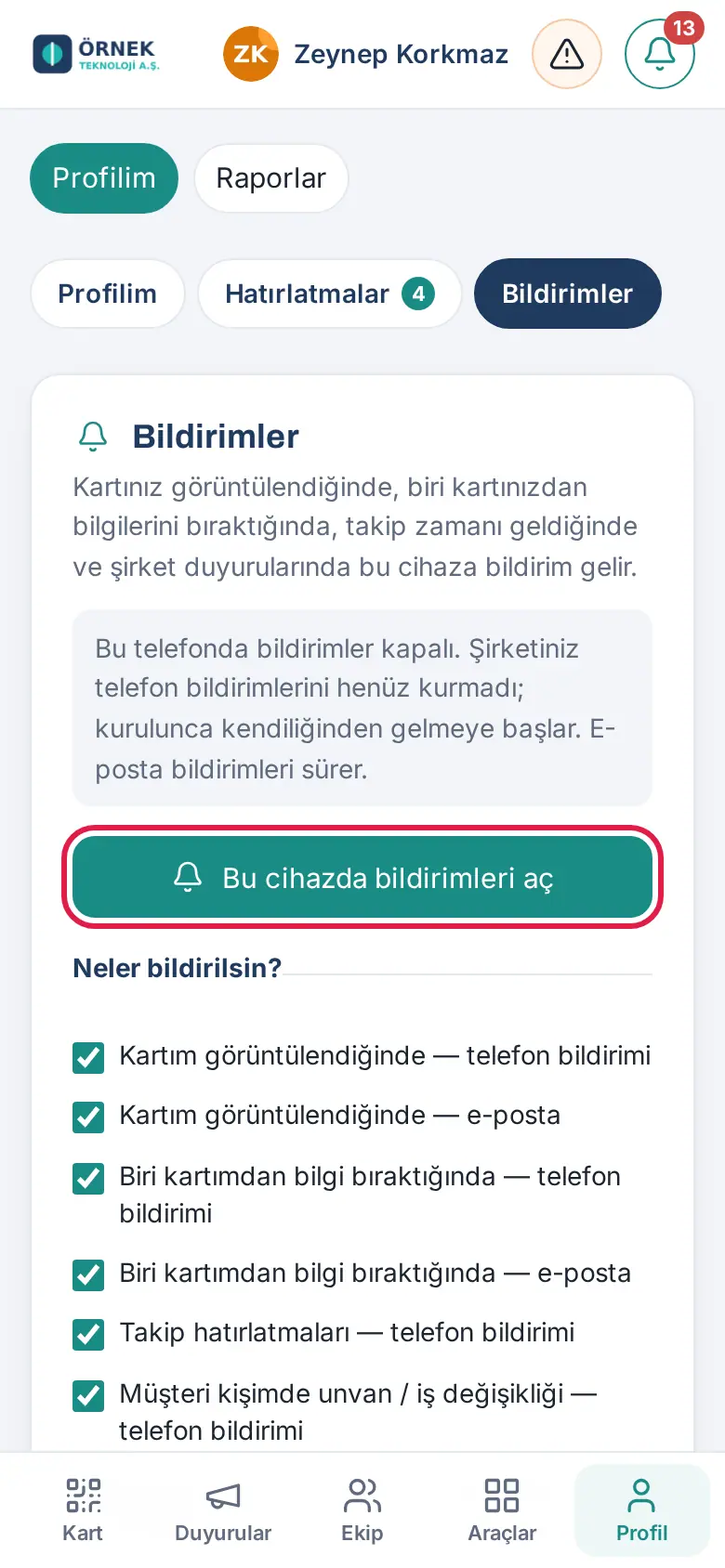
- To turn them on later, go to Profile → Notifications. If the status row shows "Notifications are off for this phone.", tap Turn on notifications on this device.
- The message "Notifications turned on for this phone." appears. Test with Send test notification.
Important:
- If your company did not set up phone notifications, the screen shows "Your company has not set up phone notifications yet; they will start arriving on their own once it does. Email notifications continue."
- If you refused the permission: "Notification permission is off. Turn it on in the phone’s Settings → Prozence → Notifications."
- In the app, notifications stay on for a maximum of 5 phones for your account; if you turn them on for a sixth phone, the oldest phone drops off the list.
- To turn them off, tap Turn off on this device on the same screen ("Notifications turned off for this phone.").
Details: 20. Prozence mobile app.
Turning off notifications on a device
Who: Employee · Where: Profile → Notifications
- On the device where you want to turn off notifications, open Profile → Notifications.
- Tap Turn off on this device. The message "Notifications turned off for this device." appears.
Tip: This affects only that device; notifications on your other devices continue. The status row shows on how many of your devices notifications are on.
Important: If you will change your phone or give it to another person, first turn off notifications on this device and sign out.
Selecting notification preferences
Who: Employee · Where: Profile → Notifications → What should be notified?
What it does: You select for which events you get a phone notification and for which events you get an email.
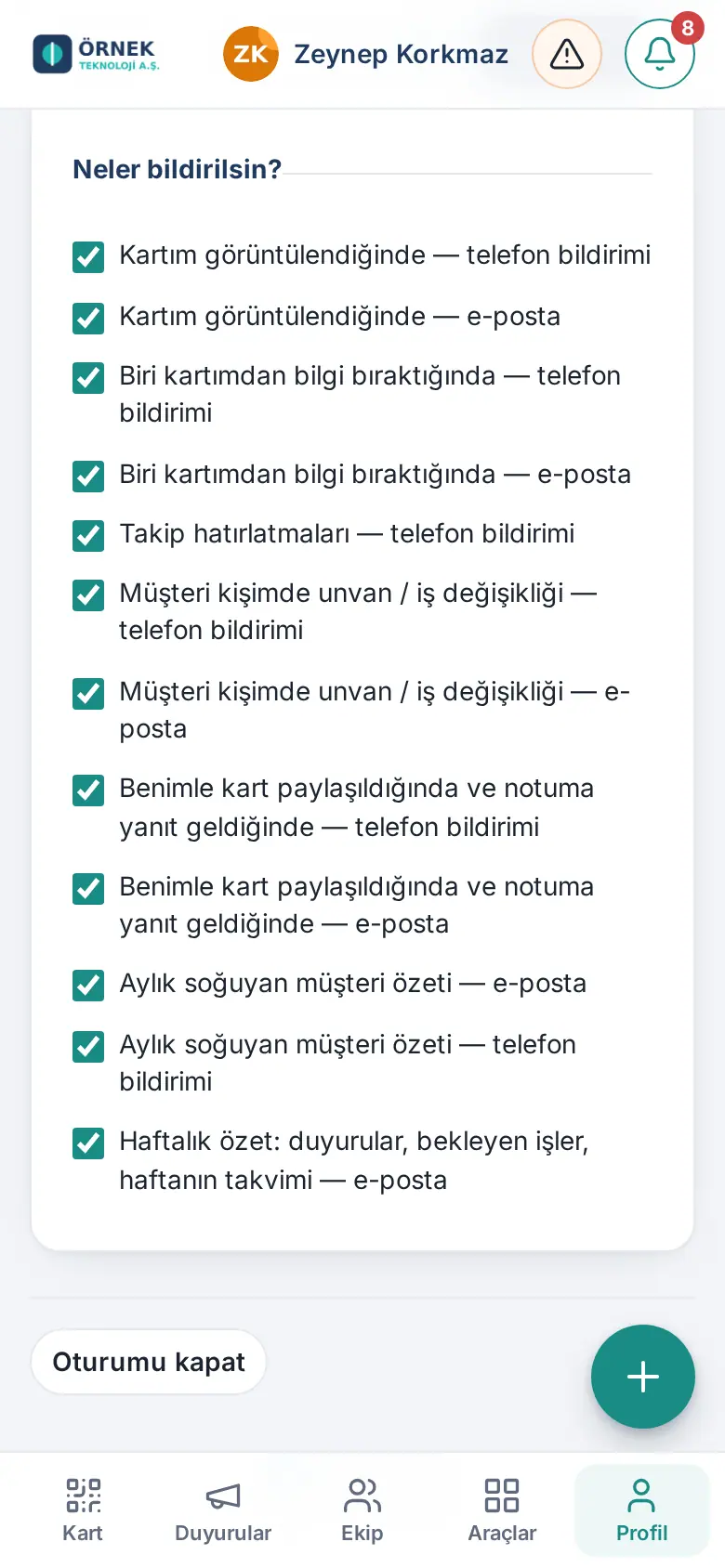
- Open Profile → Notifications and scroll down to the What should be notified? section.
- Clear the box of the rows that you do not want and tick the ones that you want. Each change is saved immediately ("Saved.").
| Preference | When |
|---|---|
| When my card is viewed (phone notification / email) | When a person opens your digital business card |
| When someone leaves their details on my card (phone notification / email) | When the person who opens your card leaves you their contact details |
| Follow-up reminders (phone notification) | When the time of your customer follow-up reminder comes |
| Job title / job change of my customer contact (phone notification / email) | When the job title or company of your customer contact changes |
| When a card is shared with me or my note gets a reply (phone notification / email) | When a teammate shares a customer card with you or replies to your note |
| Monthly cooling customers summary (email / phone notification) | On the first working day of the month (see Cooling customers summary email) |
| Weekly summary: announcements, pending tasks, the week's calendar — email | Once a week (see Weekly summary email) |
| Work notifications (approvals, rejections, requests, parcels, visitors…) when they can’t reach my phone — email | When a work notification for you (such as a leave or expense approval or rejection, a request reply, a parcel, a visitor, a work time correction) cannot reach any of your devices as a phone notification, the same notification comes by email (1.1.7) |
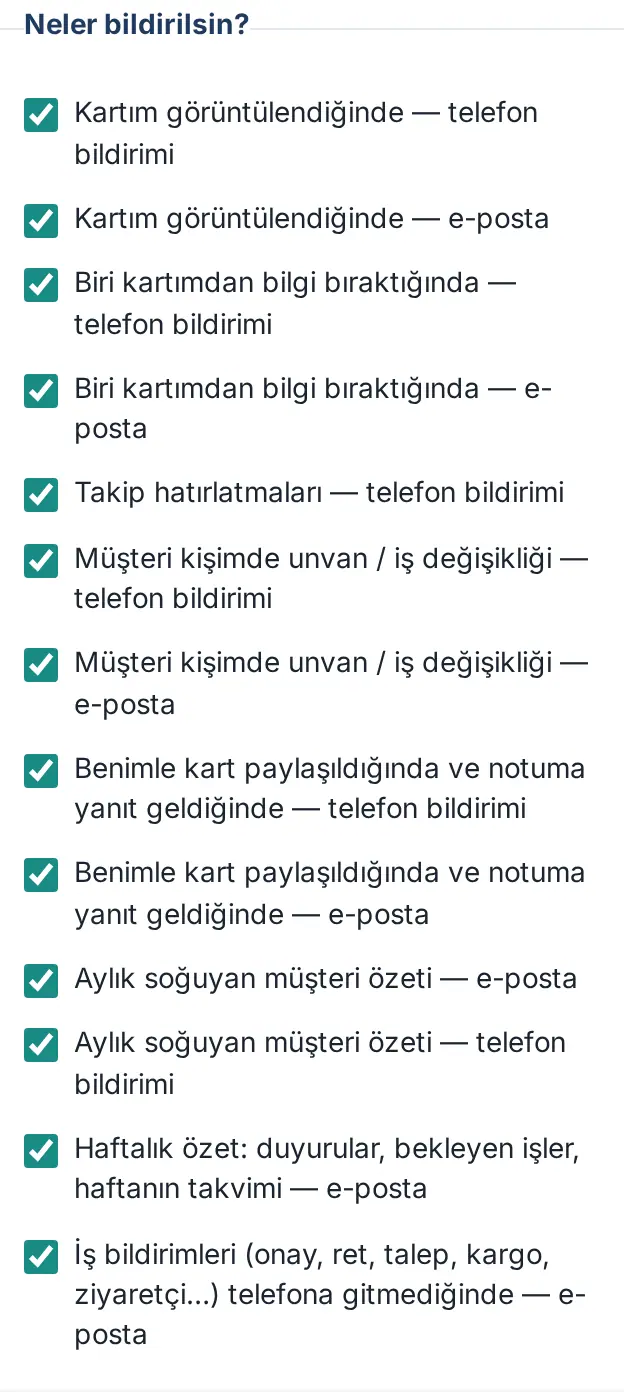
Work notifications email (1.1.7): If you did not turn on phone notifications on any device, or if a notification could not reach your device, work notifications such as approvals, rejections, request replies, parcels and visitors come to your email. This preference is on by default.
- If the module already sent you an email for the same task (e.g. the parcel delivery code), you do not get a second email.
- Notifications that have their own email preference, such as card views, follow-up reminders, cooling customers, announcements and celebrations, do not come this way.
- At most 40 work notification emails are sent per day.
- If you do not want the email, clear the box; then do not forget to turn on phone notifications, or you see work notifications only in the bell (Waiting for you).
Tip: Preferences are saved to your account; they apply on all your devices. If you do not use the customer directory, the customer rows change nothing for you.
Important: You cannot turn off some notifications; e.g. thank-you cards written to you, messages to your listing, general company announcements and announcements about you always come.
Announcement and board notification preferences
Who: Employee · Where: Announcements → Announcements → Notifications; Team → Employee board → 🔔
What it does: You select for which announcement types and which Team Square posts you get a phone notification.
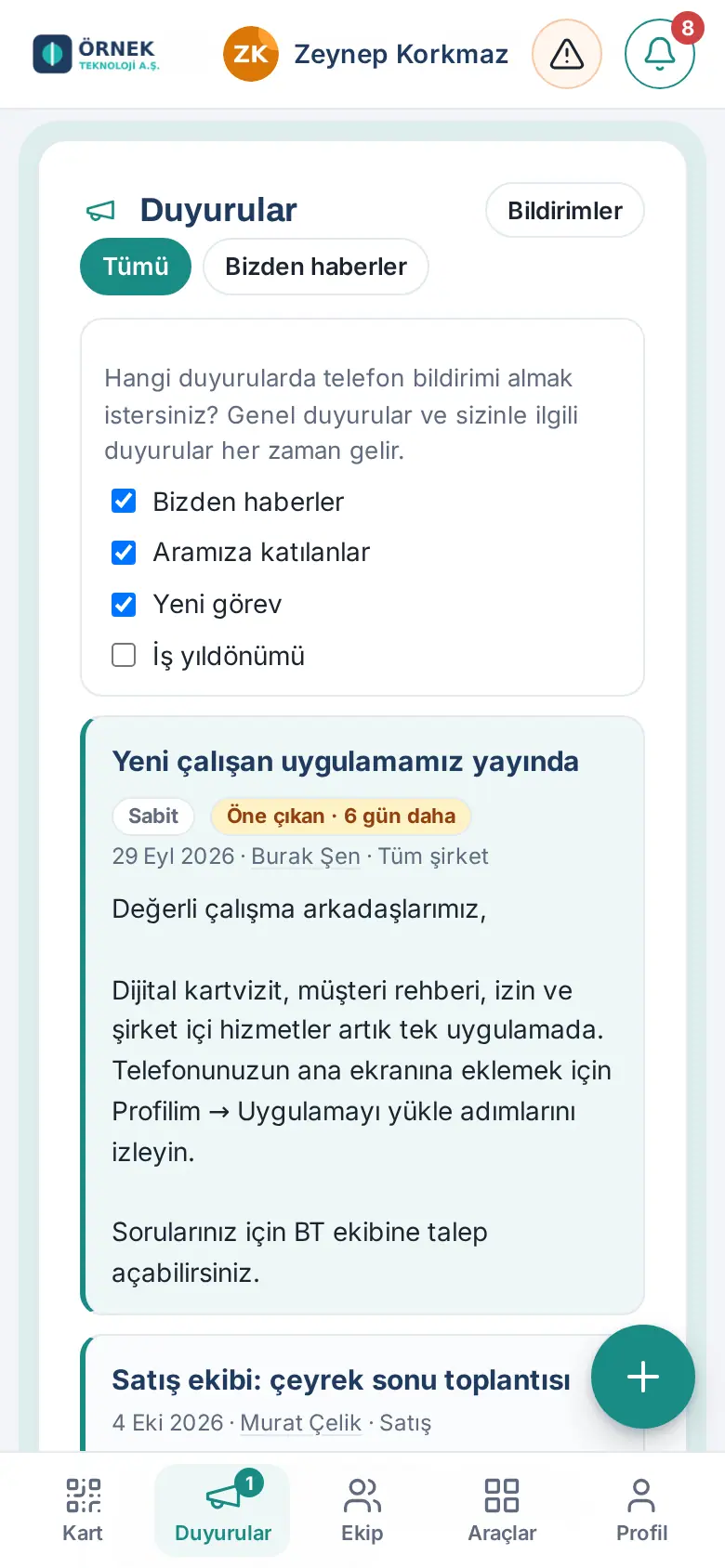
Company announcements:
- In the bottom menu, tap Announcements.
- Tap Notifications at the top right of the Announcements box.
- In the "For which announcements do you want phone notifications?" list, tick or clear the types: Company news, New joiners, New position, Work anniversary.
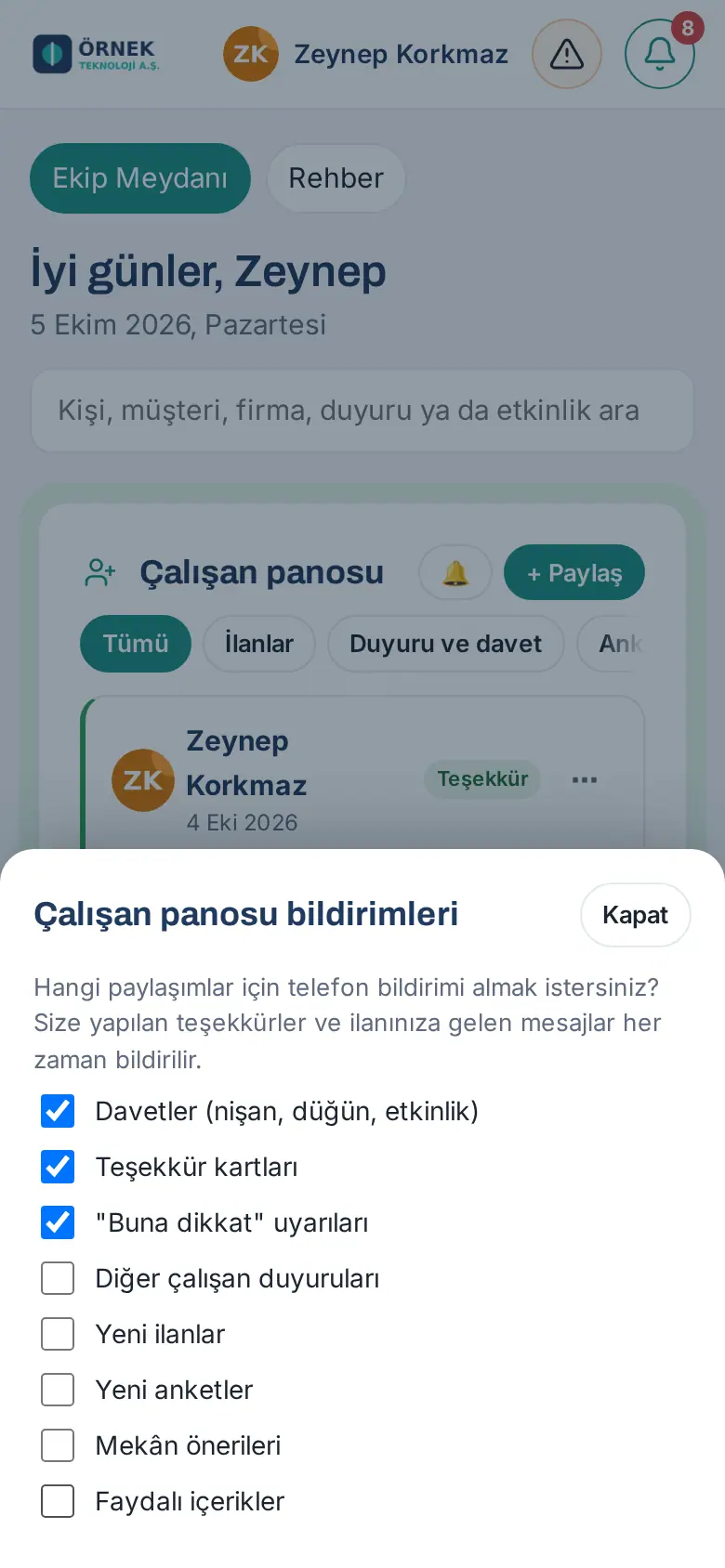
Team Square posts:
- In the bottom menu, tap Team.
- In the Employee board box, tap the 🔔 button next to + Share. The Employee board notifications window opens.
- Tick or clear the types: Invitations (engagement, wedding, event), Thank-you cards, "Heads-up" alerts, Other employee announcements, New listings, New surveys, Venue recommendations, Useful content.
- Tap Close.
Important: General announcements and announcements about you always come. Thanks given to you and messages to your listing are also always notified.
Weekly summary email
Who: Employee · Where: Your work email
What it does: Once a week, a short personal email summarizes the important information of the week. Even if you do not open the app every day, you miss nothing.
Before you start: Your company turns on the weekly summary; the company also selects the day and time (e.g. Monday 08.00). If your company did not turn it on, you do not get this email.
The email has these sections:
- Waiting for you: policies that you must read, surveys that wait for a reply, invitations, your parcel, the open Pulse survey, access requests.
- Announcements and news (last 7 days)
- Next 7 days: events, celebrations and leave on the company calendar.
- New on the employee board: new posts on Team Square.
The Open the Board button at the bottom of the email opens the app.
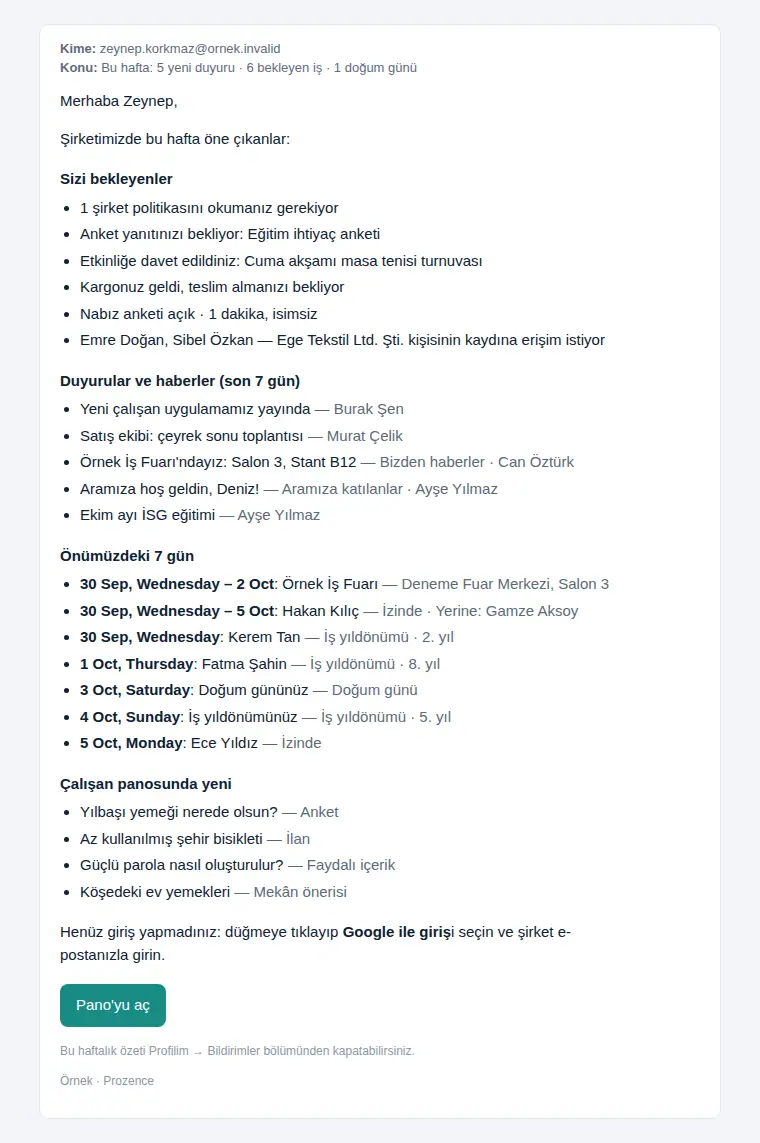
To turn it off: In Profile → Notifications → What should be notified?, clear the Weekly summary: announcements, pending tasks, the week's calendar — email box.
Tip: If there is nothing to tell you that week, the email is not sent.
Cooling customers summary email
Who: Employee who uses the customer directory · Where: Your work email and phone notification
What it does: Once a month, it reminds you of the customer contacts that you have not been in contact with for a long time; it gives you a short list so that you can refresh the relationship.
Before you start: Your company turns on the summary and sets the period after which a customer counts as "cooling" (e.g. 90 days). The summary goes only to employees who use the customer directory or card scanning.
The email comes on the morning of the first working day of the month and contains:
- the cooling period and your number of cooling customers,
- a maximum of 10 people: name, company and for how many months there has been no contact (such as "No contact for 4 months").
- In the email, tap the Open my cooling customers button.
- In the app, the Customers list opens with the No contact (cooling) filter.
- Tap a person and refresh the relationship. In the app, adding a note or sending your card counts as a new contact; the person is removed from the cooling list.
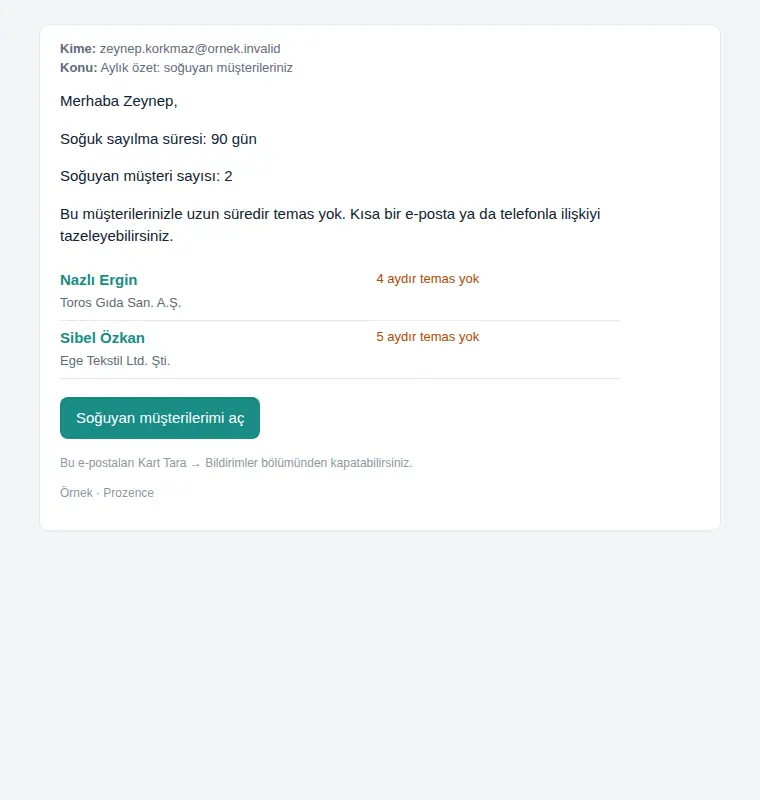
To turn it off: In Profile → Notifications → What should be notified?, clear the Monthly cooling customers summary — email and Monthly cooling customers summary — phone notification boxes.
Tip: The same list is always also in My Space → Today → My sales summary → My cooling customers (see 04. Customer directory).
Important:
- The summary contains only your records and your team's records; records of other people that are shared with you are not included.
- The note at the bottom of the email can show an old menu name ("Scan Card → Notifications"). The preferences are in Profile → Notifications in the app.


