22. Time and attendance
Screenshots show the Turkish interface of Prozence with fictional "Örnek Teknoloji A.Ş." data; the English interface has the same layout.
You record the times you start and end work from your phone (time and attendance, PDKS: personnel attendance control system). At the office you check in and out with the office network or the QR code at the entrance; when you work from home, remotely or in the field, you do it with one tap. The app shows your work plan for today; on the office network it can record your check-in automatically, and when you leave before the end of the workday, or on a day you did not check in, it can ask for the reason.
This chapter is for employees and for managers who follow their team's working time. For settings, offices, work schedules and the timesheet (puantaj), see 29. Time and attendance management.
Who: Employee · Manager
In this chapter
- The Work time box and today's plan
- Checking in at the office: office network and QR code
- Automatic check-in on the office network and "Undo"
- Scanning the office QR code with the app
- Starting from home, remotely or in the field
- When location and a selfie are required
- When the record is not made: the reason and the options
- Starting work with a shortcut
- Ending work and "Why are you leaving the office?"
- I'm not coming today or I'm running late
- "No check-in today"
- The "Have you started work?" notification
- When a check-out is missing
- This month: monthly work time summary and map
- Requesting a work time correction
- Overtime: pre-approval and approval afterwards
- My record history and who accessed your record
- Automatic attendance (office mode): the phone detects arriving at and leaving the office
- Location tracking (field): explicit consent and route
- My team: the team's status today and approving corrections
Before you start: The time and attendance module is off by default in the company. Your company decides which recording methods are on and whether you are asked for your location, a selfie or internet details; you see only the buttons that are available to you. The time comes from the server; the time on your phone is not important.
The Work time box and today's plan
Who: Employee · Where: My Space → My Area → Work time (on a computer, Board → My Area)
What it does: Shows your status today, your work plan and the check-in and check-out buttons.
- Tap My Space in the bottom menu and select My Area in the strip at the top. You can also get there by tapping the Work time tile at the top of the Today screen.
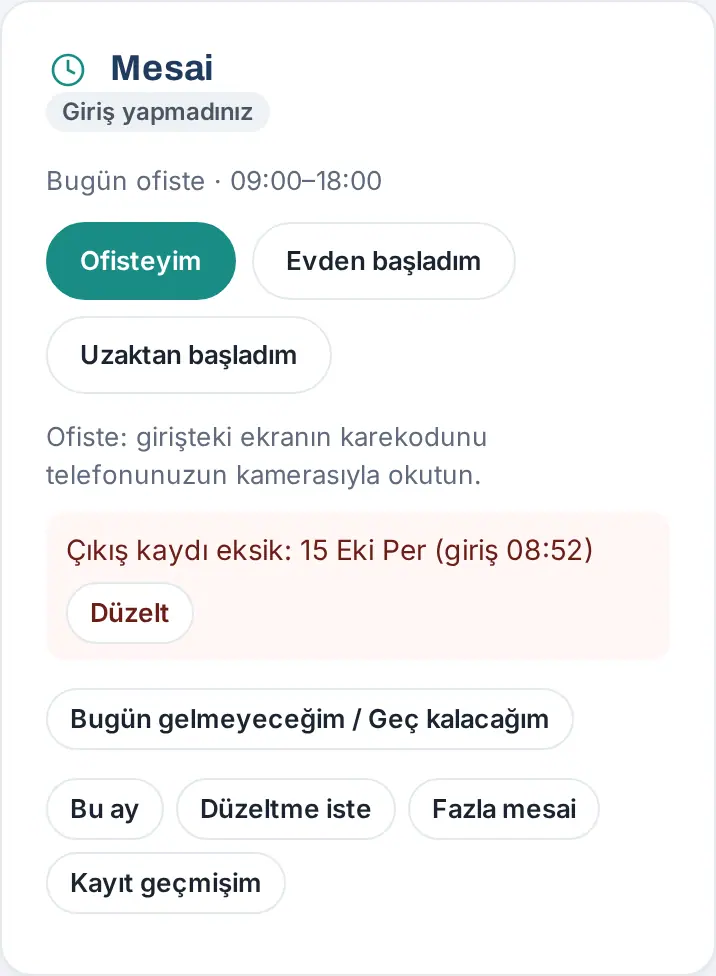
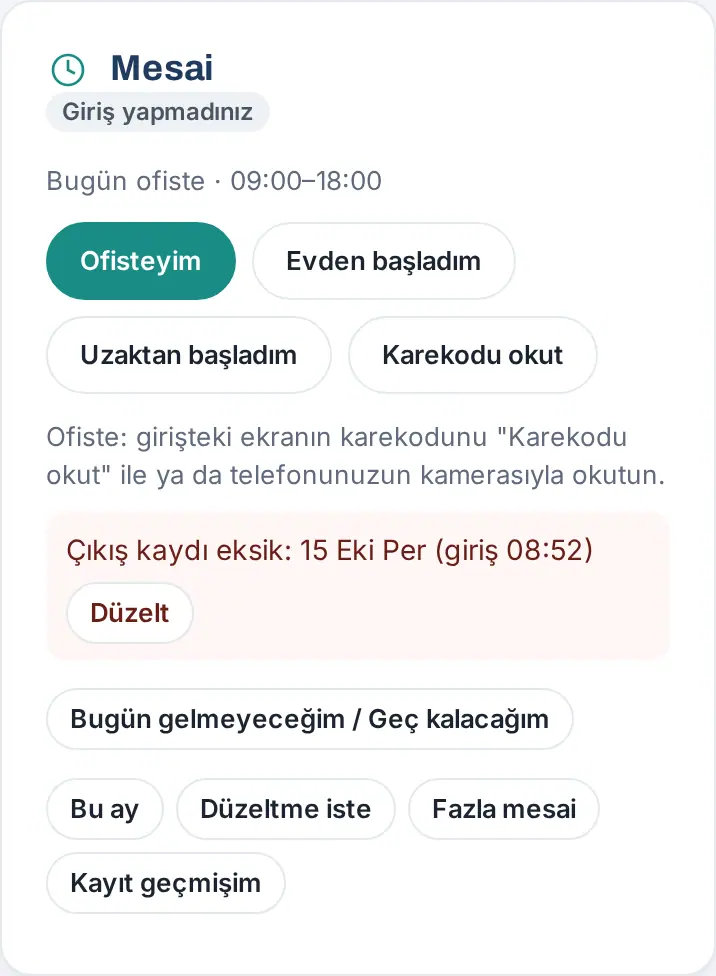
- The top of the Work time box shows your status: Not checked in, At the office, From home, Remote, In the field or You've checked out. If you checked in, your check-in time and your last record show, e.g. "Now: At the office (Merkez Ofis, office network, 08:52)" and "Total today: 3 h 10 min" (1.1.7). If you checked in late, it says "Late: 12 min".
- The line below is your plan for today, e.g. "Today at the office · 09:00–18:00", "Today: working from home · 09:00–18:00", "Field work today · 09:00–18:00", "Today is not a working day for you" or "Today is a public holiday". The plan comes from the company's work schedule (the schedule assigned to you personally, to your department or to the company).
- The buttons are sorted by your plan: the button for today's plan comes first and is filled with color (e.g. I'm at the office on an office day, Started from home on a work-from-home day, I'm in the field on a field day).
- If you have not checked in, the Not coming today / Running late button shows (see I'm not coming today or I'm running late). If a day has a missing check-out, a red box shows "Missing check-out: …" and the Correct button.
- At the bottom there are This month, Request correction and My record history. If your company turned on overtime approval, Overtime also shows. If you are a manager, My team also shows; if you are an attendance officer, Timesheet also shows.
Tip: If your company turned it on, an At the office / From home / Remote / On site badge shows in the directory and on your profile (see 08. Directory and organization). On a day you are on leave, the box says "You are on leave today."
Checking in at the office: office network and QR code
Who: Employee · Where: Work time → I'm at the office or the QR code screen at the entrance
What it does: Records that you came to the office. The office is recognized from the network your phone is connected to or from the QR code at the entrance.
With the office network:
- Connect your phone to the office Wi-Fi network.
- In the Work time box, tap I'm at the office.
- The message "Checked in: 08:52 · Merkez Ofis (office network)" appears; the box shows At the office and your check-in time. If your company turned on automatic check-in, you may not need to tap the button (see Automatic check-in on the office network and "Undo").
With the QR code:
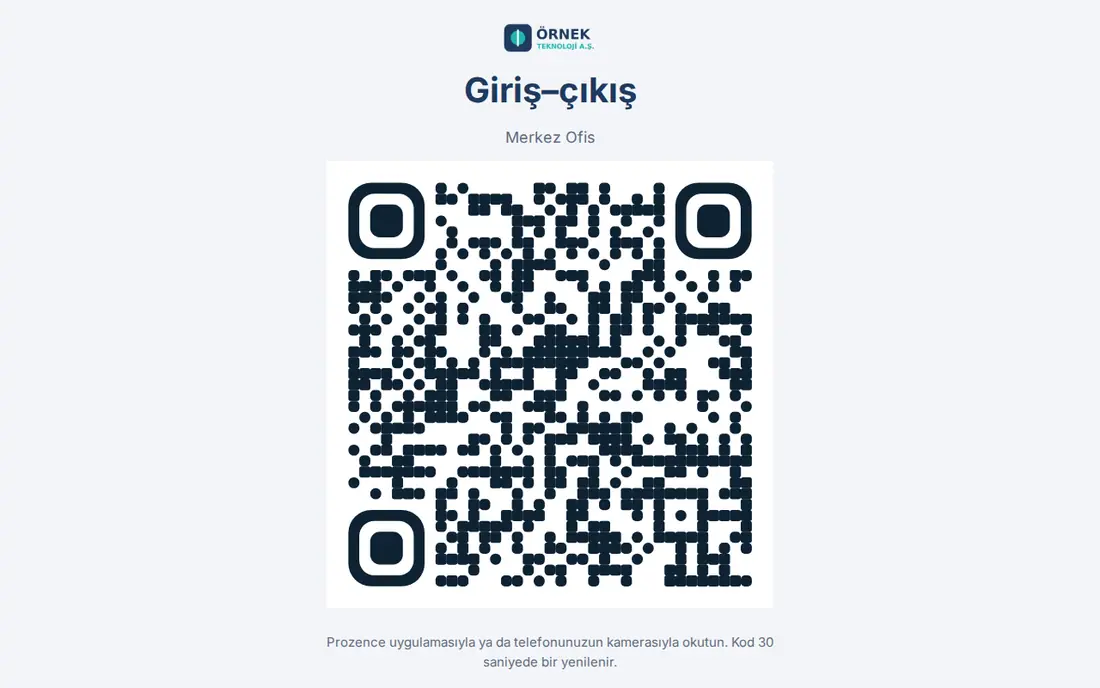
- The screen (tablet) at the office entrance shows the title Giriş–çıkış ("check-in/out"), the name of the office and a QR code. The code changes every 30 seconds.
- Scan the QR code with your phone's camera or with Scan QR code in the Prozence app. The record is made immediately (see Scanning the office QR code with the app).
When you come to the office from home or from the field (1.1.7): If you have an open check-in from home, remote or on site and you come to the office, tap I'm now at the office or scan the QR code. The QR code asks "Your remote session is open (clocked in 09:02). Switch to office or clock out?": I'm now at the office closes your previous work at that time and opens your office check-in (the time is counted without a break); Clock out ends the day; Cancel records nothing. If you scan the QR code again while you have an open check-in at the office, it asks "Clock out?".
Combined checks and office-specific rule: Your company can require several checks together for an office record: QR code, office network, location and (with an office-specific rule) a selfie at check-in. The rules can be different for each office. If the QR code is required, the I'm at the office button does not show and the box says "To check in and out at the office, scan the QR code at the entrance."
Checking in on a leave day (1.1.7): If you check in while you have approved full-day leave for that day, the Day off (approved leave) window opens: "You have approved leave today. Clock in anyway? (HR will see it as work on a leave day.)" You record it with Clock in anyway.
Common errors and warnings:
- "You don't appear to be on the office network. Connect to the company Wi-Fi or scan the QR code at the entrance." (see 16. Troubleshooting) — since 1.3.2, this and similar errors appear with options in the Not recorded window (see When the record is not made: the reason and the options).
- "Karekodun süresi geçmiş ya da geçersiz; ekrandaki güncel kodu yeniden okutun." ("The QR code has expired or is not valid; scan the current code on the screen again.")
- "Ofiste kayıt için girişteki karekodu da okutun (…)." ("To record at the office, also scan the QR code at the entrance (…).") / "Kayıt için ofisin Wi-Fi ağına bağlı olmalısınız (…)." ("You must be connected to the office Wi-Fi network to record (…).") / "Konumunuz ofiste görünmüyor (…). Ofisteyken konumu açıp yeniden deneyin." ("Your location does not appear to be at the office (…). Turn on location while at the office and try again.")
- "Zaten giriş yaptınız (08:52); çıkış yapabilirsiniz." ("You already checked in (08:52); you can check out.") · "You just recorded (08:52). Try again in N seconds." (there must be at least 1 minute between two records)
Important: Scanning the QR code and reading the Wi-Fi access point need a real phone. The Wi-Fi access point (the wireless MAC address of the router) is read only in the Prozence mobile app (iPhone and Android); in a browser, only the internet address is used (see 20. Prozence mobile app).
Automatic check-in on the office network and "Undo"
Who: Employee · Where: Work time box
What it does: If your company turned it on, the first check-in of the day is recorded automatically when you open Prozence while you are on the office network; you do not need to tap the button.
Before you start: Automatic check-in is a company setting (off by default). If it is on, the Work time box shows the line "Automatic clock-in on the office network: on (08:30–18:00) · Close". The brackets show the time range in which the check-in can be made automatically.
When is it tried?
- It is tried when Prozence (the mobile app or the browser) opens, when the app comes back to the front and when your connection changes (e.g. when you switch to the office Wi-Fi) (1.1.7).
- It is made only for the first check-in of the day and only on your working day, when you are not on leave.
- If your work schedule says "From home" for today, automatic check-in is not tried; if you came to the office, record your check-in yourself (1.4.2). Even if you connect from home with a VPN that goes out through the office address, no automatic check-in is written that day.
- It is made only from a set time before the start of your workday (default 30 minutes; e.g. 08:30 if the workday starts at 09:00) until the end of the workday (1.3.2). If you open the app earlier, no check-in is written.
- The check-out is never made automatically. If you checked in automatically or with the office network and you no longer appear on the office network, the box shows the reminder "You don't appear to be on the office network. If you have left, clock out."
When the automatic check-in is made:
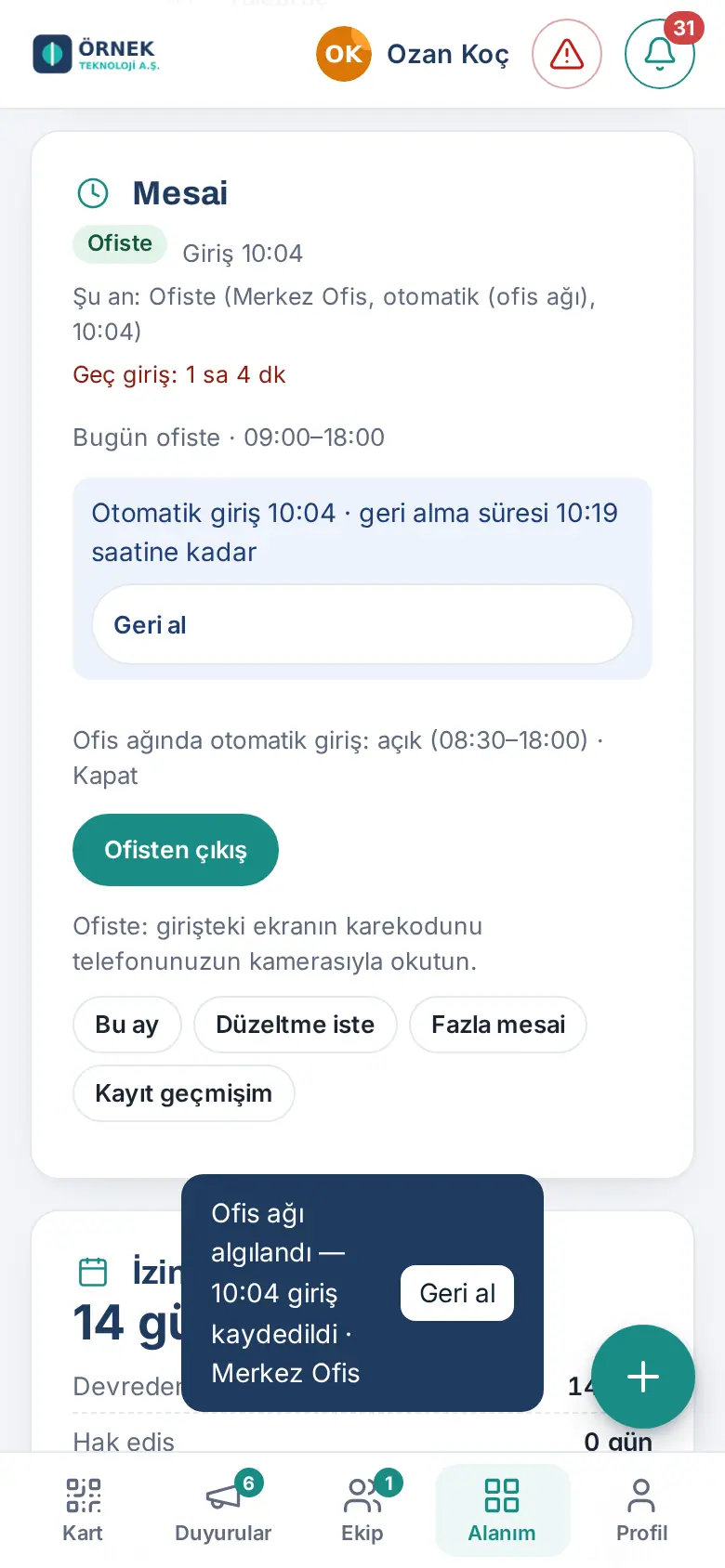
- At the bottom of the screen, the notification "Office network detected — clocked in at 08:52 · Merkez Ofis" and the Undo button appear. The notification closes after 15 seconds.
- In the Work time box, the line "Automatic clock-in 08:52 · can be undone until 09:07" and the Undo button stay for 15 minutes; they do not go away even if you refresh the page (1.3.2).
- If you are not at the office or you want to check in yourself, tap Undo within 15 minutes. The message "Automatic clock-in undone. No automatic clock-in again today." appears.
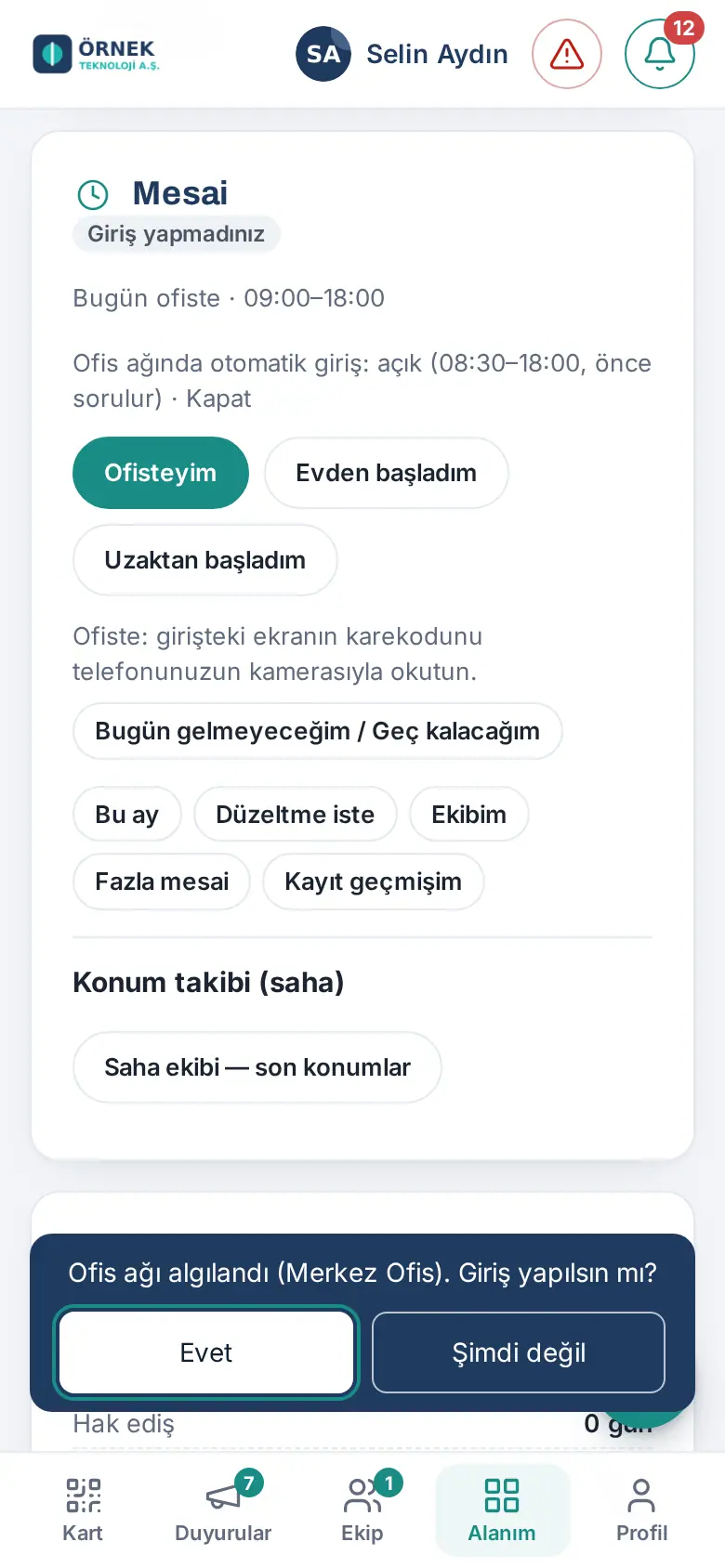
The ask-first option (1.3.2): If your company turned on the "Ask first" option, the check-in is not written automatically; the card "Office network detected (Merkez Ofis). Clock in now?" appears at the bottom of the screen, and the line in the box says "asks first".
- If you tap Yes, the check-in is recorded.
- If you tap Not now, the message "You won’t be asked again today; clock in yourself." appears; you are not asked again that day.
Turning it off for yourself: If you tap Close in the box, the message "Automatic clock-in turned off; you will clock in yourself." appears; even if the company setting is on, no automatic check-in is made for you. To turn it back on, tap Open.
Common errors and warnings:
- "Automatic clock-in can be undone within 15 minutes; use "Request correction" instead."
- "No automatic clock-in to undo (only an automatic clock-in that is the day's only record can be undone)."
- "Today is your work-from-home day; no automatic check-in. If you came to the office, record your check-in yourself." (1.4.2) — on a work-from-home day, the line "Automatic clock-in on the office network: on …" still shows in the box, but the check-in is not written automatically.
Important: Automatic check-in is not made while the app is fully closed (in the background). Automatic check-in does not work if a QR code, location or selfie is required. An automatic check-in that you undid shows in My record history as "Automatic clock-in undone". Because the screenshots in this guide were taken in the test environment after the start of the workday, the box also shows a late check-in.
Scanning the office QR code with the app
Who: Employee · Where: Work time → Scan QR code (in the Prozence mobile app) or the phone camera
What it does: When you scan the QR code on the entrance screen, the Prozence app opens and records your work time without asking you to sign in again. You see the result in a window.
From inside the app:
- In the Prozence mobile app, open the Work time box. The box says "At the office: scan the QR code on the entrance screen with "Scan QR code" or your phone's camera."
- Tap Scan QR code. The app's QR code reader opens.
- Scan the QR code on the entrance screen.
With the phone camera: If your company set the QR code content to "App link", the iPhone camera and (since mobile app 1.6.0) the camera or QR code reader on Android open the Prozence app directly and make the record. If the QR code belongs to another company saved on your phone, the app opens that company and makes the record there (mobile 1.6.0); if you are not signed in to that company, you sign in first. In the "Web address" mode, the camera opens the browser; if you are not signed in in the phone browser, the Office QR code box shows on the sign-in page: Open in the Prozence app makes the record in the app; with I don't have the app, I'll sign in in the browser, you sign in in the browser (the record is made after you sign in).
The result window:
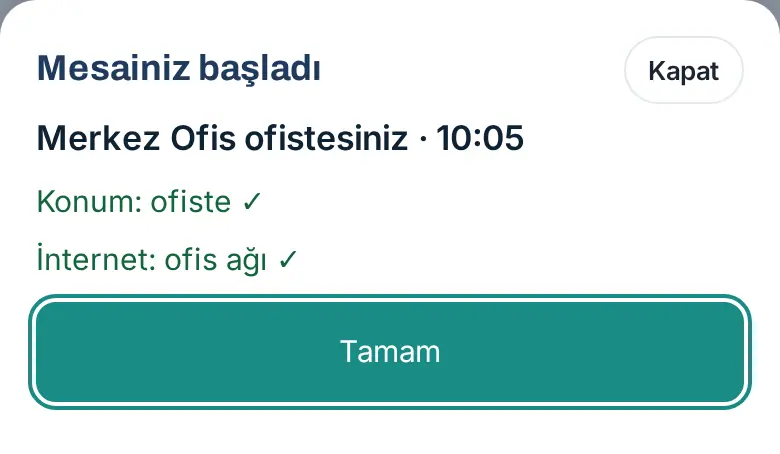
- When the record is made, the Your workday has started window opens (at check-out, Your check-out was recorded; when you switch to the office, Switch to office recorded).
- The window shows the office and time ("You are at the Merkez Ofis office · 08:52"), the location ("Location: at the office ✓" or "Location: not available") and the internet ("Internet: office network ✓" or "Internet: mobile data or another network") lines.
- Tap OK. The window also closes by itself after 8 seconds.
Common errors and warnings:
- "This is not a Prozence office QR code." · "This QR code belongs to another company (…)." — no record is made.
- "This office QR code belongs to a company that is not saved on this phone (…). Sign in to that company’s Prozence first, then scan the code again." — you scanned the QR code with the camera, but the company is not saved on this phone; no record is made (mobile 1.6.0).
- "The QR code you scanned belongs to the … office; your location does not appear to be at the office. Scan it again when you are at the office." — your phone sent a location and the location is outside the office.
- "The QR code has expired, scan it again." — if the QR code is older than 60 seconds, the request is not sent (e.g. the time ran out while you were signing in).
- If your company requires proof, for a record with the QR code your location must be at the office or your phone must be on the office network.
Important: Your coordinates and your IP address are not written to this record; only a "location / network verified" summary is kept (unless the company also turned on the option to write the location to the record). On Android, the app link from the camera needs mobile app 1.6.0, and some camera apps show the QR code only as text; Scan QR code inside the app always works. The Scan QR code screenshot in this guide was taken with an app simulation.
Starting from home, remotely or in the field
Who: Employee · Where: Work time → Started from home / Started remotely / I'm in the field
What it does: Records that you started work on days you work outside the office.
- In the Work time box, tap the button for where you work:
- Started from home — if you work from home.
- Started remotely — if you work outside the office and your home (e.g. in another city).
- I'm in the field — if you are at a client, at a construction site or in the field.
- If your company requires location or a selfie for this work location, the phone asks you for permission or the selfie window opens (see When location and a selfie are required). For a From home record, location and network details (IP, Wi-Fi) are never asked and never written to the record (1.7.1; between 1.4.2 and 1.7.0 the company could select them in the From home card); a selfie is asked only if your company selected it in the From home card; a QR code is never asked for a home record. On full-day leave days and days you said "I can't work today", no location or network details are written to the records you make either (1.7.1). On a remote work day (1.7.1): if your company turned on automatic attendance for you, at the Started remotely and Check out buttons your location is taken only once, at that moment and written to the record; no zone is monitored during the day and no other location is taken. If the location cannot be obtained, the record is made without location (see Automatic attendance (office mode)).
- A message such as "Checked in: 09:03 · From home (from home)" appears; if location was asked, "· location saved" is added at the end. The box shows your status (From home, Remote, In the field) and your check-in time; the button changes to Check out (in the field, Check out (in the field)).
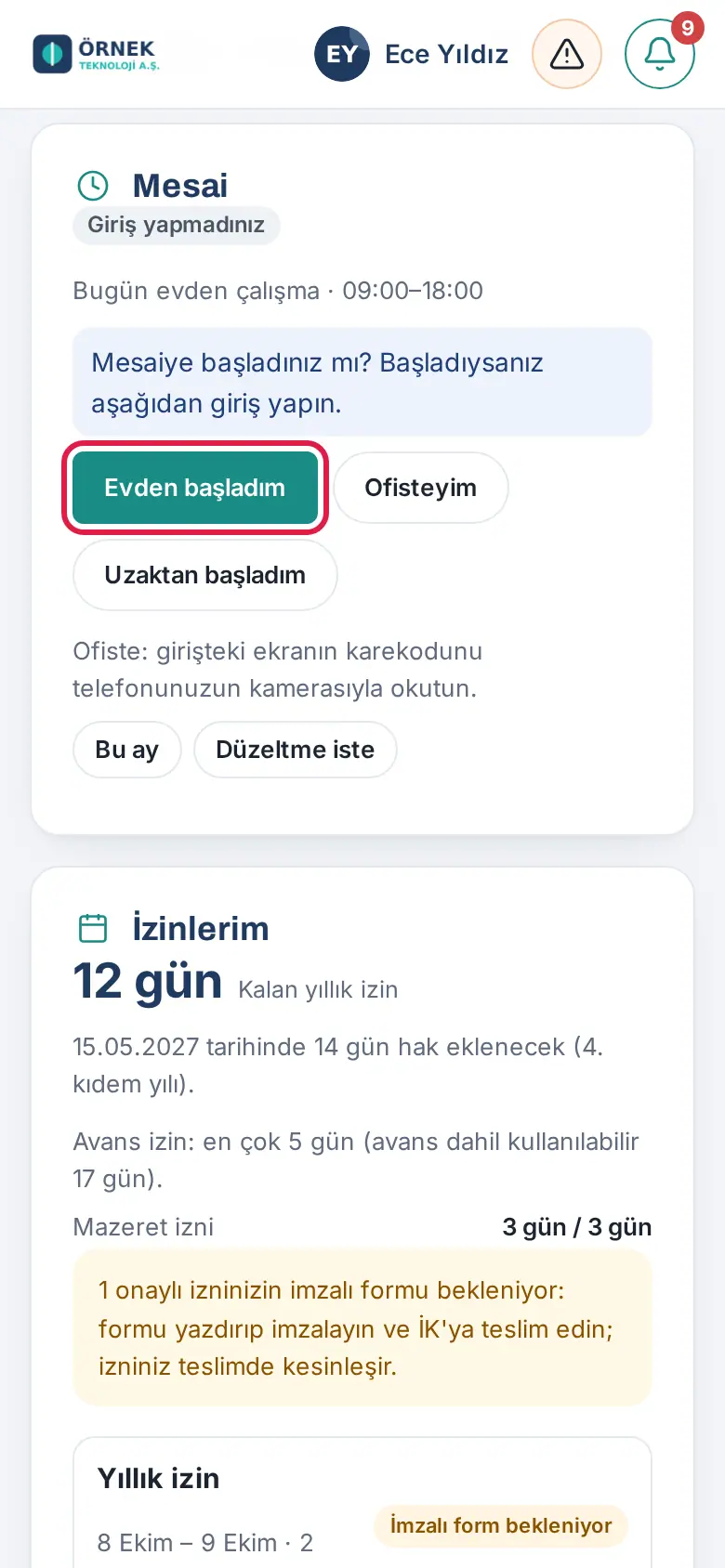
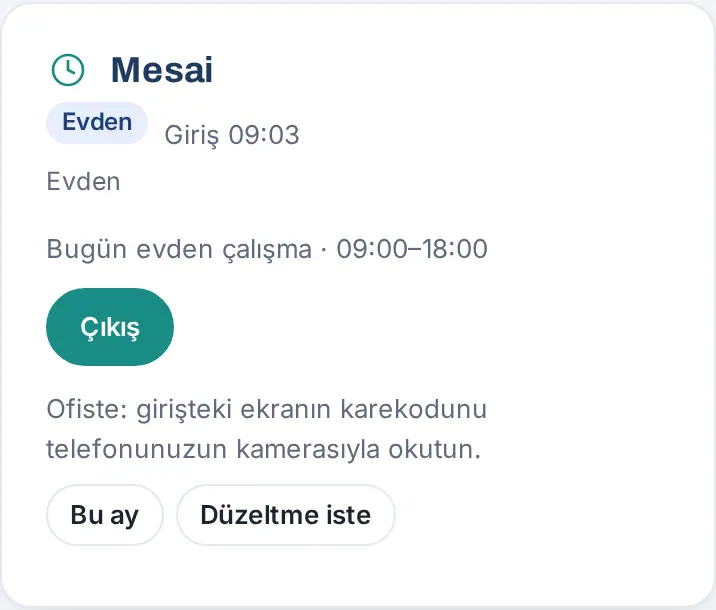
Work-from-home day (1.4.2): If your work schedule says "From home" for today, the plan line in the Work time box becomes "Today: working from home · …", Started from home comes first, and below the buttons it says what is asked:
- If your company selected none of them: "Today is your work-from-home day: no location, Wi-Fi or QR code is required. If you come to the office, you can check in with the office method."
- Since 1.7.1, location and network details (IP, Wi-Fi) are not asked and not written for home records even if the company selects them; so the note always has the form above (if your company selected a selfie in the From home card, a selfie is asked only at check-in).
On a work-from-home day, the QR code notes in the box ("At the office: scan the QR code on the entrance screen …") do not show, Scan QR code does not come first and automatic check-in on the office network is not tried (see Automatic check-in on the office network and "Undo"). If you come to the office that day, tap I'm at the office or scan the QR code at the entrance; if you have an open check-in from home, use I'm now at the office.
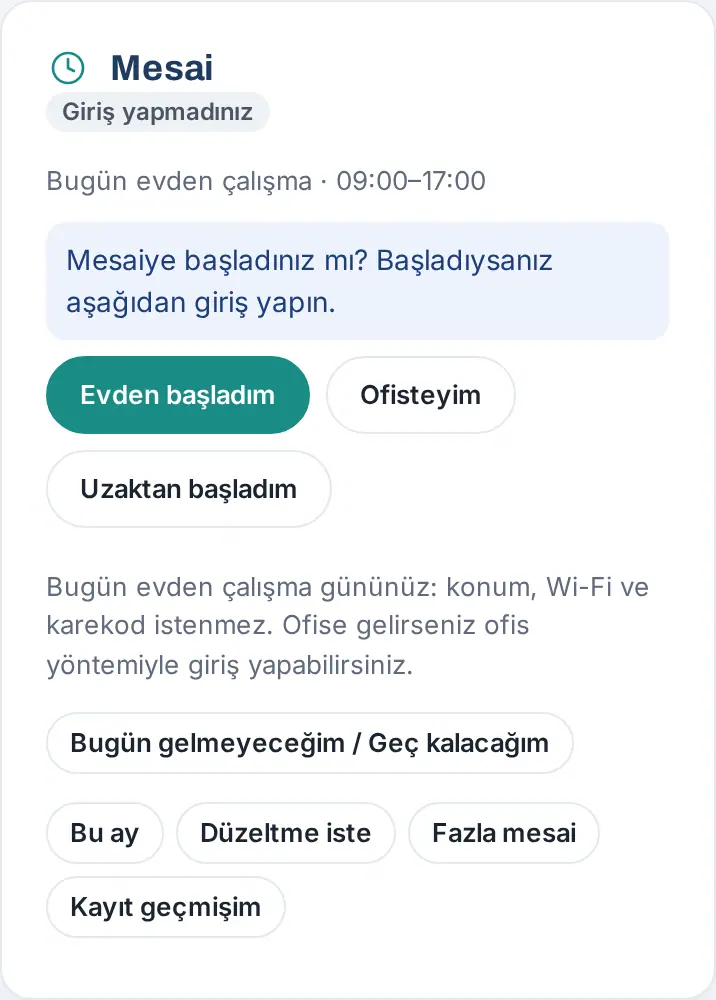
Who sees which buttons? Your company decides which buttons you see. A work location can be available only to some departments or people; if your work schedule says "From home", "Remote" or "Field" for that day, the related button always shows.
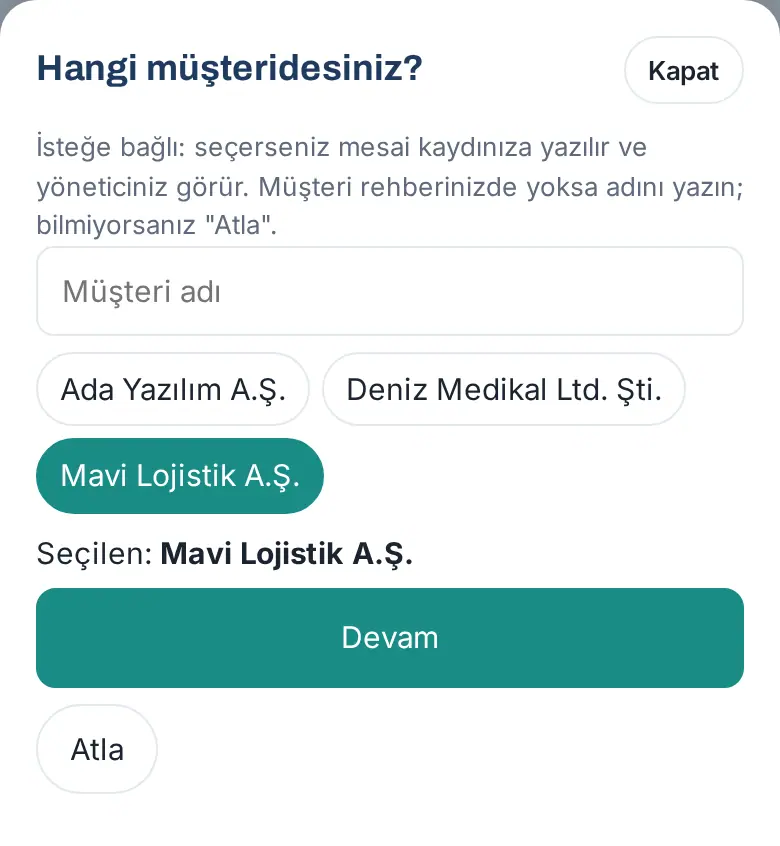
I'm on site and the customer (1.1.8): If your work schedule says "Field" for that day, the plan line says "Field work today" and I'm in the field comes first. If your company turned it on, when you tap I'm in the field, the Which customer are you with? window opens:
- The companies in your customer directory are listed; to search, type in the Customer name box.
- Tap a company; below it, "Selected: …" shows. If the company is not in your directory, type its name and tap Not in the directory: write as "…".
- Tap Continue. If you do not know or do not want to write it, tap Skip; the answer is optional.
Result: The box says "Now: On site (Örnek Şantiye — Kartal, in the field, 09:27) · Customer: Mavi Lojistik A.Ş."; your manager sees the customer in My team and in the monthly view. If your location is inside a defined field site, the name of the site shows; if you did not select a customer, the customer linked to that field site can be written automatically.
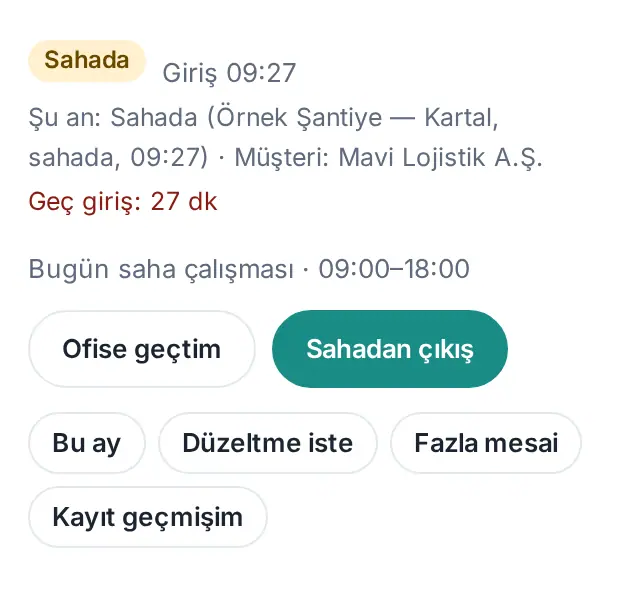
Location check in the field: If your company added you to the field location check list, location is required for I'm in the field, and your location is compared with the defined offices and field sites. If you are near a defined place, the name of the place shows; if not, "Sahada · tanımlı konum dışında" ("on site · outside defined locations") shows and the record is marked as "Outside location".
Common errors and warnings:
- ""From home" check-in is not available to you." — this work location is not available to you.
- "Uzaktan / sahada kayıt kapalı." ("Remote / on-site recording is off.") — recording outside the office is off in your company.
- "Location permission is required for a field check-in." (Location is never asked for a home record since 1.7.1.)
- "You are at the office (Merkez Ofis). Use "I'm at the office" or the QR code at the entrance." — when your location is inside an office, I'm in the field is not accepted (1.1.7; a company setting).
When location and a selfie are required
Who: Employee · Where: During check-in or check-out
What it does: Your company can ask for your location with the record, a selfie at check-in or internet details. These show that the record was really made from that place.
Location:
- When you tap the check-in or check-out button, the phone (or the browser) asks for location permission. Allow it.
- The location is written to the record; the message shows "location saved".
- If you do not allow it: if the work location requires location, the record is not made and the Not recorded window opens (see When the record is not made: the reason and the options); if only company-wide location recording is on, the record is still made and marked "no location permission".
For a home record (1.4.2, 1.7.1): The company-wide location recording and "selfie at check-in" settings do not affect home records. No location permission is asked at a home check-in or check-out; your location, Wi-Fi and IP address are not written to the record (since 1.7.1 the company cannot select them either). For a home record, only the selfie (at check-in) your company selected for the From home work location can be asked. A QR code is never asked for a home record. On full-day leave days and days you said "I can't work today", all the records you make (remote, in the field, office) are also written without location and without network details (1.7.1). The work-from-home day note in the Work time box says what is asked from you (see Starting from home, remotely or in the field).
Selfie (at check-in only):
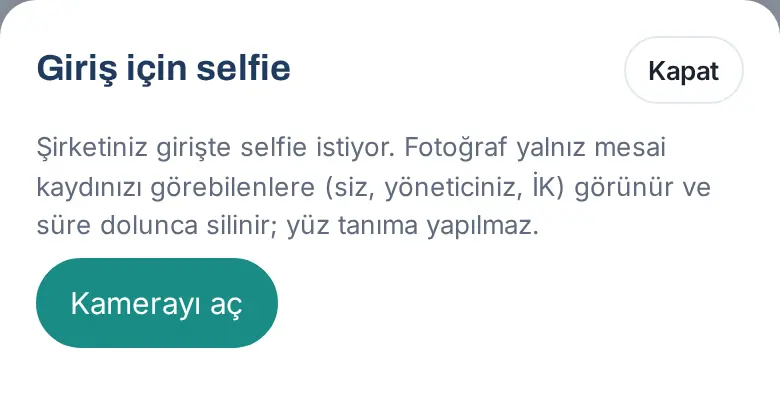
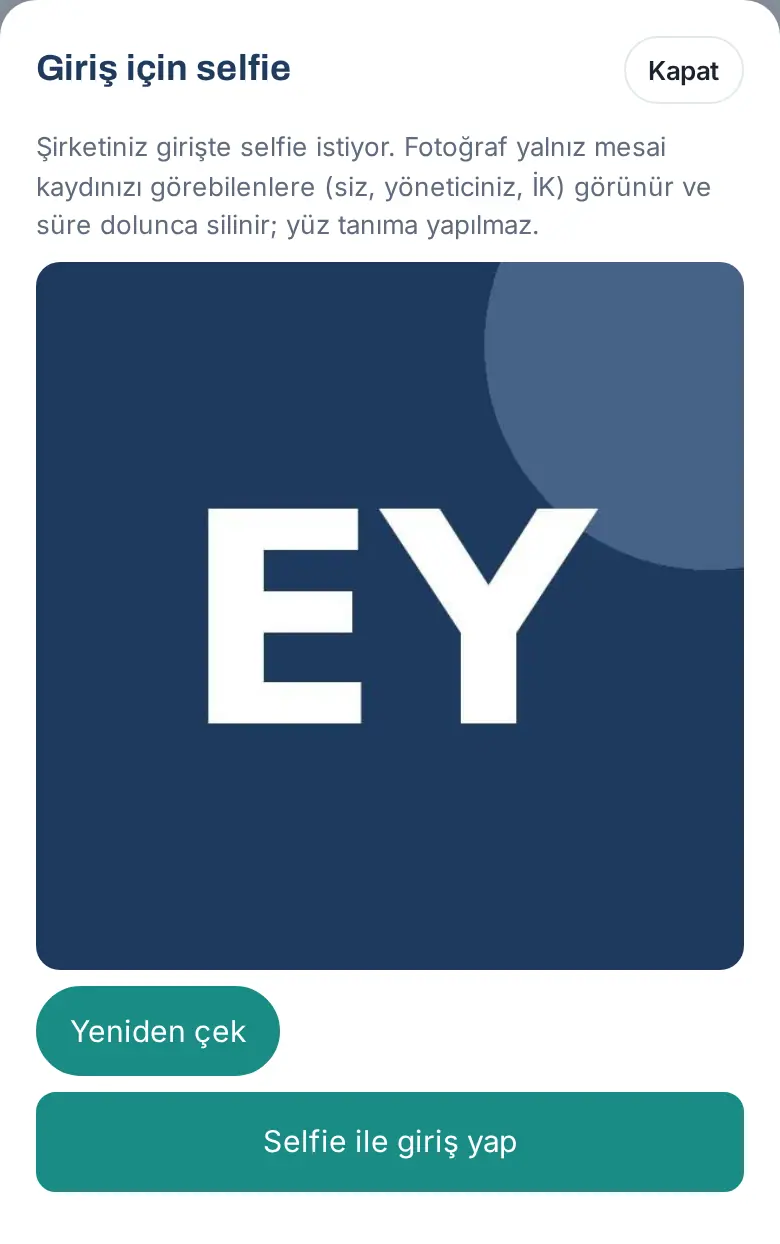
- Tap the check-in button. The Selfie for check-in window opens: "Your company asks for a selfie at check-in. The photo is visible only to those who can see your attendance record (you, your manager, HR) and is deleted when the period ends; no face recognition is done."
- Tap Open camera and take a photo of yourself with the front camera.
- Check the preview. If necessary, tap Retake.
- Tap Check in with selfie.
Important:
- If you close the window, you are not checked in: "A selfie is required to check in." No selfie is asked at check-out.
- The location permission window is the phone's own window; because the screenshots in this guide were taken in a test environment, this window and the camera image are not shown (the selfie in the guide is a fictional icon).
- The location, Wi-Fi, IP address and selfie are deleted after the period set by the company; the check-in and check-out times remain. No face recognition is done on the selfie. Your manager can see the location and the selfie but cannot see the IP and Wi-Fi details; Work time viewers can see none of these (1.1.3).
When the record is not made: the reason and the options
Who: Employee · Where: The Not recorded window that opens during check-in or check-out
What it does: If there is no location permission, the QR code is not valid, your location is outside the office or the office network could not be verified, the app states the reason clearly and offers options so that you do not lose your record.
- In the Not recorded window, read the reason on the red line, e.g. "Location permission denied; a field check-in needs your location."
- If the problem is the location, the Why is location needed? and How do I allow it? explanations show below; they say which setting to turn on for your phone (iPhone, Android, app or browser). Allow it and try the record again.
- If the problem is the office network, it says "The office network is recognised by your internet address (or Wi-Fi in the app). On mobile data, a VPN or a guest network you won’t appear to be on the office network."; if the problem is the QR code, you are asked to scan the current code.
- Tap one of the options:
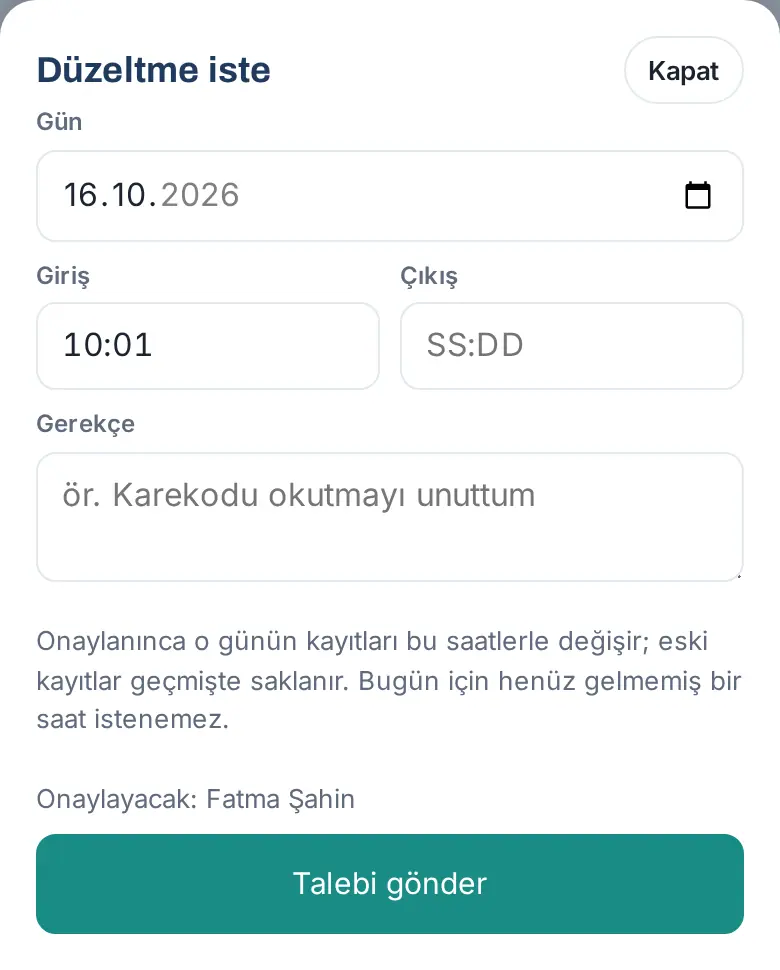
- Request correction — the Request correction form opens filled with today's date and the current time (if you have an open check-in, the check-in time, and the current time as the check-out). Write a Reason and tap Send request; the request goes to your approver.
- Record as remote — shows only at check-in, if remote recording is on in your company; records your check-in as remote work immediately.
- Close — records nothing.
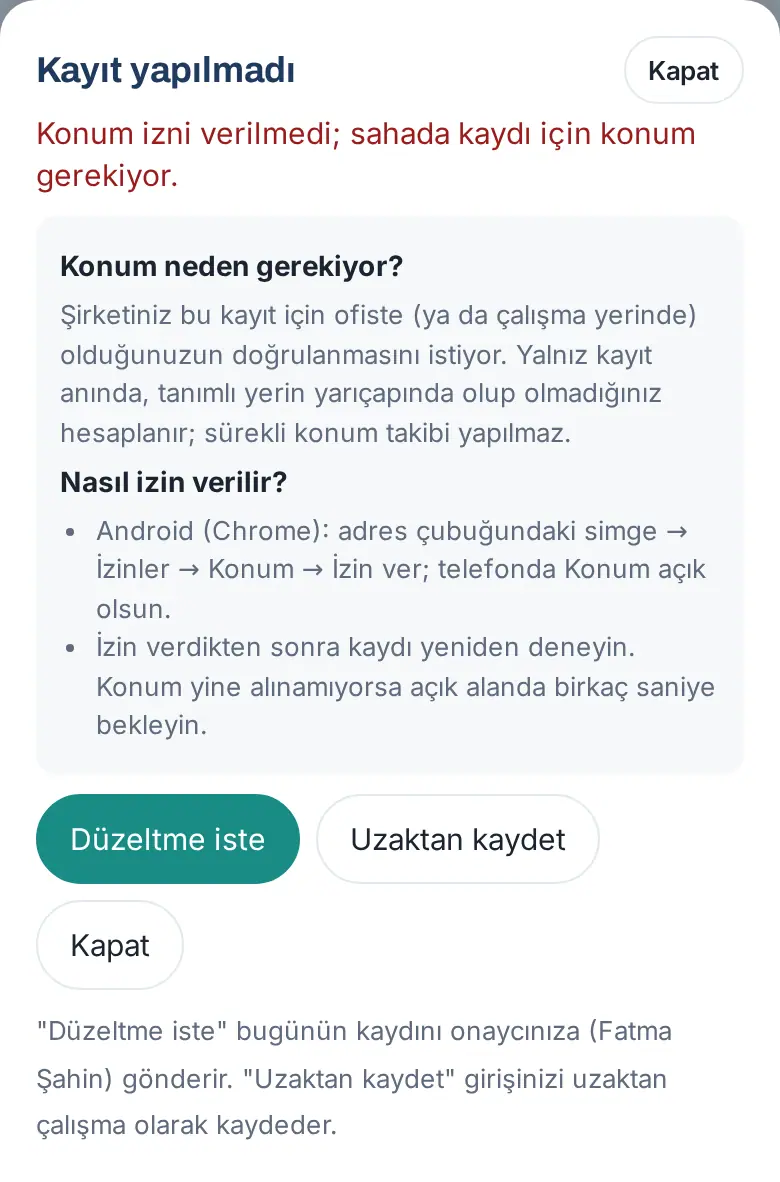
Tip: The note at the bottom of the window shows the name of your approver: ""Request correction" sends today’s record to your approver (Fatma Şahin)."
Important: If location is also required for remote work and the problem is the location, Record as remote does not show. The window in this guide was captured in a browser (Android) without location permission.
Starting work with a shortcut
Who: Employee · Where: On a phone, the + at the bottom right → Start work (while at work, End work)
What it does: You check in or out without going to My Area.
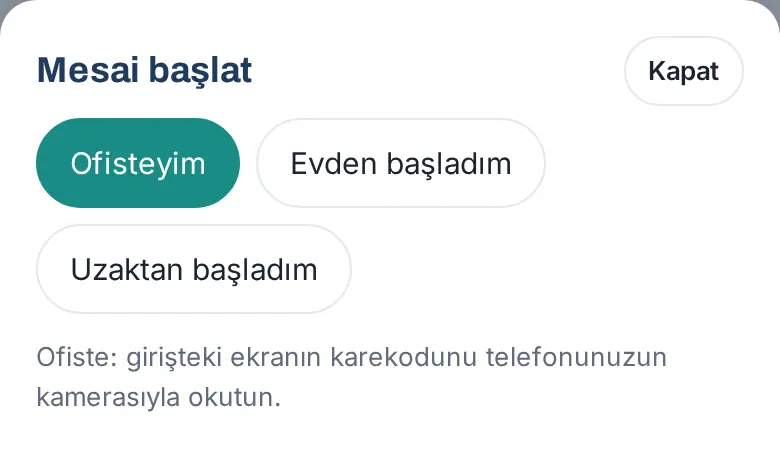
- Tap the + button at the bottom right.
- Tap Start work.
- If only one method is available to you (and the QR code method is off), the record is made immediately. If there are several methods, or if the QR code method is on, select one in the Start work window (e.g. I'm at the office, Started from home, Started remotely). On your work-from-home day, the QR code note is not shown and (if you have no open office check-in) the Scan QR code option does not show either (1.4.3); if the only method available to you is Started from home, the record is made immediately even if the QR code method is on. If you come to the office that day, scan the QR code with Scan QR code in the Work time box.
Tip: For the shortcut button, see 00. Getting started.
Ending work and "Why are you leaving the office?"
Who: Employee · Where: Work time → Clock out of office / Check out / Check out (in the field)
What it does: Records that you finished work. If your company turned it on, it asks for the reason when you leave before the end of the workday.
- In the Work time box, tap the check-out button: Clock out of office if you checked in with the office network or the QR code (1.1.7), Check out if you checked in from home or remotely, Check out (in the field) if you are in the field. If you checked in with the QR code, you can scan the QR code at the entrance again.
- If you leave before the end of the workday, the Why are you leaving the office? window can open: "You are leaving before the end of the workday. Not asked during lunch break or when on leave."
- Select a reason, e.g. Client meeting, Technopark visit, Personal reason, Leave or Other. The list depends on your company.
- If you selected Other, write a short description in the Description box. On a computer, Enter sends and Shift+Enter starts a new line (1.8.3).
- Tap Save check-out. The message "Checked out: 15:40 · Merkez Ofis (office network) · Client meeting" appears.
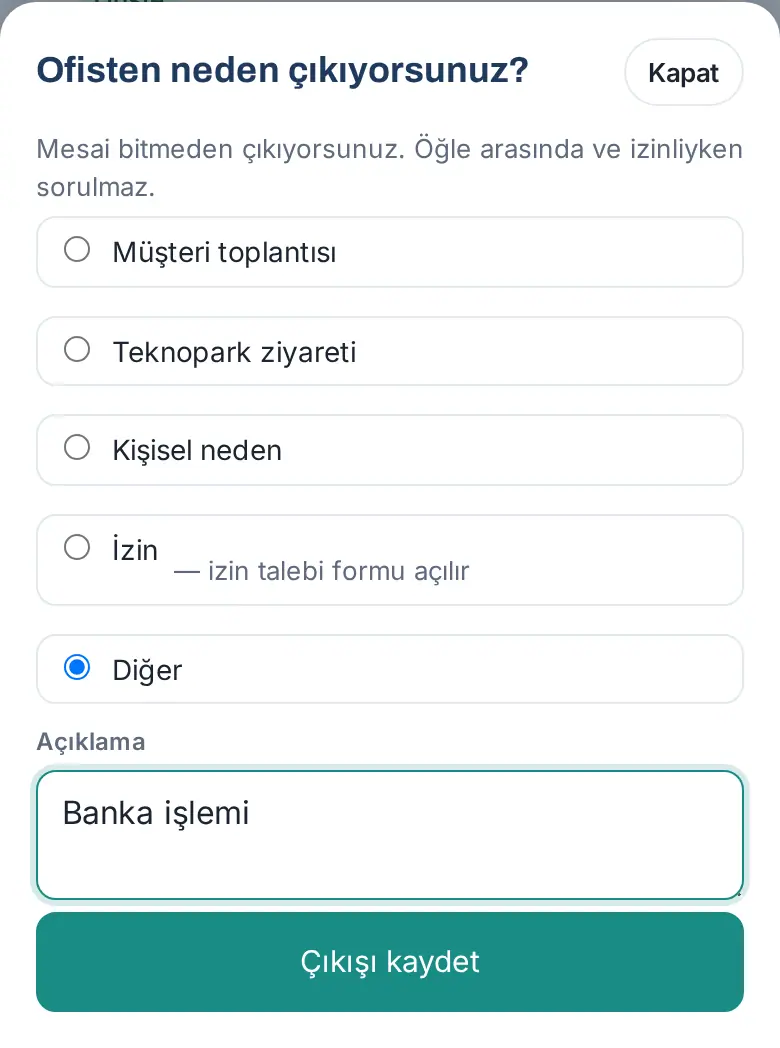
When is it not asked? The reason is not asked when the end of the workday is less than the tolerance away (e.g. 15 minutes), during the lunch break hours (e.g. 12:00–13:30), on a day you are on leave and on a day that is not a working day for you.
Tip: If you select a reason marked "— opens the leave request form" (e.g. Leave), the Request leave form opens after the check-out is saved (see 21. Employee leave).
Common errors and warnings: "Select a reason." · "Write a short description for "Other"." · "Bugün açık bir girişiniz yok; önce giriş yapın." ("You have no open check-in today; check in first.")
Important: The reason you select is written to your record; your manager sees it in My team and in the monthly view. If you check in again after checking out, the box and the list show "Check-out 18:07, clocked in again".
I'm not coming today or I'm running late
Who: Employee · Where: Work time → Not coming today / Running late
What it does: Before you check in, you tell your manager that you will not come to work or that you will be late. You do not have to wait for your company's "No check-in today" question.
Before you start: The button shows only on your working day, when you are not on leave, if you have not checked in that day and have not given a reason yet.
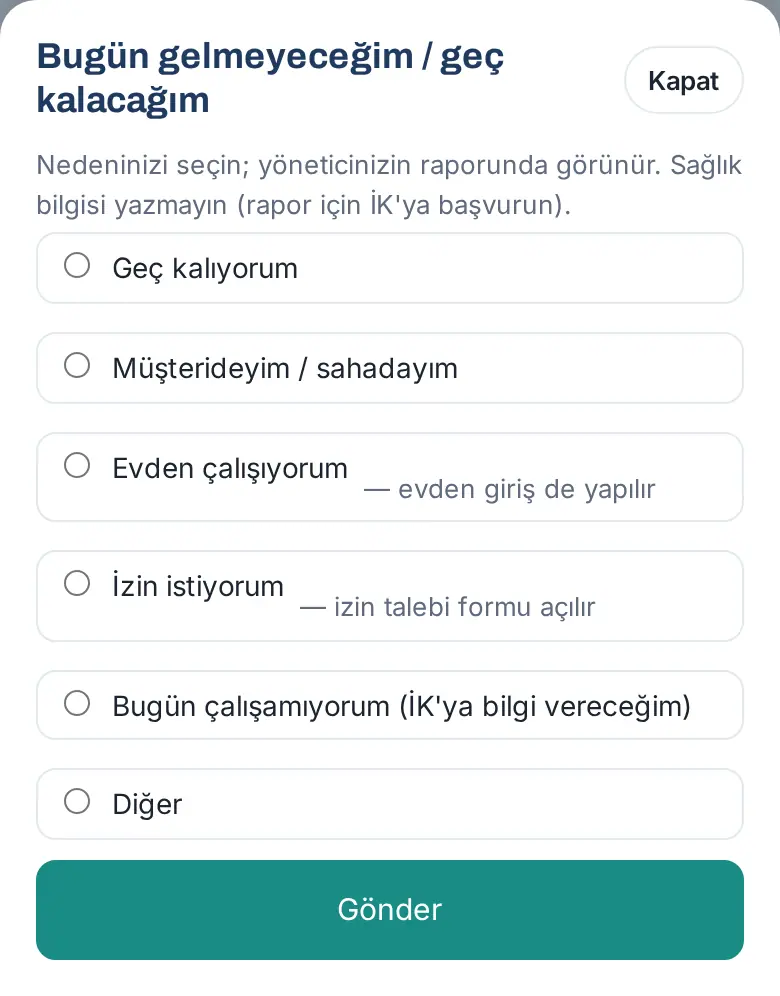
- In the Work time box, tap Not coming today / Running late.
- In the Not coming today / running late window, select a reason: I'll be late, At a client / in the field, Working from home, I'd like to take leave, I can't work today (I'll inform HR) or Other (a description is required). The list depends on your company.
- Tap Send. The message "Reported: I'll be late" appears; the box says "Reason you gave: …".
Tip:
- If you select I'd like to take leave ("— opens the leave request form"), the Request leave form opens after you report.
- If you select Working from home ("— also checks you in from home"), your check-in from home is also recorded after you report (1.4.2). This happens only if home recording is available to you and you have no open check-in today; if not, "— also checks you in from home" does not show and only the reason is reported. If your company asks for a selfie at a home check-in, the selfie window opens.
- Giving a reason does not replace checking in (except Working from home). When you come, check in as usual.
Reason for a late check-in (1.1.7): When you check in after the start of the workday and the tolerance (and you did not give a reason before), the Late: … window opens: "You clocked in … after the start of your workday. You may give a reason; it appears in your manager's report. Do not write health information." Select a reason and tap Send, or skip it with Skip. 1.7.7: The window is now called Why were you late? and its options are in the past tense — I was late (optional note, e.g. traffic), I was at a client / in the field, I'd like leave for the time I was late (the leave form opens with today's date, "Half day (morning)" and a note of the time you were late) and Other; "Working from home" and "I can't work today" are not asked here, because you have already checked in. The first option of the question asked before check-in is now I'll be late (formerly "I'm running late"); long option labels wrap on phones. The admin edits the two lists separately (see 29).
Important: Do not write health information; for medical certificates and illness, contact HR (see 21. Employee leave).
"No check-in today"
Who: Employee · Where: Work time box; phone notification; bell (Waiting for you)
What it does: If the start of the workday and the tolerance have passed and you have not checked in, the app asks for the reason. Your answer shows in your manager's report.
Before you start: This question is a company setting; it is off by default. It is asked only on your working days, when you are not on leave.
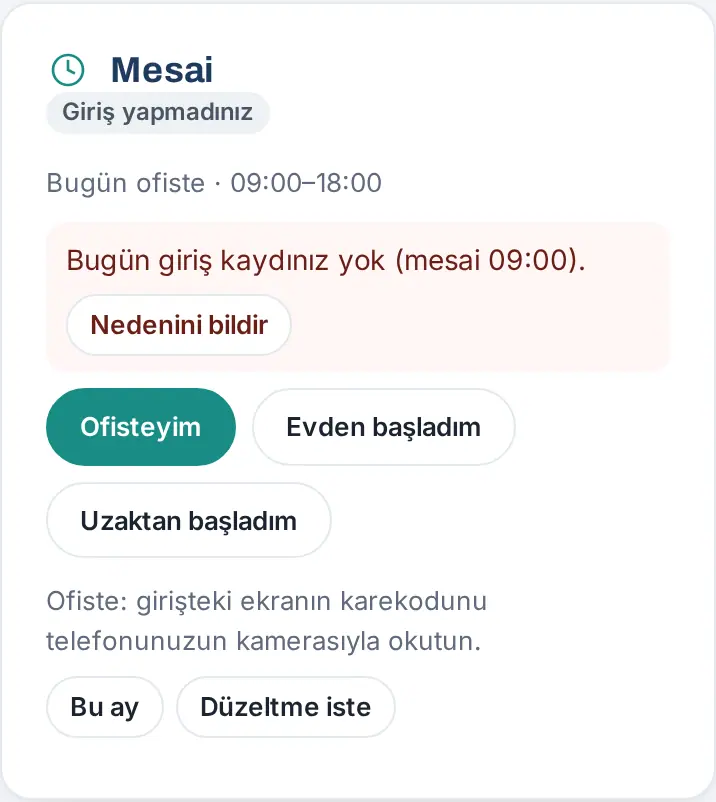
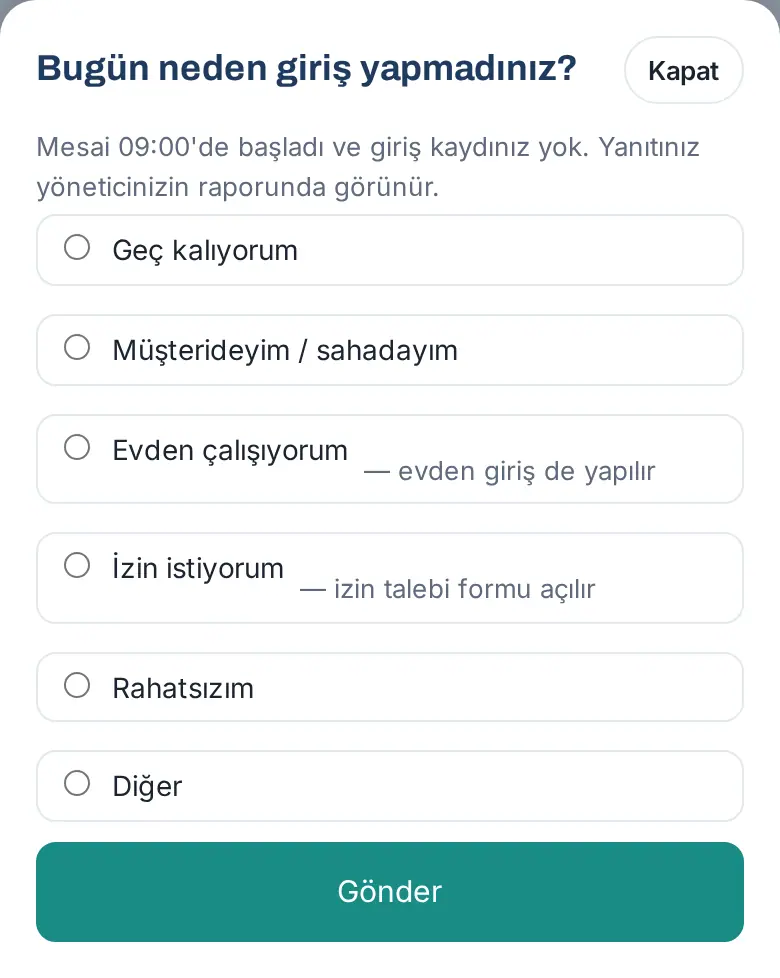
- When the tolerance has passed after the start of the workday (e.g. after 09:15), you get the phone notification "No check-in today" once: "Work started at 09:00. If you can't come or are running late, give a reason."
- Tap the notification or open the Work time box. The box shows a red card: "No check-in today (work starts 09:00)."
- Tap Give a reason. The Why haven't you checked in today? window opens.
- Select a reason: I'm running late, At a client / in the field, Working from home, I'd like to take leave, I can't work today (I'll inform HR) or Other (a description is required). The list depends on your company.
- Tap Send. The message "Reported: I'm running late" appears; the box says "Reason you gave: …".
Tip:
- If you select Working from home ("— also checks you in from home"), your check-in from home is also recorded in this window (if home recording is available to you and you have no open check-in; since 1.4.2, also in the Not coming today / Running late window).
- If you select I'd like to take leave ("— opens the leave request form"), the Request leave form opens.
- Giving a reason does not replace checking in. When you come to the office, check in as usual.
Important: In the app, you can give a reason only for today, while the card is shown; the card goes away at the end of the workday, when you check in or when you give a reason. For a record of a past day, use Request correction. For a day on leave: "You are on leave that day; no reason is needed." Since 1.1.7, the old preset reason "I'm unwell" shows as "I can't work today (I'll inform HR)", because it collected health information.
The "Have you started work?" notification
Who: Employee on a work-from-home, remote or field work day · Where: Phone notification and Work time box
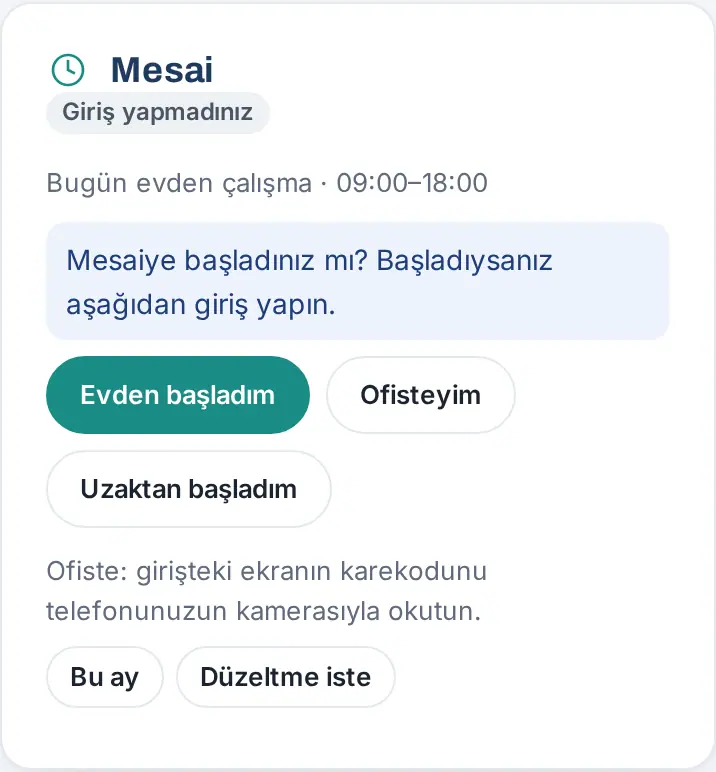
What it does: If your work schedule says "From home", "Remote" or "Field" for that day and the workday has started but you have not checked in, it reminds you once.
- At the start of the workday, you get a notification on your phone:
- Title: Have you started work?
- Text: "Today is your work-from-home day (09:00–18:00). If you've started, check in from Work time." (on a remote day, "Today is your remote work day (…)", on a field day, "Bugün saha çalışma gününüz (…)" — "today is your field work day (…)").
- Tap the notification. The Work time box opens and says "Have you started work? If so, check in below."
- Tap the Started from home (or Started remotely, I'm in the field) button.
Important:
- The notification is a company setting (off by default). It is sent once a day per person; it is not sent if you are on leave or have checked in.
- Notifications are sent by a server task that runs every 10 minutes; so they can be a few minutes late.
- The notification goes only to devices with the Prozence mobile app installed or with browser notifications turned on (see 09. Notifications). The line in the Work time box shows from the start to the end of the workday even if the notification setting is off; if your company also turned on the absence question, the "No check-in today" card replaces this line when the tolerance has passed. The screenshots in this guide do not show a real phone notification.
When a check-out is missing
Who: Employee · Where: Phone notification; Work time box → Correct; bell (Waiting for you)
What it does: If you forgot to record your check-out one day, you are reminded the next morning; you send your check-out time to your approver with one tap.
- The next morning after 08:00, you get the phone notification "Your clock-out is missing for yesterday" once, e.g. "15 Oct · clock-in 08:52. Report your clock-out time via "Request correction" in Work time."
- Tap the notification or open the Work time box. The red box says "Missing check-out: 15 Oct Thu (in 08:52)".
- Tap Correct. The Request correction form opens filled with the date of that day and the check-in time.
- Type the Check out time and the Reason, and tap Send request (see Requesting a work time correction).
Important: The notification is a company setting (on by default). If you sent a correction request for that day, the notification is not sent. Missing check-outs that are not corrected show as warnings in the payroll export.
This month: monthly work time summary and map
Who: Employee · Where: Work time → This month
What it does: Shows the totals of the month and your check-ins and check-outs day by day.
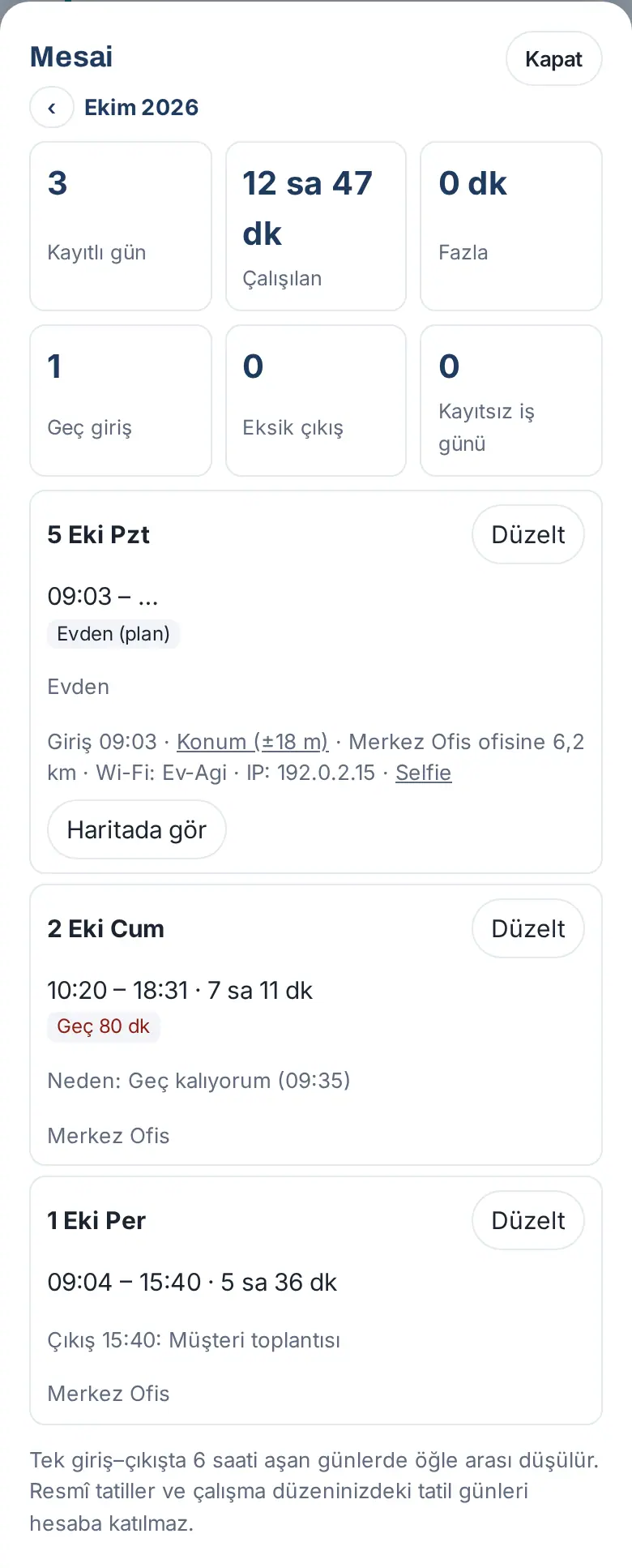
- In the Work time box, tap This month. The Work time window opens.
- The totals of the month show at the top: Days recorded, Worked, Overtime (50%), Extra hours (25%), Late arrivals, Missing check-out, Workdays without record. If your company keeps overtime with the old daily calculation, only Overtime shows. If needed, the Record on a leave day, Days over 11 hours and (if overtime approval is on) Approved overtime, Overtime awaiting approval and Unapproved overtime cards also appear.
- Below, each day shows the check-in and check-out times, the duration and the deducted break (e.g. "(30 min break deducted)"), the place (e.g. "Merkez Ofis", "From home") and labels: Late…, Overtime…, Plan üstü … ("above plan …"), Outside location, Outside hours, Over 11 hours, Record on a leave day, Correction pending, Not closed yet, and from the plan Evden (plan) / Uzaktan (plan) / Saha (plan) ("from home / remote / field (planned)").
- All the records of the day show with their methods, e.g. "G 08:52 ofis ağı · Ç 12:10 ofis ağı · G 13:05 karekod" ("in 08:52 office network · out 12:10 office network · in 13:05 QR code") (1.1.7). The reasons you gave also show: "Reason: I'm running late (09:35)", "Check-out 15:40: Client meeting".
- If location, Wi-Fi, IP or a selfie was recorded, it shows below the row: the Location (±18 m) link, the distance to the office, "Wi-Fi: …", "IP: …" and the Selfie link.
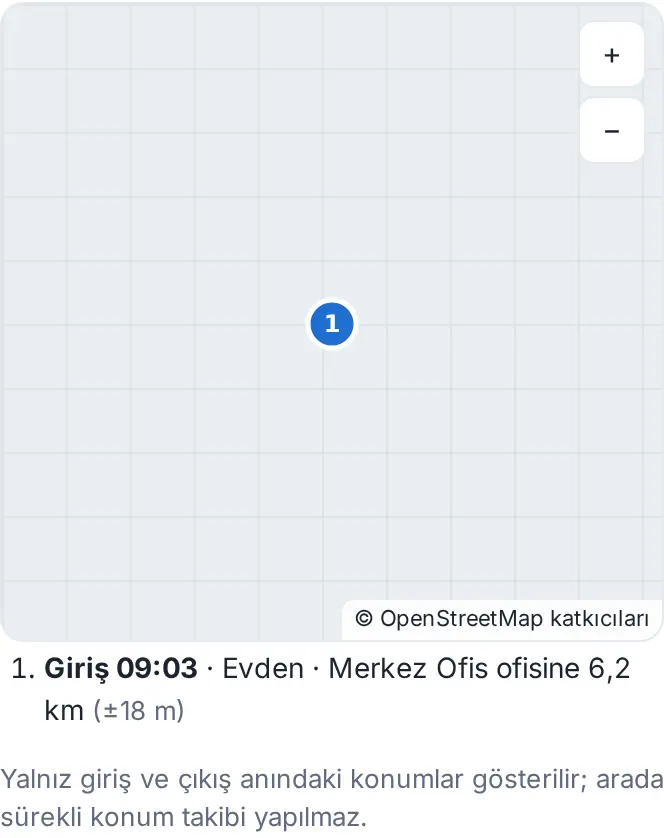
- On a day with a record that has a location, tap View on map. The check-in and check-out locations show on the map as numbered points; to close it, tap Close map.
- At the bottom, the Weeks list shows the worked time, the plan, the overtime and (if approval is on) the approval status of each week.
- For the previous month, tap the ‹ button.
How is it calculated? (1.1.7)
- The rest break is deducted under the Turkish Labour Law, Art. 68: 15 min for up to 4 hours, 30 min for up to 7.5 hours, 1 hour for a longer day; the time you go out and come back in during the day counts as break. If your company selected the old fixed time, the lunch break is deducted on days with a single check-in and check-out of 6 hours or more.
- Overtime is calculated with the weekly total: the time above 45 hours a week is "fazla çalışma" ("overtime", 50%); if your weekly plan is less than 45 hours, the time between the plan and 45 hours is "fazla sürelerle çalışma" ("extra hours", 25%). A week is counted in the month in which its Sunday falls. Plan üstü in the day row is for information only.
- Public holidays, your days on leave and the holidays in your work schedule are not counted as "without record". Today's row becomes final when the day ends.
Important: The map shows only the locations at the moment of check-in and check-out; there is no continuous location tracking in between. The map tiles come from OpenStreetMap; in the test environment of this guide the tiles did not load, so only the grid shows.
Requesting a work time correction
Who: Employee · Where: Work time → Request correction (or This month → Correct next to the day)
What it does: If you forgot to record a check-in or check-out, or recorded it wrongly, you send the correct times to your manager for approval.
- In the Work time box, tap Request correction. For a specific day, you can also tap the Correct button of that day in the This month window. If a day has a missing check-out, the line "Missing check-out: …" and the Correct button show in the box automatically.
- Select the Day (the last 31 days).
- Type the Check in and Check out times in 24-hour format (e.g. 09:00, 17:30).
- Write a Reason (e.g. "Karekodu okutmayı unuttum" — "I forgot to scan the QR code").
- At the bottom of the form, read who will approve the request in the Approver: line (1.1.7).
- Tap Send request. The message "Your correction request was sent." appears.
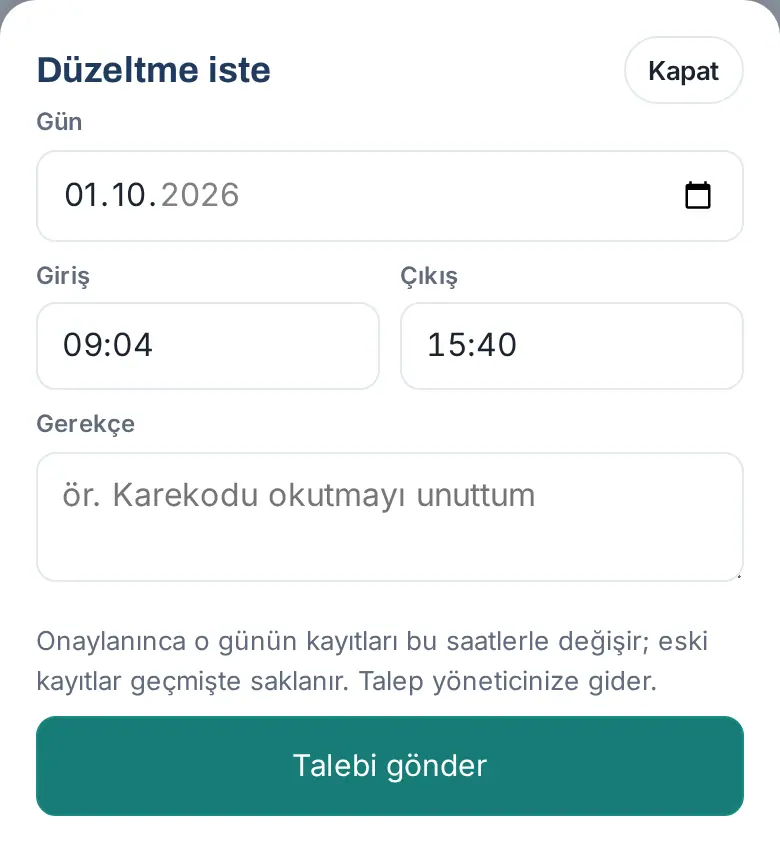
Result: The request goes to your manager (or to the attendance officer). The box says "Your correction request for today is awaiting approval (…)."; if you change your mind, tap Withdraw. When it is approved, the records of that day change to these times, the old records are kept in the history (see My record history and who accessed your record) and you get the notification "Mesai düzeltmeniz onaylandı" ("your work time correction was approved"). If it is rejected, the notification and the box show the approver and the reason: "Your correction was rejected (…): …".
Common errors and warnings:
- "Düzeltme yalnız son 31 gün için istenebilir." ("A correction can be requested only for the last 31 days.")
- "Giriş ve çıkış saatini SS:DD biçiminde, çıkış girişten sonra olacak şekilde yazın." ("Type the check-in and check-out times in HH:MM format, with the check-out after the check-in.")
- "You cannot request a correction for a time that hasn't come yet; clock out when your workday ends." (1.1.7)
- "Geçmiş bir gün için çıkış saatini de yazın." ("For a past day, also type the check-out time.")
- "Kısa bir gerekçe yazın (ör. karekodu okutmayı unuttum)." ("Write a short reason (e.g. I forgot to scan the QR code).")
- "Bu gün için onay bekleyen bir düzeltmeniz var." ("You already have a correction waiting for approval for this day.")
- For a correction on a weekly rest day or a public holiday, the Day off window opens ("… Send it as work on a day off?"); with Send, you send it as work on a day off.
Overtime: pre-approval and approval afterwards
Who: Employee · Where: Work time → Overtime
What it does: If your company made overtime subject to approval, you request approval for overtime in advance and follow the approval status of your weeks. Overtime that is not approved is not sent to payroll.
Before you start: The Overtime button shows only if your company turned on overtime approval. The mode the company selected is written in the last note of the window:
- Pre-approval: you request overtime in advance; overtime above the pre-approved time is not sent to payroll.
- Approval afterwards: the overtime calculated when the week ends goes to your manager for approval.
- Both: the pre-approved time counts as approved; the excess goes to your manager for approval when the week ends.
Requesting pre-approval:
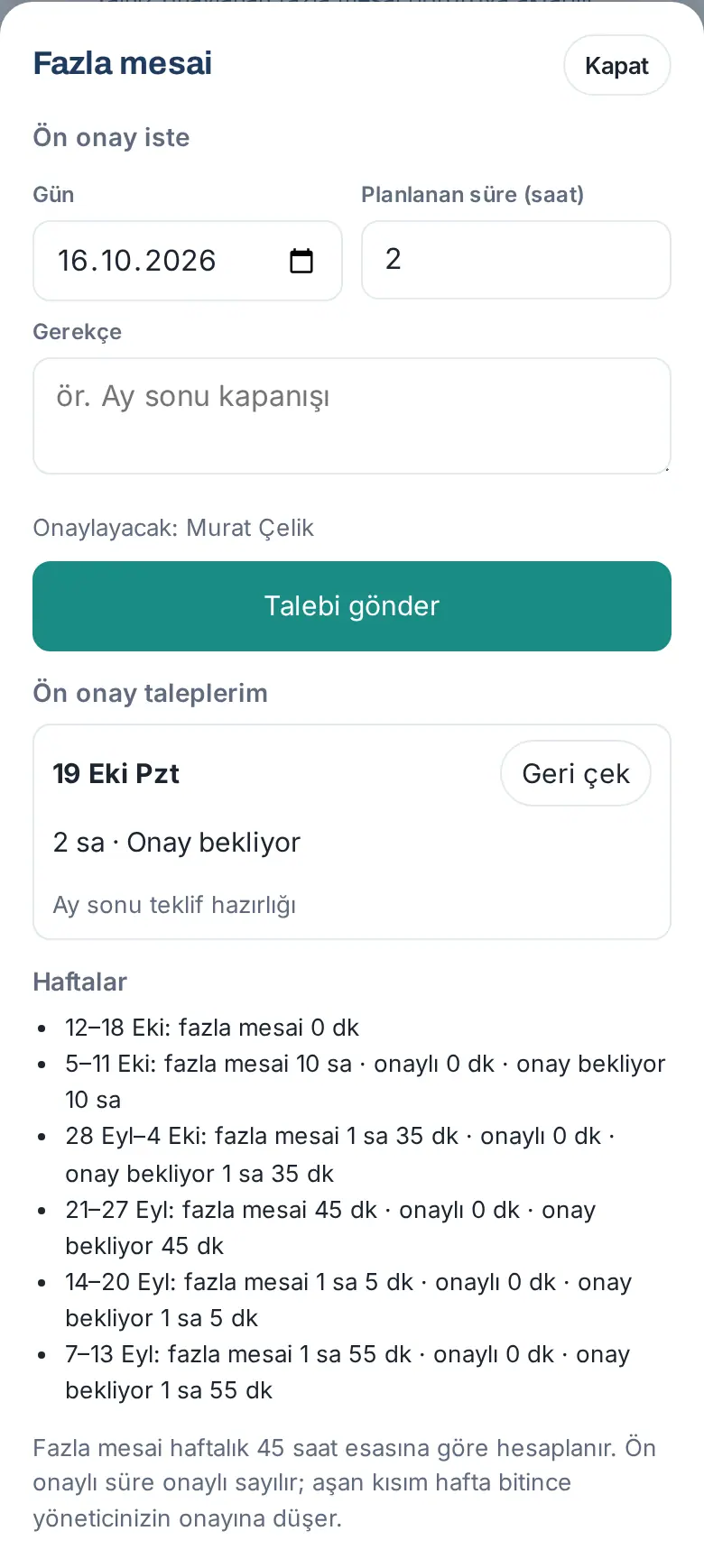
- In the Work time box, tap Overtime. The Overtime window opens.
- Under Request pre-approval, select the Day (today or at most 90 days ahead).
- Type the Planned time (hours) (in steps of 0.25; e.g. 2). The time must be between 15 minutes and 12 hours.
- Write a Reason (e.g. "Ay sonu kapanışı" — "month-end close"). The Approver: line shows the name of your approver.
- Tap Send request. The message "Your overtime request has been sent." appears.
Following my requests and my weeks:
- Under My pre-approval requests, each request shows its day, time and status: Awaiting approval, Approved, Rejected, Withdrawn, No longer needed. The person who decided and their note also show. You can take back a pending request with Withdraw ("Withdraw this overtime request?").
- Under Weeks, there is a row for each of the last 6 weeks, e.g. "5–11 Eki: fazla mesai 10 sa · onaylı 0 dk · onay bekliyor 10 sa" ("5–11 Oct: overtime 10 h · approved 0 min · awaiting approval 10 h"). For the current week, it says "week in progress, will await approval"; for time that is not approved, "onaylanmadı" ("not approved") or "without pre-approval".
Result: When your manager decides, you get a notification: "Your overtime request was approved" / "Your overtime request was rejected" or, for a weekly record, "Your overtime was approved", "Your overtime was partially approved", "Your overtime was not approved" (with the reason).
Common errors and warnings:
- "Pre-approval cannot be requested for a past day; past overtime goes to approval afterwards when the week ends."
- "Pre-approval can be requested at most 90 days ahead." · "The planned time must be between 15 minutes and 12 hours." · "Write a short reason (e.g. month-end close)."
- "You already have a pending or approved overtime request for this day."
Important: Overtime is calculated on the basis of 45 hours a week (if your company selected the daily calculation, it is the weekly total of the time above the daily plan). For the manager's approval screen, see My team: the team's status today and approving corrections.
My record history and who accessed your record
Who: Employee · Where: Work time → My record history
What it does: You see the corrections made to your work time records (before and after) and the managers or HR users who opened your work time record in the last 90 days (KVKK — Turkey's personal data protection law — transparency).
- In the Work time box, tap My record history.
- Under Correction history, each change shows the day, "Corrected · date time · who" ("you" if it was your own action), the Before: and After: records and the Reason:. Automatic check-ins that you undid show as "Automatic clock-in undone".
- Under Your personal data, tap Privacy notice to read your company's Work time privacy notice.
- Under Who accessed your record (last 90 days), the people who opened your work time record, the time and the month they opened show.
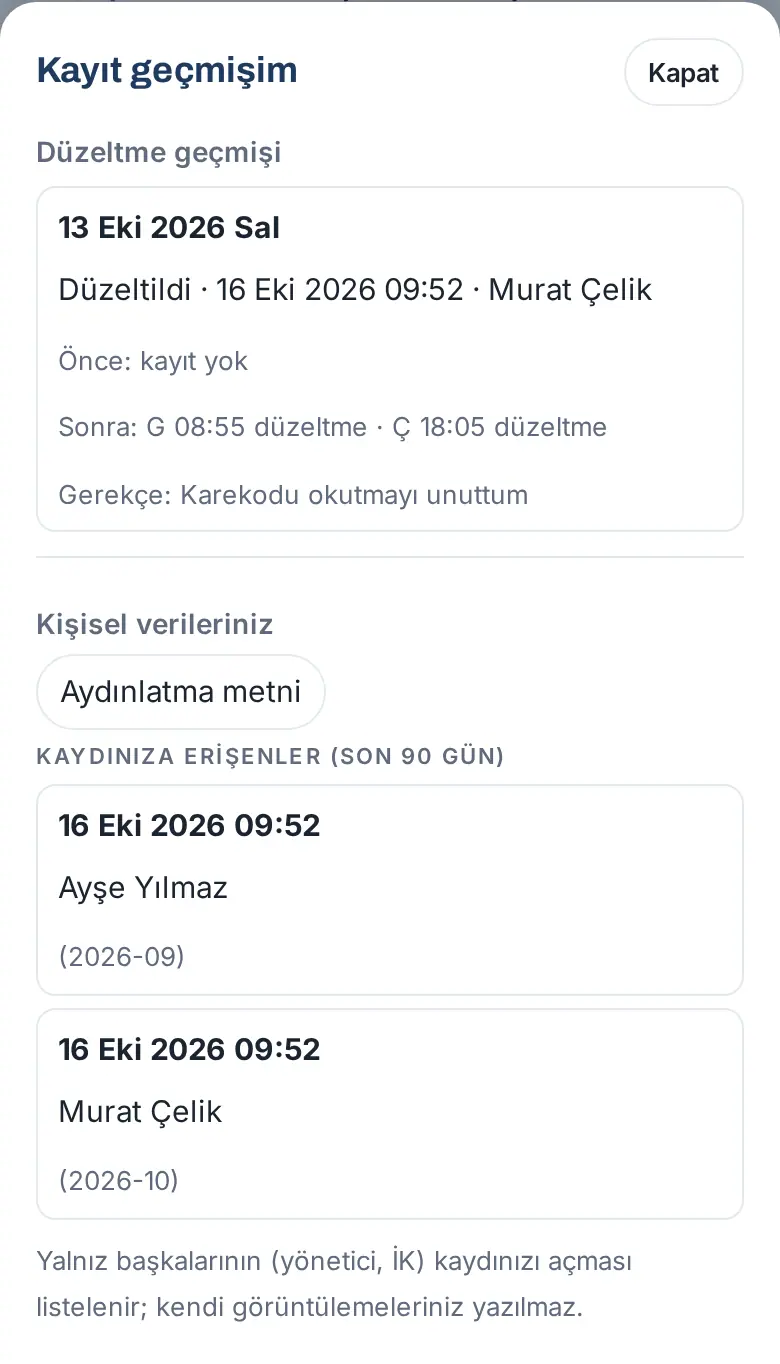
Tip: If your record has no corrections yet, it says "No corrections have been made to your records yet."; if nobody opened your record, "Your manager or HR has not opened your attendance record in the last 90 days."
Important: Only other people (manager, HR) opening your record is listed; your own views are not written. Only the attendance officer can see someone else's record history.
Automatic attendance (office mode): the phone detects arriving at and leaving the office
Who: Employee whom the company included in the automatic attendance scope · Where: My Space → My Area → below the Work time box, Location tracking (field) → Automatic attendance card (only in the Prozence mobile app)
What it does: Through the operating system, your phone detects that you entered and left a zone (geofence) set up around the office and reports your Work time check-in and check-out to the server even while the app is closed. Your location stays on the phone: no coordinates, Wi-Fi or other network identifiers go to the company; only the "arrived at the office" and "left the office" event and its time go. So nobody can see where you went or where your home is.
Before you start:
- Prozence mobile app 1.7.0 or later must be installed. In the browser the card only informs: "Automatic attendance works in version 1.7.0 and later of the Prozence mobile app; the browser does not detect arriving at or leaving the office. You can always record work time manually too."
- Your company must have turned on automatic attendance for you in the Work time settings (if you are out of scope, the card does not appear).
- You must read the Privacy notice and the Consent text in the Location tracking (field) section and tap I give explicit consent. Without consent the card says "Consent pending: first approve the consent text below." and the permission steps are not shown. If your company requires a signed form, the card opens when HR marks the form.
Setup (once):
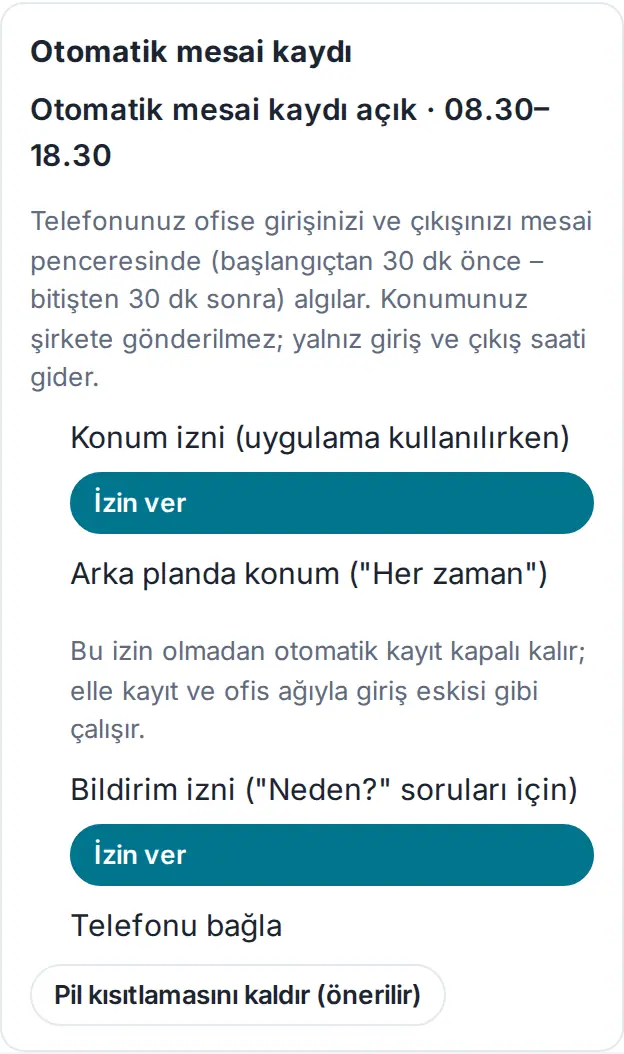
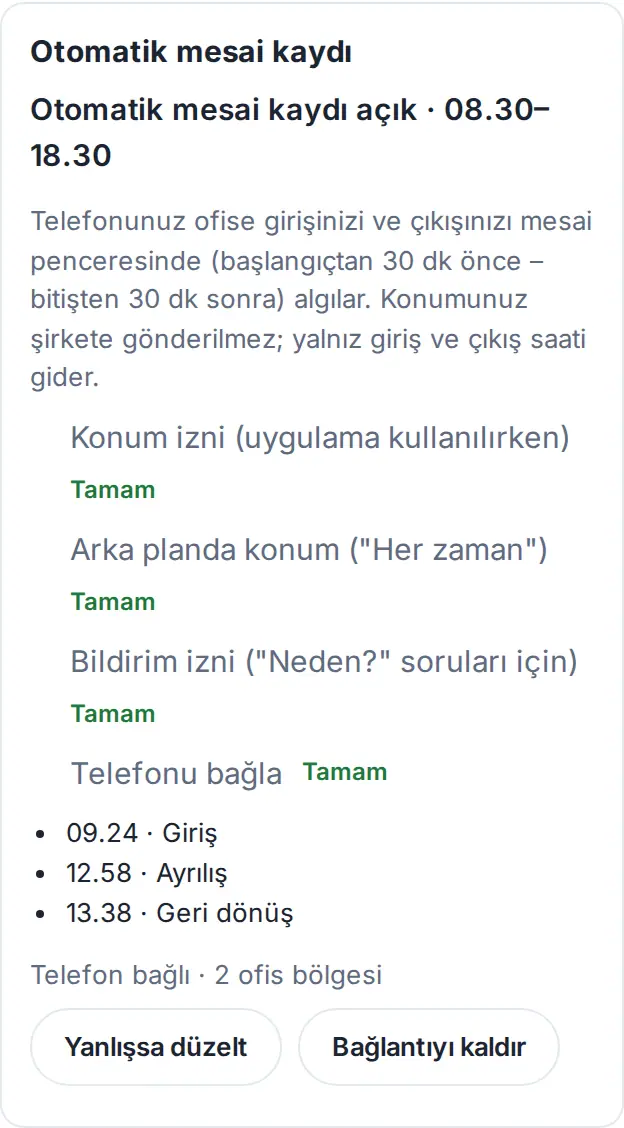
- The top of the card shows today's status: "Automatic attendance on · 08.30–18.30" (your work-time window: 30 min before the start in your work schedule – 30 min after the end). On closed days the reason shows: "Today is a holiday; automatic attendance is off.", "You are on leave today; automatic attendance is off.", "Today is your work-from-home day; location is not used.", "You said you can't work today; automatic attendance is off." or "Automatic attendance is off for you today.".
- In the Location permission (while using the app) step tap Allow and allow it while using the app in the phone's window. If the phone gave only approximate location, the step says "Zone monitoring does not work with approximate location; "Precise location" is required."; Turn on precise location opens the phone's settings.
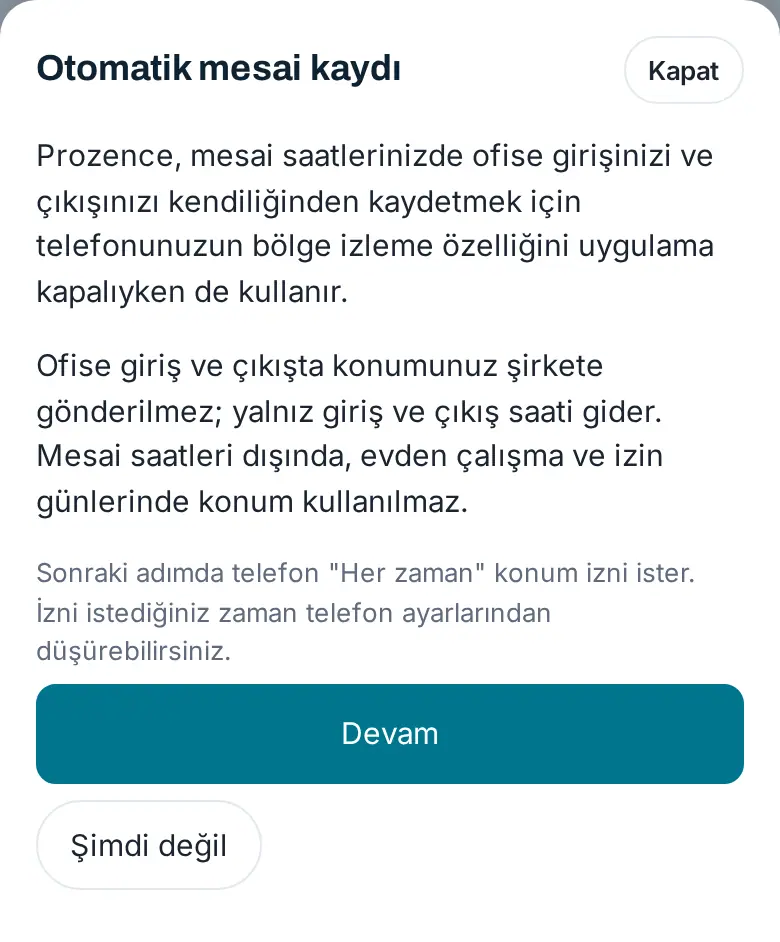
- In the Background location ("Always") step tap Continue. First Prozence's Automatic attendance explanation screen opens: "To record your arrival at and departure from the office automatically during your working hours, Prozence uses your phone's region monitoring feature even while the app is closed." and "When you arrive at and leave the office, your location is not sent to the company; only the check-in and check-out time goes. Location is not used outside working hours, on work-from-home days and leave days." If you tap Continue, the phone asks for the "Always" location permission; if you tap Not now, no permission is asked and automatic attendance stays off (manual check-in and check-in over the office network work as before).
- In the Notification permission (for "Why?" questions) step tap Allow; the "Why?" questions and the "check in?" notifications come with this permission.
- In the Link phone step tap Link. The phone generates its own key, registers only its public key with the server and sets up the office zones; the message "Phone linked; automatic attendance is on." appears. OK shows next to the completed steps.
- On Android the card may show the Remove battery restriction (recommended) button; because battery saving can delay zone monitoring, turning this setting on is recommended.
What happens every day:
- When you enter the office zone within your work-time window, the phone sends the check-in event. If your company turned on automatic check-in by location with the "ask" setting, the notification "Head Office: check in?" comes to the phone; Yes writes the check-in, Not now does not (you check in manually). With the "record directly" setting the check-in is written at once and the notification "… your check-in was recorded. If it is wrong, undo it in the app." comes. If your company also uses Wi-Fi, the comparison is done on the phone; the network details do not go to the server.
- When you leave the office, the phone sends the departure event; the check-out is written after a 10-minute buffer, with the time you left (if you come back shortly, no check-out is written). Leaving during the lunch break window does not count as an automatic check-out.
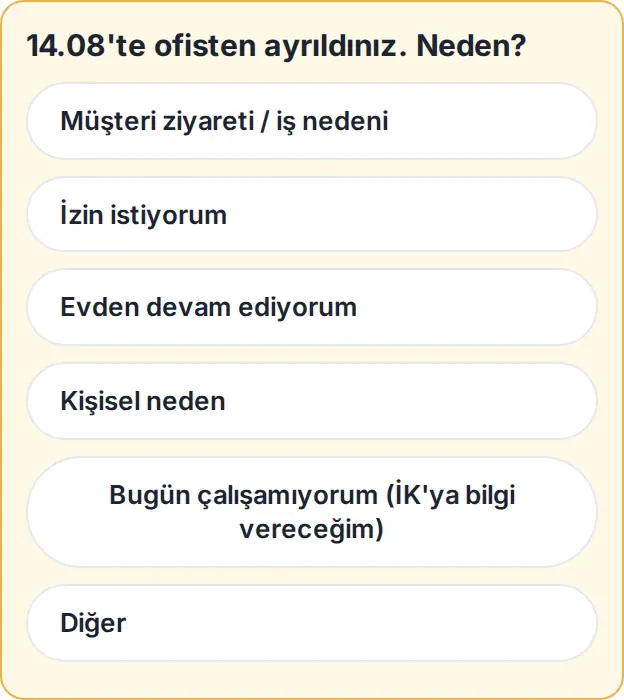
- If you leave in the middle of work time, the question "You left the office at 14.08. Why?" comes. The options come from your company's Check-out reasons list (1.8.3; e.g. Lunch, Client meeting, Technopark visit, Personal reason, Leave); I'm continuing from home, I can't work today (I'll inform HR) and Other are added at the end of the list. The notification buttons show the first two reasons of the list and More… (the phone shows at most three buttons).
- When you tap the notification or choose More…, the app opens and the Why did you leave the office? window comes with the full list (1.8.3). When you open the app yourself or bring it to the front, a pending question also opens in this window; each question opens by itself once. Answer later closes the window, and the question stays on the "Why?" card below the Work time box. In the browser, the window does not open by itself; the question stays on the card.
- What the reasons do: a reason with "İzin" (leave) in its name opens the leave form, one with "Evden" (from home) switches you to working from home; a reason with "müşteri", "saha" or "ziyaret" (client, field, visit) in its name (e.g. Client meeting, Technopark visit) continues your day as a visit; Personal reason and I can't work today end the day; other reasons (e.g. Lunch) are only written as a note, and your entry is still detected when you come back. With Other, a short description box and a Send button open; Enter also sends, and a description shorter than 3 characters is not sent. After you answer, the message "Switch to visit recorded." or "Your answer was saved." appears. (Reasons are matched by their Turkish names, as entered in the company's list.)
- The question is valid all day (1.8.3): you can also answer after you are back in the office. An answer given after you come back is written to the time you were out; a visit-type reason makes the time between leaving and coming back a visit, and Leave opens the leave form. No answer given after you come back ends the day. The question disappears the next day and if the check-out record was deleted.
- Coming back to the office (1.8.3): when you enter the office zone again after an automatic check-out, the return is treated like the first check-in of the day: if your company uses the "Record directly, then notify" setting, the check-in is written by itself; with the setting that asks "Check in?", a notification comes (other rules such as location accuracy and the Wi-Fi requirement work as for the first check-in). If you checked out manually, you are always asked when you come back.
- If you check out within 30 minutes after the end of work time, the notification "Your check-out was recorded as 18.07. Location tracking has ended for today." comes; if it is wrong, undo it with I'm still in the office ("Check-out undone; automatic attendance continues.").
- If there is still no check-out when work time ends (if the company setting is on), tracking is extended by 15 minutes and you are asked "Your work time has ended and you have no check-out. Why?": I'm working overtime, I forgot to check out (a correction request opens) or Other. The question is asked once; tracking ends at most 45 min after the end. If there is still no check-out, Work time's own flow applies (see When a check-out is missing).
- The card lists the latest events ("Check-in", "Left the office", "Return"); the reason for an event that could not be sent is written readably, e.g. "Not sent: Outside the work-time window". Below it says "Phone linked · 2 office zones" and, if needed, the number "waiting to be sent"; without internet the events wait on the phone and are sent when the connection returns (at most 3 days).
- "No office zones are set up on the phone; office arrivals and departures are not detected." (1.8.3): this warning appears when the card says "Phone linked · 0 office zones" but your company has office zones. The app sets up the zones again by itself once per page; if the warning stays, tap Set up zones again. The phone fetches the zone list again, sets up the zones and asks whether you are in the office right now.
- Correct if wrong opens the Work time correction request; Remove connection removes the phone from automatic attendance ("The phone is removed from automatic attendance; the zones are removed." → Remove).
On which days it does not work: On a work-from-home day, on full-day leave, on a public holiday and on a day you said "I can't work today", the phone does not monitor zones, the server rejects any event that arrives on these days, and no location or network details (IP, Wi-Fi) are written in any way to the Work time records you make that day. On a remote work day no zone is monitored; only at the moment you tap the Started remotely and Check out buttons is your location taken once and written to the record. On half-day leave it works only in the half you work.
Important:
- The location stays on the phone: the only thing that goes to the server is the signed check-in / check-out event (office, time, accuracy class). An event containing coordinates, a Wi-Fi name or an access point is rejected by the server. If a fake location app is detected, no automatic record is made ("Fake location detected; no automatic record was made.").
- There is no field / visit location every 5 minutes in this version; it comes with Prozence mobile app 1.8.0.
- The phone's own permission windows (location, "Always", notifications, battery) belong to the operating system; they are not shown in this guide. You can always lower the permission to While Using the App or turn it off in the phone's Settings → Prozence → Location; automatic attendance then stops and manual recording continues.
- Consent is optional; not giving it or withdrawing it must have no negative consequence. If you tap Withdraw my consent, the phone removes the zones and the server does not accept events.
- The office names, times and people in this guide are fictional.
Location tracking (field): explicit consent and route
Who: Field employee in the tracking scope; line manager · Where: Location tracking (field) below the Work time box
What it does: For a field employee who uses a company phone, the location is collected at set intervals within the tracking rule with the Prozence mobile app; the route and the stops of the day are shown. Tracking does not start until you give explicit consent. 1.7.1: The field / visit location taken every five minutes will come with version 1.8.0 of the Prozence mobile app; today, in this section only the single location at the moment you say I'm in the field and (if you are in scope) the Automatic attendance card above work.
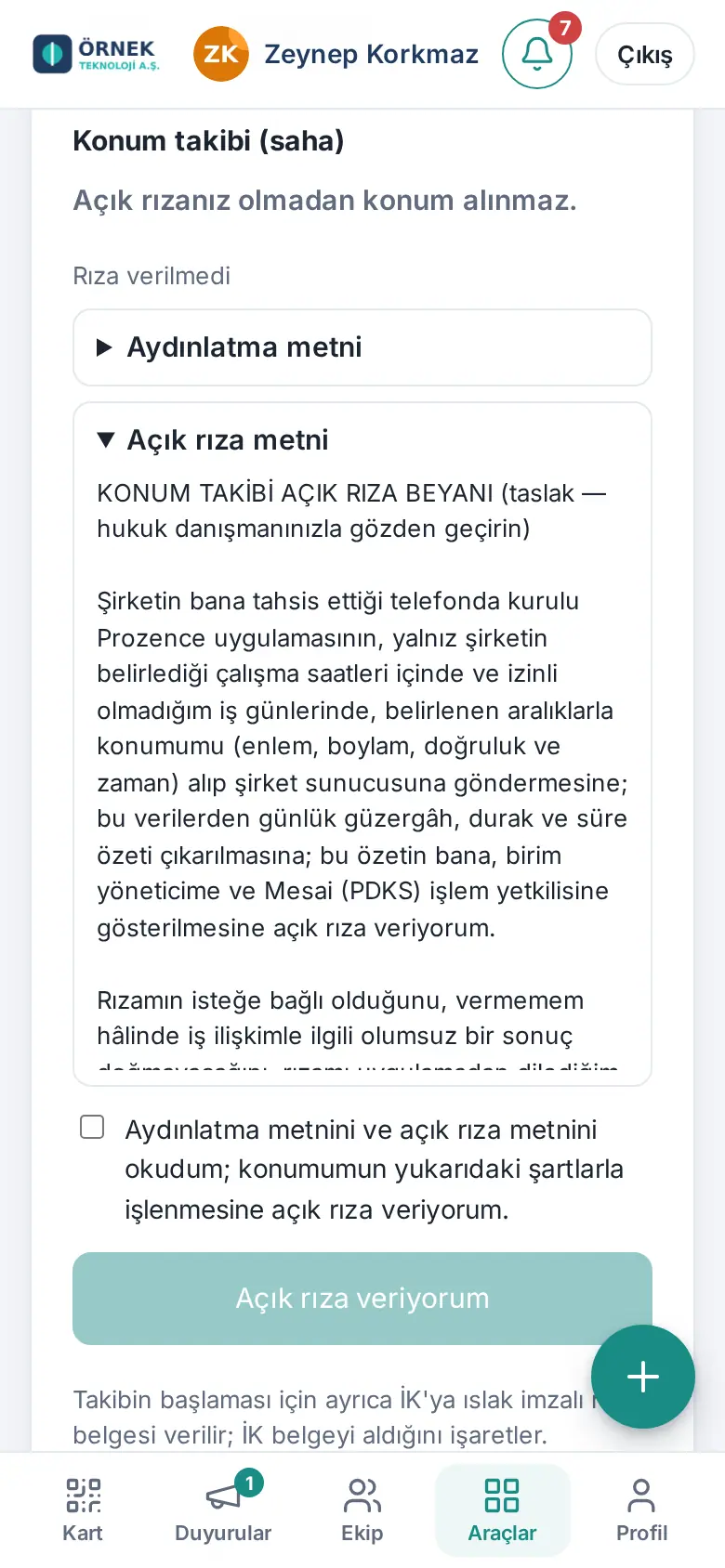
Where to give consent (1.8.0): In the Explicit consent pending card at the top of the Location and automatic attendance section (or Location tracking (field) if you are only in the field scope) under the Work time box in My Area. The Open button of the "Your location consent is pending" row in Dashboard → Today and the Give consent button in the Automatic attendance card also take you to this card. The privacy notice and consent text sit in a collapsed box in the card; Show the texts opens it.
How is my location used? (1.8.4): In the same place, inside the consent card (above the Privacy notice if you have given consent), there is a collapsed How is my location used? section; tap it to open. It lists, according to your company's current settings: the offices' locations and zone radius are sent to your phone, and your phone reports "check in" when you arrive and "check out" when you leave; for the automatic record your phone's location is not sent to the company and is not stored. If your company uses location confirmation for manual records, location recording or field location, these are listed too. Consent is optional; you can always record your work time manually. The Work time officer can send a notice to people who have not given consent (app notification and email, at most once per person every 24 hours); tapping the notification or Open in the email opens this section. If you have withdrawn your consent, no notice is sent.
Giving explicit consent:
- In the Location tracking (field) section, open and read the Privacy notice.
- Read the Consent text.
- Select the checkbox "I have read the information notice and the consent text; I give explicit consent to my location being processed on the terms above.".
- Tap I give explicit consent. If your company requires a signed document, the status becomes "Waiting for the signed consent form"; when HR marks that it received the document, it becomes Consent complete.
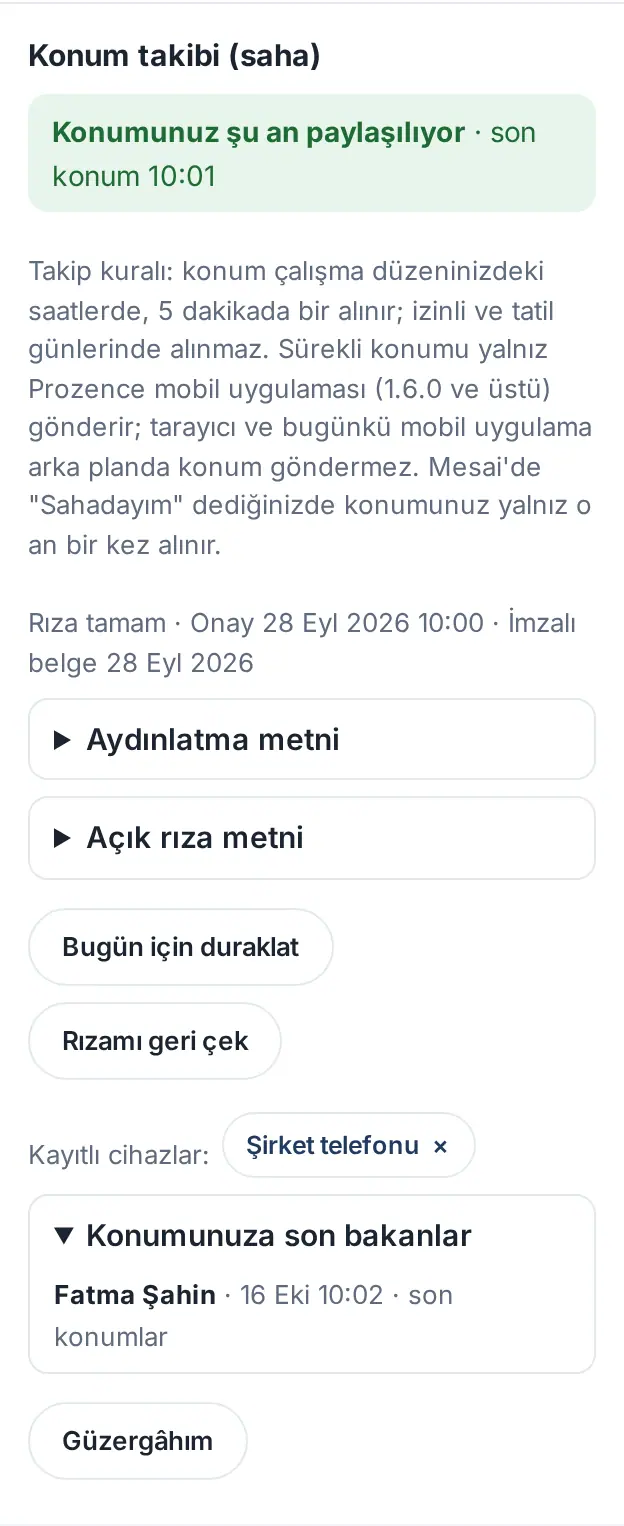
Sharing status (1.1.8):
- The top of the section says "Your location is being shared right now · last location 10:01" or "Your location is not being shared right now". If it is not shared, the reason shows below it, e.g. "Currently outside tracking hours.", "You are on leave today; no location is collected.", "You paused it for today.", "You are not checked in; location is only taken from check-in to check-out." or that no location came from the phone in the last minutes.
- Below it, the tracking rule shows (1.7.1): "Tracking rule: location only within your work-time window (30 min before the start – 30 min after the end; at most 15 min more if there is no check-out) (today 08:30–18:30); not taken on work-from-home, leave and holiday days and days you said "I can't work today". The field / visit location (every 5 minutes) is sent by the Prozence mobile app 1.8.0 and later; the browser does not send location in the background. When you say "I'm in the field" in Work time, your location is taken only once, at that moment."
- The consent status and the dates show (e.g. "Consent complete · Approval … · Approved text version 2 · Signed form …"). If you gave consent to an older consent text, below it says "Your consent was given to the previous consent text; it remains valid and no new approval is needed. The current text below is for your information." (1.7.1): nobody is asked for a new approval in the version migration; only if your company changes the consent text does everyone approve again.
- Pause for today: no location is collected that day ("No location will be collected today."). On the same day, Resume tracking today turns it back on.
- Withdraw my consent: when you confirm in the You are withdrawing your consent window, your consent is withdrawn; no location is collected until you give consent again.
- Registered devices: your phones registered in the Prozence mobile app; remove the ones you do not use with ×. If there is no device, it says "No registered devices. You link the phone from the "Automatic attendance" card in the Prozence mobile app (1.7.0 and later).".
- Who last looked at your location: the last people who looked at your location, the time and what they looked at (route or latest locations).
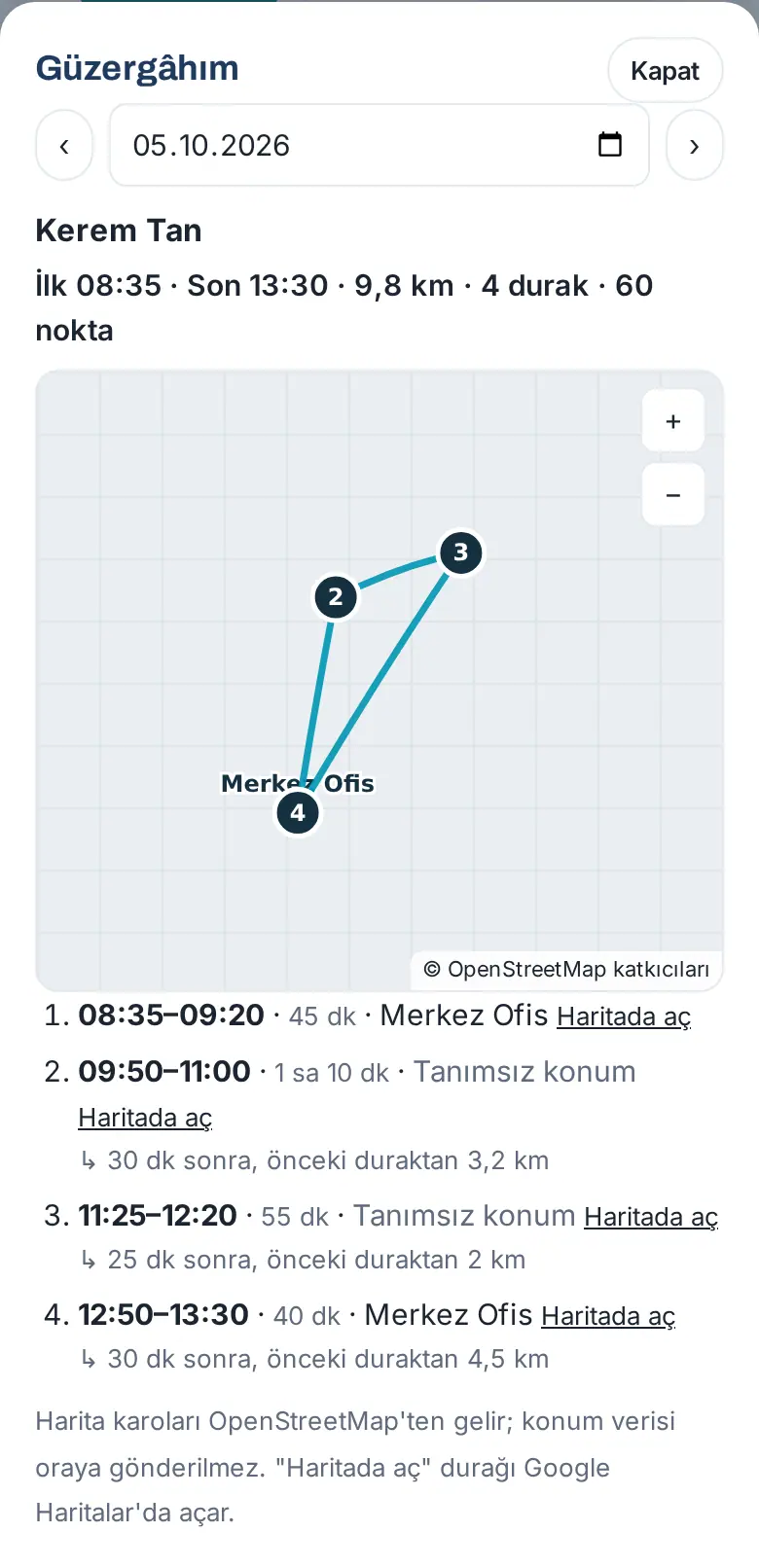
- My route: the map of the day, the first and last time, the distance (km), the number of stops and the stops. For other days, use the ‹ › buttons or the date box. Open in map opens the stop in a map app.
Manager: Field team — latest locations (1.1.8):
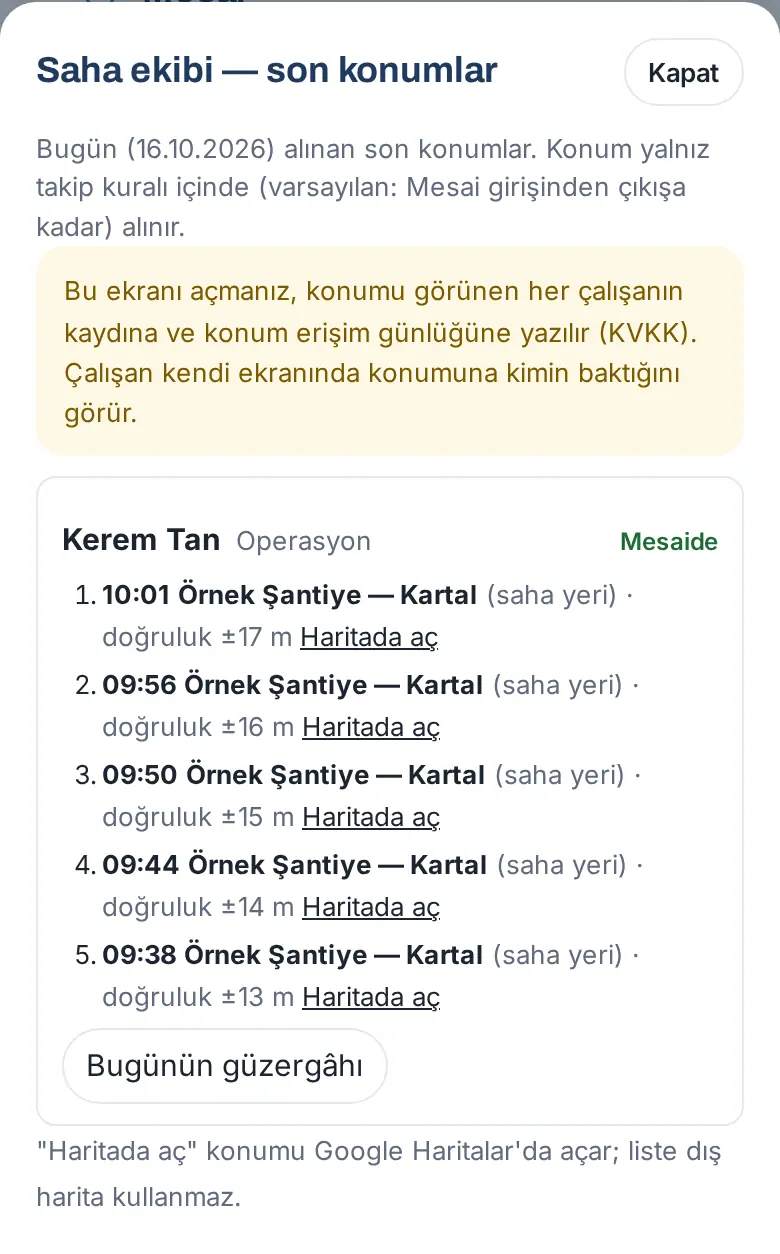
- In the Location tracking (field) section, tap Field team — latest locations.
- Your tracked team members are listed with their status today (At work, Off work, Paused today or the consent status) and their last 5 locations today: the time, the place name (e.g. "Örnek Şantiye — Kartal (field site)") or "nearest: … · 5.6 km", the accuracy and Open in map (opens in Google Maps).
- To see the person's whole day, tap Today's route.
Important:
- The location is visible to the employee, the manager in the chart (only for their own team), the Work time operator and the Admin; the Work time viewer cannot see it. Each time someone looks at another person's location, it is written to the employee's record and to the location access log; the employee sees it on their own screen.
- No location is collected outside the work-time window (30 min before the start – 30 min after the end; single rule, 1.7.1), on public holidays, on work-from-home days and approved full-day leave days, and on a day you said "I can't work today".
- Only version 1.8.0 and later of the Prozence mobile app will send the field / visit location every five minutes; 1.7.0 does not send it, and the browser does not send location in the background. When you tap I'm in the field, your location is taken only once, at that moment. For arriving at and leaving the office, see Automatic attendance (office mode).
- The location points and the route in this guide are fictional (added manually in the test environment).
My team: the team's status today and approving corrections
Who: Manager (a person who has a team in the organization chart), attendance officer · Where: Work time → My team (if there are pending requests, My team (N requests))
What it does: You see where your team works today, who has not checked in and why; you decide on work time correction and overtime requests.
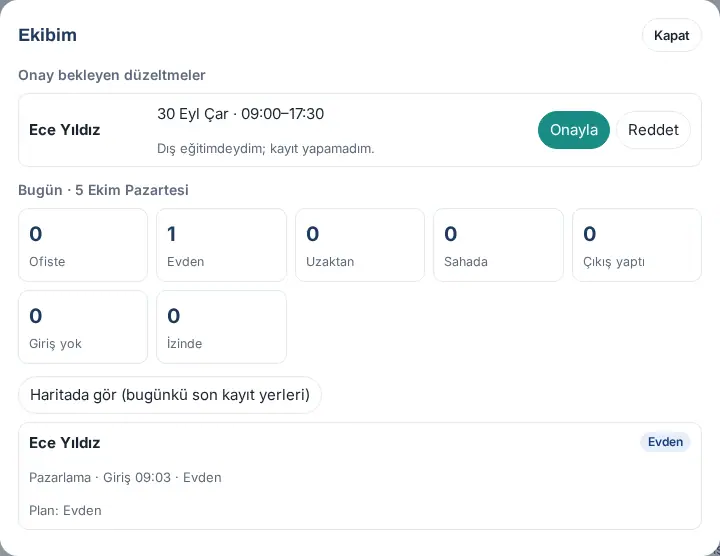
- In the Work time box, tap My team. The number in brackets is the total of the pending corrections and overtime records. When you tap the row about work time correction requests awaiting approval in Waiting for you under the bell, or the "Work time correction request" and overtime approval notifications, the My team window also opens directly (1.8.2, 1.8.3).
- If overtime approval is on, Overtime awaiting approval is listed at the top (see below).
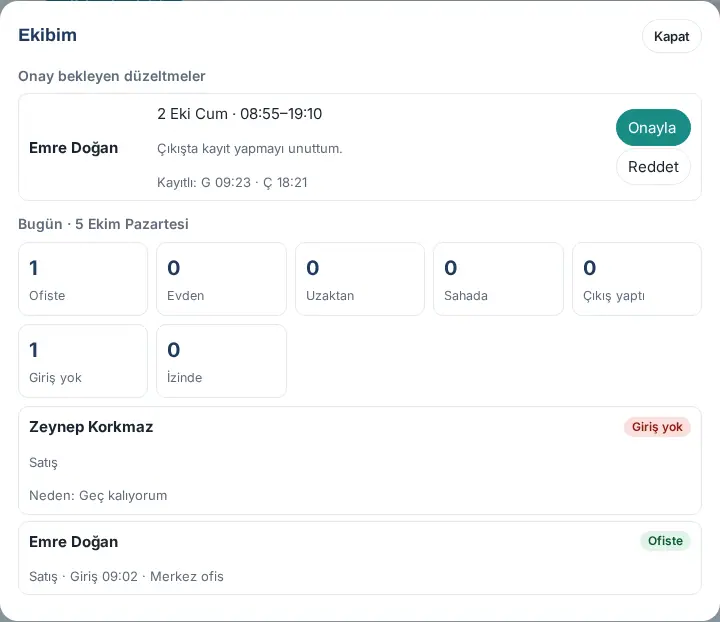
- Under Corrections awaiting approval, the requested day and times, the reason, the recorded times (Kayıtlı: … — "recorded: …") and the time of the request (Request: …) show. If a future time was requested for today, the Time was in the future when requested label appears; for a day off, the Day off label.
- Tap Approve ("Correction approved.") or tap Reject and write the Reason for rejection (sent to the employee) ("Correction rejected; the reason was sent to the employee."). On a phone, the two buttons are below the reason and the times, on their own line; on a computer, they are side by side on the right of the card.
- Under Today, the box shows how many people in your team are At the office, From home, Remote, In the field, Checked out, No check-in and On leave.
- Below, each person's status, department, check-in and check-out times, place and method are listed. The plan, the absence reason and the check-out reason also show (e.g. "Plan: From home", "Reason: I'm running late", "Check-out reason: Technopark visit").
- Tap a person; that person's monthly work time records open.
- If there are records with a location, use View on map (today’s last check-in locations) to see each person's last check-in or check-out location today on the map.
Overtime approval (1.3.2):
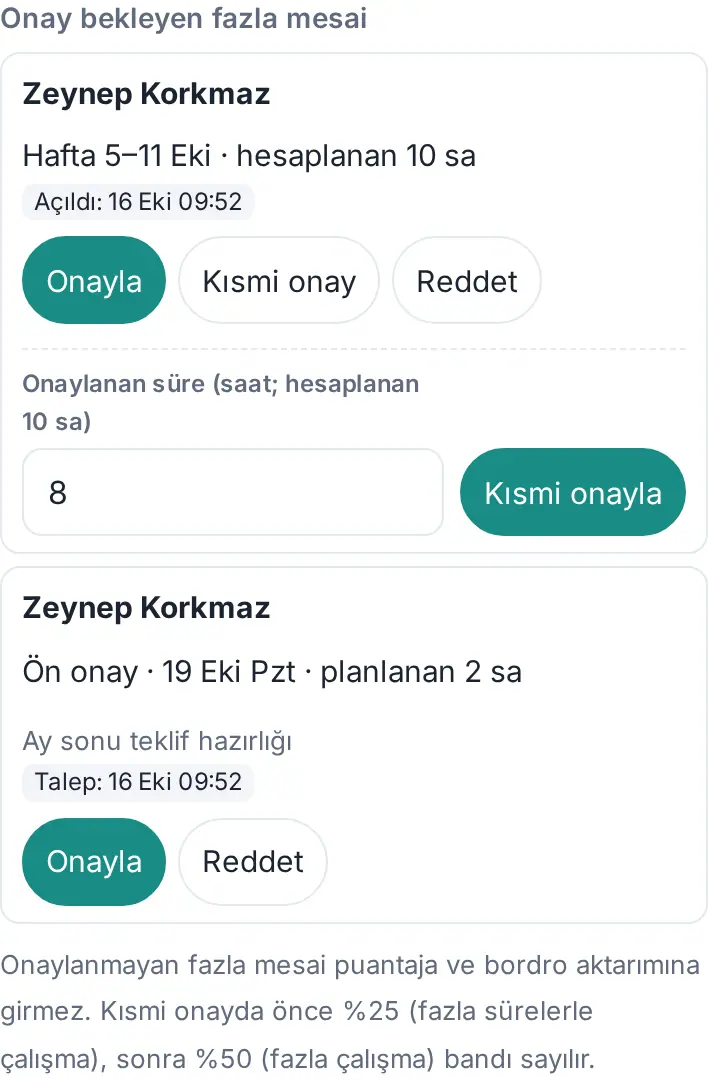
- The Pre-approval row shows the day and the planned time ("Pre-approval · 19 Oct Mon · planned 2 h"), the reason and the time of the request. Approve or Reject (a reason is required).
- The Week row shows the calculated overtime of the week ("Week 5–11 Oct · calculated 10 h"). Approve approves all of it; for part of it, tap Partial approval, type the Approved time (hours; calculated …) and tap Approve partially (a reason is required for a partial approval); with Reject, you reject it with a reason. If the calculated time increases after the decision (e.g. with an approved correction), the record goes back to approval with the note "Previous approval: …".
- Overtime that is not approved does not go to the timesheet or to the payroll export. In a partial approval, the 25% band (extra hours) is counted first, then the 50% band (overtime).
Tip: Team members who do not have a working day are not counted as "absent". For the office-by-office distribution of the whole company, see 06. Board and intranet.
Important: The employee's manager in the chart decides on corrections and overtime first; if there is no manager, the manager has left or is on leave today, the attendance officers decide, and if there are none, the Admins. An officer or Admin who is not the primary approver decides with Approve on behalf or Reject (window title "Reject on behalf") and writes a note; the card says "Awaiting manager: …". For someone without permission: "Bu talebi yalnız çalışanın yöneticisi ya da PDKS sorumlusu karara bağlayabilir." ("Only the employee's manager or the time and attendance officer can decide on this request.") You cannot approve your own overtime.


