27. Emergencies, occupational safety and the occupational physician
Screenshots show the Turkish interface of Prozence with fictional "Örnek Teknoloji A.Ş." data; the English interface has the same layout.
This chapter describes how to look at the company's emergency plan, what you see in the app in an emergency (including the full-screen alert and the siren) and how to reply to the I’m Safe check-in. The "Report an emergency" steps, the list of people waiting for help and the emergency contacts for emergency responders and teams are also here. It also describes how to report a situation that is risky in terms of OHS (occupational health and safety, İSG) or a workplace accident, how to complete a corrective action assigned to you with evidence and how to book an encrypted written consultation with the occupational physician.
Who: Employee · Emergency responder · Emergency response team member · Occupational physician
For editing the plan, teams, drill records, starting an I’m Safe check-in, handling OHS reports and adding a physician, see 32. Shuttle, meal, visitor and emergency management.
In this chapter
- Viewing the emergency plan
- Emergency banner: what you see in an emergency
- Full-screen alert and siren
- Replying to an I’m Safe check-in
- Replying without a connection
- As an emergency response team member
- People waiting for help and Reached (responder)
- Looking at emergency contacts (responder)
- Reporting an emergency (responder)
- People inside during an emergency and ending it
- Reporting near misses and hazards
- Reporting a workplace accident
- Following the status of your report
- Completing a corrective action with evidence (DÖF)
- Booking a physician appointment
- Encrypted consultation with the physician
- Cancelling an appointment
- Physician screen: appointments, consultation and outcome
- Physician screen: entering availability
Note: The emergency and I’m Safe images in this chapter show a sample earthquake drill. On your screen, you see the locations, phone numbers and people in your company's plan.
Viewing the emergency plan
Who: Employee · Where: The Emergency button in the top bar
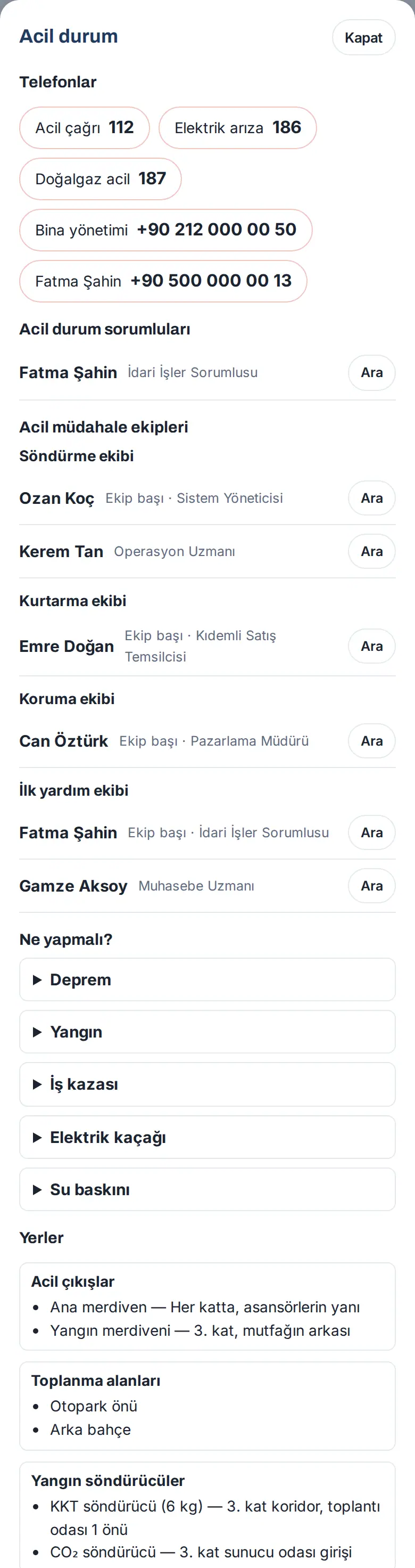
What it does: Everyone can see the company's emergency plan: the emergency phone numbers, the emergency responders, the emergency response teams, what to do in each emergency, and the locations of the emergency exits, fire extinguishers, electrical breakers, valves, first-aid cabinets and assembly points.
- In the top bar, tap the red Emergency button with the triangle icon. On a phone, only the icon shows. Emergency responders also see the green I’m Safe button with the shield icon next to it (1.1.5: red and green, so that the colors are not confused with notifications).


- The Emergency window opens. Phone numbers are at the top (112 is always first). Tap a number to call it.
- Emergency officers and Emergency response teams (firefighting, rescue, protection, first aid) are listed by name; you can call them with the Call button next to them.
- Under What to do?, tap an emergency type (Earthquake, Fire, Workplace accident, Electrical leak, Flooding). The instructions for that situation open.
- Under Locations, see the emergency exits, assembly points, fire extinguishers, electrical breakers, water valves and first-aid cabinets.
- If the company added an evacuation map, tap Open evacuation map. If the company entered it, the address of the building and the evacuation note show under Building address and evacuation (1.1.7).
- If you are in an emergency response team, My emergency role shows your team, your role (Team leader / Deputy team leader), your training date and the end date of your certificate; if your certificate has expired, "belge BİTTİ" ("certificate EXPIRED") shows in red (1.1.7).
Tip: Read the plan at a calm time, when there is no emergency. Learn the emergency exit and the assembly point on your own floor.
Important: The instructions are shown only in Turkish. In a life-threatening situation, first call 112 (the emergency call number in Turkey; elsewhere, call the emergency number of the country you are in).
Emergency banner: what you see in an emergency
Who: Employee · Where: The red banner at the very top of the app
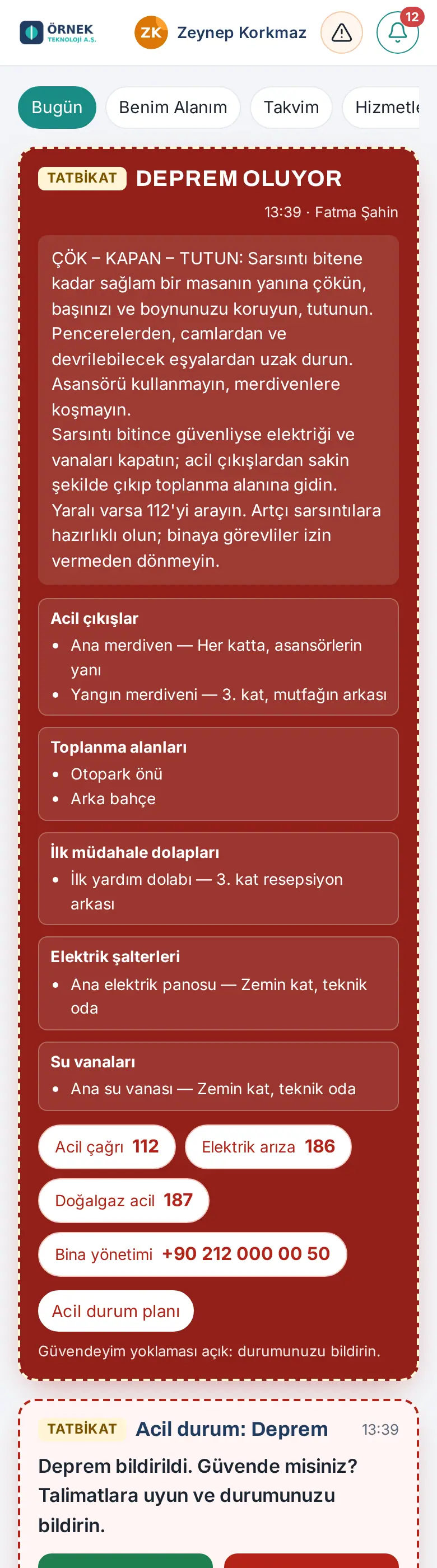
What it does: When an emergency responder reports an emergency, a red banner appears in the app of all employees. The banner shows what happened, the instructions, the locations related to that situation and the phone numbers.
- If the responder also started an I’m Safe check-in, you get a phone notification and an email; tap the notification or open the app. If no check-in was started (e.g. for a workplace accident), you do not get a separate notification; the banner is shown when you open the app.
- The red banner is shown at the top of all screens: the name of the emergency (e.g. EARTHQUAKE), the time and the person who reported it. If it is a drill, DRILL is shown next to the title.
- Read the instructions in the banner and follow them.
- Below them, the locations related to this situation (emergency exits, assembly points, first-aid cabinets, breakers, valves) and the phone numbers are shown. Tap a number to call it.
- For the whole plan, tap Emergency plan.
- If "I’m Safe check-in is open: report your status." is shown below the banner, reply to the I’m Safe check-in.
Result: When the emergency is ended, the banner disappears for everyone. If the responder does not end it, the banner disappears automatically after 12 hours.
Full-screen alert and siren
Who: Employee · Where: On top of the whole screen, while the app is open or when it opens
What it does: While an I’m Safe check-in is open and you have not replied yet, the app shows an alert that covers the whole screen, plays a siren and makes the phone vibrate (if it supports it). The tab title flashes "(!) EMERGENCY — report your status" (in a drill, "(!) DRILL — report your status"). When you reply, all of this stops.
Before you start: The alert appears unless your company turned off Play a siren in the app in the I’m Safe settings (on by default). The person who started the check-in does not get the alert; they manage the check-in from the board.
- Open the app or keep it open. When the check-in starts, the alert comes to the screen within a few minutes at most (when the bell refreshes or when you go back to the app). The phone notification comes immediately.
- The alert shows the DRILL or EMERGENCY label, the title of the check-in and its message.
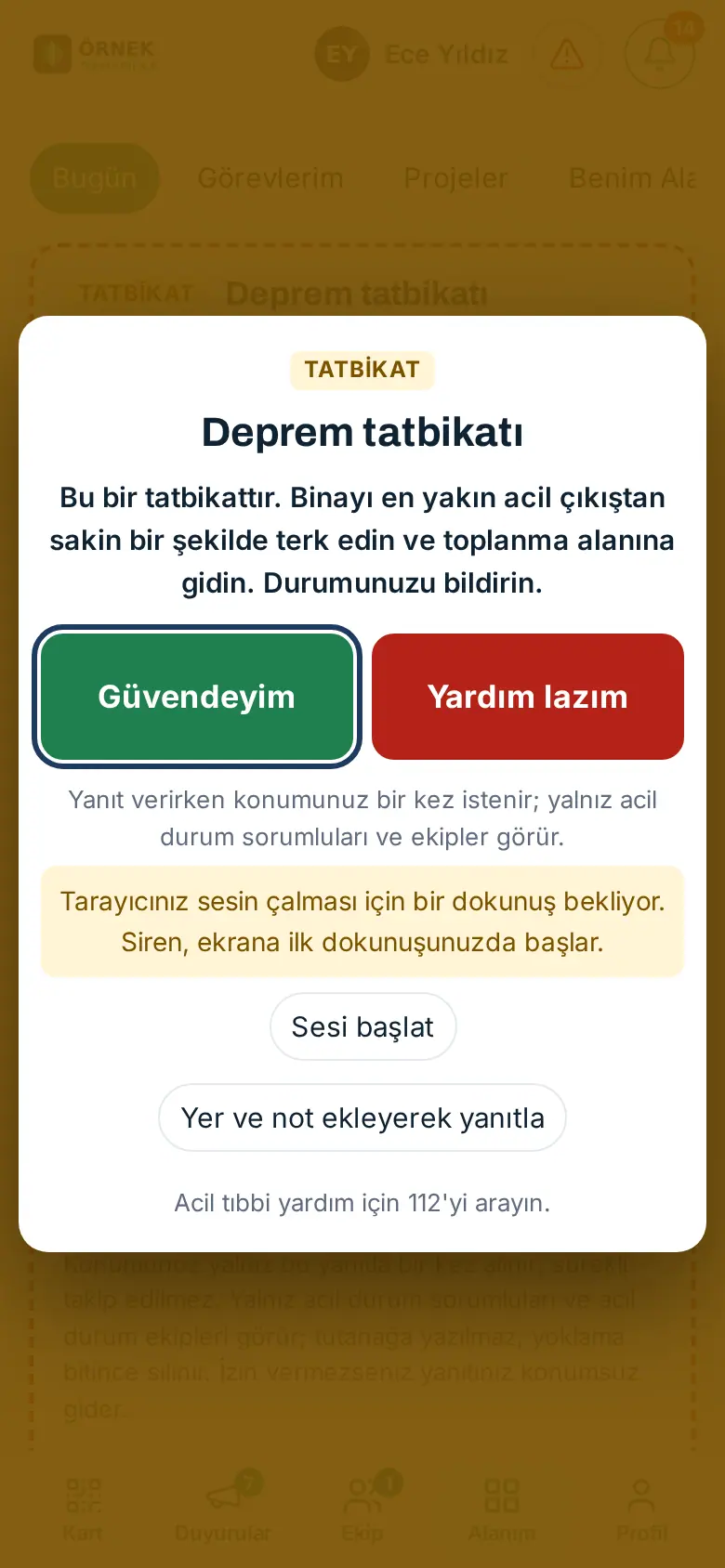
- If the browser waits for a tap before it can play sound, it says "Your browser needs a tap before it can play sound. The siren starts the first time you touch the screen." To start the siren immediately, tap Start sound.
- Depending on your situation, tap the large I’m Safe or I need help button. The siren stops immediately and your reply is sent (see Replying to an I’m Safe check-in).
- If you want to add an assembly point or a note, tap Respond with location and note. The alert closes on this page and you go to the reply banner.
Tip: While the siren plays, the Mute button shows; it turns off the sound for this check-in on this device, but the alert stays until you reply. In a real emergency, the siren is a rising and falling sound and plays for at most 3 minutes; in a drill, it is a soft two-tone sound of 8 seconds.
Important: A web page cannot play sound while the phone is locked or the app is in the background; in that case, rely on the phone notification. There is no vibration on iPhone. In a life-threatening situation, first call 112.
Note: This image shows the state in which the browser waits for a tap for the sound. The siren sound, the vibration and the flashing tab title cannot be shown in the image; the steps were written from the texts in the app's code.
Replying to an I’m Safe check-in
Who: Employee · Where: The red-framed I’m Safe banner at the very top of the app
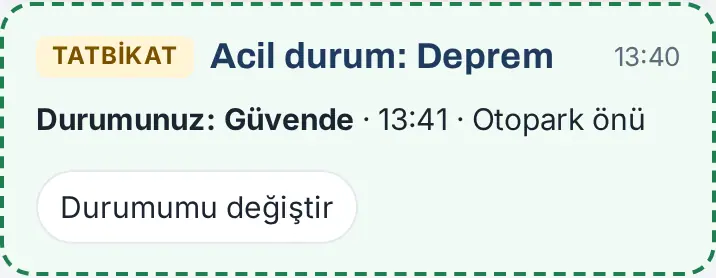
What it does: After an earthquake, fire, evacuation or drill, the company starts a check-in. With one tap, you report that you are safe or that you need help; the emergency responders immediately see who has not replied. In a check-in started with "Report an emergency", the title carries the name of the emergency (e.g. "Acil durum: Deprem" ("Emergency: Earthquake")).
- When the check-in starts, you get a notification on your phone and (if the company selected it) an email. Tap the notification or open the app. In the app, the full-screen alert comes first (see Full-screen alert and siren); the check-in banner is also shown at the top of the screen. If it is a drill, DRILL is shown; the banner also shows the person who started it and the time.
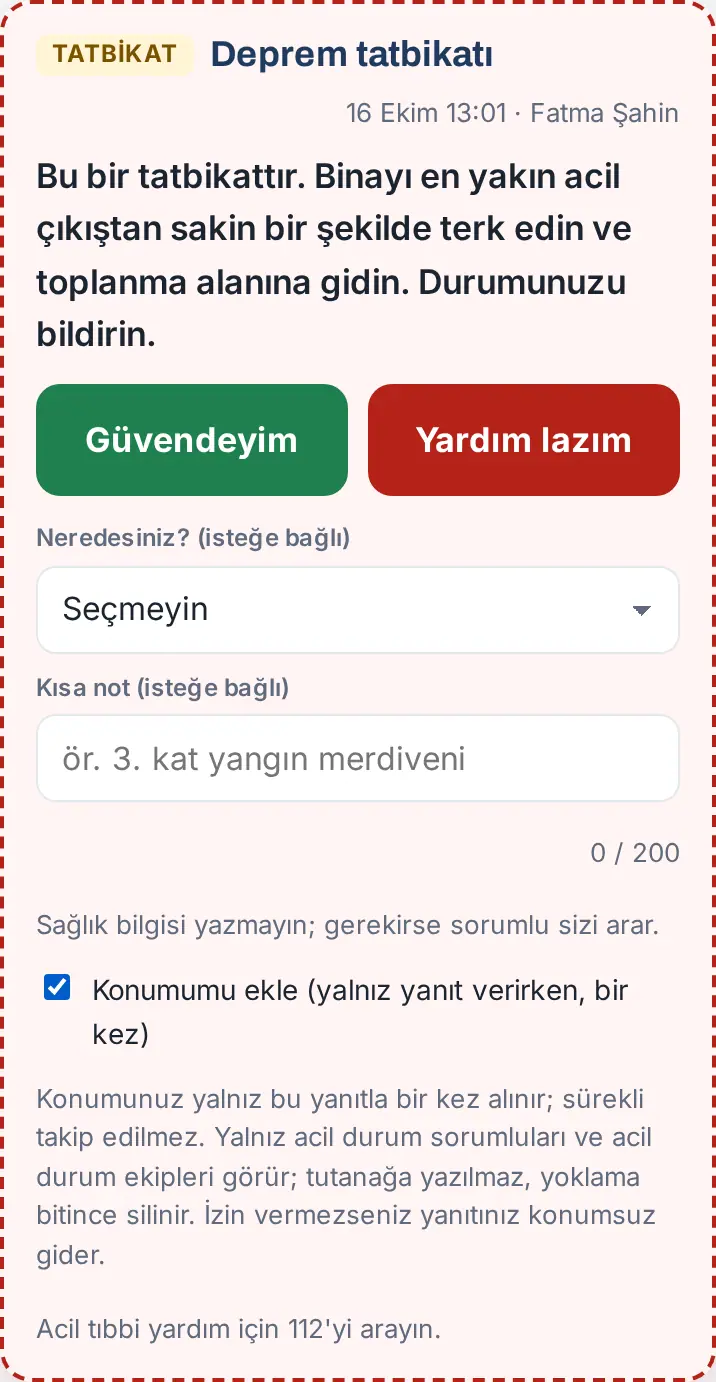
- If you want, select your assembly point or I’m not at the office in the Where are you? (optional) list.
- If you want, type a short note in the Short note (optional) box (e.g. "3. kat yangın merdiveni" ("3rd floor fire stairs"); at most 200 characters).
- If your company asks for your location, the Add my location (only when responding, once) box is selected. If you do not want to send your location, clear it.
- Depending on your situation, tap the I’m Safe or I need help button. If location is selected, the browser asks for location permission once; it says "Getting your location… Up to 10 seconds; if you don't allow it, your response is sent without location."
Result: The message "Thank you, your “I’m Safe” response was saved." appears; if location was asked, "Your location was added.", "Location permission was not given; your response was sent without location." or "Your location isn't available yet; it will be added to your response if found." is added at the end. The banner becomes smaller and shows Your status: Safe, the time and the location you selected. If your situation changes, tap Change my status; your first reply time is kept separately ("ilk yanıt 13:01" — "first reply 13:01").
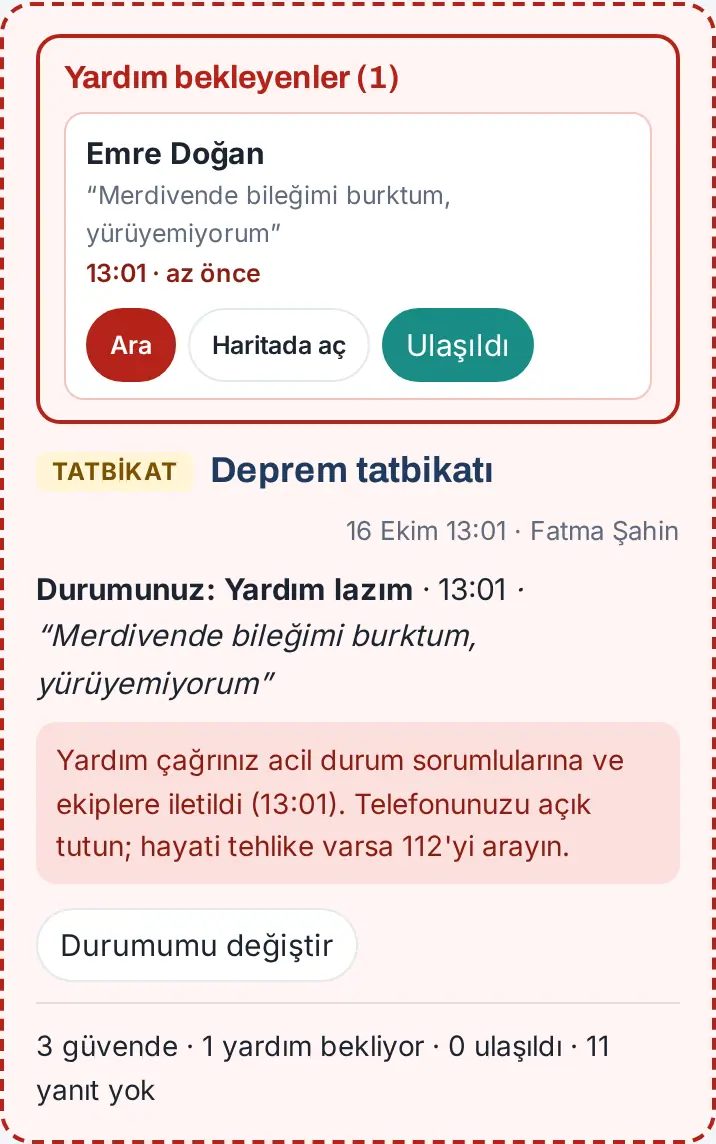
If you select I need help (1.1.7): Your request goes immediately by phone notification and email to the emergency responders, the person who started the check-in, the OHS officers, all team leaders and the members of the First aid and Rescue teams (with your name, the time, your assembly point, your note and your phone). The message becomes "Your help request was recorded; emergency coordinators and teams have been notified." The banner says "Your help request was sent to emergency coordinators and teams (13:01). Keep your phone on; if life is in danger, call 112." When a responder reaches you and taps Reached, the banner shows "Your help request was answered: Fatma Şahin · 13:03" and you get a notification.
Tip:
- You can also reply without signing in to the app, with the I’m Safe or I need help link in the email. The link is valid only for you and only for this check-in. The page of the link also has the Add my location (only now, once) box. If you replied differently before, the page tells you (e.g. "Önceki yanıtınız: Güvende. Bu bağlantı "Yardım lazım" için açıldı…" — "Your previous reply: Safe. This link was opened for "I need help"…").
- You can take back your help request yourself by saying "I’m Safe"; the responders are informed.
- If the company sent a long message in the notification, the more button appears at the end of the message in the banner.
Important:
- Do not write health information in the note ("Don’t write health information; a responder will call you if needed."). For urgent medical help, call 112.
- Your location is taken only once, with this reply; you are not tracked continuously. Only the emergency responders, the OHS officers and the emergency response teams see it; it is not written to the report and it is deleted when the check-in ends. Your replies (without location) are kept in the report of the check-in (see the report in chapter 32).
Replying without a connection
Who: Employee · Where: I’m Safe banner
What it does: In a situation such as an earthquake, the internet may be cut. Your reply is not lost: it is queued on your phone and sent automatically when the connection comes back.
- In the banner, tap I’m Safe or I need help as usual.
- If there is no connection, the message "No connection — your answer will be sent when the connection returns." appears. The banner says "Waiting to be sent: Safe · 13:03" and "No connection. Your answer is queued on this device and sent when the connection returns; don’t close the app."
- Leave the app open. When the connection comes back, the reply is sent and the message "Back online; your queued answer was sent." appears. Your reply time is recorded as the time you tapped.
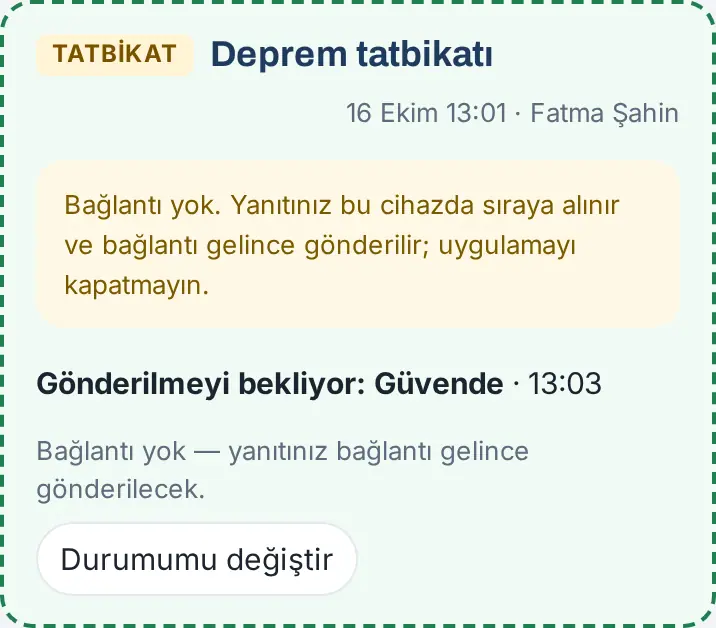
Tip: To change the queued reply, tap Change my status. The page of the link in the email also keeps your reply when there is no connection ("Bağlantı yok — yanıtınız bu telefonda saklandı; bağlantı gelince kendiliğinden gönderilecek. Sayfayı kapatmayın." — "No connection — your reply was saved on this phone; it will be sent automatically when the connection comes back. Do not close the page.").
Important: If there is no connection before the app has ever opened (at the first opening), the reply cannot be queued. If possible, tell the responder by phone.
As an emergency response team member
Who: Member of the firefighting, rescue, protection or first-aid team · Where: Emergency → Plan; phone notification
What it does: If the company assigned you to an emergency response team, your name is shown in the plan together with your team. When an emergency is reported, you also get a separate "your team is on duty" notification.
-
Open the Emergency window and find your team in the Emergency response teams section. For the person who is the Team leader, "Team leader" is shown before their title.
-
When an emergency is reported, you get a phone notification such as "Acil durum: Deprem — ekibiniz göreve" ("Emergency: Earthquake — your team is on duty") (in a drill, it starts with "DRILL ·"). The notification tells you which team you are a member of when you go to your duty station.
-
Follow the directions of your team leader and the emergency responders. Do not forget to give your own I’m Safe reply too.
-
In an I’m Safe check-in, if someone says I need help and you are a team leader or in the First aid or Rescue team, you get a notification and an email immediately; you see the people waiting for help in the banner (see People waiting for help and Reached) (1.1.7).
Tip: The My emergency role section of the plan shows your own role, your training date and the end date of your certificate (1.1.7). 60 days before the end date of your first-aid and training certificate, a reminder goes to the emergency responders; they contact you for refresher training.
People waiting for help and Reached (responder)
Who: Emergency responder, Admin, OHS officer, members of the emergency response teams · Where: Above the I’m Safe banner; at the very top of the check-in board and of the Emergency window
What it does: In an open check-in, everyone who says I need help is collected in a red list. You call the person and, if there is one, open their location on the map; when you reach them, you close the request with Reached. The request, its time and the time to reach the person stay in the report.
Before you start: You see the list even if you are not in the scope of the check-in (e.g. a team leader in another department). When a help request comes, you get the notification "I need help" (in a drill, "TATBİKAT · Yardım lazım" — "DRILL · I need help") and an email with the Yardım bekleyenleri aç ("open the people waiting for help") button.
- Tap the notification or open the app. At the very top of the banner, the Waiting for help (1) list shows: the name of the person, their assembly point and note, the time of the request and "x min ago". The list refreshes every 30 seconds.
- To call the person, tap Call.
- If the person shared their location, tap Open in map; the location opens on the map (the accuracy shows, e.g. "±25 m").
- If you have permission to see it and the person entered an emergency contact, the Emergency contact button also shows (see Looking at emergency contacts).
- When you reach the person, tap Reached. In the Close help request window, write a Note (optional) if you want (e.g. "ilk yardım yapıldı, ambulansa teslim edildi" — "first aid given, handed over to the ambulance") and tap Reached.
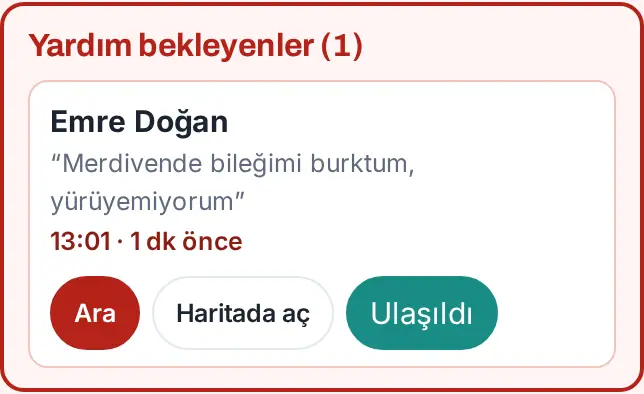
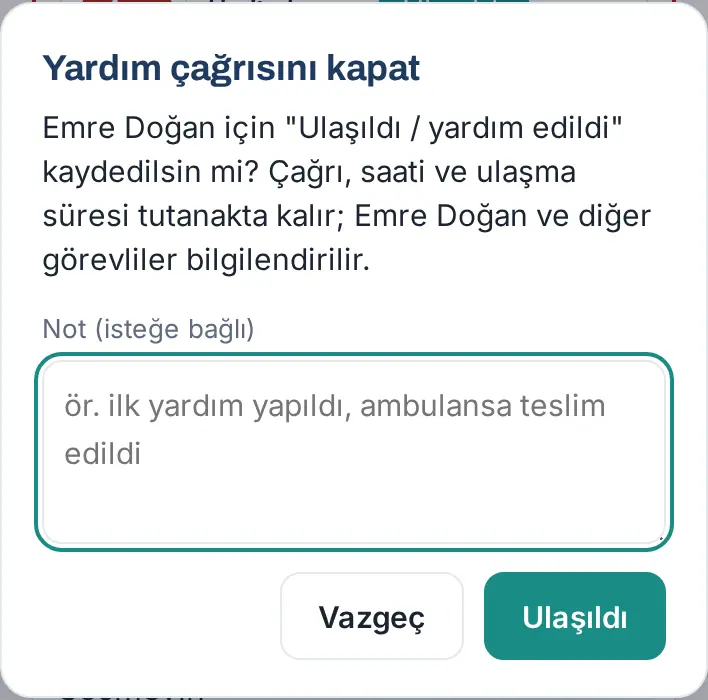
Result: The message "Emre Doğan: recorded as reached." appears; the person leaves the list and their status becomes Helped. The person gets the notification "Your help request was answered", and the other responders get the notification "Help request closed". The person's banner shows who reached them and when.
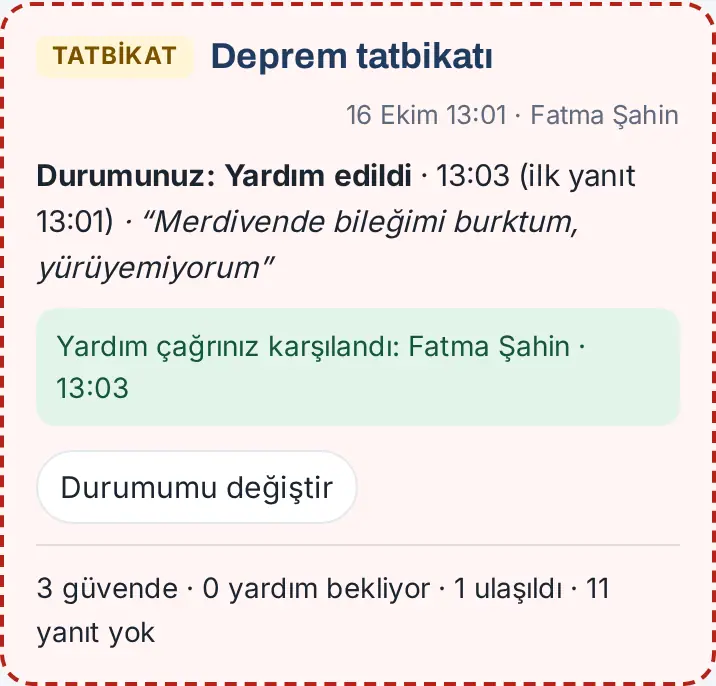
Your own request (1.4.3): If you, as a responder, also tapped I need help, your own row in the list has no Reached; instead it shows "Your request: another responder will close it; if you no longer need help, tap "I’m Safe".". Another responder who reaches you closes your request. If you no longer need help, tap I’m Safe in the banner; your request closes and the responders are informed.
Common errors:
- "This person has no open help request (someone else may have closed it).": another responder tapped Reached before you; the list is refreshed.
- "You can't close your own help request with "Reached". If you no longer need help, tap "I’m Safe"; otherwise another responder will close it when they reach you." (1.4.3)
Important: Do not record health information; keep the note short and factual. In a life-threatening situation, first call 112.
Looking at emergency contacts (responder)
Who: Admin, emergency responder, OHS officer · Where: Emergency → Emergency contacts
What it does: You see in one list the "people to call in an emergency" (full name, relationship, phone) that employees entered in My profile. It is used to inform the employee's family in an emergency.
Before you start: Employees enter their emergency contact themselves (see 00. Getting started). Only the roles above see this tab.
- In the top bar, click Emergency and open the Emergency contacts tab.
- Below each employee, the list shows the name and relationship of their contact (e.g. "Leyla Doğan · Mother"), the phone and the Call button.
- Filter by typing a name or department in the Search employees box.
- At the bottom of the list, under the heading Not entered yet (n), the employees who have not entered an emergency contact are listed; you can remind them to enter their details.
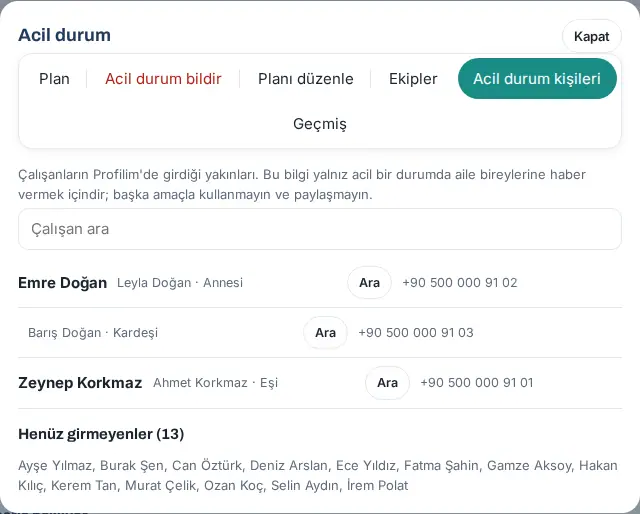
Important: "Use this only to inform family members in an emergency; do not use it for anything else or share it." The name and phone of the contact are not written in emails; the help request email contains only a link to this tab. Employees who have left are not in the list.
Note: Because all the people on the trial site are sample cards with fictional "ornek.invalid" addresses, the app removes them from this list. The image was taken by giving the records entered by two fictional employees to the app's own screen.
Reporting an emergency (responder)
Who: Emergency responder, Admin · Where: Emergency → Report an emergency
What it does: You announce an emergency to the whole company in two steps. With the report:
- the emergency banner, the instructions, the locations and the phone numbers are shown in the app of all employees;
- if you want, an "Are you safe?" check-in starts for the whole company (I’m Safe);
- the list of people inside (visitors and employees in the office) goes to the emergency responders, the Admins and reception by phone notification and email (for a workplace accident, also to the OHS officers);
- the visitors inside get the emergency exit and assembly information (email; SMS if there is an SMS provider);
- the emergency response team members get the "your team is on duty" notification.
Before you start: Only emergency responders and the Admin see this tab. In a real emergency, first make sure you are safe yourself and call 112.
- In the top bar, click Emergency and open the Report an emergency tab. It says "Choose the emergency. The alert is confirmed in two steps."
- Select the emergency type: Earthquake, Fire, Workplace accident, Electrical leak or Flooding.
- If you want, type a Short note (optional) (e.g. "3. kat mutfak" ("3rd floor kitchen")).
- If it is a drill, select the Drill (alerts say “DRILL”) box.
- Check the Start an “Are you safe?” check-in for the whole company box. This box is off for a workplace accident and on for the other types.
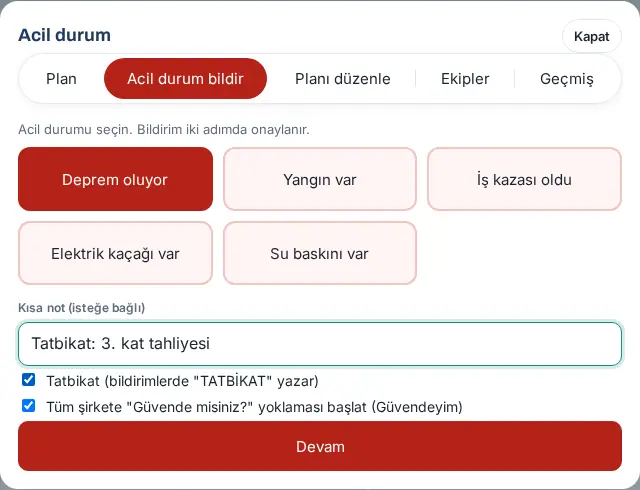
- Click Continue. A preview opens: it shows how many employees the check-in will go to, how many people the list of people inside will go to, and how many employees and visitors are inside right now.
- Check the details. At the "Do you confirm?" question, click Yes, alert now. To stop, click Back.
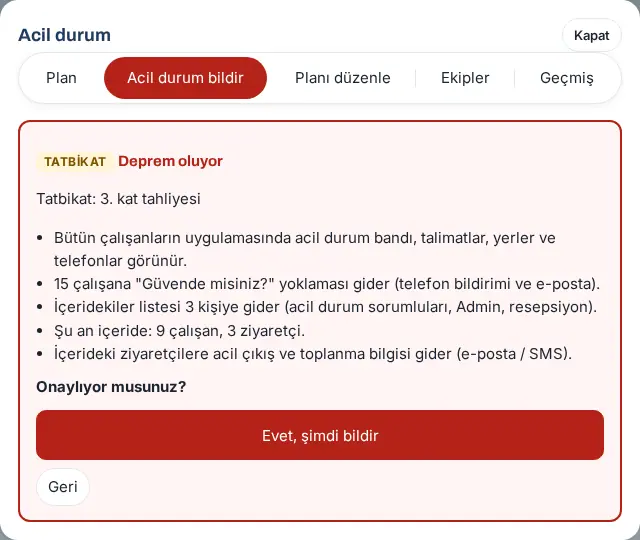
Result: The message "Emergency reported; I’m Safe check-in started." appears. The banner appears for all employees immediately. The People inside tab opens in the window.
Common errors:
- "Acil durum türünü seçin." ("Select the emergency type.")
- "This emergency was just reported.": the same type cannot be reported again within 2 minutes.
- "Çok fazla bildirim yapıldı; biraz sonra yeniden deneyin." ("Too many alerts were sent; try again a little later."): a person can send at most 10 alerts per hour.
- "The check-in cannot start because I’m Safe is off.": the I’m Safe module is off; you cannot select the check-in box, and the alert is sent without a check-in.
- "Linked to the open check-in.": this is not an error; there was already an open check-in and the alert was linked to it (shown in the preview and on the History tab).
Important: While an emergency is active, a new report replaces the previous one. For drills, always select the Drill box. Reports marked as a drill are recorded in the drill records automatically (see drill records in chapter 32).
People inside during an emergency and ending it
Who: Emergency responder, Admin · Where: Emergency → People inside; emergency banner
What it does: During an emergency, you see who is in the building (visitors, and employees in the office according to the work time record); you use it for the count during an evacuation. When the situation is over, you end the emergency.
- Tap People inside (n) in the banner or the People inside tab in the Emergency window.
- The time of the list and the name of the emergency are shown at the top. Under Visitors (n), the visitors' name, company, host and entry time are listed; under Employees (n), the employees' department and entry time are listed. The list refreshes every 30 seconds; to refresh it immediately, tap Refresh.
- To save the list, tap Download CSV.
- To see the check-in replies, tap I’m Safe check-in board (see the check-in board in chapter 32).
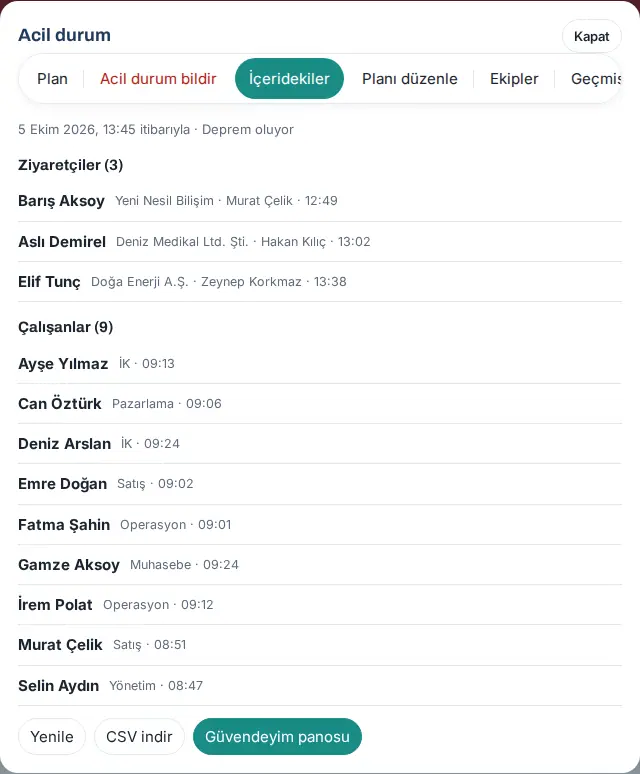
Ending the emergency:
- In the banner, tap End emergency.
- At the "End the emergency? The banner disappears for everyone; the I’m Safe check-in is ended separately." question, tap Yes, end it. To stop, tap Cancel.
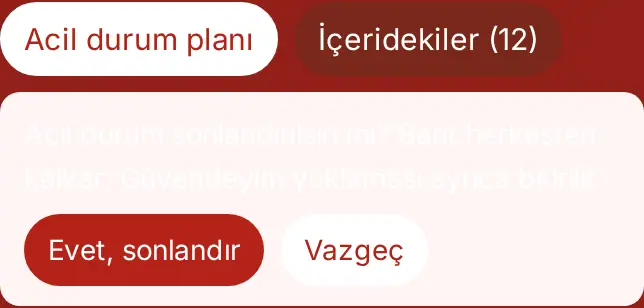
Result: The message "Emergency ended." appears and the banner disappears for everyone. End the I’m Safe check-in separately from the board. When the linked check-in ends, the emergency also ends automatically.
Important: The employee list is based on the work time (time and attendance, PDKS) record. An employee who did not clock in is not shown in the list; if PDKS is off, it says "Attendance tracking is off, so employees in the office are unknown; follow the I’m Safe check-in." The list of people inside is not stored in the record; on the History tab, only the type, time, reporter and counts remain.
Reporting near misses and hazards
Who: Employee · Where: My Space → Services → Safety report → + Report
What it does: You report a situation that is risky in terms of occupational health and safety (OHS) to the OHS team before an accident happens: an accident that almost happened (near miss), a dangerous condition, an unsafe behavior or an improvement suggestion.
- In My Space → Services, scroll down to the Safety report box and tap + Report.
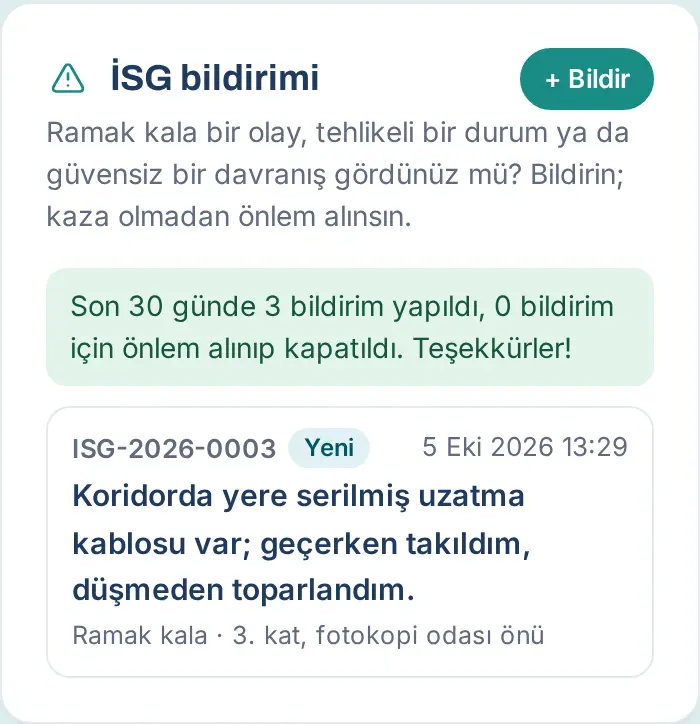
- Under What did you see?, select a type: Near miss, Unsafe condition, Unsafe act or Safety suggestion. Each type has a short description below it. If an accident happened, select Workplace accident (see Reporting a workplace accident).
- In the Where? field, type the location (e.g. "Depo, 2. raf arası" ("Warehouse, aisle 2")).
- In the Description box, type what you saw. Describe the situation, not the person's name.
- If you want, type your suggestion in the Suggested action? (optional) field and add a Photo (optional).
- If the hazard is still going on, select the The hazard is ongoing (sends an urgent alert to the safety team) box.
- If you do not want your name to be shown, select the Send anonymously box (shown if your company allows it). In an anonymous report the time of the record is not kept; the list, the details and the OHS team's exports show only the date (1.8.8).
- Tap Report.
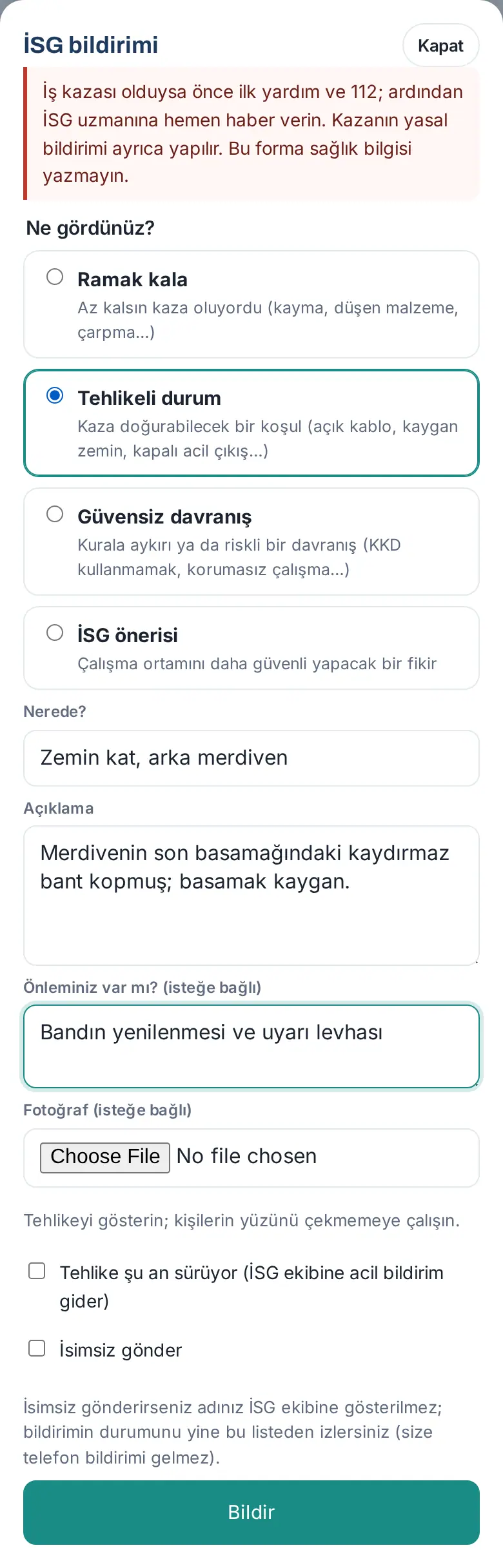
Result: Your report gets a number (e.g. ISG-2026-0003) and is listed in the box with the New status.
Common errors:
- "Choose the report type."
- "Enter the location."
- "Describe what you saw in a bit more detail (at least 10 characters)."
- "Anonymous reports are off for this company."
- "You’ve sent many reports; try again shortly."
Important:
- If a workplace accident happened, first give first aid and call 112, then inform the OHS specialist immediately. The top of the form also says "If there was an accident, first give first aid and call 112; then tell the OHS specialist at once. Choose "Work accident" for accidents; do not write health information in other types."
- For types other than a workplace accident, do not write health information in the form. Try not to photograph people's faces.
Reporting a workplace accident
Who: Employee · Where: My Space → Services → Safety report → + Report → Workplace accident
What it does: You send the details of a workplace accident that happened (when, where, who, how, injury, first aid, witnesses) to the OHS team. With these details, the OHS team reports the accident to SGK (the Turkish Social Security Institution) within 3 working days after the accident. The form does not replace the official SGK notification; OHS or human resources makes the notification.
Before you start: First aid and 112 come first. Both the injured person and an employee who saw the accident can report it. A workplace accident cannot be reported anonymously.
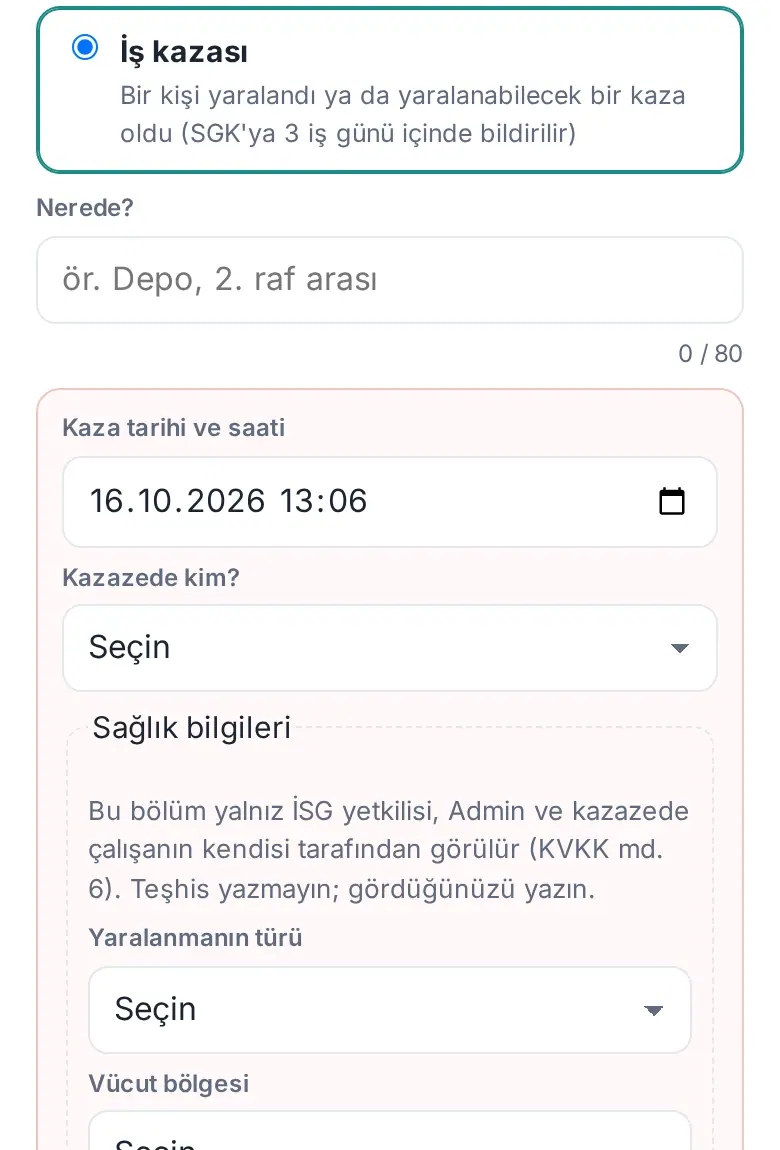
- In the Safety report box, tap + Report and, under What did you see?, select Workplace accident ("Bir kişi yaralandı ya da yaralanabilecek bir kaza oldu (SGK'ya 3 iş günü içinde bildirilir)" — "someone was injured or there was an accident that could injure someone (reported to SGK within 3 working days)"). The accident fields open.
- In the Where? field, type the place of the accident (e.g. "Depo, yükleme rampası" — "warehouse, loading ramp").
- Check the Date and time of the accident; it is filled with the current time.
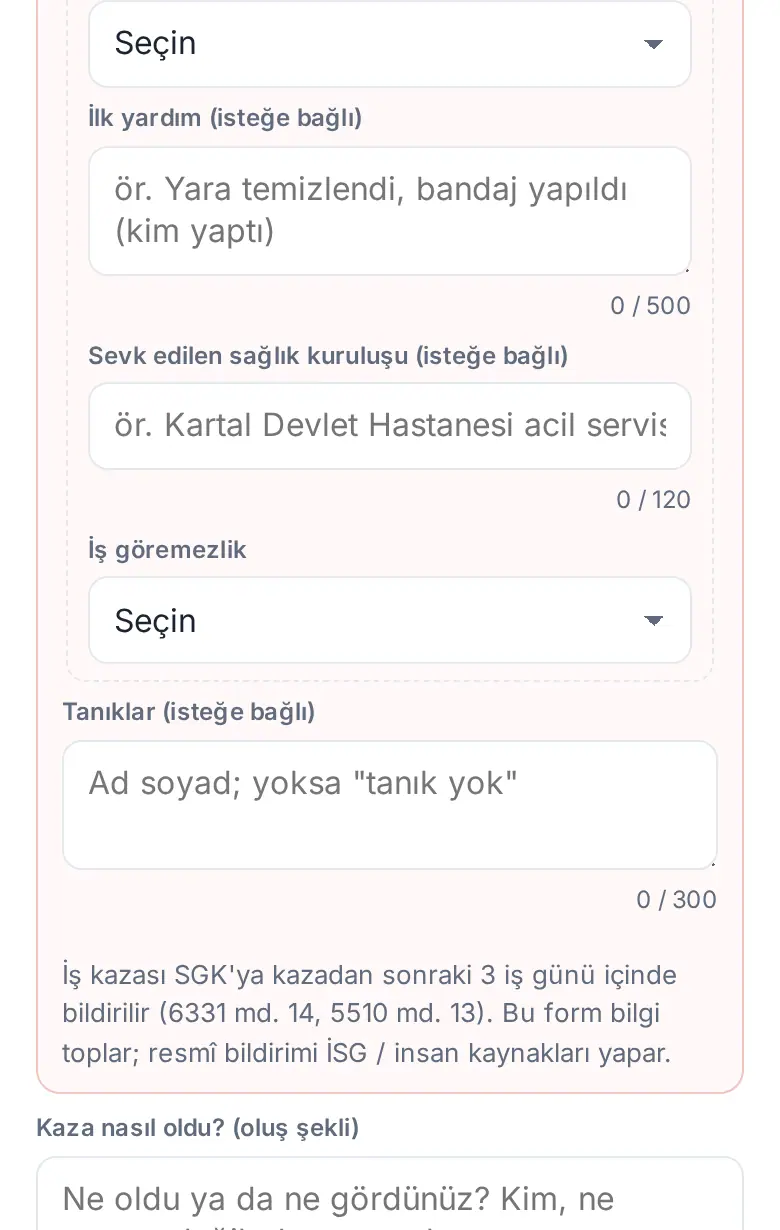
- In the Who was injured? list, select Employee, Visitor, Taşeron / alt işveren çalışanı ("subcontractor employee") or Other. If it is an employee, type their name in the Injured employee box and select them in the list; if not, type their name (and company) in the Injured person's name box.
- In the Health information section, select the Type of injury (e.g. Burkulma / incinme — "sprain / strain"; if there is no injury, Yaralanma yok — "no injury"). If there is an injury, select the Body part.
- If you want, fill in the First aid (optional) and Health facility referred to (optional) fields.
- In the Incapacity for work list, select İş göremezlik yok ("no incapacity"), İş göremezlik var (rapor) ("incapacity (sick note)") or Henüz bilinmiyor ("not known yet").
- If you want, type the names of the witnesses in the Witnesses (optional) field (if there are none, "tanık yok" — "no witnesses").
- In the How did the accident happen? box, write how the accident happened (at least 10 characters). If you want, write your suggested action and add a photo.
- Tap Report.
Result: The report gets a number (e.g. ISG-2026-0006) and goes immediately by email to the OHS officers; the email shows the last day for the SGK notification. The injured employee sees their own health information in the details of the report.
Common errors:
- "Kazanın tarihini ve saatini girin." ("enter the date and time of the accident"), "Kaza tarihi ileri bir zaman olamaz." ("the accident date cannot be in the future") or "Kaza tarihi en çok 1 yıl önce olabilir." ("the accident date can be at most 1 year ago")
- "Kazazedenin kim olduğunu seçin." ("select who was injured"), "Kazazede çalışanı listeden seçin." ("select the injured employee in the list") or "Kazazedenin adını yazın." ("type the injured person's name")
- "Yaralanmanın türünü seçin." ("select the type of injury"), "Yaralanan vücut bölgesini seçin." ("select the injured body part") or "İş göremezlik durumunu seçin." ("select the incapacity status")
- "Kazanın nasıl olduğunu biraz daha açık yazın (en az 10 karakter)." ("describe how the accident happened in a bit more detail (at least 10 characters)")
Important: Only the OHS officer, the Admin and the injured employee see the Health information section (KVKK, Turkey's personal data protection law, Art. 6); do not write a diagnosis, write what you saw. Health information is not written in emails or in exported files. Another employee who reports the accident sees the accident details but not the health information.
Following the status of your report
Who: Employee · Where: My Space → Services → Safety report
What it does: You see the status of your report, the actions the OHS team took and what they wrote.
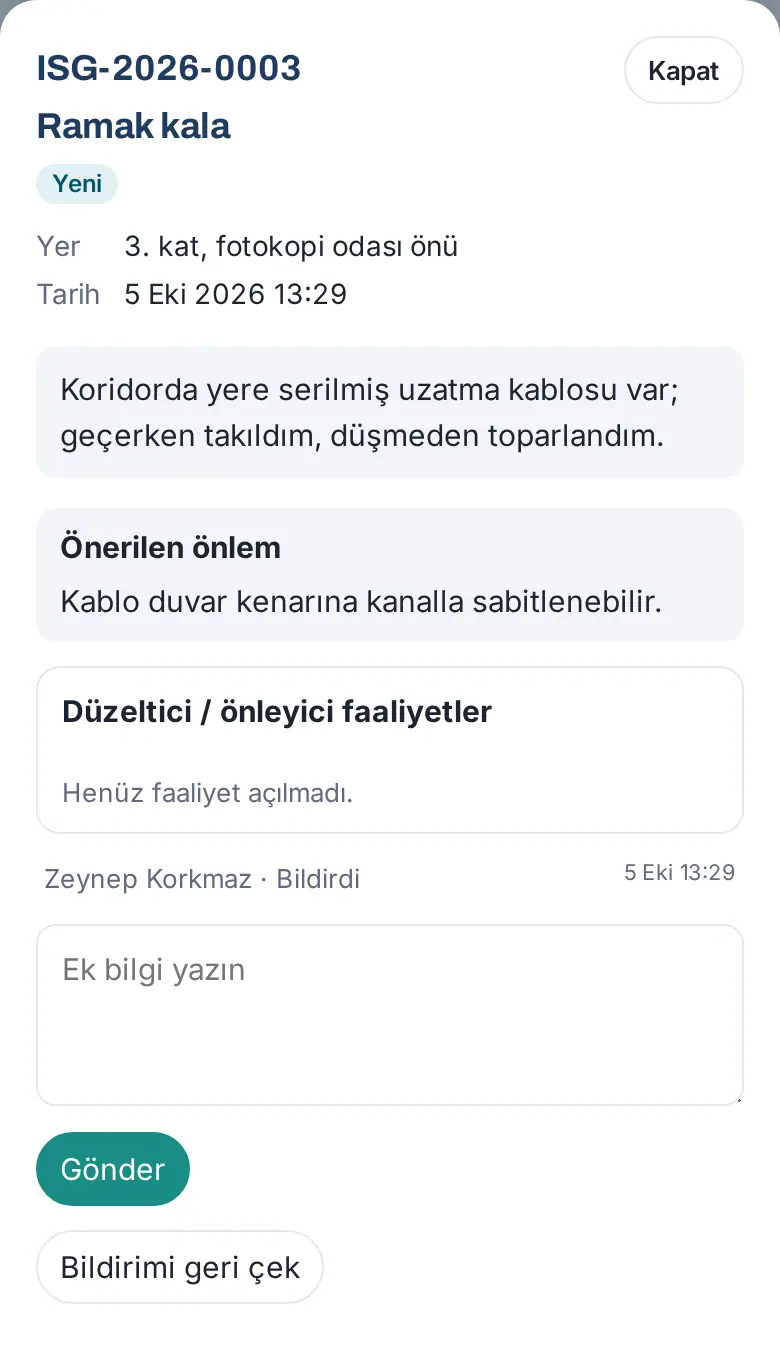
- In the Safety report box, tap your report.
- The details show the type, status, location, date, description, Suggested action and Corrective / preventive actions. The statuses are: New, Under review, Action in progress, Closed.
- To give the OHS team more information, type in the Add more information box and tap Send.
- If you opened the report by mistake and it has not been reviewed yet, tap Withdraw report.
Tip: If the OHS team assigns you a task (corrective action), the My actions tab is shown in the box; when you finish the task, you mark it as "done" with evidence (see Completing a corrective action with evidence). You also follow the status of a report you sent anonymously in this list, but you do not get a phone notification.
Completing a corrective action with evidence (DÖF)
Who: Employee to whom an OHS action is assigned · Where: My Space → Services → Safety report → My actions
What it does: When you do the corrective / preventive action (DÖF; e.g. "Rampa basamağına kaymaz bant yapıştır" — "stick anti-slip tape on the ramp step") that the OHS team assigned to you, you report what you did with an evidence note (and, if you want, a photo). The OHS officer checks it on site and verifies it.
- When the action is assigned, you get a notification. On the My actions tab, tap Mark as done next to the task. The details of the report open and the evidence field appears.
- In the What was done? (evidence note, required) box, write what you did (at least 5 characters; e.g. "Kablo kanalı takıldı, 3. kat koridor" — "cable duct installed, 3rd floor corridor").
- If you want, add a photo with Choose evidence photo.
- Tap Save as done.
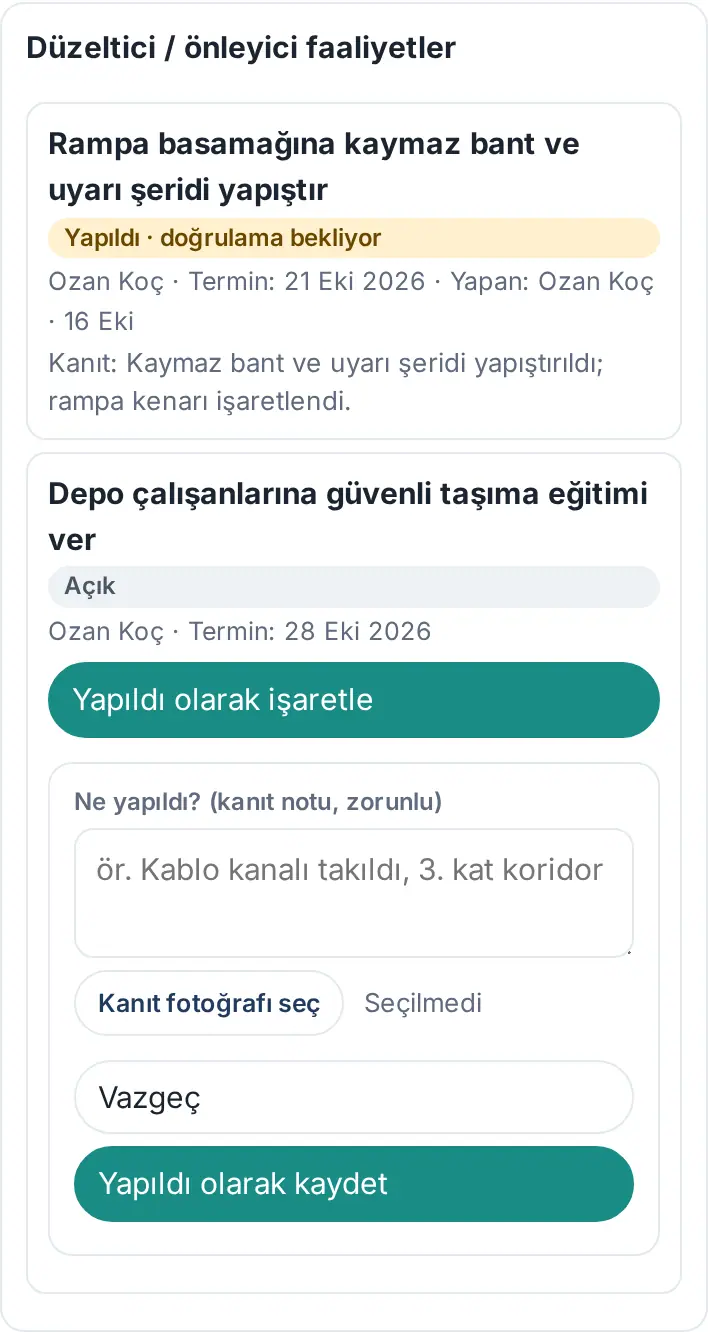
Result: The message "Saved; awaiting verification by the OHS officer." appears. The action becomes Done · awaiting verification; below it, "Evidence: …" shows. When the OHS officer taps Verify, it becomes Verified. If the officer does not find it sufficient, they Reopen the action with a reason; the reason is sent to you.
Common errors: "Ne yapıldığını kısaca yazın (en az 5 karakter)." ("write briefly what was done (at least 5 characters)")
Important: Marking the action as "completed" with one tap no longer exists; the evidence note is required. An OHS officer who marks it on someone else's behalf writes a reason and you get a notification.
Booking a physician appointment
Who: Employee · Where: My Space → My Area → Occupational physician
What it does: You book an appointment for a 15-minute written (no video) consultation with the company's occupational physician. The conversation is end-to-end encrypted and is not stored anywhere. In the company, the OHS officers and the Admin see only who booked an appointment for which time, whether the consultation took place and whether a sick note was issued (yes / no).
Before you start: Your company must have turned on occupational physician appointments and defined at least one physician. If the box is not shown, this service is off in your company.
- In the bottom menu, tap My Space and select My Area.
- In the Occupational physician box, tap Book appointment.
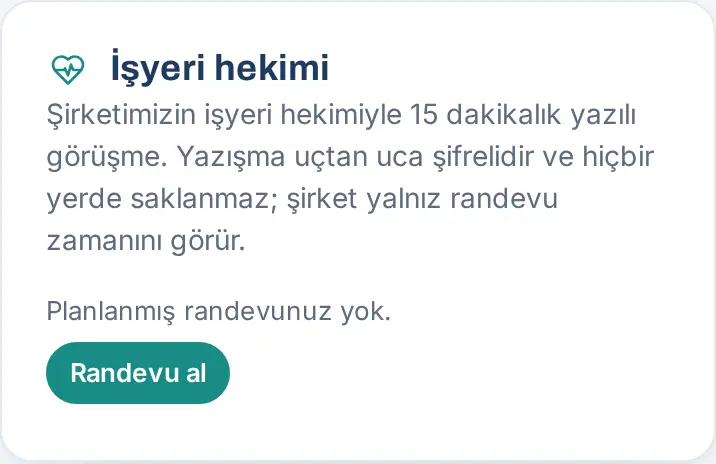
- If there is more than one physician, first select the physician.
- The days on which the physician is available are listed. Tap a day; the free 15-minute times of that day are shown.
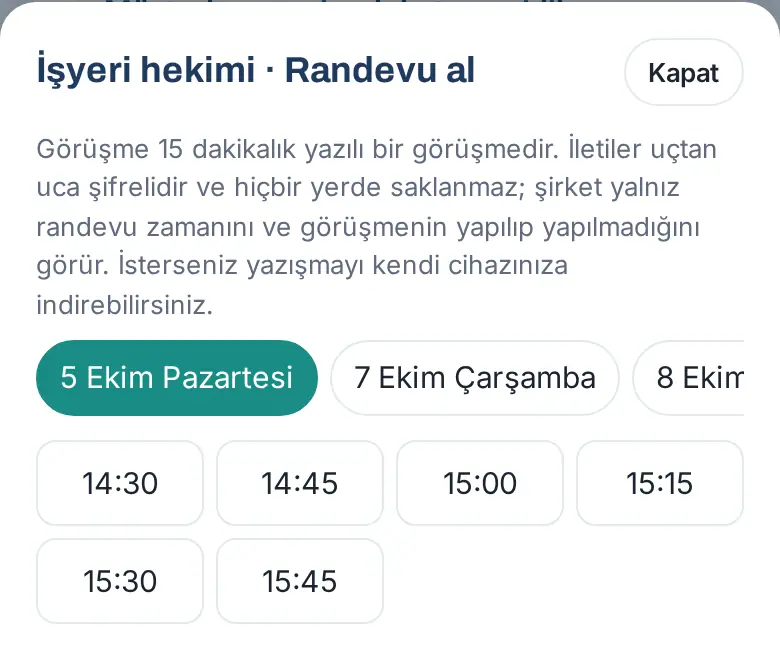
- Tap a time. Your selection is shown (e.g. "7 October Wednesday · 10:00") and the note "The consultation room opens 10 minutes before the appointment; you'll get a notification." is shown. For another time, tap Another time.
- Tap Confirm appointment.
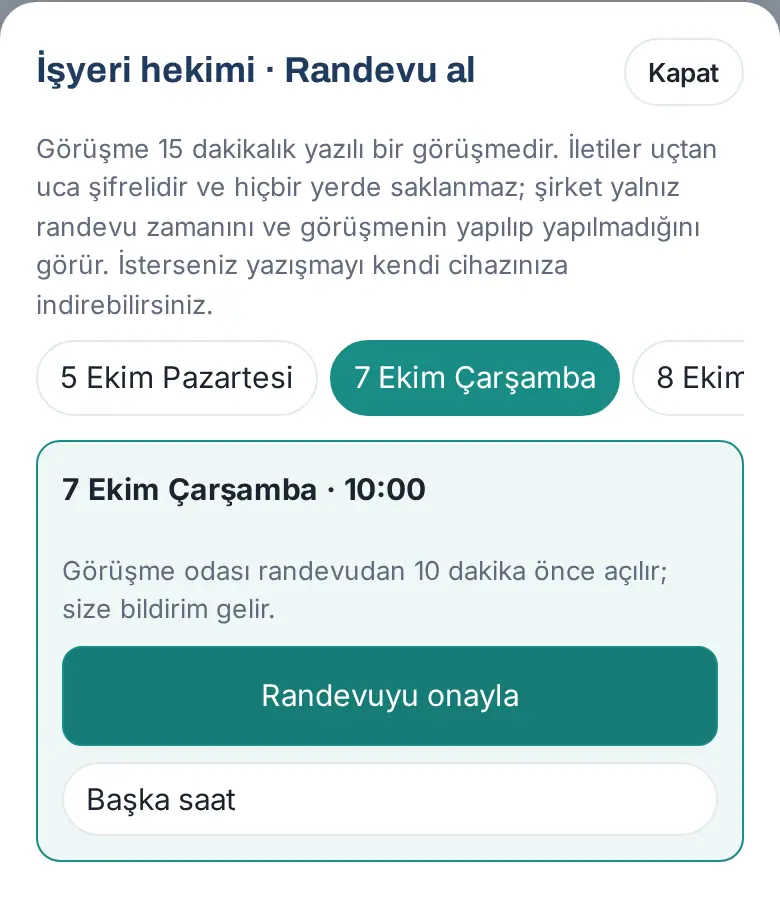
Result: The message "Your appointment is booked: 7 October Wednesday 10:00" appears. The box shows your appointment, the physician's name and organization, the Planned status and the Room opens time. The physician gets a notification (only your name and the appointment time).
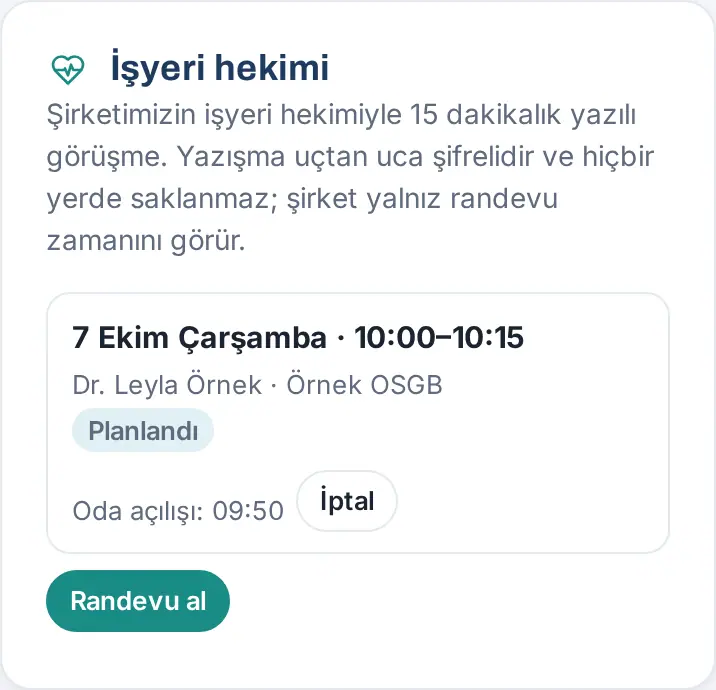
Common errors:
- "Bu saat az önce doldu. Başka bir saat seçin." ("This time was just taken. Select another time."): someone else booked the same time before you.
- "En çok 2 gelecek randevunuz olabilir; önce birini tamamlayın ya da iptal edin." ("You can have at most 2 upcoming appointments; first complete or cancel one.")
- "No free slots in the coming days. Please check again later."
Tip: You can book an appointment 30 minutes from now at the earliest; your company sets how many days ahead you can book at most (default 30 days).
Encrypted consultation with the physician
Who: Employee · Where: My Space → My Area → Occupational physician → Join consultation
What it does: At the appointment time, you exchange written messages with the physician. The messages are encrypted on your device and decrypted only on the physician's device; the server cannot read the messages. An encrypted message waits temporarily on the server only until the other side receives it (3 hours at most) and is deleted when it is received; no record of the conversation is kept.
Before you start: The consultation room opens 10 minutes before the appointment and closes 60 minutes after the start. Use an up-to-date browser; in an old browser, the warning "This browser doesn't support encrypted consultations; please use an up-to-date browser." appears.
- When the room opens, you get a notification. In the Occupational physician box, tap Join consultation next to your appointment.
- The Consultation · <physician's name> window opens. If the physician has not joined yet, the top shows "Waiting for <physician's name>… · closes 14:55" and you cannot use the Send button. When the physician joins, the top shows "Connected · end-to-end encrypted · closes 14:55".
- Look at the Security code line (e.g. "DC64 126A C10D 5B87"). The same code is shown on the physician's screen; if you want, ask the physician for the code to check that you are in the same consultation.
- Type your message in the Your message (Enter sends, Shift+Enter new line) box and tap Send.
- If you want to keep the conversation, tap Download conversation before you close the window (this also works after the consultation ends). The conversation is downloaded as a text file only to your device.
- When the consultation ends, close the window with Close. If you did not download the conversation, the question "Pencereyi kapatınca yazışma bu ekrandan silinir ve hiçbir yerde saklanmaz. Kapatılsın mı?" ("When you close the window, the conversation is deleted from this screen and is not stored anywhere. Close it?") appears.
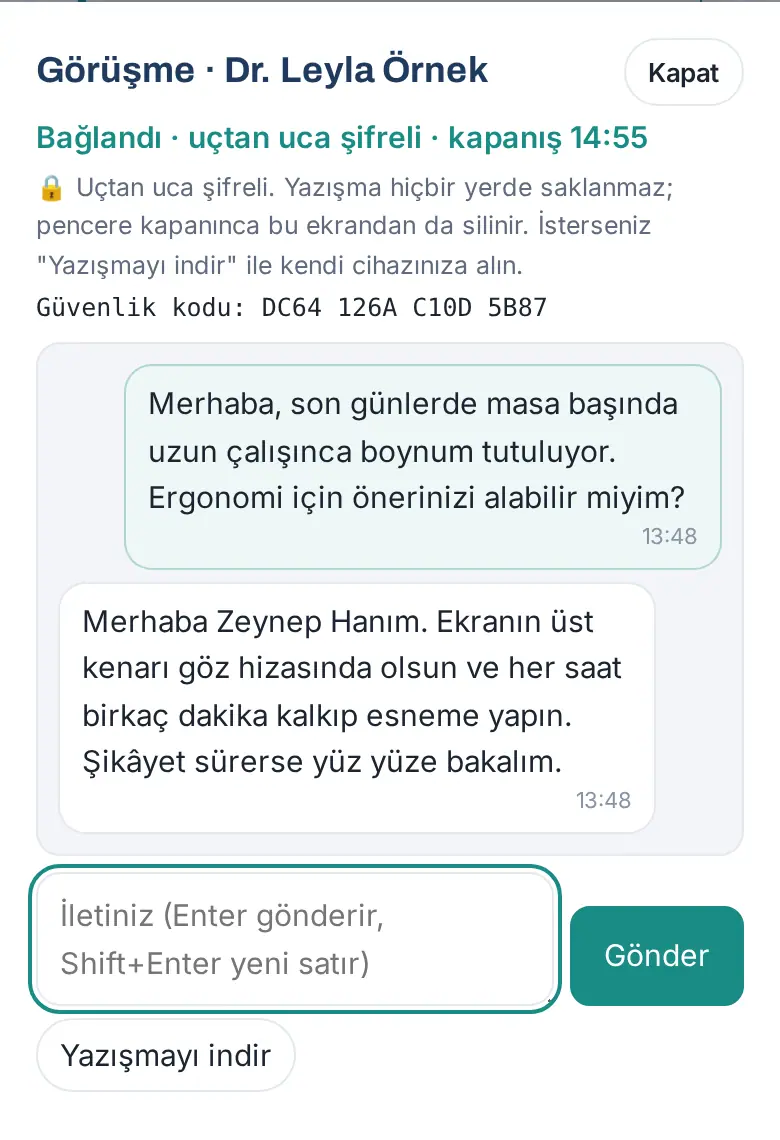
Result: When the physician ends the consultation, it says "The consultation has ended. The conversation is only on this screen; download it if you wish." Only whether the consultation took place and whether a sick note was issued are sent to the company.
Important:
- If you refresh the page, a new key is generated; the messages from before the refresh disappear from this screen. This is by design.
- The conversation is not kept in your phone's browser storage either. If you want to keep it, use Download conversation and keep the file in a safe place.
- If you have an urgent health problem, do not wait for the appointment; call 112.
Cancelling an appointment
Who: Employee · Where: My Space → My Area → Occupational physician → Cancel
- In the Occupational physician box, tap Cancel next to your appointment.
- At the "Cancel the appointment?" question, tap Yes, cancel.
Result: The appointment is removed from the list and the physician gets a notification. The freed time becomes available to other employees.
Important: An appointment that has started cannot be cancelled ("Başlamış randevu iptal edilemez." ("An appointment that has started cannot be cancelled.")). The physician can always cancel the appointment; in that case, you get a notification. If the physician is removed from the company, their upcoming appointments are cancelled.
Physician screen: appointments, consultation and outcome
Who: Occupational physician · Where: Prozence app address (with the physician account) → Appointments
What it does: The occupational physician signs in with a separate account that is not counted as a company employee and sees only their own screen: appointments, availability and history. No other company data is shown to the physician.
Before you start: The company's OHS officer or Admin must have added you as a physician (see adding a physician in chapter 32). You do not need a Google or Microsoft account.
- Open the company's Prozence sign-in page and type the email address you were given. Enter the code that comes to your email (see 00. Getting started).
- The Occupational physician · <company name> screen opens. On the Appointments (n) tab, the Today and upcoming appointments are listed: day, time, the employee's name and department, status and the Room opens time.
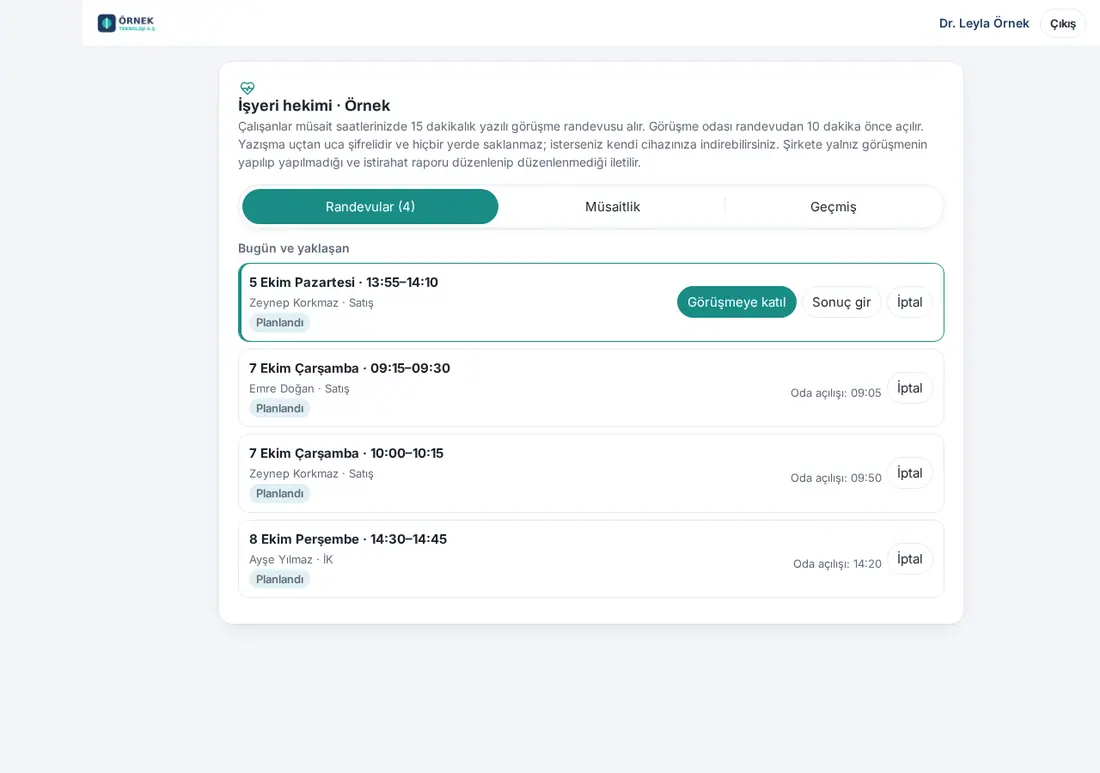
- When the room opens, click Join consultation next to the appointment. If the employee is in the room, it says "Employee in the room".
- Exchange messages with the employee. The same Security code is shown on both screens.
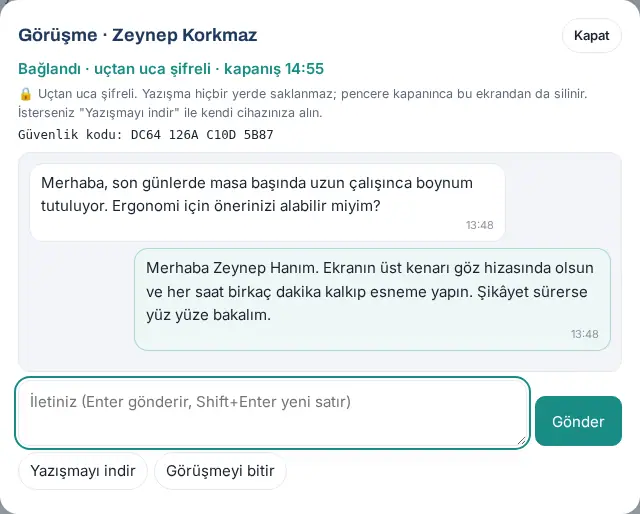
- If you want to keep the conversation, click Download conversation.
- When the consultation ends, click End consultation. No confirmation is asked; the room closes immediately. It says "The consultation has ended."; the room keys and the pending messages are deleted.
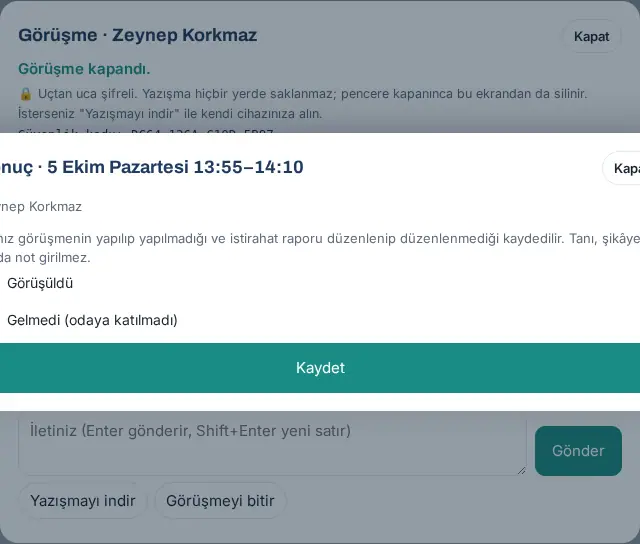
- After End consultation, the outcome window opens automatically. To enter the outcome later, click Enter outcome next to the appointment.
- Select Held or No-show (did not join the room). If you selected Held, answer the Was a sick note issued? question with Yes or No.
- Click Save.
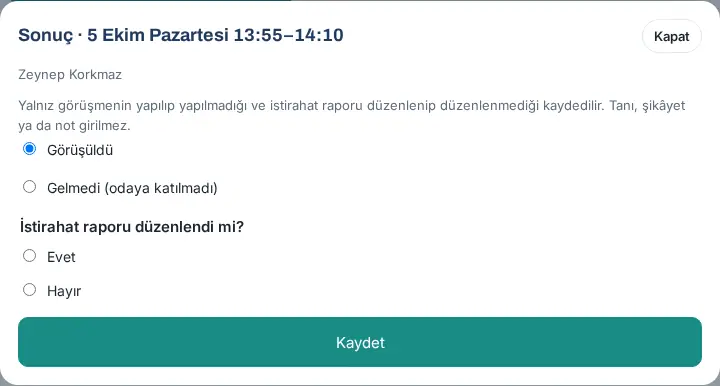
Result: The appointment moves to the History tab. Only the held / no-show information and the sick note information go to the company.
Common errors:
- "Sonuç randevu saatinden sonra girilir." ("The outcome is entered after the appointment time.")
- "Sonucu seçin: görüşüldü ya da gelmedi." ("Select the outcome: held or no-show.")
- "Was a sick note issued? Choose yes or no."
Tip: If you do not enter an outcome, 3 hours after the appointment it is recorded as "Held" (sick note unknown) if both sides connected to the room, and as "No-show" if they did not.
Important: The outcome has no diagnosis, complaint or note field; this is intentional. There is no language selector on the physician screen.
Physician screen: entering availability
Who: Occupational physician (the OHS officer can also edit it) · Where: Physician screen → Availability
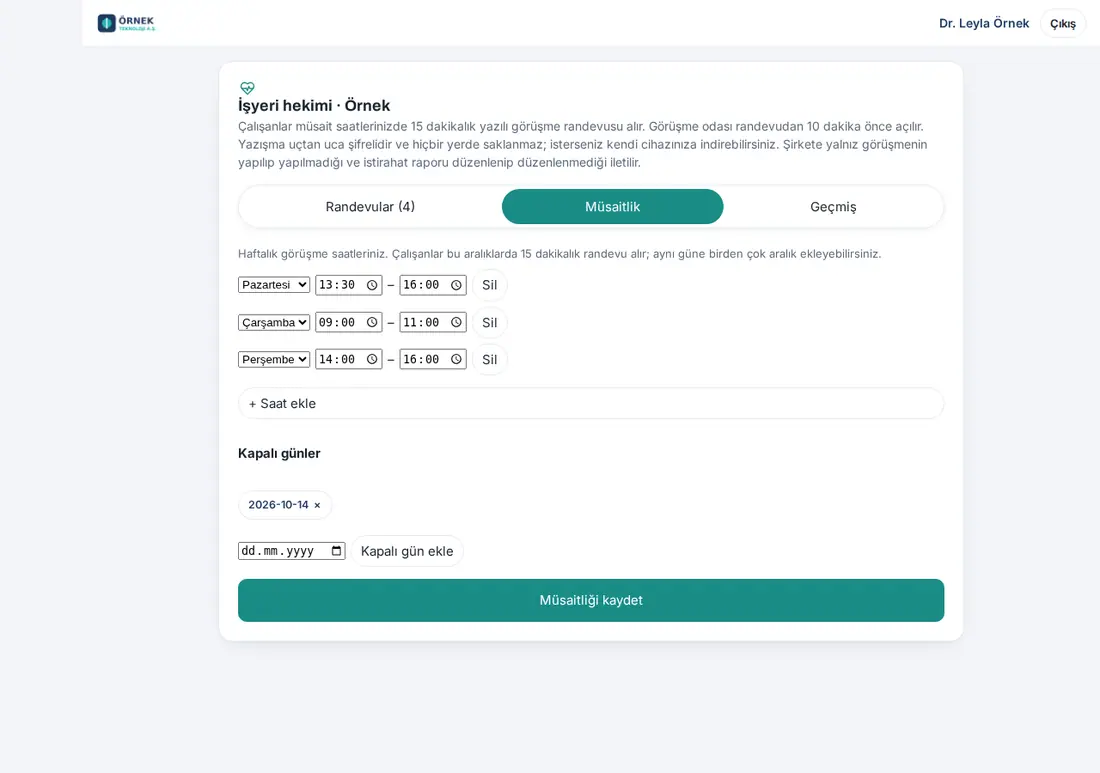
What it does: You enter your weekly consultation hours. Employees book 15-minute appointments in these time ranges.
- Click the Availability tab.
- On each line, select a day (Monday … Sunday) and type the Start and End times (e.g. 13:30–16:00). You can add more than one time range for the same day.
- For a new time range, click + Add hours. To remove a line, click Delete.
- For days on which you will not come, select the date under Days off and click Add day off. To remove it from the list, click ×.
- Click Save availability. The message "Availability saved." appears.
Common errors:
- "Aynı gün için saat aralıkları çakışıyor." ("The time ranges for the same day overlap.")
- "Bitiş saati başlangıçtan en az 15 dakika sonra olmalı." ("The end time must be at least 15 minutes after the start.")
- "En çok 21 müsaitlik satırı." ("At most 21 availability lines.") / "En çok 120 kapalı gün." ("At most 120 days off.")
Important: Before you close a day, check on the Appointments tab whether there are appointments booked for that day. If there are, cancel the appointment with Cancel; the employee gets a notification.


