00. Getting started
Screenshots show the Turkish interface of Prozence with fictional "Örnek Teknoloji A.Ş." data; the English interface has the same layout.
Prozence is your company's employee app: your digital business card, your email signature, your customer directory, company announcements, your colleagues and internal services (leave, work time, expenses, meals, shuttle…) in one place. The app runs in the browser. You do not need to download anything to your phone. If you want, you add it to the home screen and open it like an app, or you use the Prozence app from the App Store / Google Play (see 20. Prozence mobile app).
This chapter describes the first sign-in, moving between screens and your own details (My profile). The sections you see depend on the modules your company turns on and on your role. If a button that is in the screens in this guide is not on your screen, that feature is off in your company.
Who: Employee
In this chapter
- Signing in to the app
- If you have no company email: SMS, personal email or invitation
- Signing in on a shared device
- Adding the app to your phone's home screen
- Using the Prozence mobile app
- Welcome list (get ready in 5 steps)
- Moving between screens
- Shortcut button
- Search
- Pick-by-typing boxes
- Choosing the language
- Choosing the start screen on your phone
- My profile: editing your own details
- Entering your emergency contact
- About me and profile details
- My permissions
- Signing out
Signing in to the app
Who: Employee · Where: The app address your company gives you (e.g. https://ornek.invalid/kartvizit/uygulama/)
What it does: There is no password. You sign in with a one-time code sent to your email or phone, with your company Google / Microsoft account, with your company's identity provider (single sign-on), or with an invitation link from HR.
-
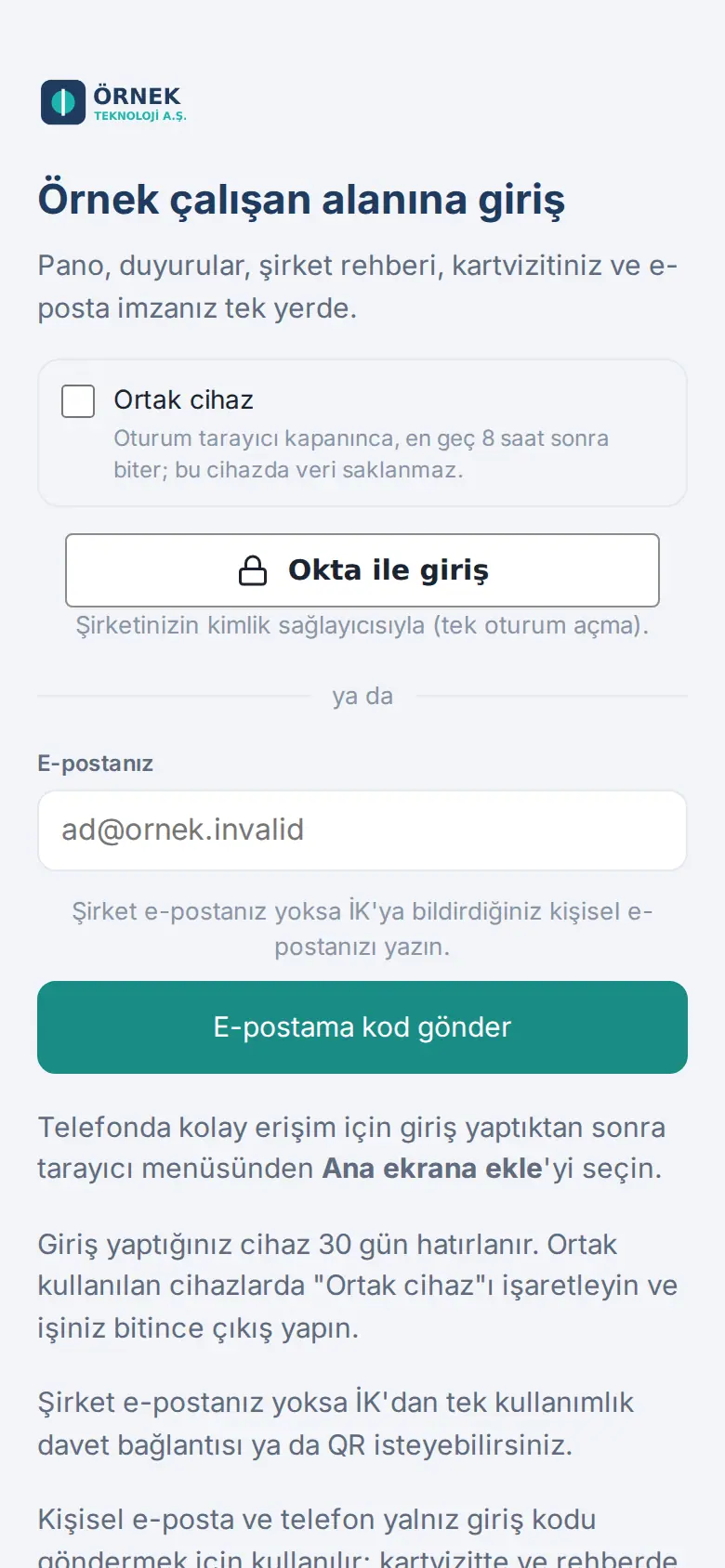
Open the app address. The … employee area sign-in screen opens.
-
If your company turned them on, use the Sign in with Google or Sign in with Microsoft button. You can sign in only with your company account; a personal Gmail or Outlook account is not accepted.
- If your company turned on single sign-on with its own identity provider, the button shows the identity provider's name (e.g. Sign in with Okta, or Sign in with company account (SSO)). Tap it to open your company's sign-in screen; sign in there with your usual work account and you return to the app (0.99.53).
-
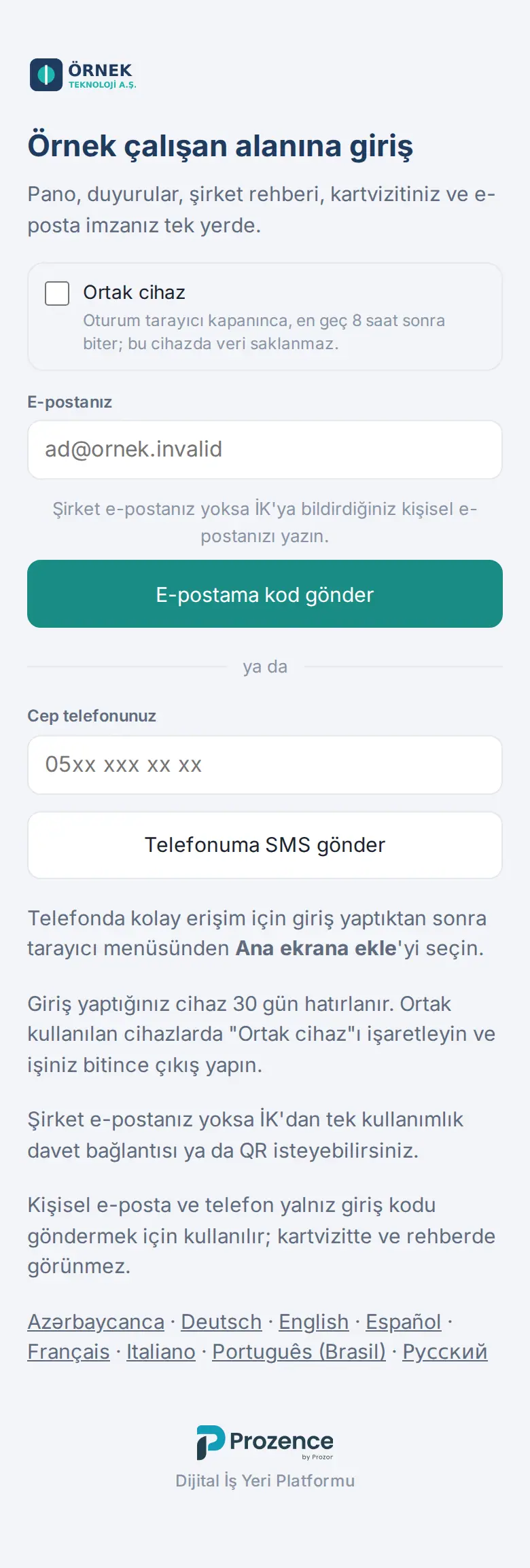
To sign in by email, type your company email address in the Your email box and tap Send a code to my email. If you have no company email, see If you have no company email.
-
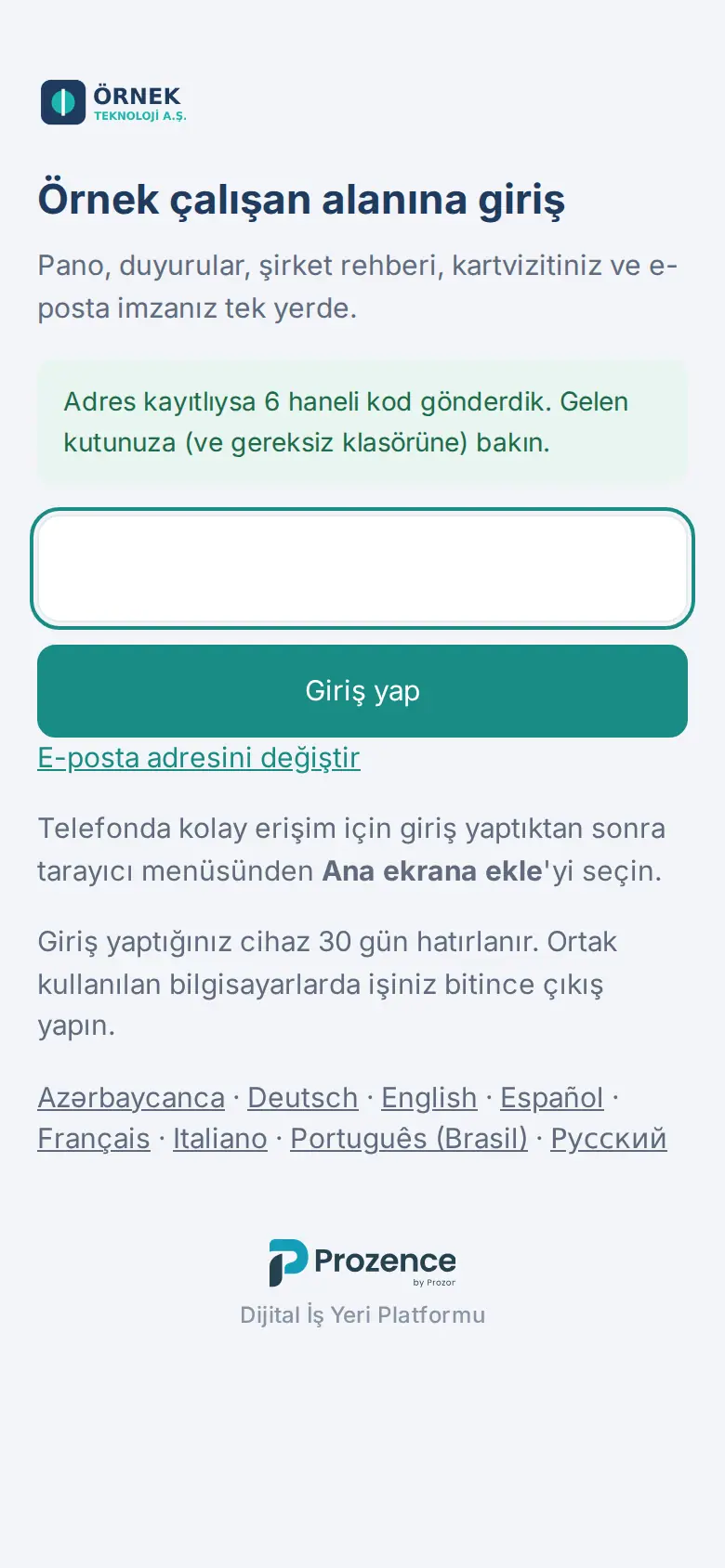
You get a 6-digit code in your inbox. Type the code in the box and tap Sign in.
-
If you added phone approval or an authenticator app (or your company requires it), a second step is requested in a new browser: approve on your phone or type the verification code (see 35. Sign-in security: phone approval and authenticator app).
Tip:
- If the code does not arrive, look in your spam folder. If you typed the address incorrectly, tap Change email address.
- The device you sign in on is remembered for 30 days. During this time you are not asked for a code again.
- With the language links at the bottom of the sign-in screen, you can open the screen in a different language.
- In the Prozence mobile app the sign-in steps are the same; only the Google and Microsoft sign-in opens in the phone's browser (see 20. Prozence mobile app).
Important:
- The code is valid for 10 minutes. The time starts when you request the code, and incorrect attempts do not extend it (1.1.2). If you type it incorrectly 5 times, you must request a new code. If you request too many codes for the same address in a short time, the screen tells you when you can try again (1.1.7; see 16. Troubleshooting).
- For security, the screen does not tell you whether the address is registered ("If the address is registered, we sent a 6-digit code"). If the code never arrives, your address may not have been added to the app; contact your administrator.
- On shared devices, tick the Shared device box (see Signing in on a shared device) and always sign out when you finish.
If you have no company email: SMS, personal email or invitation
Who: Employee without a company email (field, production, store, warehouse…) · Where: Sign-in screen; the invitation link or QR code from HR
What it does: You can sign in to the app even without a company email. Use one of the methods your company turned on; the sign-in screen shows which ones are available.
With a personal email:
- Give HR your personal email address. HR enters it in your record as your Sign-in email (personal).
- On the sign-in screen, type this address in the Your email box and tap Send a code to my email.
- Type the 6-digit code you receive and tap Sign in.
By SMS:
- Type your number in the Your mobile number box (e.g. 0530 000 00 00) and tap Send an SMS to my phone.
- Type the 6-digit code from the SMS and tap Sign in. On some phones the code fills in the box automatically.
With an invitation link:
- Open the link HR sent you, or scan the QR code on HR's screen with your phone camera.
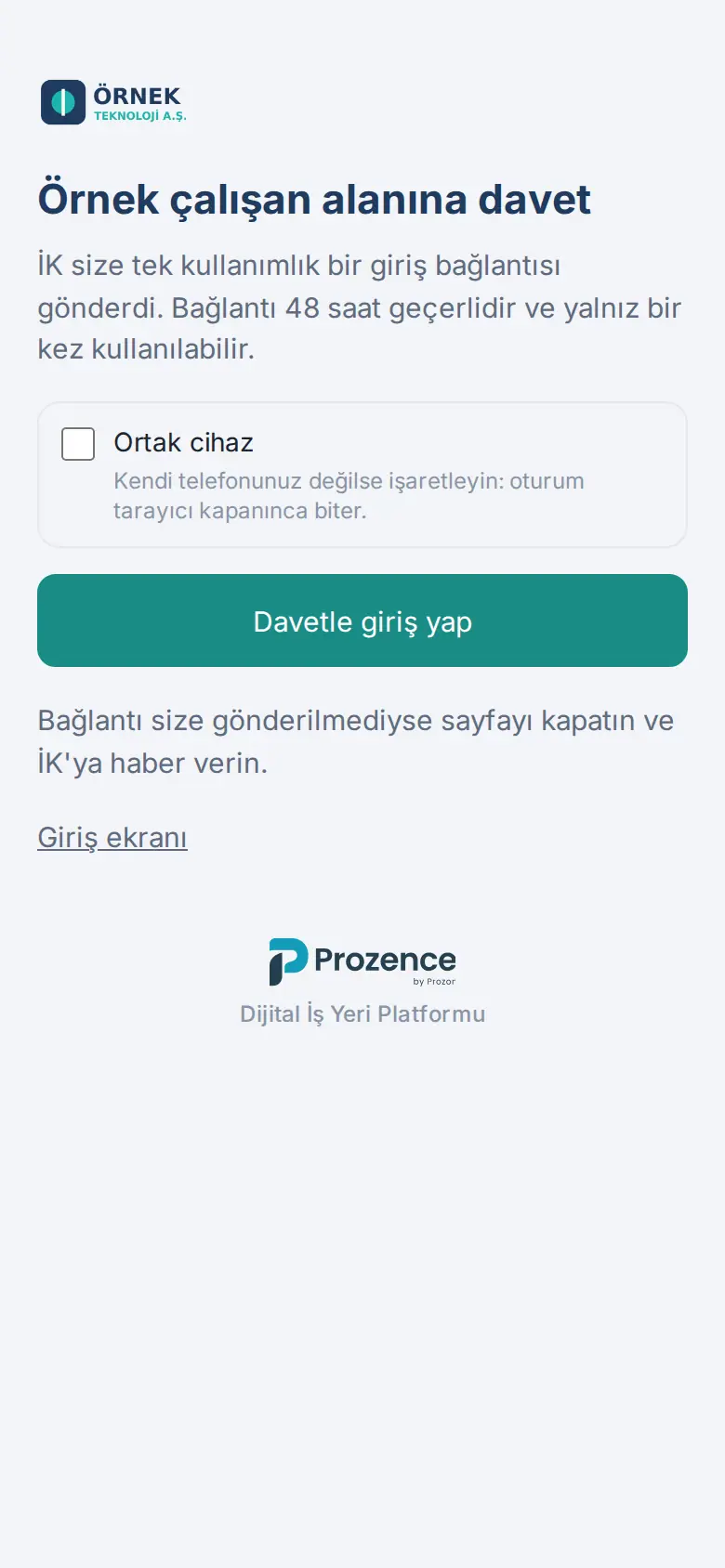
- The … employee area invitation screen opens. If the phone is not yours, tick Shared device.
- Tap Sign in with invitation.
Tip:
- After you sign in with an invitation, your phone is remembered for 30 days. For the next sign-ins, you can use SMS or your personal email, or ask HR for a new link.
- Your personal email address and phone are used only to send sign-in codes. They do not appear on your business card, in your email signature or in the company directory.
Important:
- An invitation link is valid for 48 hours and can be used only once. A used or expired link shows "The invitation link is invalid, already used or expired"; ask HR for a new link. Do not share the link with anyone.
- At most 3 SMS per hour are sent to one number. For security, the screen does not tell you whether the number is registered ("If the number is registered, we sent a 6-digit code by SMS").
- If your number is also on the record of another employee in the company, SMS sign-in does not work. Ask HR to enter a separate sign-in phone for you.
Signing in on a shared device
Who: Employee · Where: Sign-in screen → Shared device
What it does: On a device that several people use, such as a warehouse computer or a store tablet, your session is kept short and your data does not stay on the device.
- On the sign-in screen, tick the Shared device box. The choice is remembered on this device; it is ticked for the next person too.
- Sign in as usual (email code, SMS, Google, Microsoft or invitation).
- The Shared device session: closes at … bar appears at the top of the app. The bar says "When you're done, tap Sign out at the bottom of My profile."; there is no sign-out button in the top bar.
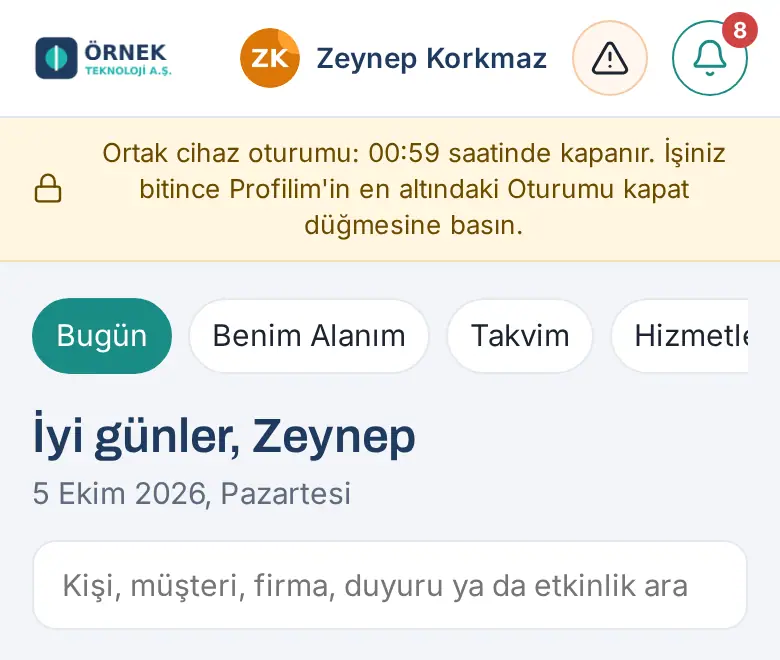
Tip: The session ends when the browser closes, or at the latest when the time your company set (8 hours by default) runs out. The next time the sign-in screen opens on this device, Prozence data left from the previous session is deleted.
Important: Still sign out when you finish: tap Sign out at the very bottom of My profile (see Signing out). In a shared device session, the app does not open offline.
Adding the app to your phone's home screen
Who: Employee · Where: Your phone's browser
What it does: The app stays on your phone as an icon, opens full screen and can receive phone notifications.
iPhone (Safari):
- Open the app address in Safari and sign in.
- Tap the Share icon (the square with an up arrow) at the bottom.
- Select Add to Home Screen, then tap Add.
Android (Chrome):
- Open the app address in Chrome and sign in.
- Tap the ⋮ menu at the top right.
- Select Install app (on some phones Add to home screen) and confirm.
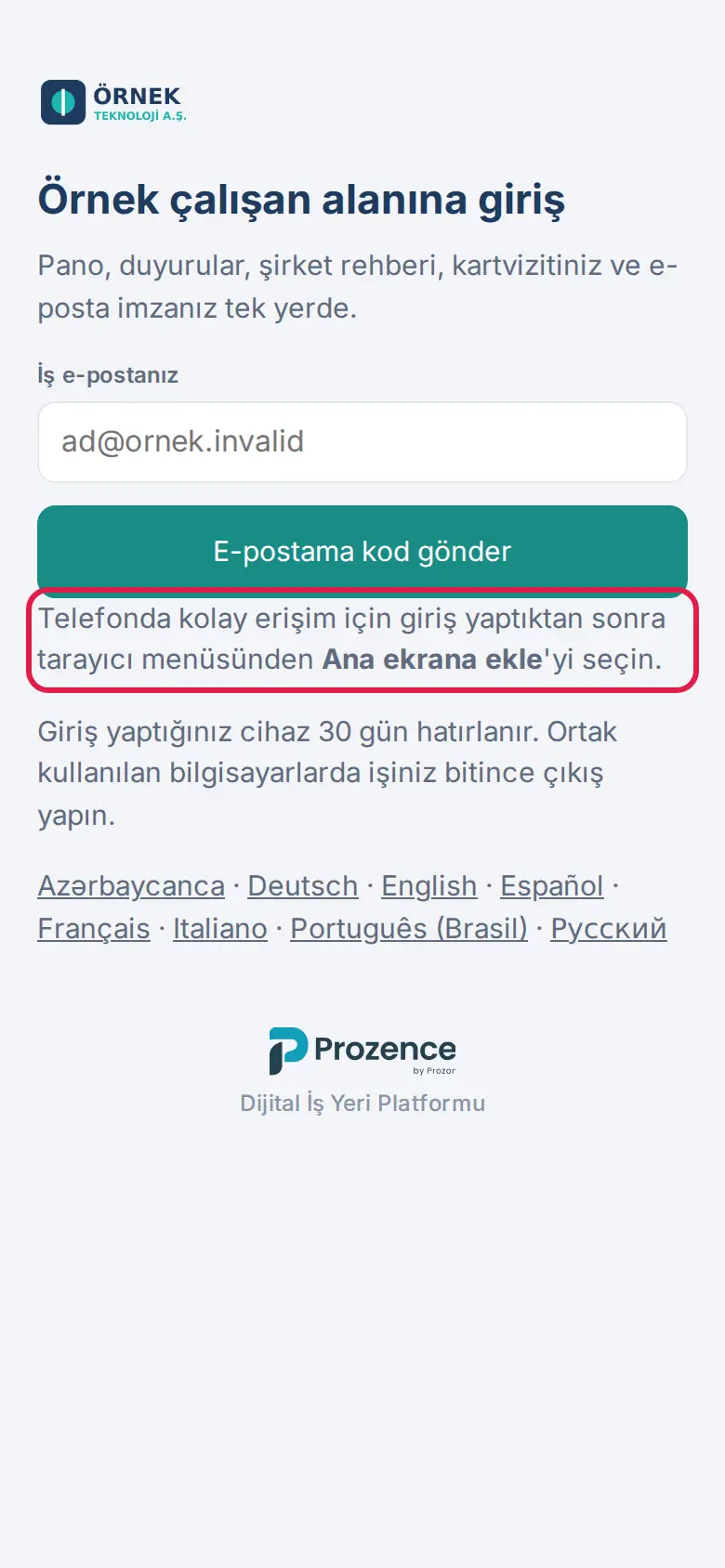
Tip:
- If you are on a computer, send the app address to your phone (e.g. by email) and open it in your phone's browser.
- Instead of adding it to the home screen, you can also use the Prozence app from the App Store / Google Play (see Using the Prozence mobile app).
Important: On iPhone, phone notifications work only in an app that is added to the home screen. Add the app to the home screen before you turn on notifications (see 09. Notifications).
Using the Prozence mobile app
Who: Employee · Where: App Store (iPhone) or Google Play (Android) → Prozence
What it does: You open Prozence with the Prozence app on your phone instead of the browser. The screens are the same. In addition, the app uses phone notifications, company selection with a QR code, and recognition of the office Wi-Fi when you record work time.
- Install the Prozence app from the App Store or Google Play.
- Open the app. Type your company's Prozence address in the Company address box and tap Continue, or scan one of your company's Prozence QR codes with Scan QR code.
- When you see your company's name and logo, tap Open.
- Sign in as usual.
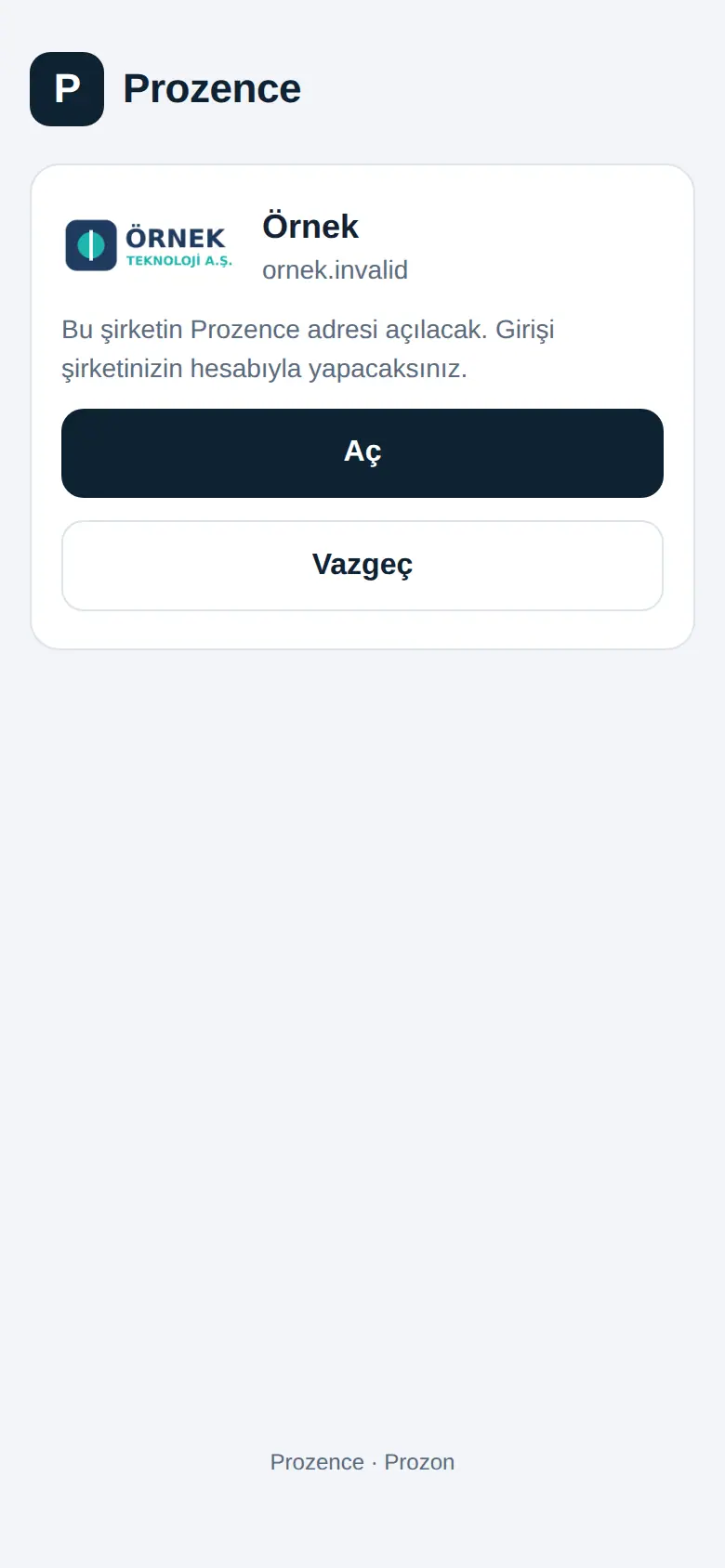
For details about installation, sign-in, notifications and privacy, see 20. Prozence mobile app.
Welcome list (get ready in 5 steps)
Who: New employee · Where: Top of the first screen
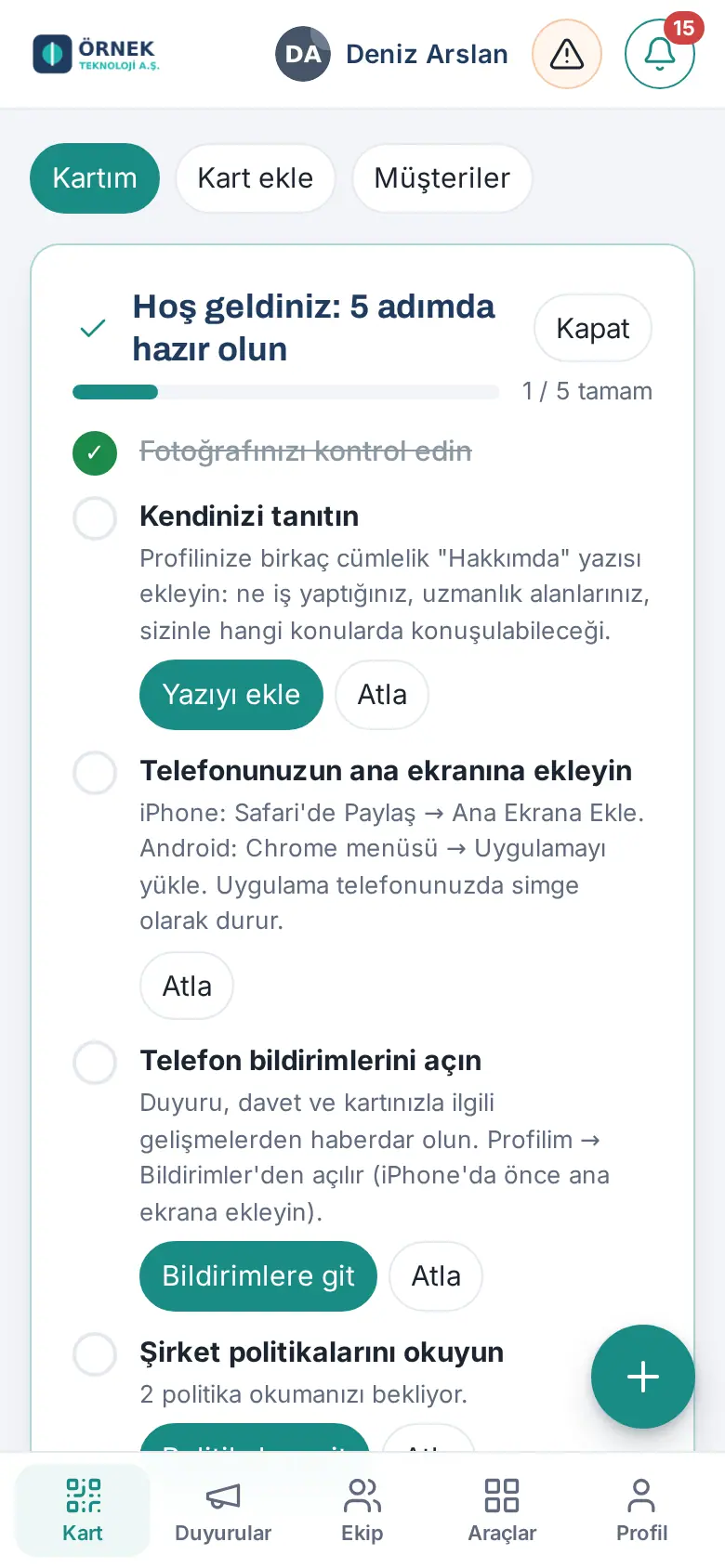
At your first sign-in, the Welcome: get ready in 5 steps list shows at the top of the screen:
- Check your photo: the photo that shows on your business card, in your signature and in the directory.
- Introduce yourself: add a short "About me" text with Add your intro.
- Add it to your phone's home screen: the steps above.
- Turn on phone notifications: Go to notifications takes you to Profile → Notifications.
- Read the company policies: the number of policies waiting for you to read is shown.
The steps you complete are ticked automatically. You can skip a step you do not want with Skip, and hide the list with Close.
If your company has no policies for you to read, the last step is not shown; the title reads Welcome: get ready in 4 steps and the counter counts four steps (1.8.8).
Moving between screens
Who: Employee
On a phone there are five buttons at the bottom of the screen:
| Button | What it opens |
|---|---|
| Card | Your own card. The tabs at the top: My card, Add card, Customers. My Identity Kit and My signature are also in My card. |
| Announcements | Company Agenda: company announcements, surveys, events. |
| Team | Team Square and the company directory. |
| My Space | In the strip at the top: Today (at the very top, the Today card: items waiting for your approval, what you must do today, today's calendar; below it, the day's overview), My tasks and Projects (if your company turned them on), My Area (My requests, work time, leave, expenses, your requests, your assets, onboarding), Calendar, Services (meals, shuttle, requests…) and, depending on your permissions, Reception, Mailroom, Assets. |
| Profile | My profile (with the My profile, Reminders, Notifications and, if your company turned it on, Security tabs) and Reports. If you have permission, Admin is here too. Sign out is at the very bottom of My profile. |
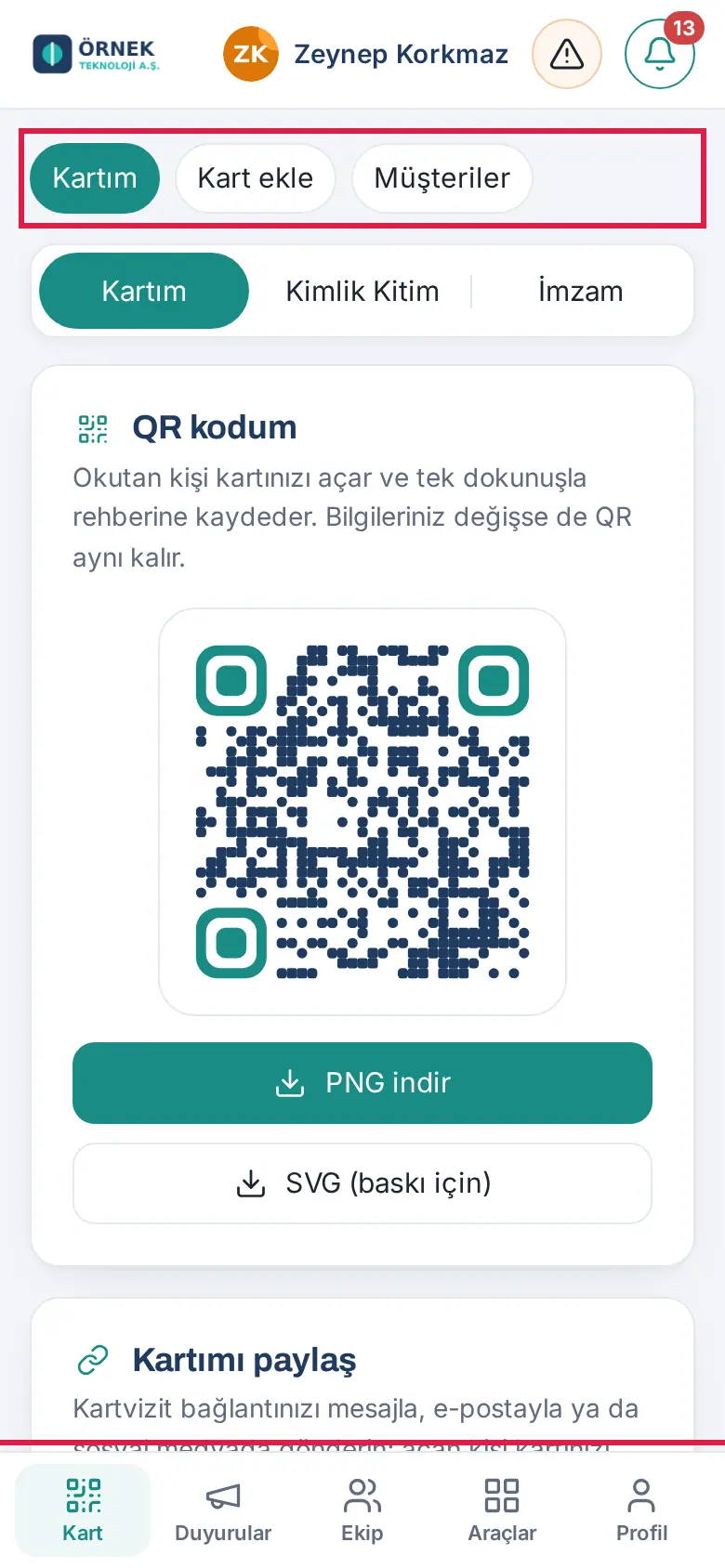
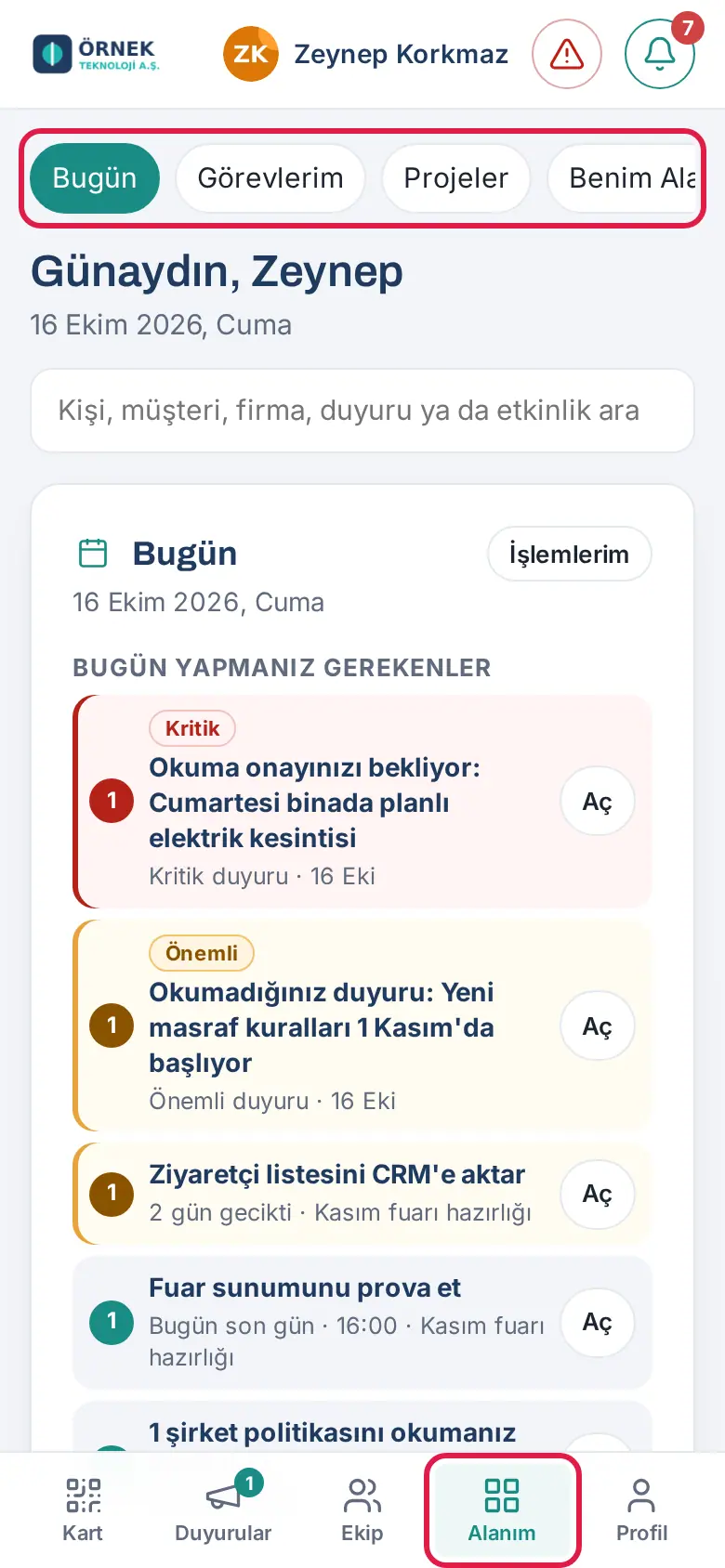
Note: Since 1.3.1, the fourth button of the bottom menu is named My Space. In the older phone images in this guide, this button shows Araçlar ("Tools"); it is the same button.
On a computer the menu is on the left: Board, Add card, Customers, Directory, Reports (see 19. Reports), My profile and, if you have permission, Admin. The tabs at the top of the Board: Today, My Area, Company Agenda, Team Square, Calendar, Services.
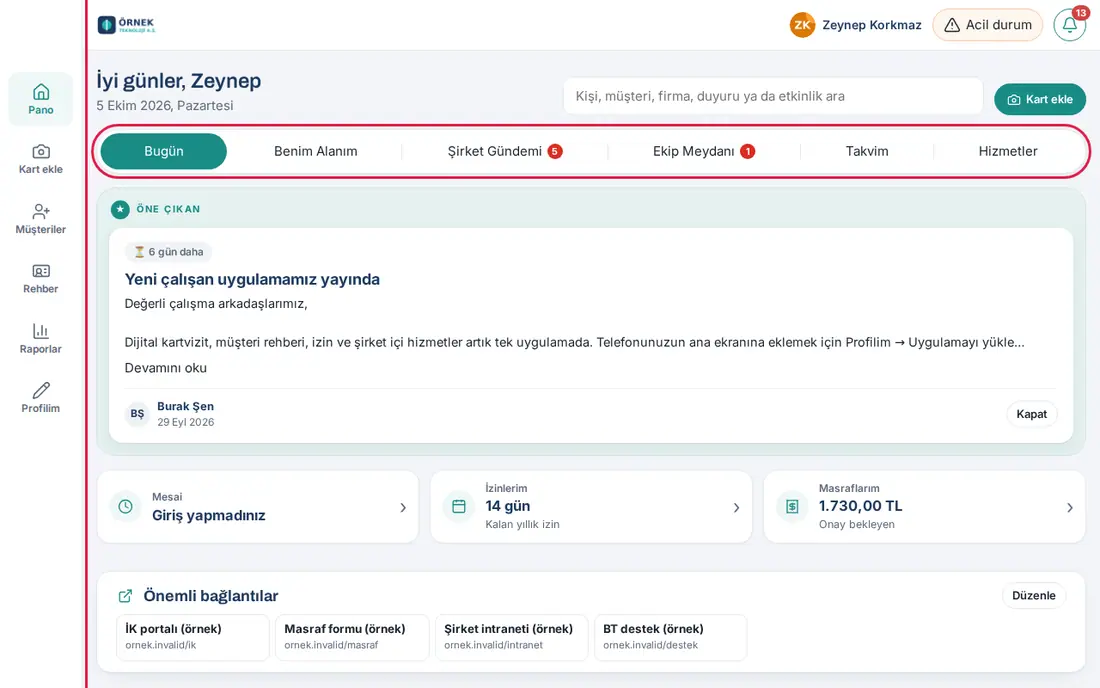
At the top of each screen there are your name and the bell icon (Waiting for you: items that wait for your approval, reply or reading; the red number shows how many). If your company turned it on, the Emergency button is next to them (on a phone, only the icon; see 27. Emergencies, occupational safety and the occupational physician). The red numbers on the menu buttons show new content waiting for you in that section.
There is no sign-out button in the top bar (updated in 0.99.45). To sign out, see Signing out.
Tip: In this guide, the "Where" lines give the path on a phone. On a computer, you open the same screen from the menu on the left: Card → My profile → My card; Announcements, Team and My Space → the tabs of the Board.
Shortcut button
Who: Employee · Where: Bottom right of the screen on a phone
What it does: Starts the tasks you do often with one tap.
- If your company turned on only one shortcut, its name is on the button (e.g. Scan card). Tap it to open that task directly.
- If there is more than one shortcut, the button shows +. Tap it to open the menu: e.g. Request leave, Start work, Add expense, Scan card. To close the menu, tap × or an empty area.
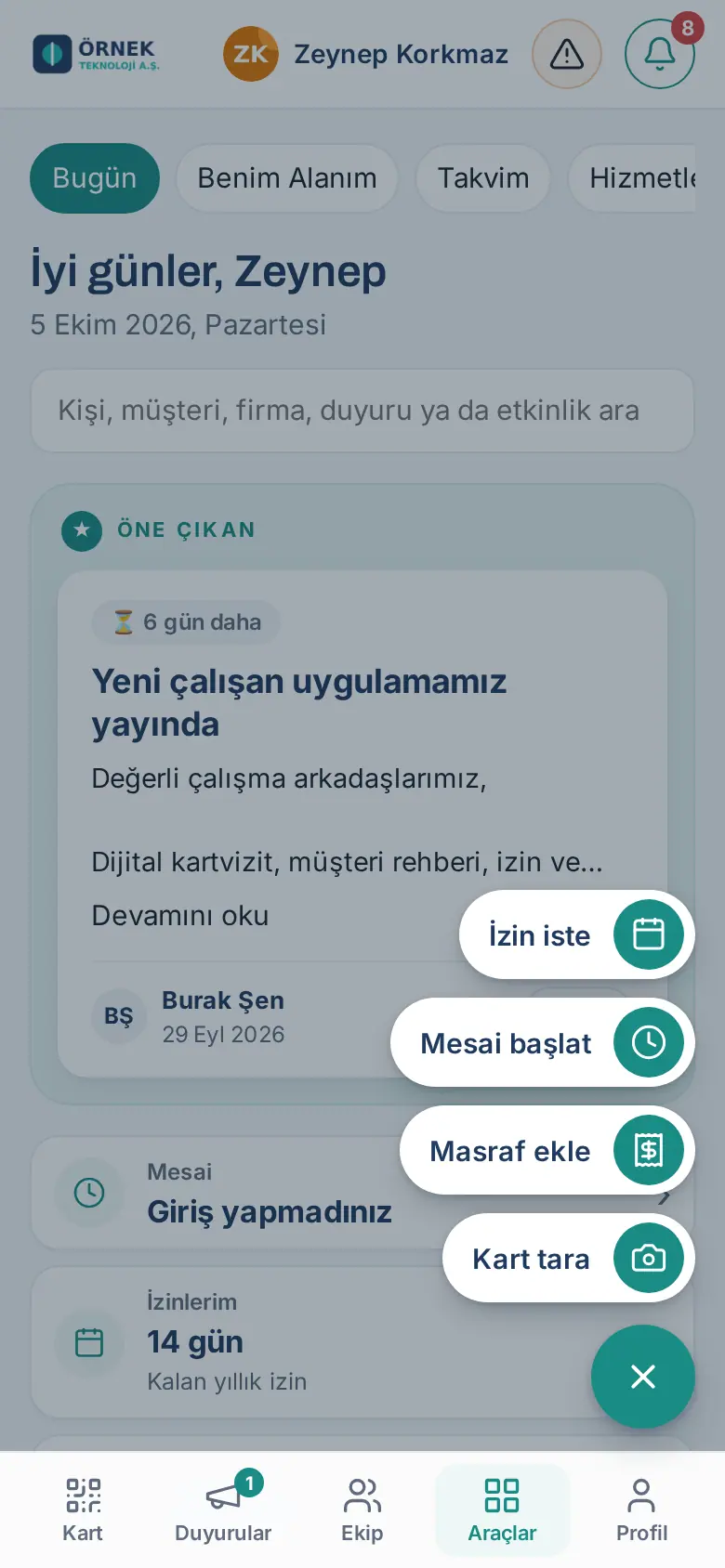
Tip: If you do not want the button, you can hide it in the Start screen on phone section of My profile (see Choosing the start screen on your phone).
Search
Who: Employee · Where: My Space → Today (Board on a computer)
Type a few letters in the Search people, customers, companies, announcements or events box at the top. The results are grouped as colleagues, your customer cards, companies, announcements and events. You can also find your colleagues by their expertise and interests (see About me and profile details).
Pick-by-typing boxes
Who: Employee · Where: All forms where you choose a person or a place (e.g. Wiki editors, Assets, OHS (occupational health and safety, İSG), Parcels)
Type a few letters in a box that says "Type a name, pick from the list" or "Add handler: type a name". Up to 8 suggestions open directly below the box. Click or tap the row you want. With the keyboard, you can move between the rows with ↓ and ↑, select with Enter and close the list with Esc.
- The search ignores Turkish letters and upper/lower case: when you type "ozlem", "Özlem" is found too.
- A name that you type without selecting a person is not accepted; the warning "Pick an employee from the list." appears.
- If no record matches, the suggestion list does not open.
Choosing the language
Who: Employee · Where: Profile → My profile → Dil / Language
- Tap Profile in the bottom menu and scroll down to the Dil / Language section on the My profile tab.
- Tap a language (Azərbaycanca, Deutsch, English, Español, Français, Italiano, Português (Brasil), Türkçe, Русский). The app opens again in that language.
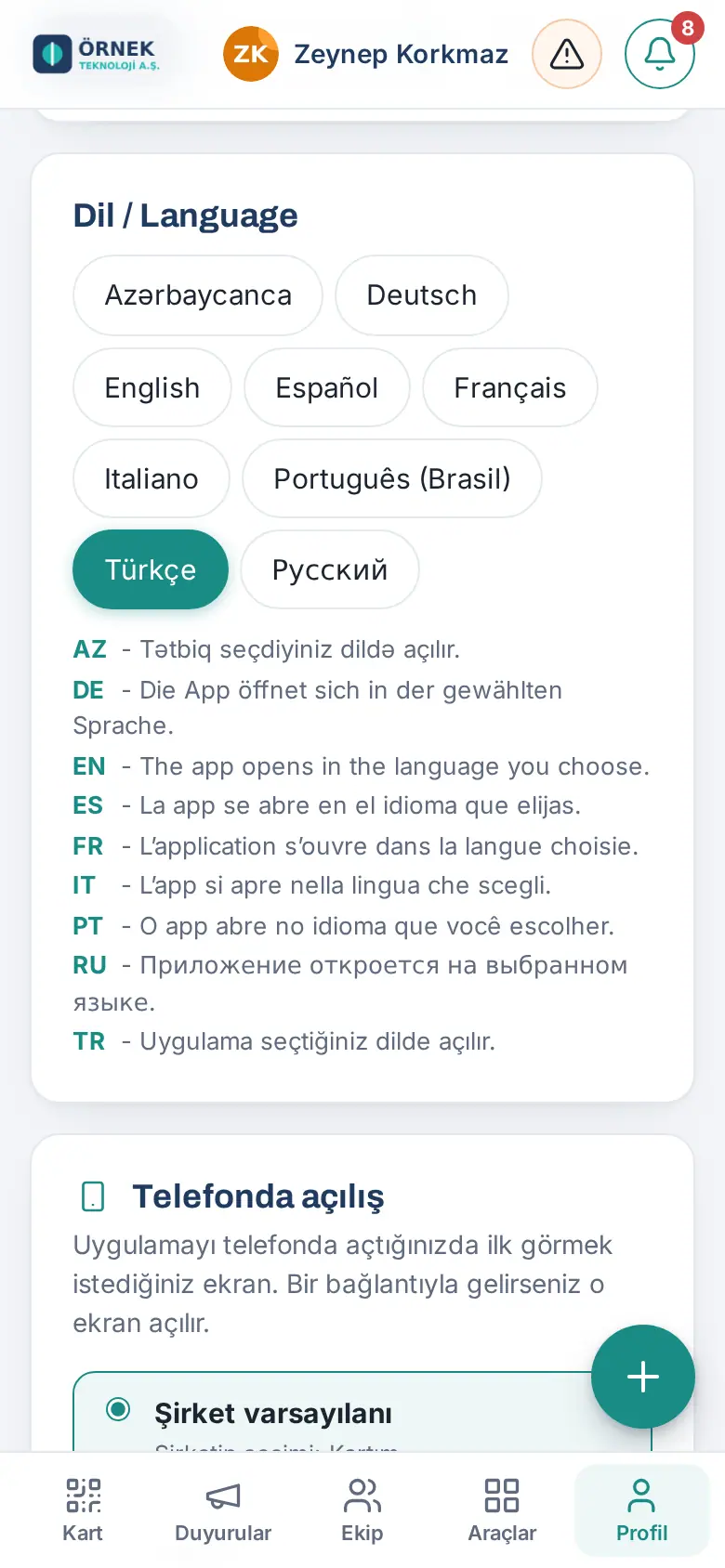
Tip: Your choice is saved to your account; when you sign in from a different device, the same language opens. Company announcements and texts that administrators write show in the language they were written in if no translation was entered.
Choosing the start screen on your phone
Who: Employee · Where: Profile → My profile → Start screen on phone
What it does: You select the screen that you want to see first when you open the app on your phone.
- In the Start screen on phone section, select an option: Company default (the company's choice is shown below it), My card, Board (Announcements), Add card or Customers.
- If you do not want to see the shortcut button, clear the Show the shortcut button box.
- Tap Save.
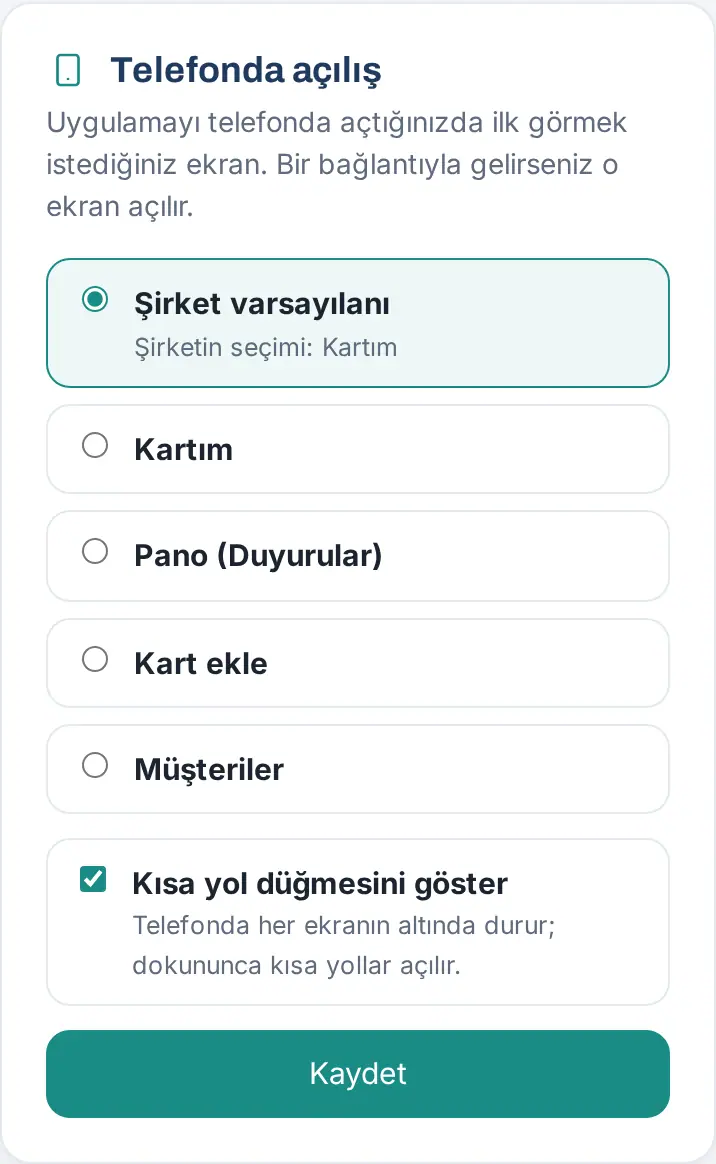
Tip: If you come from a link (e.g. from a notification), the screen of that link opens, whatever your choice is.
My profile: editing your own details
Who: Employee · Where: Profile → My profile
What it does: You update the details that show on your business card, in your email signature and in the company directory.
- Tap Profile in the bottom menu. The My profile tab opens.
- At the top you see Full name, Job title, Email and Extension. The administrator changes these four details; if they are wrong, tell your administrator.
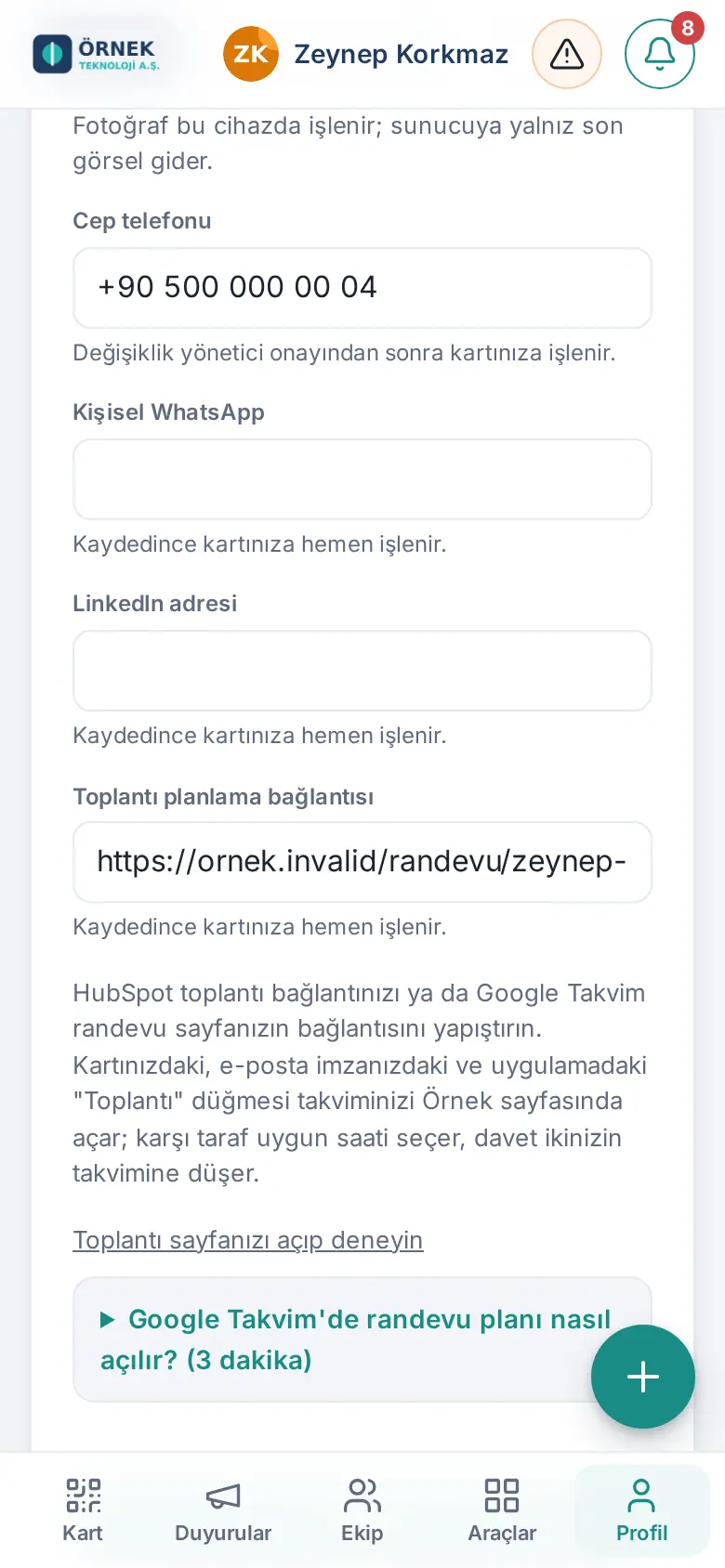
- The fields you can change:
- Photo: send a new photo with Choose photo. If your company turned it on, Convert to corporate photo removes the background of your photo and puts you on the company background (see 01. Digital business card and Identity Kit).
- Mobile phone
- Personal WhatsApp
- LinkedIn address
- Meeting scheduling link: paste your HubSpot meeting link or the link of your Google Calendar booking page. The Meeting button on your card and in your signature opens this page. The steps to create one are under the heading How to set up a booking page in Google Calendar? (3 minutes). You can see the result with the Open your meeting page and try it link.
- Tap Save.
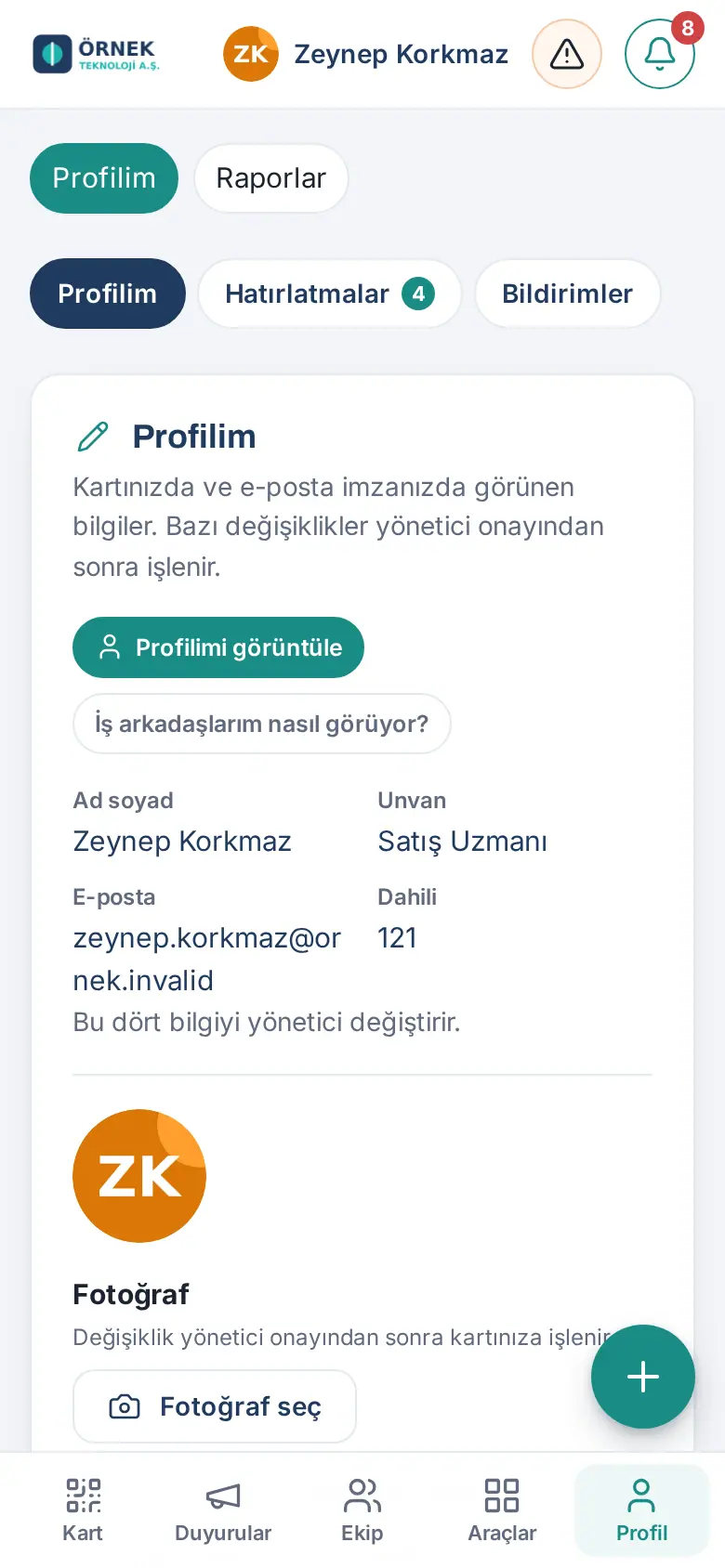
To see how your profile looks (updated in 0.99.32): View my profile at the top of My profile opens your internal profile page. How do my colleagues see it? shows the page as an employee from a different department sees it (see 08. Directory and organization).
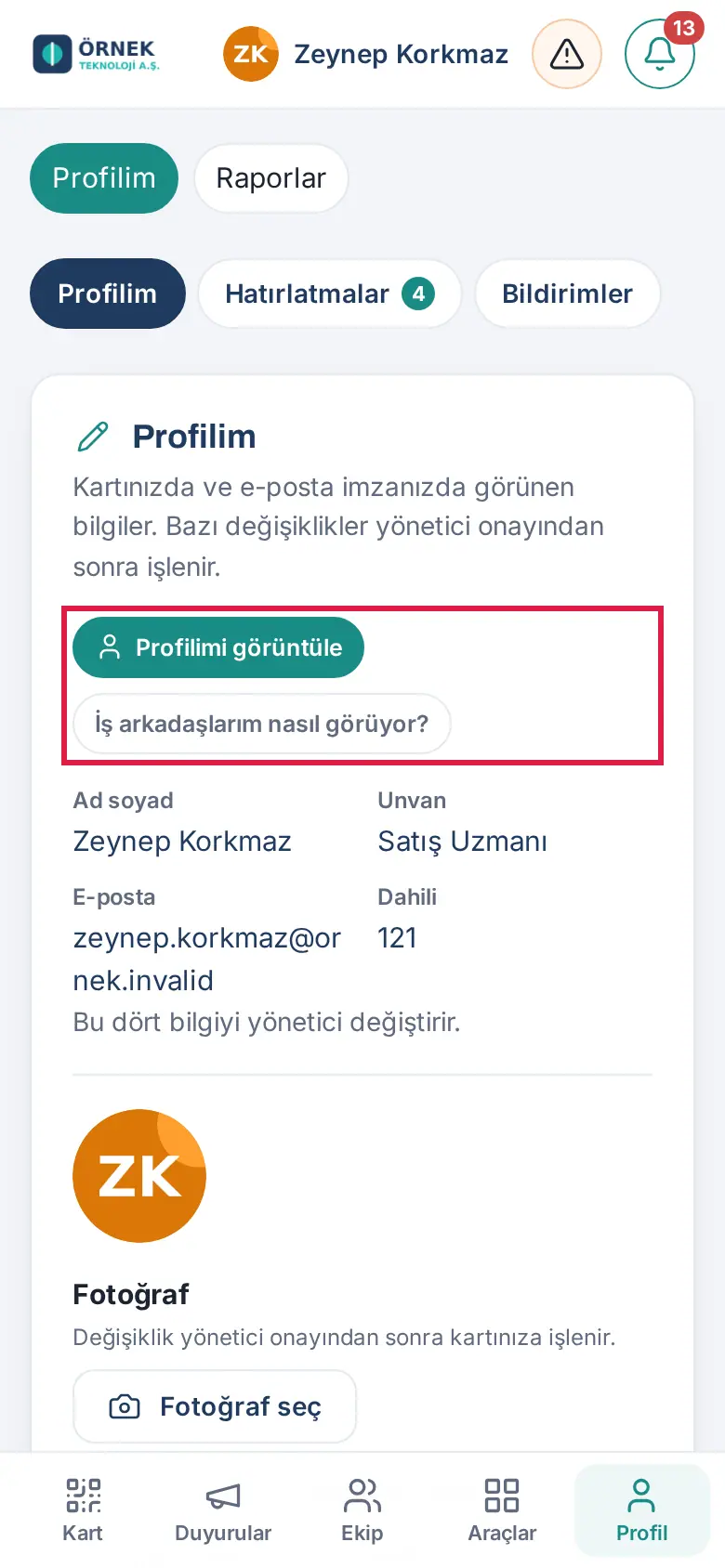
Below each field, it says how the change is applied:
- Applied to your card as soon as you save.
- The change will be applied to your card after manager approval. While the change waits for approval, a dot shows on the Profile button. If you change your mind, you can cancel with Withdraw the pending request. You get a notification when it is approved or rejected.
- If a field is locked, the box is dimmed and you cannot change it.
Important: Your company decides whether fields such as photo and mobile phone need approval. When the change is approved, your email signature is updated too. If you pasted your signature yourself, you must copy it again (see 02. Email signature).
Entering your emergency contact
Who: Employee · Where: Profile → My profile → Emergency contact
What it does: You enter the relative who will be informed if something happens to you (at most two people). This information is used only to inform your relative in an emergency.
Before you start: The box shows only if your company has this feature and you are on your own profile.
- Tap Profile in the bottom menu. On the My profile tab, scroll down to the Emergency contact box.
- In the Person 1 section, type the Full name, select it from the Relationship list (e.g. Spouse, Mother, Father, Sibling, Child, Relative, Friend, Other) and type the Phone number.
- If you want, also fill in the Person 2 (optional) section.
- Tap Save. The message "Your emergency contact has been saved." appears and the box shows "Saved. To change it, edit and save."
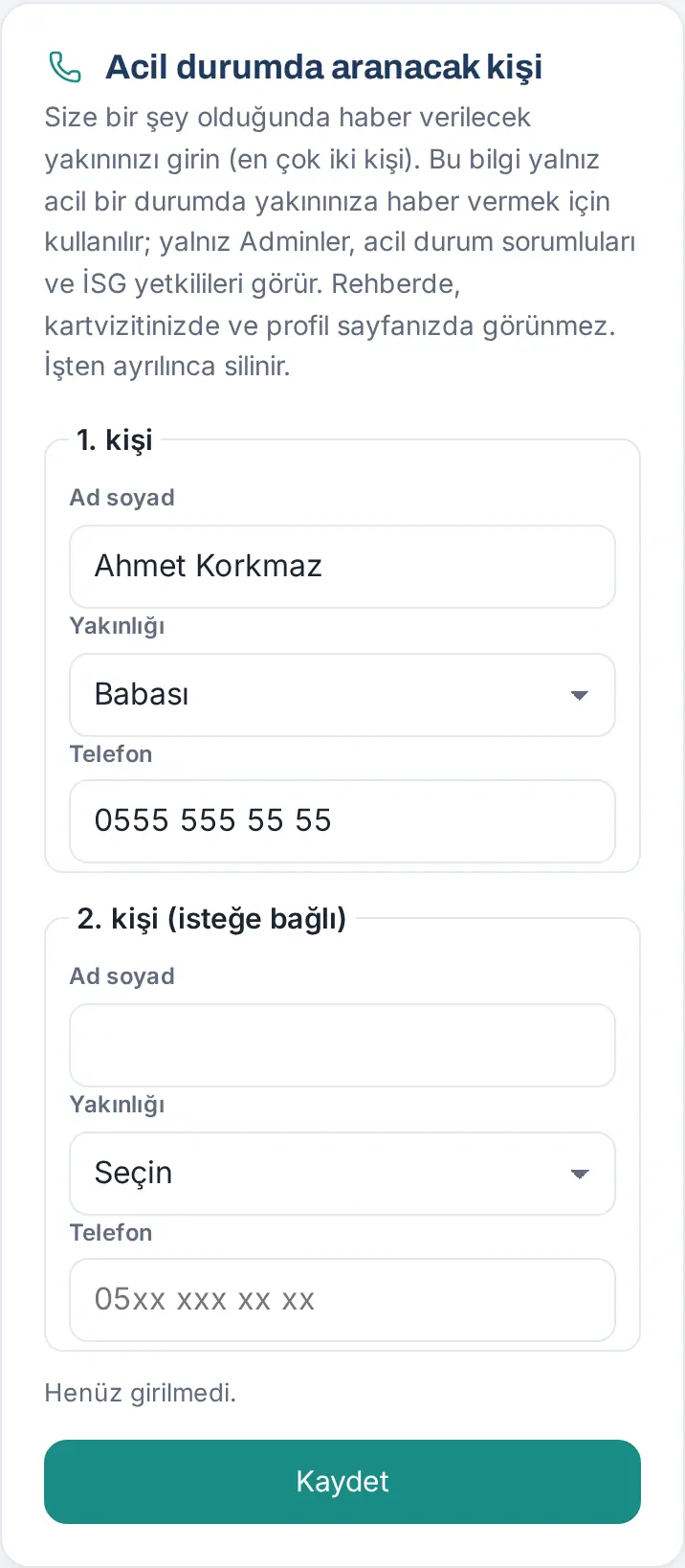
Changing and deleting: Correct the details and tap Save again. To delete the whole record, tap Delete and confirm the question "Delete your emergency contact? Your relative may not be informed in an emergency."
Common warnings: "Enter the full name.", "Select the relationship.", "Enter the phone number." — the warning appears below the related field; fill in the missing field.
Important: Only Admins, emergency responders and OHS officers see this information (the Emergency contacts tab in the Emergency window; see 27. Emergencies, occupational safety and the occupational physician). It does not show in the directory, on your business card or on your profile page. It is deleted when you leave the company. Before you enter your relative's details, get their permission.
About me and profile details
Who: Employee · Where: Profile → My profile → About me / Profile details
About me:
- Introduce yourself in a few sentences in the About me box: your background, your expertise, your interests.
- If you want the text to show on your business card too, tick the Also show on my business card (public) box. If you do not tick it, the text shows only in the company directory.
- Tap Save. No approval is necessary.
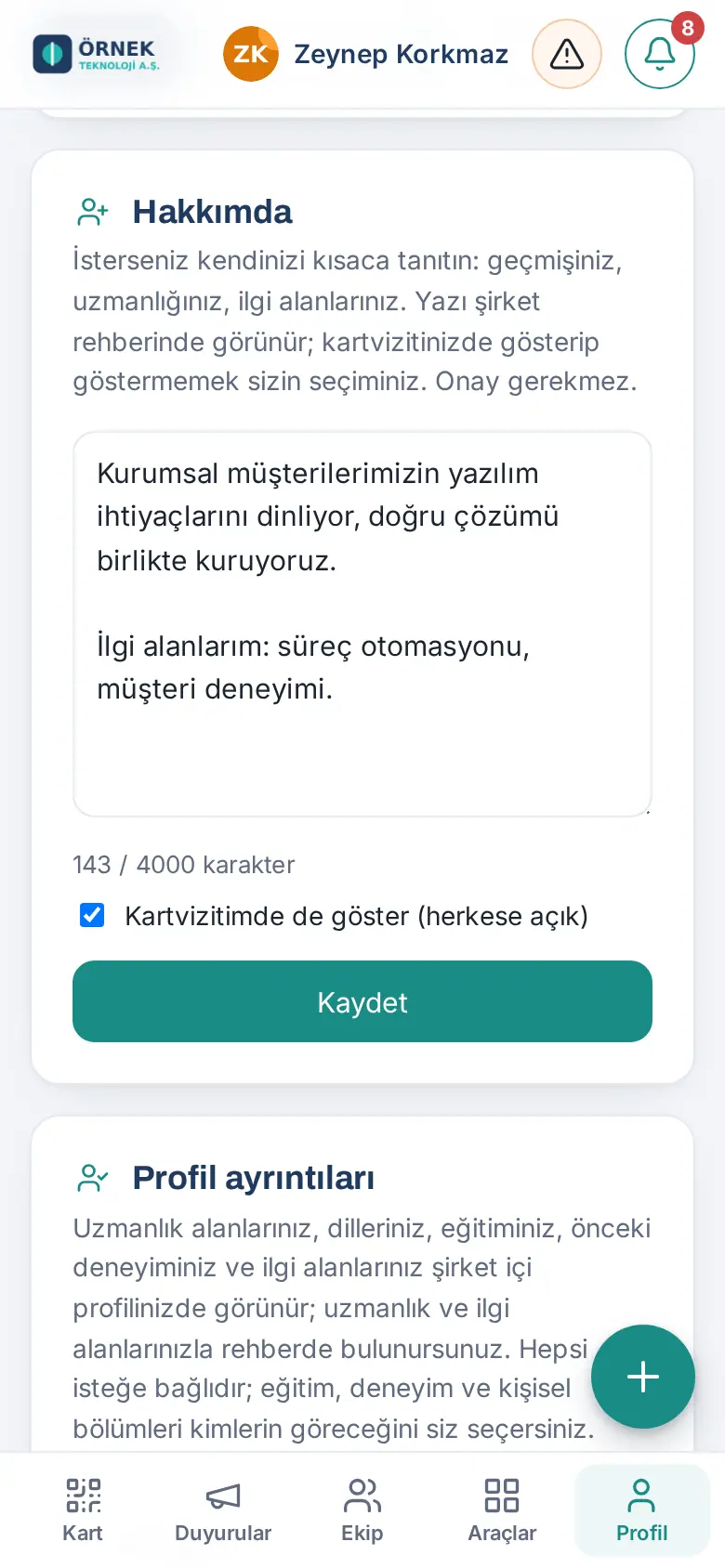
Profile details: You can add your profile headline, areas of expertise, languages, education, previous experience and interests (step by step: 08. Directory and organization). These show on your internal profile; your colleagues find you when they search for your expertise and interests. All of them are optional.
Tip: The Leave and cover section at the bottom of My profile manages the person who covers for you while you are on leave and the "out of office" note on your card (see 01. Digital business card and Identity Kit and 08. Directory and organization).
My permissions
Who: Everyone · Where: Profile → My profile → My permissions (directly above Sign out)
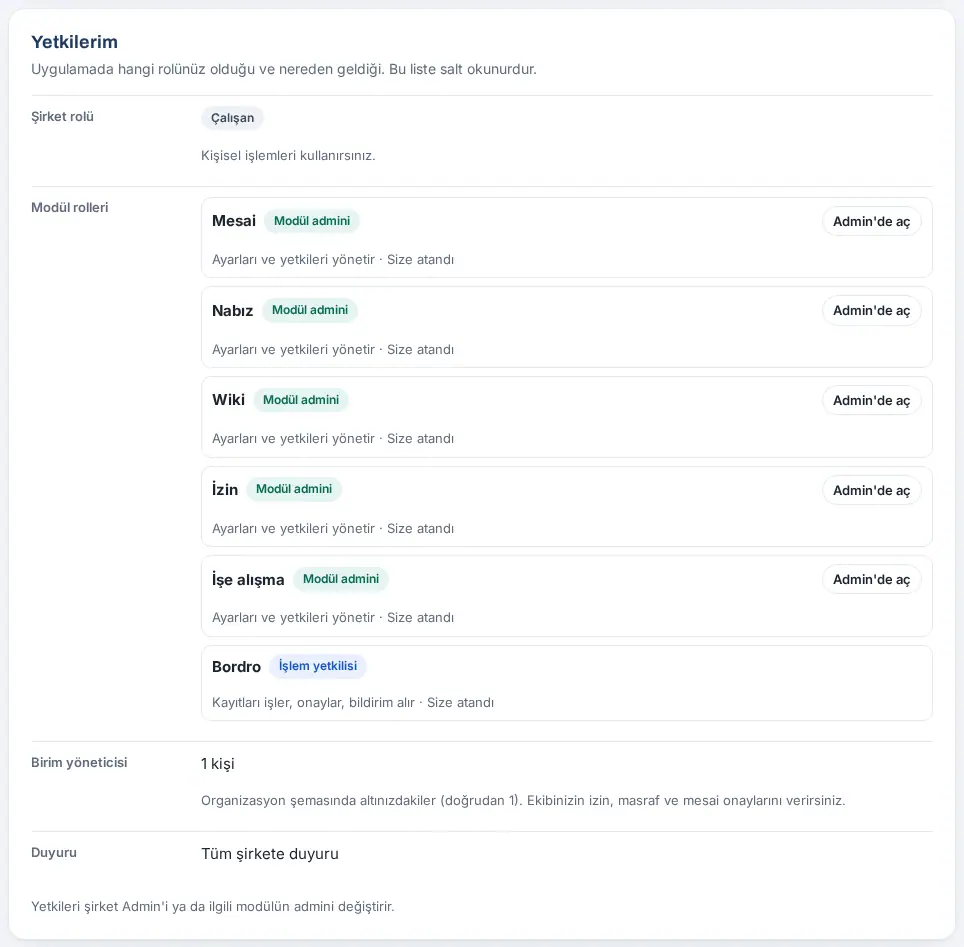
What it does: You see in one place which role you have in the app and where this role comes from. The list is read-only; you cannot change anything here.
- Tap Profile, then open the My profile tab. On a phone, the Profile button at the bottom opens My profile directly.
- Scroll down to the My permissions section at the end of the page. You see:
- Company role: Admin, Auditor or Employee. If the role comes from your Prozence permission in WordPress, this is shown; that role cannot be changed in the app.
- Module roles: your role in each module (Module admin, Operator or Viewer), what it allows and where it comes from (Assigned to you or From your department). For a module where you are the module admin, Open in Admin opens the settings of that module. If you are an Admin, it says that you count as module admin in all modules.
- Line manager: how many people are below you in the org chart; you approve the leave, expenses and work time of your team.
- Announcement: whether you can publish announcements to the whole company or to your department.
- Location tracking: your consent status if you are in tracking scope (see 22. Time and attendance).
Tip: Permissions are changed by the company Admin or the admin of the related module (see 10. Administration and setup).
Signing out
Who: Employee · Where: Profile → My profile → Sign out at the very bottom (on a computer, the very bottom of My profile)
What it does: Closes your session on this device. At your next sign-in, you are asked for a code (or the Google / Microsoft sign-in) again.
Before you start: Since 0.99.45 there is no sign-out button in the top bar. So that nobody taps it by mistake, Sign out moved to the very bottom of My profile, and it asks for confirmation.
- Tap Profile in the bottom menu (on a computer, click My profile in the menu on the left).
- Scroll to the very bottom of the page. On a phone, the My profile tab opens and the button is below the My permissions section. On a computer, the My card tab opens; the button is also at the very bottom of the page (it shows in the same place on all tabs of Profile).
- Tap Sign out. The question Sign out? opens below it.
- Tap Yes, sign out. If you change your mind, tap Cancel; your session stays open.
- The session closes and the sign-in screen opens.
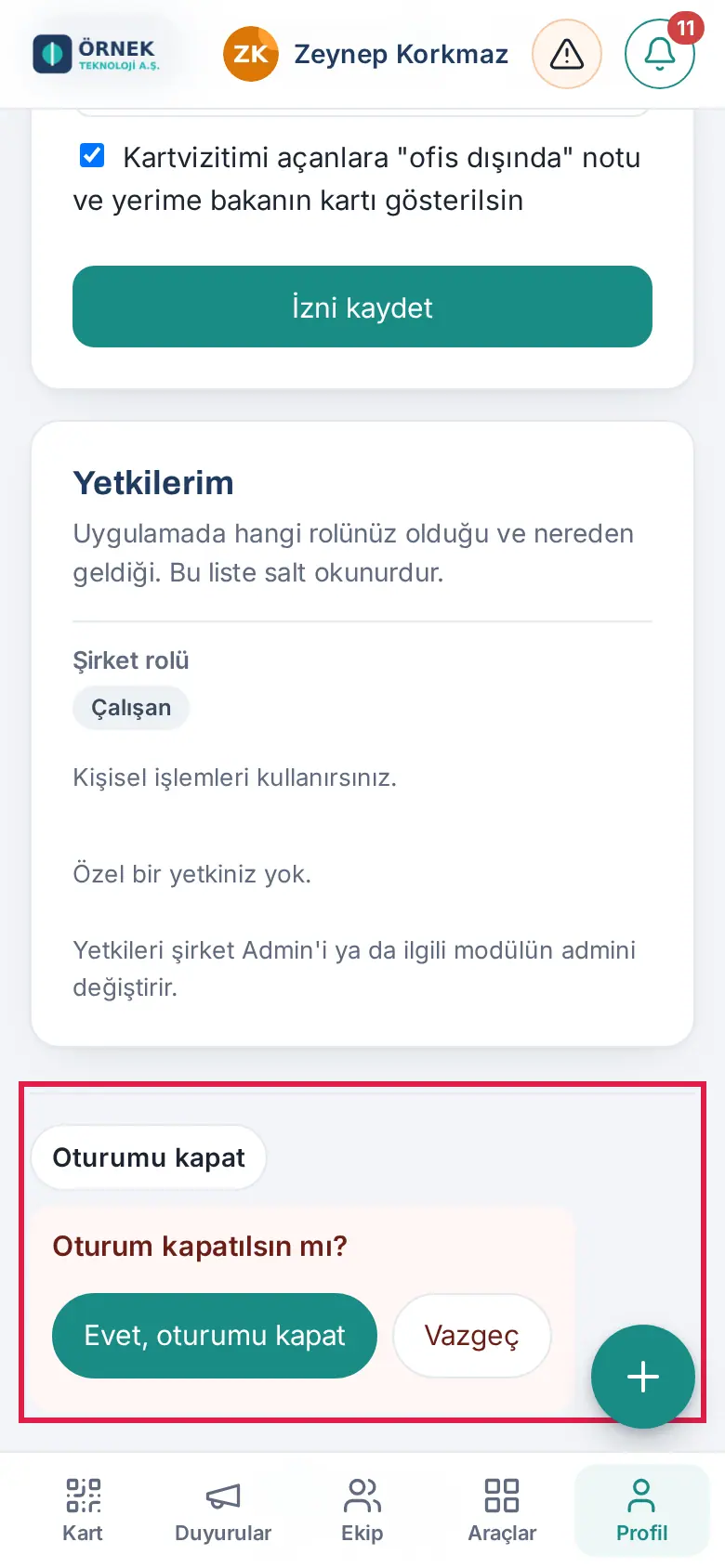
Result: Your session on this device and the Prozence data that the app keeps on this device are deleted. The sessions on your other devices stay open.
Tip (1.8.5): Sign out of all sessions, just below it, signs you out on all your devices, including phone, computer and tablet (see 35. Sign-in security: phone approval and authenticator app).
Important:
- If there are card scans on this device that are not processed yet (see 03. Adding cards (business card scanning)), this question appears: "There are N card scans on this device that have not been processed yet. If you sign out, they will be deleted from this device. Sign out anyway?" If you cancel, the message "You were not signed out. You can process the pending cards in Add card." appears; process the cards first.
- On a device that is shared or that is not yours, always sign out when you finish. If you lose your phone, tell your administrator immediately.
- The Check out buttons in the Work time box record your check-out from work; they do not end your session.
Tip: In the Prozence mobile app, it is in the same place. But if you only want to move to a different company, you do not need to sign out; use Change company (see 20. Prozence mobile app).


