16. Troubleshooting
Screenshots show the Turkish interface of Prozence with fictional "Örnek Teknoloji A.Ş." data; the English interface has the same layout.
This chapter describes common problems and their solutions. Each problem starts with a Symptom · Cause · Solution table: the message you see on the screen, the possible cause and what to do. The messages in the tables are written in quotes as they appear in the app; you can find the related problem by searching this chapter for the message you see. Where necessary, a step-by-step solution follows the table.
This chapter is for Prozence Workplace 0.99.45 and later.
Who: Employee · Admin · IT · Module admins
If the problem is not solved, contact your company's Prozence administrator. For administrators, the first stop is Admin → Integrations → Status in the app (see 13. Integrations) and the WordPress → Prozence Workplace → Kurulum ("setup") screen (see 10. Administration and setup).
In this chapter
- The sign-in code does not arrive
- The sign-in approval does not arrive, or you lost your phone
- Email is not sent (no SMTP plugin found)
- Sign-in with Google or Microsoft does not work
- "The session has expired" message
- Microphone, camera or location does not work (Dictate, Scan card)
- Work time: location permission and location check
- Work time: "Ofis ağına bağlı görünmüyorsunuz" (not connected to the office network)
- Wi-Fi cannot be read on iPhone
- The business card photo is not read
- Phone notifications do not arrive
- The app cannot be added to the home screen
- The shortcut button does not appear
- A photo does not upload
- Private folders can be opened from outside (Kinsta and Nginx)
- The screen appears in the wrong language
- The email signature looks broken in Gmail or Outlook
- The shared mailbox does not connect (Test connection)
- CRM sync stopped
- Google permissions missing or API off
- Messages (Google Chat) does not work
- The Microsoft Teams tab does not open or notifications do not arrive
- An API or SCIM request is rejected
- The employee events webhook stopped
- The app store reviewer cannot sign in
- An old version or old information appears (cache)
- No Add to Wallet button (Apple Wallet certificate)
- Information to give when you ask for support
The sign-in code does not arrive
Who: Employee, Admin · Where: Sign-in screen → Send a code to my email
| Symptom | Cause | Solution |
|---|---|---|
| The screen says "If the address is registered, we sent a 6-digit code. Check your inbox (and spam folder)." but the code does not arrive | The email went to the spam folder | Look in the spam folder; wait a few minutes |
| The same message, and the code never arrives | The address is wrong, or there is no published employee record with this address (for security, the screen does not say so) | Type the correct address with Change email address; the administrator checks the record |
| The same message, after several tries | More than 5 codes were requested for the same address from different networks in one hour; the code is silently not sent | Wait one hour |
| "Too many codes were requested for this address in a short time. Try again in about N minutes (from HH:MM). …" | More than 5 codes were requested for the same address from the same network in one hour (1.1.7) | Try again at the time shown on the screen. You can use the last code you received; if urgent, ask HR or IT for a one-time sign-in link |
| "Too many codes were requested from this network. …" | Many people requested codes from the same network (e.g. a shared internet connection) in a short time. On the office network defined in the company's Work time settings, this limit is higher, based on the number of employees | Try again at the time shown on the screen, or ask HR / IT for a one-time sign-in link |
| "Wrong code. Attempts left: N." | You typed the code incorrectly | Type the code in the email again. You have at most 5 attempts for one code |
| "The code has expired. Request a new code." / "Too many wrong attempts. Request a new code." | The code is older than 10 minutes, or it was typed incorrectly 5 times. The validity of the code starts when it is requested; incorrect attempts do not extend it (1.1.2) | Request a new code |
| No employee gets a code | Email sending is not set up on the site | See Email is not sent |
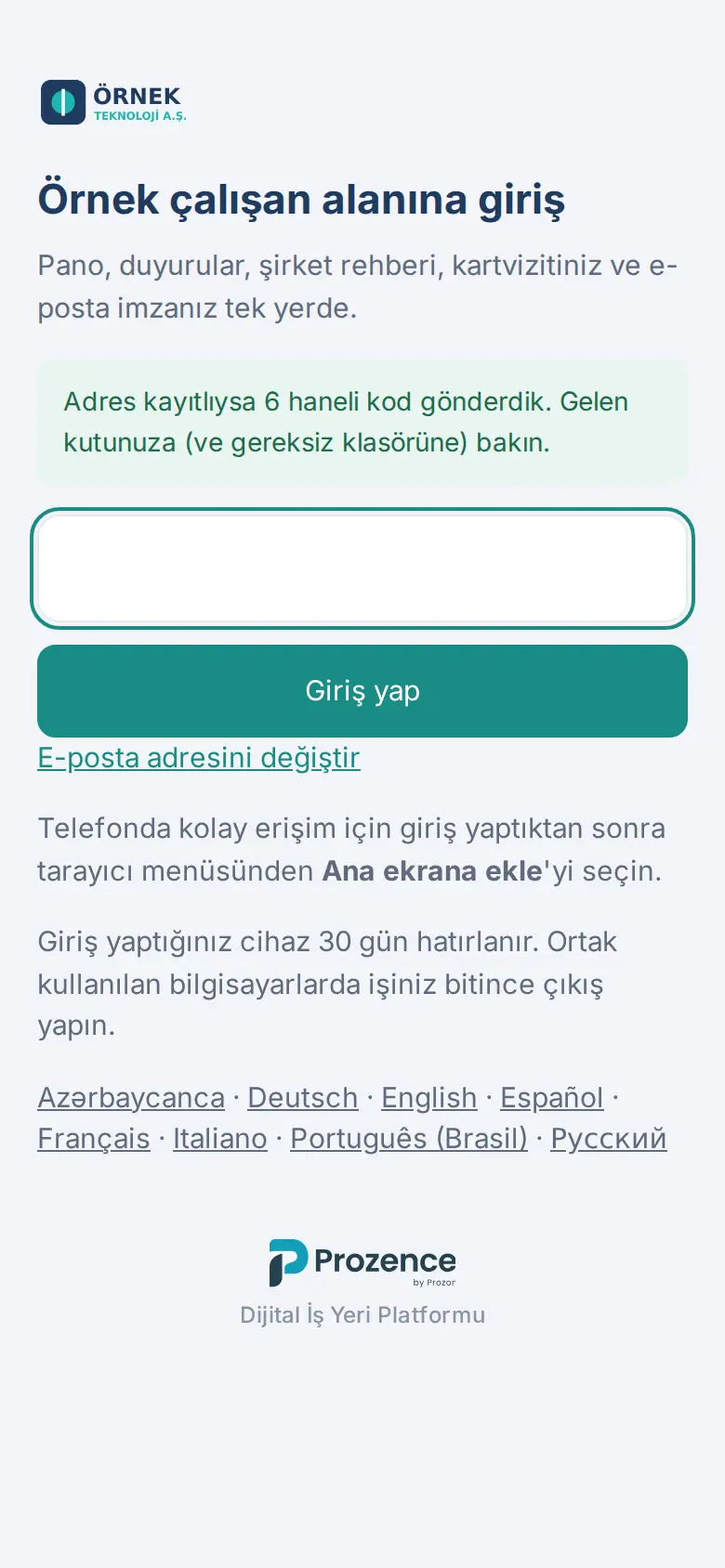
Solution (administrator):
- Check that the employee's record is published and that the email address is correct (see Editing employee details).
- On the Kurulum screen, look at the 8. E-posta gönderimi ("email sending") row.
- In the 7. Çalışan girişi ("employee sign-in") row, check the allowed domains.
- Give an employee without a company email sign-in with a personal email, SMS or an invitation link (see 10. Administration and setup).
Tip: The code is not in the subject of the email (the subject is "Your sign-in code"); you see the code in the body of the email (1.1.7). After you type the sign-in code, if your company requires a second step, you are asked for an approval on your phone or the code from your authenticator app (see The sign-in approval does not arrive, or you lost your phone).
Important: Do not share the sign-in code with anyone; the support team does not ask for the code either.
The sign-in approval does not arrive, or you lost your phone
Who: Employee, Admin · Where: Sign-in approval screen ("Approve on your phone")
| Symptom | Cause | Solution |
|---|---|---|
| You are waiting on the "Approve on your phone" screen and no notification comes to the phone | The phone's notifications are off or it has no connection | Open the Prozence app on the phone; the pending request shows there. If you have an authenticator app, tap Don’t have your phone? Enter a verification code |
| "The approval time ran out. Sign in again." | The approval was not given within 2 minutes | Go back to the sign-in screen and sign in again |
| "A different number was chosen on the phone; the request was cancelled for security. Sign in again." | A number different from the one in the browser was chosen on the phone | Sign in again and choose the number shown in the browser |
| "The code isn’t correct. Attempts left: N." | The code from the authenticator app was typed incorrectly or has expired | Type the current code from the app; make sure your phone's clock is correct |
| You lost your phone, and you have no authenticator app and no backup codes | There is no second step for sign-in | Ask your administrator (Admin) to remove your devices or to give you a 24-hour sign-in without approval; then add your new phone (see 10. Administration and setup) |
For how to add phone approval and an authenticator app, see 35. Sign-in security: phone approval and authenticator app.
Email is not sent (no SMTP plugin found)
Who: Admin, WordPress administrator · Where: WordPress → Prozence Workplace → Kurulum → 8. E-posta gönderimi
| Symptom | Cause | Solution |
|---|---|---|
| On the Kurulum screen: "SMTP eklentisi bulunamadı; giriş kodları ve bildirimler istenmeyen kutusuna düşebilir." ("No SMTP plugin found; sign-in codes and notifications can go to the spam folder.") (orange) | The site has no SMTP plugin such as FluentSMTP, WP Mail SMTP, Post SMTP or Easy WP SMTP; emails go through the server's own route | Install an SMTP plugin and connect it to the company's email service |
| After Dene ("test"): "wp_mail başarısız oldu; SMTP ayarını kontrol edin." ("wp_mail failed; check the SMTP setting.") | The SMTP plugin setting is wrong (server, port, password) | Correct the setting with the plugin's own test screen |
| After Dene: "Oturumdaki kullanıcının e-postası yok." ("The signed-in user has no email.") | Your WordPress account has no email | Add an email to your WordPress profile |
| Sign-in codes and notifications go to the recipients' spam folder | The sender domain is not verified (SPF / DKIM) | Ask your domain administrator for SPF and DKIM records |
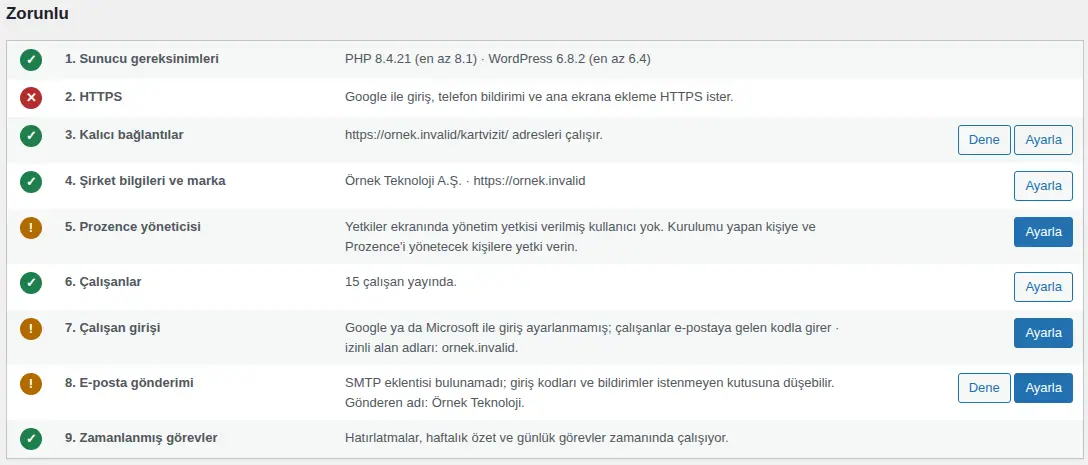
Solution (administrator):
- Install an SMTP plugin in WordPress and set it up with your company's email service.
- On the Kurulum screen, click Dene in the 8. E-posta gönderimi row. The screen shows "… adresine deneme gönderildi; gelen ve istenmeyen kutusunu kontrol edin." ("a test was sent to …; check the inbox and the spam folder").
- Check your own inbox and spam folder. The sender name is shown in the row as "Gönderen adı: …" ("sender name: …"); to change it, click Ayarla ("set up").
Important: Do not make an announcement to employees before the required steps are complete. Do not share the SMTP password in a support request.
Sign-in with Google or Microsoft does not work
Who: Employee, IT · Where: Sign-in screen → Sign in with Google / Sign in with Microsoft
| Symptom | Cause | Solution |
|---|---|---|
| The button is not there at all | The administrator has not set up sign-in with Google or Microsoft | Sign in with an email code. For the administrator, see 13. Integrations |
| "Only a company Google account can sign in. If you have no company email, use an email code, SMS or HR's invitation link." | You signed in with a personal Google account, or the domain is not allowed | Select your company account. If you have no company email, see 00. Getting started |
| "Yalnız şirket e-posta adresinizle giriş yapılabilir (…)" ("You can sign in only with your company email address (…)") | The address of the Microsoft account is not in the allowed domains | Sign in with your company account |
| "… adresiyle kayıtlı bir kartvizit yok. Yöneticinize başvurun." ("There is no business card registered with the address …. Contact your administrator.") | There is no published employee record with this address | The administrator corrects the record or publishes it |
| "The token has expired. Try again." / "Session information didn't match. Refresh the page and try again." / "Giriş oturumu eşleşmedi ya da süresi doldu. Yeniden deneyin." ("The sign-in session did not match or has expired. Try again.") | The sign-in page stayed open for a long time, or sign-in was left half-done in another tab | Refresh the page and try again |
| "Giriş iptal edildi." ("Sign-in was cancelled.") | Permission was not given in the Microsoft window | Try again and accept the permission |
| "Too many attempts. Try again shortly." | Too many attempts in a short time | Wait a little |
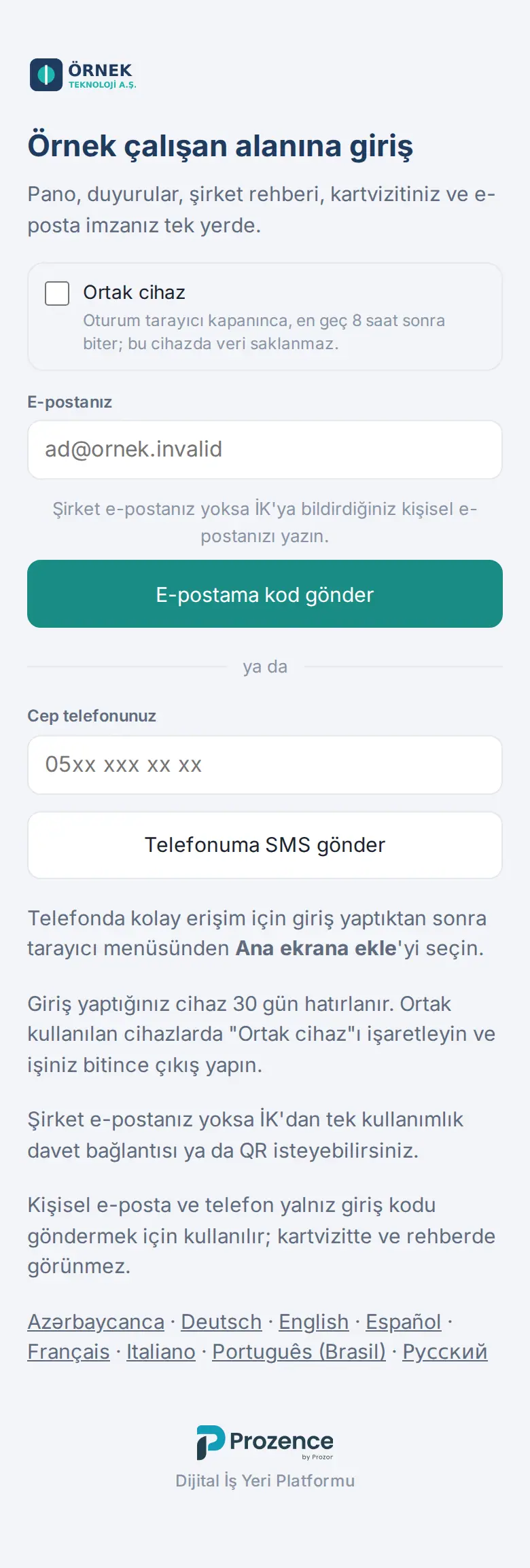
Solution (IT):
- Google sign-in and phone notifications need HTTPS. On the Kurulum screen, the 2. HTTPS row must be green.
- In the OAuth client in Google Cloud, the full site address must be entered in Authorized JavaScript origins. For Microsoft sign-in, see Microsoft 365 connection and sign-in with Microsoft. If the Microsoft client secret has expired, renew it.
- Keep E-posta koduyla giriş ("sign-in with an email code") on as a backup.
"The session has expired" message
Who: Employee · Where: Anywhere in the app
| Symptom | Cause | Solution |
|---|---|---|
| "Your session has expired. Refresh the page and sign in again with the code sent to your email." or "The session has expired." | The device is remembered for 30 days; the time is over | Refresh the page and sign in again |
| The same message during the day | Shared device was selected at sign-in; the session ends when the browser closes or after the time the company set (default 8 hours) | Do not select Shared device on your own device |
| Sign-in is asked every time you open the app | Cookies are deleted, or a private window is used | Allow cookies for this site; use a normal window |
| On iPhone, the app on the home screen asks you to sign in | The session of the app added to the home screen is separate from Safari | Sign in once in the app on the home screen |
| The session closed without signing out | The employee record was deactivated or the session was closed | Contact your administrator |
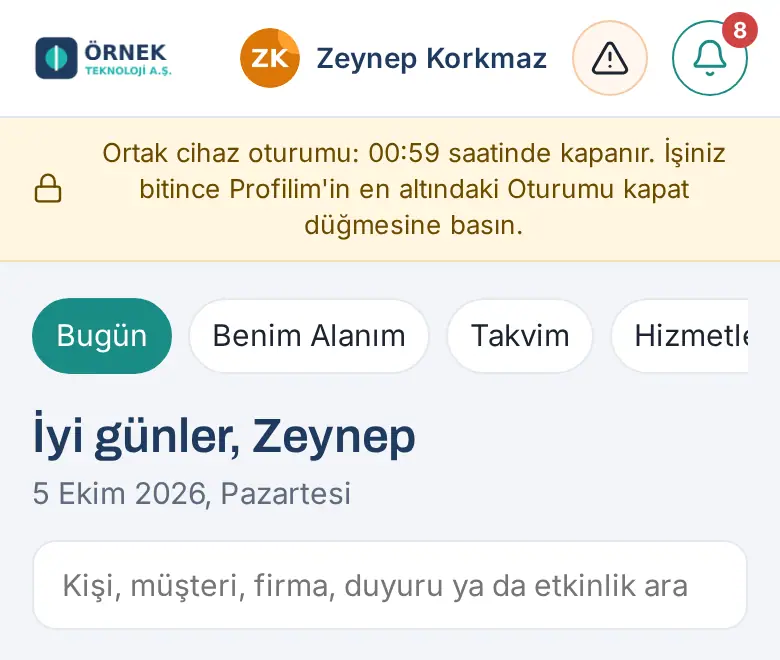
Tip: When the session ends, the app clears the Prozence cache on this device. Business cards you queued while offline are not deleted; you can process them after you sign in again. Since 0.99.45, you sign out with Sign out at the very bottom of My profile; the app asks for confirmation.
Microphone, camera or location does not work (Dictate, Scan card)
Who: Employee, Admin · Where: Add card → Dictate, Take a photo; I’m Safe
| Symptom | Cause | Solution |
|---|---|---|
| The Dictate button does not appear, or "Microphone permission was not granted. …" | Microphone permission was not given to the browser or the phone, or the site's Permissions-Policy header blocks the microphone | Give the permission; if it is refused without asking, the administrator fixes the header |
| When you tap Take a photo, the camera does not open | No camera permission, or the device has no camera | Give the permission, or take the photo with the phone's camera and select it with From gallery |
| "Speech recognition needs an internet connection." | The browser's speech recognition service cannot be reached | Check the internet connection |
| The location cannot be sent in I’m Safe | No location permission, or the header blocks location | Give the permission; the administrator checks the header |
Solution (employee):
- From the permission icon in the address bar (or in the phone settings for the browser or the Prozence app), allow the microphone, camera or location, and refresh the page.
- If it is refused without asking, tell your administrator.
Solution (administrator):
- In Admin → Customer directory → Card reading tab, look at the Voice note and location permissions box.
- The Microphone (voice note) and Location (attendance, I’m Safe) rows must show Open. If they show Blocked by the site's header, the site's actual header appears below.
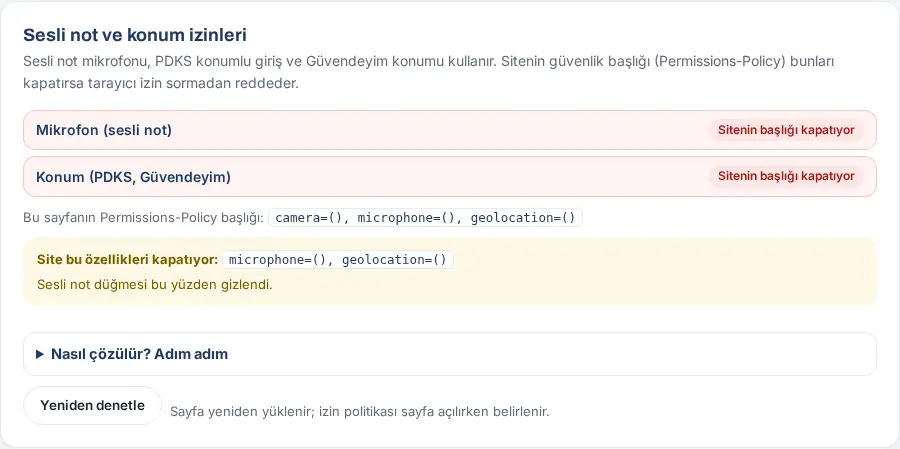
- Open the How to fix it, step by step section. Find the place that adds the header (security plugin, Code Snippets or theme,
.htaccess/ nginx, hosting or CDN panel). - Send the header with this value only on the
/kartvizit/path:camera=(self), microphone=(self), geolocation=(self). You can take the PHP, Apache, nginx and Cloudflare examples on the screen with Copy. - If there is a cache, clear it and click Check again. Employees must close the app and open it again.
Important:
- When you paste into a PHP snippet, replace the old line completely. If part of the old line stays, the snippet gives an error and is turned off, and the other security settings on the site are also turned off.
- Safari and Firefox do not report the permission policy ("Browser does not report it / unknown"). For a definite result, open this screen in Chrome or Edge.
Work time: location permission and location check
Who: Employee, Work time module admin · Where: Work time → I'm at the office / I'm in the field / Started from home; Admin → Work time → Work locations
| Symptom | Cause | Solution |
|---|---|---|
| "Location permission is needed to record at the office." / "Location permission is required for a field check-in." / "Location permission denied; a field check-in needs your location." | The rule of the office or work location asks for location; the phone has no location permission | Give location permission to the browser or the Prozence app and try again |
| "The location could not be read. Allow location access and try again." | The location service is off, or it timed out | Turn on the location service on the phone; try in an open area |
| "Location isn't available on this device." | The browser does not support location, or the site header blocks it | Try another browser; the administrator checks the Permissions-Policy |
| "Konumunuz ofiste görünmüyor (…). Ofisteyken konumu açıp yeniden deneyin." ("Your location does not appear to be at the office (…). Turn on location while at the office and try again.") | The location is outside the office radius | Try again at the office; the administrator checks the radius and the coordinates |
| "The location accuracy is too low (±… m). Try again outdoors or by a window." | The location accuracy is worse than ±1000 m | Try by a window or in an open area; turn on Wi-Fi |
| "Ofiste kayıt için girişteki karekodu da okutun (…)." ("To record at the office, also scan the QR code at the entrance (…).") | The office rule also asks for the QR code | Scan the QR code at the entrance |
| The record says "no location permission" | The company wants the location recorded, but the rule does not require it; the record was made | Give the permission for the next records |
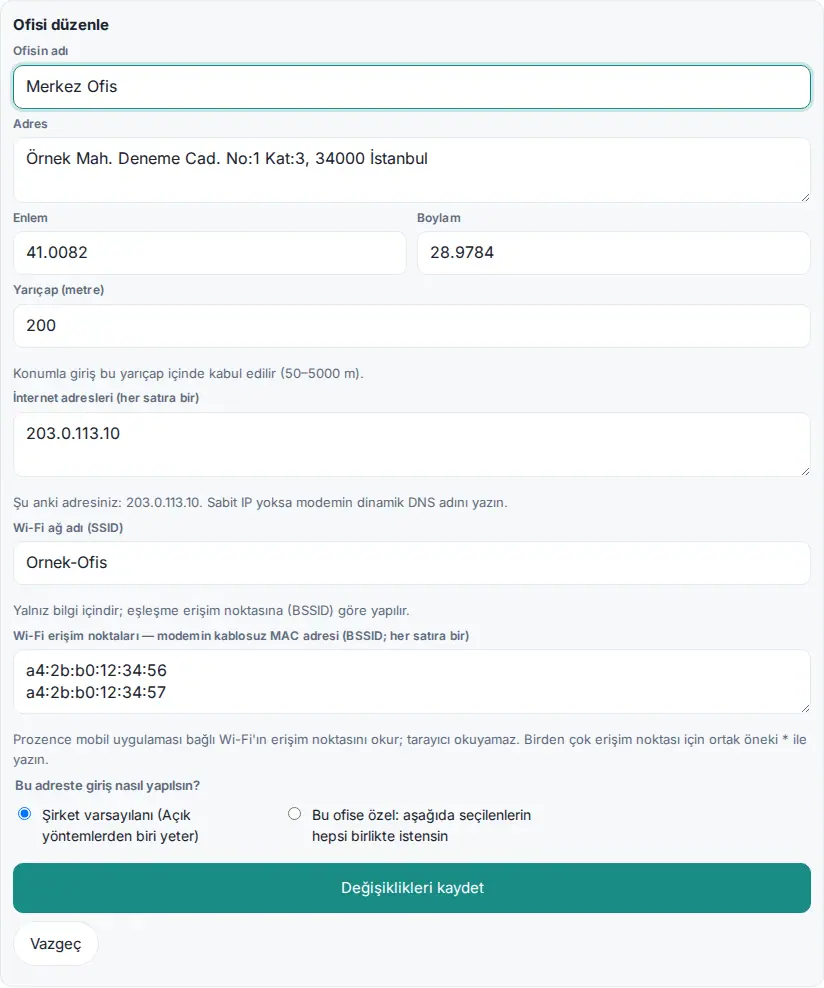
Solution (administrator):
- Open the Admin → Modules → Work time → Work locations tab.
- On the office card, check the location (coordinates, radius, Open in map) and the Check-in rule.
- If the location is wrong, tap Update with my location on the phone while you are at the office, or correct the Latitude, Longitude and Radius (meters) values with Edit (50–5000 m).
- Review the office-specific rule in the How should check-in work at this address? section.
Tip: For the detailed Work time settings, see 29. Time and attendance management; for the employee's recording methods, see 22. Time and attendance.
Important: The location is taken only at the moment of check-in and check-out, and only while the app is open; location is not collected continuously in the background.
Work time: "Ofis ağına bağlı görünmüyorsunuz" (not connected to the office network)
Who: Employee, Work time module admin · Where: Work time → I'm at the office
| Symptom | Cause | Solution |
|---|---|---|
| "Ofis ağına bağlı görünmüyorsunuz. Şirket Wi-Fi'ına bağlanın ya da girişteki karekodu okutun." ("You do not appear to be connected to the office network. Connect to the company Wi-Fi or scan the QR code at the entrance.") | The phone is connected to mobile data or the guest network, not to the office Wi-Fi | Connect to the office Wi-Fi; turn off mobile data |
| The same message while connected to Wi-Fi | A VPN or a private relay (e.g. "Private Relay") is active on the phone | Turn off the VPN and try again |
| The same message for everyone | The office's internet exit address changed or is not in the list | The administrator updates the office's Internet addresses |
| The same address for everyone, and it does not belong to the office | The site is behind a proxy server (CDN, load balancer) | Contact your site's developer (Cloudflare and the hosting's internal load balancer are recognized automatically) |
| "Kayıt için ofisin Wi-Fi ağına bağlı olmalısınız (…)." ("To record, you must be connected to the office Wi-Fi network (…).") | The office-specific rule asks for a network check | Connect to the office Wi-Fi |
| "Karekodun süresi geçmiş ya da geçersiz; ekrandaki güncel kodu yeniden okutun." ("The QR code has expired or is invalid; scan the current code on the screen again.") | An old QR code was scanned | Scan the new code on the screen |
| "Ofis ağıyla kayıt kapalı." ("Recording with the office network is off.") | Office network is off under Recording methods | The administrator turns the method on, or use the QR code |
Solution (employee): If you could not record, send the correct time to your manager later with Request correction (see 22. Time and attendance).
Solution (administrator):
- With a device connected to the office Wi-Fi, open Admin → Modules → Work time → Work locations.
- Under Saved offices, click Edit on the office card.
- Under the Internet addresses (one per line) field, you see "Your current address: …". If this address is not in the list, add it as a line and click Save changes. Save my location as an office on the phone also adds the address automatically.
- If the office's internet address changes often, type the router's dynamic DNS name or use the QR code method (see 29. Time and attendance management).
Wi-Fi cannot be read on iPhone
Who: Employee, Work time module admin · Where: Prozence mobile app → Work time; Admin → Work time → Work locations → Save my location as an office
| Symptom | Cause | Solution |
|---|---|---|
| When you save an office, the Wi-Fi row shows "could not be read (location permission and Wi-Fi must be on)" | iPhone tells the name and access point of the connected Wi-Fi only to an app that has location permission | Settings → Prozence → Location → While Using the App; turn on Wi-Fi |
| The Wi-Fi row shows "can only be read in the Prozence mobile app" | The screen was opened in a browser; a browser cannot read Wi-Fi information | Open the screen in the Prozence mobile app |
| "The Wi-Fi access point could not be read." | The app could not send the access point | Check the location permission and Wi-Fi and try again |
| "Kayıt için ofisin Wi-Fi ağına bağlı olmalısınız (…)." on iPhone | An old app version does not read Wi-Fi, or the phone is connected to another access point | Update the app from the App Store; the administrator adds the access point to the office |
Solution (administrator): If the office has more than one access point (router, wireless repeater), in the office card select Edit and type all of them, or the common prefix with * (e.g. a4:2b:b0:12:34:*), in the Wi-Fi access points — the router’s wireless MAC address (BSSID; one per line) field.
Important: The phone does not send the IP address; the server records the address the request came from. In the mobile app, the "Access WiFi Information" capability must be on in the app build for iPhone (this is for the team that publishes the app).
The business card photo is not read
Who: Employee, customer directory module admin · Where: Add card; Admin → Customer directory → Card reading
| Symptom | Cause | Solution |
|---|---|---|
| "Automatic reading is not turned on yet; you can take a photo but you'll fill in the fields manually." | No AI key has been entered | Fill in the fields with Enter manually; the administrator enters the key |
| Reading gives an error; Status shows "Card reading stopped: AI credit has run out." | The provider account's balance has run out | The administrator tops up the balance in the provider's panel |
| Status shows "Card reading stopped: the API key is invalid." | The key was deleted or is wrong | The administrator enters a new key |
| Reading stops for one employee | The daily reading limit per person is reached | The administrator increases the Daily limit (readings per person) value |
Solution (administrator):
- In Admin → Customer directory → Card reading tab, look at the Card reading (AI) box.
- The Last reading error row shows the provider's message. If necessary, enter the new key in the New key (to replace) field and click Save.
- Click Test connection.
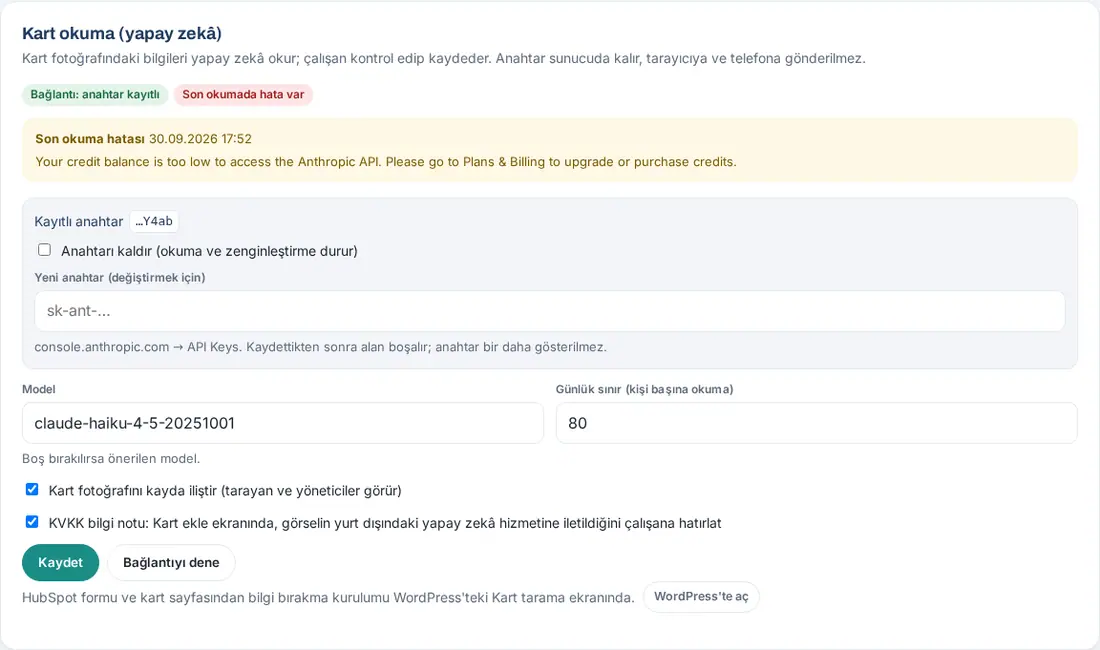
Important: After the key is saved, it is never shown again; only its last four characters appear. Do not share the key in a screenshot or an email when you ask for support.
Phone notifications do not arrive
Who: Employee, Admin · Where: Profile → Notifications; Admin → Integrations → Mobile notifications
In the browser or in the app added to the home screen (web notifications):
| Symptom | Cause | Solution |
|---|---|---|
| "To get notifications on this device, first add the … app to your home screen." | On iPhone, notifications work only in an app added to the home screen (iOS 16.4+) | Add the app to the home screen and open it from there (see 00. Getting started) |
| "Notifications are blocked on this device." | The permission was refused earlier | Allow notifications for this site in the phone or browser settings |
| "Notifications are off for this device." | Notifications were not turned on on this device | Tap Turn on notifications on this device |
| "This browser does not support phone notifications; email notifications continue." | The browser does not support them | Use Safari (iPhone) or Chrome (Android) |
| The notification is in the bell but does not come to the phone | That event is off in the notification preferences, or "Do Not Disturb" is on | Check the preferences and the focus mode (see 09. Notifications) |
In the Prozence mobile app (Android / iPhone):
| Symptom | Cause | Solution |
|---|---|---|
| "Notification permission is off. Turn it on in the phone’s Settings → Prozence → Notifications." | The app's notification permission was refused | Turn on the permission in the phone settings |
| "Notifications are off for this phone." | Turn on notifications was not tapped on this phone | My profile → Notifications → Turn on notifications |
| "Your company has not set up phone notifications yet; they will start arriving on their own once it does. Email notifications continue." | The Admin has not uploaded the Firebase / APNs keys | The Admin sets up Mobile notifications |
| "Update the Prozence app from the App Store / Google Play to get phone notifications; email notifications continue." | Old app version (no notification support) | Update the app |
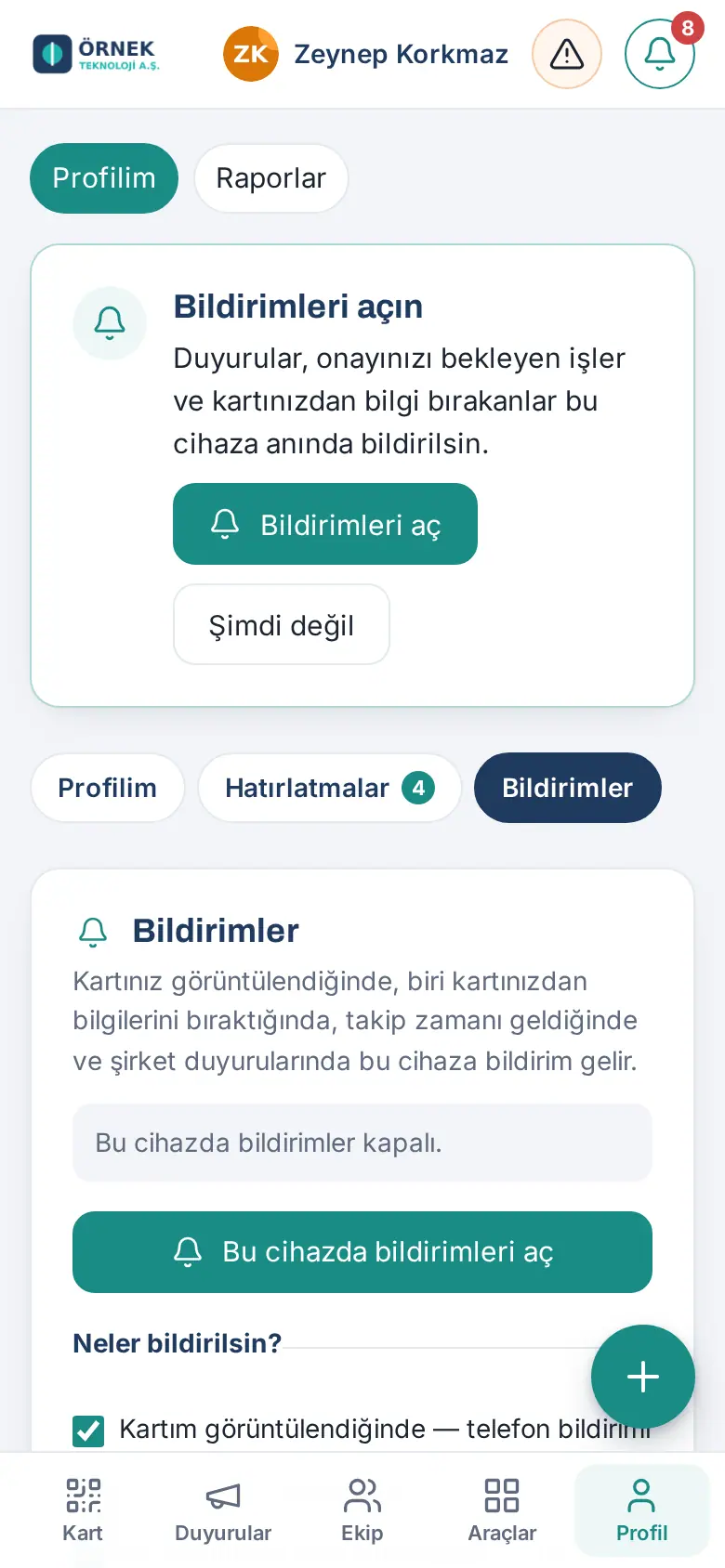
Solution (employee):
- In Profile → Notifications, turn on notifications and give permission.
- Tap Send test notification.
- If it does not arrive, check the phone's focus mode and your notification preferences.
Solution (administrator):
- For web notifications, look at the Telefon bildirimi (web push) ("phone notifications (web push)") row on the Kurulum screen: it must say "Anahtarlar hazır." ("keys ready"). If it says "HTTPS olmadan çalışmaz." ("does not work without HTTPS"), move the site to HTTPS; if it says "Sunucu anahtar üretemedi (OpenSSL / EC desteği)." ("the server could not generate keys (OpenSSL / EC support)"), ask your hosting company for elliptic curve support in the PHP OpenSSL extension.
- For the mobile app, the Android — Firebase and iPhone — Apple APNs badges in Admin → Integrations → Mobile notifications must be Ready; click Test connection (see 13. Integrations). If it says "The server's cURL does not seem to support HTTP/2; Apple APNs requires HTTP/2. Ask your hosting provider.", iPhone notifications are not sent.

Tip: One person can turn on notifications on up to 10 devices in the browser and up to 5 phones in the mobile app. Even if phone notifications are off, email notifications keep coming according to the preferences. If Microsoft Teams is used, notifications also go to the Teams activity feed.
The app cannot be added to the home screen
Who: Employee · Where: The phone's browser
| Symptom | Cause | Solution |
|---|---|---|
| The menu has no Add to Home Screen (iPhone) or Install app (Android) | The link was opened in the browser inside an email or messaging app | Open the address directly in Safari (iPhone) or Chrome (Android) |
| On iPhone, the option is not there | The page was not opened in Safari | Open it in Safari |
| The added icon does not open like an app | The site is not on HTTPS | The administrator sets up HTTPS (Kurulum → 2. HTTPS) |
Solution:
- On iPhone, tap Share → Add to Home Screen → Add. On Android, select Install app in the ⋮ menu (see 00. Getting started).
- Open it from the icon on the home screen. On iPhone, you may need to sign in once more.
Tip: If your company uses the Prozence mobile app, you can install the app from the App Store or Google Play (see 20. Prozence mobile app).
The shortcut button does not appear
Who: Employee, Admin · Where: On a phone, at the bottom right of the screen
| Symptom | Cause | Solution |
|---|---|---|
| There is no Scan card or + button at the bottom right (on a computer) | The button appears only on screens with a phone width | This is normal |
| It disappears on some screens | It is hidden on the Add card screen and while the keyboard or a window is open | This is normal |
| It never appears | It was turned off in the personal setting | Profile → My profile → Start screen on phone → Show the shortcut button → Save |
| It never appears, and the personal setting cannot be selected | It was turned off in the company setting | Admin → General → Shortcut button on phones → Show for everyone |
| It never appears | None of the modules that have a shortcut (card scanning, expense, work time, leave) is on for you | Ask your administrator |
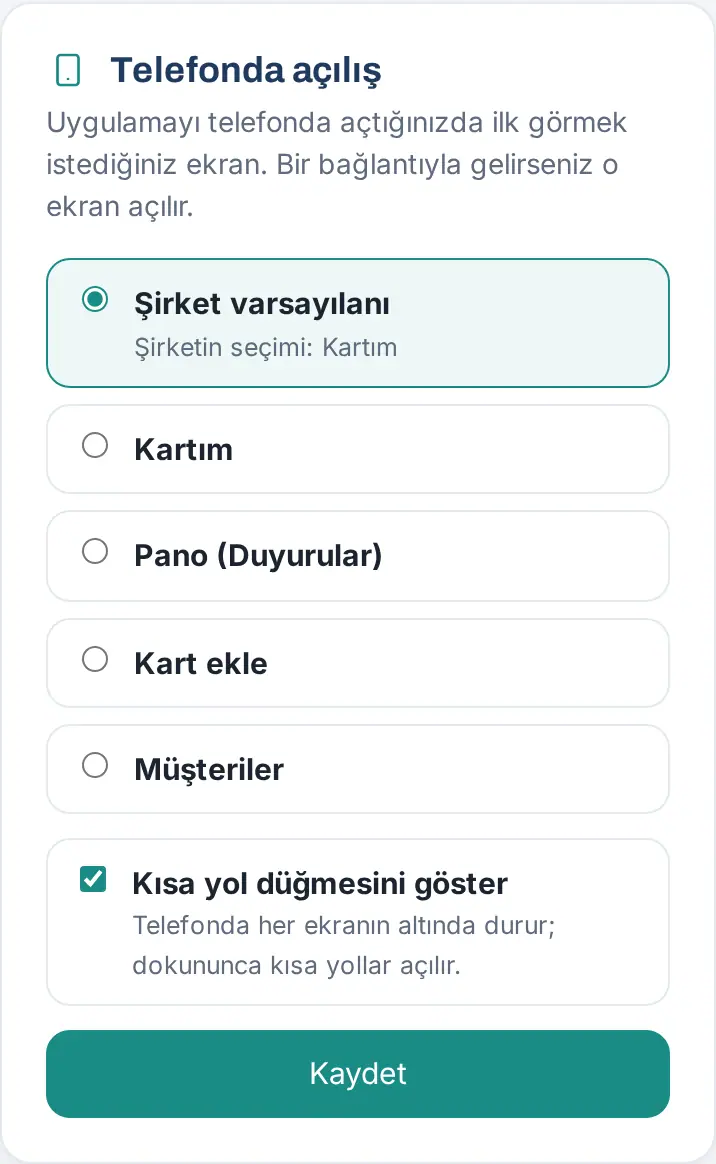
For details, see 00. Getting started and 10. Administration and setup.
A photo does not upload
Who: Employee, Admin · Where: My profile, request, OHS, expense, Brand & Identity
| Symptom | Cause | Solution |
|---|---|---|
| "The photo must be at least 200×200 pixels.", "The photo could not be opened.", "The photo could not be read (up to 4 MB; JPEG, PNG or WebP)." | The profile photo is too small, too large or in an unsupported format | Save it as JPEG or PNG and select it again |
| "Choose a photo.", "The photo can be at most 4 MB." | There is no photo in the request or OHS report, or it is too large | Select a smaller photo |
| "The photo can be at most 8 MB.", "The PDF can be at most 10 MB." | The expense receipt is too large | Make the receipt smaller |
| "The image can be at most 4096×4096 pixels (16 megapixels); resize it and upload again." | The logo or cover image is too large (SVG does not work either) | Make it smaller as PNG, JPEG or WebP |
| The profile photo was uploaded but does not appear on the card | The change waits for administrator approval | Look at the photo awaiting approval in My profile (see 00. Getting started) |
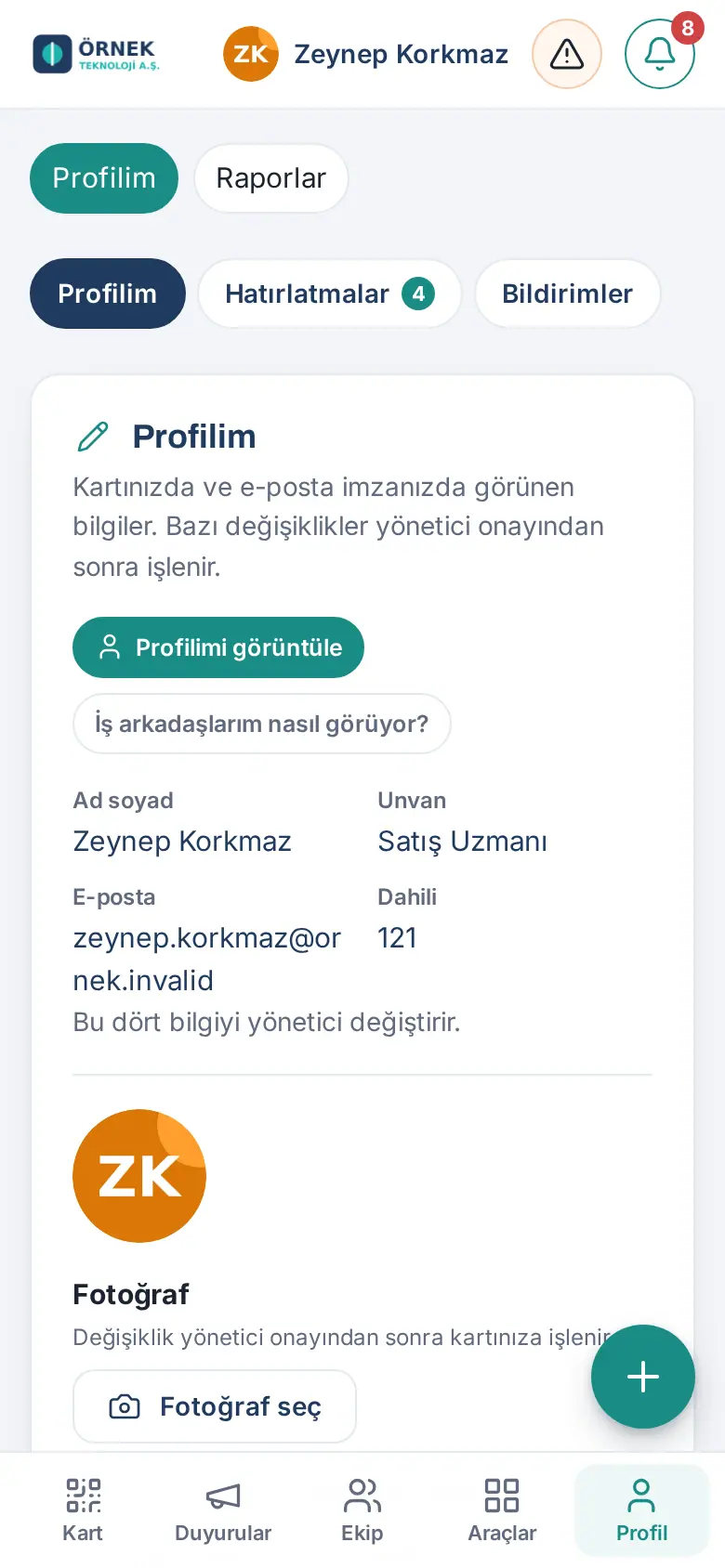
Tip: The default photo format of some phones may not open in computer browsers; select the photo itself, not a screenshot.
Private folders can be opened from outside (Kinsta and Nginx)
Who: Admin, Expense module admin, IT · Where: Admin → Expense → Receipt reading and storage → Private folders
| Symptom | Cause | Solution |
|---|---|---|
| "Receipt images are in the uploads/pzk-masraf folder and the server allows outside access to it (tested). …" | The server uses Nginx (e.g. Kinsta); the .htaccess protection does not work |
Move the receipts to a folder outside the web root, or ask your hosting company for an Nginx rule |
| Rows that say "can be opened from outside (tested)" in the Private folders list | The same cause; the folders of scanned business cards, request / parcel / OHS photos, selfies, assets and payroll | Send the ready-made rule to your hosting company with Copy rule |
| "On this server PHP cannot access folders outside the site root (open_basedir), so receipts cannot be moved outside the web folder." | The hosting's PHP access restriction | Only the Nginx rule method remains |
| The row says "could not be tested" | The server could not connect to its own address | Click Try again; if it continues, send the diagnostic lines to hosting support |
| After the rule was added, it says "can be opened from outside" again | On Kinsta, a backup taken before the rule was added was restored, which deleted the rule | Ask for the rule again |
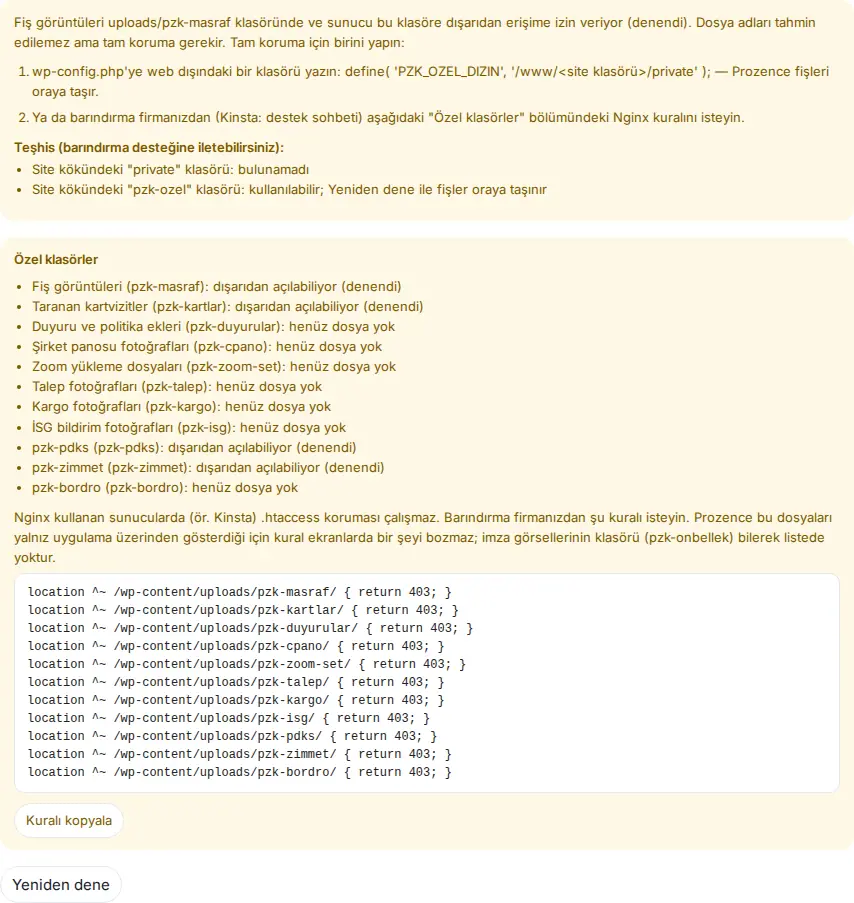
Solution (Admin):
- Open the Admin → Expense tab and scroll down to the Receipt reading and storage section.
- Select one of the two methods in the warning:
- have a folder outside the web root written to wp-config.php (
define( 'PZK_OZEL_DIZIN', '/www/<site klasörü>/private' );); Prozence moves the receipts there; - or click Copy rule under Private folders and send the rule to your hosting company (Kinsta: support chat).
- have a folder outside the web root written to wp-config.php (
- When the rule is added, click Try again. The rows must say "outside access blocked (tested)".
Tip: The rule does not break anything on the screens; Prozence shows these files only through the app. The folder of signature images (pzk-onbellek) must be public for emails, so it is intentionally not in the list. For details, see 18. Expense management and accounting.
Important: These folders contain personal data such as receipts, business cards, selfies and payslips. Even though the file names cannot be guessed, have the rule applied completely for full protection.
The screen appears in the wrong language
Who: Employee, Admin · Where: Profile → My profile → Dil / Language
| Symptom | Cause | Solution |
|---|---|---|
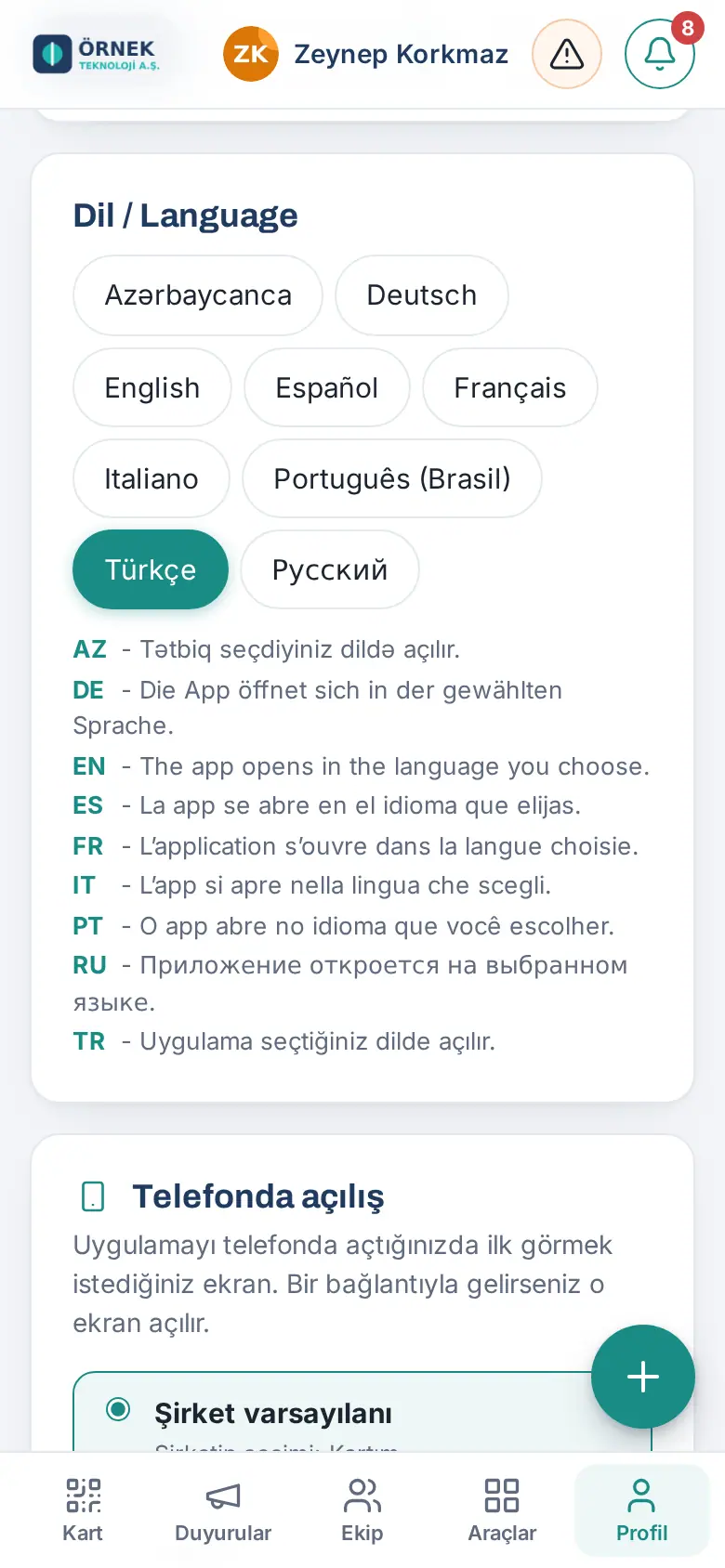
| The app opens in another language | The language comes from the preference in your account (otherwise from the language selected on the sign-in screen) | Select it in My profile → Dil / Language (see 00. Getting started) |
| The language I selected disappeared, and Turkish appears | The administrator turned that language off | Ask your administrator (see 15. Multiple companies, language, KVKK and license) |
| An announcement or administrator text stays in Turkish | No translation was entered | The administrator enters the translation of the text |
| The WordPress screens are in English | WordPress's own language | The WordPress language setting is separate |
| The business card page appears in another language for the customer | The card page opens in the visitor's browser language | This is normal |
| The app review account opens in English | It is in English on purpose for reviewers | It changes with the Türkçe ("Turkish") button |
The email signature looks broken in Gmail or Outlook
Who: Employee, Admin · Where: My card → My signature
| Symptom | Cause | Solution |
|---|---|---|
| The logo, photo or banner does not appear | The recipient's email program blocks external images | The recipient must choose to show images; the site must be on HTTPS and public |
| The signature is pasted as plain text | The program does not support formatted pasting | Use Copy HTML code |
| An old banner or an old job title stays | The signature was copied and pasted once; it does not update by itself | Paste it again with Copy signature |
| In Outlook, the photo and personal links are missing | The signature is added with an Exchange server rule | This is normal (see Outlook signature) |
| The new logo does not appear | The old logo can come from the cache for about one day | Wait one day |
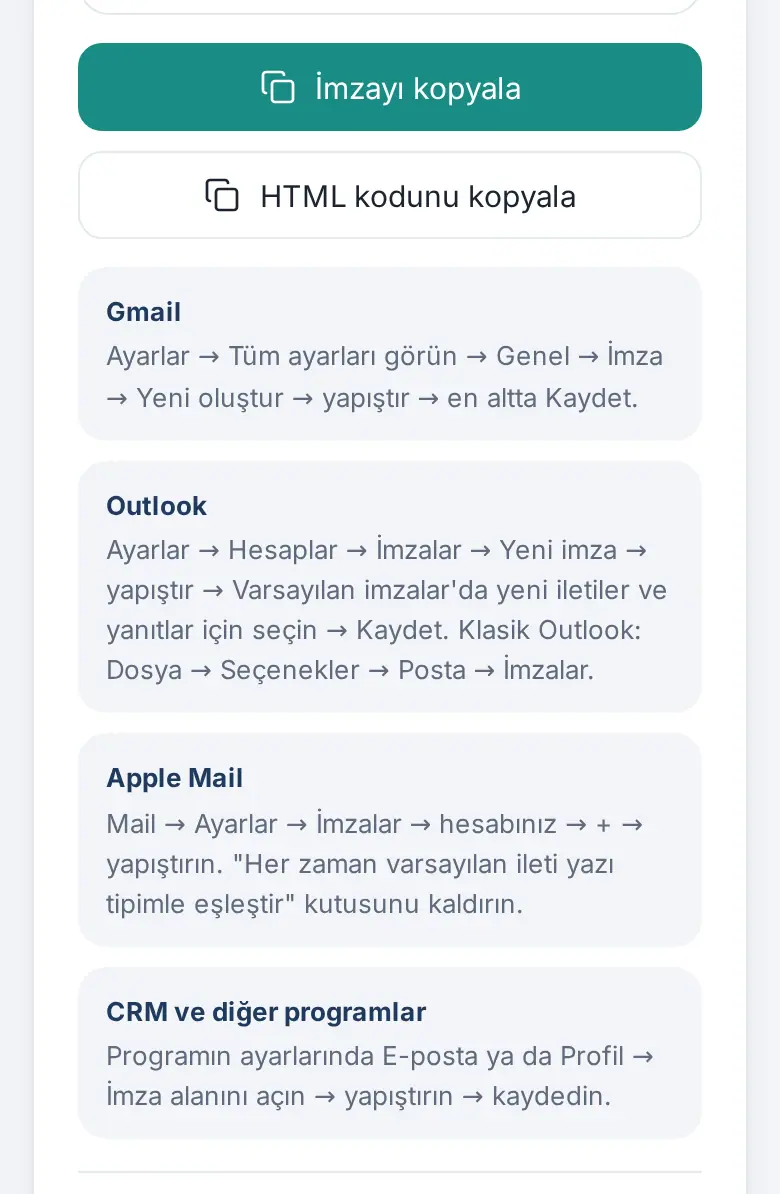
Solution (employee): In My card → My signature, click Copy signature, delete the old signature and paste the new one (see 02. Email signature). In Apple Mail, clear the "Always match my default message font" checkbox. Send a test email to yourself.
Solution (administrator): If the company writes the signature to Gmail centrally, the employee does not need to paste it (see Writing the Gmail signature centrally).
The shared mailbox does not connect (Test connection)
Who: Admin, customer directory module admin · Where: Admin → Customer directory → Enrichment and mailbox → Adding by email
Symptom: Contacts in the emails that employees forward to the shared mailbox are not added to the catalogue; the status badge shows Last test failed or Could not connect. Click Test connection and continue according to the message:
| Symptom (message) | Cause | Solution |
|---|---|---|
| "The Gmail scope is missing from domain-wide delegation." | The Gmail scope was not given to the service account | Google / Microsoft wizard → Authorize ↗, or add the scope in the Admin console (without deleting the existing ones) |
| "The service account key could not be read or is invalid." | The JSON key is damaged or was revoked | Create and upload a new JSON key |
| "The Gmail API is disabled in the service account's Google Cloud project." | The API is off | Google Cloud → Library → Gmail API → Enable |
| "The Gmail service is turned off for this mailbox." | Gmail is off in the mailbox's organizational unit, or there is no license | Turn on Gmail in the Admin console and assign a license |
| "The mailbox address was not found in Google Workspace or is suspended." | A group or an alias was used | Type a real, active user address |
| "The server clock differs from Google's." | The server clock has drifted | Ask your hosting company to synchronize the clock |
| "Could not reach Google (network or timeout)." | Network problem | Try again in a few minutes |
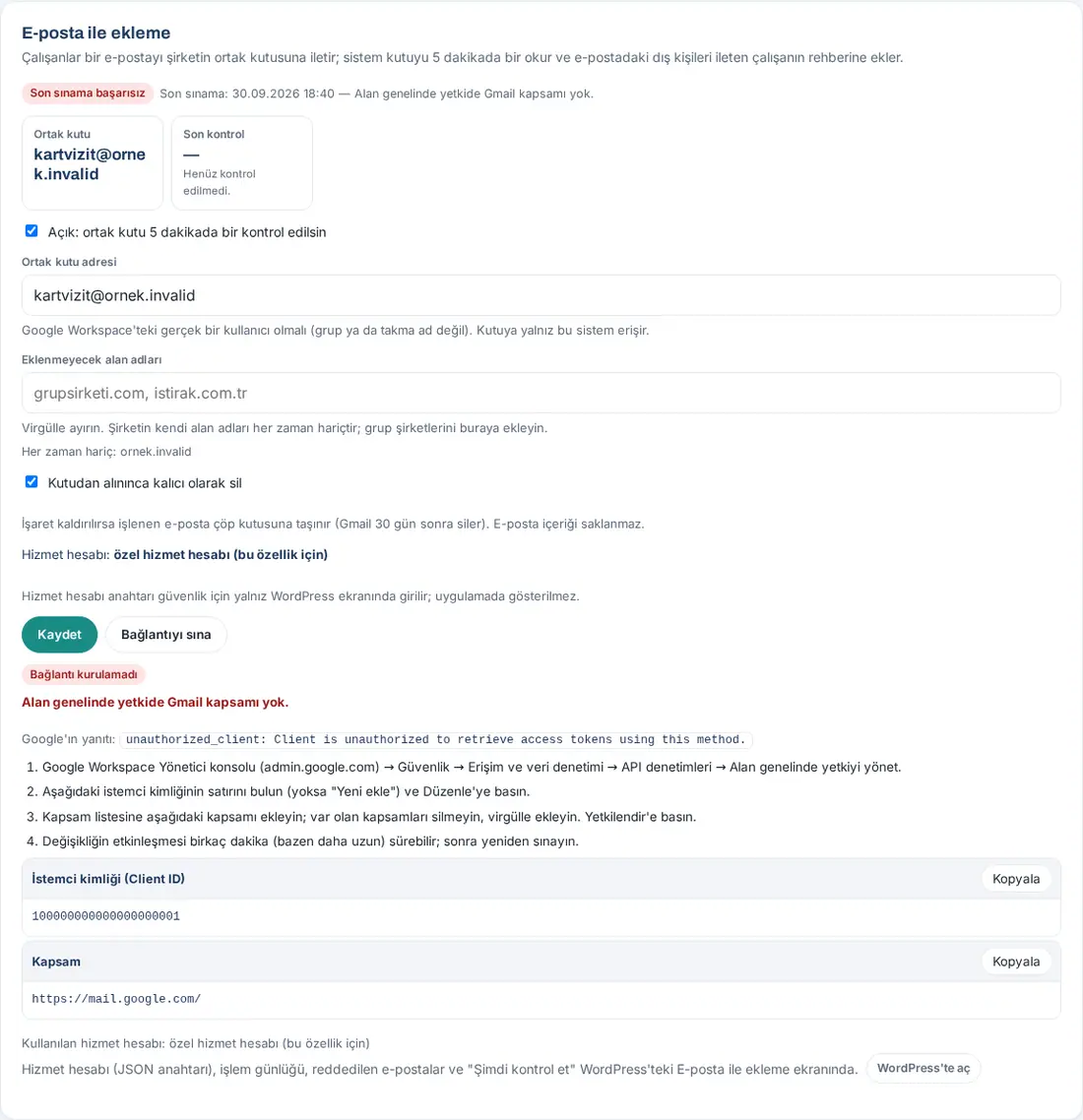
Important: The test reads only the mailbox information and the labels in Gmail. It can be run 5 times in 10 minutes per person. Only a Gmail (Google Workspace) mailbox is supported.
CRM sync stopped
Who: Admin · Where: Phone notification and Waiting for you; Admin → Integrations → CRM → Error queue
| Symptom | Cause | Solution |
|---|---|---|
| Notification: CRM sync stopped — "…: contacts cannot be sent to the CRM; the records remain in the company catalogue. Details: Admin → Integrations → CRM." | A record stopped in automatic retry with a permanent error | Read the error message in the queue |
| "CRM sync stopped: HubSpot (N people waiting)" in Waiting for you | The same; it stays until the first successful send | Tap the row; Integrations → CRM opens |
| "The HubSpot key is invalid or has expired (401). …" in the queue | The service key was not renewed or was deleted | Enter the new key in the HubSpot card |
| "The HubSpot key lacks permissions (403): …" or "HubSpot anahtarının not yazma izni yok (403); …" ("The HubSpot key has no permission to write notes (403); …") in the queue | A scope is missing | Add the scopes in HubSpot |
| "… geçerli bir … alan adı değil." ("… is not a valid … field name.") or a field error from the CRM in the queue | The field mapping is wrong | Correct the Field mapping table |
| Badge "Next try: …" | Temporary error (network, 429, 5xx); it will be retried automatically | Wait |
| After a scan, the employee sees "The record was added to the company catalogue; it could not be sent to the CRM (…) right now. …" | The same causes | The employee does not need to do anything; the record is in the catalogue |
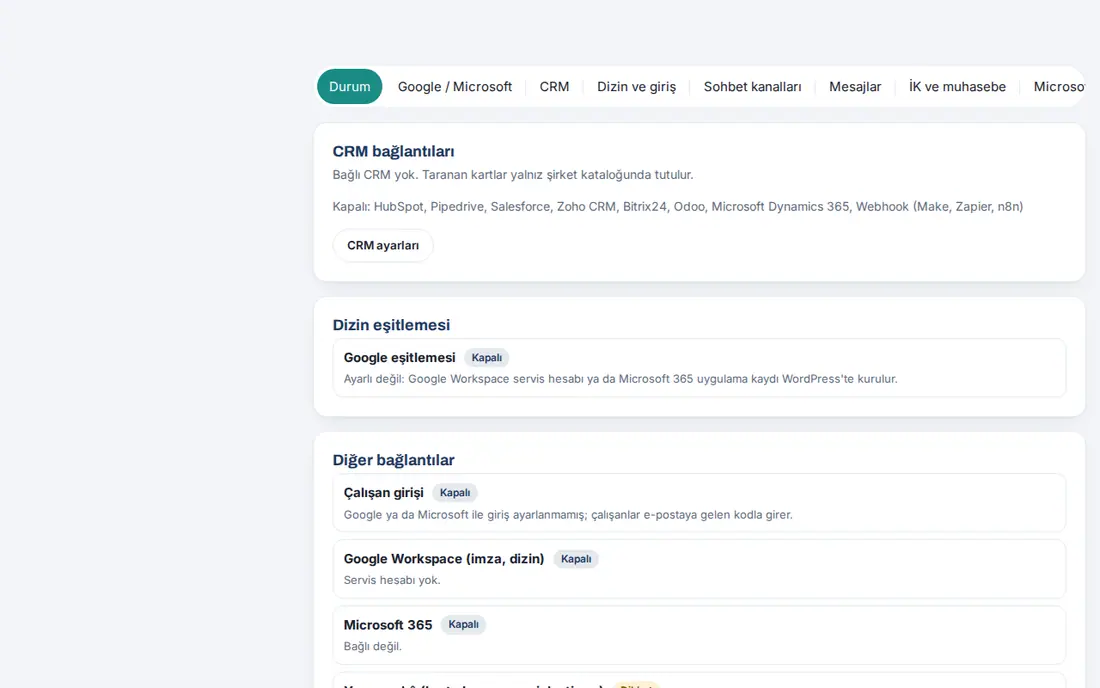
Solution (Admin):
- Open Admin → Integrations → CRM; the card of the connector with the problem opens by itself and shows "Last error (…): …".
- Correct the key or the field mapping, then click Save → Test.
- In the Error queue, click Retry all now. When the problem is fixed, the notification row disappears.
For details, see 13. Integrations.
Google permissions missing or API off
Who: Admin, Google Workspace administrator · Where: Admin → Integrations → Google / Microsoft; Status → Google Workspace connection
| Symptom | Cause | Solution |
|---|---|---|
| "N steps missing" in Status, or Permission missing in the test table | The scope of a newly turned-on feature was not authorized in the Admin console | In step 3, click Authorize ↗ and click "Authorize" in Google |
| API off | The feature's Google API is not enabled in the project | Enable it with Open ↗ in the row or Enable APIs ↗ in step 2 |
| I clicked "Authorize" but it still says Permission missing | Multi-party approval is on in Workspace; the request waits for a second super administrator's approval | Test again a few minutes after the second administrator approves |
| "1 step missing for Google Calendar." / "No Google service account." in the Booking box | The calendar permissions or the service account are missing | Click Open the wizard |
| Could not test | The person or mailbox needed for the test does not exist | Complete the feature's setting and test again |
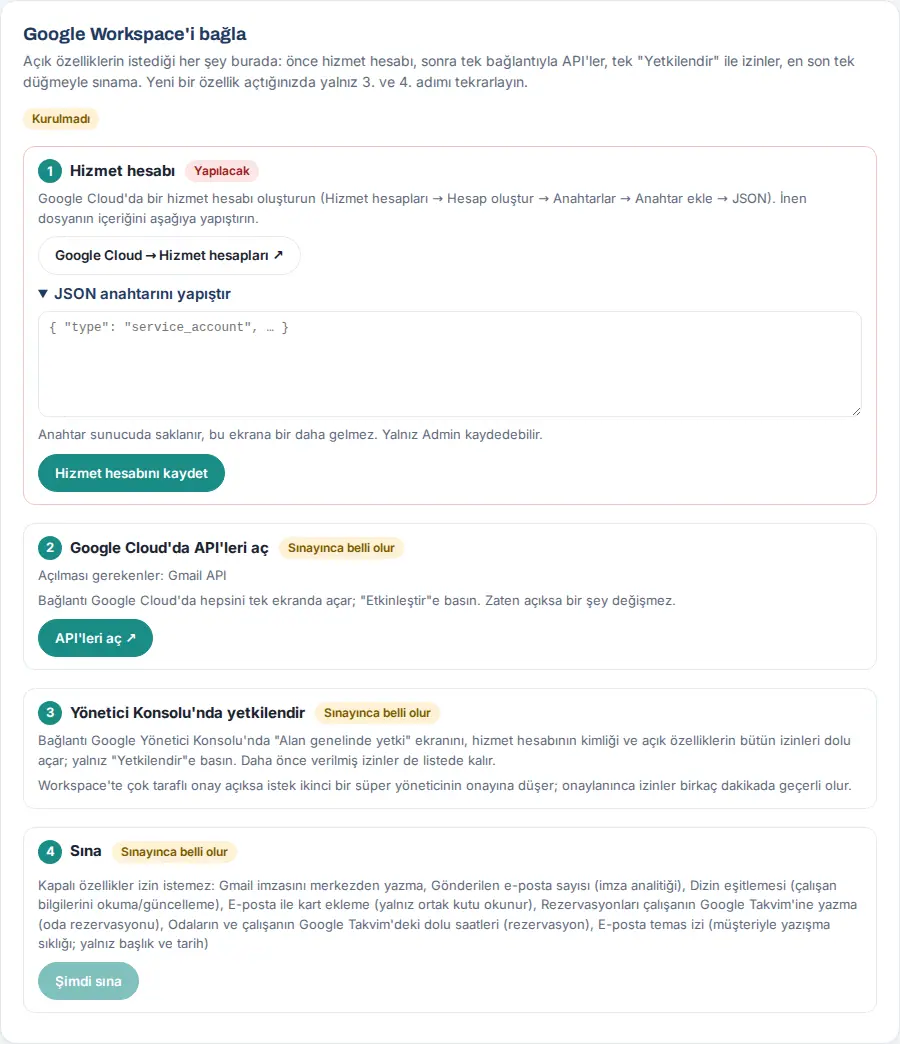
For details, see 13. Integrations.
Messages (Google Chat) does not work
Who: Employee, Admin · Where: Top bar → Messages; Admin → Integrations → Messages
| Symptom | Cause | Solution |
|---|---|---|
| There is no Messages button in the top bar | Messages is off or setup is pending; it also does not appear in a shared device session | The Admin completes the setup (see 13. Integrations) |
| "You are not connected to Google Chat." / "Your Google Chat connection has expired. Connect again." / "Your Google Chat connection is no longer valid. Connect again." | The employee has not connected, or the connection was revoked | Connect again with Connect to Google Chat |
| "Bağlantı isteğinin süresi doldu. Prozence'te Mesajlar'dan yeniden "Google Chat'e bağlan"a basın." ("The connection request has expired. In Prozence, click "Connect to Google Chat" again in Messages.") | Google approval took longer than 10 minutes | Connect again |
| "Access blocked" / "org_internal" on the Google screen | A personal Google account was selected | Select the company account |
| "The Chat app is not configured in the Google Cloud project. …" | Step 3 of the setup is missing | The Admin saves the Configuration page |
| "Google Chat API is not enabled in the project. …" | The API is off | The Admin enables the API |
| "Google Chat permissions are missing. Remove the connection in Messages and connect again." | Not all permissions were given while connecting | Remove the connection and connect again; allow all permissions |
| "This conversation was just opened and Google did not accept the first message from here. …" | Internal chat invitations are accepted by hand | Tap Open in Google Chat and write the first message there; the Admin can turn on automatic acceptance |
| "You don't have access to this conversation (you're not a member or your admin doesn't allow it). · Google: …" | You are not a member of the space | Become a member of the space; the Admin looks at the Last Google error row |
| "Couldn't start a Google Chat conversation with this person (they may not use Google Chat or may be outside the company)." | The person has no Google Chat | Reach the person another way |
| "Google Chat is busy right now. Try again shortly." | Google limit | Wait a little |
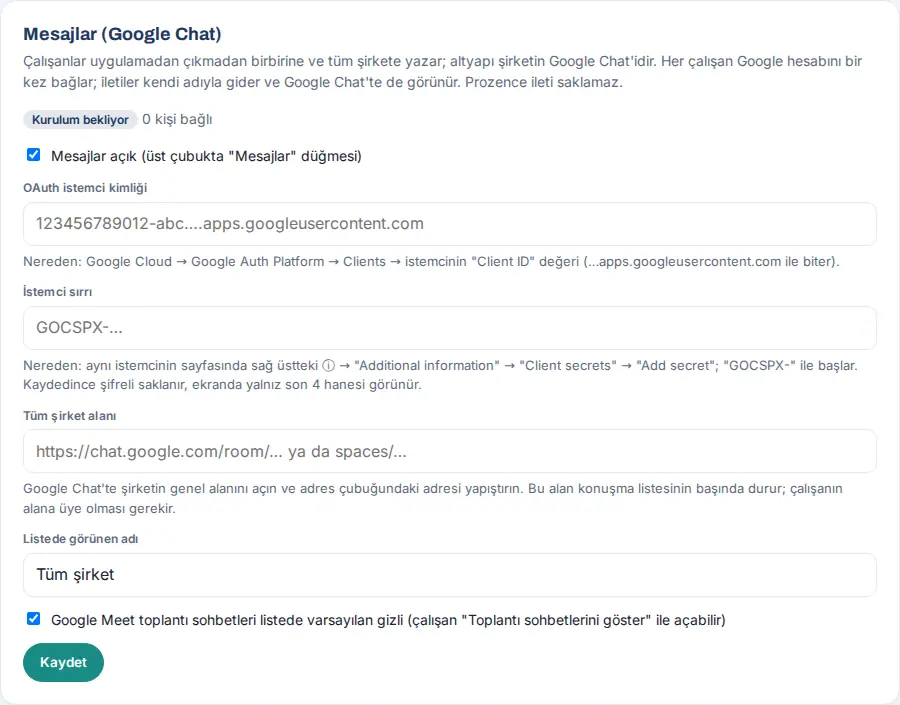
Tip: For the Admin, the quickest hint is the Last Google error: line in Admin → Integrations → Messages (time, HTTP code, operation, Google's message). For how employees use it, see 06. Board and intranet.
The Microsoft Teams tab does not open or notifications do not arrive
Who: Employee, Admin · Where: Microsoft Teams → Prozence; Admin → Integrations → Microsoft Teams
| Symptom | Cause | Solution |
|---|---|---|
| In Teams: "Prozence Teams uygulaması kapalı. Yöneticinize başvurun." ("The Prozence Teams app is off. Contact your administrator.") | Teams app on is not selected | The Admin selects the checkbox and saves |
| "… adresiyle kayıtlı bir çalışan yok. Yöneticinize başvurun." ("There is no employee registered with the address …. Contact your administrator.") | The email of the Teams account does not match the Prozence record | The administrator corrects the email in the employee record |
| "Yalnız şirketin Microsoft 365 hesabıyla giriş yapılabilir." ("You can sign in only with the company's Microsoft 365 account.") / "Yalnız şirket e-posta adresinizle giriş yapılabilir (…)." | Another organization, or a domain that is not allowed | Sign in to Teams with the company account |
| "Jetonun süresi dolmuş. Sekmeyi yenileyin." ("The token has expired. Refresh the tab.") | The tab stayed open for a long time | Refresh the tab |
| "Jeton bu site için değil (Application ID URI: …)." ("The token is not for this site (Application ID URI: …).") / "Jetonda "access_as_user" izni yok." ("The token does not have the "access_as_user" permission.") | The "Expose an API" step in Entra is missing or wrong | The Admin corrects step 1 with the values taken with Copy |
| The tab stays empty; Teams frame ✗ in the test | The site's security header (X-Frame-Options / frame-ancestors) blocks Teams | Change the header so that it allows the Teams domains under /kartvizit/ |
| The notification does not come to Teams; the last error is "Microsoft Graph refused: …" | The TeamsActivity.Send permission or the admin consent is missing | Add the permission and grant admin consent |
| The last error is "The Prozence Teams app is not installed for …, or the person is not in Microsoft 365. …" | The app was not installed for the person | Add it to the Teams setup policy |
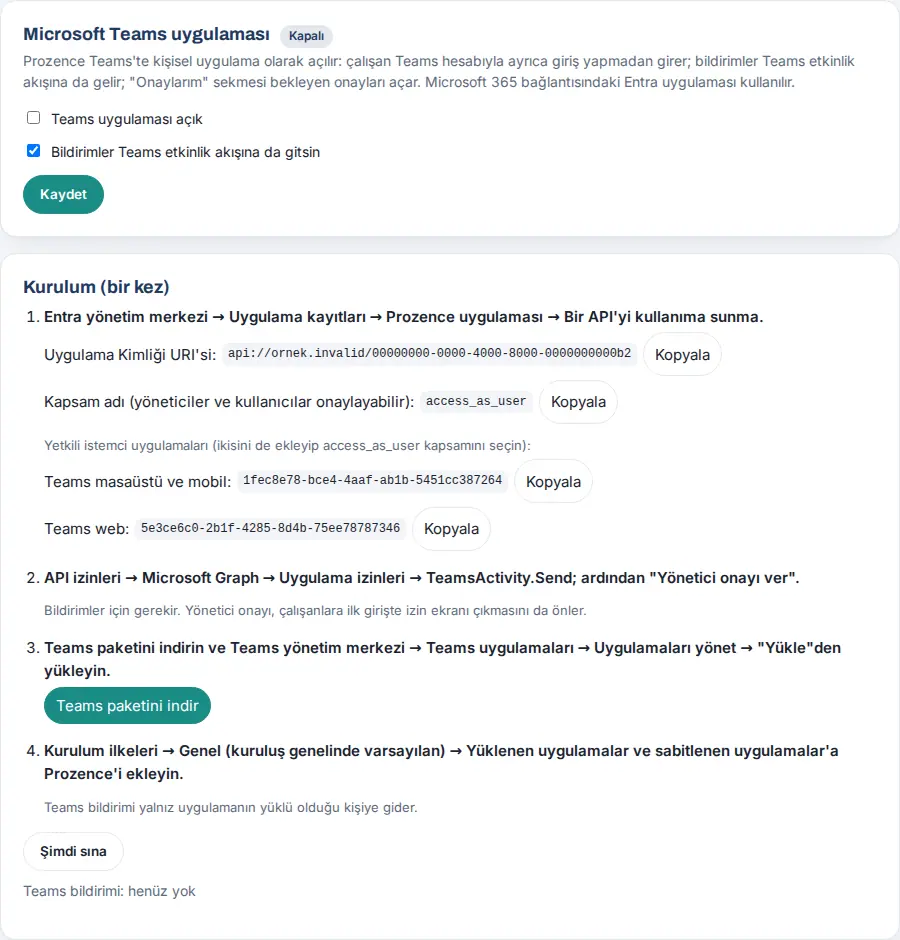
Solution (Admin): On the Microsoft Teams tab, click Test now; continue according to the description of the row with ✗ (see 13. Integrations). A tab opened outside Teams switches to the app after 4 seconds; if there is an error, the Tarayıcıda aç ("open in browser") button appears.
An API or SCIM request is rejected
Who: Admin, the IT / software team that sets up the integration · Where: Admin → Integrations → API keys → Recent requests
| Symptom | Cause | Solution |
|---|---|---|
| 401 "API anahtarı gerekli (Authorization: Bearer …)." ("API key required") | The header was not sent | Add the Authorization: Bearer <anahtar> header |
| 401 "Geçersiz API anahtarı." ("invalid API key") | The key was copied wrong or was deleted | Create a new key |
| 401 "API anahtarı kapalı." ("API key is off") / "API anahtarının süresi dolmuş." ("API key has expired") | The key was turned off or its end date passed | Click Open or create a new key |
| 401 "Anahtarı oluşturan kişi artık Admin değil; yeni bir anahtar oluşturun." ("the person who created the key is no longer an Admin; create a new key") | The creator left or lost the Admin role; the badge in the list is Invalid | Create a new key with a permanent Admin account |
| 403 "Bu anahtarın "…" yetkisi yok." ("this key does not have the "…" permission") | The permission needed for the endpoint was not selected | Create a new key with the required permission |
| 403 "API yalnız HTTPS ile kullanılır." ("the API is used only over HTTPS") | The request came over http | Use https:// |
| 400 "Anahtarı adreste göndermeyin; Authorization: Bearer başlığını kullanın." ("Do not send the key in the address; use the Authorization: Bearer header.") | The key is in the query string | Send it with the header |
| 429 "Saatlik istek sınırı (1000) aşıldı." ("hourly request limit (1000) exceeded") / "Çok fazla hatalı deneme. Bir saat sonra yeniden deneyin." ("too many failed attempts; try again in an hour") | The limit is reached | Wait; send requests less often |
| 409 (uniqueness) in SCIM | An employee with the same email already exists | Match the existing record |
400 invalidFilter in SCIM |
Unsupported filter | Use eq only for userName, externalId, emails.value |
| 501 for writing a group in SCIM | Groups are not supported | Turn off Groups in the Entra mapping |
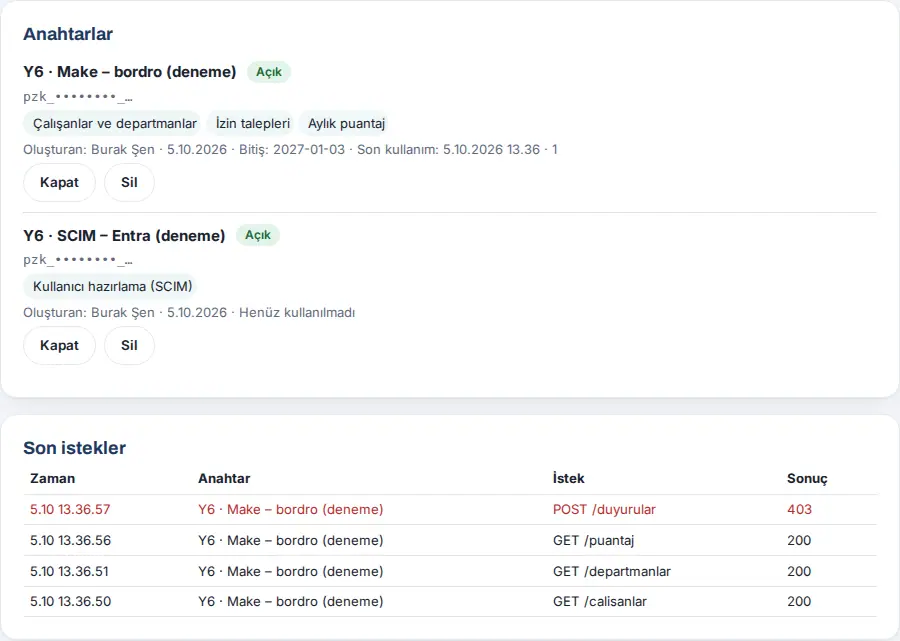
Tip: In the Recent requests table, failed requests are red; you see which key got which response from which endpoint. For details, see 13. Integrations.
The employee events webhook stopped
Who: Admin · Where: Admin → Integrations → HR & accounting
| Symptom | Cause | Solution |
|---|---|---|
| Notification: İK webhook gönderimi durdu ("HR webhook sending stopped") | The receiver returned 4xx (permanent), or the 6 tries ran out | Read the Last error row; fix the receiver |
| Badge Attention; Stopped rows in the queue | The same | When the receiver is fixed, Retry all now |
| Pending in the queue | Temporary error; it will be retried at intervals from 5 min to 12 h | Wait, or Retry all now |
| "Adres https:// ile başlamalı." ("the address must start with https://") | An http address was entered | Enter an https address |
| "Önce adresi kaydedin." ("save the address first") | Send test was clicked without saving | Click Save |
| The receiver rejects the requests (signature error) | The signing key at the receiver is old | Enter the key changed with Refresh at the receiver too |
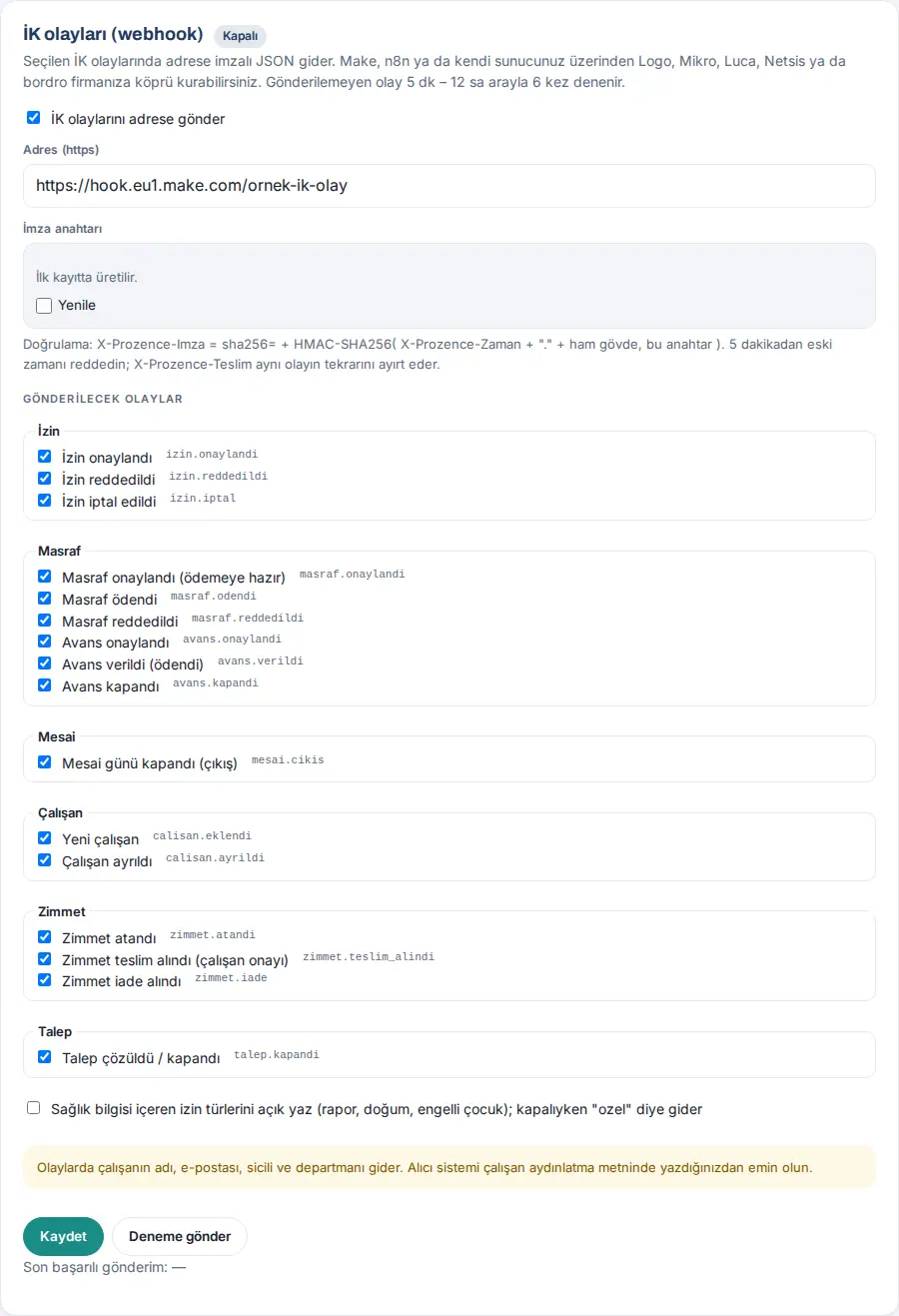
Important: If Remove stopped is confirmed, these events are never sent again. For details, see 13. Integrations.
The app store reviewer cannot sign in
Who: Admin · Where: Admin → Integrations → App review account
| Symptom | Cause | Solution |
|---|---|---|
| The reviewer sees "Wrong code. Attempts left: N." | A wrong code was entered | Check the code in the store form |
| Badge Locked; "10 failed attempts were made; the account is locked. It unlocks when you generate a new code." | 10 failed attempts | Generate a new code; enter the new code in the store form |
| Badge Expired; the reviewer sees "The code has expired. Request a new code." | The validity period ended | Generate a new code (1–90 days) |
| Badge Off | The account was closed | Open it again with Generate a new code |
| "Sign-in with email code is off, so the review account cannot sign in either. …" | Sign-in with an email code is off in the company | Turn on sign-in with an email code |
| The reviewer says "I cannot access every part of the app" | The view is Business card only | Switch to Full employee view during the review and switch back after approval |
| The reviewer sees "This section is closed for the app review account." | The same cause | The same solution |
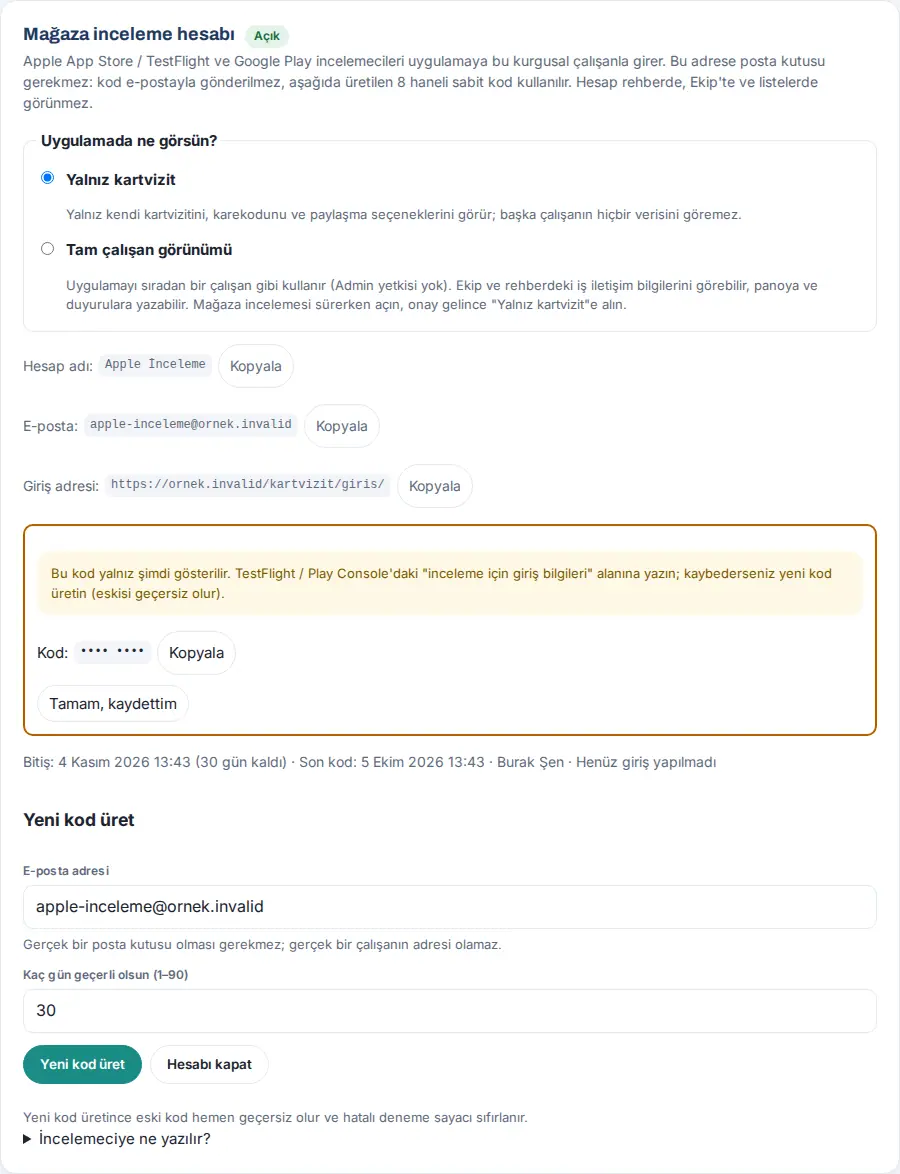
Tip: The reviewer does not get the code by email; after tapping Send a code to my email on the sign-in screen, they type the code from the store form. For details, see 13. Integrations.
An old version or old information appears (cache)
Who: Employee, Admin · Where: App; WordPress → Prozence Workplace → Kurulum
| Symptom | Cause | Solution |
|---|---|---|
| New buttons do not appear after an update | The app stayed open in the background; the new version downloads at the next opening | Close the app completely and open it again; on a computer, refresh the page |
| A change does not appear for some people; a leave note or a leaver redirect is late | The site's page cache (hosting, cache plugin, CDN) gives an old copy | The administrator keeps the /kartvizit/ and /wp-json/pzk/ paths out of the cache |
| Sayfa önbelleği ("page cache") after Dene: "Kartvizit sayfası sunucu önbelleğinden geliyor (…)…" ("the business card page comes from the server cache (…)…") | The same | Keep the paths out in the hosting panel or the plugin, and clear the cache |
Tip: See the installed version in the WordPress → Plugins list, or in the "sürüm …" ("version …") text at the bottom of the Prozence screens.
Important: The personal app page is not stored in the browser; when there is no connection, only a "No connection" screen with no data opens. Do not put the app page in the server cache.
No Add to Wallet button (Apple Wallet certificate)
Who: Employee, IT · Where: My card; WordPress → Prozence Workplace → Wallet
Symptom: Employees do not see the Add to Apple Wallet button in My card. On the Kurulum screen, the Apple and Google Wallet row says "ayarlı ama sertifika açılamıyor" ("set up, but the certificate cannot be opened"), or the Apple Wallet sertifikası ("Apple Wallet certificate") row says "Çalışanlara Apple Wallet düğmesi gösterilmiyor. …" ("The Apple Wallet button is not shown to employees. …").
| Symptom (message) | Cause | Solution |
|---|---|---|
| "Sertifika (.p12) açılamadı — şifre yanlış olabilir" ("the certificate (.p12) could not be opened — the password may be wrong") | The password is wrong, or the certificate was exported with old encryption | Enter the .p12 şifresi ("p12 password") again; if necessary, export it again from Keychain Access |
| "Sertifika ile içindeki özel anahtar eşleşmiyor; …" ("the certificate and the private key in it do not match; …") | It was exported without the key | Select the certificate together with its key and export it again as .p12 |
| "Sertifikanın süresi … tarihinde dolmuş. …" ("the certificate expired on …. …") | It expired | Create a new certificate in Apple Developer and upload it |
| "Sertifika henüz geçerli değil (…)" ("the certificate is not valid yet (…)") | The start date has not come yet, or the server clock is wrong | Wait, or check the server clock |
| "Sertifikadaki Pass Type ID (…) ile girilen (…) farklı; …" ("the Pass Type ID in the certificate (…) is different from the one entered (…); …") | The ID does not match | Type the ID from the certificate in the Pass Type ID field |
For the steps, see Apple and Google Wallet.
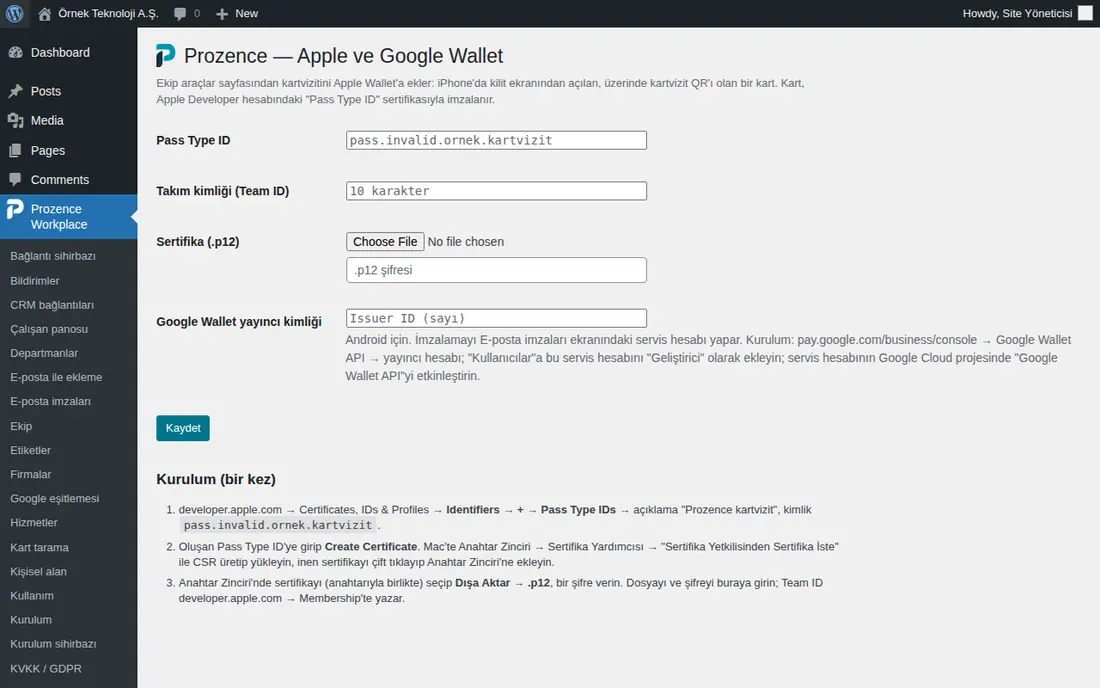
Tip: A warning comes 30 days before the certificate expires. The self-updating card needs HTTPS; for a card added in an old version, updates start when the employee adds the card again once.
Important: Do not send the certificate file and its password by email when you ask for support.
Information to give when you ask for support
To solve the problem quickly, write the following in your support request:
- Version: For the administrator, the Prozence Workplace version in the WordPress → Plugins list (e.g. 0.99.45); in the mobile app, the app's version.
- Device and browser: e.g. "iPhone, Prozence app", "iPhone, app added to the home screen", "Android, Chrome", "Windows, Edge", "Microsoft Teams desktop".
- What you did: which button you clicked on which screen; the date and time.
- Message: the full text of the message on the screen.
- Screenshot: a screenshot of the screen with the problem.
- For the administrator: the status of the related row on the Kurulum screen and of the badge on the Admin → Integrations → Status tab; if there is one, the "Last error" or "Last Google error" line.
Important: Do not send personal data in the support request or in a screenshot: customer names and phone numbers, employees' health or leave information, delivery codes, sign-in codes, the app review code, passwords, API keys, client secrets, service account files (JSON), .p8 / .p12 key and certificate files. If necessary, cover these areas in the image.


