15. Multiple companies, language, KVKK and license
Screenshots show the Turkish interface of Prozence with fictional "Örnek Teknoloji A.Ş." data; the English interface has the same layout.
This chapter is for the Admin. It describes how to define more than one company (group companies) in the same installation, the business card and app languages, the KVKK (Turkey's personal data protection law) and GDPR tools, the license screen and the analytics reports. Most of these screens are in the Prozence Workplace menu in the WordPress admin panel; analytics is in the Admin section of the app.
For brand, logo and signature settings, see 11. Brand, identity and signature management. For access to the Management panel and permissions, see 10. Administration and setup.
In this chapter
- Understanding the group structure
- Adding an additional company
- Company-based HR scope (leave and payroll)
- Turning languages on and off
- Translating administrator texts
- KVKK: privacy notice and commercial message consent texts
- Answering personal data requests
- Searching, exporting and anonymizing records
- Retention period
- Data processing inventory and audit log
- Entering the license key
- Analytics: card views and usage
- Usage report
Understanding the group structure
Who: App administrator · Where: WordPress → Prozence Workplace → Şirketler ("Companies")
What it does: In the same installation, up to 20 additional companies can be defined besides the main company (e.g. a partner company that shares the same office, or group companies). Employees of an additional company sign in with their own company email. Their business cards, directory cards, wallet cards, email signatures and apps show that company's name, logo and contact details.
- In the WordPress admin panel, open Prozence Workplace → Şirketler.
- The table shows the main company and the additional companies: Şirket ("Company"), E-posta alan adları ("Email domains"), the number of Çalışan ("Employees"), Kartvizit formu ("Business card form") (whether there is a privacy notice link) and CRM aktarımı ("CRM transfer").
- Read the Bu aşamada ortak kalanlar ("Shared at this stage") section: it shows which settings are shared by all companies.
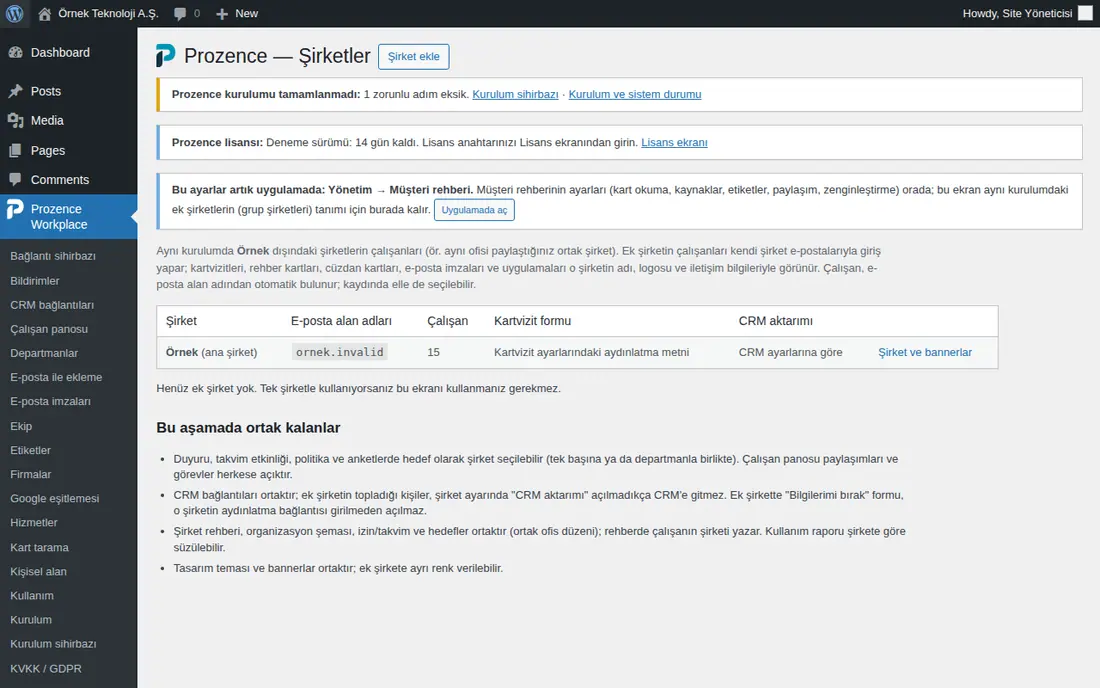
Settings by company: In a group structure, these settings can be separate for each company:
| Setting | Where |
|---|---|
| The company's name, logo, colors, offices, switchboard, KVKK privacy notice link, CRM transfer | WordPress → Şirketler → company |
| The employee's company | Automatically from the email domain; manually: Admin → Departments and organization or WordPress → Ekip ("Team") → employee record → Şirket |
| Email signature template | Admin → Email signature → Template assignments → To: Company (see 11) |
| Legal disclaimer text | Email signature → Legal disclaimer and short signature → + Add rule → Company |
| Banner target | Email signature → Banners → Show in whose signatures → Company |
| Target of announcements, calendar events, policies and surveys | Company and Department are selected as the target (the intersection of the two). For the whole group, Whole group (all companies) is selected; the target of records that go to the whole group shows as Whole group (1.8.8). A new announcement or event form opens with the writer's own company selected (1.8.10) |
| Board feed | The My unit · My company · Whole group selection in the corporate Board layout (see 06. Board and intranet) |
| Usage report | WordPress → Kullanım ("Usage") → company filter |
Important:
- Employees of additional companies are not included in directory sync or in central signature writing to Gmail.
- CRM connections are shared. Contacts collected by an additional company do not go to the CRM unless CRM aktarımı is turned on in the company setting.
- The company directory, organization chart, leave / calendar and goals are shared by all companies; the directory shows the employee's company. Since 1.8.8, leave in the calendar is shown only to the person's own company (the app Admin sees the whole group).
Adding an additional company
Who: App administrator · Where: WordPress → Prozence Workplace → Şirketler → Şirket ekle ("Add company")
- On the Şirketler screen, click Şirket ekle next to the title.
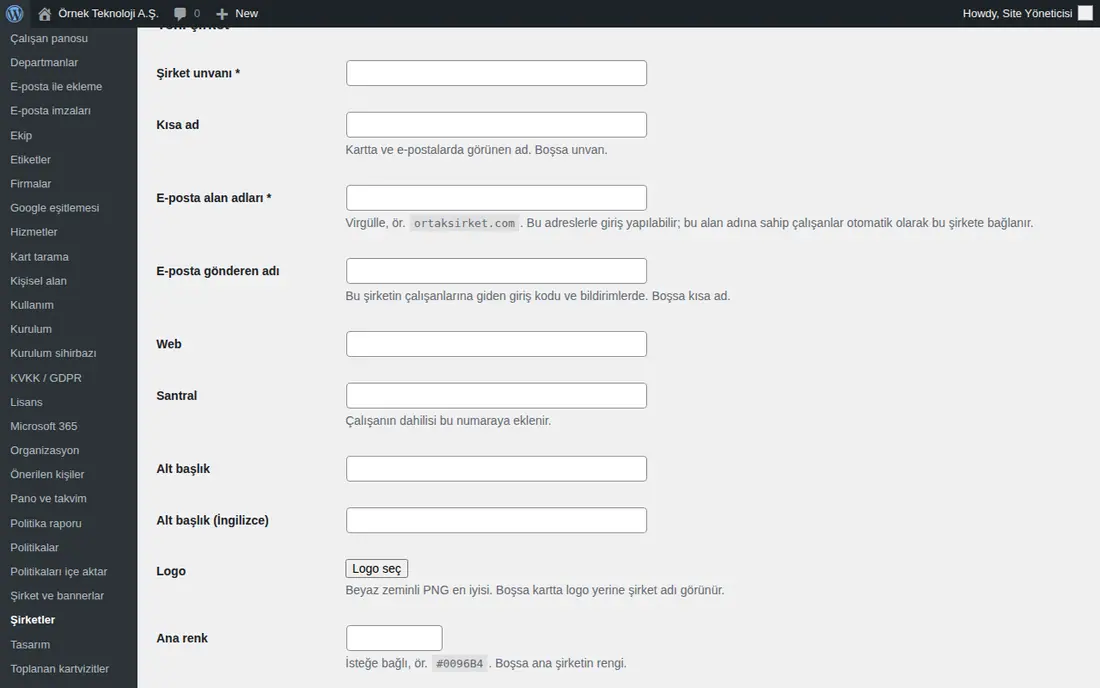
- Fill in the Yeni şirket ("New company") form:
- Şirket unvanı ("Company name") (required, field with an asterisk);
- Kısa ad ("Short name"): the name shown on the card and in emails (if empty, the company name);
- E-posta alan adları (required, field with an asterisk): separated by commas, e.g.
ortaksirket.invalid. Employees with this domain are automatically linked to this company; - E-posta gönderen adı ("Email sender name"): shown in the sign-in codes and notifications sent to this company's employees;
- Web, Santral ("Switchboard"), Alt başlık ("Subtitle"), Alt başlık (İngilizce) ("Subtitle (English)");
- Logo: with Logo seç ("Select logo"), select a PNG with a white background (if empty, the company name is shown on the card instead of a logo);
- Ana renk ("Main color") and Koyu renk ("Dark color") (optional; if empty, the main company's colors);
- Ofisler ("Offices"): on each line, type
Label | Address | Map link(if empty, the main company's offices are shown); - CRM aktarımı: whether the contacts collected by this company are also transferred to the main company's CRM;
- KVKK aydınlatma bağlantısı ("KVKK privacy notice link"): the address of this company's own privacy notice.
- Click Şirketi ekle ("Add the company").
- Employees are matched automatically by their email domain. To link an employee to another company manually, in the app go to Admin → Departments and organization and change the company list in the employee's row (e.g. Automatic (by email: …)).
Important:
- An additional company is a separate legal entity; the main company's privacy notice is not used. If KVKK aydınlatma bağlantısı is not entered, the "Leave my details" form stays off on this company's cards.
- To delete a company, click Şirketi sil ("Delete the company") on the company's edit screen. Its employees go back to the main company.
Company-based HR scope (leave and payroll)
Who: Admin (changes) · Auditor (sees) · Where: Admin → People and permissions → People and permissions → Company-based HR scope (shown only when an additional company is defined)
What it does: In group companies, Leave and Payroll officers see the employees of all companies in the group by default. If you turn this box on, HR, payroll and leave officers other than Admin see and handle only the leave requests, balances and payslips of employees of their own company.
- In Admin → People and permissions, scroll to the Company-based HR scope box.
- Tick HR and payroll officers see only their own company.
- Click Save. The message "Company-based HR scope turned on." appears. To turn it off, untick the box and click Save again ("Company-based HR scope turned off.").
What changes when it is on:
- Leave: request lists, pending approvals, balances, signed form tracking and the Whole company view of the calendar show only employees of your own company. Requests, documents, balances and history of another company do not open.
- HR approval and notifications (1.8.8): the approvers of the HR step, the "Leave request awaiting your HR approval" notification, the HR step of cancellation requests, employees' "Notify HR" alerts and the "N employees have incomplete leave information" count on Today are limited to the requester's company. For an employee whose company has no HR officer left (other than the employee), the HR step falls to the app Admins (see 30. Employee leave management).
- Payroll: the payslip list, questions, people and the audit log are limited to your own company. When uploading, a file name does not match an employee of another company; the period reminder goes only to your own company. An employee's payroll question goes to the payroll officers of their own company or, if there are none, to the app administrators (1.8.8).
- Reports (1.8.8): the Management view of the Leave, Work time and Payroll reports shows officers other than Admin only the employees of their own company (see 19. Reports).
- The app Admin always sees the whole group. The employee's own record, manager and deputy are not affected: a manager in another company still sees and approves the request.
Important:
- Only Admin changes this setting; an Auditor sees the box but cannot change it ("Only Admins can change this setting."). Every change is written to the audit log.
- Assign an HR officer from each company (Admin → Modules → Leave → HR officers; see 30. Employee leave management). Since 1.8.8, while the scope is on, HR notifications go to the HR officers in the requester's company; if there are none, in turn to that company's Leave operators, the Leave module admins and finally the app Admins.
- Expense accounting, Work time officer screens and some counters on the Board are not affected by this setting; they stay group-wide (the numbers do not show names). Since 1.8.8, Reports follow the scope (Leave, Work time, Payroll).
Turning languages on and off
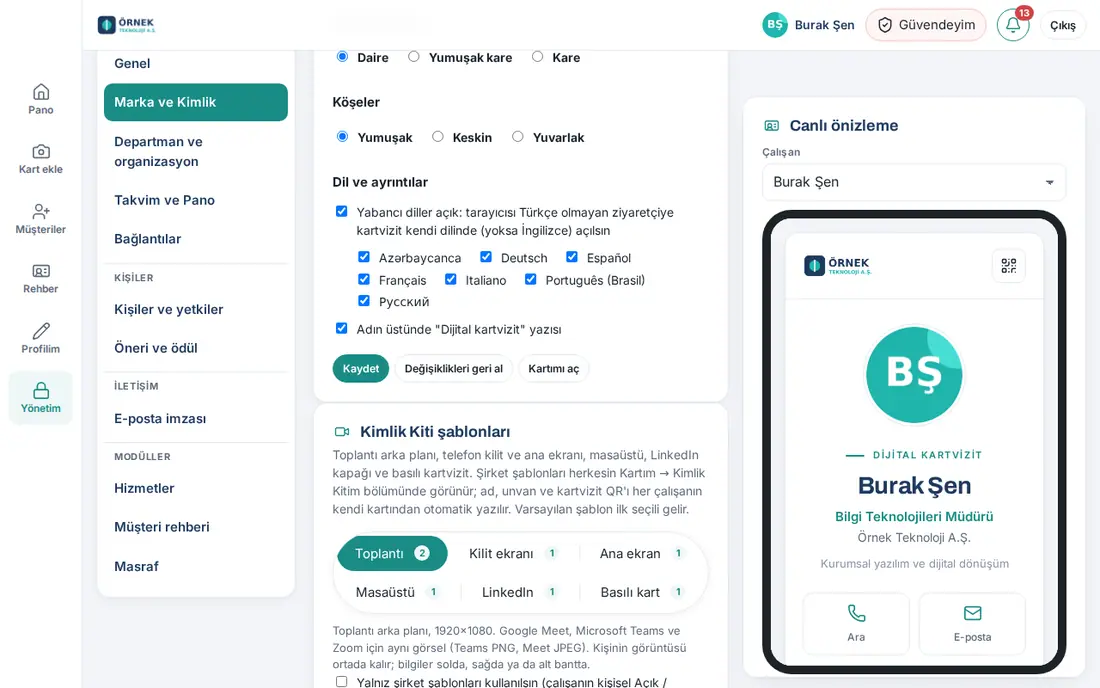
Who: App administrator · Where: Admin → Organization → Brand & Identity → Language and details
What it does: The business card page, the page of an employee who left and the "Leave my details" form open in the visitor's browser language. Employees also use the app in one of the languages that are on.
Languages: Türkçe, English, Español, Deutsch, Português (Brasil), Français, Русский, Azərbaycanca, Italiano.
- Open Admin → Brand & Identity and scroll down to the Language and details section.
- Select the Other languages on: visitors whose browser isn’t Turkish see the card in their language (or English) box.
- Select the languages to use one by one (e.g. Deutsch, Español). Clear the box of a language you do not want to use.
- Click Save.
Tip:
- Below the business card, there is a language selector for the visitor. Month and day names are written in the card's language.
- Employees select their own app language in My profile → Dil / Language (see 00. Getting started). Emails and notifications sent to the employee also come in the selected language.
Important: If you turn off other languages, the business card and the app are shown only in Turkish. Prozence's WordPress admin screens (the setup wizard, the license screen and the other plugin pages) are only in Turkish; the Admin panel inside the app follows the selected language.
Translating administrator texts
Who: App administrator · Where: Several screens (table below)
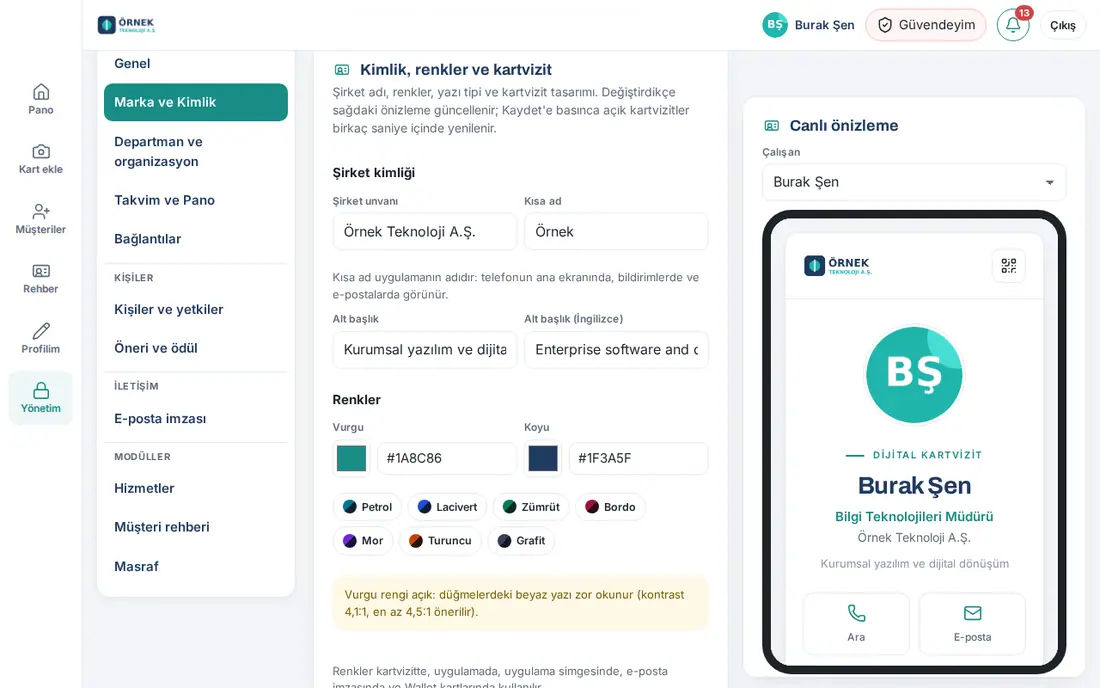
What it does: The app's own texts (buttons, menus) are translated automatically. The texts you write (announcement, note, job title, company subtitle) are not translated automatically. For company texts shown to foreign visitors, fill in the English fields. The English text is used in all languages other than Turkish.
| Text | Where the English field is |
|---|---|
| Company subtitle | Admin → Brand & Identity → Subtitle (English) |
| Employee's job title | WordPress → Ekip → employee record → Unvan (İngilizce) ("Job title (English)") (see 10) |
| Subtitle of an additional company | WordPress → Şirketler → company → Alt başlık (İngilizce) |
| Legal disclaimer in the email signature | Email signature → Legal disclaimer and short signature → English version (optional; added below the Turkish) |
| KVKK privacy notice and commercial message consent text | WordPress → KVKK / GDPR → Aydınlatma metni (İngilizce) ("Privacy notice (English)"), Ticari ileti izin metni (İngilizce) ("Commercial message consent text (English)") |
- Open the screen in the table.
- Fill in the English field. If it is left empty, the Turkish text is shown.
- Click the screen's Save button.
Important: The email signature does not depend on the employee's language; the signature is not translated. To show the legal disclaimer in two languages, add its English version.
KVKK: privacy notice and commercial message consent texts
Who: App administrator (together with the legal advisor) · Where: WordPress → Prozence Workplace → KVKK / GDPR → Metinler ve ayarlar ("Texts and settings")
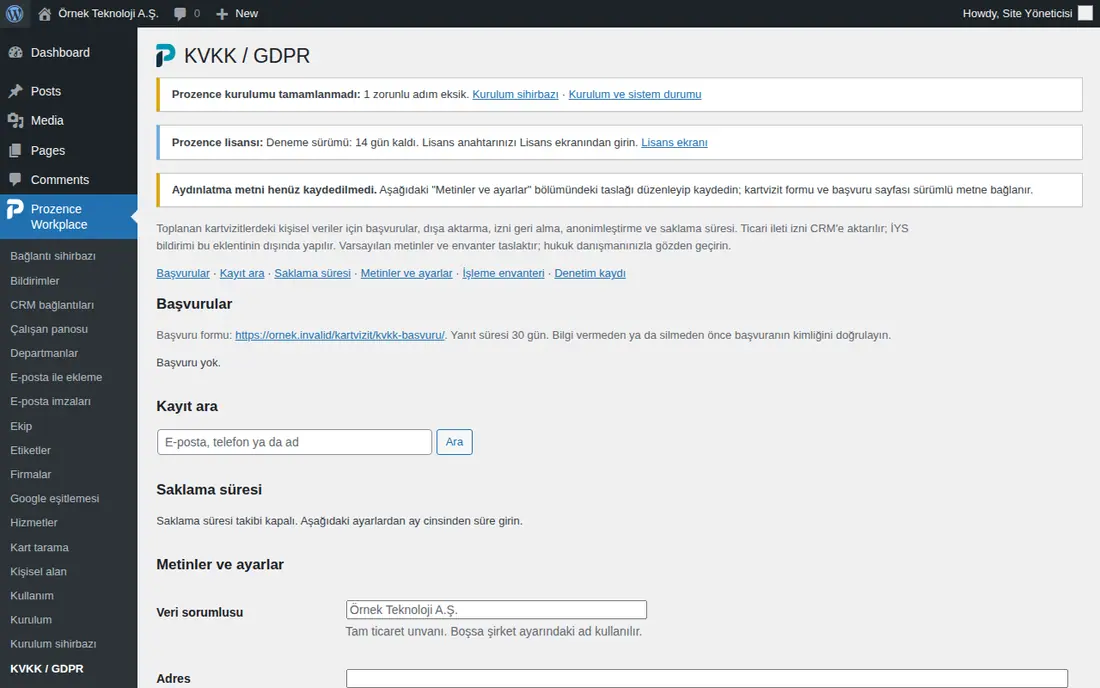
What it does: The business card form ("Leave my details"), card scanning and the request page are linked to these texts. Each change creates a new version; the version number is kept in the consent records.
- In WordPress, open Prozence Workplace → KVKK / GDPR. Use the links at the top to move between sections: Başvurular ("Requests"), Kayıt ara ("Search records"), Saklama süresi ("Retention period"), Metinler ve ayarlar, İşleme envanteri ("Processing inventory"), Denetim kaydı ("Audit log").
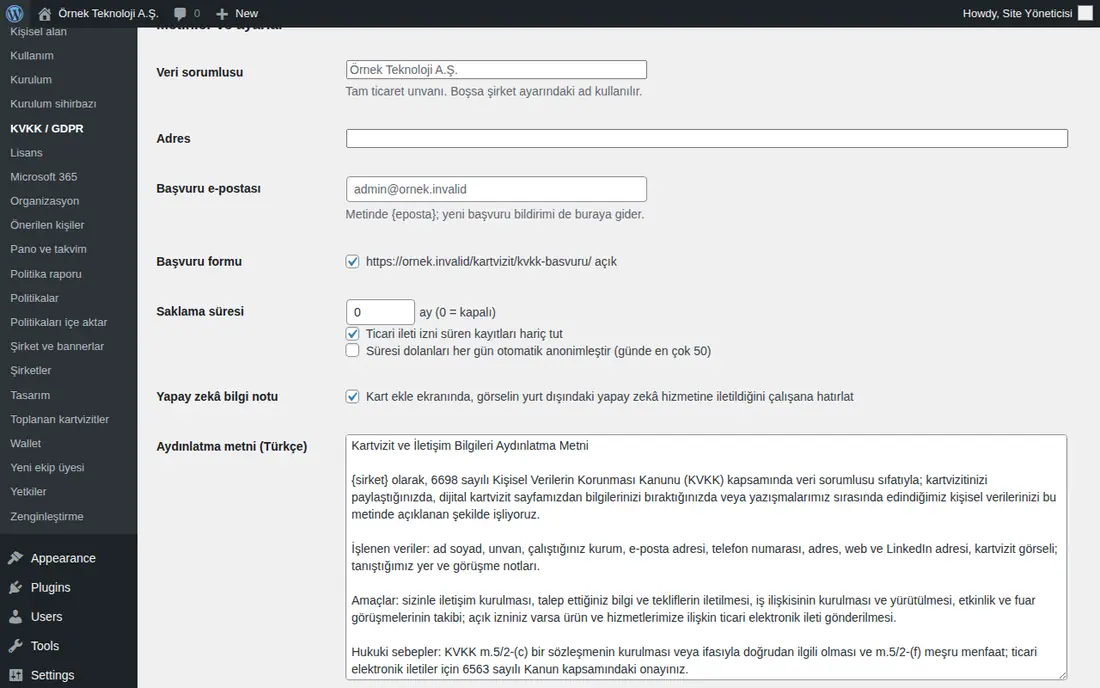
- In the Metinler ve ayarlar section, enter the company details:
- Veri sorumlusu ("Data controller"): the full trade name (if empty, the name in the company settings);
- Adres ("Address");
- Başvuru e-postası ("Request email"): the notification of a new request also goes here.
- Edit the draft in the Aydınlatma metni (Türkçe) ("Privacy notice (Turkish)") and Aydınlatma metni (İngilizce) fields. The first line becomes the title.
- Edit the Ticari ileti izin metni (Türkçe) ("Commercial message consent text (Turkish)") and (İngilizce) ("(English)") fields. This text is shown in the consent box of the business card form and goes to the CRM as the consent text.
- For the first save, click Kaydet ve sürüm 1'i yayımla ("Save and publish version 1"); for later saves, click Kaydet (metin değiştiyse yeni sürüm) ("Save (new version if the text changed)").
Tip: You can use placeholders in the text: {sirket}, {kisa_ad}, {adres}, {eposta}, {basvuru} (request form) and {aktarim} (active service providers). Old versions stay readable at the /kartvizit/aydinlatma/?s=N address.
Important:
- The default texts are drafts; review them with your legal advisor. Until the text is saved, the warning "Aydınlatma metni henüz kaydedilmedi" ("The privacy notice has not been saved yet") appears at the top of the screen.
- The İYS (message management system) notification is made outside this plugin; the consent information is sent to the connected CRM.
- If the Yapay zekâ bilgi notu ("AI information note") box is selected, employees are reminded on the Add card screen that the image is sent to an AI service abroad.
Answering personal data requests
Who: App administrator · Where: WordPress → KVKK / GDPR → Başvurular
What it does: People use their rights about their data (information, correction, deletion, withdrawal of consent, objection) with the form at the /kartvizit/kvkk-basvuru/ address. The requests come to this list; the response time is 30 days.
- In the Metinler ve ayarlar section, check that the Başvuru formu ("Request form") box is selected. Share the form address in your privacy notice (
{basvuru}) and on your website. - When a new request comes in, a notification goes to the Başvuru e-postası address.
- Find the request in the Başvurular list. The table has the columns No ("No.") (e.g. KV-12), Tarih ("Date"), Talep ("Request"), Başvuran ("Applicant") and Son tarih ("Deadline") (days remaining).
- In the Durum ve not ("Status and note") column, select the status: Yeni ("New"), İşlemde (kimlik doğrulama / inceleme) ("In progress (identity verification / review)"), Yanıtlandı ("Answered") or Reddedildi ("Rejected").
- Type a short note in the İç not (ne yapıldı, ne zaman yanıtlandı) ("Internal note (what was done, when it was answered)") field and click Kaydet ("Save").
- To fulfill the request, use the Kayıt ara section (see Searching, exporting and anonymizing records).
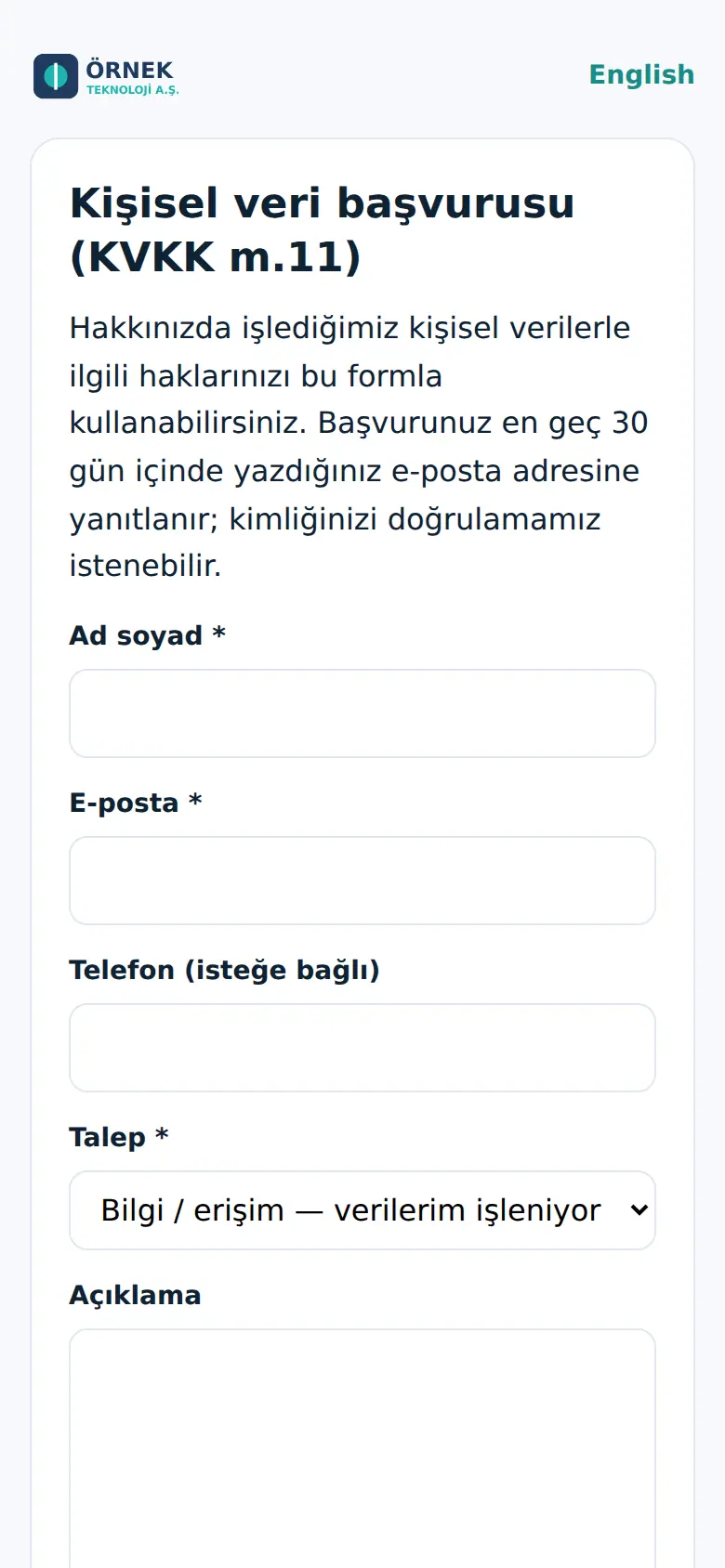
Request types: Bilgi / erişim — verilerim işleniyor mu, hangileri? ("Information / access — is my data processed, and which data?"), Düzeltme ("Correction"), Silme / yok etme ("Deletion / destruction"), Ticari ileti iznimi geri alıyorum ("I withdraw my commercial message consent"), İtiraz ("Objection"), Diğer ("Other").
Important: Verify the applicant's identity before you give information or delete data. When fewer than 7 days are left until the deadline, the remaining days are shown in red.
Searching, exporting and anonymizing records
Who: App administrator · Where: WordPress → KVKK / GDPR → Kayıt ara
What it does: Finds a person's records in the customer directory; you export their data, withdraw their commercial message consent or anonymize the record.
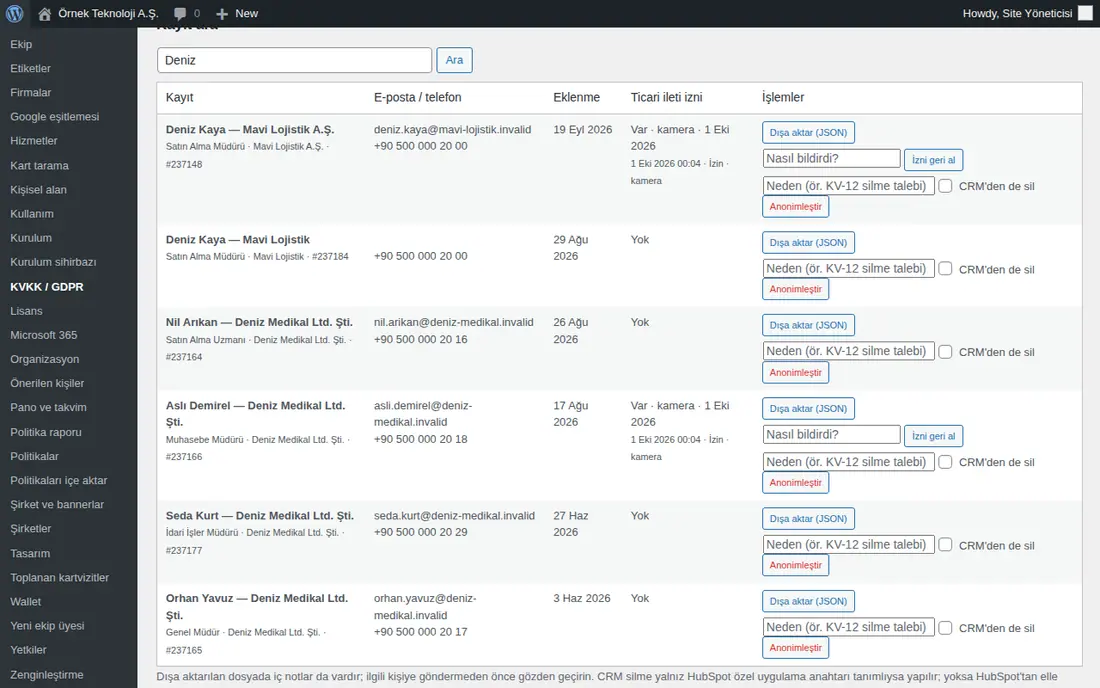
- Type an email, phone number or name in the Kayıt ara field and click Ara ("Search").
- In the results table, see the Kayıt ("Record"), E-posta / telefon ("Email / phone"), Eklenme ("Added") and Ticari ileti izni ("Commercial message consent") details of each record. The consent column shows the consent records: the event (İzin ("Consent"), Geri alma ("Withdrawal"), Aydınlatma onayı ("Privacy notice acknowledgement")), the channel and the time.
- In the İşlemler ("Actions") column, do what is needed:
- Dışa aktar (JSON) ("Export (JSON)"): downloads the person's full record as a file;
- İzni geri al ("Withdraw consent"): type a short note in the Nasıl bildirdi? ("How did they notify?") field and click. An explicit "No" is sent to the CRM;
- Anonimleştir ("Anonymize"): type Neden (ör. KV-12 silme talebi) ("Reason (e.g. KV-12 deletion request)"), select CRM'den de sil ("Also delete from CRM") if needed and click. Confirm the confirmation window.
Tip: The consent record keeps the channel (card scanning, QR, signature, mailbox, business card form, app, management), the text version, language, time and the employee who recorded it; IP and browser information is not kept. Employees can also withdraw consent from the customer record in the app.
Important:
- Anonymization cannot be undone: personal fields, enrichment data, card images and notes are deleted permanently; the record is removed from statistics.
- The exported file also contains internal notes; review it before you send it to the person.
- CRM'den de sil works only if a delete permission is defined in the connected CRM (e.g. HubSpot private app key). Otherwise, delete the record from the CRM manually.
Retention period
Who: App administrator · Where: WordPress → KVKK / GDPR → Metinler ve ayarlar → Saklama süresi
What it does: Finds customer records that have been inactive for a long time and anonymizes them.
- In the Metinler ve ayarlar section, type the number of months in the Saklama süresi field (0 = off).
- To protect people whose consent is still valid, select the Ticari ileti izni süren kayıtları hariç tut ("Exclude records with valid commercial message consent") box.
- If you want, select the Süresi dolanları her gün otomatik anonimleştir (günde en çok 50) ("Automatically anonymize expired records every day (up to 50 a day)") box.
- Click Kaydet (metin değiştiyse yeni sürüm).
- If automatic anonymization is off, see the expired records in the Saklama süresi section, select the ones to anonymize and click Seçilenleri anonimleştir ("Anonymize selected").
Important: Anonymization cannot be undone. The period is counted from the last activity on the record.
Data processing inventory and audit log
Who: App administrator, legal / compliance officer · Where: WordPress → KVKK / GDPR → İşleme envanteri and Denetim kaydı
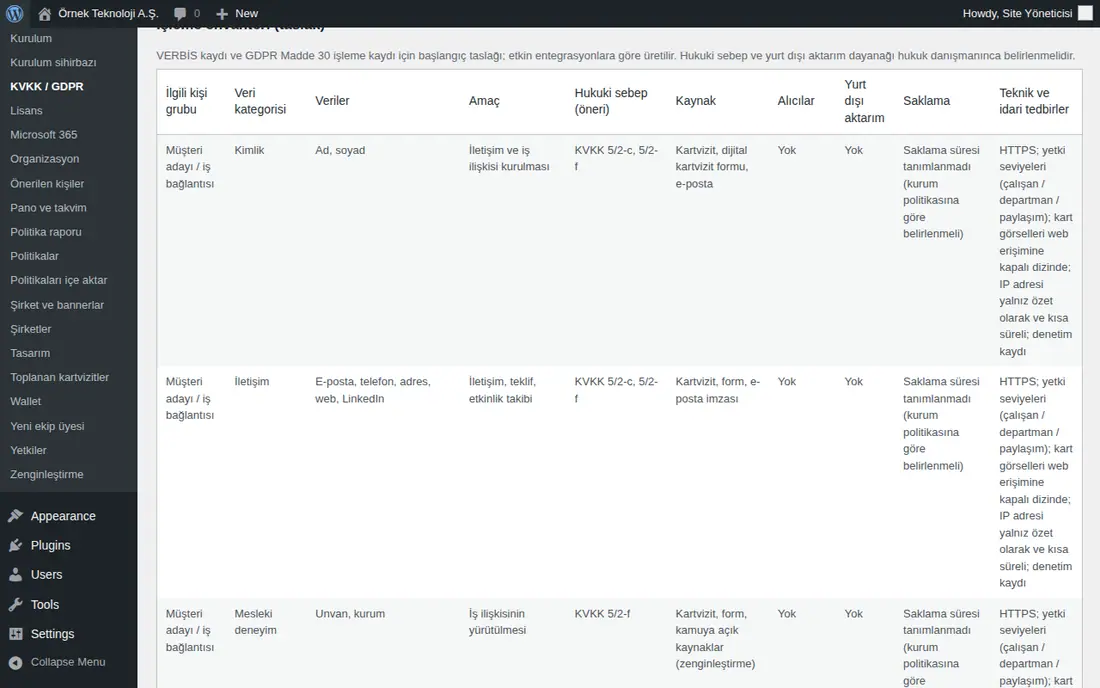
What it does: A starting draft is prepared for the VERBİS (Turkey's registry of data controllers) registration and the GDPR Article 30 record of processing. The audit log keeps a record of actions related to personal data.
- Review the İşleme envanteri (taslak) ("Processing inventory (draft)") table. Each row shows the data subject group, data category, data, purpose, legal basis (suggestion), source, recipients, transfer abroad, retention and measures. The recipients are generated from the active integrations.
- Download the table with CSV indir ("Download CSV") and complete it with your legal advisor.
- See the latest actions in the Denetim kaydı table: Zaman ("Time"), Kim ("Who"), İşlem ("Action"), Kayıt, Not ("Note").
Tip: These are written to the audit log: text version, export, anonymization, consent withdrawal, receipt of a request and status change, CRM deletion, retention period, catalog CSV download and settings change. The last 2000 events are kept.
Important: The legal basis and the basis for transfer abroad must be set by your legal advisor; the table is only a draft.
Entering the license key
Who: WordPress administrator, Prozence administrator · Where: WordPress → Prozence Workplace → Lisans ("License")
What it does: You enter the license key and monitor the license status. A new installation works without a key as a 14-day trial; there is no user limit in the trial.
- In WordPress, open Prozence Workplace → Lisans.
- See the status in the table: Durum ("Status"), Bitiş ("End"), Aktif çalışan ("Active employees") (published employee cards of employees who have not left / limit), Anahtar ("Key"), Son doğrulama ("Last verification").
- Type the key you were given in the Lisans anahtarı ("License key") field. Format:
PRZ-XXXXX-XXXXX-XXXXX-XXXXX. - Click Kaydet ve doğrula ("Save and verify"). The key is verified at the license center and the message "Anahtar kaydedildi ve doğrulandı." ("Key saved and verified.") appears.
- To try again later, click Şimdi doğrula ("Verify now"); to remove the key, click Anahtarı kaldır ("Remove key").
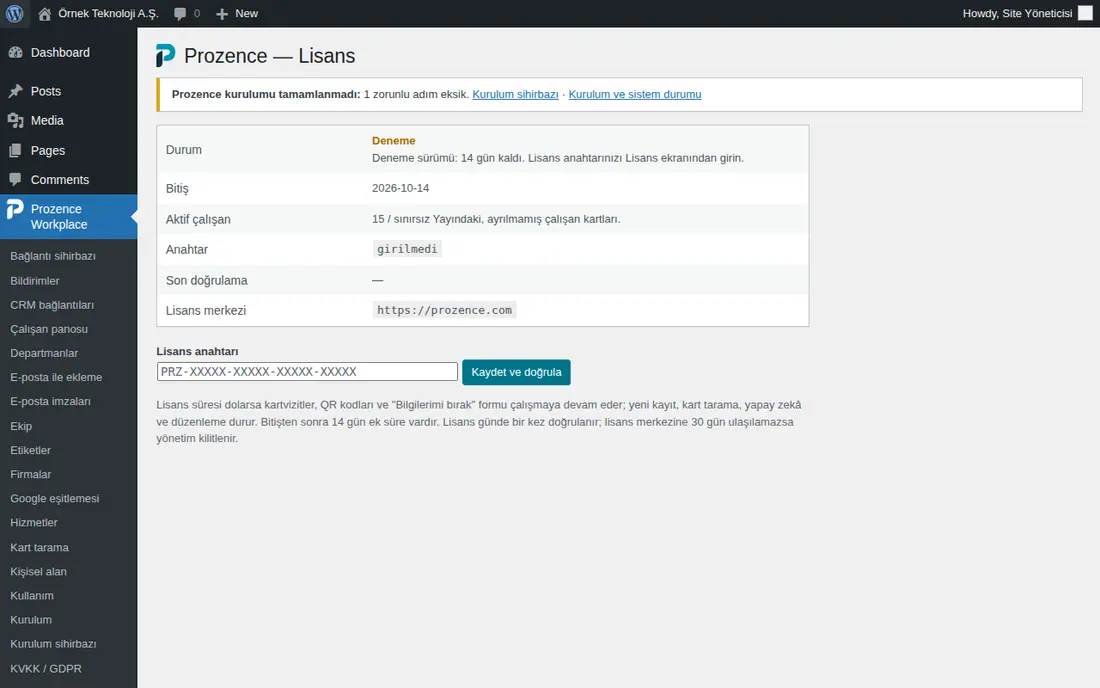
Statuses: Aktif ("Active"), Deneme ("Trial"), Ek süre ("Grace period"), Süresi doldu ("Expired"), Deneme bitti ("Trial ended"), İptal edildi ("Cancelled"), Geçersiz ("Invalid"), Başka sitede ("On another site"), Doğrulanamadı ("Could not verify").
Tip: The license is verified automatically once a day. When the end date is near, a warning appears in the WordPress panel.
Tip: End-date reminders go to the license's contact email (0.99.97): for a trial 7, 3 and 1 day(s) before the end and on the last day; for a paid license 30, 14, 7 and 1 day(s) before and on the last day; when it expires and on the last day of the grace period. The link in the email opens Admin → Subscription; replies go to the Prozence sales team.
Tip: When you pay for the subscription by card and leave Save my card with PayTR and renew my subscription automatically ticked, the subscription renews from the saved card one day before each term ends (0.99.98). Card details go directly to PayTR; Prozence only sees the last four digits. If a payment fails you get an email, and it is retried daily until the third day after the end date. To view the card, turn off automatic renewal or delete the card, open the card link in the payment confirmation and reminder emails.
Important:
- If the license expires, business cards, QR codes, the directory card, Wallet and the "Leave my details" form continue to work. New records, card scanning, AI, directory sync and editing stop; a warning banner appears in the app. KVKK actions and data export stay available.
- There is a 14-day grace period after the end date. If the license center cannot be reached for 30 days, management is locked.
- When the user limit is full, a new employee card is saved as a draft. Upgrade the license or mark an employee who left.
- A key is linked to only one site. In the "Başka sitede" status, ask the license center to release the site.
Analytics: card views and usage
Who: App administrator, administrators with the View role · Where: Admin → Organization → General → Analytics
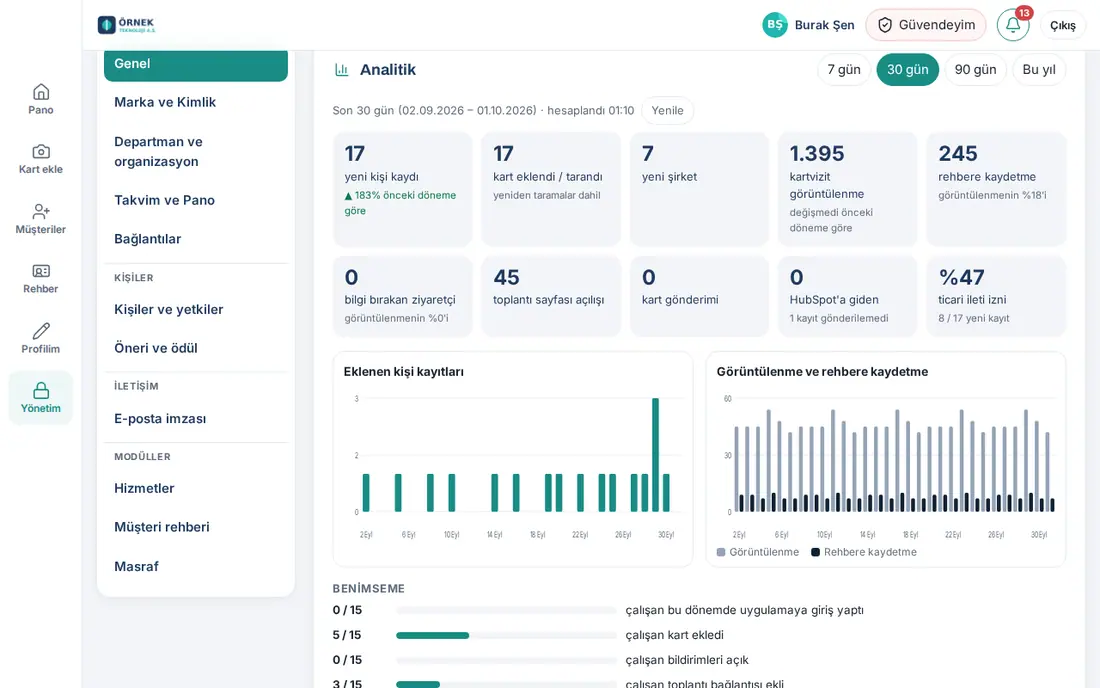
What it does: Shows on one screen how many times business cards were opened, how many times they were saved to contacts, how many cards were collected and how much the app is adopted.
- In the menu on the left, click Admin. In the General section, scroll down to the Analytics box.
- Select the period: 7 days, 30 days, 90 days or This year. For current numbers, click Refresh.
- In the summary boxes, see the change compared with the previous period: new contact records, cards added / scanned, yeni şirket ("new companies"), kartvizit görüntülenme ("business card views"), contact saves, visitors who left details, meeting page opens, cards sent, records sent to the CRM and the commercial message consent rate.
- Look at the charts and breakdowns: Contact records added, Views and contact saves, Benimseme ("Adoption"), Record source, Where you met (lead source), Tags, Card sending channel.
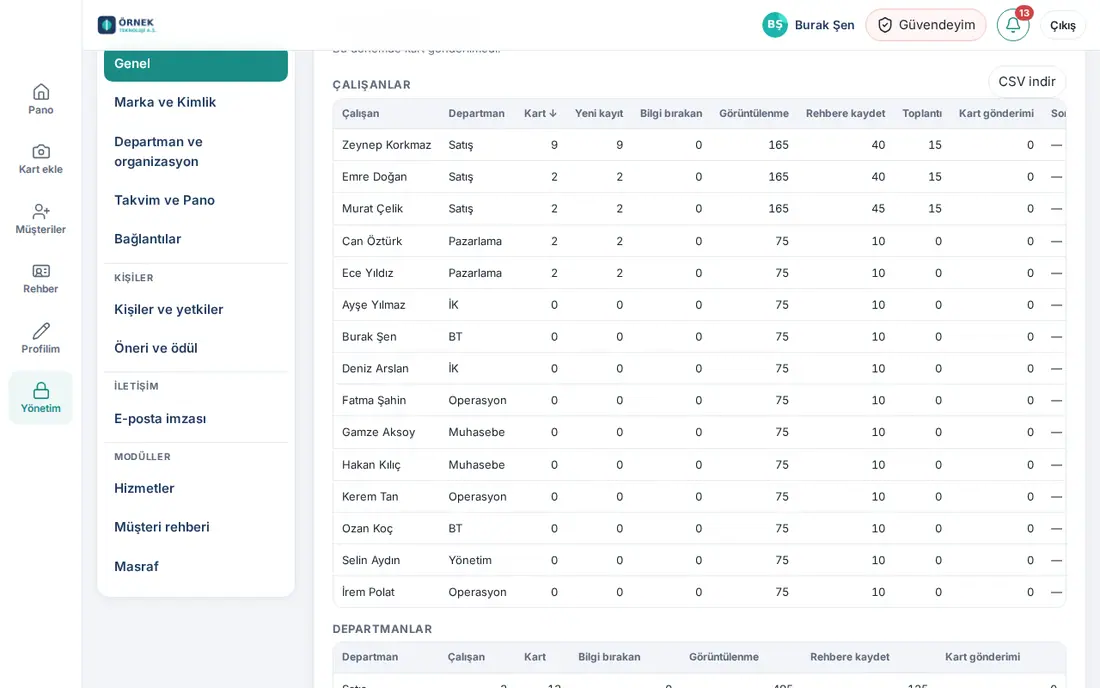
- Review the Employees, Departments and Events and trade fairs tables. Click a column heading to sort the table.
- To download the data, click Download CSV.
Tip: In views, contact saves and meeting counts, the card owner, signed-in administrators, bots and link previews are not counted; the same visitor is counted once every 6 hours. No data about the visitor is stored; only a daily count is kept (400 days). Email signature clicks: Signature opens, clicks and the banner A/B test are on the Admin → Email signature → Analytics tab (see 11. Brand, identity and signature management).
Usage report
Who: App administrator · Where: WordPress → Prozence Workplace → Kullanım
What it does: Shows per person how much employees use the app.
- In WordPress, open Prozence Workplace → Kullanım.
- In the summary row at the top, see how many people signed in, added the home screen app, got a wallet card, scanned a card and have an up-to-date Gmail signature (e.g. "6/15 kart taradı" ("6/15 scanned a card")).
- Follow the last 8 weeks in the Haftalık aktif kullanıcı ("Weekly active users") chart.
- In the Çalışan etkinliği ("Employee activity") section, see the people who never signed in. You can select people in the Hiç giriş yapmayanlar ("Never signed in") list and click Seçilenlere giriş hatırlatması gönder ("Send a sign-in reminder to the selected people") (see 10. Administration and setup).
- In the person table, see each employee's progress for Giriş (kod ya da Google) ("Sign-in (code or Google)"), Ana ekran uygulaması ("Home screen app"), Cüzdan ("Wallet"), Taranan kart ("Scanned cards"), Gmail imzası ("Gmail signature") and Karşılama ("Welcome").
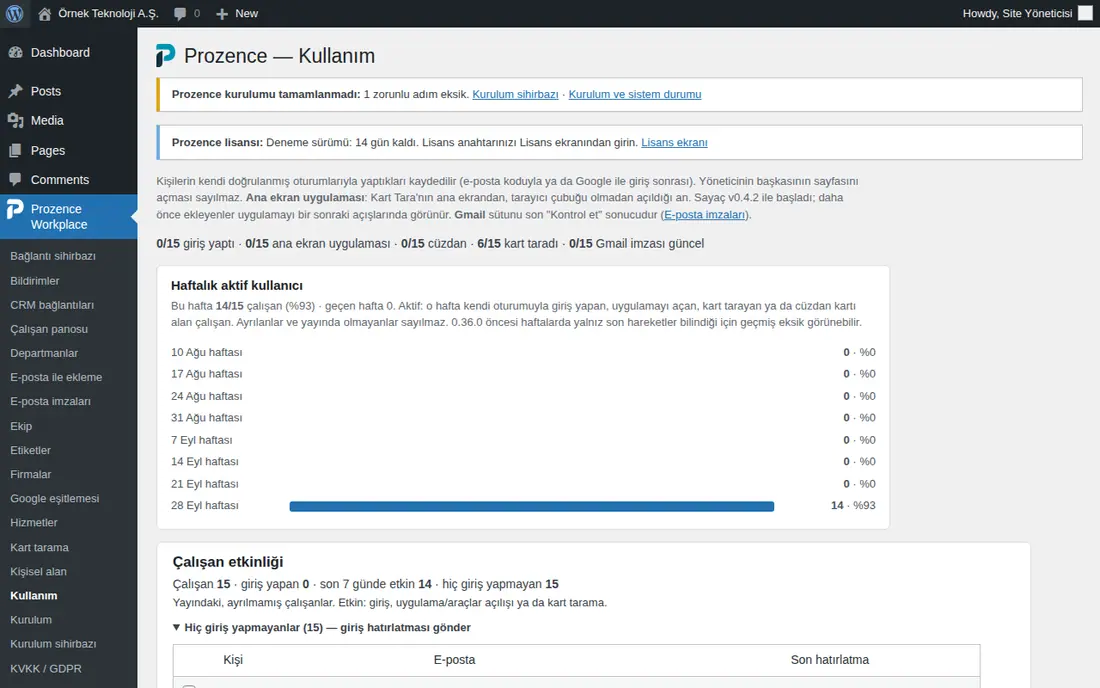
Tip: In a group structure, the report can be filtered by company. Only what people do in their own sessions is counted; an administrator opening someone else's page is not counted.
Other reports:
| Report | Where |
|---|---|
| Policy reading and acknowledgement report | WordPress → Politika raporu ("Policy report") |
| Email signature analytics and banner A/B test | Admin → Email signature → Analytics |
| Customer satisfaction report | Email signature → Analytics → Open the satisfaction report |
| People and devices with notifications on | WordPress → Bildirimler ("Notifications") |
| Trade fair board and trade fair comparison | see 05. Events and trade fairs |
| KVKK audit log | WordPress → KVKK / GDPR → Denetim kaydı |


