38. Budget management: setup, permissions and personnel cost
Screenshots show the Turkish interface of Prozence with fictional "Örnek Teknoloji A.Ş." data; the English interface has the same layout.
This chapter explains the setup and management of the Budget and actuals module: turning on the module, assigning the first budget manager, budget permissions and the audit log, the category tree, the currency and planning rates, the allocation keys for shared costs, the settings and personnel cost. In the budget, the technical Admin and the budget manager are separate people: the technical Admin cannot see the budget amounts and the salaries automatically; the budget manager gives the budget permissions.
For preparing a department budget, approval and reports, see 37. Budget preparation, approval and reports. For uploading actuals from accounting, see 39. Budget actuals: accounting upload.
Who: Technical Admin (only the initial setup and emergency access) · Budget manager · HR officer · Accounting officer
In this chapter
- Turning on the budget module
- Assigning the first budget manager (initial assignment)
- Requesting emergency access and rejecting the request
- Budget roles and scope
- Granting, changing and removing budget permissions
- Assigning a department budget owner and suggestions
- Who sees what?
- Reading the audit log, CSV and chain verification
- Setting up the category tree
- Moving, merging, deactivating and deleting an item
- Reporting currency and planning rates
- Allocation keys for shared costs
- Budget settings
- Budget second approval (workflows)
- Personnel cost: setting up the components
- Personnel settings
- Adding a person record: Detailed and Total modes
- Show amounts: masking and view log
- Adding a pay rise rule
- Planned hire, hiring proposal and leaving
- Department totals
- Personnel Excel file: export and upload
- Importing from payroll (personnel cost import format v1)
- Payroll calculation provider
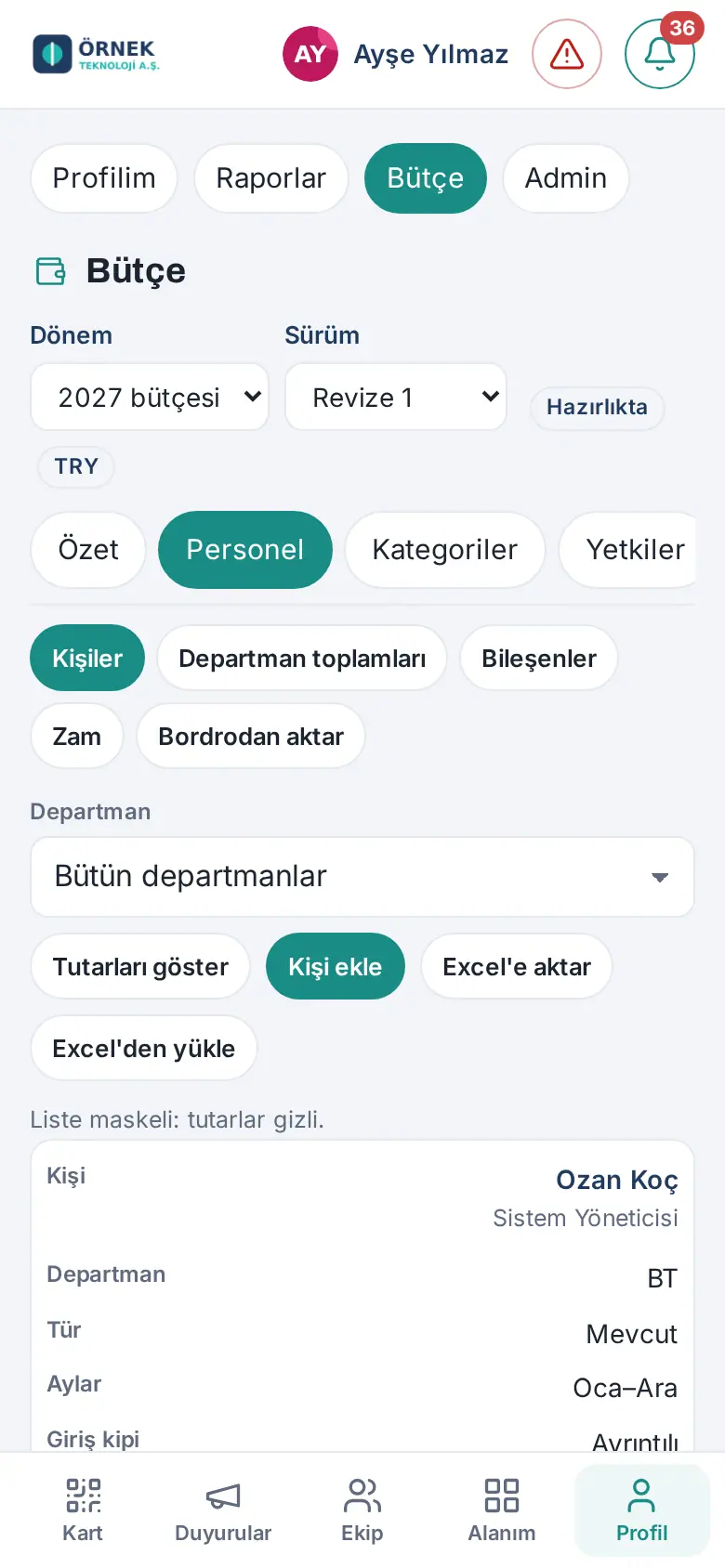
Before you start: The Budget and actuals module is in the Professional package and is off by default. On a computer, Budget in the left menu shows only to a person with a budget role and to the technical Admin. On a phone, tap Profile in the bottom menu and select Budget in the strip at the top (between Reports and Admin; updated in 1.6.0). On a phone, windows open full screen. The screens in this chapter were prepared with the fictional "Örnek Teknoloji A.Ş." data: the amounts, rates and exchange rates are examples, not real rates.
Turning on the budget module
Who: Technical Admin (only the first opening) · Budget manager · Where: Budget → Permissions (for the budget manager, Budget → Settings)
What it does: When the module is on, budget periods, department budgets and reports can be used. The technical Admin can turn on the module only once; the budget manager makes all later settings and turns off the module.
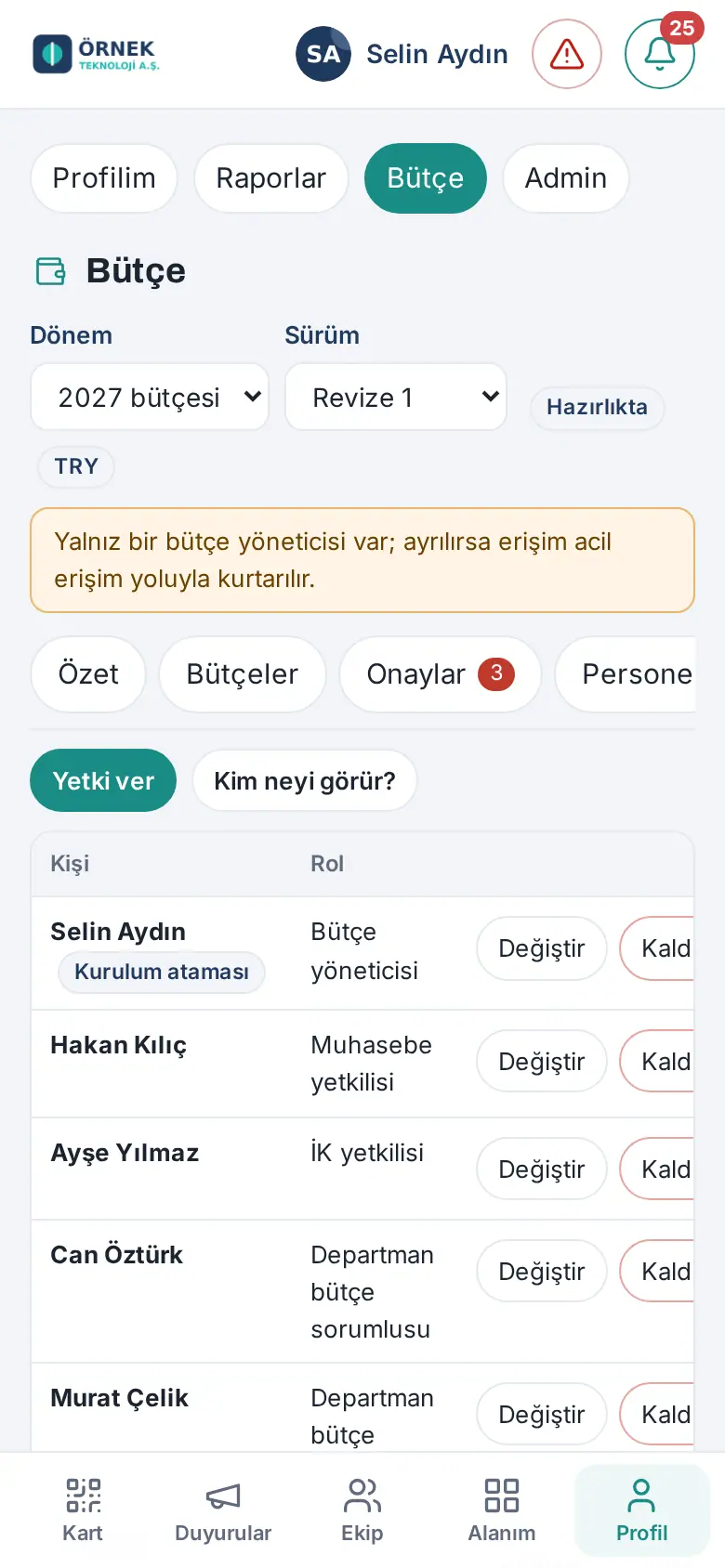
- As the technical Admin, click Budget in the left menu. If you do not have a role, you see only the Permissions and Audit tabs. At the top, it shows "As technical admin you can’t see budget data; you only see who has which budget role. Permissions are granted by the budget manager.".
- In the Budget module is off box, click Turn on budget module.
- The box disappears. The opening is written to the audit log as "Budget module enabled for the first time (technical admin)".
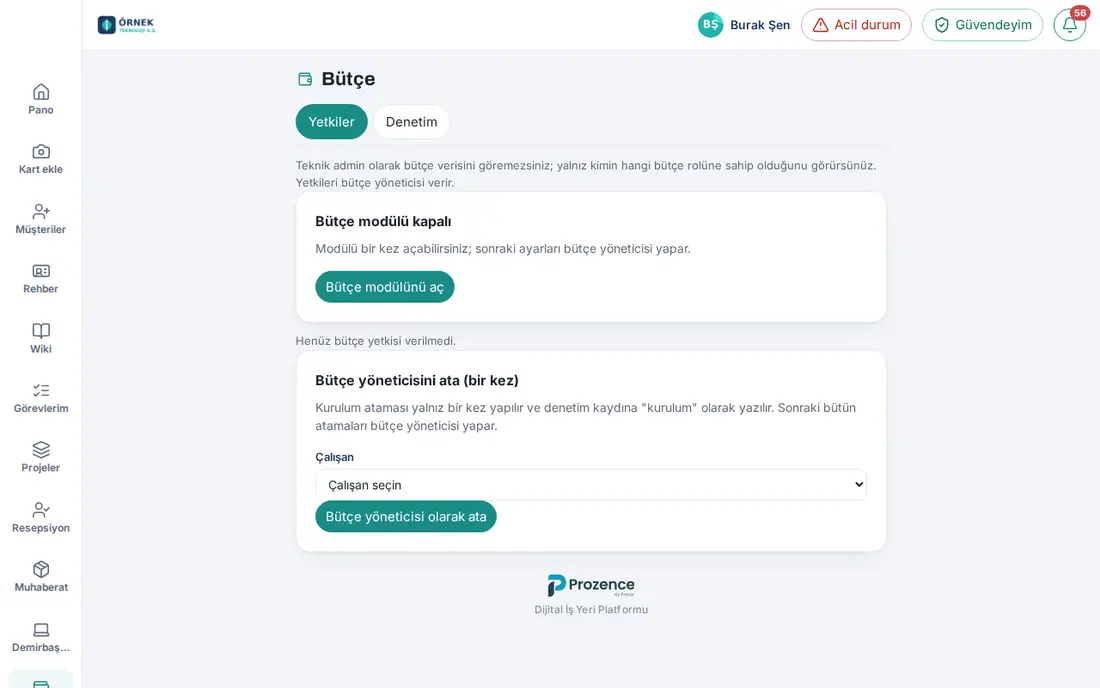
On a phone: Profile → Budget. For the phone view of the technical Admin, see Requesting emergency access and rejecting the request.
Important:
- While the module is off, budget data requests stop with the message "The budget module is off.". People with a role see the same warning at the top of the screen.
- Turning off the module does not delete the data (see Budget settings).
Assigning the first budget manager (initial assignment)
Who: Technical Admin · Where: Budget → Permissions → Assign the budget manager (once)
What it does: While the module does not have a budget manager yet, the technical Admin assigns a budget manager once. This assignment is written to the audit log as "initial"; the budget manager makes all later assignments.
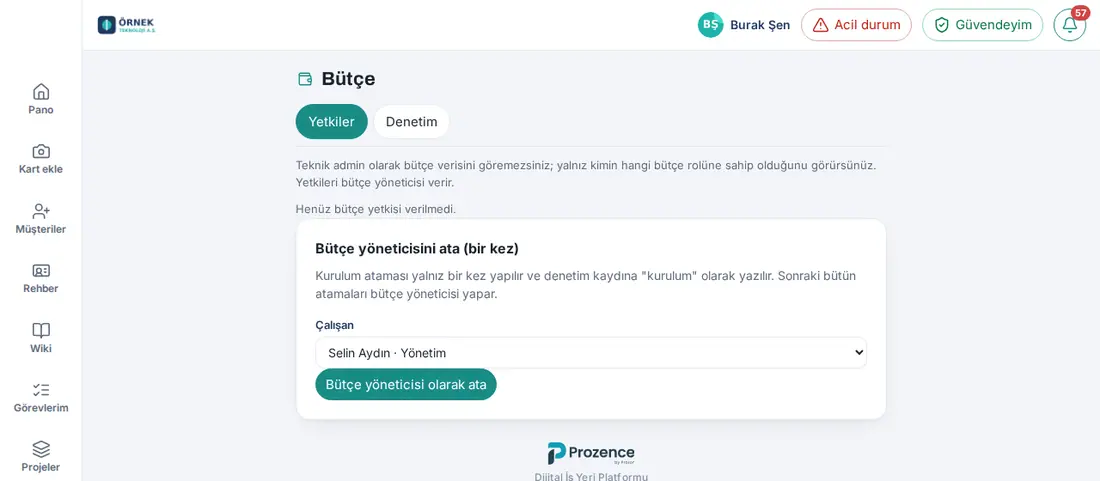
- In Budget → Permissions, find the Assign the budget manager (once) box.
- From the Employee list, select the person who will manage the budget (e.g. the general manager or the head of finance).
- Click Assign as budget manager. In the Initial assignment window that opens, click Assign.
- The person shows in the list with the Initial assignment badge. The assigned person and the other technical Admins get the "Budget manager assigned" notification.
Important:
- The initial assignment is made only once. On a second try, the message "The initial assignment is made only once; later assignments are made by the budget manager." appears.
- The technical Admin can also assign themselves (for small companies). Then the warning "The technical admin and the budget manager are the same person." shows permanently at the top of the budget screen, and the budget actions of this person are kept in the audit log with the
ayni_kisimark. If possible, give the two duties to separate people. - While there is only one budget manager, the screen shows the warning "There is only one budget manager; if they leave, access is recovered through emergency access.". We recommend that you assign a second budget manager.
Requesting emergency access and rejecting the request
Who: Technical Admin (requesting) · Budget manager (rejecting) · Where: Budget → Permissions → Request emergency access
What it does: If all budget managers have left or cannot be reached, the technical Admin requests a temporary budget manager role that opens after a waiting time. During the waiting time, the budget managers can reject the request. The technical Admin can give the budget manager role to themselves or to someone else only in this way.
Before you start: Your account must have an authenticator app or backup codes (see 35. Sign-in security: phone approval and authenticator app).
Requesting as the technical Admin:
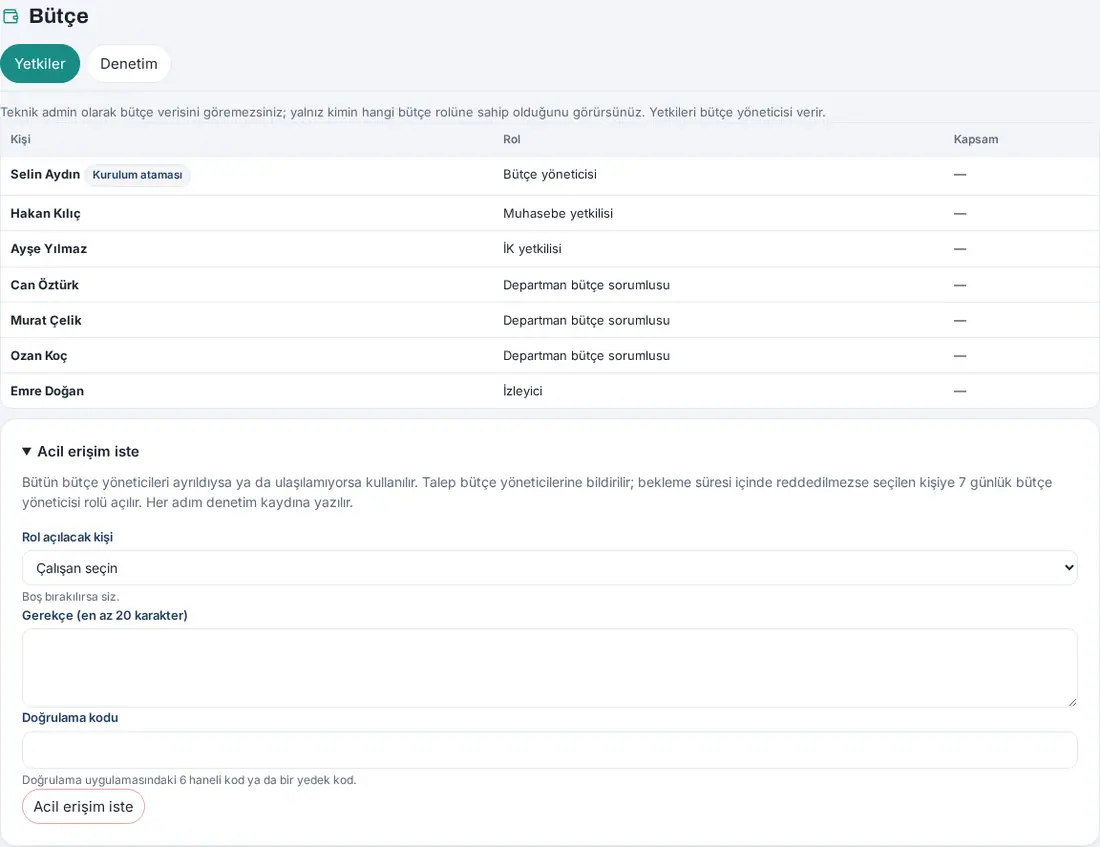
- In Budget → Permissions, click the Request emergency access heading; the form opens.
- From the Person to receive the role list, select the person. If you leave it empty, the role opens for you.
- Write the reason in the Reason (at least 20 characters) field.
- In the Verification code field, write the 6-digit code from the authenticator app or a backup code.
- Click Request emergency access. The request shows in the Emergency access requests table with the status "Pending · opens …".
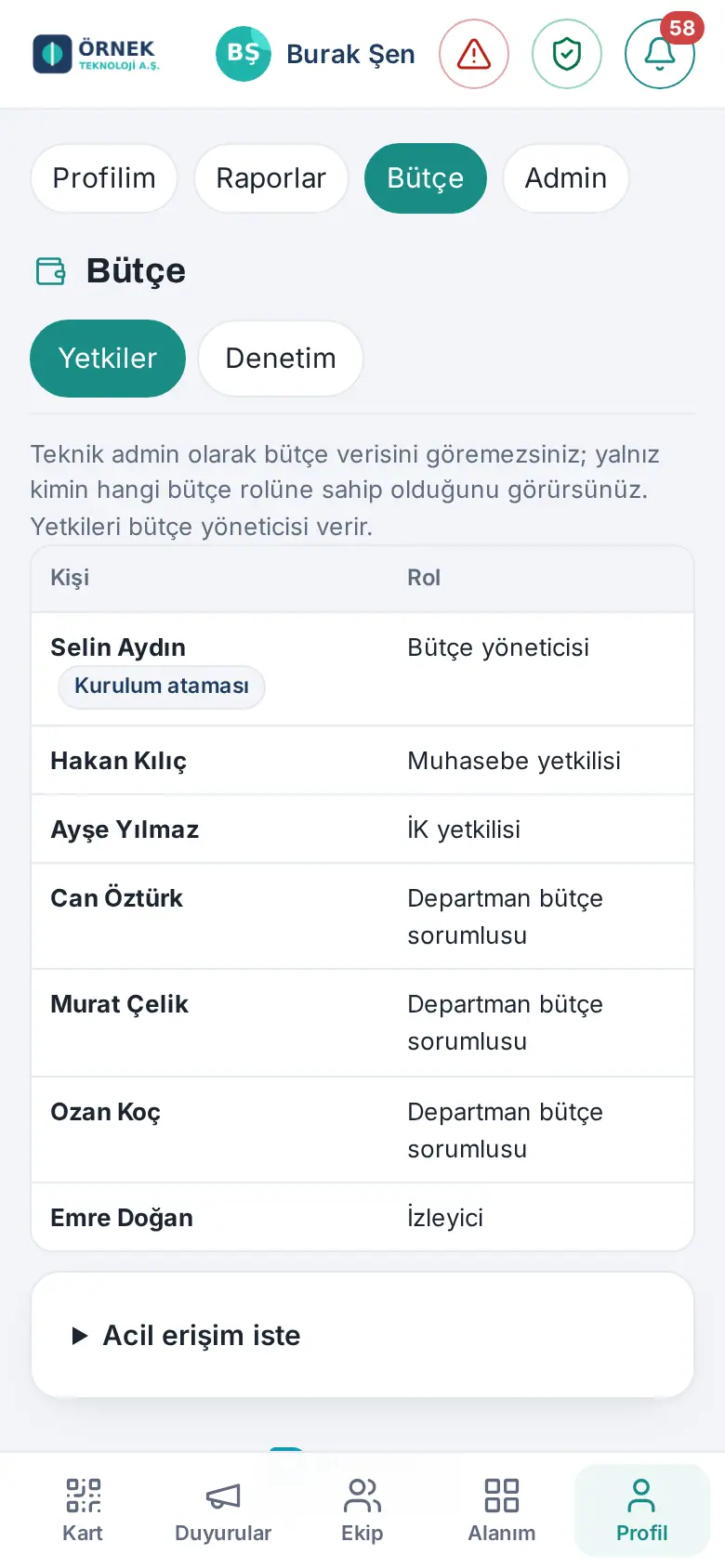
What happens next:
- All budget managers get the "Emergency access request" notification. If there is no budget manager at all, the notification goes to the other technical Admins and to the admin email address of the site.
- When the waiting time (default 24 hours; 0–72 hours in Budget → Settings) ends, a budget manager role valid for 7 days opens for the selected person; the role shows in the list with the Emergency access badge. At the end of 7 days, the role is removed automatically.
- The request, the rejection, the opening and the end are written to the audit log; the actions done with the emergency role are also marked.
Rejecting as the budget manager:
- In Budget → Permissions, find the Emergency access requests table.
- On a pending request, click Reject, write a Reason and confirm with Reject. The requester gets the "Emergency access rejected" notification.
Important:
- If the reason is short, it shows "The reason for emergency access must be at least 20 characters.". If the code is not verified, it shows "Second-step verification required: enter the code from your authenticator app or a backup code.".
- While there is a pending request for the same person, a second one cannot be opened: "There is already a pending emergency access request for this person."
- In 1.6.0, the second step is only an authenticator app code or a backup code; phone approval is not used on this screen.
Budget roles and scope
Who: Budget manager · Where: Budget → Permissions
What it does: Who sees and does what in the budget is set by the budget's own permission records, not by the general module permission table of Prozence. This is why there is the note "Budget permissions are managed in Budget → Permissions." below the module permission table in Admin → People and permissions.
| Role | What it does | Default scope |
|---|---|---|
| Budget manager | Opens periods and versions, puts them into effect, opens revisions; approves or requests corrections; category tree, permissions, settings, payroll calculation provider; selects the start month of the personnel actuals, uploads the personnel actuals and undoes any upload (updated in 1.6.1); all reports and the whole audit log | Everything; per-person details for personnel. The scope cannot be limited |
| Accounting officer | Uploads actuals; account rules, planning rates, allocation keys; writes the shared costs budget and sends it for approval (updated in 1.6.0); reads the personnel actuals (updated in 1.6.1); reports | All departments; personnel totals only |
| HR officer | Personnel plan: person records, components and their values, pay rises, import from payroll, personnel Excel. Uploads the personnel actuals with the payroll summary, corrects them manually and undoes their own upload (updated in 1.6.1) | Departments in scope; per-person details for personnel. Does not see the budget rows |
| Department budget owner | Prepares the budget of their own department, uses the Excel template, sends it for approval; makes hiring proposals; the report and the personnel actuals of their own department (at the total level; updated in 1.6.1) | One department; personnel totals only |
| Viewer | Reads budgets, reports and the personnel actuals of the departments in their scope only (updated in 1.6.1) | Can be limited; export is off by default |
The Budget screen of the HR officer (updated in 1.6.1): A person who has only the HR officer role sees only the Personnel and Actuals tabs on the Budget screen; in Actuals, only the personnel actuals (HR) view opens (see 39. Budget actuals: accounting upload). Overview, Budgets, Categories, Permissions, Audit and Settings do not show to them. If the person also has another budget role, the tabs of that role show. In Reports → Budget, outside the Budget screen, the HR officer continues to see the Personnel sub-tab.
The Scope is kept separately on each permission row: departments (including "Shared costs"), the level for seeing personnel amounts (No personnel amounts, Totals only, Per-person details), export and the validity dates. A person can have more than one role; the permissions are the combination of the rows.
Only the budget manager, the HR officer and a viewer who was given Per-person details see the salary per person. If the technical Admin does not have a budget role, they do not see any budget amount; they see only the names and the roles of the role holders.
Important:
- A budget manager who is the owner of their own department cannot approve that department; another budget manager gives the approval.
- The person who sends a budget for approval cannot approve the same budget (separation of duties; updated in 1.6.0). The screen shows "You sent this for approval yourself: another budget manager approves it.". The only budget manager requests a correction for a budget that they sent themselves; the accounting officer sends the Shared costs again and the department owner sends the department budget again, or a second budget manager is assigned.
- In actuals, a prefix rule (e.g. 770.05* — all accounts that start with 770.05) can be saved from the lines window only by the budget manager and by an accounting officer whose scope includes all departments and all items (1.6.2). An accounting officer whose scope is limited to specific departments or item branches writes rules for a single account code and maps lines manually; the prefix is closed to them because it can also catch the accounts of departments outside their scope (see 39. Budget actuals: accounting upload).
- When an employee is marked as "left", all their budget roles are removed; a person whose department changes loses their department budget ownership. Both are written to the audit log and reported to the budget managers.
Granting, changing and removing budget permissions
Who: Budget manager · Where: Budget → Permissions → Grant permission
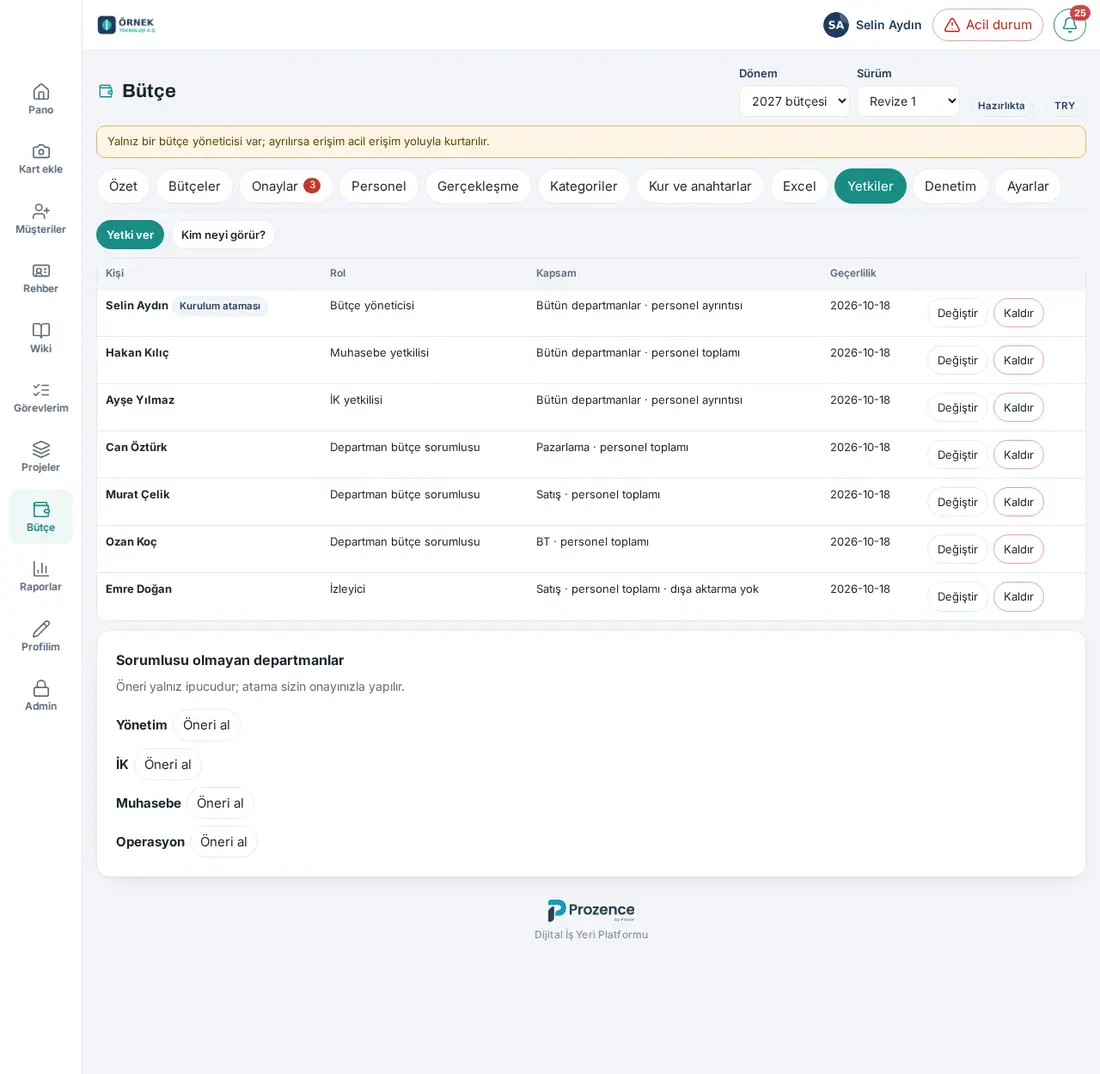
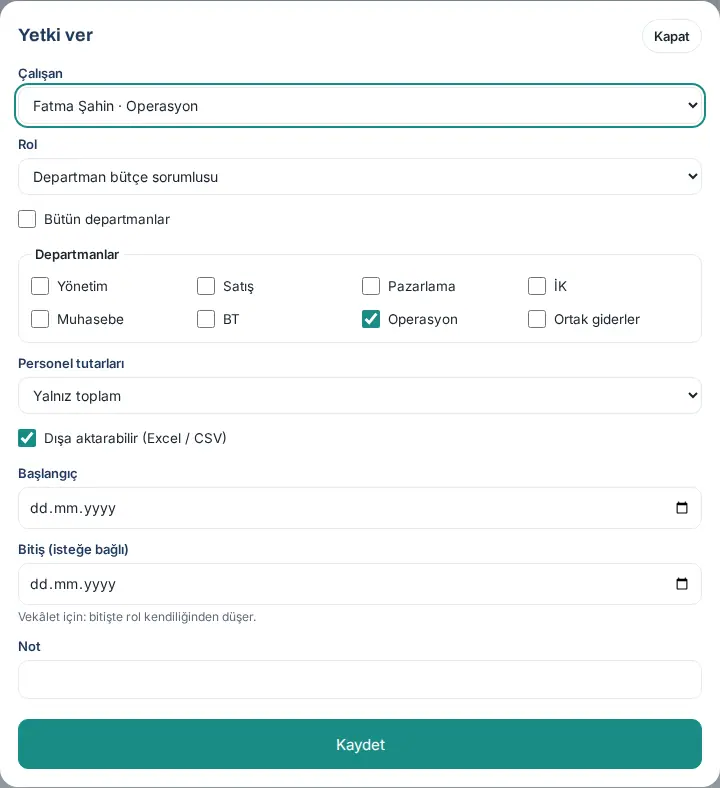
Granting a permission:
- In Budget → Permissions, click Grant permission.
- Select the Employee and the Role.
- If you give the permission for specific departments instead of all departments, clear the All departments check box and select from the Departments list.
- Select the Personnel amounts level. When the role Budget manager or HR officer is selected, Per-person details comes; for the others, Totals only.
- To allow Excel and CSV downloads, keep Can export (Excel / CSV) ticked.
- If necessary, enter the Start and End (optional) dates. For a deputy, enter an end date: at the end date, the role is removed automatically.
- If you want, write a Note, and click Save. The person and the other budget managers get the "Budget permission changed" notification.
Changing and removing: Change on the row opens the same window (the employee cannot be changed). Remove removes the role, with an optional note.
Important:
- The last budget manager cannot be removed: "At least one budget manager must remain."
- The only budget manager cannot also be a department budget owner: "The only budget manager can’t also own this department; assign a second budget manager first."
- If the technical Admin tries to grant or remove a permission, the message "Only the budget manager assigns budget permissions." appears; the attempt is written to the audit log and reported to the budget managers.
- In the Grant permission window, you cannot select an item branch, version or period scope. If an existing permission has this scope, it is kept when you change the permission ("Item branch scope is kept").
Assigning a department budget owner and suggestions
Who: Budget manager · Where: Budget → Permissions → Departments without an owner
What it does: One owner prepares the budget of each department. Prozence shows a suggestion based on the org chart; the assignment is always made with your approval.
- In the Departments without an owner list, click Get suggestion next to the department.
- If there is a suggestion, the name of the person, the explanation "(… of the department’s … members report to them in the org chart)" and the Assign this person button show. The suggestion is the manager to whom most department members report in the org chart. If there is no suggestion, it shows "No suggestion.".
- Click Assign this person. The Grant permission window opens with the role Department budget owner and the department selected; click Save.

Important:
- A department budget owner is assigned to one department only; if more than one department is selected, it shows "A department budget owner is assigned to exactly one department.".
- A department has one active owner. If you want to assign a second one, the message "The … department already has an owner (…); remove that permission first." appears.
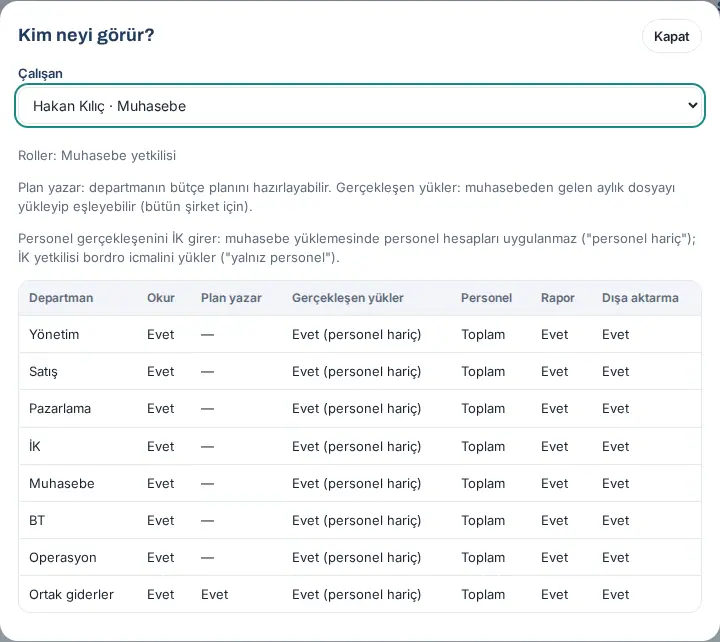
Who sees what?
Who: Budget manager · Where: Budget → Permissions → Who sees what?
What it does: Shows in one table which departments a person can read and write in the budget, whether they can upload actuals, at which level they see personnel amounts, and their report and export permission. The table is calculated with the real permission check of the server.
- Click Who sees what?.
- Select the person from the Employee list.
- In the window, read the roles and, for each department, the Reads, Writes plan, Uploads actuals, Personnel (Total / Details), Report and Export columns (updated in 1.6.1). If there is no permission, the cell shows "—". If you select a technical Admin, the note "Technical admin: can’t see budget data without a role." also shows.
- Writes plan: can prepare the budget plan of the department.
- Uploads actuals: can upload and map the monthly file from accounting. While the HR enters personnel actuals setting is active (see Budget settings), it shows "Yes (excluding personnel)" for the accounting officer, "Personnel only" for the HR officer and "Yes" for the budget manager; the window also shows a note that explains this difference. The HR officer does not upload personnel actuals to "Shared costs".
Reading the audit log, CSV and chain verification
Who: Budget manager · Accounting officer (their own scope) · Department budget owner (their own department) · Technical Admin (only permission and emergency access events) · Where: Budget → Audit
A person who has only the HR officer role does not see the Audit tab (updated in 1.6.1). The personnel actuals upload, correction and undo actions are still written to the audit log; the budget manager sees them.
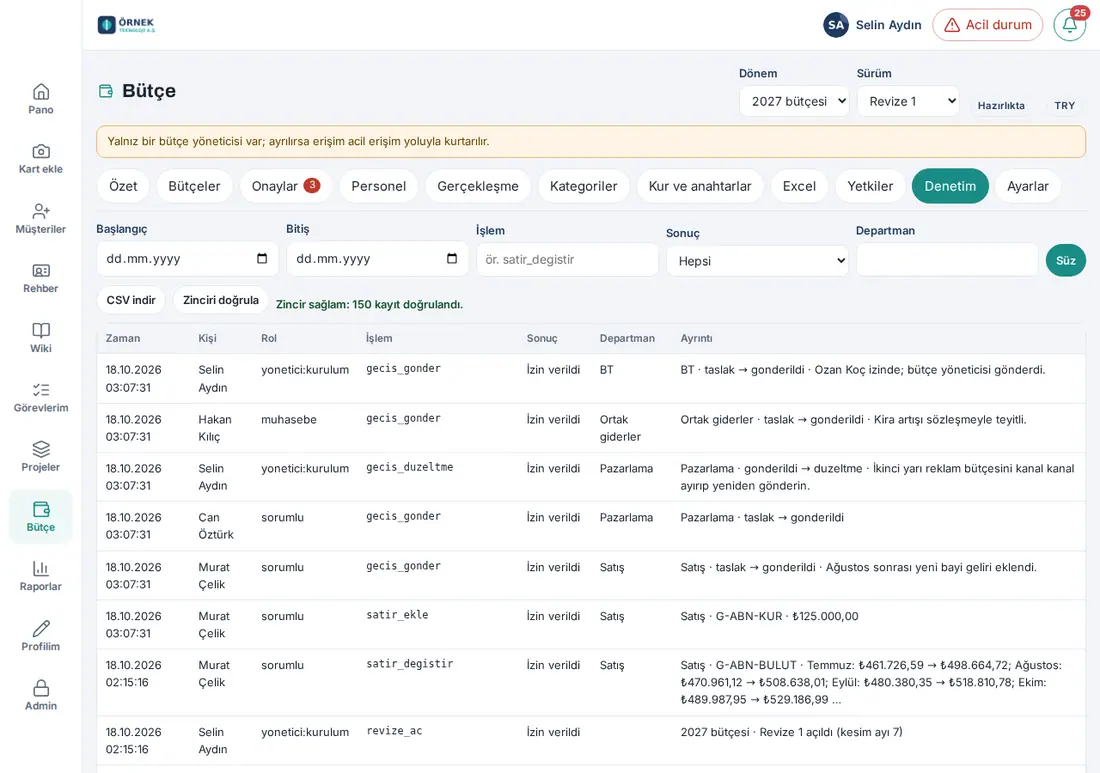
What it does: Every important action in the budget (row changes with their before and after values, approvals, uploads, permission changes, exports, views of personnel amounts, rejected attempts) is written to a separate audit log. The records are linked to each other in a chain; if a record is changed or deleted later, the chain verification catches it.
- Click Budget → Audit. The latest records are listed, 50 rows per page.
- To filter, fill in the Start, End, Actions (e.g.
satir_degistir), Result (All, Allowed, Rejected) and Department fields and click Filter. - To download the list, click Download CSV. The CSV is separated with semicolons and has the columns
id;zaman;kim;rol;islem;sonuc;nesne;departman;ayrinti;ozet;onceki;sonraki(a maximum of 5,000 rows). In records that contain personnel amounts, the before and after values are filled in only in the CSV of a person with per-person details permission. - To check that the log was not changed, click Verify chain. If it is intact, it shows "Chain intact: … records verified."; if it is broken, it shows "Chain BROKEN: first bad record #…" and the reason.
Tip:
- In the Details column, personnel salary records are written without amounts (e.g. "#8 · Muhasebe · Muhasebe Müdürü · employee added").
- Viewing the audit log and downloading the CSV are also written to the audit log.
- Every week, the budget managers get the email "Prozence Budget: weekly audit summary": the head of the chain, the numbers of the week, permission and emergency access events. This email is an outside witness; even if the chain is recalculated later in the database, it does not match the summary in the email. If the chain is broken, the budget managers and the technical Admin get a notification.
Important: The records are kept for the Audit log retention (years) period (default 10 years; see Budget settings).
Setting up the category tree
Who: Budget manager (the other roles read only; a person who has only the HR officer role does not see this tab — updated in 1.6.1) · Where: Budget → Categories
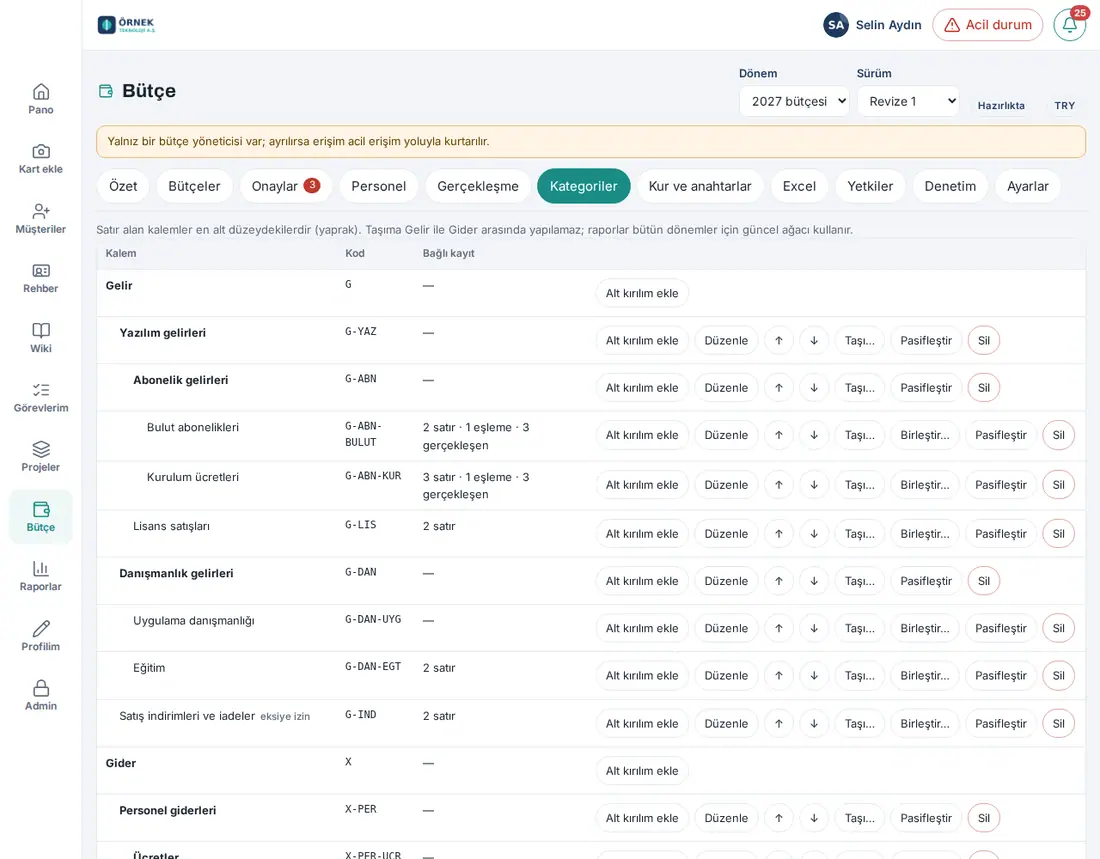
What it does: Budget rows are written to Prozence's own category tree. The tree has two roots: Revenue and Expenses. Below them, you add as many sub-items and items as you want. A row is written only to an item at the lowest level (a leaf); the reports add the amounts upwards. The items are also mapped to accounting account codes (see 39. Budget actuals: accounting upload).
Starting with the sample tree: If the tree has only the roots, click Set up sample tree in the "The tree only has the Revenue and Expenses roots…" box. A fictional sample tree (software and consulting revenue, personnel expenses, office and facilities, information technology, marketing, travel, consulting and outsourced services) is set up; then you edit it for your company. The sample tree is set up only in an empty tree.
Adding a sub-item or an item:
- On the row of the parent item, click Add sub-item.
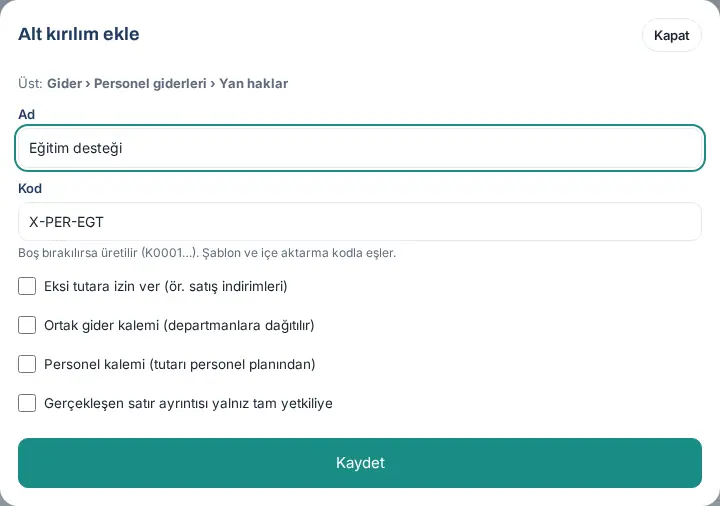
- Write a Name. Write a Code or leave it empty (if it is empty, it is created in the format K0001…). A code has a maximum of 30 characters with capital letters, digits, dots, hyphens or underscores; the Excel template and the actuals upload match the items by code.
- If necessary, select the flags:
- Allow negative amounts (e.g. sales discounts)
- Shared cost item (allocated to departments)
- Personnel item (amount from the personnel plan) — no amount is written to this item from the budget screen; the amount comes from the personnel plan.
- Actuals row details only for full access — the descriptions of the accounting rows show only to people with full permission.
- Click Save.
When you add a sub-item to an item with records: If the item has budget rows, mappings, actuals or components, the question "This item has …. If you add a sub-item, they all move to a new sub-item called “… — other”." appears. If you click Add sub-item and move, the records move to the new "— other" item without changing their amounts, and the old item becomes an intermediate node.
Editing and order: With Edit, you change the name, the code and the flags. If the code changes, the old code is recognized for one more year (for downloaded templates). ↑ and ↓ change the order.
Important:
- The tree can have a maximum of 20 levels and 5,000 nodes.
- A code cannot be used for two items: "This code is already used by another item: …".
- On an item that has a personnel component linked to it, the Personnel item flag cannot be removed.
Moving, merging, deactivating and deleting an item
Who: Budget manager · Where: Budget → Categories
| Button | What it does | Rule |
|---|---|---|
| Move… | Moves the item with its subtree under another parent item (select the New parent and click Move) | You cannot move between Revenue and Expenses; an item cannot be moved under its own sub-item; it cannot be moved under a leaf that has records. The reports use the current tree for all periods: a move changes the breakdown of past reports, not their total |
| Merge… | Moves all the records of a leaf item to another leaf and deactivates the item (select the Target item and click Merge) | Only two leaves under the same root; the target cannot be inactive. Cannot be undone |
| Deactivate / Turn on | An inactive item does not take new rows and rules; the old data stays in the reports | The roots cannot be deactivated |
| Delete | Deletes the item and its sub-items permanently | Only if it has no records at all. If there are records, it shows "This item or its sub-items have …; it can’t be deleted. Deactivate it or merge it with another item." |
- On the row of the item, click the related button. On a phone, scroll the table sideways.
- In the window that opens, make the selection and confirm.
Tip: Instead of deleting an item that is not used, deactivate it; the past reports are not affected.
Reporting currency and planning rates
Who: Budget manager (currency) · Budget manager and accounting officer (planning rates) · Where: Budget → Settings → Reporting currency; Budget → Rates and keys → Planning rates
What it does: The budget is kept in one reporting currency. The default comes from the language and country setting of the site (e.g. TRY for Türkiye; USD for an unknown country). Even if the site language is English, the default is TRY if the time zone is Europe/Istanbul or if the Leave module is on and the country is Türkiye (1.8.8). Foreign currency amounts are converted to the reporting currency with the planning rate of the period; no exchange rate difference valuation is made.
Selecting the currency (before you open the first period):
- In Budget → Settings, select the currency from the Reporting currency list.
- Click Save. The selected currency shows in the badge at the top (e.g. "TRY").
Important: A period is fixed to its own currency. If you try to change the currency while the period has records, it shows "This period has records, so its currency can’t be changed. Open a new period.". For this reason, select the currency before you open the first period (opening a period: 37. Budget preparation, approval and reports). You can also select it in the Currency list of the form when you open the period (1.8.8).
Entering a planning rate:
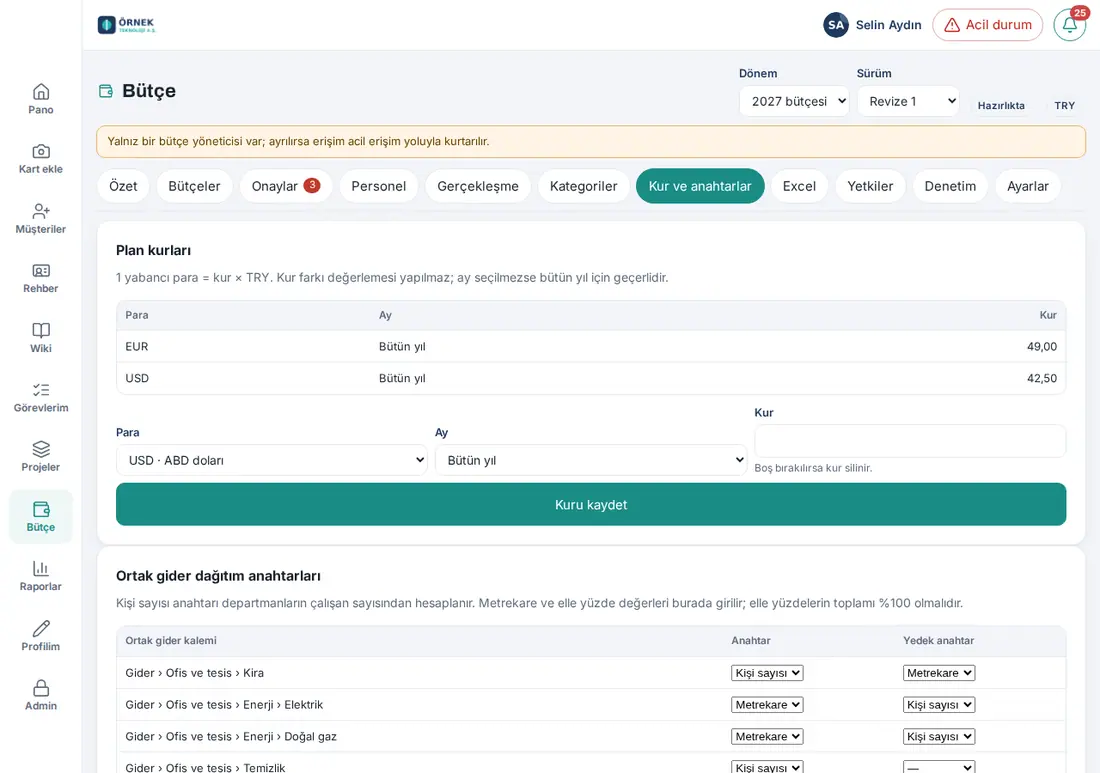
- Click Budget → Rates and keys (the tab shows while there is an open period).
- In the Planning rates box, select the Currency (those other than the reporting currency) and the Month. If you select Whole year, the rate is valid for all months; if you select a month, only for that month.
- In the Rate field, write the value of 1 unit of the foreign currency in the reporting currency (e.g. 42,50) and click Save rate. To delete a rate, leave the field empty and save.
Important: If a row is entered or actuals are uploaded with a currency that has no planning rate, an error such as "There is no 2027 planning rate for USD." appears.
Allocation keys for shared costs
Who: Budget manager · Accounting officer (the department budget owner reads only their own share) · Where: Budget → Rates and keys → Shared cost allocation keys
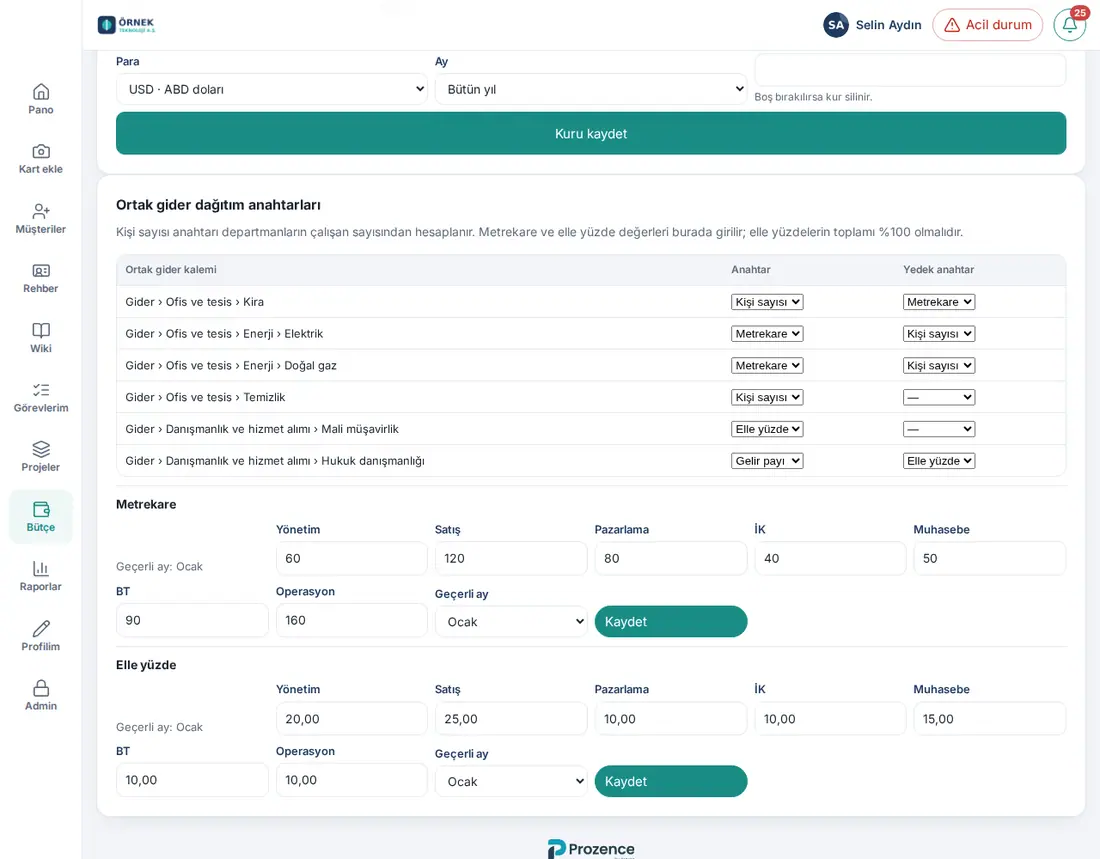
What it does: Shared costs such as rent, energy and cleaning are written to the "Shared costs" budget and distributed to the departments with a key. The allocation keeps the total to the cent: the total of the department shares is always equal to the source amount. For writing the shared costs, see 37. Budget preparation, approval and reports.
Key types:
- People — according to the number of employees of the departments.
- Square metres — according to the areas entered here.
- Revenue share — according to the revenue budget of the departments for that month.
- Manual percentage — according to the percentages entered here (total 100%).
Selecting a key for an item:
- In the Shared cost allocation keys table, select a Key and, if necessary, a Fallback key for each shared cost item. The selection is saved immediately ("Saved.").
- If the total of the main key is zero (e.g. if there is no revenue in that month), the fallback key is used. If that is also zero, the amount stays in shared costs without being distributed.
Square meter and manual percentage values:
- In the Square metres and Manual percentage boxes, write the value of each department.
- Select the first month in which the value is valid in Effective month (e.g. if the office changes in July, enter a new value for July).
- Click Save. It shows "Saved; the plan allocation was recalculated.".
Important:
- If there is no shared cost item, it shows "No shared cost items (Categories → “Shared cost item”)."; first, tick Shared cost item in the category.
- If the total of the manual percentages is not 100%, it shows "Percentages must add up to 100% (currently …%).". Square meters are a whole number between 0 and 10,000,000.
Budget settings
Who: Budget manager · Where: Budget → Settings
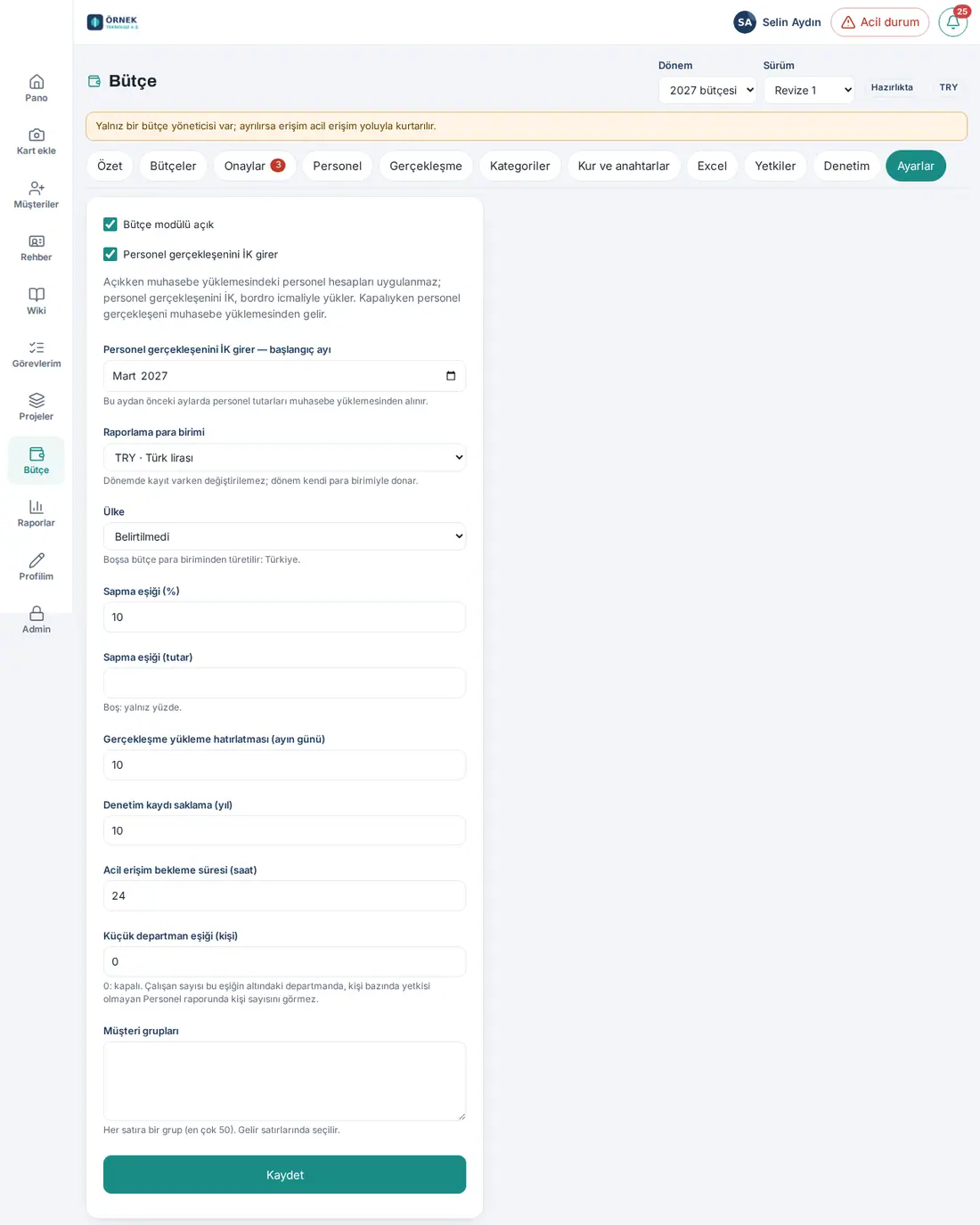
| Field | What it does | Default / limit |
|---|---|---|
| Budget module enabled | Turns the module on or off | When you turn it off, it asks "Turn off the budget module? Data is not deleted and is back as it was when you turn it on again." |
| HR enters personnel actuals (1.6.1) | While it is on, the personnel accounts in the accounting upload are not applied; the HR officer uploads the personnel actuals with the payroll summary (see 39. Budget actuals: accounting upload). While it is off, the personnel actuals come from the accounting upload | Ticked; but it is not active until a start month is selected |
| HR enters personnel actuals — start month (1.6.1) | The first month in which HR enters the personnel actuals. "For months before this month, personnel amounts are taken from the accounting upload." | Empty: the setting is not active |
| Reporting currency | See Reporting currency and planning rates | From the language and country of the site |
| Country (1.6.1) | The country of the company. It sets which options show in the payroll calculation: in a country other than Türkiye, the Let Prozon Bordro ve Özlük Yazılımı calculate option does not show (see Payroll calculation provider) | Not stated: derived from the budget currency; below it, a text such as "If empty, derived from the budget currency: Türkiye." shows |
| Variance threshold (%) | The percentage at which a variance counts as a warning in the reports | 10% |
| Variance threshold (amount) | An amount threshold in addition to the percentage | Empty: percentage only |
| Actuals upload reminder (day of month) | From this day, if the actuals of the previous month were not uploaded, the accounting officers (if there are none, the budget managers) get the "Actuals not uploaded" notification once a month (updated in 1.6.0) | 10 (1–28) |
| Audit log retention (years) | How long the audit records are kept | 10 (1–20) |
| Emergency access waiting time (hours) | The waiting time before an emergency access request opens | 24 (0–72) |
| Small department threshold (people) | In a department whose number of employees is below this threshold, a person without per-person permission does not see the headcount and the item breakdown in the Personnel report and in Department totals; they see only the total (updated in 1.6.0) | 0: off (0–50) |
| Customer groups | The customer groups that are selected on revenue rows; one group per line (updated in 1.6.0) | Empty (a maximum of 50) |
-
Change the fields. In the Customer groups box, write one group per line (e.g. Kamu, Kurumsal, KOBİ — public sector, corporate, SME).
-
If HR will enter the personnel actuals, keep HR enters personnel actuals ticked and select the first month in the HR enters personnel actuals — start month field (e.g. March 2027). If no month is selected, the text "The setting is not active until a start month is selected; personnel actuals come from the accounting upload." shows below the box (1.6.1).
-
Click Save. If you changed the personnel actuals setting or the start month, a confirmation is asked first (1.6.1):
- If only the month changes: "The start month will change. Active accounting uploads are remapped to the new start month. Continue?"
- If you tick the box: "Should HR enter personnel actuals? Personnel accounts in active accounting uploads stop being applied; personnel actuals come from the HR upload."
- If you clear the box: "Should personnel actuals come from the accounting upload again? HR uploads are left out of reports (not deleted); active accounting uploads are remapped."
Click Change.
Tip: The reminder is not sent if the period is not open or the module is off. If the actuals of the previous month were already uploaded, no notification is sent that month (see 39. Budget actuals: accounting upload). While the personnel actuals setting is active, from the same day, the HR officers also get a separate "Personnel actuals not uploaded" reminder; the accounting reminder then says "Actuals for … (excluding personnel; HR enters personnel actuals) have not been uploaded yet." (1.6.1).
Important:
- Only the budget manager sees the Settings tab; the technical Admin can only do the first opening.
- When the personnel actuals setting or the start month changes, the active accounting uploads of the open periods are remapped automatically. From the start month on, the lines in the accounting upload that are mapped to personnel items are not applied; the earlier months stay with accounting. HR uploads are not deleted; for the months before the start month and while the setting is off, they are not included in the reports (1.6.1).
- There is one start month for the whole company; it cannot be selected separately for each department.
- When you change Country to a country other than Türkiye and the payroll calculation was given to Prozon, the notification "Payroll calculation is not available in this country, so it was switched to "I'll enter it myself"." appears. Changing the country back to Türkiye does not turn this choice back on automatically (1.6.1).
Budget second approval (workflows)
Who: Budget manager · Where: Admin → Modules → Workflows → Templates → Budget second approval
What it does: Makes a department budget also pass a second approver (e.g. the general manager or the finance director) after the budget manager's approval. The Budget second approval template comes turned off and only the budget manager turns it on, turns it off and configures it. The technical Admin cannot see or change this template; on the Workflows screen, the budget manager sees only this template's card.
Before you start: The Workflows module must be on in your company (Admin turns it on; see 40. Workflows). Give the person who will be the second approver the Budget manager or Viewer role in Budget, with a scope that covers the departments they will approve (see Granting, changing and removing budget permissions). A person who cannot see the budget cannot give the second approval.
- Open Admin → Modules → Workflows. The Budget second approval card shows on the Templates tab.
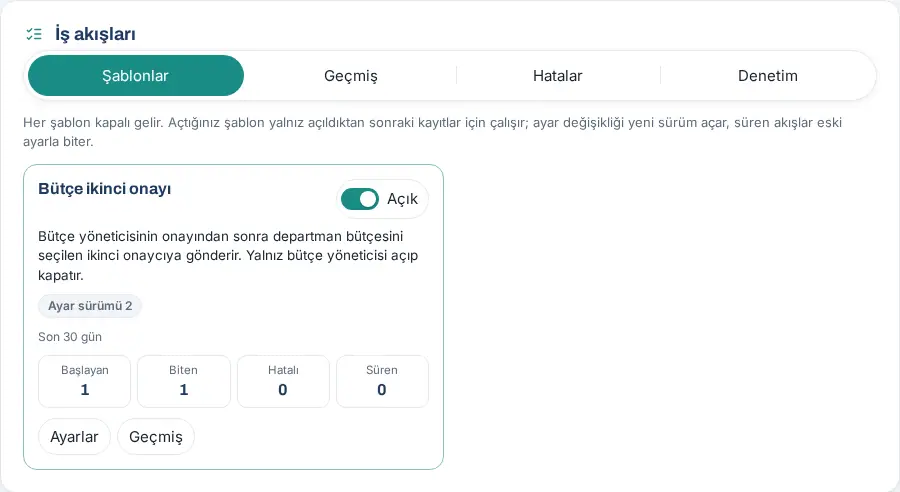
- Click Settings on the card.
- In the Who section, add one or two people in the Second approvers (in order; budget manager or viewer) field. If you select two people, the budget passes both in order. If you want, select Fallback approvers (blank = other budget managers). The description of the section is: "The person for each step. If the second approver has left or lost access to the budget, the step goes to the fallback approvers, or to the other budget managers if there are none; the technical Admin never takes part in budget decisions."

- In the When and thresholds section, decide which budgets go to the second approval:
- Scope: All departments or Selected departments only. For the second, tick the departments in the Selected departments list.
- Include shared costs: Only this box decides whether the shared costs budget goes to the second approval; there is no "Ortak" ("Shared") option in the list. If the box is ticked, shared costs go to the second approval in both scopes; if it is not ticked, they never do.
- Expense total threshold (reporting currency; 0 = every unit): if you give a threshold, only the budgets whose expense total is above the threshold go to the second approval.
- Click Save and publish. If the template is off, set the switch on the card to Open (if a required setting is missing, the window shows which field is missing).
Result: From now on, a department budget you Approve goes to the In second approval status and a notification goes to the second approver. For the second approver's screen, see 37. Budget preparation, approval and reports.
Important:
- The second approver cannot be the first approver of the budget, the person who sent it for approval or the department's budget owner. In place of an approver who does not meet this rule or has left the company, the fallback decides, or the other budget managers if there is no fallback.
- If you turn off the template, budgets waiting In second approval stay with the second approver; if necessary, take the budget back with Withdraw (correction).
- Second approval decisions are written in the budget audit log (see Reading the audit log, CSV and chain verification).
- The other sections of the settings window (Deadlines, Versions, Test) are the same in all templates; see 40. Workflows.
Personnel cost: setting up the components
Who: HR officer · Budget manager (the accounting officer reads only) · Where: Budget → Personnel → Components
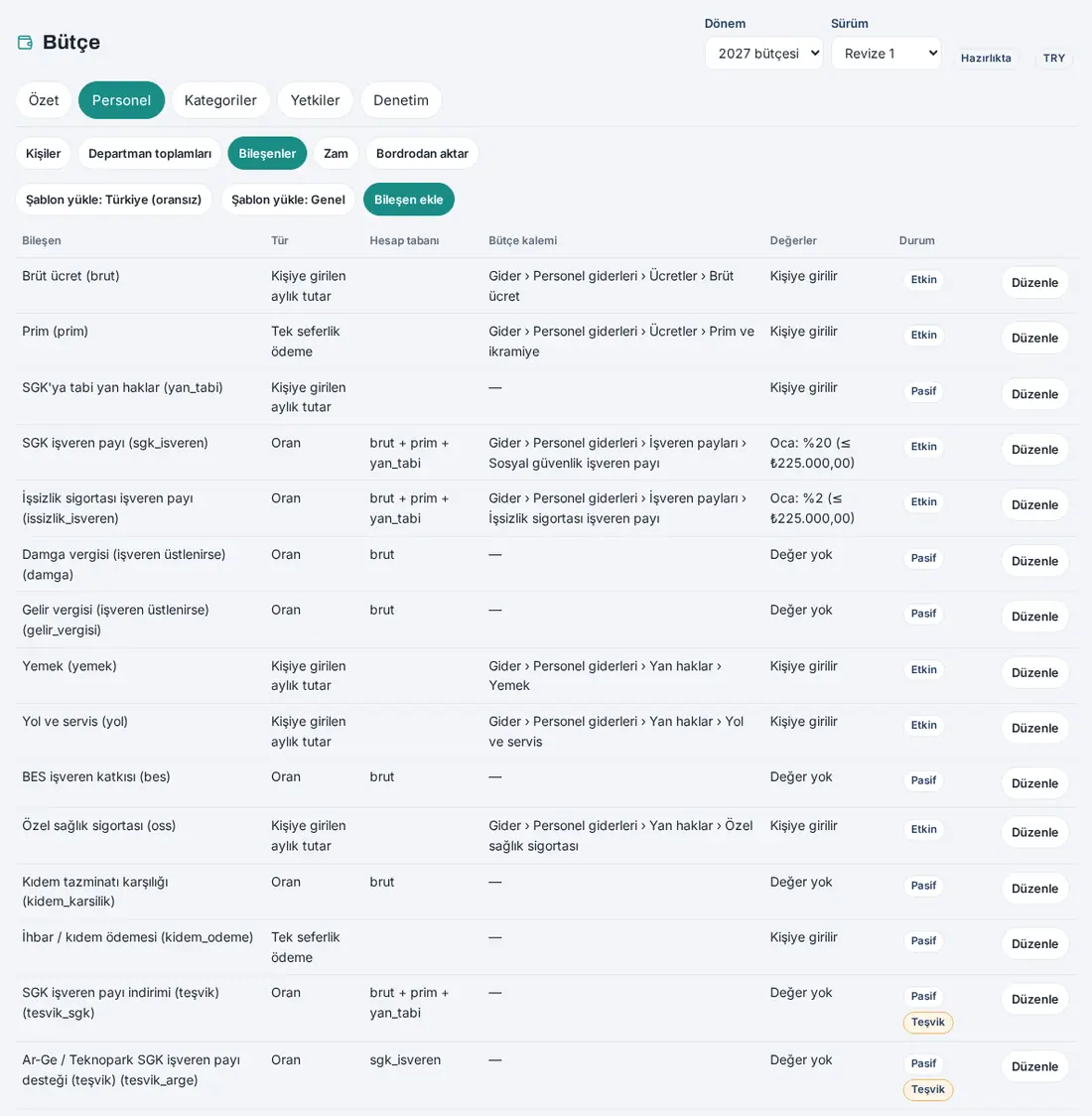
What it does: The personnel cost is calculated with components that do not depend on the country: gross salary, bonus, employer contributions, fringe benefits. Each component is written to a personnel item. The components are per period; in a new period, they are copied from the previous one.
Component types:
- Monthly amount entered per person (e.g. gross salary, meal allowance)
- Same monthly amount for everyone (from the value table)
- Rate (a rate of the total of other components; e.g. the SGK (Turkey's social security institution) employer share)
- One-off payment (e.g. a bonus; the amount and the payment month are entered per person)
Starting with a template:
- Click Budget → Personnel → Components.
- Click the Load template: Türkiye (no rates) (15 components) or Load template: General (5 components) button and confirm with Upload.
- The template only sets up the components: the rate and amount values come empty, and the incentives are inactive. You enter the values with their source (e.g. the annual parameters of your company).
Editing a component and entering values:
- On the row of the component, click Edit.
- From the Budget item list, select the personnel item (only the leaves with the Personnel item flag are listed). Each active component that is part of the employer cost must have an item.
- For a rate component, write the codes of the base components, separated by commas, in the Base (for rates; codes) field (e.g. brut, prim). If limits such as the SGK ceiling apply to the base, tick Lower / upper limit applies to the base. At most (limit component) limits the result with another component (an incentive cannot exceed the employer share).
- Write the source of the rate in the Source field and click Save.
- For a rate or a fixed amount, click Add value: select the month in From this month; enter Rate (%), Lower limit (floor), Upper limit (ceiling) (for a fixed component, Monthly amount) and click Save. For a value that changes during the year (e.g. a new ceiling in July), add a second value from that month.
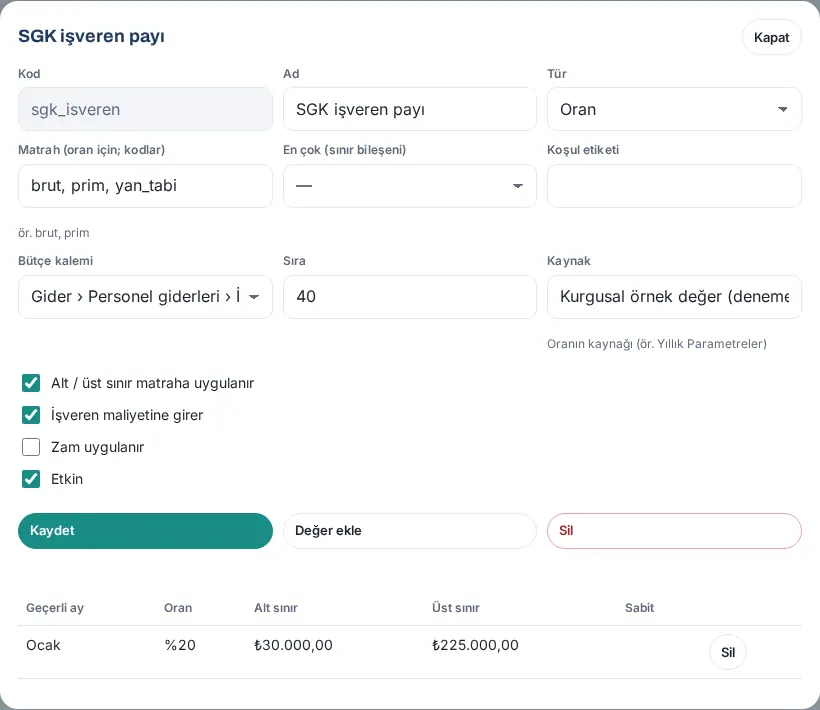
Important:
- If there is an active rate or fixed component without a value, the personnel calculation stops: a message such as "For March 2027, there is no "SGK işveren payı" rate." appears. Missing values show as warnings at the top of the list ("No value has been entered for the “…” component.", "No budget item selected for the “…” component.").
- When you activate an incentive component, it asks "An incentive component is being activated. Do not activate it before the incentive formula (rate, base, limit) is confirmed; confirm to continue.". Do not activate the incentive formula before you confirm it with your expert.
- The income tax component does not model the tax brackets; it applies one rate.
- A component that is used in the calculation of another component cannot be deleted.
- When a component changes, the personnel budget of the version in preparation is recalculated. Departments that were sent for approval cannot be rewritten ("Some departments could not be rewritten.").
Personnel settings
Who: HR officer · Budget manager · Where: Budget → Personnel → Components → Personnel settings
| Field | What it does |
|---|---|
| Item for "Total" mode | The default personnel item to which the cost of the people entered in Total mode is written (e.g. "Personel — ayrıştırılmamış maliyet", personnel — not itemized cost) |
| Item for provider amounts (not itemised) | The item that is used if the payroll calculation provider does not give an item breakdown |
| Item for incentive effect (from provider) | The item to which the incentive effect from the provider (a negative amount) is written |
| Payroll matching key | The key to find the employee in the Excel and payroll import: Employee number, Email or External ID (SCIM) |
- Select the fields and click Save.

Important: If there are people in "Total" mode and no item is selected, the calculation stops with this message: No target item is selected for people in “Total” mode (Budget → Personnel → Components → Personnel settings).
Adding a person record: Detailed and Total modes
Who: HR officer · Budget manager · Where: Budget → Personnel → People
What it does: The personnel budget is planned person by person. When you save, the 12-month cost of the person is calculated and written to the department's budget as personnel rows. In the department budget, these rows are read-only.
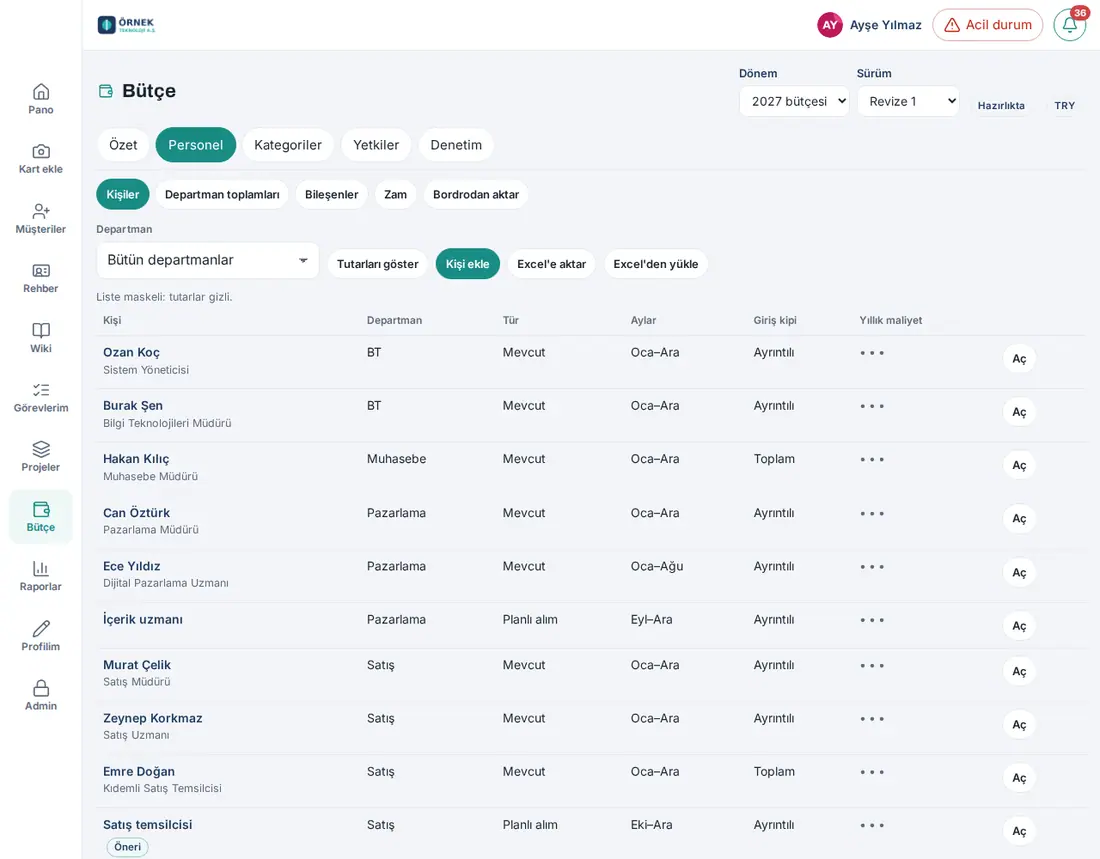
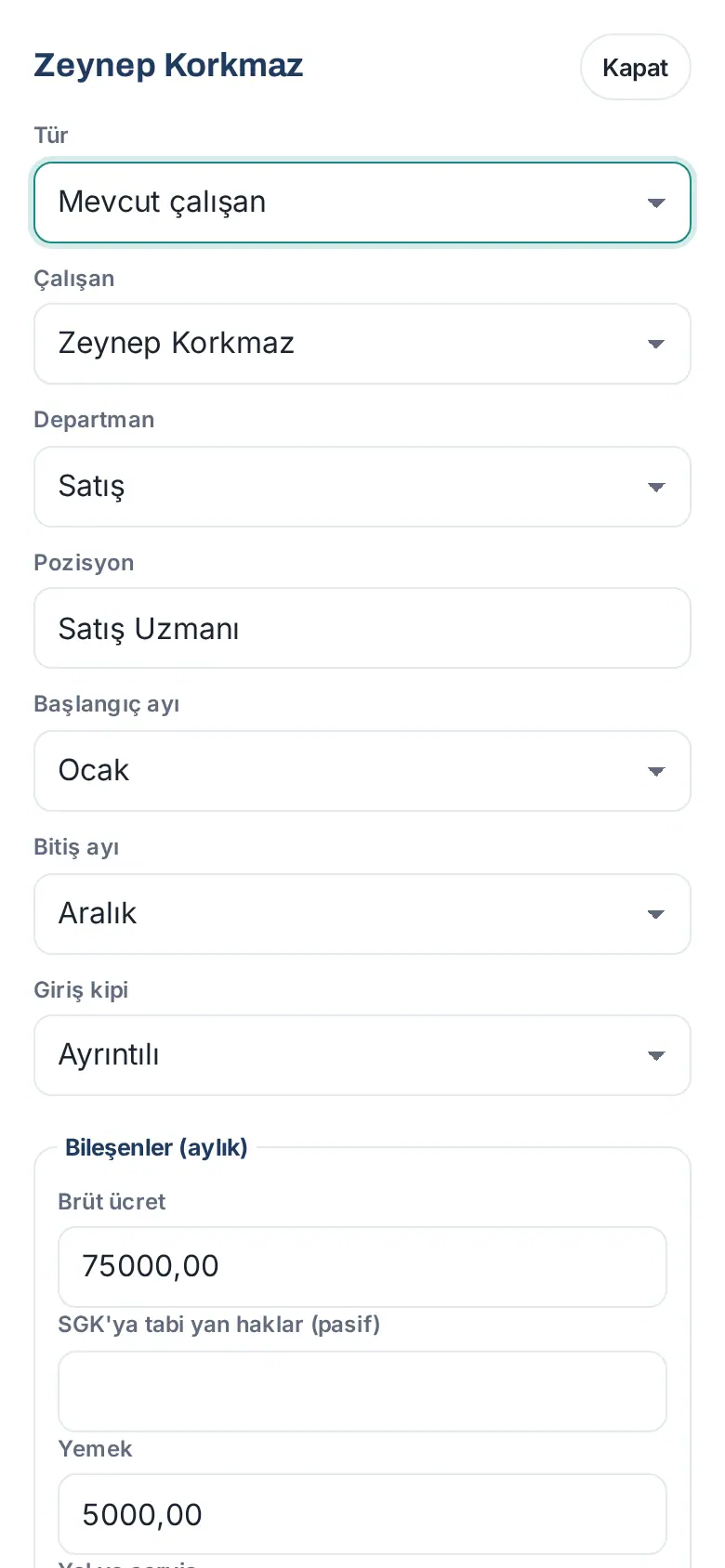
- In Budget → Personnel → People, click Add person.
- Select the Type: Current employee or Planned hire.
- For a current employee, select the Employee; the Department and the Position fill in from the employee record. For a planned hire, write the Department and the Position.
- Select the Start month and the End month (for a person who starts or leaves during the year).
- Select the Entry mode:
- Detailed — in the Components (monthly) fields, enter the gross salary and the fringe benefits, and for one-off payments, the amount and the Payment month. Prozence calculates the rate components (such as the SGK employer share). For conditional components, write a tag in the Tags field (e.g. arge).
- Total employer cost — enter the Monthly total amount, keep Apply pay rises ticked if pay rises will apply, and if necessary, select a Target item (Default item from settings).
- If you want, write a Note, and click Save. It shows "Saved; the department budget was updated.".
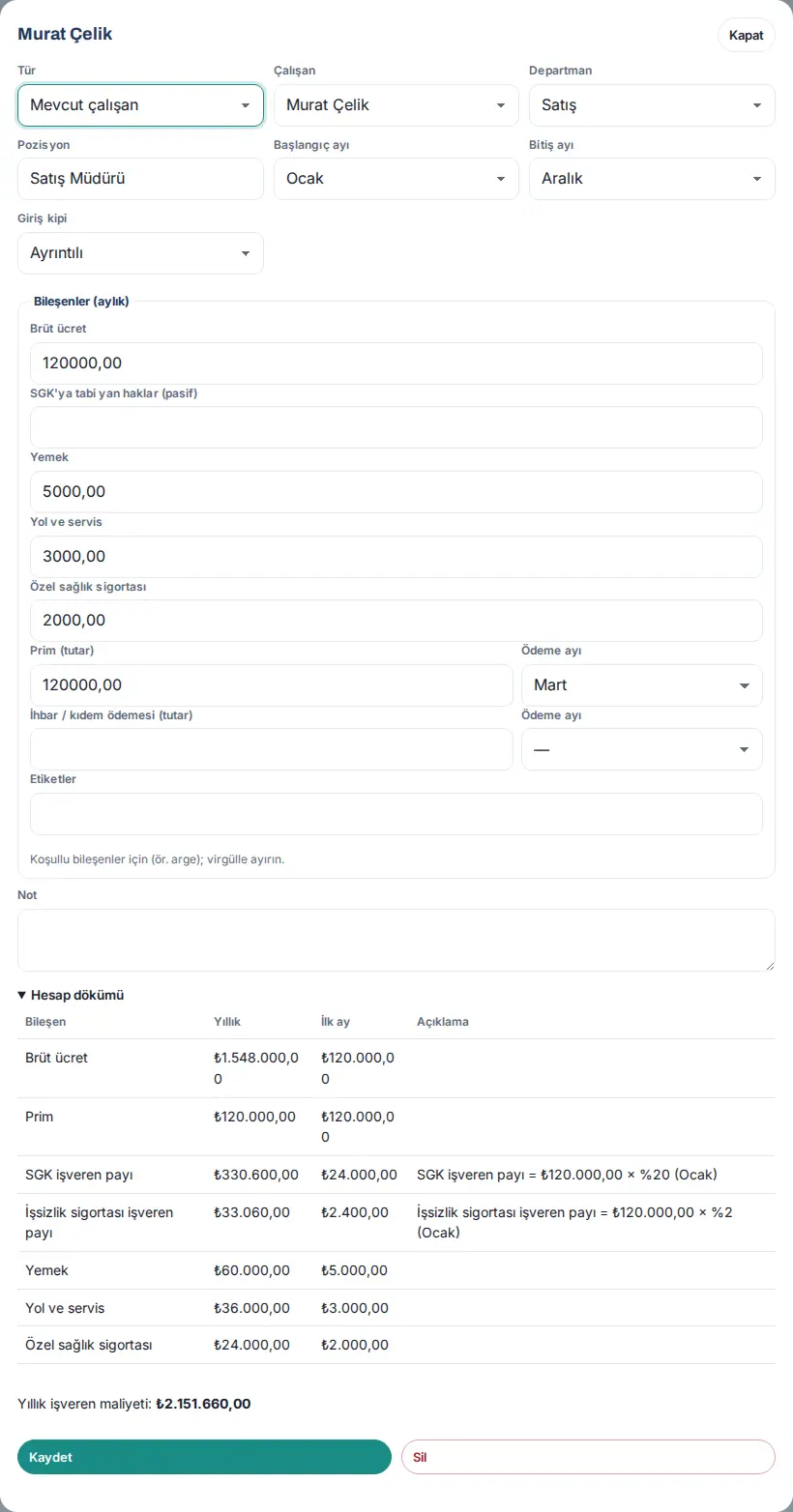
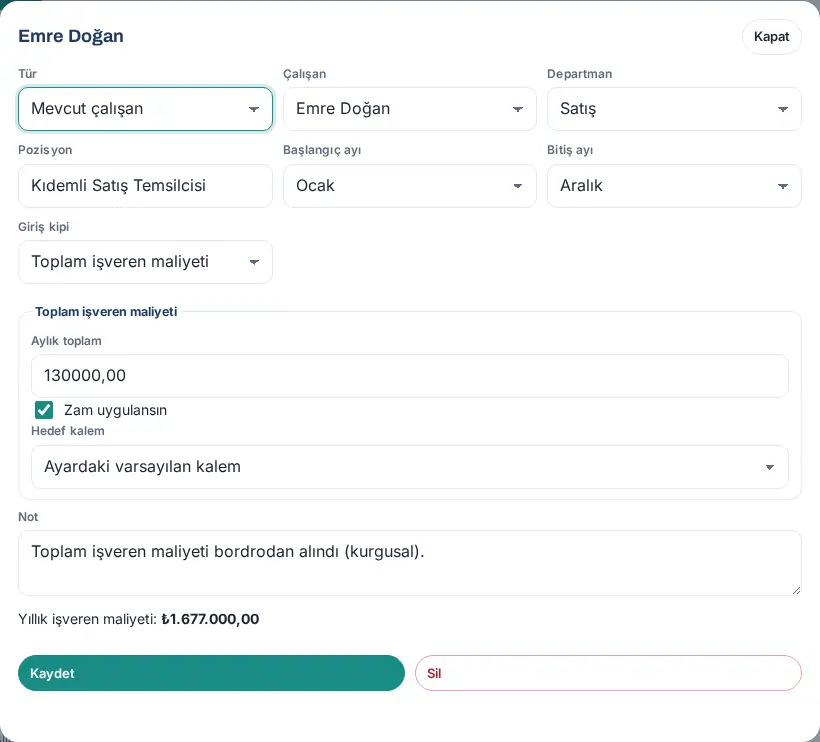
Calculation breakdown: When you open a saved person with Open, the Calculation breakdown shows the annual amount per component, the amount of the first month and the explanation of the rates (e.g. "SGK işveren payı = ₺120.000,00 × %20 (January)"). At the bottom, it shows Annual employer cost.
Important:
- The same employee can be in a version only once: "This employee is already in this version."
- If the budget of the department was sent for approval, the person cannot be changed: "The … budget was submitted for approval; a correction must be requested to change personnel." If the personnel changes in an approved department, the budget goes back to correction.
- In the version in effect, the personnel does not change ("This version is in effect or closed and can’t be changed."); for a change, a revision is opened (see 37. Budget preparation, approval and reports).
- When a new period is opened, the person records are not copied; only the components and their values are copied. The people of the new year are entered from payroll, from Excel or manually.
Show amounts: masking and view log
Who: HR officer · Budget manager · Viewer who was given Per-person details · Where: Budget → Personnel → People
What it does: The person list is masked by default: the Annual cost column shows "•••" and it shows "List is masked: amounts are hidden.". Showing the amounts is a deliberate action and is written to the audit log.
- Click Show amounts. In the question "Per-person amounts will be shown. This view is recorded in the audit log.", click Show.
- The list opens with the amounts and it shows "Amounts are shown; this view was recorded.". The audit log records who saw the amounts of which people (the amounts are not written).
- To close, click Hide amounts.
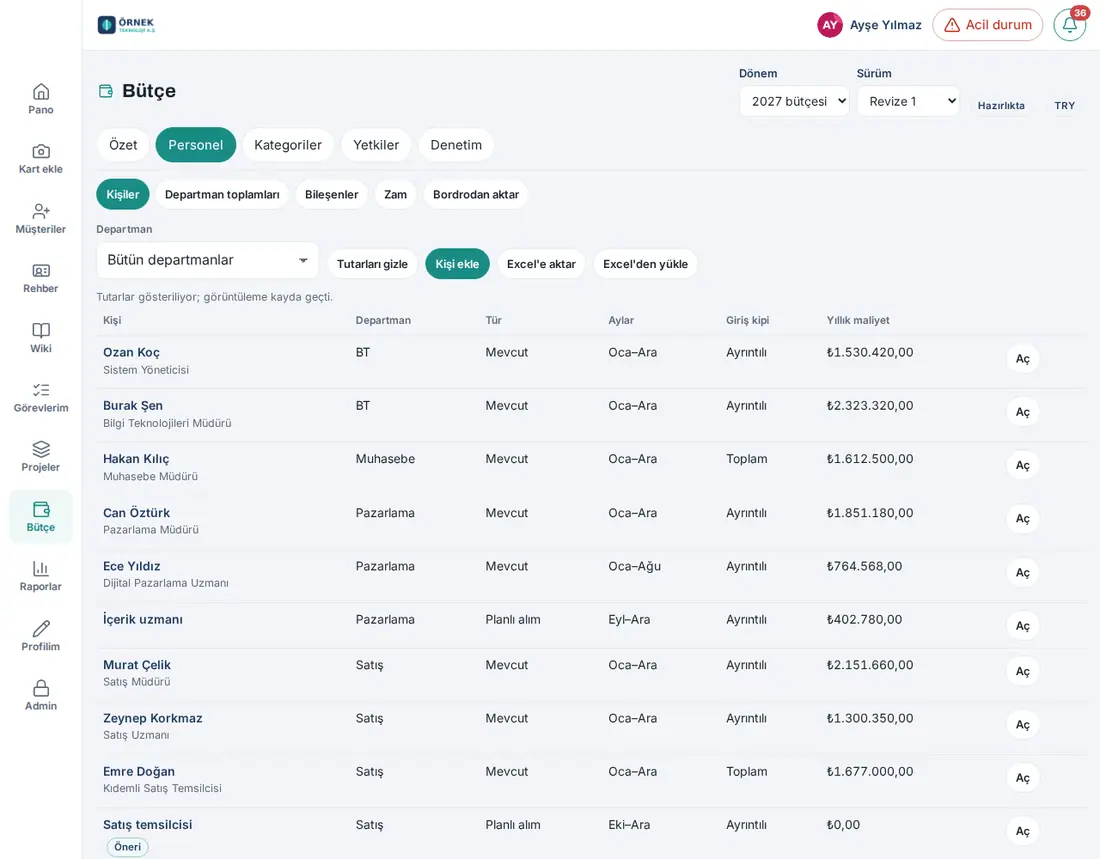
Tip: Opening the window of a person with Open is also a separate view record. People who see the personnel amounts only at the total level do not see the person list at all; they see only Department totals.
Adding a pay rise rule
Who: HR officer (departments in their scope) · Budget manager · Where: Budget → Personnel → Pay rise
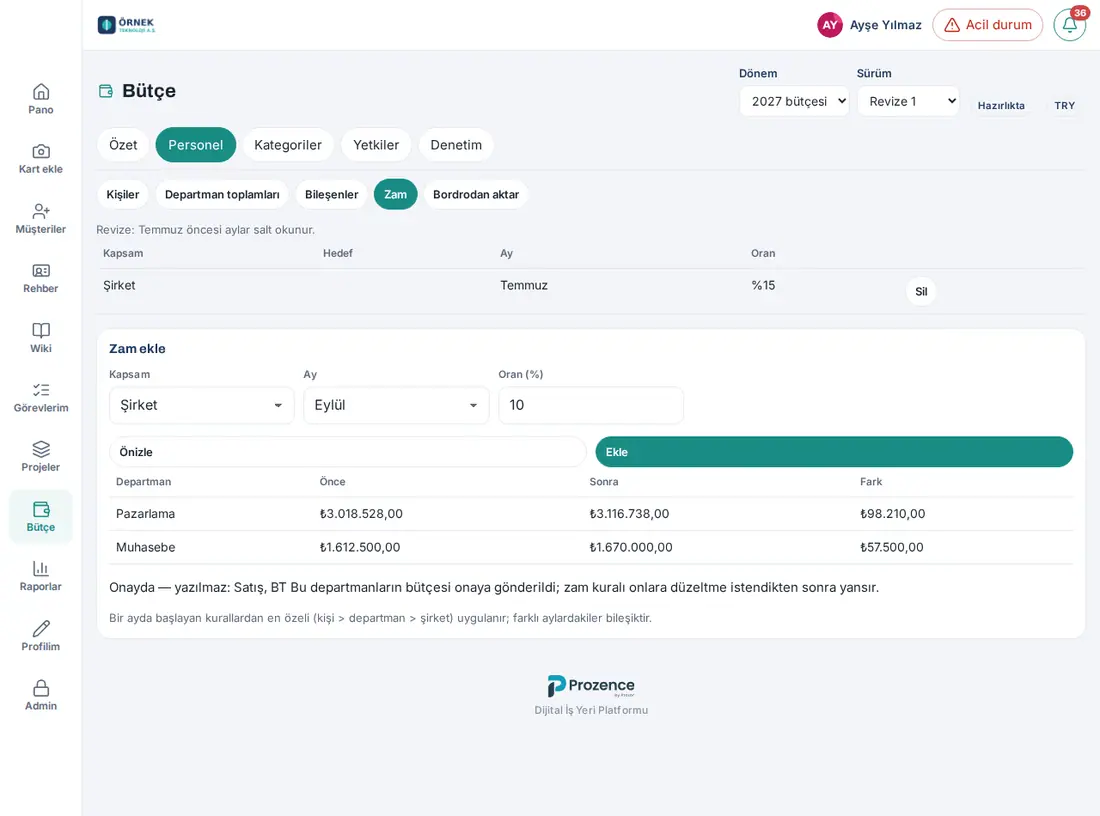
What it does: Applies a pay rise rate for the company, a department or a person from a specific month. Of the rules that start in the same month, the most specific one (person > department > company) is applied; pay rises in different months are compounded. A pay rise applies only to the components with the Pay rises apply flag (e.g. gross salary) and to the people with Apply pay rises ticked in Total mode.
- In the Add pay rise box, select the Scope: Company (only for people with permission in all departments), Department or Person.
- For a department or a person, select the Target.
- Enter the Month and the Rate (%) (between -50% and 500%).
- To see the effect, click Preview: Before, After and Difference show per department; nothing is saved. Departments that were sent for approval are not included in the table; they are listed separately below in the line "Awaiting approval — not updated: …" (updated in 1.6.0).
- Click Add. It shows "Pay rise rule added; the personnel budget was updated.".
Important:
- A second rule cannot be added for the same scope and month: "A pay rise rule for the same scope and month already exists."
- In a revision, pay rises cannot be added to the months before the start month.
- Departments that were sent for approval are not rewritten with the pay rise; the pay rise rule applies to them after a correction is requested.
Planned hire, hiring proposal and leaving
Who: Department budget owner (proposal) · HR officer · Budget manager · Where: Budget → Personnel → Hiring proposal (owner); People (HR)
What it does: The department budget owner proposes a new position without seeing salaries; the proposal is not included in the budget. When HR fills in the salary, the person enters the budget as a planned hire.
Making a proposal as the owner:
- Click Budget → Personnel → Hiring proposal.
- In the New hiring proposal box, enter the Department, Position, Start month and Reason (at least 5 characters).
- Click Recommend. It shows "Proposal sent to HR." and HR and the budget managers get the "Budget: hiring proposal" notification. The table shows the status of the proposals as Awaiting HR or Completed by HR.
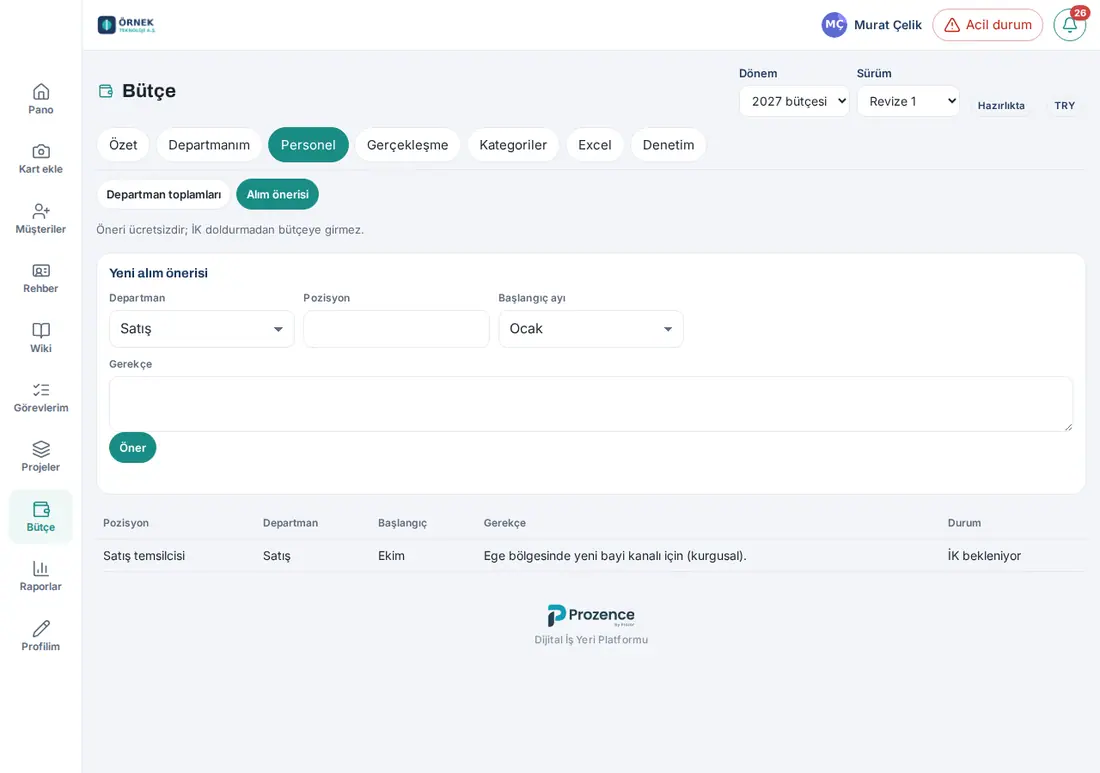
Filling in the proposal as HR: In the People list, the proposal shows with the Suggestion badge. Open it with Open; the window shows "Hiring proposal (reason): …". When you enter the salary details and click Save, the person enters the budget as a planned hire.
Linking a planned hire to an employee: When the person starts work, click Link to employee in the window of the planned hire, select the employee and click Link. The linked hire stays as a planned hire in this version; in a revision, it becomes a current employee.
Leaving: When an employee is marked as "left", HR and the budget managers get the "Budget: departure" notification. The end month does not change automatically; you enter the End month of the person. A person who left shows in the list with the Left badge.
Department totals
Who: All budget roles that see the personnel amount at the total or the details level · Where: Budget → Personnel → Department totals
What it does: Shows the personnel cost per department (headcount, annual amount, January and December) and its distribution to the personnel items. The names of people and the amounts per person are not on this screen.
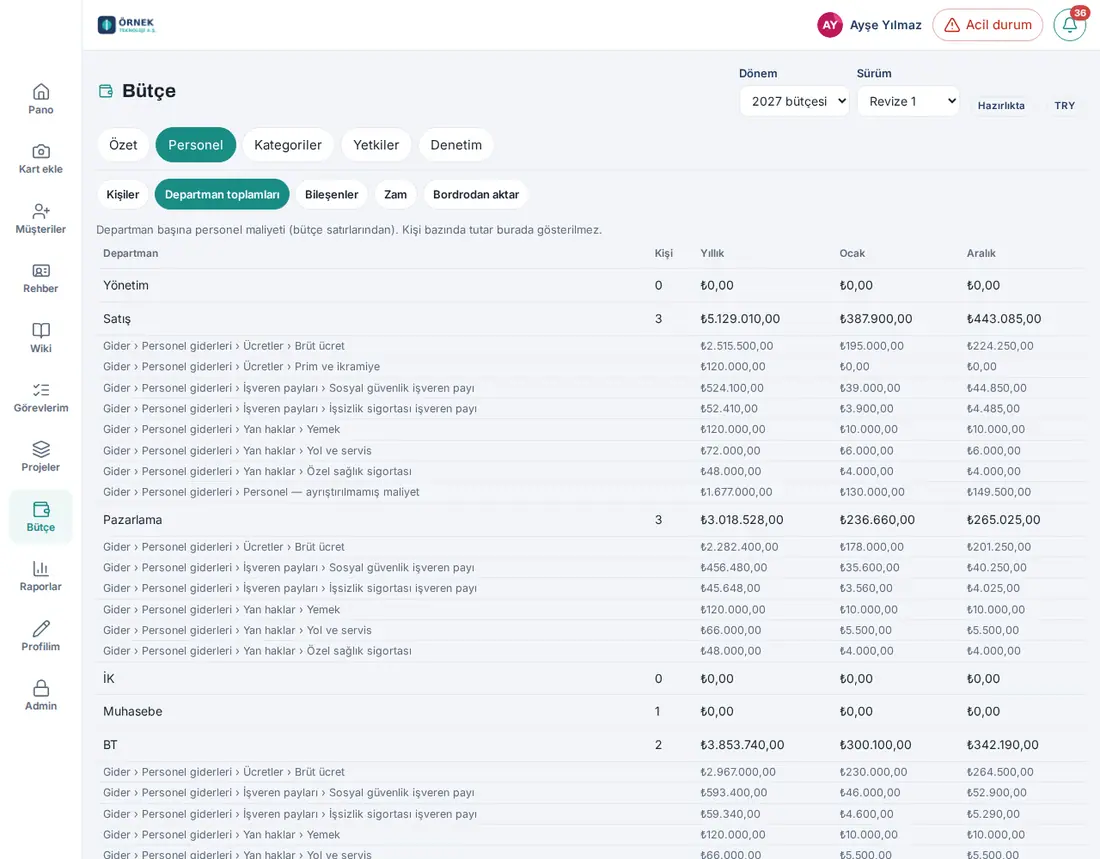
Tip: If the Small department threshold (people) setting is on, in a department below the threshold, people without per-person details permission do not see the headcount and the item breakdown ("—" instead of the headcount). For the personnel sub-tab in the reports, see 37. Budget preparation, approval and reports.
Personnel Excel file: export and upload
Who: HR officer · Budget manager · Where: Budget → Personnel → People → Export to Excel / Upload from Excel
What it does: Lets you fill in person records in bulk in an Excel file. The file has the Instructions sheet, the Personnel sheet and the hidden Listeler sheet. The columns of the Personnel sheet: employee number, full name, department, position, type (current / new hire), start and end month, entry mode, the input components of your company (e.g. gross salary, meal allowance), one-off payments and their payment months, total employer cost (in Total mode) and note. The rate components are not in the file; Prozence calculates them.
- Click Export to Excel. If a department filter is selected, only that department comes. The download is written to the audit log.
- Fill in the file and save it.
- Click Upload from Excel and select the file. In the File preview window, read the summary "To add: …, to change: …, to delete: …, unchanged: …".
- If there are errors, it shows "Errors: …; nothing was written." and the errors are listed in a table; download them with Download error report (XLSX) or CSV, correct the file and upload it again.
- If there are no errors, click Apply.
Important:
- The file replaces the person list of the departments in it: a person who is not in the file is deleted from that department. First download the current file and work on it.
- The file is linked to the person and the scope; a file that someone else downloaded is not accepted. The fields that are not shown in the file (tags, target item, payroll values, the second one-off payment of the same component, the provider result) are kept.
- The plan template of the budget manager also has the same Personnel sheet (see 37. Budget preparation, approval and reports).
Importing from payroll (personnel cost import format v1)
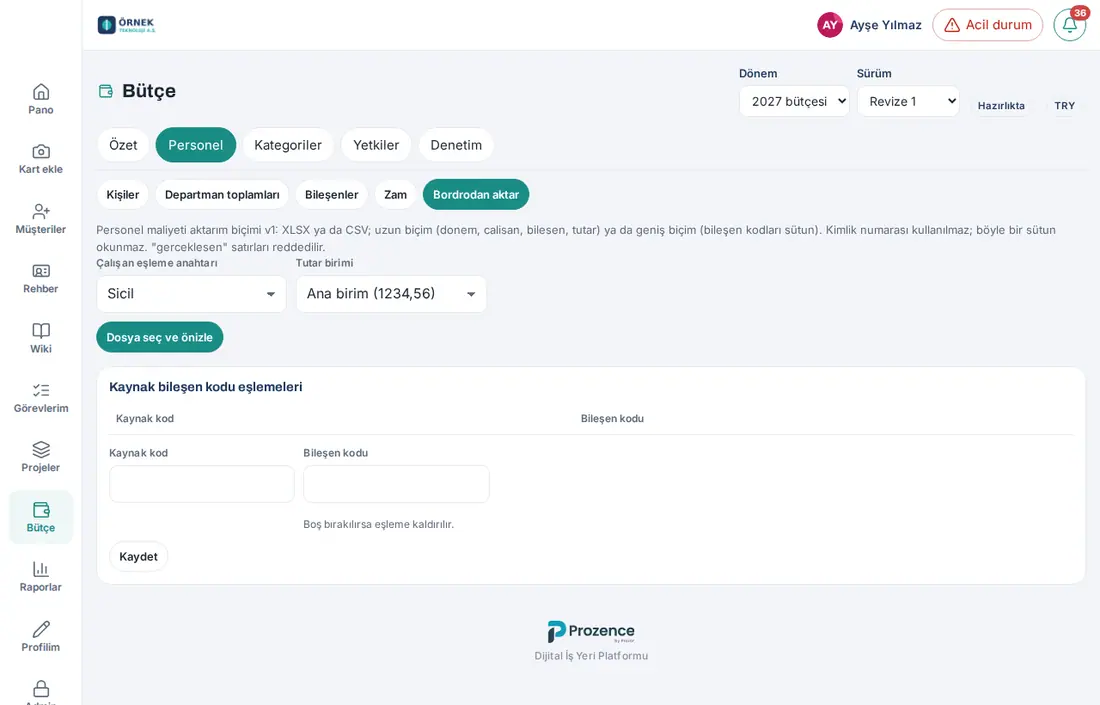
Who: HR officer · Budget manager · Where: Budget → Personnel → Import from payroll
What it does: Imports in bulk the plan costs (person × component × month) taken from your payroll software. An imported person changes to Detailed mode; the values from payroll replace the calculation for that person, month and component.
File format: XLSX or CSV (in a CSV, the separator is recognized automatically: semicolon, comma or tab). A maximum of 10 MB and 20,000 rows.
- Long format: each row is one person × component × month. The columns are
donem(YYYY-MM),calisan,bilesen,tutar; optionallyad_soyad,departman,para,tur,kaynak_sistem,aktarim_kimligi. - Wide format: each row is one person × month; the component codes are the column headers.
- The headers are recognized in several languages (e.g.
period,employee,amount).
- Select the Employee matching key: Employee number, Email or External ID (SCIM).
- Select the Amount unit: Main unit (1234.56) or Minor unit (123456).
- Click Choose file and preview. The preview shows the number of people and rows and the format (long / wide); if there are errors, you can download the error report.
- Click Apply.
- If the component codes of your payroll software are different from the Prozence codes, write the Source code and the Component code in the Source component code mappings box and click Save. If you leave the component code empty, the mapping is removed.
Important:
- ID numbers are not used: if there is a column such as the Turkish national ID or the passport, it is not read and not stored.
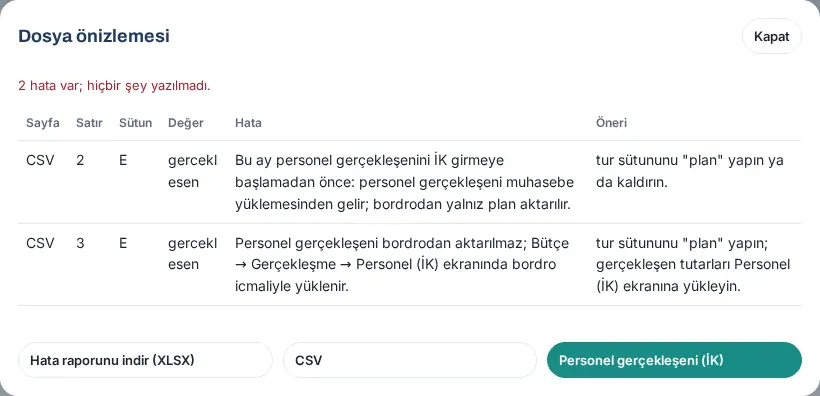
- In the
turcolumn, "gerceklesen" ("actual") rows are rejected; only the plan is imported from payroll (updated in 1.6.1):- If HR enters the personnel actuals in the month of the row (see Budget settings), the error is "Personnel actuals are not imported from payroll; they are uploaded with the payroll summary under Budget → Actuals → Personnel (HR).". The Personnel actuals (HR) button at the bottom of the window closes the window and opens that screen (see 39. Budget actuals: accounting upload).
- If the month is before the start month, the error is "This month is before HR starts entering personnel actuals: personnel actuals come from the accounting upload; only the plan is imported from payroll."; if the setting is not active, it is "Personnel actuals come from the accounting upload; only the plan is imported from payroll.".
- The note at the top of the screen also says this: while the setting is active, "Only the plan is imported from payroll: "gerceklesen" (actual) rows are not imported; HR uploads personnel actuals with the payroll summary under Budget → Actuals → Personnel (HR) (for months before the start month they come from the accounting upload)."; while it is not active, "Only the plan is imported from payroll: "gerceklesen" (actual) rows are not imported; personnel actuals come from the accounting upload."
- If the same
aktarim_kimligiis imported a second time, it replaces the previous one; it is not counted twice. - An automatic payroll connection (API) is not available; there is only file import.
Payroll calculation provider
Who: Budget manager · Where: Budget → Personnel → Payroll calculation provider
What it does: You select who calculates the personnel cost: you enter the amounts yourself, or Prozon Bordro ve Özlük Yazılımı (Prozon's payroll and HR software) calculates the 12-month employer cost from a net or gross monthly salary. The selection is optional; the default is I'll enter it myself.
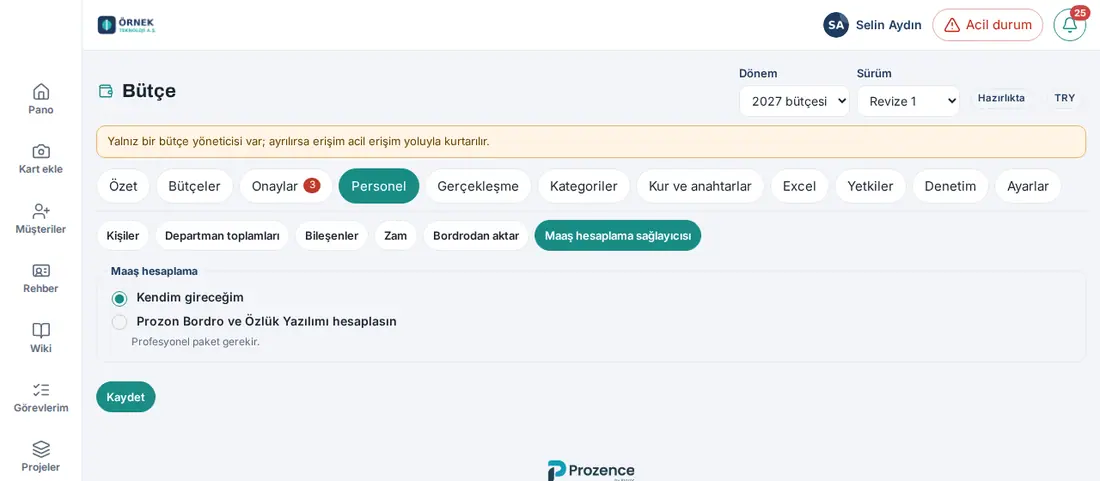
Payroll calculation (1.6.1): The Payroll calculation box has two options:
- I'll enter it myself (default): you enter the amounts in the person window with the Detailed or Total employer cost mode (see Adding a person record). No request goes outside.
- Let Prozon Bordro ve Özlük Yazılımı calculate: can be selected only in companies in Türkiye and in the Professional or Enterprise package. If your package is not enough, the option is not available and "Professional plan required." shows below it. If the country of the company is not Türkiye, the option does not show at all; if there is no other provider either, this sub-tab does not show (country: Budget settings → Country).
Letting Prozon calculate:
- Select Let Prozon Bordro ve Özlük Yazılımı calculate. This information line shows below it: "Only the salary amount, net / gross, the law and the months are sent to Prozon for the calculation; no name, ID number or employee number is sent." A note that gives the calculation year also shows: "Prozon payroll calculation: calculated with Türkiye's parameters for the current year (2026); only for employees in Türkiye. Recalculate once next year's parameters are announced."
- If you will request the incentivised cost, tick Request incentivised cost (do not enable before confirmation). The time and cache settings are under Advanced: Timeout (s, 5–30), Retries (0–3), Cache (days, 0–90), Daily cap (requests).
- Click Save. It shows "Payroll calculation setting saved.". This option has no KVKK (Turkey's personal data protection law) or data processing agreement check box; no provider address or credentials are kept on your site, and the request goes through prozence.com with the Prozence license of your site.
- Click Test connection, which shows after you save. If the connection works, a result such as "Connection successful (… s) · no monthly breakdown · calculation year 2026" shows. If the service is not available yet, it shows "Connection failed: The payroll calculation service is currently unavailable. You can enter the amount manually."; in this case, continue to enter the personnel cost with the Detailed or Total employer cost mode. Clear cache deletes the stored calculation results.
When the selection is saved, a third Entry mode, From provider, shows in the person window. If there are people saved with this mode, the Recalculate provider-based entries button shows in the People list.
How are the amounts written?
- The calculation is always made with Türkiye's parameters for the current year; this note shows with the year in the person window, in the calculation result and in the list. If the budget year is different, a yellow warning shows in the result (e.g. "Budget year 2027; the calculation used the parameters for 2026. Recalculate once the 2027 parameters are announced."). When the parameters of the next year are announced, use Recalculate provider-based entries.
- Prozon does not give a month-by-month breakdown or a component breakdown: the amount of each period (before / after a pay rise) is distributed equally to its months; the period total comes from the provider.
- If no incentive was selected, the standard (5510) cost without incentive is written. If Request incentivised cost (do not enable before confirmation) is on and 4691 or 5746 is selected for the person, the difference is written as a negative amount to the "Incentive effect (from provider)" item (item: Personnel settings).
- If you want, you can change the amount of a month manually in the person window with Override.
Privacy: Only the salary amount, net / gross, the law and the months go to Prozon; the name, employee number, email, ID number, department and position of the employee are not sent. While I'll enter it myself is selected, no request goes out. Each calculation request and each setting change is written to the audit log without the amount.
Important:
- On a site whose Prozence license is not verified, saving stops with the message "Prozon Bordro ve Özlük Yazılımı: the Prozence licence is not verified; the live connection cannot be turned on."; below the option, it shows "Licence not verified; live connection off.". Verify the license on the WordPress → Prozence Workplace → Lisans ("License") screen.
- If the currency of the period is not TRY, the Prozon calculation is not made ("Prozon Bordro ve Özlük Yazılımı can only be used in TRY budgets; this period's currency is …").
- If the calculation quota is used up, it shows "The payroll calculation quota is used up; try again later or enter the amount manually.".
- The provider settings of 1.6.0 that work with an endpoint URL and a key (Endpoint URL, Key, the KVKK privacy notice and the confirmation boxes) show only when a provider that needs them is selected.


