39. Budget actuals: accounting upload
Screenshots show the Turkish interface of Prozence with fictional "Örnek Teknoloji A.Ş." data; the English interface has the same layout.
The actual amounts of the budget come from accounting. Once a month, the accounting officer uploads the trial balance or the general ledger (subsidiary ledger) listing taken from the accounting software as one file (Excel .xlsx or CSV) to the Budget → Actuals screen. Prozence maps the account codes in the file to budget items and departments with the rules that you define, divides the shared costs between the departments with the allocation keys, and compares the result with the budget in Reports → Budget.
If the budget manager wants, the HR officer enters the actuals of the personnel cost instead (1.6.1): from the start month that the budget manager selects, the personnel accounts in the accounting upload are not applied; once a month, HR uploads the payroll summary to the Budget → Actuals → Personnel (HR) screen (see Uploading the personnel actuals with the payroll summary).
Apart from these, there is no source of actuals. Expenses and purchase requests are not deducted from the budget: an approved expense or purchase request is not added to the actuals of the company budget; that spending comes with the monthly trial balance after it is posted in accounting. (An expense being deducted from the budget card of a project is a separate topic; see 33. Tasks and projects.)
For preparing the budget, approval and reports, see 37. Budget preparation, approval and reports. For permissions, categories, rates and allocation keys, see 38. Budget management: setup, permissions and personnel cost.
Who: Accounting officer · Budget manager · HR officer (personnel actuals) · Department budget owner and viewer (read only)
In this chapter
- Opening the Actuals screen
- Which file to take from the accounting software
- Upload flow: four steps (1.8.0)
- Uploading the file
- Column mapping
- Reading the preview and the reconciliation
- Mapping unmapped lines
- Mapping lines one by one
- Applying the upload
- Seeing the unmapped amount in the report
- Uploading the same month again
- Cumulative file and multi-month file
- Lines in a foreign currency
- Account rules
- Department codes
- Ready-made rule sets for the TR uniform chart of accounts
- Saving a profile
- Editing profiles
- Upload history
- Monthly upload reminder
- Undoing an upload
- Recalculating the allocation
- Seeing the actual lines
- Error report and common errors
- Uploading the personnel actuals with the payroll summary
- Correcting the personnel actuals manually and undoing an upload
Before you start: The Budget and actuals module is in the Professional package. To upload, the budget manager must have given you the Accounting officer role, the budget period must be open and the category tree must have items (see 38. Budget management: setup, permissions and personnel cost). The screens and files in this chapter were prepared with the fictional "Örnek Teknoloji A.Ş." data; the account codes and the amounts are made up.
Opening the Actuals screen
Who: Accounting officer · Budget manager · Department budget owner · Viewer · Where: On a computer, left menu → Budget → Actuals; on a phone, Profile → Budget → Actuals
What it does: Uploading accounting listings, the mapping rules and the uploaded lines are on one tab.
- On a computer, click Budget in the left menu, then the Actuals tab. On a phone, tap Profile in the bottom menu and select Budget in the strip at the top (My profile · Reports · Budget · Admin). Budget shows only to people with a budget role and to the technical Admin.
- The sub-tabs show at the top. Which sub-tabs you see depends on your role:
| Sub-tab | What it has | Who sees it |
|---|---|---|
| Upload | File upload, column mapping, preview and apply | Accounting officer, budget manager |
| History | The month strip, uploads and their statuses, Details, Lines (1.6.1), Map, Undo, Recalculate allocation | Accounting officer, budget manager (Undo only for the budget manager) |
| Lines | The uploaded lines of a month | Everyone; the department budget owner and the viewer see only their own scope |
| Rules | Account rules, department codes, ready-made rule sets | The accounting officer and the budget manager edit them; the viewer reads only |
| Profiles | Saved profiles, profile editing (1.6.1), archiving (1.6.2) and sample profile templates | The accounting officer and the budget manager edit them; the viewer reads only |
- If the period is not open yet, it shows "No budget period has been opened for this year yet.".
The Accounting and Personnel (HR) views (1.6.1): If the budget manager activated the HR enters personnel actuals setting with a start month (see 38. Budget management: setup, permissions and personnel cost), the Accounting | Personnel (HR) selector shows above the sub-tabs. The Accounting view has the sub-tabs above and this note: "HR enters personnel actuals: rows mapped to personnel accounts are not applied in this upload; in the reconciliation they appear separately as "Personnel — entered by HR"." Below it, the start month shows (e.g. "Start month: March 2027 · For months before this month, personnel amounts are taken from the accounting upload."). The Personnel (HR) view shows the personnel actuals that HR uploaded (see Uploading the personnel actuals with the payroll summary); the accounting officer, the department budget owner and the viewer only read it. The HR officer does not see the selector; in Actuals, the Personnel actuals (HR) screen opens directly.
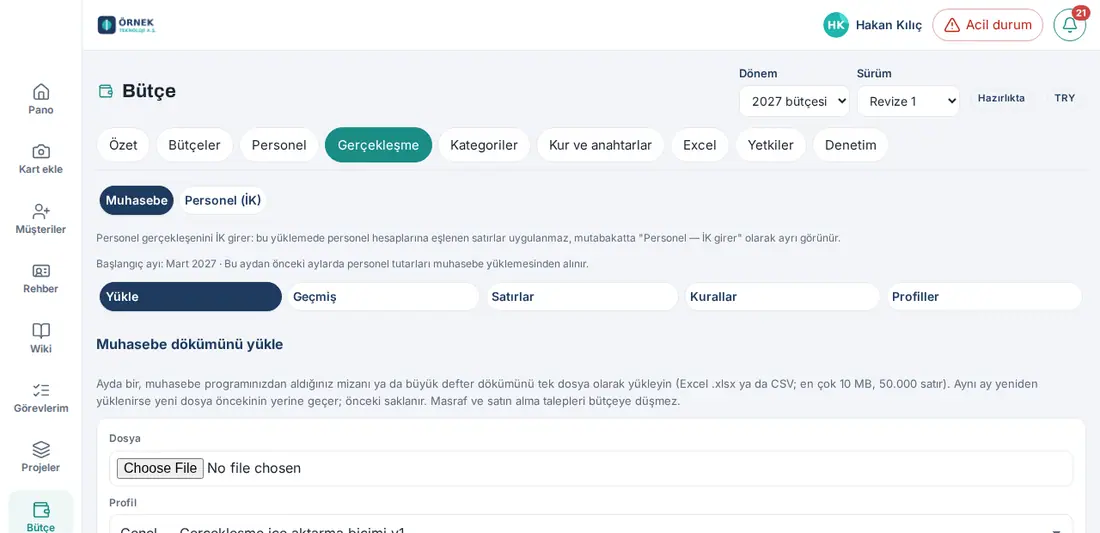
On a phone: The screen also opens at a width of 390 px; the History and Lines tables show as cards on a phone (each row is a card; the column name on the left, the value on the right; the buttons at the bottom of the card). We recommend that you upload files on a computer.
Which file to take from the accounting software
Who: Accounting officer · Where: Your accounting software; Budget → Actuals → Profiles
What it does: Taking the correct report at the correct level reduces the mapping work.
Prozence reads one general format: Actuals import format v1. The file must have at least one Account code column and amount columns (Debit and Credit, or a single Amount). The other columns are optional:
| Standard field | When it is needed |
|---|---|
| Account code | Always (mandatory). The mapping is done with it. |
| Account name | Optional; helps you recognize unmapped lines. |
| Period / Date | If the month was not selected on the screen (a multi-month or general ledger listing), one of them is necessary. |
| Cost centre | If you will find the department from the cost center. |
| Company / entity | If the file has more than one company (filtered in the profile). |
| Debit, Credit | If the amounts are in two columns. |
| Amount | If the amount is in one column with a sign; the sign rule is selected separately. |
| Debit / credit indicator | If there is a B / A (D / C, S / H) letter next to the single amount. |
| Currency | If the lines are in different currencies (see Lines in a foreign currency). |
| Document no., Description, Dimension 1, Dimension 2 | Optional; the dimensions are for additional breakdowns such as project or region, and can be the source of the department rule. |
The recommended reports per system are in the Sample profile templates table on the Profiles sub-tab. The Profile list on the upload screen has the same templates:
| System | Profile in the list | Recommended report | Where the department comes from | Status |
|---|---|---|---|---|
| Luca (TR) | Luca — monthly trial balance | Trial balance (mizan), lowest account level; date range from the 1st to the last day of the month, opening / closing entries excluded | The 3rd part of the sub-account (e.g. 770.01.SAT → SAT) | Verified with a real file (1.8.0) |
| Luca (TR) | Luca — subsidiary ledger | Subsidiary ledger (muavin defter); account code in the group header | Cost center / business center column | Column names are assumptions |
| Logo | Logo (Tiger / Go) — trial balance | Trial balance; if a cost center breakdown is necessary, the entry line listing | Cost center | Column names are assumptions |
| Mikro | Mikro — trial balance / cost centre report | Trial balance or cost center report | Cost center | Column names are assumptions |
| Netsis | Netsis — trial balance / journal listing | Trial balance or accounting journal listing | Cost center | Column names are assumptions |
| SAP | SAP S/4HANA — trial balance (S_ALR_87012284) | S_ALR_87012284; company code and reporting period in the selection | — | Sourced |
| SAP | SAP S/4HANA — G/L line items (FAGLL03) | FAGLL03; "G/L Account", "Amount in Local Currency" | Cost center column (added to the layout; assumption) | Sourced |
| DATEV (DE) | DATEV — Summen- und Saldenliste | SuSa: period Soll / Haben | Not in SuSa; if necessary, the Buchungsstapel listing (KOST1 → cost center, KOST2 → dimension 1) | Sourced |
| Xero | Xero — Account Transactions / General Ledger Detail | The Trial Balance does not carry tracking categories; Account Transactions | Tracking category → Dimension 1 | Sourced |
| QuickBooks | QuickBooks — Transaction Detail by Account | The Trial Balance does not carry classes; Transaction Detail by Account | Class → cost center, Location → dimension 1 | Sourced |
| Odoo | Odoo — Journal Items | Journal Items export (with the Analytic Account column) | Analytic Account → cost center | Column names are assumptions |
| General / other | General — Actuals import format v1 | Any trial balance or general ledger listing | A column or an account code segment | — |
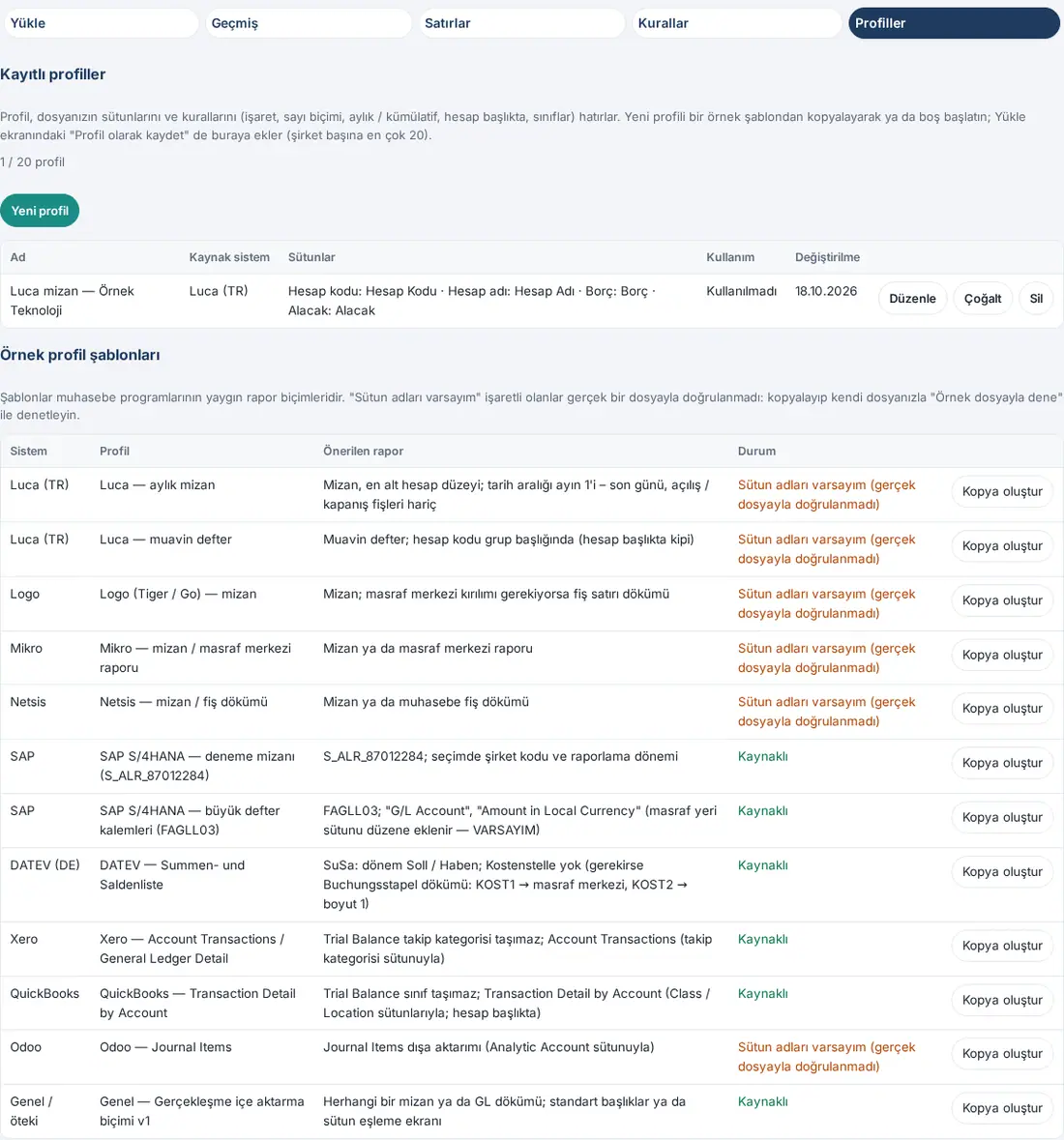
Important: The profiles that show "Column names are assumptions" are sample profiles: the column names of the Luca subsidiary ledger, Logo, Mikro, Netsis and Odoo listings were not verified with a real file. When you select one of these profiles, check the suggestions on the column mapping screen against your own file and correct them; save the corrected version as a profile. If your software is not in the list, select General and map the columns manually.
Tip:
- Take the trial balance at the lowest account level. Parent accounts whose sub-accounts are in the file (e.g. 770.01 and 770 when 770.01.SAT exists) count as subtotals and are skipped (in the trial balance profiles).
- For a department breakdown, use a department sub-account in the chart of accounts (e.g. 770.04.SAT) or a cost center. If you have neither, you can select a fixed department in each rule.
- The trial balance profiles read only the revenue and expense classes (6 and 7 in the TR uniform chart of accounts, 4 and 8 in DATEV); the other classes are skipped as "Account outside the classes".
Upload flow: four steps (1.8.0)
Who: Accounting officer · Budget manager · Where: Budget → Actuals → Upload
What it does: Uploading a trial balance is now four explicit steps with a step indicator at the top; each step says what is saved and what is not, and has Back and Continue buttons.
- File: choose the file (and the company, if several are defined). Leave Accounting software / file layout at Detect automatically: Prozence finds the software from the file headers (e.g. "Luca — monthly trial balance detected · 6 column headers matched"); the month is suggested from the file header. Click Continue — read the file.
- Map the columns: one row per target field, e.g. Account code ← A · HESAP KODU — 1; 10. The drop-down lists the file's column headers with the first two sample values in readable form (65,606,233.10 — no scientific notation). Automatically mapped fields carry the automatic badge, ones you change manual; required fields are starred. The raw file table sits closed in the First 5 rows of the file (raw) box; sign rule, number and date format are under Advanced. Tick Remember this column layout (see Saving a profile) to have the mapping saved under File layouts during the import and applied automatically to the next file from the same software. Click Continue — preview.
- Preview and check: the heading reads Preview — not saved yet. A check summary (trial balance rows, lowest-level accounts, total debit / credit, Grand total check ✓ / ✗, Parent account check, unmapped rows, warnings) is followed by the parsed rows table with the target field names: Account code · Account name · Debit · Credit · Debit balance · Credit balance; amounts in your locale's format, right-aligned, empty cells "—", parent (subtotal) accounts indented with a "parent account · not in total" badge. The table scrolls in its own box with a sticky header. The budget mapping card, reconciliation and allocation tables follow as before. Nothing active is written in this step. Click Continue — import.
- Import: a summary (file, file layout, period, rows, unmapped, cumulative, warnings) and the primary button Import the trial balance (September 2026) (for a ledger export Import the ledger export (…)). A green success card follows: "✓ 1,363 rows imported" with View the trial balance — opens the Trial balance view for exactly this month and company — plus History and Upload a new file. The cumulative order rule (409) and other errors are shown in plain language with a "What to do" hint.
Note:
- The former Save as profile… button is gone: saving a profile was not an import and caused confusion. Only the button in step 4 imports.
- The Trial balance sub-tab shows imported (active) uploads only. With no month imported yet it shows the "No trial balance for this period" empty state with an Upload a trial balance button; with other months uploaded it shows "No trial balance for this month" and the uploaded-month chips.
- The sections below describe the same screens; button names changed: Read the file → Continue — read the file, Preview → Continue — preview, Apply → Continue — import then Import the trial balance (…), Another file → Back — to the file, Save as profile… → the Remember this column layout box (see Saving a profile). The Profiles sub-tab is now called File layouts.
Uploading the file
Who: Accounting officer · Budget manager · Where: Budget → Actuals → Upload
What it does: Reads the accounting listing of the month and opens the column mapping screen. Nothing is saved in this step.
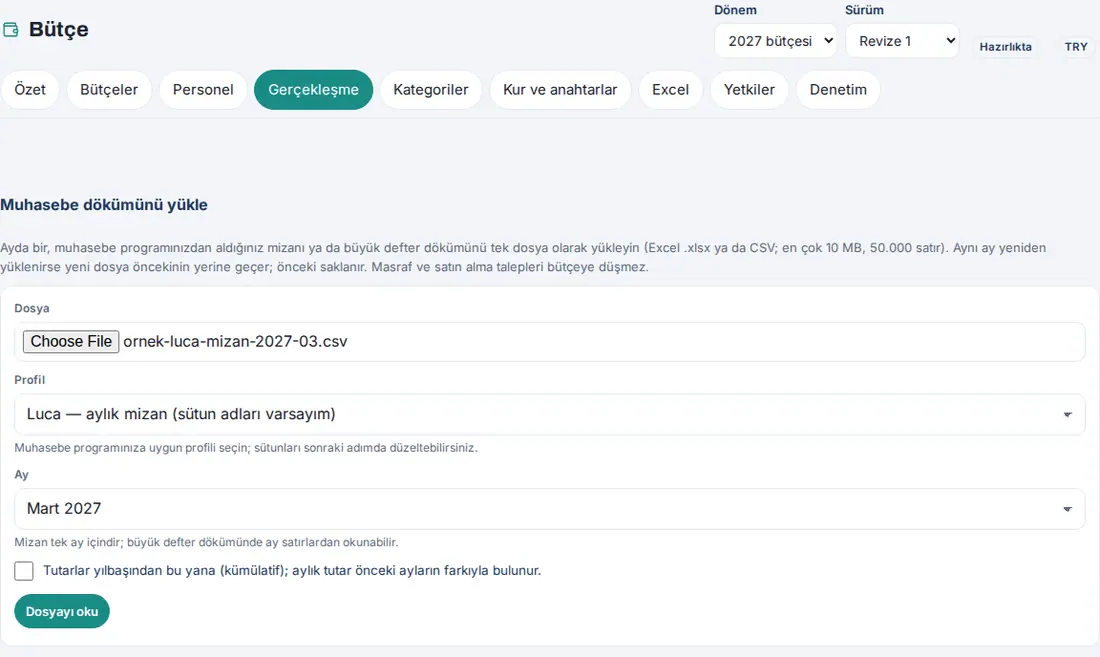
- On the Upload sub-tab, under the Upload the accounting export heading, select your file in the File field. Only Excel (.xlsx) and CSV are accepted; the file can have a maximum of 10 MB and 50,000 rows.
- From the Profile list, select the profile for your accounting software (e.g. Luca — monthly trial balance). The profiles that you saved yourself are at the top of the list; archived profiles are not in the list (1.6.2).
- From the Month list, select the month of the file (e.g. January 2027). A trial balance is for one month. If the file has more than one month or the month will be read from the date in the lines, select From the period / date column in the file.
- If the amounts are totals since the start of the year, tick the Amounts are year-to-date (cumulative); the monthly amount is the difference from the previous months. box (see Cumulative file and multi-month file).
- Click Read file. When the file is read, Column mapping opens below.
Important:
- In Excel, only the first visible sheet is read; put the listing on the first sheet. Formulas are not calculated; the last value that Excel saved is read.
- In a CSV, the separator (; , tab |) and the character set (UTF-8, UTF-16, Windows-1254) are recognized automatically.
- The file is not stored in Prozence; only the fingerprint of the file (SHA-256) and the lines that were read are kept.
Column mapping
Who: Accounting officer · Budget manager · Where: Upload → Read file → Column mapping
What it does: Sets which standard field each column in your file corresponds to.
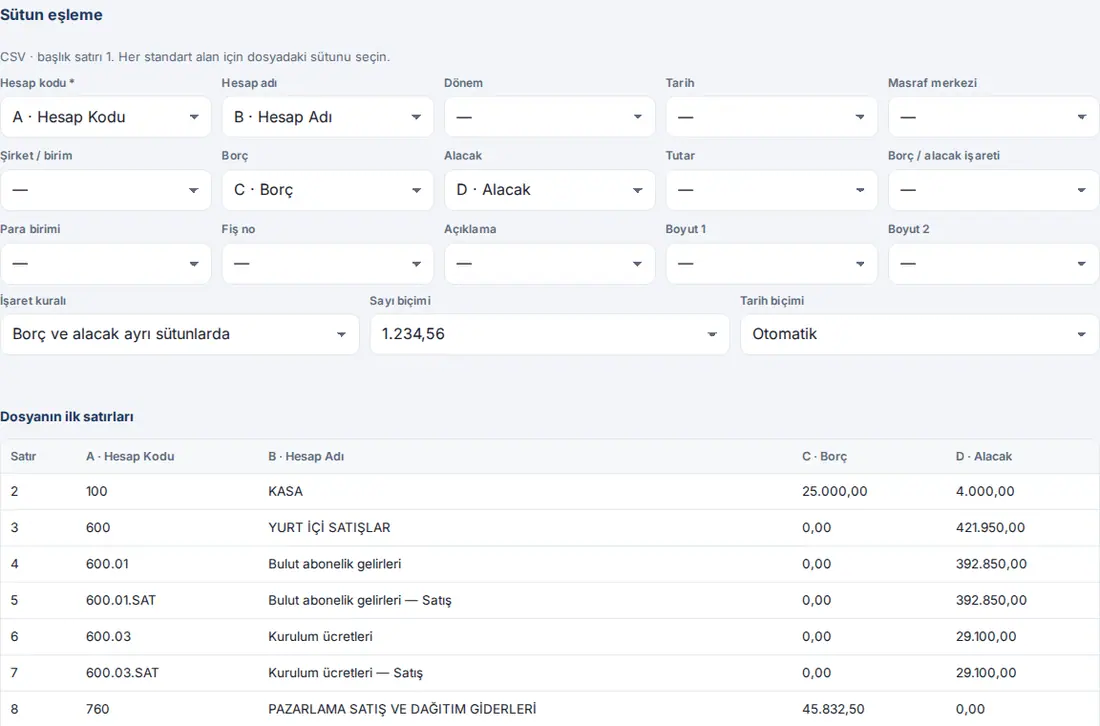
- At the top of the screen, the file type and the header row show (e.g. "CSV · header row 1. Choose the file column for each standard field."). Prozence looks for the header row in the first 30 rows of the file and recognizes the headers in many languages (e.g. Borç / Debit / Soll).
- In the list of each standard field, the column in the file comes selected (e.g. Account code * → A · Hesap Kodu). Correct the wrong or empty ones; keep — for a field that you will not use. A field with an asterisk is mandatory.
- Check the three lists below it:
- Sign rule: Debit and credit in separate columns · Single amount: debit positive, credit negative · Single amount: natural sign (income and expense both positive) · Single amount + D/C indicator column.
- Number format: Automatic, 1.234,56, 1,234.56 or 1'234.56.
- Date format: Automatic, Day.Month.Year, Month/Day/Year or Year-Month-Day.
- In the First lines of the file table, you see the first 20 rows with the column letters; check the mapping against it.
- Click Preview. To select another file, click Another file.
If a mandatory field is missing, Preview is not available and the reason shows below it:
- "The account code column was not selected."
- "Neither debit and credit columns nor a single amount column was selected."
- "The debit / credit indicator column was not selected."
- "No period or date column was selected (required when no month is chosen for the file)."
How is the sign of the amounts read? If debit and credit are separate, net = debit − credit on an expense item and net = credit − debit on a revenue item. In a single amount column, Single amount: debit positive, credit negative suits most ERP and trial balance listings; Single amount: natural sign (income and expense both positive) is for files where both revenue and expenses are written as positive.
Tip: While the Number format is Automatic, amounts that can be read in two ways, such as "1.234", count as a warning in the preview ("Ambiguous amounts (e.g. 1.234): …; check the number format."). If you select the format of your file, the warning goes away.
Reading the preview and the reconciliation
Who: Accounting officer · Budget manager · Where: Column mapping → Preview
What it does: Shows where each line of the file goes, before you apply it. The preview is not included in the reports yet.
- After Preview, a card shows for each month (e.g. "March 2027 · 10 rows · Mapped: 8 · Unmapped: 1 · Ignored: 1"). The card shows the net amount of the mapped lines separately as revenue and expenses: Mapped revenue (credit − debit on revenue items) and Mapped expenses (debit − credit on expense items). Below it, "The allocation matches the mapped rows exactly (revenue and expense nets)." must show; if it does not show ("The allocation total does not match."), do not apply. If the month has an active upload, it also shows "Will replace this month’s active upload (the previous one is kept).".
- Read the Reconciliation table. The first row is Lines in the file (source); the total of the rows below it (count, debit and credit separately) is always equal to the first row:
- Mapped: lines that are linked to an item and a department (or to shared costs).
- Ignored: lines that are deliberately left out with a rule (e.g. the 771 allocation account).
- Unmapped: lines for which no rule or department was found (see Mapping unmapped lines).
- Personnel — entered by HR (1.6.1): if HR enters the personnel actuals, the lines that are mapped to a personnel item with an account rule or manually in the start month and the months after it (e.g. 770.10 Brüt ücretler, gross wages → Brüt ücret). This amount does not count as an accounting actual and is not included in the allocation and the reports; HR uploads the personnel actuals. The month card also shows the "… personnel — entered by HR" count. In the months before the start month, these lines are mapped and applied as in 1.6.0.
- Skipped · …: lines that are not processed at all, and the reason: Total / carry-forward line, Subtotal account, Account outside the classes, Other company / entity, Outside the period year, Account code empty.
- The Allocation · March 2027 table has the distribution of the mapped amounts by item, department and source. In the Source column:
- Direct: the line was mapped directly to a department.
- Allocated shared costs: a shared cost (e.g. rent) was divided between the departments with an allocation key. No cents are lost in the division; the remainders are added to the largest share (e.g. 180.000,00 TL rent: 36.000,00 + 24.000,12 + 23.999,94 …).
- Unallocated: the amount that stays at the company level because the denominator of the key is zero.
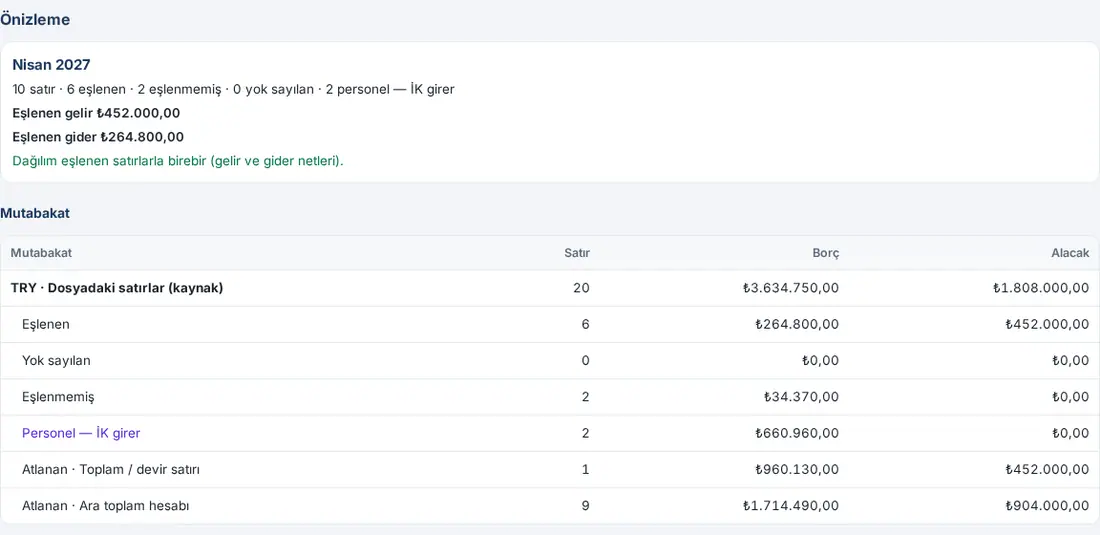
- To look at the lines one by one or to map a line without writing a rule, click Lines… (1.6.1; see Mapping lines one by one).
- If the result is correct, click Apply (see Applying the upload). If you change your mind, click Cancel; the preview is deleted.
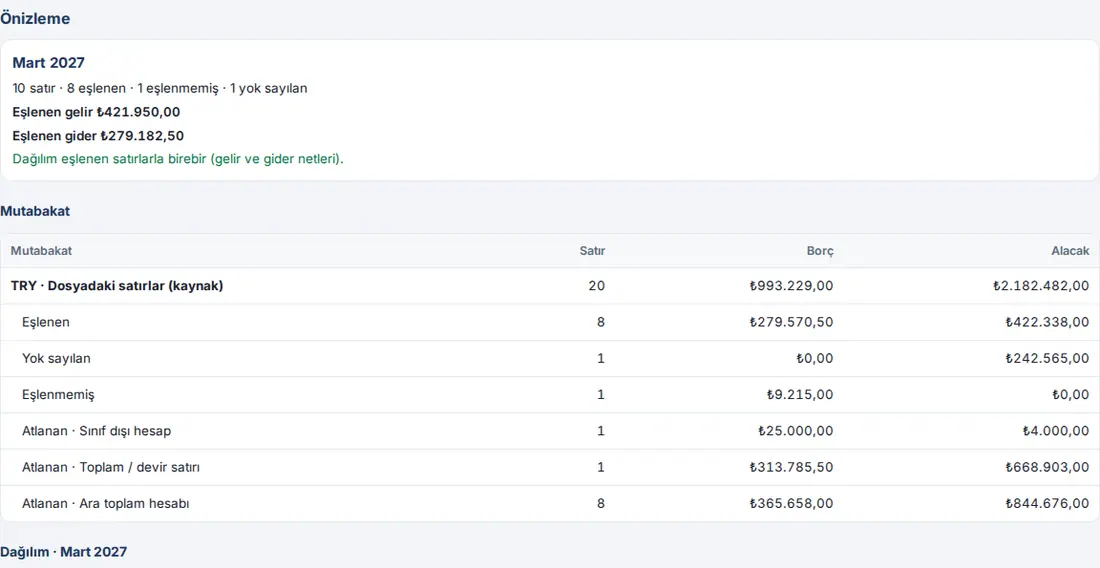
Example reading: The file above has 20 lines: 8 mapped + 1 ignored + 1 outside the classes (100 Kasa, cash) + 1 total line (Genel Toplam, grand total) + 8 subtotal accounts = 20. In the debit column too: 279.570,50 + 0,00 + 9.215,00 + 25.000,00 + 313.785,50 + 365.658,00 = 993.229,00 TL. This equality is checked in each upload and separately for each currency.
Important:
- A preview is kept for 24 hours; then it is deleted and cannot be applied ("The preview expired (24 hours); upload the file again.").
- A maximum of 30 previews per hour can be made per person.
- If the same file was uploaded before in this period, the warning "This file was already uploaded in this period." appears.
- The personnel items are listed in the Personnel items group in the account rule, in the Map… window and in the Lines window (1.6.1). Link the personnel accounts in the trial balance (e.g. 770.10 Brüt ücretler) to a personnel item: in the start month and after it, these lines become Personnel — entered by HR; before it, they are applied as accounting actuals. If HR enters the personnel actuals, a short explanation shows below the field when a personnel item is selected: "Personnel item: HR enters personnel actuals. From the start month on, these lines are not applied from accounting; in the reconciliation they appear separately as "Personnel — entered by HR"." Do not ignore the personnel accounts: an ignored line shows as Ignored in the reconciliation, not in the HR bucket.
Mapping unmapped lines
Who: Accounting officer · Budget manager · Where: Preview → Map unmapped lines (N); History → Map
What it does: Links the accounts for which no rule or department was found. The rules and department codes that you add are also used in the next uploads.
- Below the preview, click Map unmapped lines (N) (e.g. Map unmapped lines (1)). The Unmapped lines table opens: Account code, Account name, Reason, Row, Debit − credit. The reasons are:
- "The account code is not mapped to a line item." — there is no account rule that fits this code.
- "Department not found (cost centre / segment / dimension code not mapped)." — there is a rule, but the department code is not defined.
- "The rule’s line item is inactive or no longer a leaf." — the item of the rule changed.
- "The mapped department no longer exists." — the department was deleted or its name changed.
- "The rule takes the department from the line item, but the item is not a shared expense, and no cost centre / dimension code matched either. Change the rule’s department source or make the item a shared expense." — Line item’s shared flag is selected in the rule (see Account rules).
- Click Map… at the end of the row. From the What to do list, select one:
-
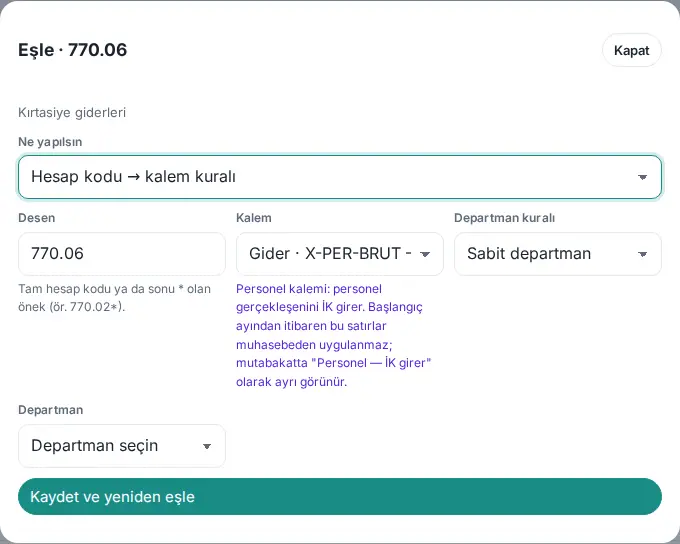
Account code → line item rule: select the Pattern (the account code itself, or a prefix that ends with , e.g. 770.03), the Line item and the Department rule (for a personnel account, select from the Personnel items group at the end of the Line item list; 1.6.1) (see Account rules).
-
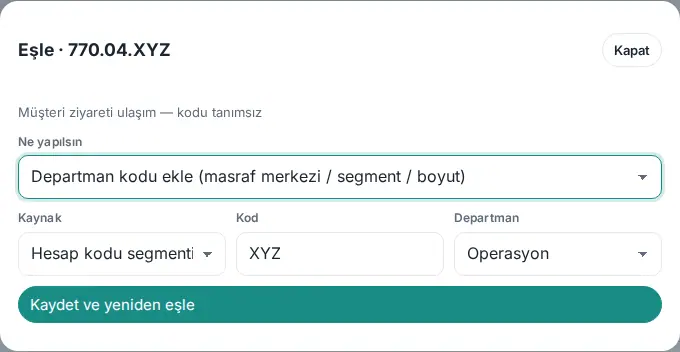
Add department code (cost centre / segment / dimension): select the Source (Cost centre, Account code segment, Dimension 1, Dimension 2), the Code (e.g. XYZ) and the Department. If you select Shared costs, the amount is divided with the allocation key.
-
Ignore this account: the account is not included in the budget (e.g. accounts that have no counterpart in the budget).
-
- If the same account also stayed unmapped in other months that were applied before, the window shows the line "Other active months where this account is still unmapped: January 2027, February 2027" and the ticked Remap them too box. If the box stays ticked, the rule or the department code that you save is also applied to the active uploads of those months, and their allocations are rewritten. If you want to map only this upload, clear the box.
- Click Save and remap. The table and the preview numbers are refreshed; when no unmapped line is left, it shows "No unmapped lines left.".

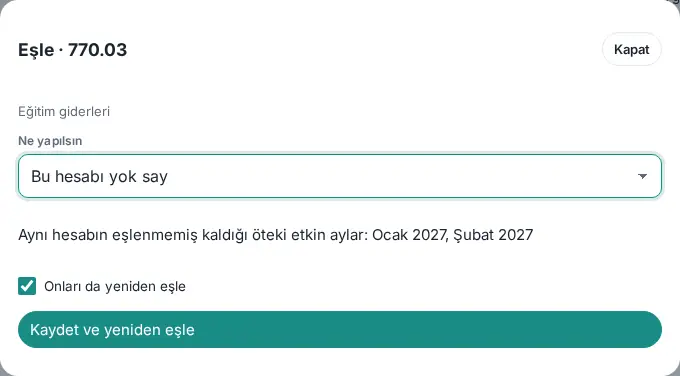
Tip: You do not have to finish the mapping before you apply. The unmapped lines of an applied month are mapped later with Map on the row of that month in History; because the month is active, the allocation and the reports are updated automatically.
Important: Remap them too applies only to the Active uploads of the same period; uploads that were replaced or undone do not change. Applying to the other months is written to the audit log as "other active months (with user confirmation)".
1.6.1: In the Unmapped lines table, each account also has a Lines… button next to it; it opens the lines of that account in the Mapping lines one by one window.
Mapping lines one by one
Who: Accounting officer · Budget manager · Where: History → Lines; preview → Lines…; Unmapped lines → Lines…
What it does: Links single lines (e.g. a single entry in the same account) to an item and a department without writing a rule, or ignores them. If you want, it also saves a rule at the same time, for that account or for all accounts that start with the same prefix (1.6.2).
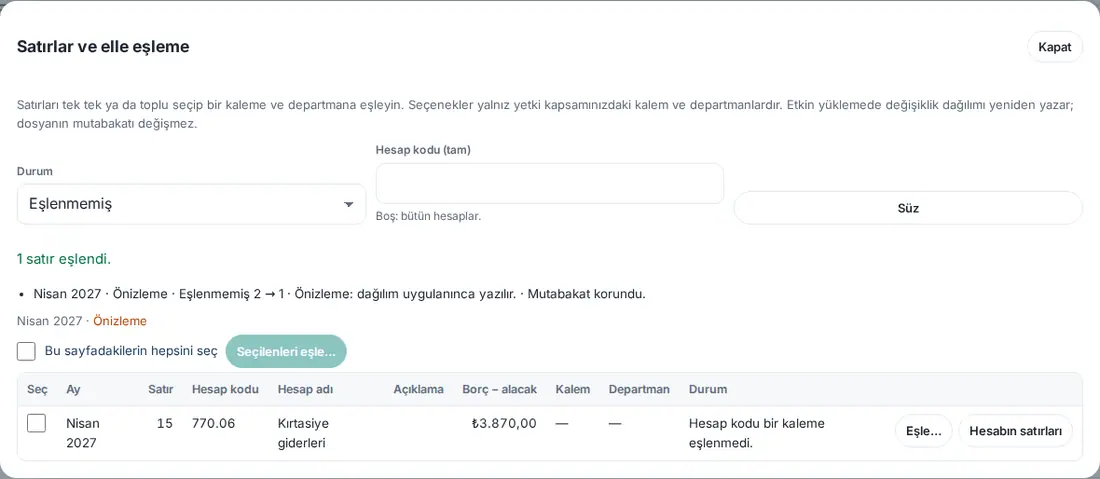
- In History, click Lines on the row of the month (in the preview, Lines…). The Lines and manual mapping window opens. In an upload with unmapped lines, the unmapped lines are listed first; in the other uploads, all lines are listed.
- Filter with Status (Unmapped, Mapped, Ignored, All) and Account code (full), and click Filter. Account’s lines on a line filters all lines of that account. 100 lines are shown per page.
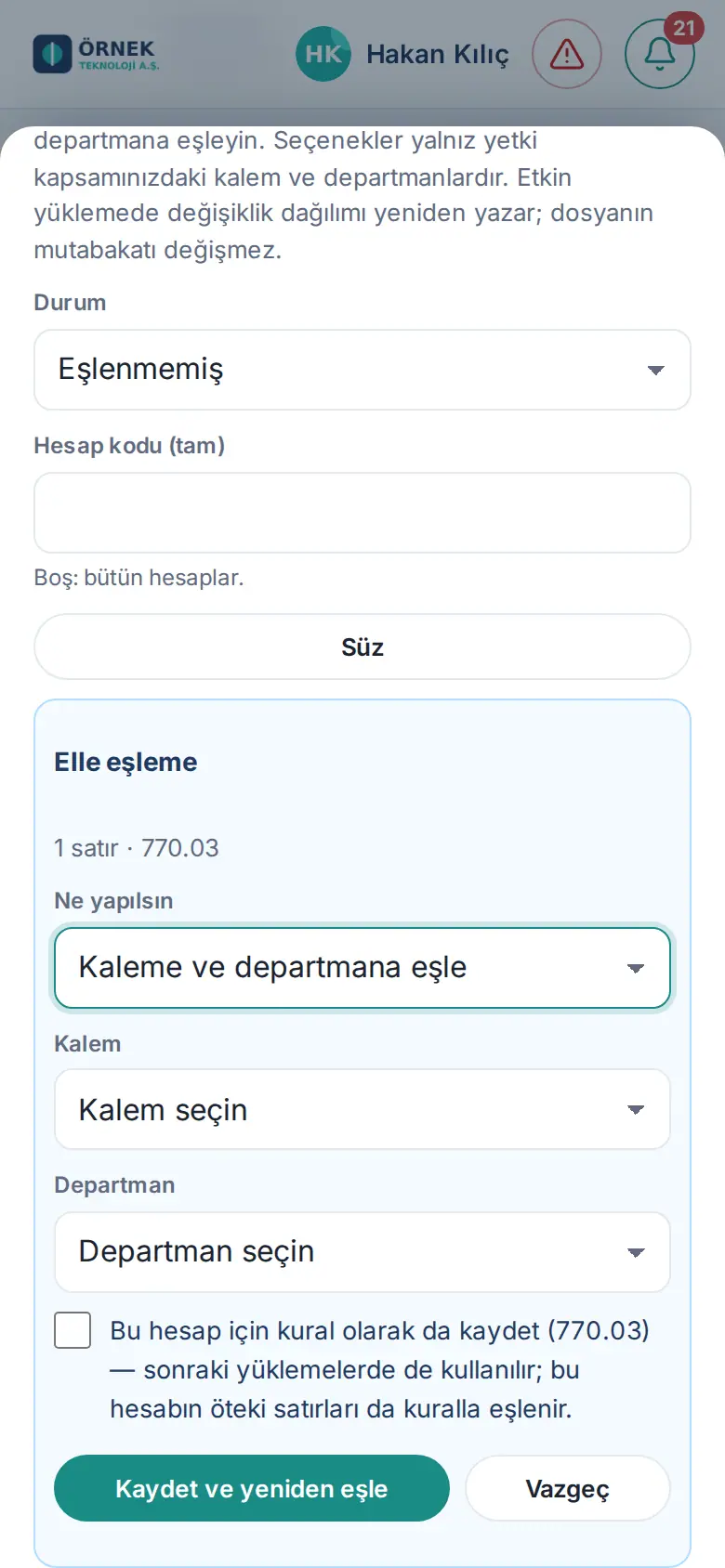
- Tick the lines that you will map and click Map selected…; for a single line, click Map… on the line. Select all on this page selects all lines on the page. For all lines of an account, first filter the account code, then click Map all lines of this account… (N) (independent of the pages, a maximum of 5,000 lines).
- In the Manual mapping section, select from the What to do list:
- Map to line item and department: select the Line item and the Department. The lists show only the items and departments in your permission scope; the personnel items are in the Personnel items group at the end of the list (1.6.1).
- Ignore (not reflected in the budget).
- If the account will always go to the same place from now on, tick the Also save as a rule for this account (…) — also used in later uploads; the account’s other lines are mapped by the rule too. box. The box shows only if you have permission to write rules and the lines that you selected are in a single account code; if you selected more than one account, it shows "To save as a rule, select lines of a single account code.". If the same account is also unmapped in other active months, the line "Other active months where this account is still unmapped: …" and the ticked Remap them too box show.
- When you tick the box, the Rule scope section opens below it (1.6.2):
- This account only (…) (default): the rule is written only for that account code (e.g. 770.07.SAT).
- All accounts starting with this prefix: select it if all accounts with the same beginning (e.g. 770.07.SAT, 770.07.PAZ …) will go to the same item and department. The Prefix box gets the account code without its last part (e.g. 770.07); you can change it. The prefix must be the beginning of the account code that you selected; if not, it shows "The prefix must be the beginning of the selected account code.".
- While the prefix is selected, the effect of saving shows below the box (after "Calculating the effect…"):
- "When the rule is saved, in this upload:" and, for each upload, "May 2027 · 2 unmapped lines will be mapped by this rule"; if there are lines linked to a shorter prefix rule (e.g. 770*), "… lines move to this rule from a shorter prefix rule". If no lines will change, it shows "No lines in this upload start with the prefix and would change rule.".
- "Accounts with a higher-priority rule are not affected: 770.07.BT (770.07.BT)" — accounts that have a full account code rule or a longer prefix rule do not move to this rule.
- If a rule already exists for the same prefix, it shows "A rule already exists for this prefix: 770.07*"; change that rule in Rules.
- If there are other active months with lines that start with the prefix, the line "Other active months with lines starting with the prefix: …" and the ticked Remap them too box show. If the box stays ticked, the rule is also applied to the active uploads of those months.
- Click Save and remap.
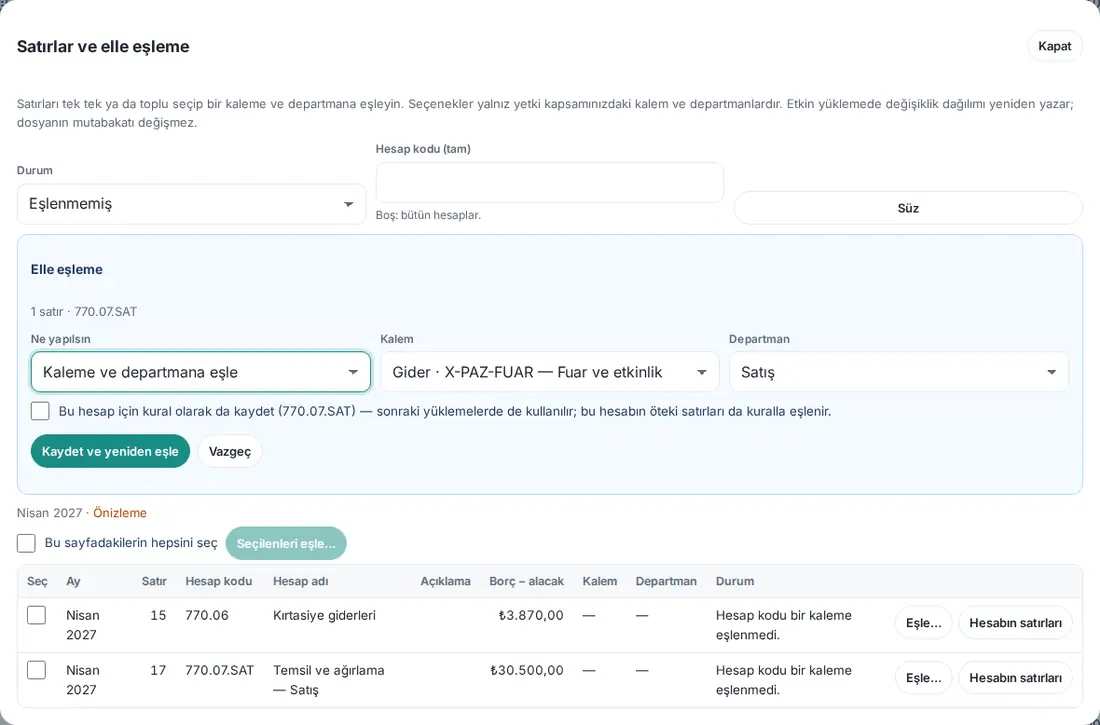
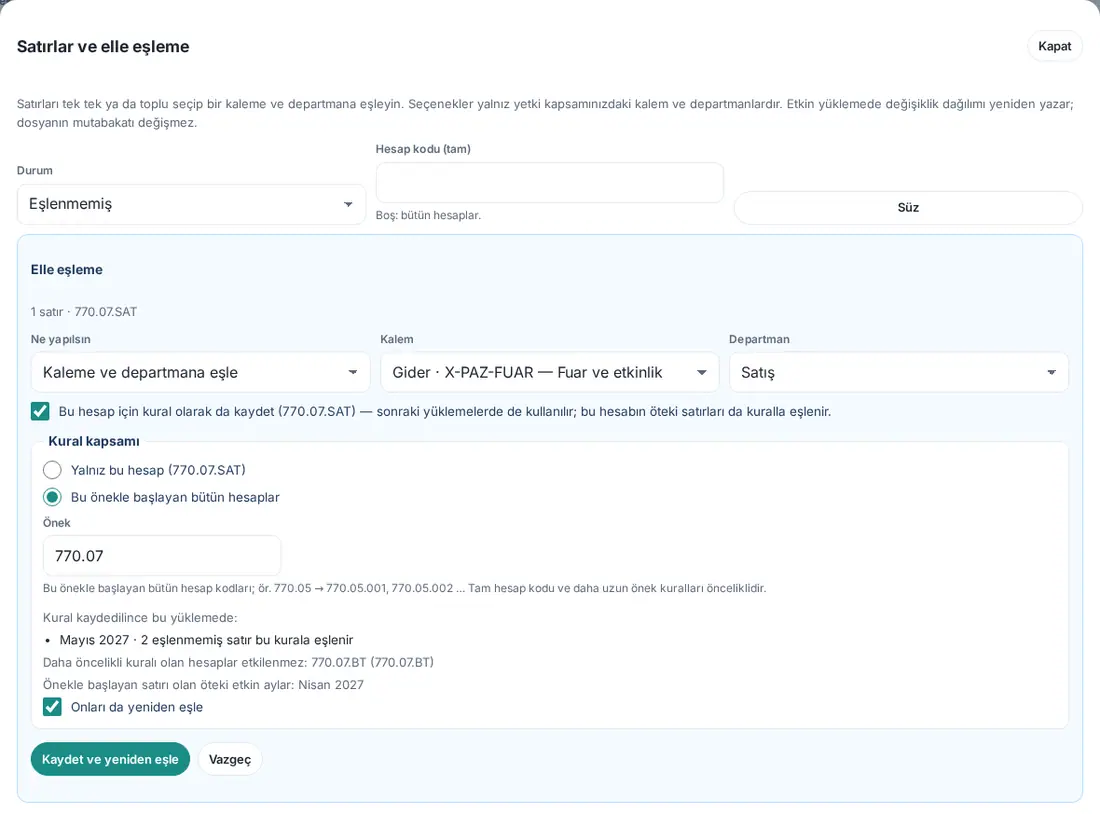
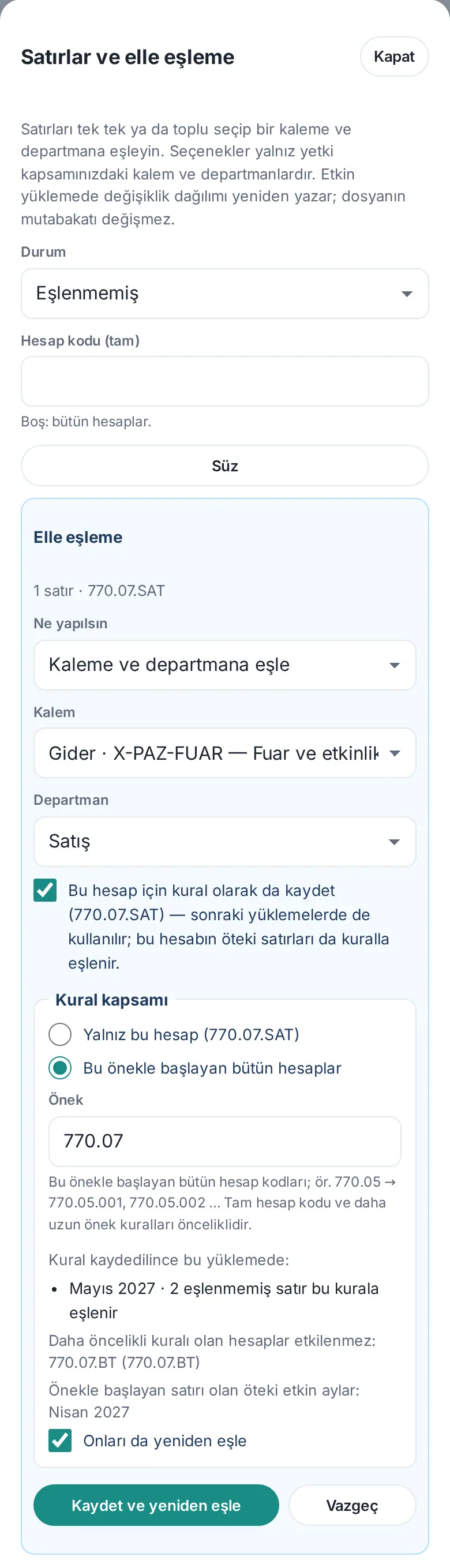
Result: The window shows "1 line mapped." and a summary line for each upload: month · status · "Unmapped 2 → 1" · in an active month "Allocation rewritten (matches the mapped lines exactly)." or in a preview "Preview: the allocation is written when applied." · "Reconciliation preserved.". If you saved a rule, it also shows "Rule #… saved." and the pattern of the rule (e.g. 770.07.SAT, or 770.07* for a prefix rule; 1.6.2). If you made changes, the screen behind it (History, preview or Unmapped lines) is refreshed when you close the window with Close.
Tip: A manually mapped line does not change when a rule is added and remapping is done; the Status column shows "Mapped manually". A line mapped with a rule shows "Mapped by rule". For a rule that takes the department from the cost center, segment or dimension code, use Map… in the Unmapped lines table; the rule in this window has a fixed department (or ignores the account).
Important:
- A change that you make in an active month updates the allocation of that month and the reports immediately; the reconciliation of the file (the totals in the file) does not change. Each mapping is written to the audit log. Manual mapping does not require permission to write rules; the permission to upload actuals and the scope are enough.
- Only the budget manager and an accounting officer whose scope covers all departments and items can save a prefix rule (1.6.2). For an accounting officer whose scope is limited to specific departments or item branches, All accounts starting with this prefix and Prefix are not available and it shows "Only the budget manager and an accounting officer whose scope covers all departments and line items can save a prefix rule: a prefix may also catch accounts outside your permission scope. You can save a rule for this account."; they can save a rule with This account only.
- The order in which rules apply does not change: the full account code, then the longest prefix (see Account rules). If the account that you selected is already linked to a full code rule or a longer prefix rule, the prefix rule is not saved: "Account 770.07.BT matches a higher-priority rule (770.07.BT); the prefix rule would not apply to these lines. Change that rule in the Rules section or save the rule for this account only."
- The prefix is the beginning of the text: a rule with the prefix "770.05" also covers codes that start with "770.050…". To cover only the sub-accounts, end the prefix with the separator (e.g. "770.05.").
Applying the upload
Who: Accounting officer · Budget manager (only the person who uploaded the file) · Where: Preview → Apply
What it does: Makes the preview the active actuals of the month; the amounts are included in Reports → Budget.
- Click Apply below the preview.
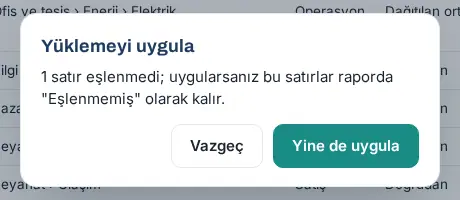
- If there are unmapped lines left, the Apply upload window opens: "Unmapped lines: 1. If you apply, they stay in the report as “Unmapped”." You can continue by clicking Apply anyway, or click Cancel and map them first.
- If the same file was uploaded before in this period, it asks "This file was already uploaded in this period. Confirm to apply anyway.".
- When it is applied, the History sub-tab opens; the upload of the month shows as Active.
Important:
- Only the person who uploaded the preview can apply it ("Only the person who uploaded can apply the preview.").
- You cannot upload in a closed or archived period ("This period is closed; actuals cannot be uploaded.").
- Unmapped lines are not included in any item or department; they are not added to the actual totals. In Reports → Budget, they show in a separate Unmapped (info) row (see Seeing the unmapped amount in the report). When you map them later, they are included in their items and departments.
Seeing the unmapped amount in the report
Who: Accounting officer · Budget manager · Where: Reports → Budget → Results table or Variance
What it does: You see in the report the amount in the active uploads that stays unmapped to an item or a department; in this way, you notice that the actuals are incomplete.
- Open Reports → Budget → Results table (see 37. Budget preparation, approval and reports).
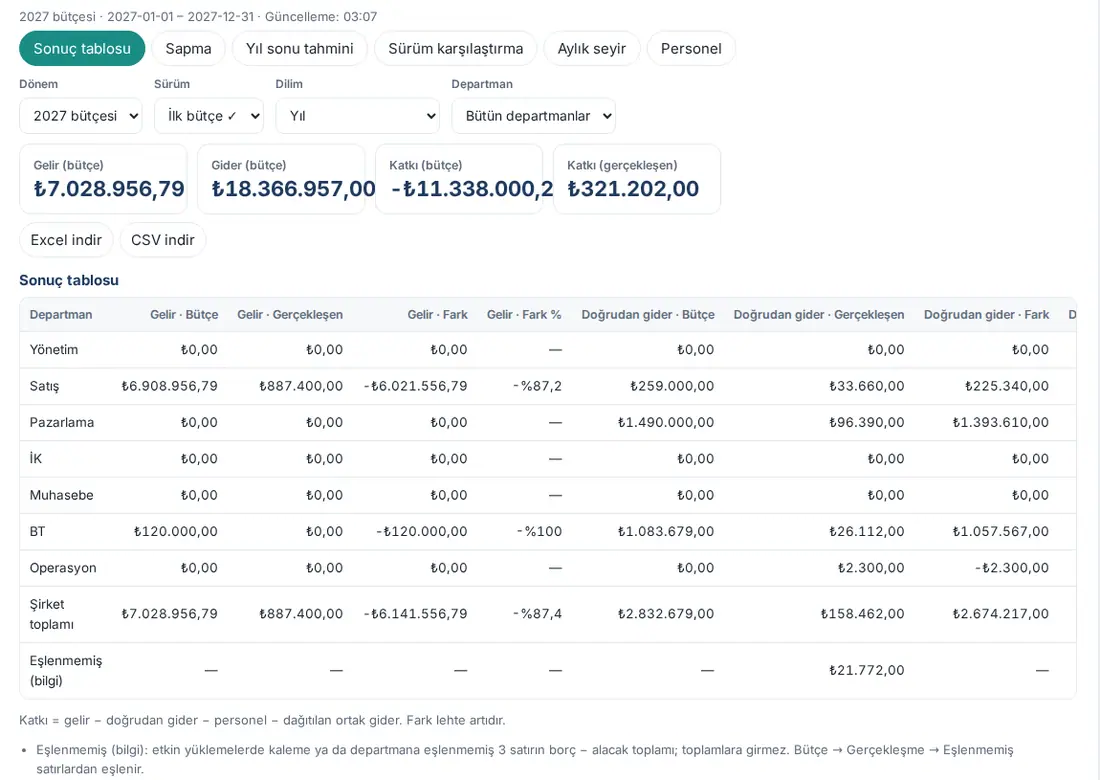
- At the bottom of the table, after Company total, the Unmapped (info) row shows. The amount is in the Direct expenses · Actual column (the debit − credit total of the unmapped lines); the other cells show "—".
- The note below the table shows how many lines there are: "Unmapped (info): debit − credit total of 3 rows in active uploads not mapped to a line item or department; not included in totals. Map them in Budget → Actuals → History → Map."
- To map the lines, use the Map button of the related month in Budget → Actuals → History (see Mapping unmapped lines). When they are mapped, the row is removed from the report and the amount is included in its item and department.
Important:
- The Unmapped (info) row is not added to the company total and the contribution; it is for information only. The active uploads in the selected range (month, quarter, year) are counted.
- Only people who see all departments and can upload actuals (budget manager, accounting officer) see the row. It does not show while a Department filter is selected, or for the department budget owner and the viewer.
Uploading the same month again
Who: Accounting officer · Budget manager · Where: Actuals → Upload
What it does: If a correction was made in accounting, you upload the listing of the month again; the new file replaces the old one.
- Upload the corrected listing of the month as usual, select the same month and preview it. The month card shows "Will replace this month’s active upload (the previous one is kept).".
- Click Apply. The new upload becomes Active, and the old one becomes Replaced. The old upload is not deleted; you can open it in History with Details.
A month always has one active upload. The reports use only the active uploads.
Cumulative file and multi-month file
Who: Accounting officer · Budget manager · Where: Upload → Month and the cumulative box
What it does: Divides listings that give totals since the start of the year and listings that contain more than one month into the correct months.
- Cumulative file: If the amounts are since the start of the year, tick the cumulative box. Prozence finds the amount of the month by subtracting the active uploads of the previous months from the value in the file. For this reason, the months must be uploaded in order; if a previous month is missing, the message "In a cumulative file months must be uploaded in order: February 2027 is missing." appears. If the upload of a previous month changes after the preview, applying stops: "Earlier months changed after the preview; preview the file again."
- Multi-month file: In the Month list, select From the period / date column in the file, and in the column mapping, select the Period or Date column. The period can be "2027-03", "03.2027", "2027/03", a month name and year, or a date. In the preview, a separate card shows for each month; when you apply, each month replaces the active upload of its own month. Lines outside the period year are skipped as "Outside the period year".
Important: If you selected the month on the screen (trial balance), the dates in the file must match that month; a line that does not match gives an error: "The dates in the file do not match the selected month."
Lines in a foreign currency
Who: Accounting officer · Budget manager · Where: Column mapping → Currency; Budget → Rates and keys
What it does: Converts the lines in the file that are in a currency other than the currency of the period (e.g. TRY) with the planning rate.
- If the file has a currency column, select that column for Currency in the column mapping. If there is no column, all lines count as being in the currency of the period.
- For a different currency, the planning rate must be entered (Rates and keys → Planning rates; if there is a rate specific to the month, it is used; if not, the whole-year rate is used; see 38. Budget management: setup, permissions and personnel cost).
- If there is no rate, the preview stops: "No 2027 planning rate for USD (…). Enter the planning rate and preview again."
The reconciliation is shown with a separate row for each currency, with the amounts in the file. No exchange rate difference valuation is made.
Account rules
Who: Accounting officer · Budget manager (the viewer reads only) · Where: Actuals → Rules → Account rules
What it does: Links accounting account codes to Prozence budget items. An item can be fed from more than one account code (many-to-one).
- On the Rules sub-tab, click Add rule.
- Write the Pattern: the full account code (e.g. 770.01) or a prefix that ends with * (e.g. 770.02*, all sub-accounts that start with 770.02). You can also save a prefix rule from the lines of an account; its effect shows before you save (1.6.2; see Mapping lines one by one).
- From the Line item list, select the budget item (e.g. "Expenses · X-BT-ABN — Yazılım abonelikleri", software subscriptions). The list has only active leaf items; the personnel items are in the Personnel items group at the end of the list (updated in 1.6.1; see Reading the preview and the reconciliation). Shared cost items have "(shared)" at the end.
- Select the Department rule:
- Fixed department: each line goes to the Department that you select (or to Shared costs).
- Cost centre column: the cost center code in the file is converted to a department with the department codes.
- Account code segment: the part of the account code at the position set in Segment (Separator ., - or /) is the department code (e.g. in 770.04.SAT, the 3rd part is SAT).
- Dimension column: the code in the Dimension 1 or Dimension 2 column is converted to a department code.
- Shared cost (allocation): the amount is divided between the departments with the allocation key. You can select it only on shared cost items ("This line item is not a shared-cost item; it cannot be allocated.").
- Line item’s shared flag: if the item is a shared cost item, the amount is distributed. If the item is not shared, the department is found, in this order, from the department codes in the cost center, Dimension 1 and Dimension 2 columns; if none of them matches, the line stays unmapped with the reason "The rule takes the department from the line item, but the item is not a shared expense, …".
- If necessary, write the Priority and a Note, and click Save.
- To leave accounts out completely, tick the Ignore these accounts (e.g. allocation, closing accounts) box.
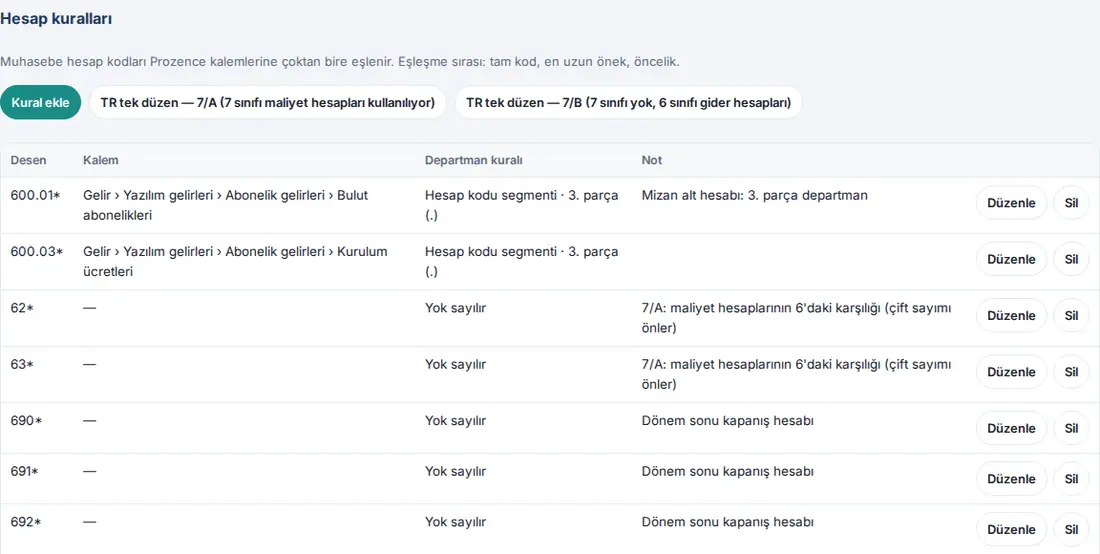
Which rule applies? As the explanation on the screen says: "Match order: exact code, longest prefix, priority." First, a pattern that is exactly the same as the account code is selected; if there is none, the longest prefix that fits the code (770.02.1* instead of 770.02*); if they are equal, the one with the higher priority value.
Important:
- A second rule cannot be added for the same pattern ("A rule already exists for this pattern."); change the existing one with Edit.
- Deleting or changing a rule does not change the applied uploads automatically ("Delete the … rule? Active uploads do not change by themselves."). To map an active month again with the new rules, upload the month again or use History → Map.
- Changes to rules, department codes and profiles are written to the budget audit log (see 38. Budget management: setup, permissions and personnel cost).
Department codes
Who: Accounting officer · Budget manager · Where: Actuals → Rules → Department codes
What it does: Maps the cost center, account code segment or dimension value in accounting to a Prozence department.
- On the Rules sub-tab, scroll down to the Department codes heading.
- Select the Source (Cost centre, Account code segment, Dimension 1, Dimension 2), the Code (e.g. SAT; a maximum of 60 characters) and the Department. If Shared costs is selected, the amount with that code is divided with the allocation key.
- Click Add. To remove a code, click Delete on the row.
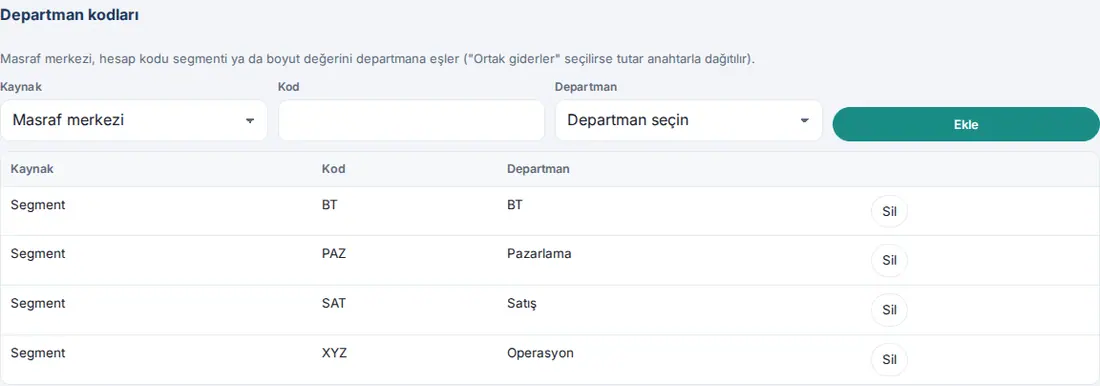
Tip: Codes are not case-sensitive. If you save again for the same source and code, the new department replaces the old one.
Ready-made rule sets for the TR uniform chart of accounts
Who: Accounting officer · Budget manager · Where: Actuals → Rules
What it does: Adds at once the "ignore" rules that prevent the same expense from being counted twice in the Turkish uniform chart of accounts (tek düzen hesap planı).
- On the Rules sub-tab, click the set that your company uses:
- TR uniform chart — 7/A (class 7 cost accounts in use): the 711, 721, 731, 741, 751, 761, 771, 781 allocation accounts, the 62 and 63 accounts and the 690, 691, 692 period-end closing accounts are ignored.
- TR uniform chart — 7/B (no class 7; class 6 expense accounts): only the 690, 691, 692 closing accounts are ignored.
- In the window that opens, read the patterns that will be added and their notes: "The accounts below will be ignored (prevents double counting). The accounting officer should review and confirm; existing rules do not change."
- Click Confirm and add.
Important: The ready-made sets are a starting suggestion; the accounting officer must check whether they fit the chart of accounts of your company. After you add a set, you can change the rules one by one with Edit or Delete.
Saving a profile
Who: Accounting officer · Budget manager · Where: Column mapping → Save as profile…; Actuals → Profiles
What it does: Saves the column mapping and the reading settings of your file; in the next month, you only need to select the profile.
- After you check and correct the column mapping, click Save as profile….
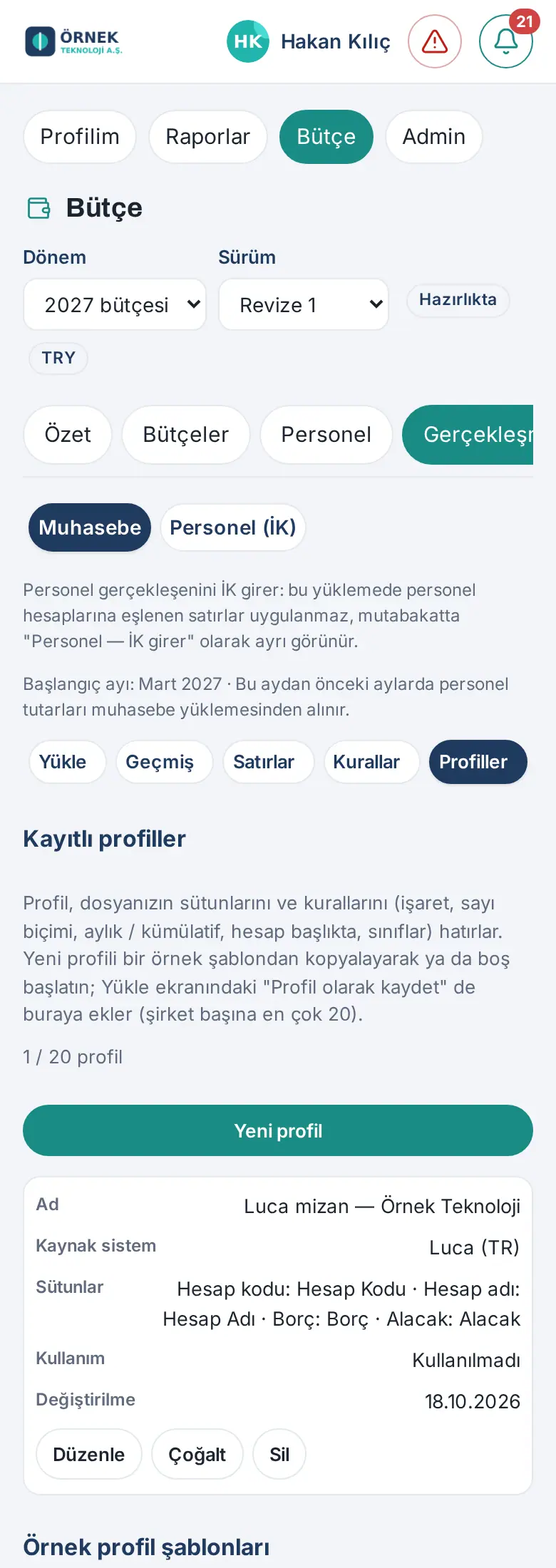
- Write a Profile name (e.g. "Luca mizan — Örnek Teknoloji") and click Save. A maximum of 20 profiles can be saved per company; archived profiles do not count towards this number (1.6.2).
- From then on, the profile shows at the top of the Profile list. The profile remembers the columns, the sign rule, the number and date format, the monthly / cumulative choice and the other settings of the template that you selected (account in the header, classes, lines to skip).
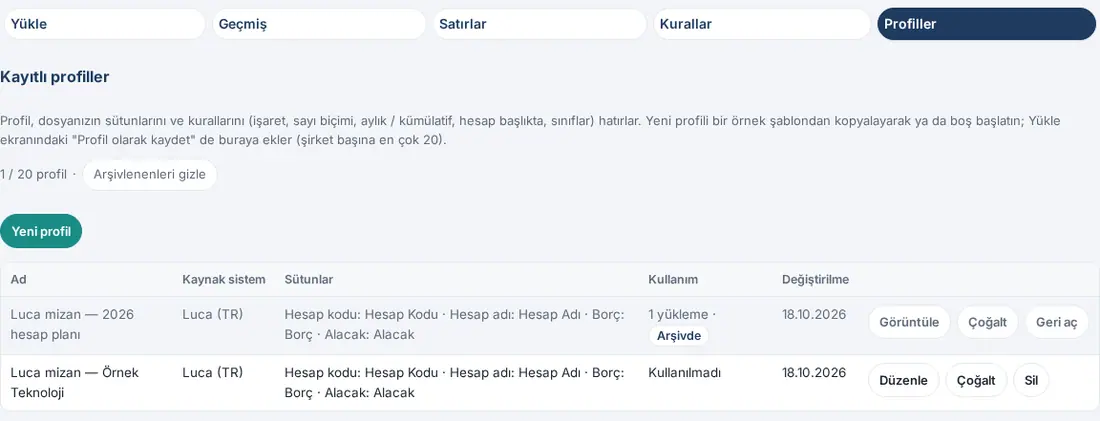
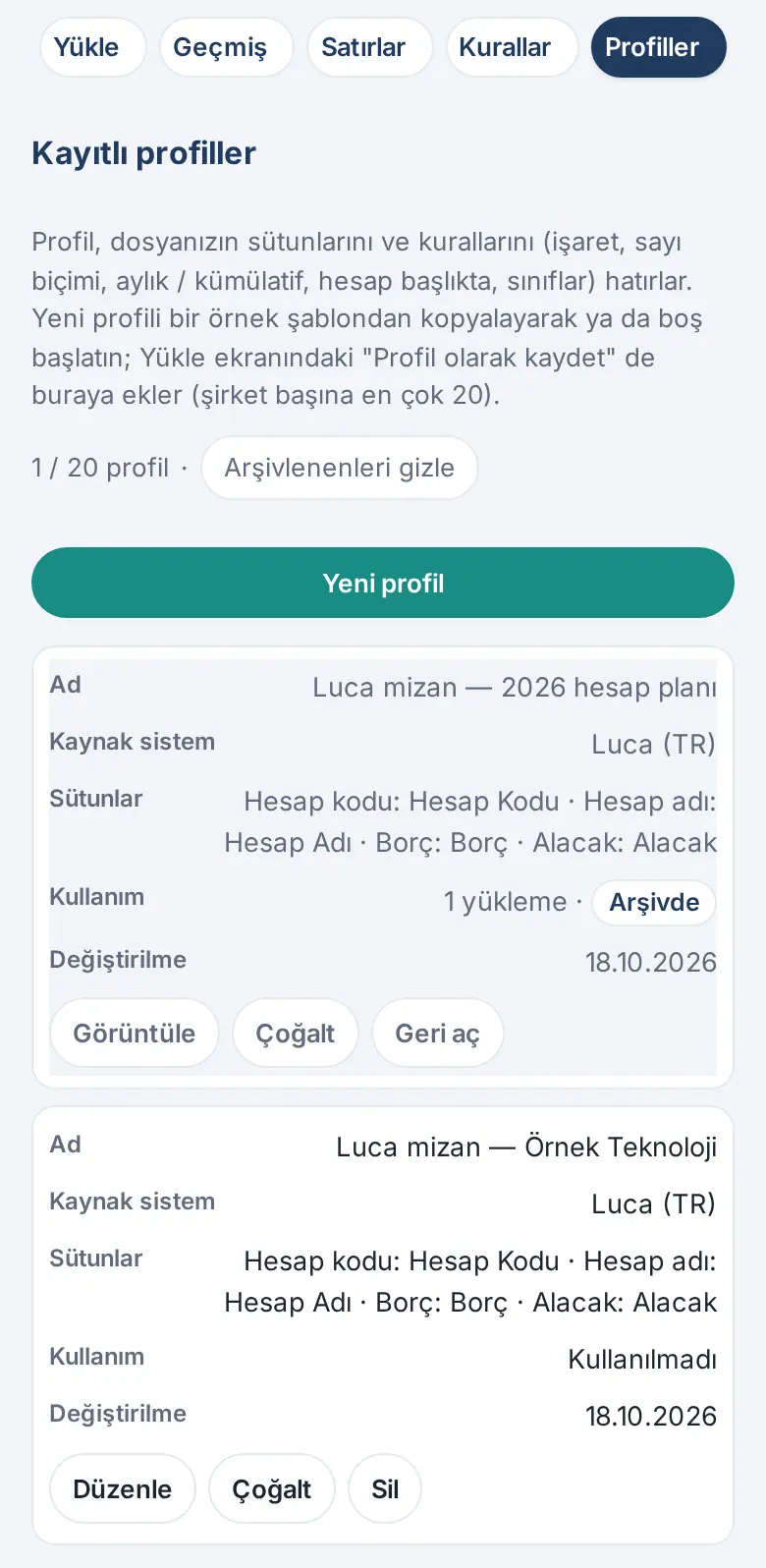
- The Profiles sub-tab lists the saved profiles; there, you can edit, duplicate or delete a profile, or archive it if it was used (updated in 1.6.2; see Editing profiles).
Tip: The "account in the header" setting is for listings such as the Luca subsidiary ledger and QuickBooks: the account code is not on each line but on the header line above the movements of the account (e.g. "770.01.001 Kira giderleri", rent expenses); the movements below it take that code. This setting comes from the profile template; since 1.6.1, you can change it on the profile editing screen.
Editing profiles
Who: Accounting officer · Budget manager (the viewer only views) · Where: Actuals → Profiles
What it does: Prepares how the file of your accounting software is read (columns, sign, number and date format, monthly / cumulative, account classes, lines to skip) without an upload, and tries it with a sample file.
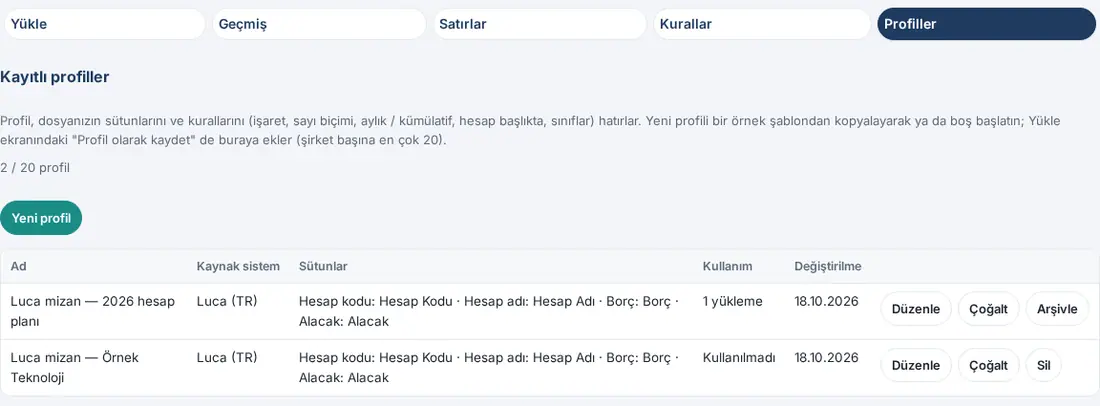
- Open the Profiles sub-tab. The Saved profiles table shows the Name, Source system, Columns, Usage (in how many uploads it was used, or "Not used") and Modified; at the top, there is a counter such as "1 / 20 profiles" (archived profiles are not counted). If there are archived profiles, the Show archived (N) button shows next to the counter (1.6.2). The Sample profile templates are listed below. The templates marked "Column names are assumptions (not verified with a real file)" were not checked with a real file.
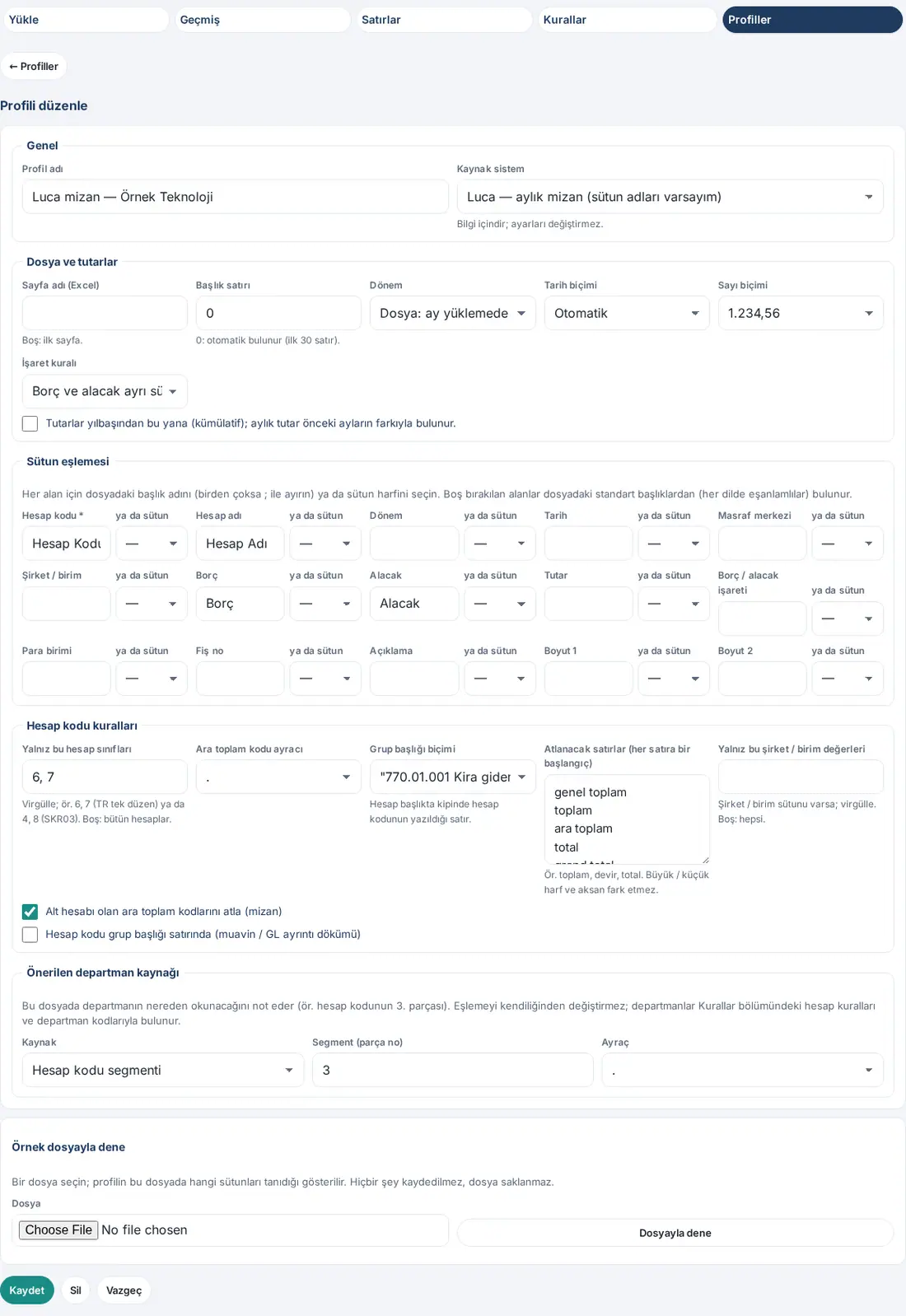
- For a new profile, click Create copy on the row of a template, or New profile (from the General template, with empty columns). To change an existing profile, click Edit; to make a similar one, click Duplicate.
- In the General section, write the Profile name (e.g. "Luca mizan — Örnek Teknoloji"). Source system is for information only; it does not change the settings.
- In the File and amounts section, select the Sheet name (Excel) (empty: the first sheet), the Header row (0: found automatically in the first 30 rows), the Period, the Date format, the Number format and the Sign rule. If the file gives amounts since the start of the year, tick the Amounts are year-to-date (cumulative); the monthly amount is the difference from the previous months. box.
- In the Column mapping section, for each field, write the header name in the file (if there are several names, separate them with ;, e.g. "Hesap Kodu; Kod") or select the column letter from the or column list next to it; when a letter is selected, the header box closes. The fields that you leave empty are found from the standard headers (synonyms in every language). A field with an asterisk is mandatory.
- In the Account code rules section, if necessary, write Only these account classes (e.g. 6, 7), Subtotal code separator, Group header format, Lines to skip (one beginning per line) (e.g. toplam, devir — total, carry-forward) and Only these company / entity values; select the Skip subtotal codes that have sub-accounts (trial balance) and Account code in the group header line (subsidiary ledger / GL detail report) boxes.
- The Suggested department source section notes where the department is read in the file (e.g. Account code segment, Segment (part no.) 3). It does not change the mapping automatically; the departments are found with the account rules and department codes in Rules.
- Click Save. It shows "Profile saved." and the list opens. To cancel, click Cancel or ← Profiller ("← Profiles").
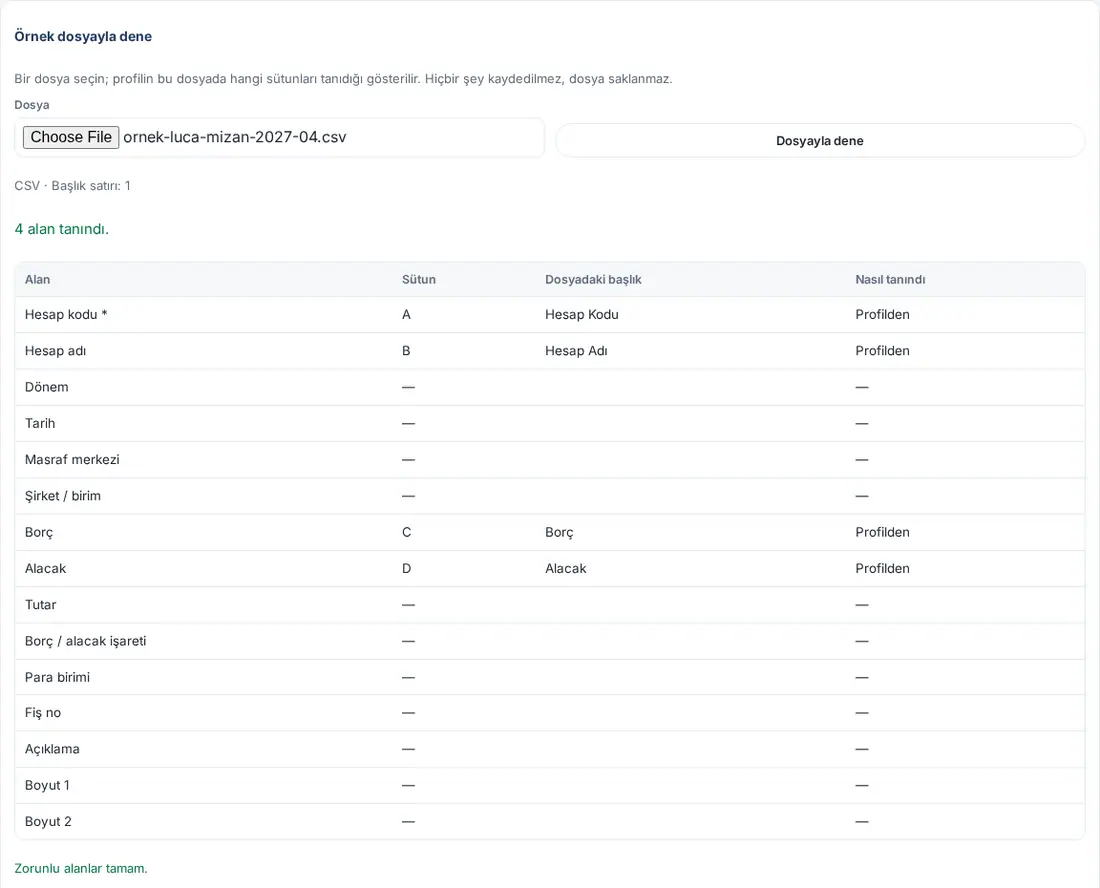
Try with a sample file: In the Try with a sample file section at the bottom of the editing screen, select a File and click Try with file. With the settings in the form (before you save), it shows how many fields were recognized in the file ("4 fields recognised."), the Column, Header in the file and How it was recognised information for each field (From the profile, From a standard header (synonym) or "The profile’s header was not found in the file"), the missing mandatory fields and First lines of the file. Nothing is saved, and the file is not stored.
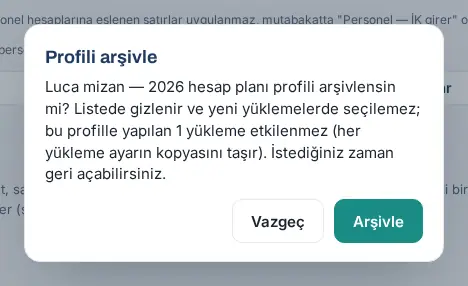
Archiving a used profile (1.6.2): A profile that was used in uploads is not deleted; it is archived. An archived profile is hidden in the list and cannot be selected for new uploads; the uploads made with that profile are not affected, because each upload keeps a copy of the settings.
- In the Saved profiles table, click Archive on the row of the profile. Archive shows only on profiles that were used (such as "1 upload" in the Usage column); a profile that was not used has Delete. At the bottom of the editing screen, there is also Archive instead of Delete.
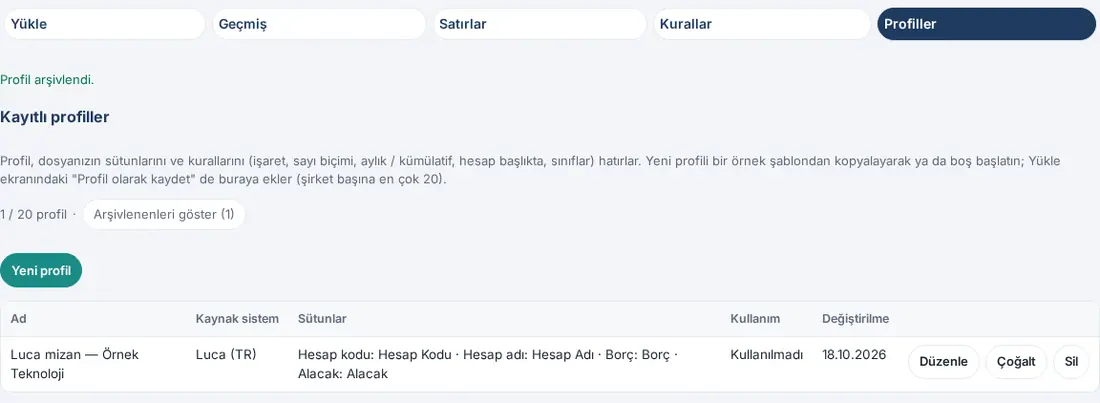
- Confirm the question "Archive the … profile? It is hidden from the list and cannot be selected for new uploads; uploads already made with it (1) are not affected (each upload keeps a copy of the settings). You can restore it at any time." with Archive. It shows "Profile archived."; the counter goes down and Show archived (1) shows next to it.
- To see the archived profiles, click Show archived (N). An archived profile shows on a faded row, with the Archived label in the Usage column. To make the list simple again, click Hide archived.
- On an archived profile, View opens the settings read-only ("This profile is archived: it cannot be selected for new uploads or changed. To change it, click "Restore" in the list."). Duplicate starts a new profile with a copy of the profile. Restore returns the profile to the list: "Profile restored.".
Important:
- A maximum of 20 profiles can be saved per company; archived profiles are not counted, and archiving a profile frees a place (updated in 1.6.2). When the limit is reached, New profile, Create copy, Duplicate and Restore are not available and it shows "Profile limit reached; to add a profile, delete an unused one or archive one (archived profiles do not count towards the limit).". A second profile with the same name is not saved: "A profile with this name already exists; enter another name." If the name is the same as the name of an archived profile: "An archived profile already has this name; enter another name or restore the archived one."
- An invalid setting is not saved; the message of the server shows below the form, and the wrong column box is marked.
- When you edit a profile that was used, it shows "This profile was used in … uploads. Changes only affect later uploads; past uploads keep their own copy of the settings.".
- Delete shows only on a profile that was never used; confirm the question "Delete the … profile?" with Delete (updated in 1.6.2). If the profile was used in an upload in the meantime, it is not deleted: it shows "This profile was used in … uploads and cannot be deleted. To hide it from the list, archive it (you can restore it at any time). Past uploads are not affected." and it is archived with Archive. An archived profile that was never used can be deleted.
- An archived profile does not show in the Profile list of the Upload screen and cannot be changed; first click Restore.
- Profile changes, deletions, archiving and restoring are written to the audit log.
- The viewer sees View instead of Edit; the screen shows "Only the accounting officer and the budget manager can change profile settings.".
Full trial balance, period and consolidated trial balance (1.7.6): A file uploaded with a trial balance profile such as Luca (or a debit / credit export without a date column) now keeps all accounts: balance-sheet classes (1–5), parent accounts and the Debit balance / Credit balance columns (a single "Balance" column with a "1,234.56 B" / "A" suffix is read too). Only the lowest-level accounts in the profile's classes (6 / 7) are still mapped to the budget; in the reconciliation those rows show as "kept in the trial balance", and the new Trial balance reconciliation table shows whether the file's total row and the parent accounts match their sub-accounts. Codes without separators (7 / 77 / 770 / 77001) and the space separator are recognised correctly; an account code in a number cell is written according to its Excel format (770.1 → 770.10), with a warning if the format is ambiguous. In a trial balance profile the Month is required and pre-filled with the last month not yet uploaded; the period in the file header ("01.10.2026 – 31.10.2026", "October 2026", "Year: 2026 / Month: 10") is shown as a suggestion and stored on the upload as a date range; History and the dialogs show the month with its year ("October 2026"); if the Excel file has several sheets a sheet picker appears. If several companies are defined, the Upload screen asks for the Company (source of the file); each company's trial balance stays active separately in the same month. The new Trial balance sub-tab (accounting officer and budget manager) shows the chosen month's trial balance grouped by account code — with several companies each company is a column plus a Consolidated column; accounts matching an "ignore" account rule (e.g. payables to partners) are eliminated from the consolidated column — and exports it with Download Excel / CSV. In reports the Company (actuals) filter shows consolidated (default) or a single company. The Luca file layout was built from web examples and will be verified with a real file.
Luca trial balance verified with a real file (1.8.0): Luca's "Export to Excel" trial balance (header on row 6: HESAP KODU · HESAP ADI · BORÇ · ALACAK · BORÇ BAKİYESİ · ALACAK BAKİYESİ, subtotal accounts, a "GENEL TOPLAM :" row) uploads as is with the Luca — monthly trial balance profile; the period suggestion comes from the Tarih Aralığı (date range) line in the header (not from the "Dönem" line, which holds the fiscal year), and when the range starts at the beginning of the year (e.g. 01/01–30/09) you are advised to tick cumulative — the preview warns if you don't; the currency column is not mapped (amounts are in TRY).
Upload history
Who: Accounting officer · Budget manager · Where: Actuals → History
What it does: Shows which months were uploaded, and the status and the reconciliation of each upload.
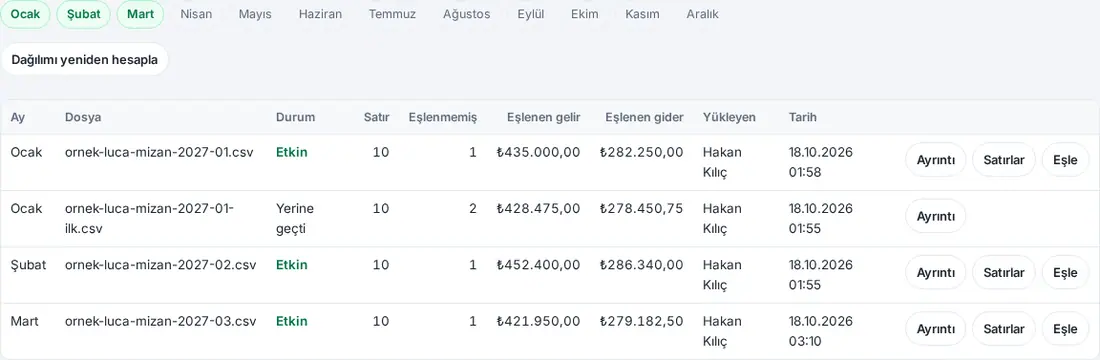
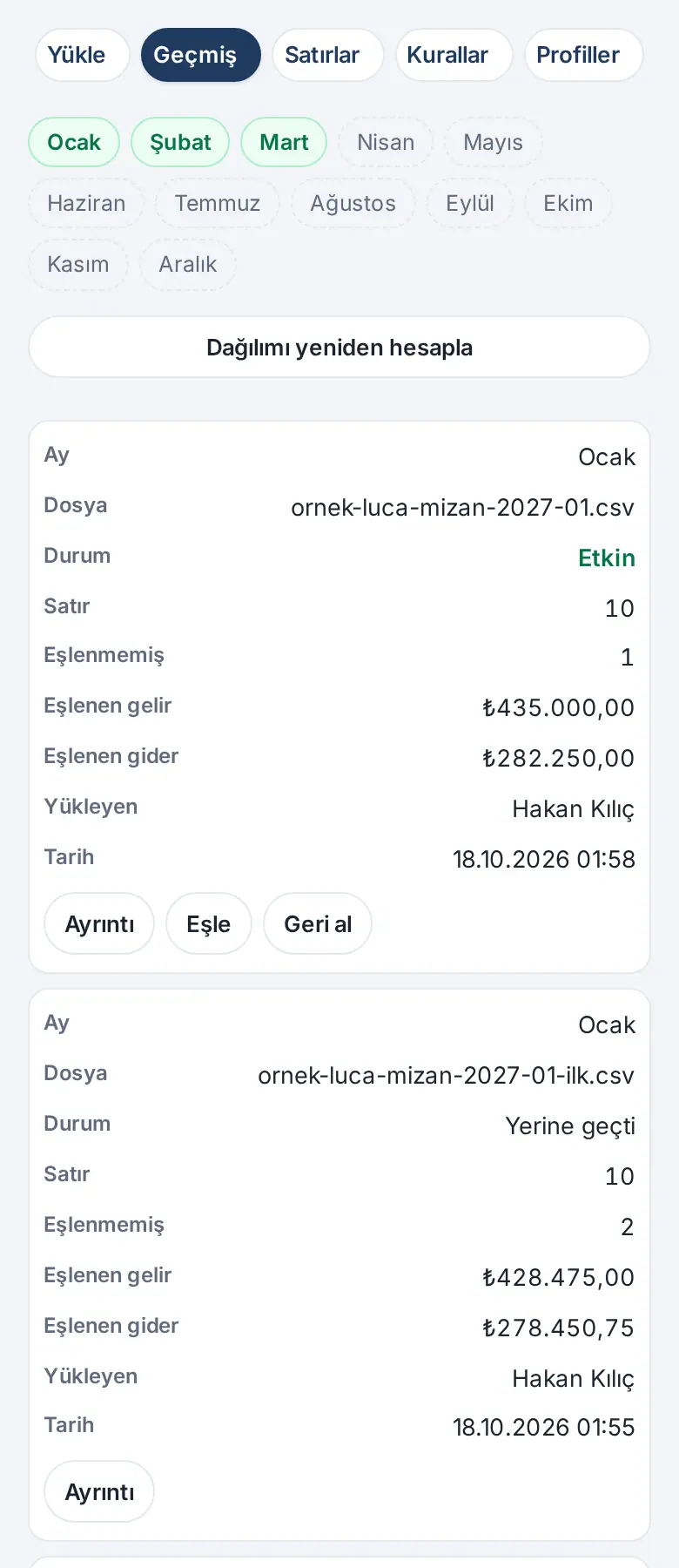
- Open the History sub-tab. In the month strip at the top, uploaded months are green; when you move the pointer over a month that is not uploaded, it shows "No actuals uploaded for March.".
- In the table, each upload is a row: Month, File, Status, Row, Unmapped, Mapped revenue, Mapped expenses, Uploaded by, Date and the buttons at the end of the row. The statuses are: Preview · Active · Replaced · Undone · Cancelled.
- Click Details: the file name and fingerprint, the profile, the undo note if any, and the This month’s lines (mapped / ignored / unmapped), File reconciliation and Allocation tables open.
- An active upload with unmapped lines has the Map button (see Mapping unmapped lines).
- In an active upload and in a preview, the Lines button opens the lines of the upload in the window for mapping them one by one (1.6.1; see Mapping lines one by one).
Monthly upload reminder
Who: Accounting officer · Budget manager · HR officer (1.6.1) · Where: Notifications; setting in Budget → Settings → Actuals upload reminder (day of month)
What it does: If the actuals of the last month were not uploaded, it warns accounting once a month.
- In Settings, the budget manager writes a day between 1 and 28 in the Actuals upload reminder (day of month) field (default 10; see 38. Budget management: setup, permissions and personnel cost).
- From that day of the month, if the budget period has no Active upload for the last month, the accounting officers (if there is no accounting officer, the budget managers) get the "Actuals not uploaded" notification: "Actuals for March 2027 have not been uploaded yet. Budget → Actuals → Upload." If HR enters the personnel actuals (1.6.1), the message is "Actuals for March 2027 (excluding personnel; HR enters personnel actuals) have not been uploaded yet. Budget → Actuals → Upload.". When you tap the notification, Actuals opens.
- The reminder is sent once a month. It is not sent while the module is off, while there is no budget period for that year, or when the period is closed.
- If HR enters the personnel actuals (1.6.1), from the same day, if the personnel actuals of the last month were not uploaded, the HR officers (if there are none, the budget managers) also get the "Personnel actuals not uploaded" notification: "Personnel actuals (payroll summary) for March 2027 have not been uploaded yet. Budget → Actuals → Personnel (HR)." It is not sent for the months before the start month.
Tip: If the phone notification does not reach a person, the notification goes to them by email (see 09. Notifications).
Undoing an upload
Who: Budget manager · Where: Actuals → History → Undo
What it does: Removes an upload that was applied by mistake; if the month has a previous upload, that one becomes active again.
- In History, click Undo on the row of the active upload (on a phone, it is at the bottom of the card).
- The Undo upload window shows "Undo the January upload? The previous upload it replaced becomes active again.". Write a Reason (at least 5 characters) and click Undo.
- The upload becomes Undone. If there is an old upload that it replaced, that one becomes Active again with its old allocation; if not, the month counts as not uploaded.
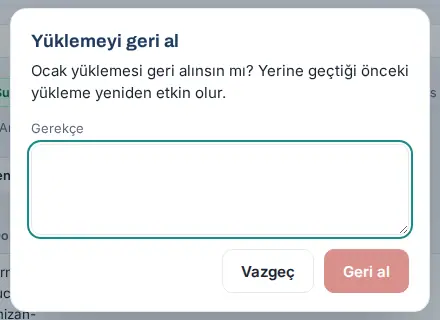
Important: Only an active upload can be undone ("Only an active upload can be undone."). The accounting officer cannot undo; they upload the corrected file again. The undo is written to the audit log with its reason.
Recalculating the allocation
Who: Accounting officer · Budget manager · Where: Actuals → History → Recalculate allocation
What it does: After the allocation keys (headcount, square meters, manual percentage …) change, rewrites the shared cost allocation of the active uploads with the current keys.
- In History, click Recalculate allocation.
- Answer the question "Rewrite the shared-cost allocation of active uploads with the current keys?" with Recalculate.
- The message "Allocation rewritten for months: N." appears.
Important: When a key changes, the allocation of the applied months does not change automatically; the past months stay with the key from the time of the upload. Recalculate only deliberately; the action is written to the audit log with the previous and next keys.
Seeing the actual lines
Who: Accounting officer · Budget manager · Department budget owner · Viewer · Where: Actuals → Lines
What it does: Lists the lines in the active upload of a month with their account code, description, item and department.
- Open the Lines sub-tab and select the month from the Month list. The list opens with the current month in the budget of this year, and with the last uploaded month in the budget of another year (with January if there are no uploads).
- The accounting officer and the budget manager can filter All, Mapped, Unmapped or Ignored lines with the Status list.
- The table (on a phone, each row is a card) has the Row (the row number in the file), Account code, Account name, Date, Description, Line item, Department and Net columns. 100 rows are shown per page; move with Previous / Next.
- If the month was not uploaded, it shows "No actuals uploaded for January.".
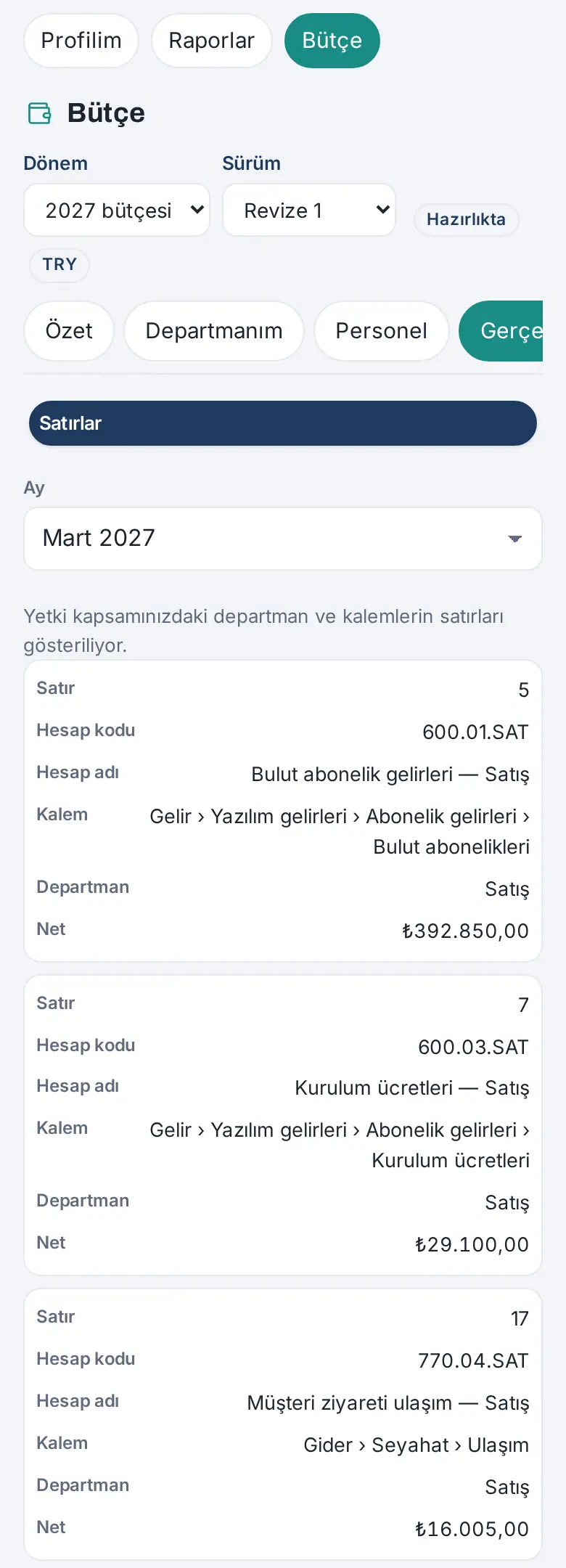
If HR enters the personnel actuals, the Department column of the lines that are mapped to a personnel item shows "Personnel — entered by HR" (1.6.1).
Who sees what? The department budget owner and the viewer see only the mapped lines of the departments and items in their permission scope; shared cost lines, unmapped or ignored lines and the lines of hidden items are not shown to them. The screen shows "Showing lines for the departments and line items within your access scope.". The department budget owner does not see the Upload, History, Rules and Profiles sub-tabs. The accounting officer and the budget manager also see the lines of hidden items; this view is written to the audit log.
Error report and common errors
Who: Accounting officer · Budget manager · Where: Preview → Download error report (CSV)
What it does: Gives the lines in the file that must be corrected in one list.
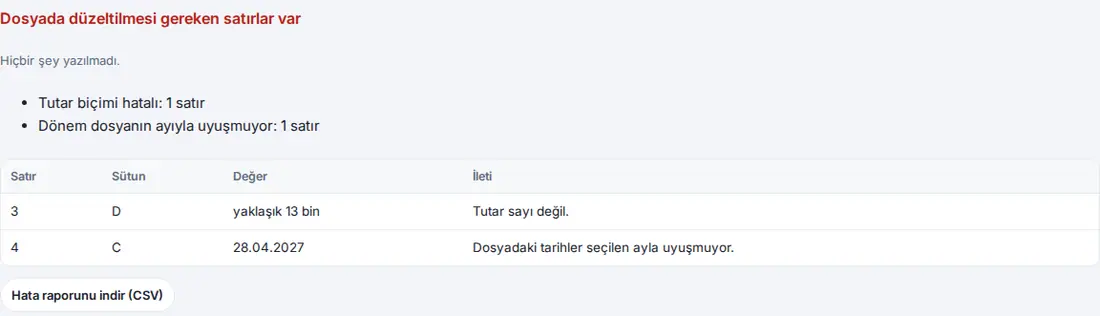
If there is a line that must be corrected in the preview, nothing is saved. The screen shows the heading "The file has lines that need fixing", the note "Nothing was saved.", a summary of the error types (e.g. "Amount format is invalid: 1 row", "Period does not match the file’s month: 1 row", "Planning rate missing: 12 rows") and the first 50 errors (Row, Column, Value, Message).
- Click Download error report (CSV). The "gerceklesme-hata-raporu.csv" file downloads (the first 500 errors; the columns are Row, Column, Field, Value, Error code, Message).
- In the accounting software or in Excel, correct the file by row and column letter.
- Upload the file again.
Common errors:
| Message | What to do |
|---|---|
| "The amount is not a number." | The amount cell has text (e.g. "yaklaşık 13 bin", about 13 thousand). Write the number; select the Number format for your file. |
| "The cell contains an Excel error." | The cell has a formula error such as #DEĞER! (#VALUE!); correct it in Excel. |
| "A month’s amount can be at most 10 billion." | The amount or the number format may have been read incorrectly. |
| "The dates in the file do not match the selected month." | The file has a line from another month, or you selected the wrong month. For a multi-month file, select From the period / date column in the file. |
| "Period / date could not be read (e.g. 2027-03, 03.2027, 15.03.2027)." | Select the Date format or correct how the period is written. |
| "The line’s period / date is empty." | Fill in the period or date cell. |
| "Currency not recognised (use an ISO 4217 code, e.g. EUR)." | Write a three-letter code in the currency column. |
| "No … planning rate …" | Enter the planning rate in Rates and keys and preview again. |
| "Debit / credit indicator not recognised (D / C, Dr / Cr, S / H)." | Use only these letters in the indicator column. |
| "No lines to load were found in the file (all lines were skipped or empty)." | The classes of the profile or a wrong month selection may have left out all lines; try another profile. |
| "Only Excel (.xlsx) and CSV files can be uploaded." | Save the file as .xlsx or .csv. |
| "Excel 97-2003 (.xls) files can’t be read; save as Excel (.xlsx) or CSV." | It is a file in the old format; in Excel, use "Save As" and select .xlsx. |
| "Excel files with macros are not accepted." | Save it as an .xlsx without macros. |
| "The file can be at most 10 MB." / "The file can have at most 50,000 rows." | Take the listing with fewer columns or split it by months. |
| "At most 30 previews per hour; try again later." | Try again within an hour. |
| "In a cumulative file months must be uploaded in order: … is missing." | Upload the previous months first. |
Limits (updated in 1.6.2):
- There is no direct connection (API) with accounting software; the file is uploaded manually.
- No exchange rate difference valuation is made; foreign currency is converted with the planning rate.
- The reports also use the current category tree for past months.
- The column names of the Logo, Mikro, Netsis, Odoo and Luca profiles were not verified with a real file; any file can be uploaded with the column mapping screen, and the profile can be checked with Try with a sample file.
- Since 1.6.1, the account classes, the lines to skip and the subtotal setting of a profile are changed on the Editing profiles screen. Suggested department source is only a note.
- From a line, Also save as a rule for this account writes only a full code or prefix rule with a fixed department (or an ignore rule), and it shows only while the selected lines are in a single account code; for a rule that takes the department from the cost center, segment or dimension code, use Unmapped lines → Map…. A bulk selection is a maximum of 5,000 lines.
- Since 1.6.2, a used profile is not deleted; it is archived. There is no limit to the number of archived profiles.
Uploading the personnel actuals with the payroll summary
Who: HR officer · Budget manager · Where: Budget → Actuals (directly for the HR officer; Personnel (HR) for the budget manager) → month → Upload; on a phone, Profile → Budget → Actuals
What it does: Takes the actuals of the personnel cost from payroll instead of the accounting listing. From the start month that the budget manager selected, the personnel accounts in the accounting upload are not applied; Reports → Budget takes the personnel actuals from here. In the months before the start month, the personnel amounts are taken from the accounting upload.
Before you start:
- The budget manager must have ticked HR enters personnel actuals and selected HR enters personnel actuals — start month in Budget → Settings (see 38. Budget management: setup, permissions and personnel cost). If it was not selected, the HR officer does not see the Actuals tab.
- A Budget item must be selected for the personnel components (Budget → Personnel → Components). Components without a selected item are listed in the Upload section with the warning "Components without a personnel item (Budget → Personnel → Components): …" and are not read in the file. Only active components are listed; the columns of inactive components (e.g. incentives) are not read and show in Column mapping with the note "Columns of inactive components are not read (they are read once activated under Budget → Personnel → Components): …" (1.6.1).
- Open Actuals. At the top of the screen, the Personnel actuals (HR) heading and the start month note (e.g. "Start month: March 2027 · For months before this month, personnel amounts are taken from the accounting upload.") show. The HR officer sees only the Personnel and Actuals tabs on the Budget screen.
- Select the month from the month strip. Below each month, its status shows: Uploaded, Manual (entered manually), None or, in the months before the start month, From accounting. The screen opens with the last month in the budget of this year, and with the last uploaded month (if there is none, with January) in the other years.
- Click the Upload section. The heading "Upload the payroll summary · May 2027" shows.
- For the template, click Download blank template. The Excel file that downloads (e.g. "personel-gerceklesen-2027-05.xlsx") has two sheets: Payroll summary — each row is a department that you have permission for, each column is a personnel component of your company (e.g. Brüt ücret, SGK işveren payı, İşsizlik sigortası işveren payı, Yemek — gross pay, employer social security share, employer unemployment insurance share, meals; if the "Total" item is selected in the personnel settings, Total employer cost) — and the five-item Instructions.
- Write the employer costs from the monthly summary of your payroll software in the template, or use the summary file of the payroll software itself:
- The amounts are the employer cost of that month and are written in the reporting currency. An empty cell is not read.
- Instead of the department name, you can also write the department code; the code must be defined in Rules → Department codes.
- There can also be rows per person (add a "Sicil" (employee number) or "Ad soyad" (full name) column): the amounts are added up per department, and the person information is not stored. If the department is empty, the department of the employee is found from the employee number.
- An ID number column is not read; total rows such as "Genel toplam" (grand total) are skipped.
- Select the file in the Payroll summary field and click Read file. Only Excel (.xlsx) and CSV are accepted; a maximum of 5 MB and 5,000 rows.
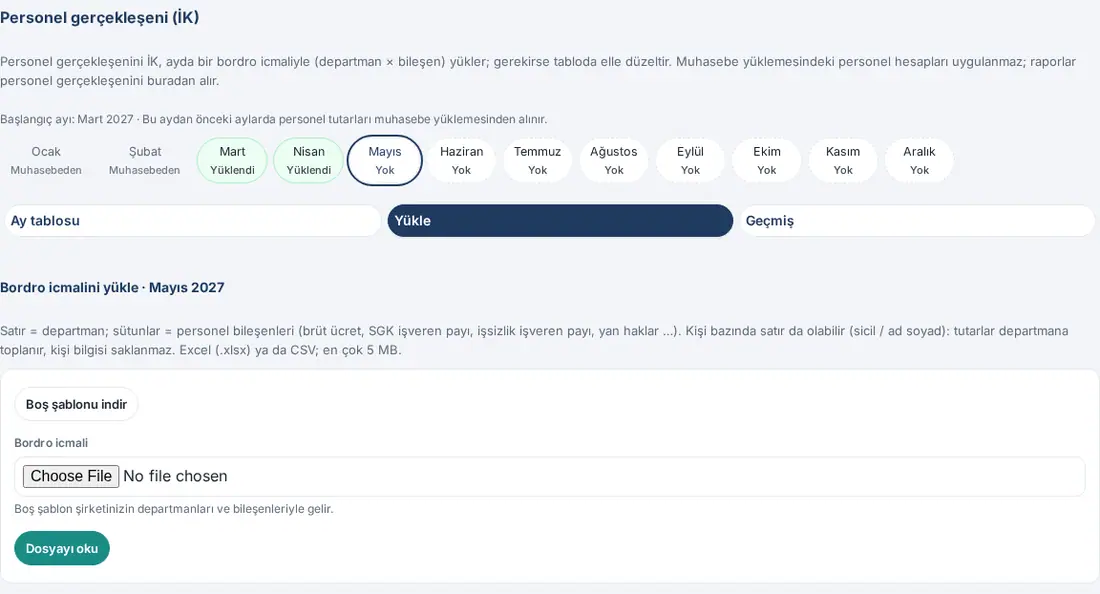
- In Column mapping, the file type and the header row show at the top of the screen (e.g. "Excel · header row 3. Choose the field for each column; recognised columns are preselected."). The header row is searched for in the first 30 rows of the file. For each column, select the field: Not read, Department, Department code, Employee number, Full name or a component. Keep a column that is not recognized (e.g. "Net ücret", net pay) as Not read, or select the correct component. Below the ID number column, it shows "ID number — not read, not stored". In the First rows table, the person and ID columns are masked.
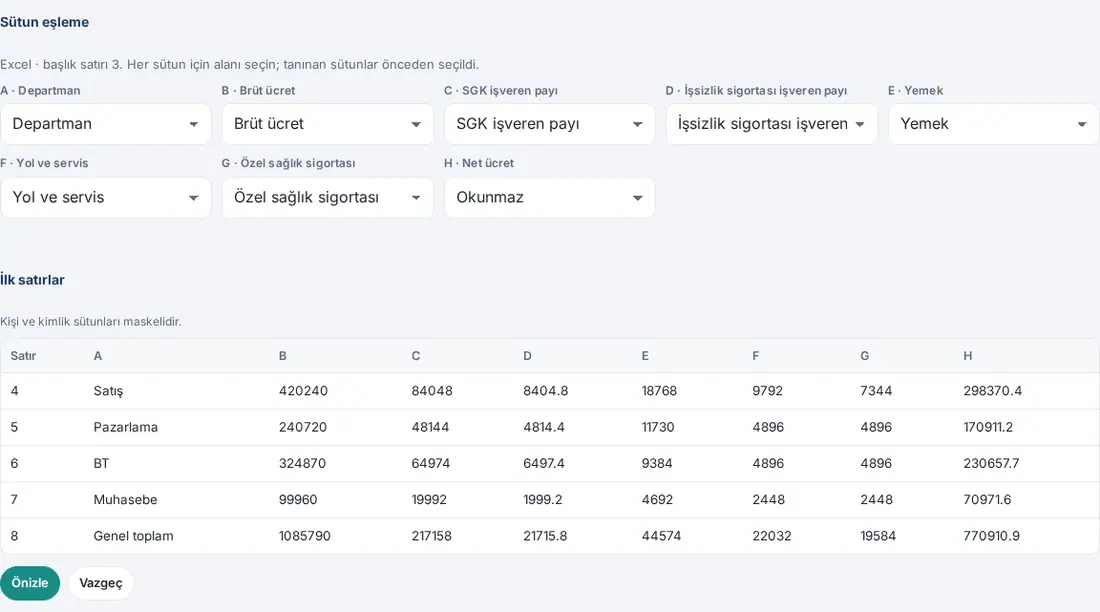
If the mapping is incomplete, Preview is not available and the reason shows: "Choose the department (or department code / employee no.) column.", "Choose at least one component column (e.g. Gross pay, Employer social security)." or "The same field is mapped to two columns; choose one column per field."
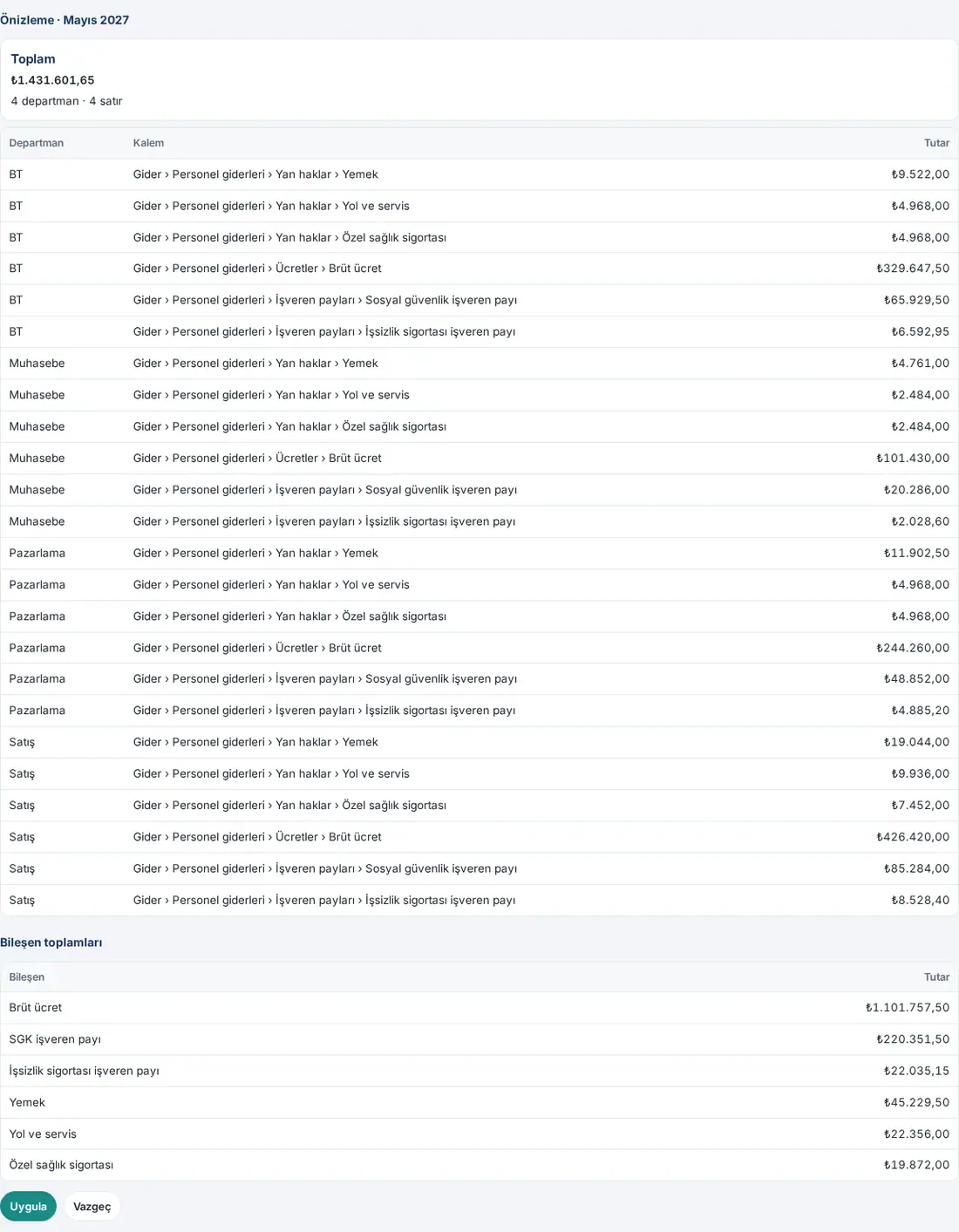
- Click Preview. The card shows the Total, the number of departments and the number of rows. If the month has an active upload, the total of the previous upload and "Will replace this month’s active upload (the previous one is kept)." also show; the Previous and Difference columns are added to the table. The table has the department × item amounts, and below it the Component totals. Nothing has been saved yet.
- Click Apply. It shows "Personnel actuals applied.", the Monthly table opens, and in the month strip, the month becomes Uploaded. To cancel, click Cancel ("Preview cancelled.").
File with errors: If there is a row that must be corrected, nothing is saved: "The file has lines that need fixing", "Nothing was saved." and the first 50 errors (Row, Column, Value, Message) show. Download the "personel-gerceklesen-hata-raporu.csv" file with Download error report (CSV). Common messages:
- "Department not found (by name or under Rules → Department codes)." / "The department is empty and no employee was found for the employee no."
- "You are not allowed to upload personnel actuals for this department."
- "This code is mapped to "Shared costs"; personnel actuals cannot be posted to shared costs."
- "The amount is not a number." / "No amounts found in the file (all rows are empty or total rows)."
- "Header row not found: the file must have a "Department" column and component columns (e.g. Gross pay). Download the blank template and fill it in."
Who sees what? The accounting officer and the budget manager read the personnel actuals of all departments, and the department budget owner and the viewer read the personnel actuals of the departments in their permission scope, in the Personnel (HR) view. Only a person with per-person details permission for personnel sees the headcount per department. If your scope is limited, it shows "Departments within your permission scope are shown." and, in the total, "Total for your scope".
Important:
- If you select a month before the start month, there is no Upload section and it shows "This month is before the start month; personnel amounts are taken from the accounting upload.".
- Do not upload the personnel actuals from Personnel → Import from payroll: the rows whose
turcolumn is "gerceklesen" are rejected, and the Personnel actuals (HR) button in the window brings you to this screen (see 38. Budget management: setup, permissions and personnel cost). - If the same month is uploaded again, the new file replaces the previous one; the previous one is kept in History as Replaced. If you have permission for only some departments, the amounts of the other departments are carried over unchanged from the previous upload. Departments that were in the previous upload but are not in the new file count as 0; in the preview, the warning "Departments that were in the previous upload but are missing from this file count as 0: …" appears.
- A preview is kept for 24 hours; only the person who uploaded it applies the preview. A maximum of 30 previews per hour can be made per person. If the same file was uploaded before in this period, a warning appears and the Apply anyway confirmation is asked to apply it.
- A summary is for one month (the month is selected on the screen); a currency column in the file is not read, and the amounts are in the reporting currency. Components that are linked to the same item are added up in the item; the component breakdown shows only in the Component totals of the preview.
Correcting the personnel actuals manually and undoing an upload
Who: HR officer · Budget manager · Where: Actuals → Personnel (HR) → Monthly table / History
What it does: Corrects single cells in the uploaded payroll summary, enters the amounts manually for a month without an upload, and undoes a wrong upload. Each correction and each undo is written to the audit log.
Manual correction:
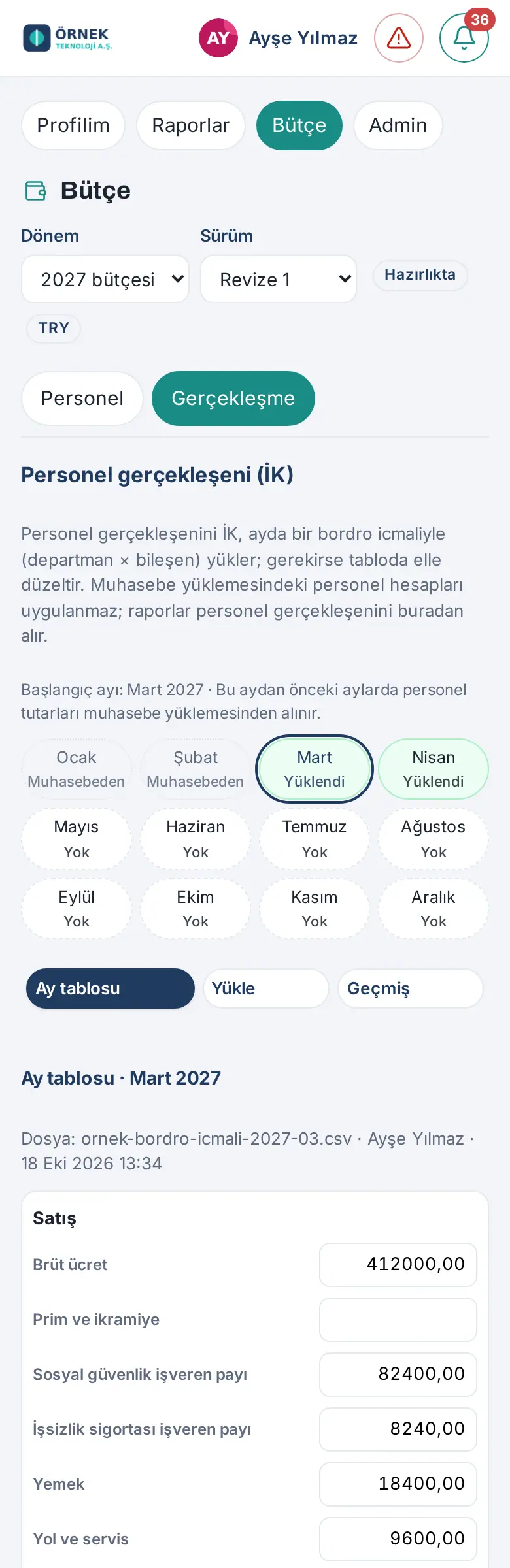
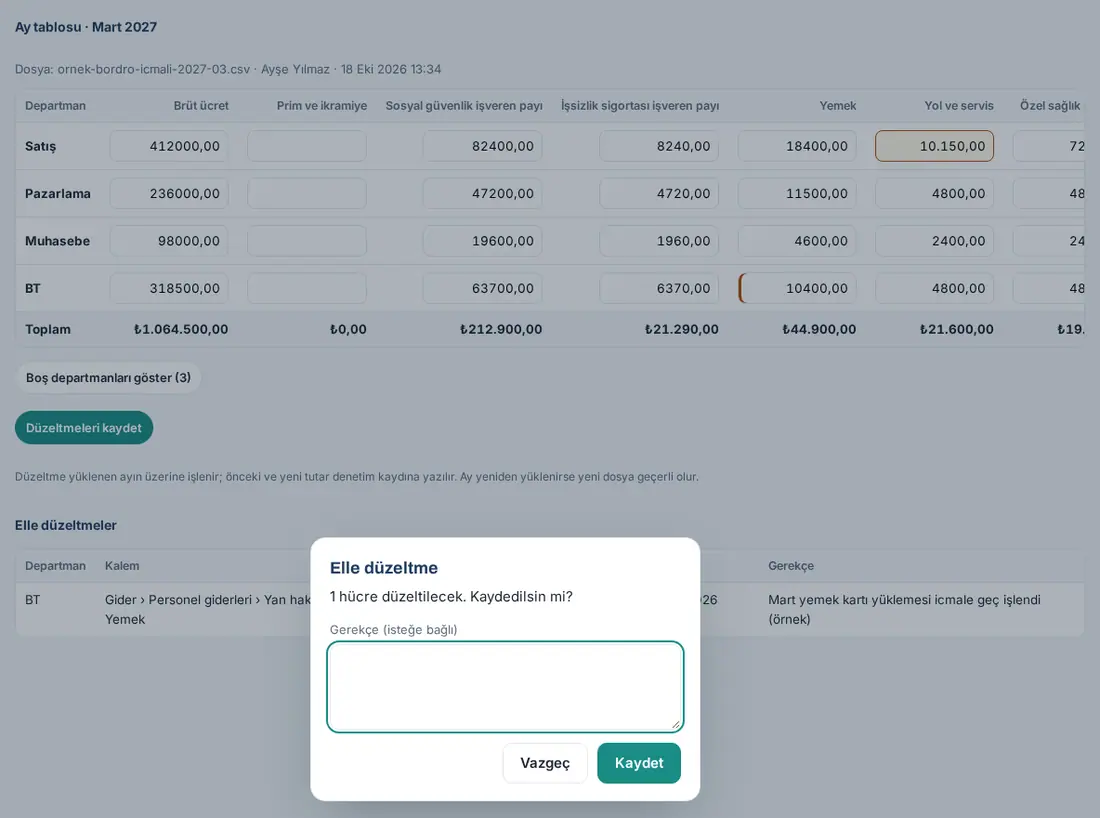
- Select the month from the month strip and click Monthly table. Below the heading "Monthly table · March 2027", the file name, the uploader and the time show. The rows are the departments, and the columns are the personnel items and Total. Departments with amounts come first; the other departments open with Show empty departments (3).
- Write the new amount in the cell that you want to change; the cell that you changed is marked.
- Click Save corrections. The Manual correction window shows "1 cell will be corrected. Save?". If you want, write a Reason (optional) and click Save. It shows "1 cell saved.".
- A corrected cell is marked with an orange line; when you move the pointer over it, the amount in the file shows ("Corrected manually (in the file: …)"). The Manual corrections table below the table shows the Department, Line item, Before, After, Who, Time and Reason.
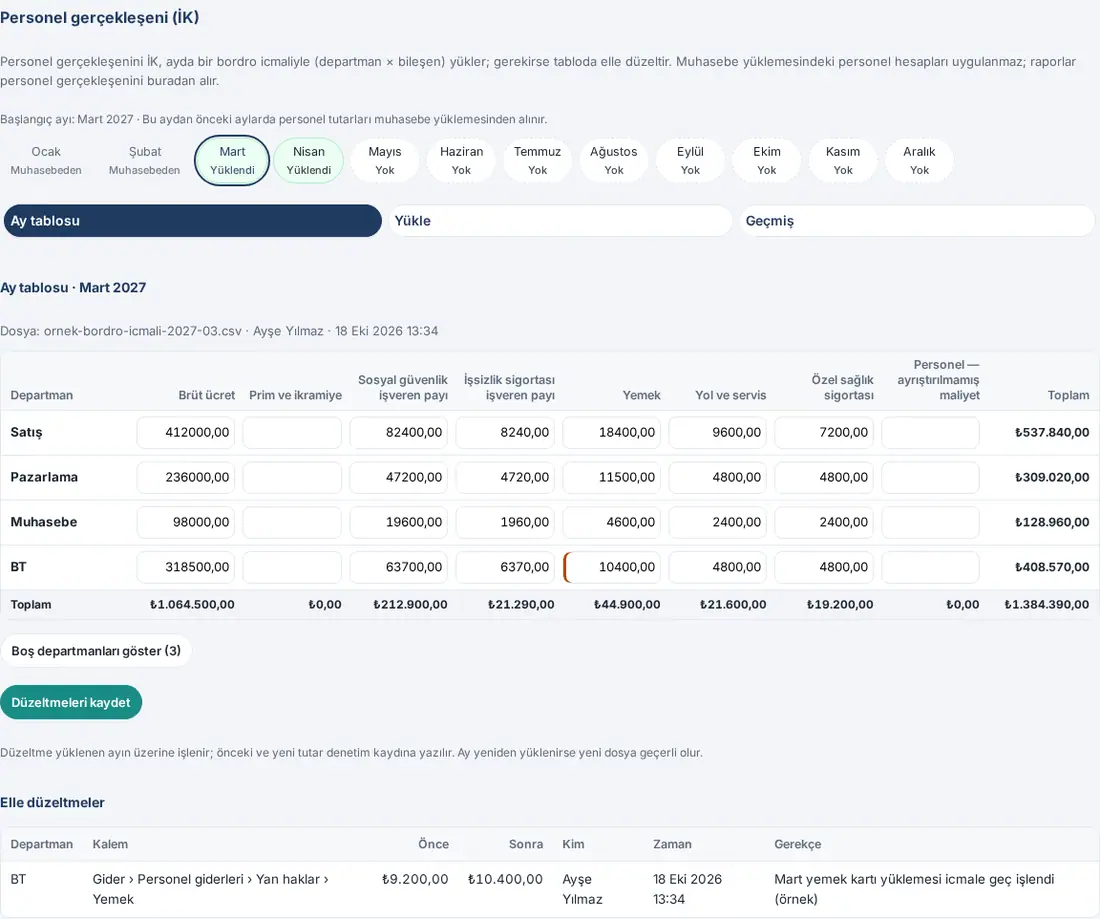
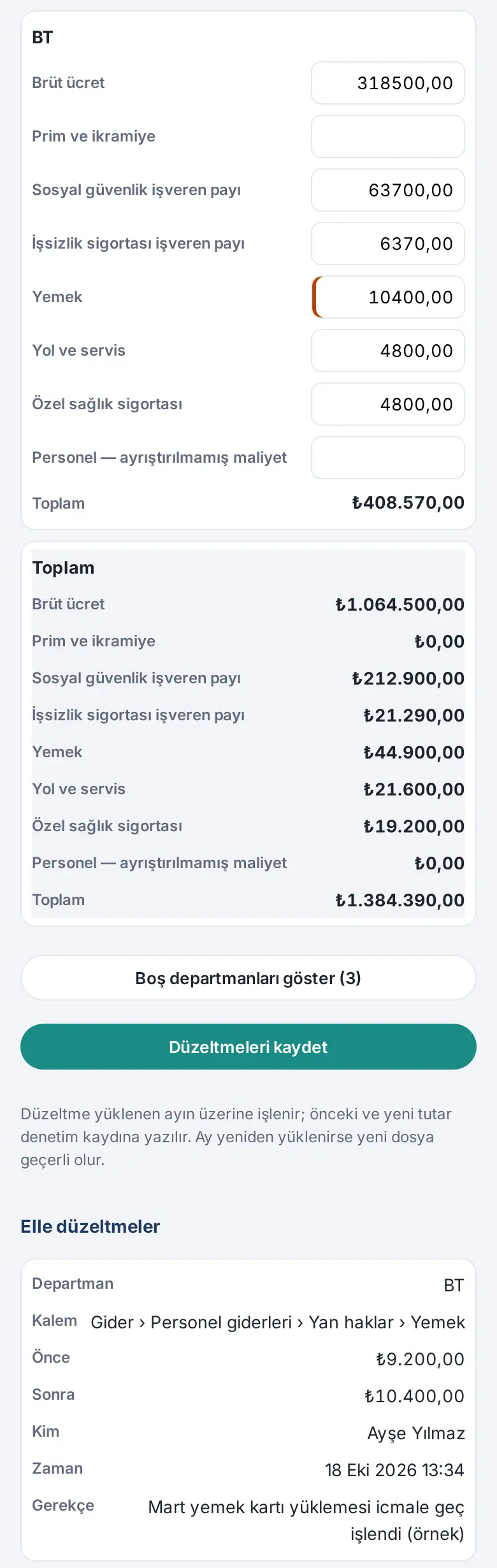
Manual entry for a month without an upload: If the month has no upload, the table shows "No personnel actuals have been uploaded for this month. Upload the payroll summary or enter them manually in the table.". Write the amounts in the table and click Save corrections: a "Manual entry" upload opens, and in the month strip, the month becomes Manual.
Undoing:
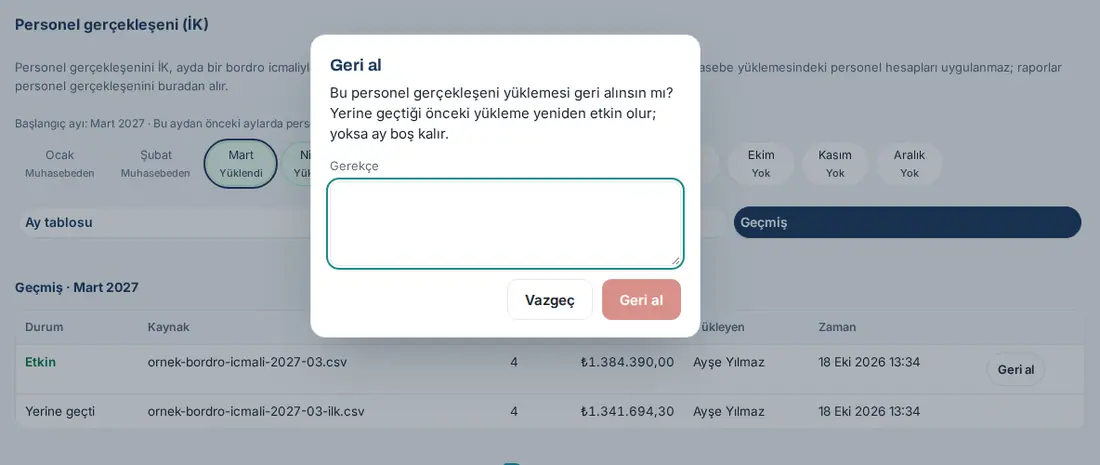
- Click History. The "History · March 2027" table shows the Status (Active, Replaced, Undone), Source (the file name or "Manual entry"), Row, Total, Uploaded by and Time.
- Click Undo on the row of the active upload. The Undo window shows "Undo this personnel actuals upload? The previous upload it replaced becomes active again; otherwise the month stays empty.".
- Write a Reason (mandatory, at least 5 characters) and click Undo. It shows "Undone.". The previous upload that it replaced becomes Active again; if there is none, the month stays empty. The reason shows below the table as "Reason for undoing: …".

Important:
- The HR officer can undo only their own upload; only the budget manager undoes the upload of another HR officer (the HR officer does not see Undo on that row). The accounting officer, the department budget owner and the viewer cannot undo.
- If the reason is too short, it shows "Enter a reason (at least 5 characters).". Only an active upload can be undone.
- If the month is uploaded again, the new file is valid; the corrections in the previous upload stay saved with that upload and come back if the new upload is undone.
- If someone else changed the same cell while you were editing, saving stops: "… changed while you were editing; refresh the table." If the amount cannot be read, the cell is marked and it shows "The amount could not be read.".
- The accounting officer, the department budget owner and the viewer only read the table; a corrected cell is also marked for them.


