41. Chat: internal messaging
Screenshots show the Turkish interface of Prozence with fictional "Örnek Teknoloji A.Ş." data; the English interface has the same layout.
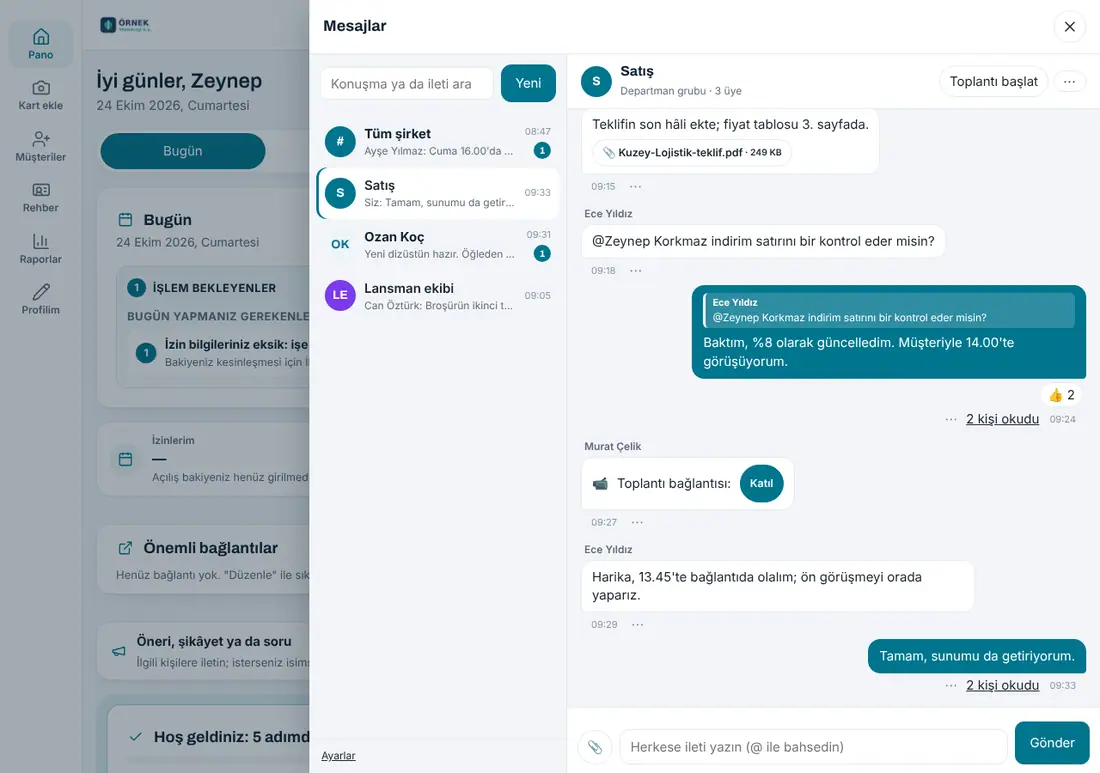
The Chat module lets employees message each other and their teams from inside Prozence: direct conversations, groups, an automatically created group for every department and an optional Whole company channel. Messages are stored in the company's own Prozence installation; no Google account needs to be connected. There are read receipts (single / double tick), "typing…", quoted replies, emoji reactions, @mentions, file and image attachments, message search and a Start meeting shortcut (Google Meet / Microsoft Teams link).
When Chat is on, the Messages button in the top bar opens the Chat panel. If you have a Google Chat connection, the former Messages view stays in the panel as the Google Chat tab (see 06. Board and intranet).
Who: All employees (Admin can narrow this with the "who can use it" setting) · Admin and Chat module admin (settings) · Operator (posting in the channel)
In this chapter
- Turning on the module
- Opening the chat panel and conversations
- Writing to someone and creating a group
- Writing: reply, edit, delete, reaction and @mention
- Attaching files and images
- Read receipts and typing
- Starting a meeting
- Search
- Notifications and muting
- Group settings and members
- Admin settings: who can use it, channel, retention, manager read access
- Reporting abuse
- My data and privacy
- Who sees what?
- Known limits
Before you start: Chat is in the Professional package and comes turned off; Admin turns it on. There is no end-to-end encryption: messages are encrypted in transit and stored as plain text on the server. The retention period and the manager read rule are stated in the Admin's privacy notice.
Turning on the module
Who: Admin · Where: Admin → Modules → Chat
- Tick Turn on chat.
- Optionally tick Turn on the "Whole company" channel and type the channel name; Create department groups automatically comes ticked.
- Press Save chat settings and refresh the page. The Messages button in employees' top bar now opens Chat.
Turning the module on creates the chat tables; turning it off keeps the tables and messages in place and only closes access.
Opening the chat panel and conversations
Who: All employees · Where: Top bar → Messages
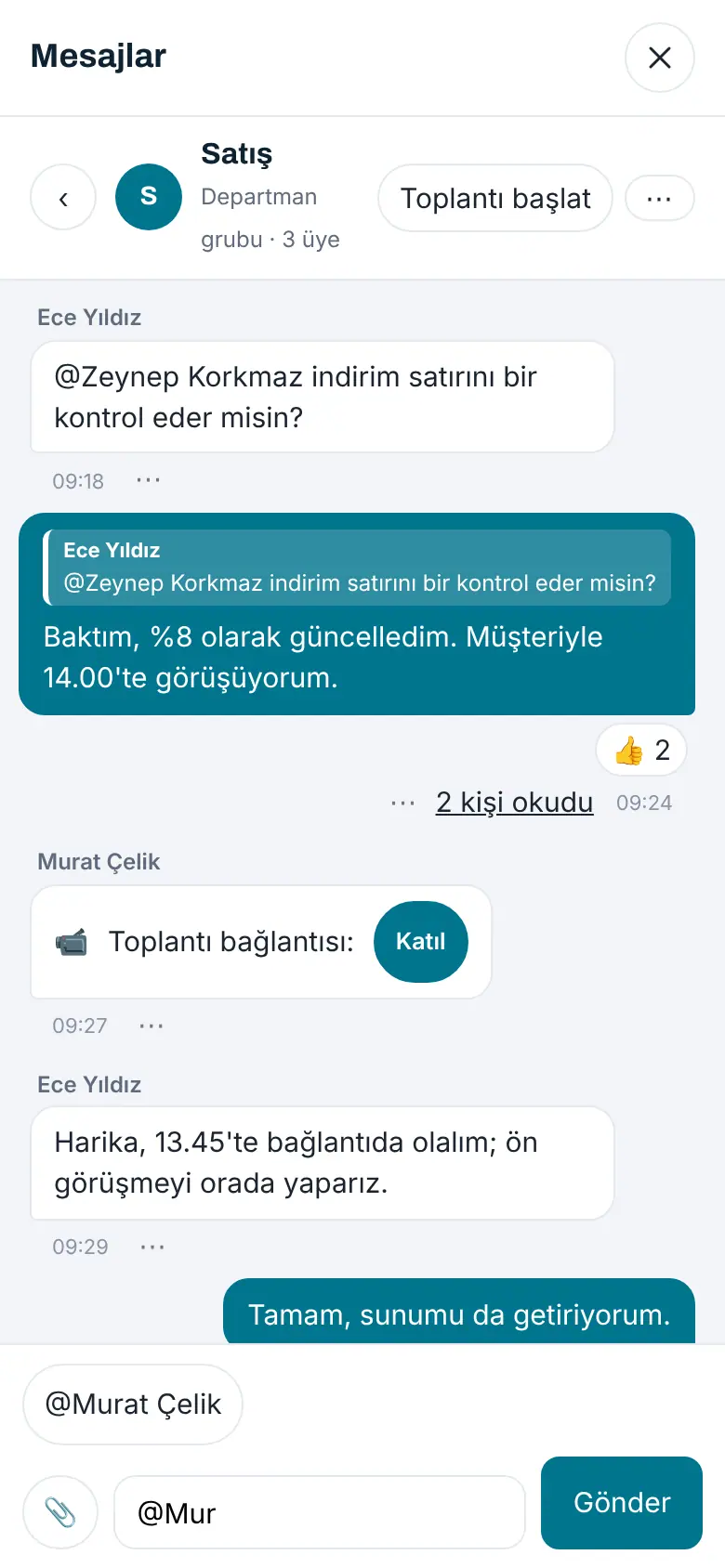
Press the Messages button in the top bar. The badge on the button is the number of conversations with unread messages. On a computer the panel has two columns: conversations on the left, the selected conversation on the right. On a phone the list is shown first; tapping a conversation opens its messages, and ‹ takes you back to the list. On a phone the list fits the screen: long conversation names and last-message previews are shortened with an ellipsis and the New button stays visible (1.8.7).
On first opening a short note appears (messages are stored on the company server, there is no end-to-end encryption); close it with Got it.
The list shows, in order: the Whole company channel (if Admin turned it on), your department group, your groups and your direct conversations. Each row shows the last message, its time and the unread count; a muted conversation shows 🔕. Membership of the department group comes from your department: if your department changes you move to your new group; an employee who leaves the company drops out of all conversations.
Writing to someone and creating a group
Who: All employees (creating groups can be restricted to authorised people by an Admin setting) · Where: Chat → New
- Write to someone: New → search for the person by name, title or department and select them. There is always one direct conversation with the same person. The Send message button on an employee's profile page opens the same conversation. When the search box is empty, the people in the company come in a scrolling list of up to 300 people; type to narrow it down (1.8.3).
- Create group: New → Create group → choose the group name, icon colour and members → Create the group. The person who creates the group becomes Group admin: they add and remove members and change the name and colour. If the last admin leaves, the oldest member becomes admin.
In a multi-company installation conversations belong to a company: no direct conversation can be opened with an employee of another company and they cannot be added to groups.
Writing: reply, edit, delete, reaction and @mention
Who: Members of the conversation · Where: Chat → conversation
Type in the box at the bottom and press Send (on a computer Enter sends, Shift+Enter adds a line). Links are clickable; HTML is not interpreted, the text you typed is shown as it is.
The ⋯ button next to a message opens its options:
- Reply: a quote of the message appears above your reply; tapping the quote jumps to the original message.
- React: a fixed small set (👍 ❤️ 😂 😮 😢 🙏 ✅). Pressing the same reaction again removes it.
- Edit and Delete: only your own message and within 15 minutes of sending. An edited message shows "edited"; a deleted message leaves This message was deleted in its place, and its text and attachment are removed.
- Report to Admin: reports someone else's message as abuse (see Reporting abuse).
In groups and the channel, typing @ shows member suggestions; the person you pick becomes a mentioned person of the message and is notified even if they muted the conversation or are outside working hours.
Attaching files and images
Who: Members of the conversation · Where: 📎 to the left of the compose box
Use 📎 to choose a JPEG, PNG, WebP or PDF (Admin sets the size limit; 10 MB by default). The file is uploaded first and appears as a chip above the compose box; Send attaches it to the message. Images appear as thumbnails in the thread, PDFs as a download link.
Important: The file content is checked against its type; files with a changed extension are rejected. Attachment links open only for members of that conversation, are signed and time-limited; a forwarded link does not open.
Read receipts and typing
Under your own message in a direct conversation you see ✓ (delivered) or ✓✓ (the other person has read it). In a group, tapping N people read it opens the list of readers. While the other person is typing, is typing… appears under the header.
Starting a meeting
Who: Members who can post in the conversation · Where: Conversation header → Start meeting
Prozence does not make video calls; Start meeting opens a meeting in your company's Google Meet (Google Workspace) or Microsoft Teams (Microsoft 365) account and posts the link to the conversation as a message with a Join button. If the company has a Google Calendar connection, the Meet link is created automatically; otherwise the meeting page opens in a new tab and you copy the link and paste it into the box shown in the panel. Only meet.google.com and Teams meeting links are accepted. In an installation without a Google or Microsoft connection the button is not shown.
Search
The search box on the left filters conversation names instantly; after two characters it also searches message text, under the In messages heading, only in conversations you are a member of (at most 30 results). Tapping a result opens the message highlighted.
Notifications and muting
New-message notifications go to the phone app, the browser or the desktop app through the existing notification system; tapping a notification opens the conversation. In direct conversations and groups every new message is notified (at most one notification per conversation every two minutes); in the department group and the Whole company channel you are notified only when mentioned.
- ⋯ in the conversation header → Mute: no notifications from that conversation (except mentions).
- Settings at the bottom of the list → Quiet outside working hours: no notifications outside the working hours set by Admin and at weekends.
Group settings and members
Who: Group admin (members list is open to everyone) · Where: Conversation header → ⋯
- Members: the member list; the group admin removes members with Remove and adds from the list below with Add member.
- Group settings: name, icon colour, Only the group admin and authorised people post box.
- Leave group: removes you from the group.
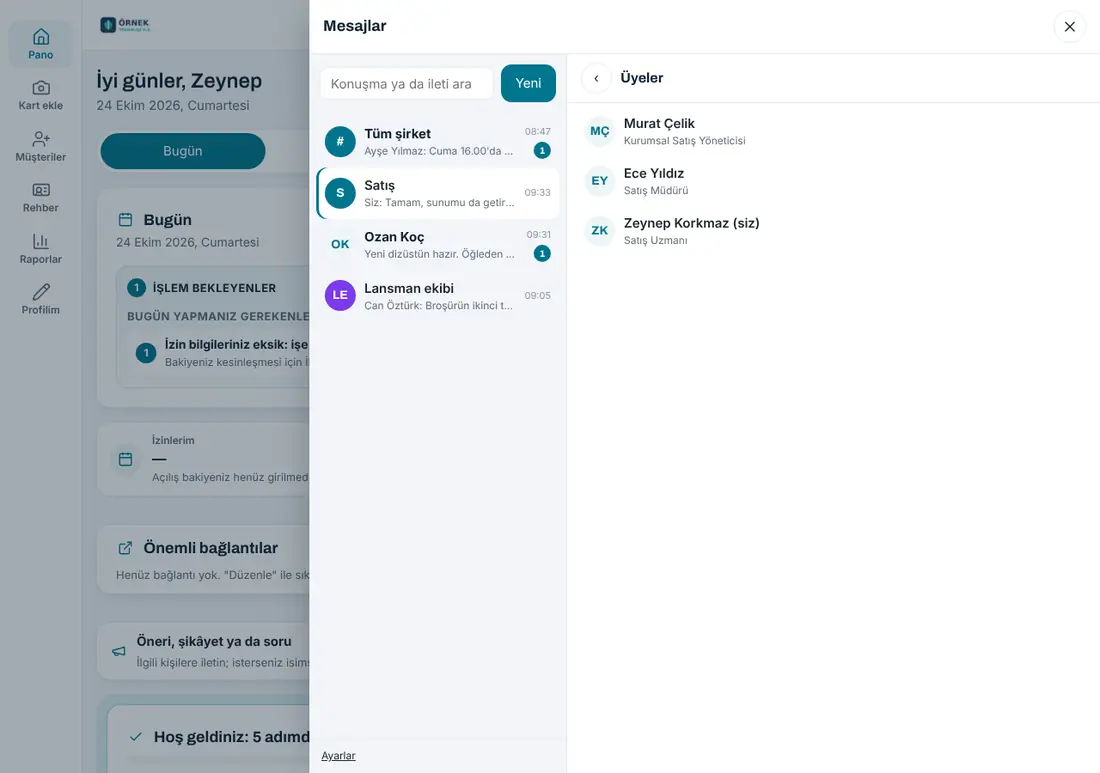
In a department group, members come from the department; the Members screen only shows the list, and members cannot be added or removed by hand.
- In the Whole company channel, Admin and authorised people switch between Only authorised people post / Let everyone post.
Admin settings: who can use it, channel, retention, manager read access
Who: Admin · Chat module admin · Where: Admin → Modules → Chat
- Who can use it: Everyone, Selected departments or Selected people. Employees outside the scope do not see the Messages button.
- Creating groups: everyone or only authorised people (Admin, module admin, operator).
- Department groups and the "Whole company" channel (channel name; Only authorised people can post in the channel).
- Retention period: 3 months, 1 year (default), 3 years or indefinite. Expired messages and their attachments are deleted every night; the number deleted is written to the audit log. Messages of employees who have left remain in conversations for this period, shown under the name Former employee.
- Manager read access: off by default. When off, even Admin cannot see conversations they are not a member of. When on, only Admin and Auditor can open conversations read-only from Chat → Settings → Manager read access; every read is written to the audit log and stated in the privacy notice. Turning it on is not recommended except for a legal request or an internal investigation.
- Attachment size, working hours start / end (the window of the quiet preference), and, if Google Chat is connected, Keep the Google Chat tab in the panel.
- Privacy notice template (KVKK): copied into the company's privacy notice and completed with the legal adviser.
- Permissions section: the Chat module admin and operators are assigned.
Reporting abuse
An employee reports someone else's message with ⋯ → Report to Admin and optionally writes a reason. The message text is sent to Admin with the report (the reporter confirms this), authorised people are notified and the report is written to the audit log. Admin sees reports under Admin → Modules → Chat → Abuse reports and closes them with Close.
My data and privacy
Chat → Settings → Download my messages (JSON) downloads the messages you wrote (for a data subject request). Messages you wrote belong to the conversation's members; they remain in conversations for the retention period even after you leave the company.
Who sees what?
| Role | Sees / does |
|---|---|
| Employee | Conversations they are a member of; edits / deletes their own message within 15 min; creates groups (depending on the setting); reports abuse; downloads their messages |
| Group admin | + adds / removes members, group name and colour, "only authorised people post" |
| Operator | + posts in the "authorised people only" channel, manages department groups and the channel, receives abuse reports |
| Chat module admin / Admin | + module settings, abuse reports; manager read access only when the setting is on (Auditor too), every read in the audit log |
Known limits
- There are no video or voice calls; Start meeting only creates a Google Meet / Microsoft Teams link.
- There is no end-to-end encryption. There are no voice messages.
- New messages arrive by polling at short intervals (a few seconds in an open conversation); there is no instant push. In the phone app, refreshing stops while the app is in the background; a notification arrives instead.
- The mobile and desktop apps use the same web panel; no separate app update is needed.


