02. Email signature
Screenshots show the Turkish interface of Prozence with fictional "Örnek Teknoloji A.Ş." data; the English interface has the same layout.
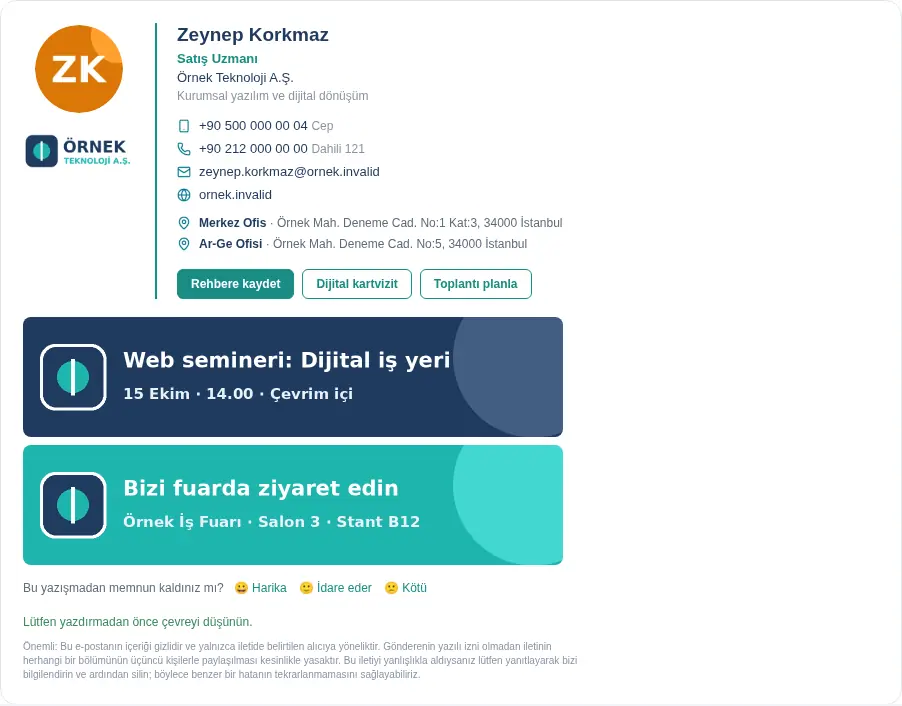
Prozence makes an email signature for each employee, in the company's design and with up-to-date details. The signature contains your name, job title, phone numbers, the office addresses, the "Save to contacts", "Digital business card" and "Schedule a meeting" buttons, the company logo and the banners that the company manages centrally. If your company uses Google Workspace, your signature can be written to Gmail centrally. In that case you do not need to copy the signature; you only select the new signature as the default in Gmail. If your company uses Yandex 360, your signature is written to Yandex 360 centrally and made the default signature. If your company uses Zoho Mail, your signature is written to Zoho Mail under the name "Prozence" and assigned to your work address. In other cases you copy the signature once and paste it into your email program.
For the company-side settings (design, templates, banners, distribution), see 11. Brand, identity and signature management.
In this chapter
- Seeing your email signature
- Copying it and adding it to your email program
- Plain text signature (for CRM and automation tools)
- Short signature (replies and internal)
- Out-of-office note
- Social media links
- When your email signature changes
- Satisfaction survey (in the signature)
Seeing your email signature
Who: Employee · Where: Card in the bottom menu → My card → My signature
- On a phone, tap Card in the bottom menu. On a computer, open My profile in the menu on the left, then the My card tab.
- Select My signature in the tabs at the top. To open it directly, you can add
#imzamto the end of the app address. - A preview of your signature shows under the Email signature heading.
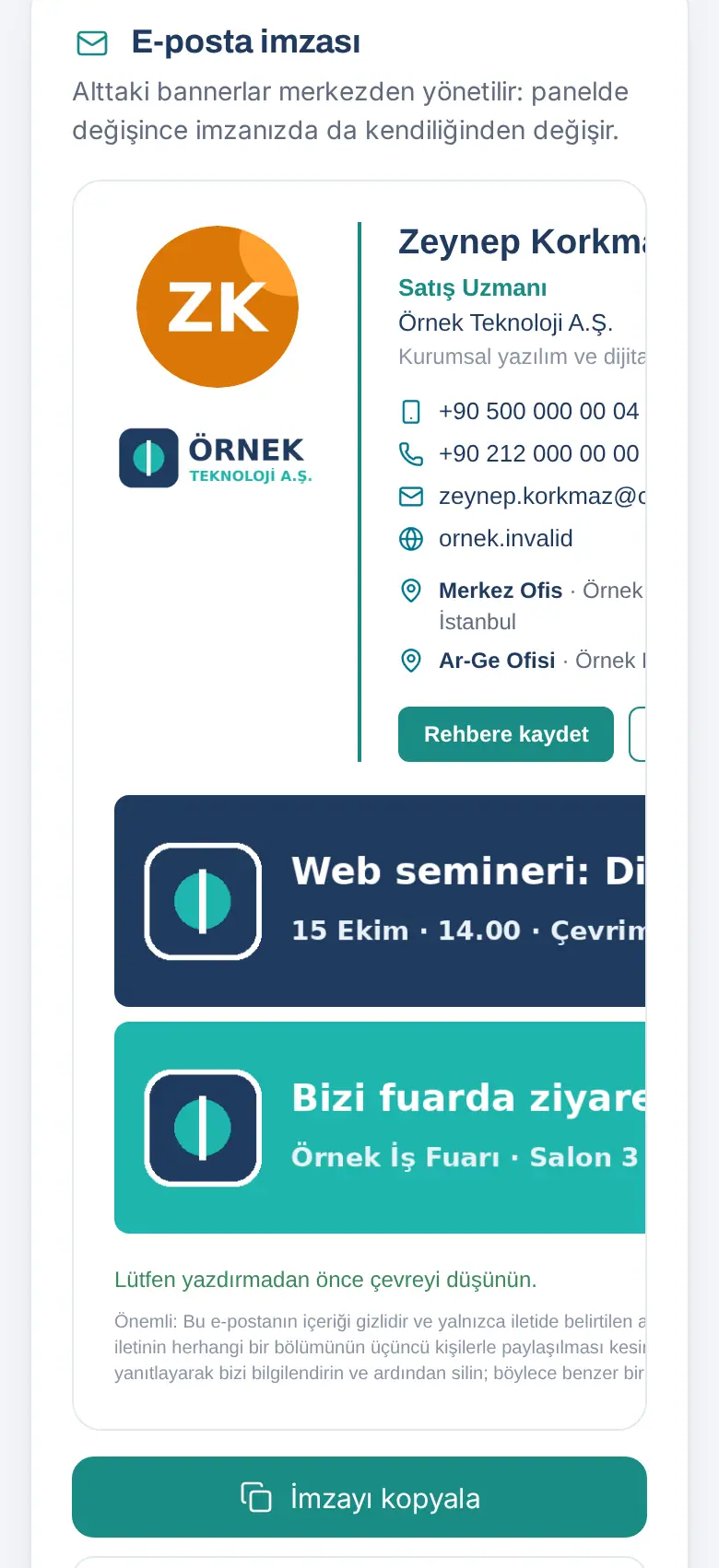
Tip: The details in the signature come from your business card. If your job title, phone or photo is wrong, correct it in My profile or tell your administrator (see 00. Getting started). The banners are managed centrally; when the company changes them, they change in your signature automatically.
Copying it and adding it to your email program
Who: Employee · Where: My signature → Copy signature
Before you start: If your company writes the signature to Gmail centrally, you do not need these steps; the signature is already in Gmail.
- Tap or click Copy signature. The signature is copied to the clipboard with its formatting.
- Open your email program and follow the steps below. The same steps are also on the My signature screen:
- Gmail: Settings → See all settings → General → Signature → Create new → paste → Save at the bottom.
- Outlook: Settings → Accounts → Signatures → New signature → paste → under Default signatures select it for new messages and replies → Save. Classic Outlook: File → Options → Mail → Signatures.
- Apple Mail: Mail → Settings → Signatures → your account → + → paste. Clear the "Always match my default message font" box.
- CRM and other apps: In the program's settings, open the Email or Profile → Signature field → paste → save.
- Send a test email to yourself and make sure that the signature looks correct.
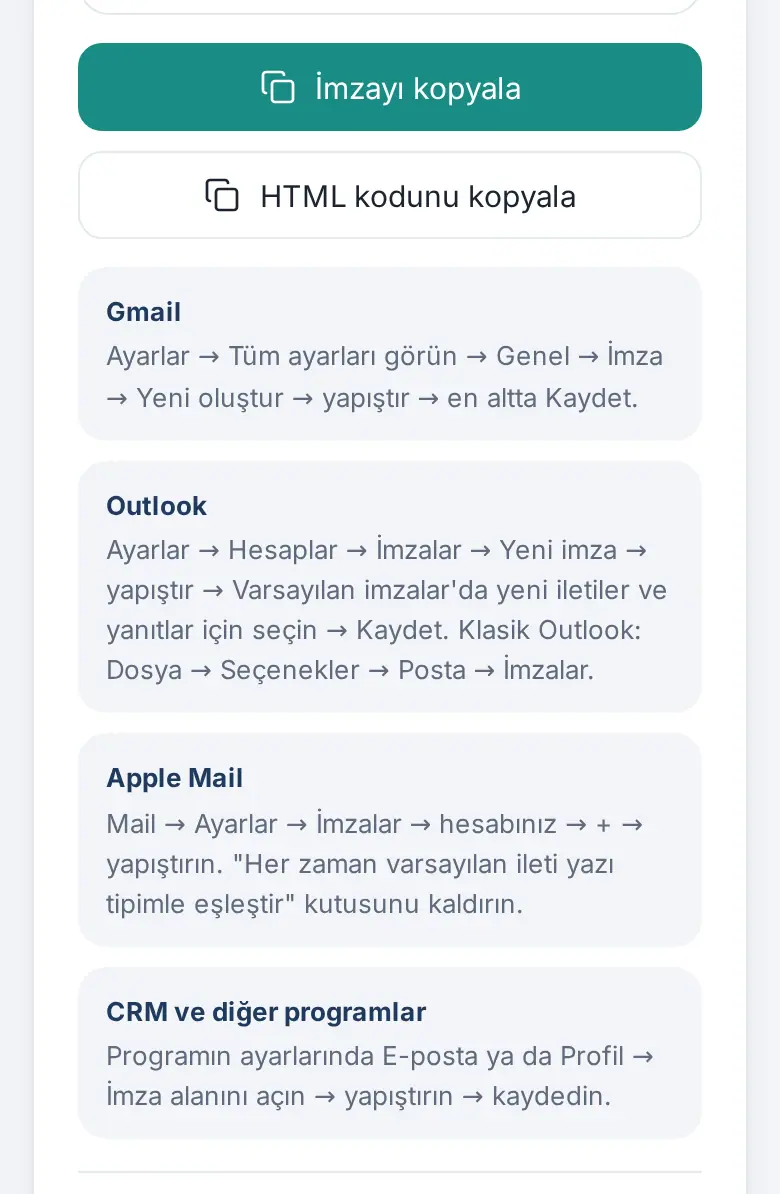
Tip: Some programs do not support formatted paste and need HTML. In that case, use Copy HTML code.
Important: We recommend that you copy the signature from a computer. A signature copied on a phone can paste as plain text in some programs.
Plain text signature (for CRM and automation tools)
Who: Employee · Where: My signature → Plain text signature
What it does: A signature for tools that accept only plain text, such as sales automation or CRM email sequences.
- Tap the Plain text signature heading to open it.
- Tap Copy plain text and paste it into the signature field of the tool.
Tip: The links in the plain text signature are personal to you; clicks are counted separately in signature analytics.
Short signature (replies and internal)
Who: Employee · Where: My signature → Short signature (replies and internal)
What it does: Prevents the long signature from being added again and again in replies and in internal emails. The short signature has no images or buttons. It contains your name, job title, department, extension, mobile, email and business card link.
- Tap the Short signature (replies and internal) heading to open it.
- Tap Copy short signature (or Copy as plain text).
- Follow the steps in the How do you add the short signature to your email program? section. In Gmail you select the short signature "On reply/forward"; in Outlook and Apple Mail you select a separate signature for replies.
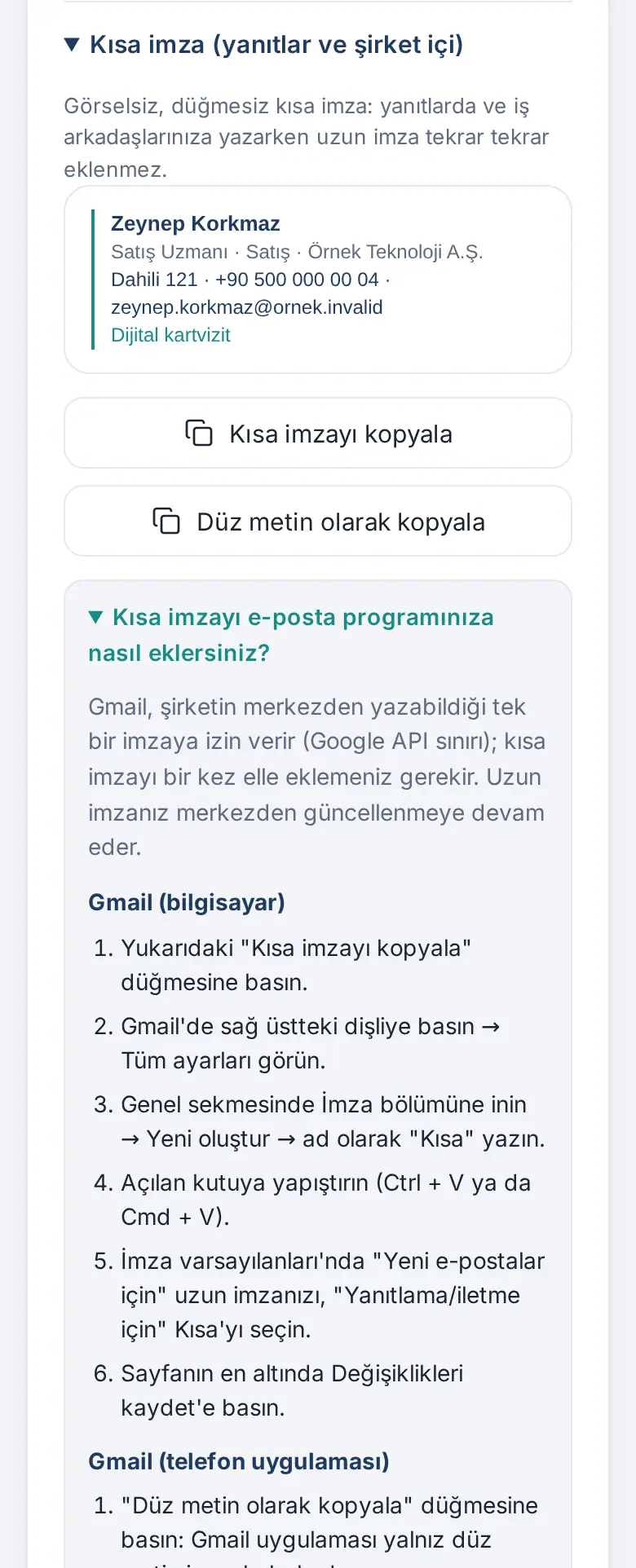
Important: Gmail allows only one signature centrally. You must select the short signature for "On reply/forward" in Gmail yourself.
Out-of-office note
Who: Employee · Where: My signature → Out-of-office note
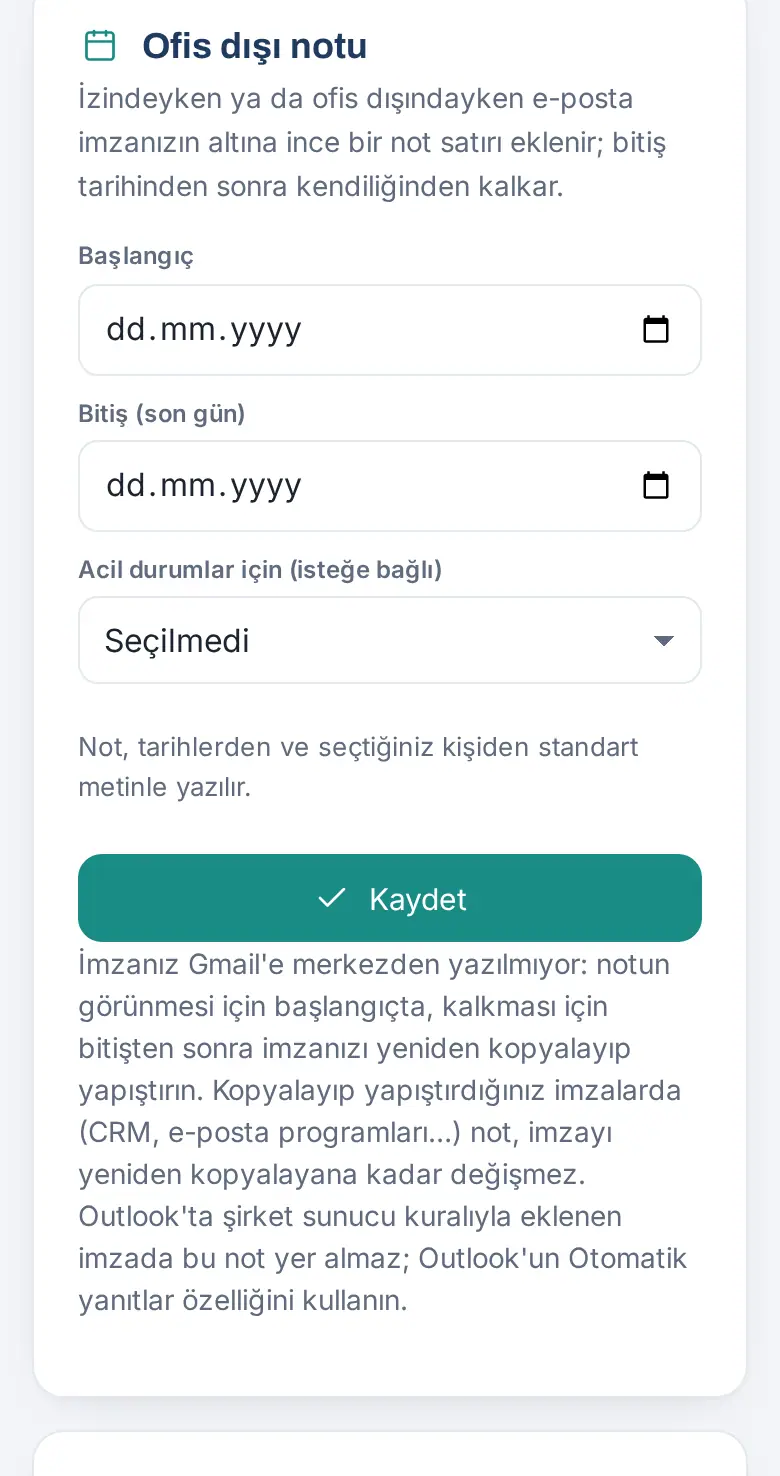
What it does: While you are on leave or out of the office, a thin note line is added below your signature; it disappears automatically after the end date.
- Select the Start and End (last day) dates.
- If you want, select a colleague from the For urgent matters (optional) list.
- Tap Save. The note is written with a standard text from the dates and the person you selected.
Important:
- If your signature is not written to Gmail centrally, copy and paste your signature again at the start date so that the note shows, and after the end date so that it disappears.
- The signature that Outlook adds with the company's server rule does not include this note; use the Automatic replies feature of Outlook.
- If you have approved leave, an "out of office" note can also show on your business card (see 01. Digital business card and Identity Kit).
Social media links
Who: Employee · Where: My signature → My social media links
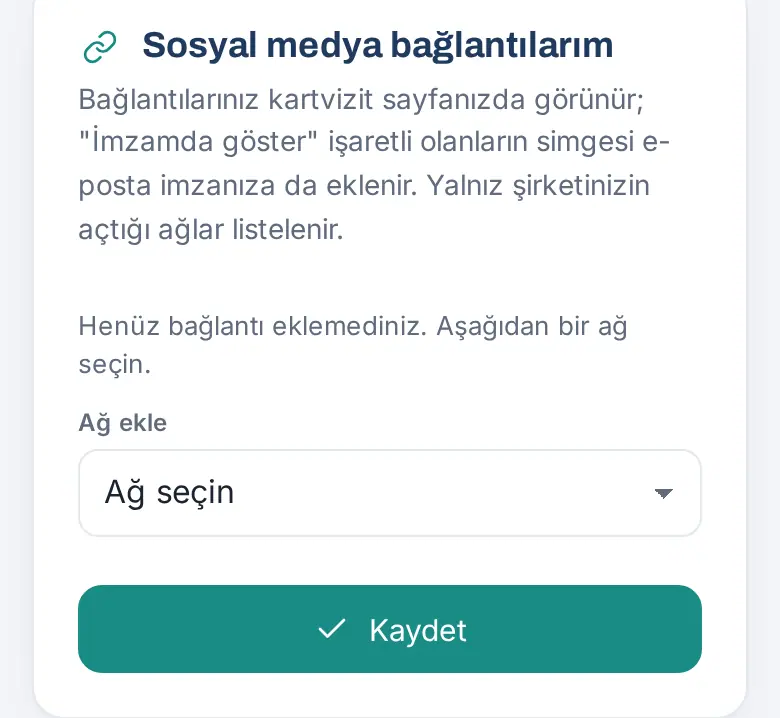
What it does: Your links show on your business card page. For the links where Show in my signature is selected, the icon is also added to your email signature.
- Select a network from the Add network list (e.g. LinkedIn). Only the networks that your company turned on are listed.
- Type your profile address.
- If you want it to show in the signature too, select Show in my signature.
- Tap Save.
Important: Your company can require administrator approval for some fields; in that case the change shows when it is approved.
When your email signature changes
Who: Employee
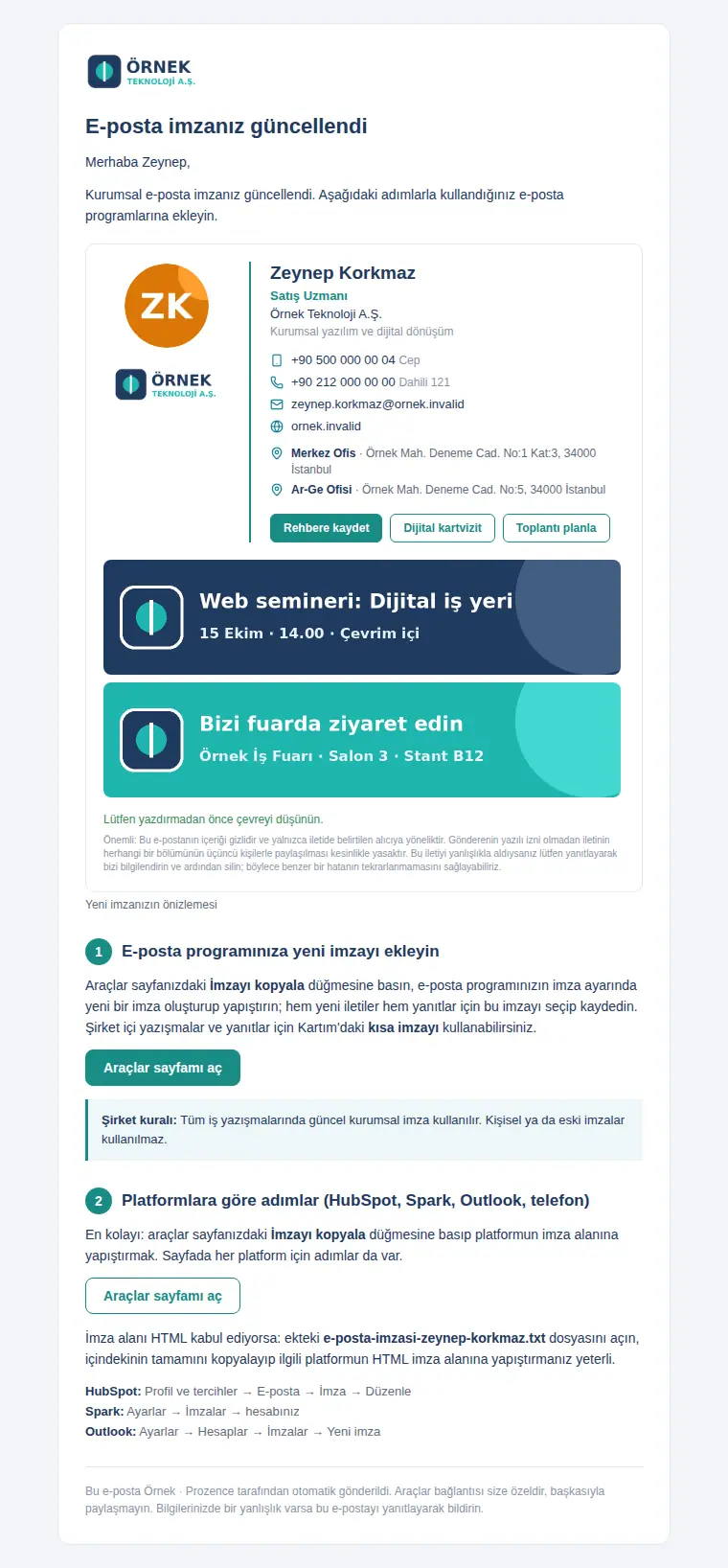
When your job title, phone, photo or the company's signature design changes, you can get a "Your email signature has been updated" email and a phone notification. The email contains a preview of the new signature and the setup steps.
- If it is written to Gmail centrally: you do not need to copy it. Following the step in the email, in Gmail go to Settings → See all settings → General → Signature and, in the signature defaults, select your new signature for new emails and for replies.
- If it is written to Yandex 360 centrally: you do not need to copy or select it. You can see your signature in Yandex Mail → gear icon → All settings → Personal information, signature, picture; a change you make there is replaced by the new one at the next central update.
- If it is written to Zoho Mail centrally: you do not need to copy it. You see your signature under the name "Prozence" in Zoho Mail → Settings → Signature; if it does not appear automatically in a new email, select it there for your work address. A change you make to this signature is replaced by the new one at the next central update.
- If you pasted it yourself: copy the signature from My signature again and paste it.
Satisfaction survey (in the signature)
Who: Employees who write to customers
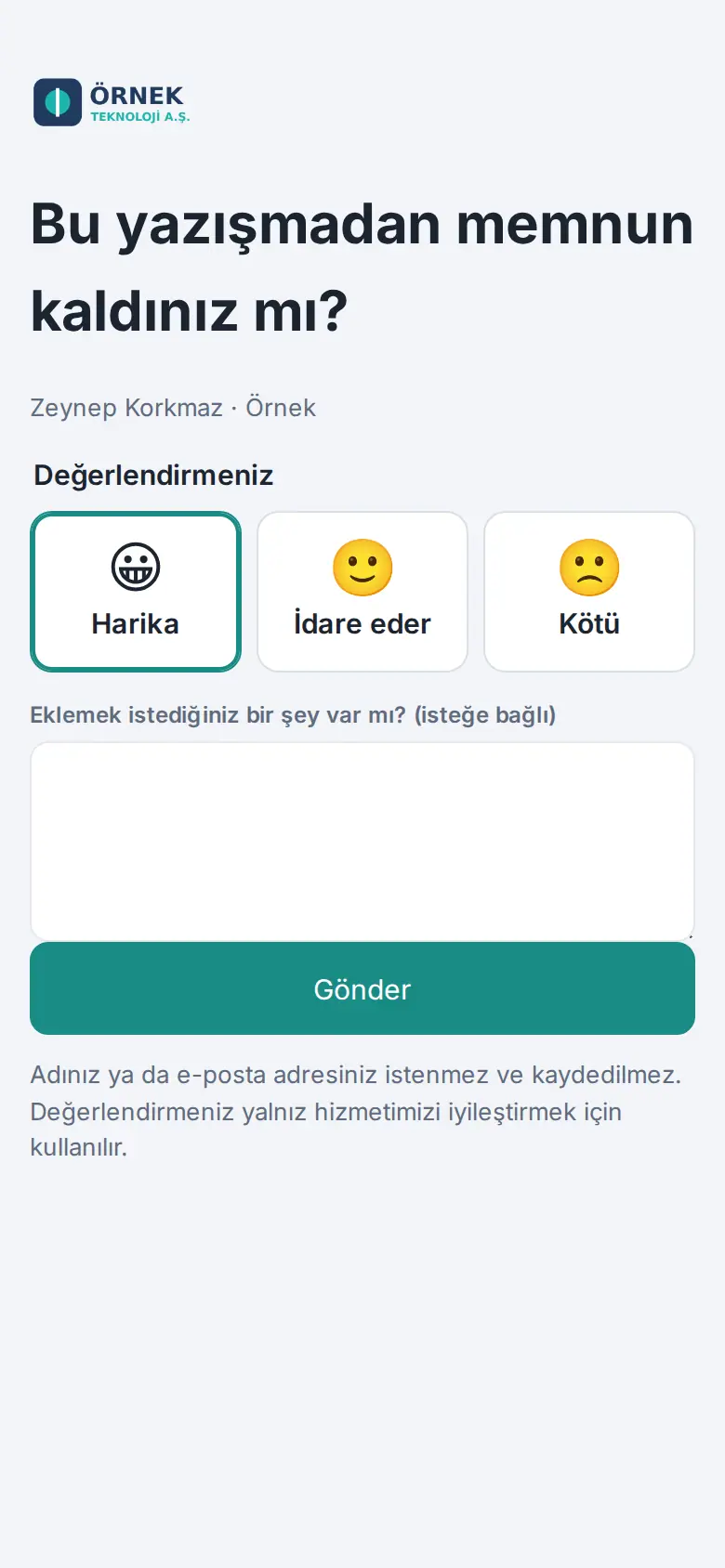
If your company turned it on, the line "Were you happy with this conversation? 😀 Great · 🙂 Okay · 🙁 Bad" shows below your signature. When the customer clicks an option, a short page opens; when they click Send, their rating is saved. The customer is not asked for a name or an email address.
- When a rating comes in, you get an "A customer rated your email" notification.
- You see the results of the last 90 days in the My Space → My Area → Customer satisfaction box (on a computer, Board → My Area). The short card shows the rate and the breakdown; for the recent comments, tap Open all.