21. Employee leave
Screenshots show the Turkish interface of Prozence with fictional "Örnek Teknoloji A.Ş." data; the English interface has the same layout.
You send your leave requests from your phone, and you see your remaining annual leave and the approval step your request is at. A request goes first to your manager, then to human resources (HR). For approved leave, a printable leave form with a QR code is prepared; your leave is finalized when you hand in the signed form to HR. You can also see leave on a color-coded monthly calendar; managers see their team's leave, HR sees the leave of the whole company (1.5.0).
This chapter is for employees and for managers who approve their team's leave. For leave settings, balances and HR tasks, see 30. Employee leave management.
Who: Employee · Manager (approver)
In this chapter
- My leave box
- Color-coded leave calendar
- Reporting missing leave information to human resources
- Paid and unpaid leave types and their rules
- Requesting annual leave
- Requesting a half day of leave
- Adding a medical certificate and documents
- Requesting travel leave
- Using a leave advance
- Selecting the person who covers for you
- Following and cancelling a request
- Sending a cancellation request for approved leave
- Resubmitting a rejected request
- Printing and signing the approved leave form
- Verifying the form with the QR code
- Signing and handing in the form, and "Finalized"
- Approving leave as a manager
- Deputy approval while the manager is on leave
- Deciding on a cancellation request as a manager
Before you start: The leave module is off by default in the company. If you do not see the My leave box, ask HR. The sample screens in this chapter use data from the fictional company "Örnek Teknoloji A.Ş.".
Seeing your remaining leave and your requests
Who: Employee · Where: My Space → My Area → My leave (on a computer, Board → My Area)
What it does: Shows at a glance your remaining annual leave and where this number comes from, the date of your next entitlement, the leave types that have their own yearly allowance and your open requests.
- Tap My Space in the bottom menu and select My Area in the strip at the top. You can also get there by tapping the My leave tile at the top of the Today screen.
- In the My leave box, the large number is your Annual leave remaining in days.
- Read the breakdown rows below it (1.3.2):
- Carried over (opening balance) — the opening balance that HR entered (including days carried over from previous years).
- Entitlement — the days added on your work anniversaries after the opening balance.
- Adjustment — a plus or minus adjustment made by HR (shows only if there is one).
- Used — your approved leave that has started or is in the past.
- Planned — your leave that is approved but has not started yet.
- Remaining — carried over + entitlement + adjustment − used − planned. If it goes below zero, it shows in red.
- Awaiting approval — your annual leave requests that wait for approval (shows only if there are any; they are not yet subtracted from the remaining days).
- The rows below the breakdown:
- "04.10.2027 tarihinde 20 gün hak eklenecek (6. kıdem yılı)." ("20 days of entitlement will be added on 04.10.2027 (6th year of service).") — the entitlement that is added on your next work anniversary.
- "Advance leave: up to 5 days (available including advance: 33 days)." — if your company turned on the leave advance (see Using a leave advance).
- Types that have their own yearly allowance (e.g. "Personal leave 2 days / 3 days": the allowance left after pending requests are subtracted / the total allowance for this year, including carried-over days).
- Your open requests are listed with their statuses. Tap a request to open its details.
- The buttons are Request leave, My leave requests and Leave calendar (1.5.0; see Color-coded leave calendar). If you are an approver, Awaiting approval (N) also shows; if you are in HR, All requests, Balances and Receive signed form also show; if a leave cancellation request waits for your decision, Cancellation requests (N) also appears (1.4.2).
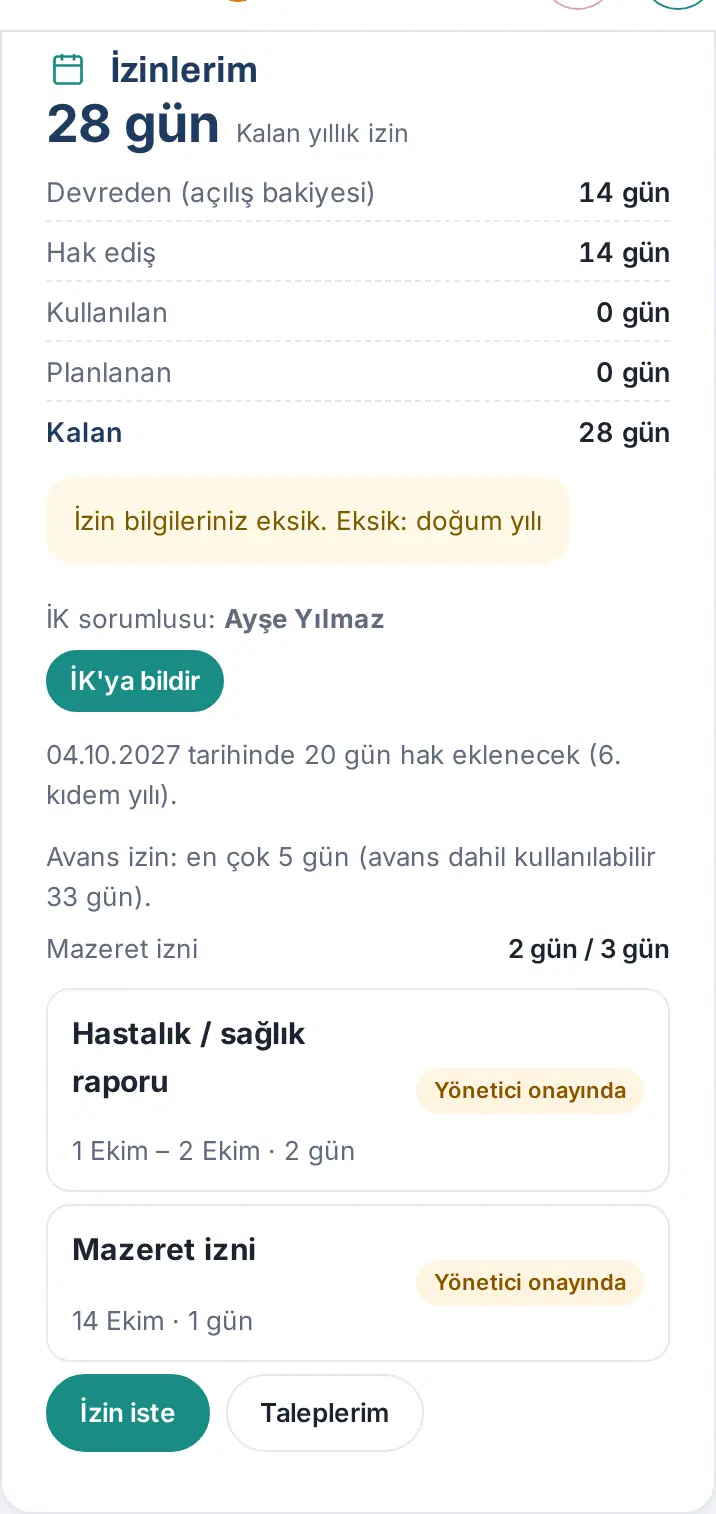
Request statuses: Awaiting manager · Awaiting HR · Signed form pending · Finalized · Approved · Rejected · Cancelled. If your company turned off signed form tracking, approved leave shows only as Approved. Since 1.4.2, the Status row in the request details, the conflict message and the leave report also say Awaiting manager / Awaiting HR, as in the lists (before, "Awaiting manager approval" / "Awaiting HR approval"). If a cancellation request is open for your approved leave, the Cancellation request badge also shows in the list (see Sending a cancellation request for approved leave).
Tip: If your opening balance has not been entered yet, the large number is replaced by "—" and the box says "Your opening balance has not been entered yet"; the breakdown rows do not show. If your balance looks wrong, contact HR (see Reporting missing leave information to human resources).
Color-coded leave calendar
Who: Employee · Manager (with a team) · HR and leave viewers · Where: My Space → My Area → My leave → Leave calendar (on a computer, Board → My Area)
What it does: Shows leave in color on a monthly calendar. An employee sees their own leave, a manager sees their team's leave, HR sees the leave of the whole company. Weekends, public holidays and holiday eves have their own colors; requests that wait for approval look different from approved ones. Before they approve leave or plan a meeting, managers see at a glance who in the team is on leave and when.
Who sees what:
| Calendar button | Who sees it | What is on the calendar |
|---|---|---|
| My own leave | Everyone | Only your leave |
| My team | Managers who have employees reporting to them in the organization chart | The leave of all employees who report to you |
| Whole company | HR officers and leave viewers | The leave of all employees; can be filtered by department |
If you have only one button (a regular employee), the button does not show; the calendar opens directly with your own leave. For a manager, the calendar opens with My team selected.
Steps:
- Tap My Space in the bottom menu and select My Area in the strip at the top.
- In the My leave box, tap Leave calendar. The Leave calendar window opens on the current month.
- To go to another month, tap the ‹ (previous month) and › (next month) buttons on both sides of the month name. When you are in another month, the This month button takes you back to the current month.
- If you are a manager or in HR, select whose leave you see with the My own leave, My team or Whole company button at the top right.
- In the My team and Whole company views, if there is more than one department, narrow the calendar by selecting a department from the All departments list.
- Each day is a box on the calendar. On a day with leave, colored badges show in the box: on your own calendar the leave type, on the team and company calendars the person's name. If a day has more than 3 leaves, "+N" shows; all of them are in the list below. Today's box has a frame.
- The Leave this month list below the calendar shows the same information line by line: the public holidays and holiday eves of the month, then for each leave the type, (on the team and company calendars) the person's name, the dates and the status (e.g. Approved or "Awaiting approval · Awaiting manager"). On a line of your own leave, tap Details to open the request.
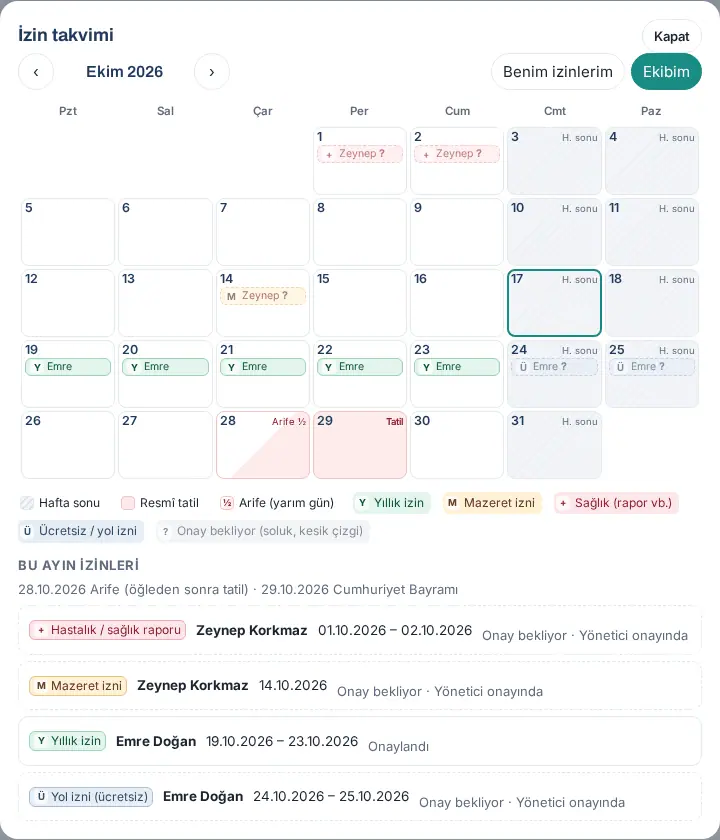
Colors and symbols (legend): The legend below the calendar explains the colors. Color alone does not carry information; each badge also has a symbol and a text.
| In the legend | Symbol | What it means |
|---|---|---|
| Weekend | gray striped day | A day that is not a working day. On your own calendar, it follows your work schedule in Work time; on the team and company calendars, the company's working days (e.g. if Saturday is a working day, Saturday is not a weekend). On a computer, "Wknd" shows in the corner of the day. |
| Public holiday | pink day | A public holiday from the leave settings; "Holiday" shows in the corner. The list shows the name of the holiday (e.g. "Republic Day"; on religious holidays, "Public holiday"). |
| Eve (half day) | ½, half-pink day | A holiday eve whose afternoon is a holiday; "Eve ½" shows in the corner. |
| Annual leave | Y | Paid annual leave |
| Personal leave | M | Personal leave |
| Health (sick note etc.) | + | Sick leave / medical certificate, maternity leave, disabled child leave |
| Statutory leave (marriage, paternity, bereavement…) | § | Marriage, paternity, adoption, bereavement and official duty leave |
| Unpaid / travel leave | Ü | Unpaid leave and travel leave |
| Other | • | Other leave types |
| Private leave | ◆ | A private type that is not shown to you (see Important below) |
| On leave (untyped entry) | İ | An "On leave" entry made by HR or from the profile, without a request |
| Awaiting approval (faded, dashed) | ? | A request that is not approved yet: the badge is faded and dashed, with a "?" next to it |
The first three types always show in the legend; the others are listed only if they are on the calendar that month.
On the phone: The calendar gets smaller to fit the screen. The day boxes show only the symbols (no person names and no type names); weekends, holidays and eves differ only by color. Read the details in the Leave this month list below the calendar.
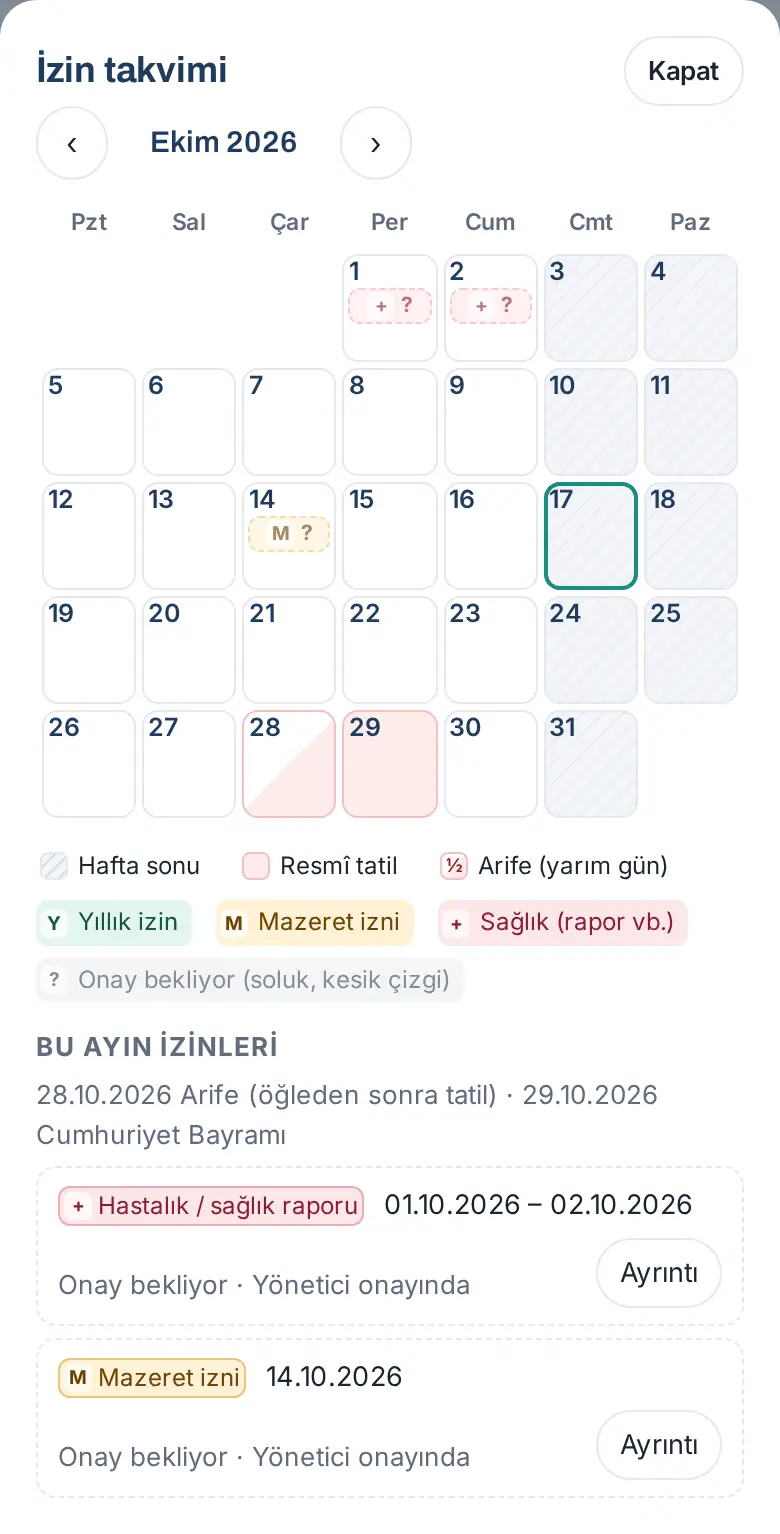
Tip: If you use a screen reader, the calendar is read as a table; the same information is also in the Leave this month list.
Important:
- The calendar shows approved leave and requests that wait for approval; rejected and cancelled requests do not show.
- For private leave types (sick leave / medical certificate, maternity, disabled child), only the person who takes the leave, the manager of the request and HR see the type of leave. Other people (e.g. a higher-level manager or a leave viewer) see only Private leave on the calendar.
- A regular employee sees only their own leave on the calendar; the leave of team colleagues does not show.
- Employees who have left are not on the My team and Whole company calendars.
- If a calendar that you are not allowed to see is requested, the message "You don't have permission to view this calendar." appears.
- In very large companies, the Whole company calendar shows at most 1,500 leave rows per month; for more, narrow it by selecting a department.
- Leave does not show on the company calendar on the Board (the Calendar tab); the leave calendar is only in the My leave box.
Reporting missing leave information to human resources
Who: Employee · Where: My Space → My Area → My leave → Notify HR
What it does: If information that HR must enter for the correct calculation of your leave entitlement is missing, the app tells you, and you notify the HR contact with one tap.
Which information is checked? The start date, the opening balance and (if you are on the Turkish length-of-service table) the year of birth. The year of birth is needed for the rule that employees aged 18 or under and 50 or over get at least 20 days of annual leave (Turkish Labour Law, Art. 53).
- In the My leave box, read the yellow warning, e.g. "Your leave information is incomplete. Missing: year of birth" or, if the opening balance has not been entered, "Your remaining balance becomes final once HR enters your opening balance."
- Below it, the HR contact: row shows the name of the HR contact (if there are more than two, "and N more").
- Tap Notify HR. The message "HR has been notified; your balance becomes final once the details are entered." appears and the button changes to HR notified.
Result: The HR contacts get the notification "Missing leave information: <your name>"; when HR taps the notification, the Balances screen opens with only the people whose information is missing (see 30. Employee leave management). The Waiting for you list in the bell also shows the row "Your leave information is incomplete: …"; after you notify HR, this row is hidden for 7 days.
Common errors and warnings:
- "You already notified HR today; you can notify them again tomorrow." — you can notify once a day.
- "No HR contact is set up to notify; please contact your Admin."
Paid and unpaid leave types and their rules
Who: Employee · Where: My leave → Request leave → Leave type
What it does: Shows which leave you can request and with which rules. Your company can turn off some types or change their rules; the rule line in the form always shows your company's current rule.
| Leave type | How it is counted | Default limit in the app |
|---|---|---|
| Annual leave | Working days | Your remaining annual leave (by length of service) |
| Personal leave | Working days | No limit (the company can give a yearly allowance) |
| Unpaid leave | Calendar days | No limit |
| Sick leave / medical certificate | Calendar days | No limit (private type; a document can be attached) |
| Marriage leave | Calendar days (1.1.8) | Max 3 days at a time |
| Paternity leave | Calendar days (1.1.8) | Max 5 days at a time |
| Maternity leave | Calendar days | Max 112 days at a time (private type) |
| Adoption leave | Calendar days (1.1.8) | Max 3 days at a time |
| Bereavement leave | Calendar days (1.1.8) | Max 3 days at a time |
| Leave for a disabled child's treatment | Working days | Max 10 days at a time (private type) |
| Public duty (witness, election duty, etc.) | Working days | No limit |
| Travel leave (unpaid) | Calendar days | Max 4 days at a time |
| Other | Working days | No limit |
- Tap Request leave.
- Select the type in the Leave type list.
- The rules of the type show on a line below the list, e.g. "Remaining this year: 2 days (yearly 3 days) · Max 2 times a year (1 this year)" or "Max 4 days at a time". If your company set the type to be deducted from your annual leave, the line says "Deducted from your annual leave".
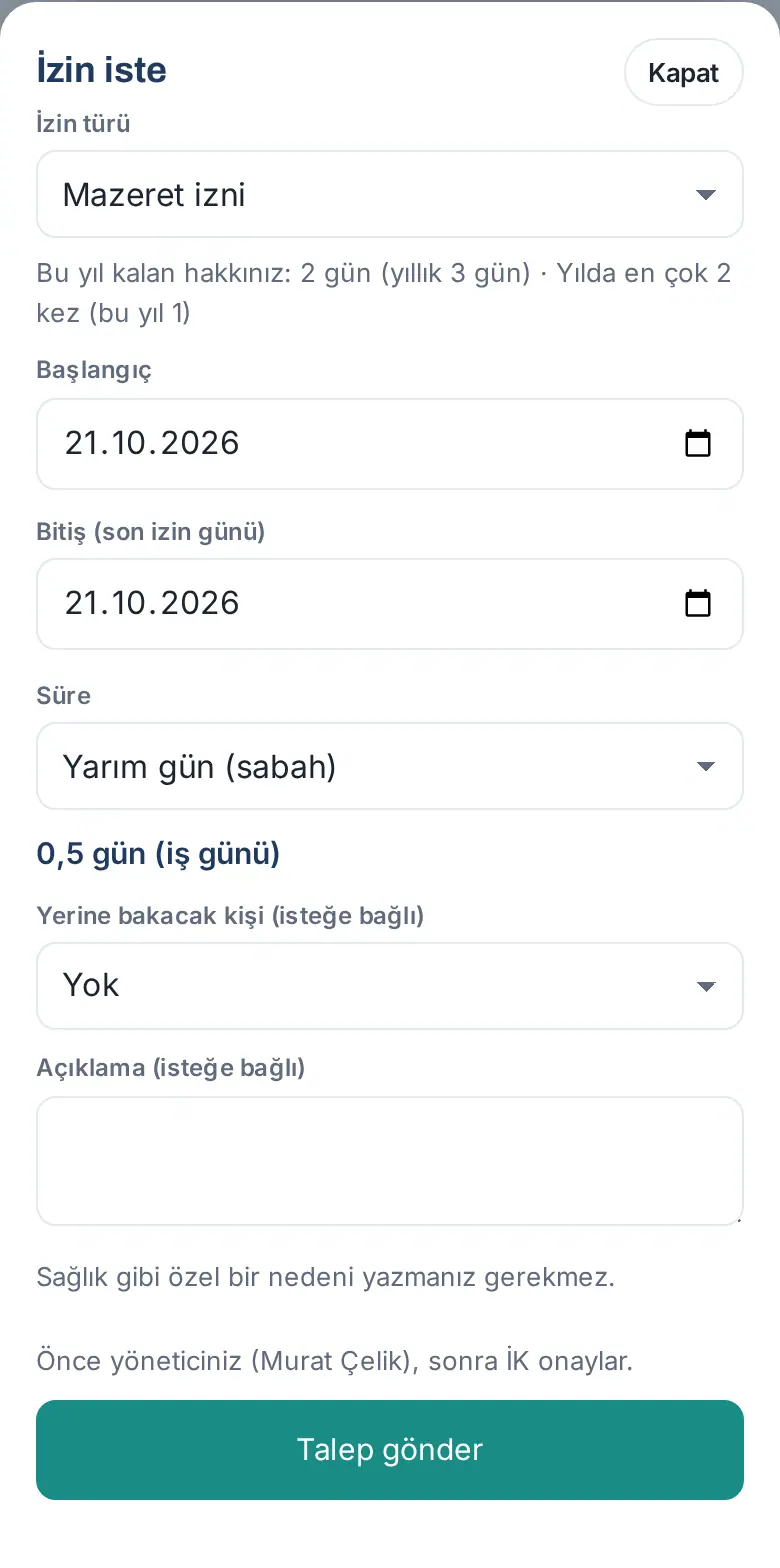
How is it counted?
- For types counted in working days, weekends, public holidays and days that are not your working days are not counted. Since 1.3.2, your working days come from your personal Work time schedule (the schedule assigned to you, to your department or to the company; e.g. for someone who works on Saturdays, Saturday is counted too). In the form, the line "Counted using your work schedule (Standart: Pzt–Cum ofis)." shows which schedule was used for the count. If your company does not use the Work time module, the working days in the Leave setting apply.
- Eves of holidays (the eves of Ramadan Feast and Feast of Sacrifice, and 28 October) count as 0.5 days in leave counted in working days; the afternoon is a public holiday (1.1.7).
- For types counted in calendar days, every day is counted. Since 1.1.8, marriage, paternity, adoption and bereavement leave (Turkish Labour Law, Additional Article 2) are counted in calendar days; the form shows the warning "This leave is counted in calendar days: weekends and holidays in between are included." The number of days of requests sent before does not change.
Age rule: In Turkey, the annual leave of employees aged 18 or under and 50 or over cannot be less than 20 days. If HR entered your year of birth, at least 20 days are added automatically on your work anniversary. If your year of birth has not been entered, My leave says "Missing: year of birth" (see Reporting missing leave information to human resources).
Important:
- A request that does not follow the rules is not sent, and the reason is shown, e.g. "Mazeret izni bir yılda en çok 2 kez alınabilir; 2026 için 2 talebiniz var (onaylı ya da onay bekleyen)." ("Personal leave can be taken at most 2 times a year; you have 2 requests for 2026 (approved or pending).") or "Mazeret izni için 2026 hakkınız yetmiyor: kalan 1 gün, istenen 2 gün." ("Your 2026 allowance for personal leave is not enough: 1 day left, 2 days requested.").
- Sick leave / medical certificate, maternity leave and leave for a disabled child are private types: on the calendar, in the directory and for viewers, they show only as "on leave" or "Private leave".
- The leave type is never shown on the calendar or in the directory; your teammates see only "On leave".
Requesting annual leave
Who: Employee · Where: My Space → My Area → My leave → Request leave
What it does: You send your leave request from the app. The request goes first to your manager and, after your manager approves it, to HR.
- In the My leave box, tap Request leave. On a phone, Request leave on the + button at the bottom right opens the same window (see 00. Getting started).
- Select Annual leave in the Leave type list.
- Select the Start date. When the form opens, Start and End (last day of leave) are already filled with today's date; change them for another day (1.5.1).
- Select the End (last day of leave) date. This is the last day you are on leave; it is not the day you return to work.
- Read the lines that show in the form:
- The calculation line, e.g. "2 days (working days) · your annual leave remaining 28 days · up to 33 days with advance".
- Remaining after this request: — the days that will be left after this request and your pending requests are subtracted (1.3.2). If it goes below zero, it shows in red. If your opening balance has not been entered, "— your opening balance hasn't been entered, so this isn't final" is added at the end.
- "Counted using your work schedule (…)." — which of your work schedules was used to count the days (1.3.2).
- "1 person from your team are on leave on the selected dates." or "No one from your team is on leave on the selected dates." — the number of people from the same department who are on leave on those days; names are not shown (1.3.2).
- If you want, select a teammate in the Cover person (optional) list.
- If you want, write a Description (optional). You do not have to write a private reason such as health.
- Read the approval order at the bottom of the form (e.g. "Your manager (Murat Çelik) approves first, then HR.").
- Tap Send request. The message "Your request was sent to your manager." appears and the details of the request open.
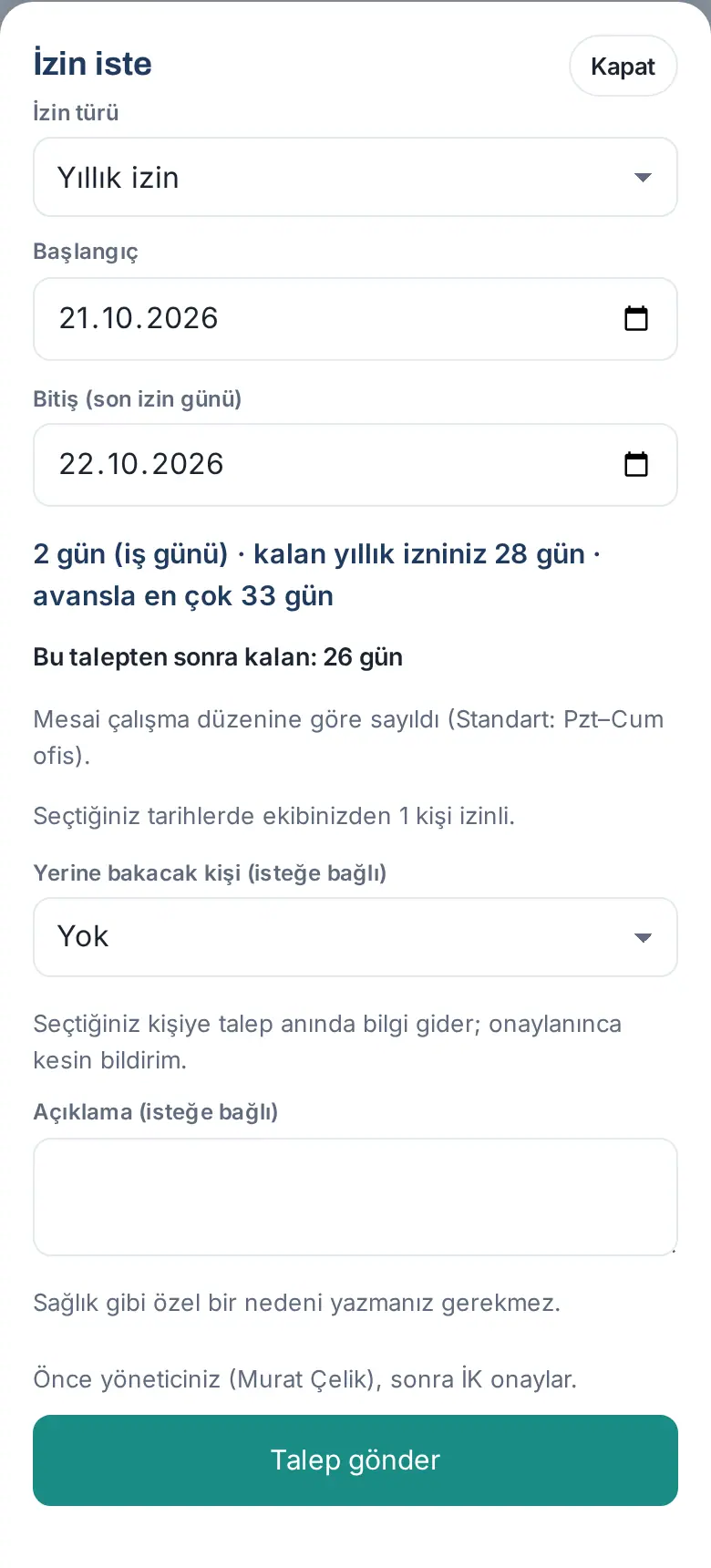
Result: The request shows in My leave as Awaiting manager. When your manager approves it, it becomes Awaiting HR. At the final approval, you get a phone notification ("Your leave is approved — sign the form and hand it to HR") and an email with the form attached as a PDF. If the request is rejected, you get the notification "Your leave request was rejected"; the reason for rejection is in the request details (see Resubmitting a rejected request).
Common errors and warnings:
- "Choose a start date." — the start date is empty.
- "The end date cannot be before the start date."
- "Seçilen tarihlerde çalışma günü yok (hafta sonu, resmî tatil ya da arifenin öğleden sonrası)." ("No working days in the selected dates (weekend, public holiday or the afternoon of a holiday eve).") — the days you selected are already holidays.
- "Bu tarihlerde zaten bir izin talebiniz var (…)." ("You already have a leave request on these dates (…).") — you cannot send a second request for the same days.
- "En çok 30 gün geriye izin girilebilir; daha eskisi için İK ile görüşün." ("Leave can be entered at most 30 days back; for earlier dates, talk to HR.") — the limit for past dates (a company setting).
- "Your leaving date is …; leave cannot fall after this date." — your departure has been entered or planned; the leave cannot run past the leaving date (1.8.8).
- "Your annual leave balance is not enough: … days left, … days requested." — the balance is not enough. If you have not earned any annual leave yet, the date on which you earn it is added to the message (e.g. "Yıllık izin hakkınız 12.10.2027 tarihinde doğar (İş K. md. 53)." — "You earn annual leave on 12.10.2027 (Labour Law, Art. 53)."). If the leave advance is on, the end of the message shows the maximum number of days you can take including the advance.
- If unpaid leave is turned on in your company, this message shows in the Not enough annual leave balance window: if you tap Send as unpaid leave, the same dates are sent as unpaid leave; with Go back, you stay in the form (1.1.7).
Important: If you have no manager set, the form says "You have no manager set, so the request goes straight to HR."
Requesting a half day of leave
Who: Employee · Where: Request leave → Duration
What it does: You request a half day of leave for one day, in the morning or in the afternoon; the leave counts as 0.5 days. If the type has a balance (annual leave or a type with its own yearly allowance), 0.5 days is deducted from the balance.
- Tap Request leave and select the Leave type (e.g. Personal leave or Annual leave).
- Select the same day for Start and End (last day of leave). Only then does the Duration field appear.
- Select Half day (morning) or Half day (afternoon) in the Duration list.
- Make sure that the calculation line says "0.5 days (working days)".
- Tap Send request.
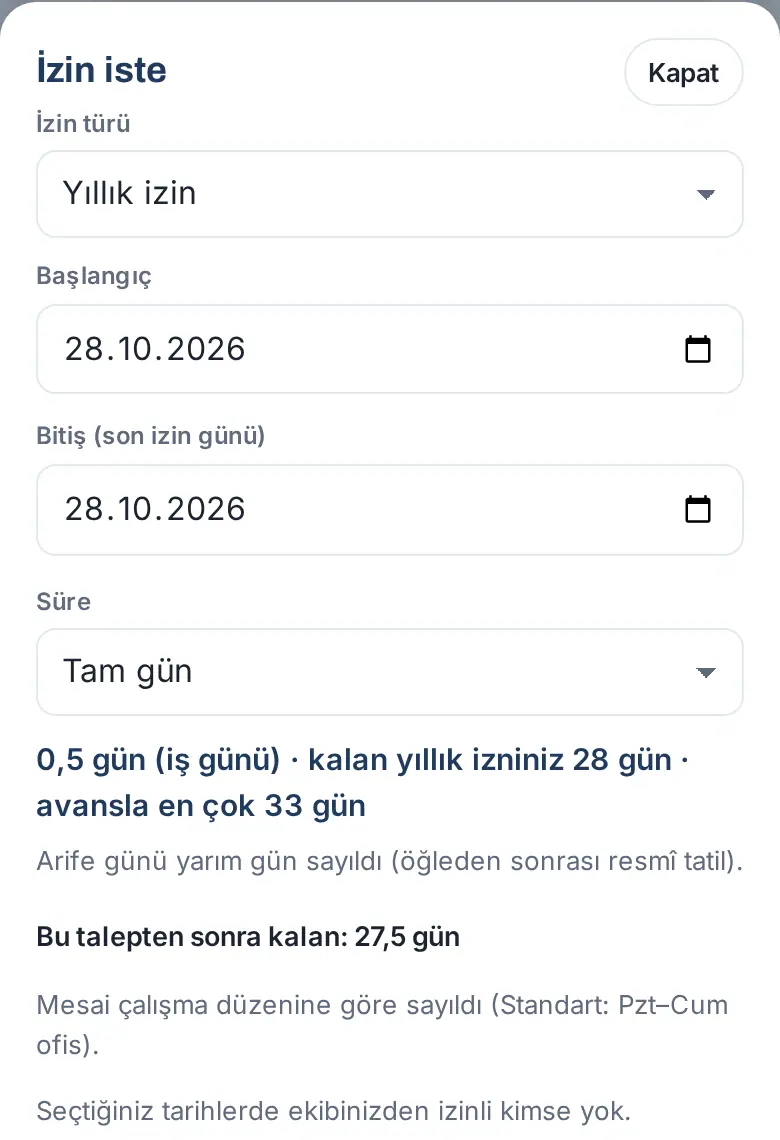
Holiday eve (1.1.7): In leave counted in working days, holiday eves are already half days. If you select Full day on an eve, the leave counts as 0.5 days and the form says "The eve counted as half a day (the afternoon is a public holiday)." If you select Half day (afternoon) on an eve, the number of days is 0 ("No working days in the selected dates."), because the afternoon is already a holiday.
Tip: Request lists, the details, the email and the notification to the person who covers for you show which half of the day it is, e.g. "9 October (half day · morning)" (1.1.7).
Adding a medical certificate and documents
Who: Employee · Where: Request leave → Document (optional) or the request details → Documents
What it does: You attach your medical certificate (if you did not get a paper one, the examination slip or a screenshot of the hospital system record) to your leave request. The document comes to the person who approves the request; you do not have to take a paper copy to HR separately.
Before you start: The document field shows only for the types for which your company allows or requires a document (default: Sick leave / medical certificate, optional).
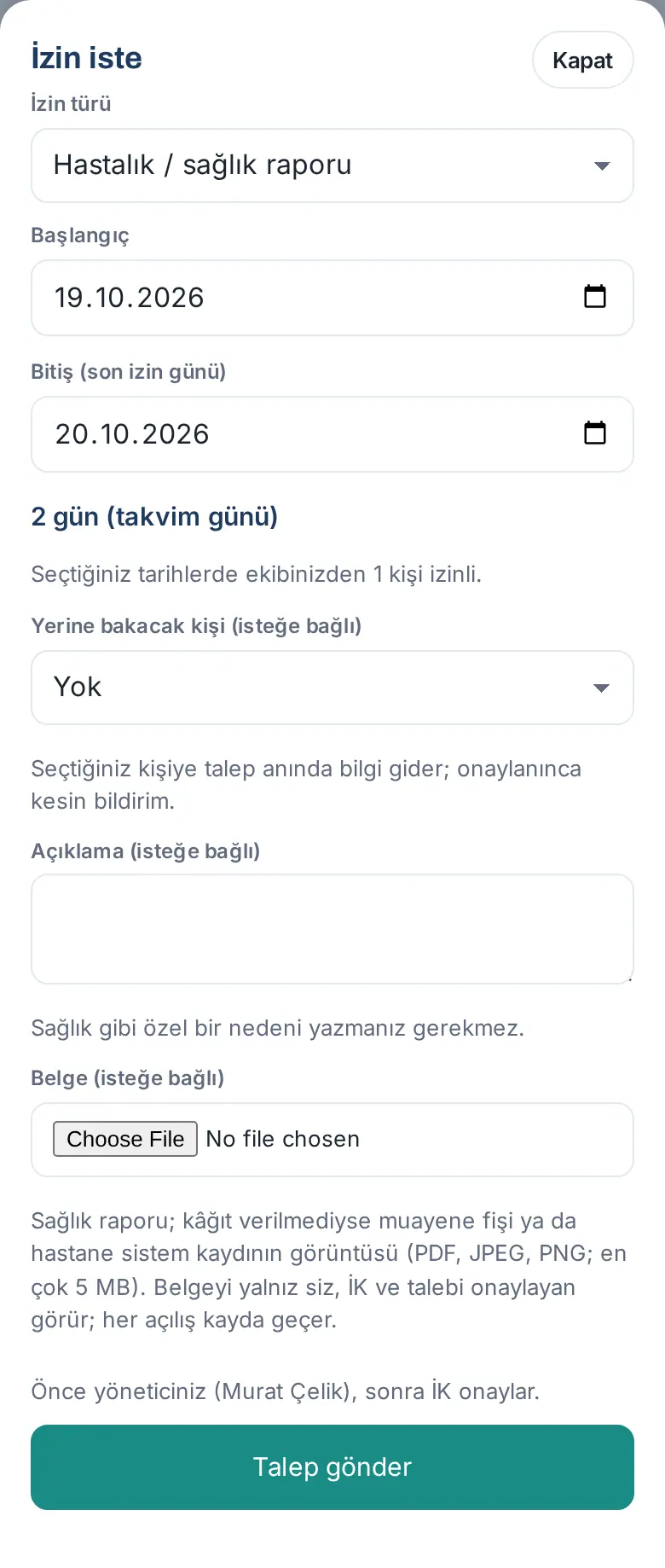
- Tap Request leave and select Sick leave / medical certificate in the Leave type list.
- Select the Start and End (last day of leave) dates. A medical certificate is counted in calendar days.
- In the Document (optional) field, select the file or take a photo of it (PDF, JPEG or PNG; at most 5 MB). If a document is required, the field is named Document (required).
- Tap Send request.
Adding a document later:
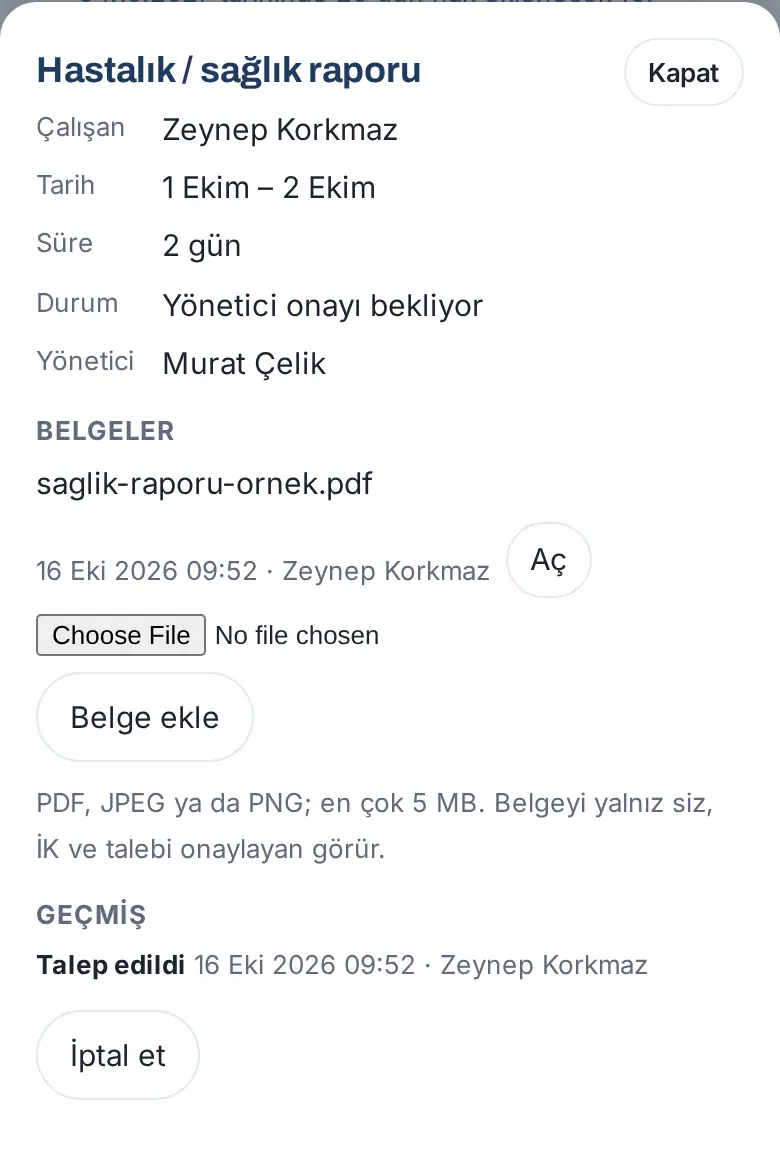
- In My leave, tap the request.
- Under Documents, select the file and tap Attach document. The message "Document attached." appears; Document attached is written to the history and the approver gets a notification.
- You can open the document you attached with Open.
Common errors and warnings: "You need to attach a document for this leave type." · "The document can be at most 5 MB." · "Choose the file first."
Important: Only you, HR and the person who approves the request see the document. Each time it is opened, this is recorded; HR sees the Document access log list in the request details. You can attach at most 3 documents to a request. A medical certificate is a private type: the deputy approver and viewers do not see the type name or the document.
Requesting travel leave
Who: Employee · Where: Request leave → Leave type → Travel leave (unpaid)
What it does: If you will spend your annual leave in another city, you request unpaid travel leave for the journey there and back. Under the Turkish Labour Law (Law No. 4857, Art. 56), travel leave is up to 4 days in total and is not deducted from your annual leave balance.
- Tap Request leave.
- Select Travel leave (unpaid) in the Leave type list. The rule line says "Max 4 days at a time".
- Select the Start and End (last day of leave) dates. Travel leave is counted in calendar days; weekends are counted too.
- You can write where you are going in the Description (optional) box.
- Tap Send request.
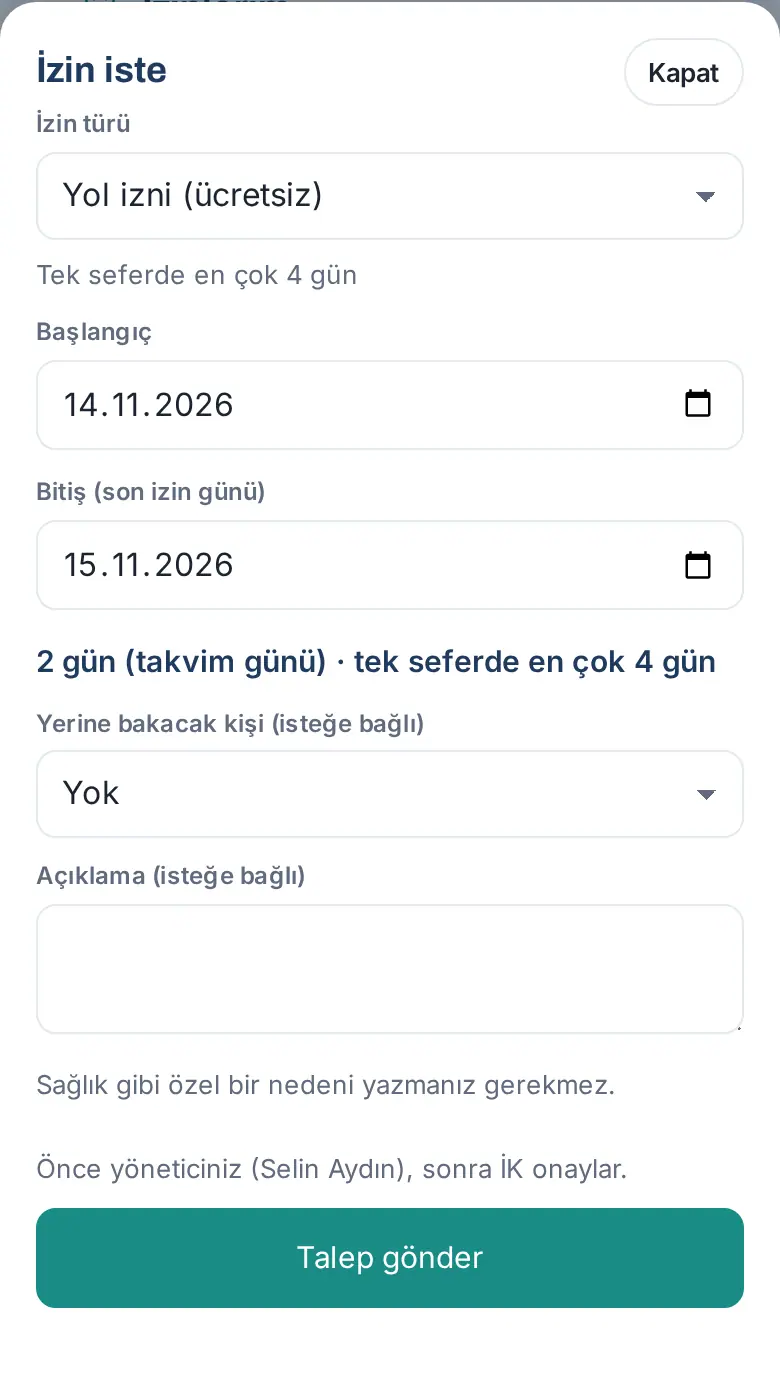
Important: Travel leave longer than 4 days is not sent: "Yol izni (ücretsiz) en çok 4 gün olabilir." ("Travel leave (unpaid) can be at most 4 days."). Your company can change this limit. Travel leave is unpaid; in the export to the payroll software, it is counted in a separate column (travel leave).
Using a leave advance
Who: Employee · Where: Request leave → Annual leave
What it does: If you have not yet earned annual leave, or if it is not enough, you can take leave as an "advance" from your next entitlement, if your company allows it. When you earn the entitlement, the advance is deducted from your balance.
Before you start: Your company turns on the leave advance. If it is on, the row "Advance leave: up to … days (available including advance: … days)." shows in the My leave box.
- Tap Request leave and select Annual leave.
- Select the dates.
- Read the calculation line, e.g. "2 days (working days) · your annual leave remaining -2 days · up to 3 days with advance · 2 days of this request are advance". "Your annual leave remaining" is the number of days left after your pending requests are subtracted; it can be negative.
- Tap Send request. Your approver sees the warning "2 days of this request are advance (leave not yet earned)." on the request.
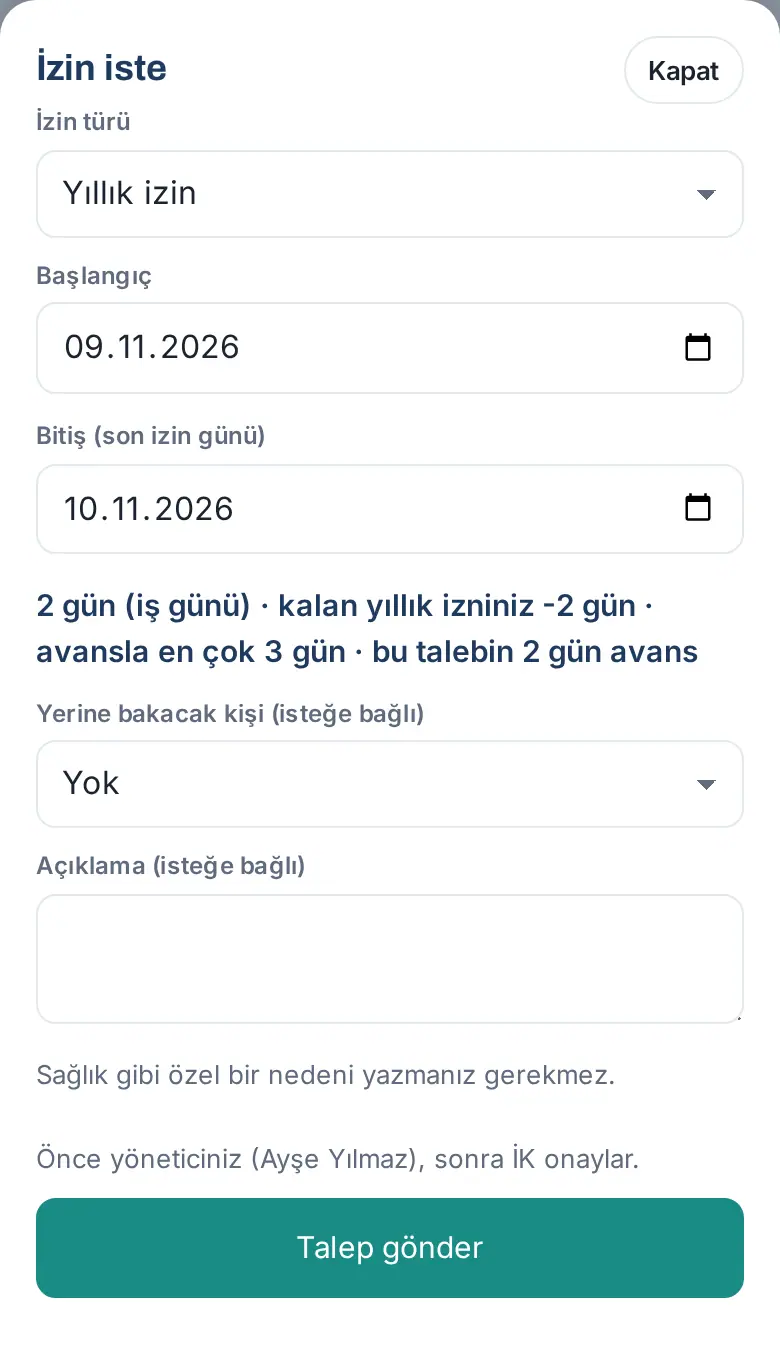
Result: The request details show the Advance row (e.g. "2 days"). When the request is approved, your remaining annual leave goes below zero; the entitlement added on your work anniversary covers the negative amount.
Important:
- The maximum advance you can use is the smaller of the days in the company setting and your next annual leave entitlement (e.g. at most 14 days for an employee in the first year).
- When the advance is used up, the request is not sent: "Your annual leave balance is not enough: … Including advance you can take at most … days (advance up to … days; it cannot exceed your next annual entitlement)."
- The advance applies only to types that are deducted from annual leave.
- When you leave the company, HR offsets the advance you used in payroll.
Selecting the person who covers for you
Who: Employee · Where: Request leave → Cover person (optional)
What it does: You state who takes over your work while you are on leave. The person you select shows on the request, on the approval card, on the leave form and in the "on leave" information in the directory.
- In the Request leave form, tap the Cover person (optional) list.
- Select a teammate in the list. If you do not want to select anyone, leave it as None.
- Send the request.
In group companies (1.8.8): the list opens with the employees of your own company. To choose someone from another company, tick Also show employees of other companies in the group; those people are listed with their company name next to their name (e.g. "Nazlı Eren · Örnek Lojistik").
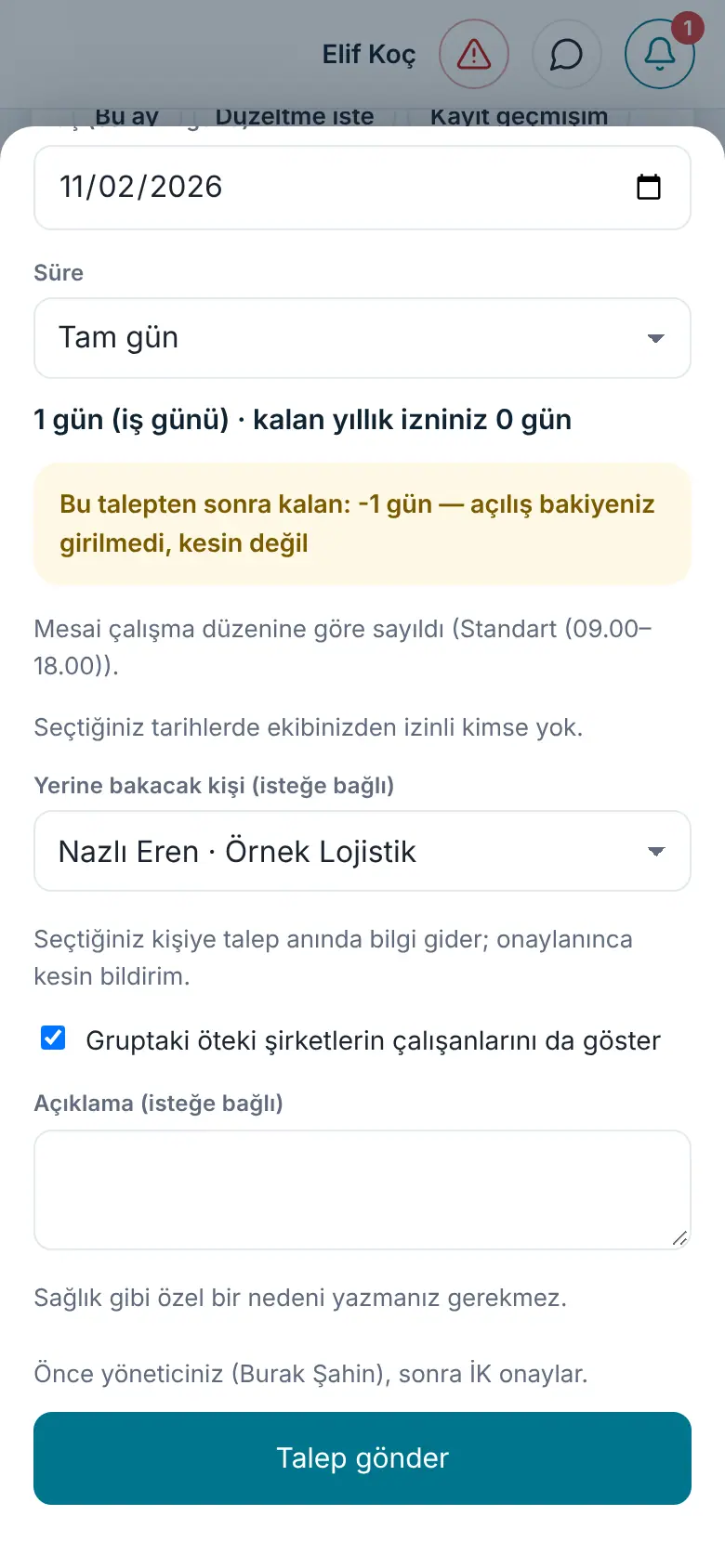
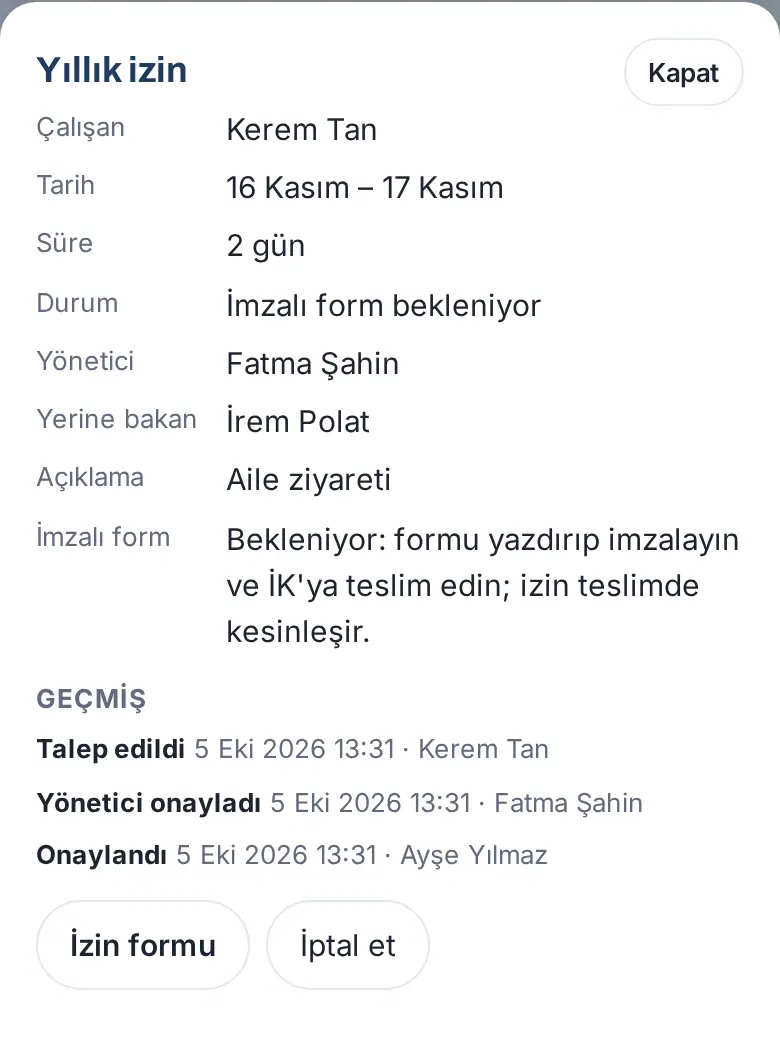
Result: The person you select is informed when you send the request ("… requested leave: you will cover (…)"); they get a final notification when the leave is approved, and they are informed again if it is rejected or cancelled (1.1.7). The request details show the Covering row, and the manager's approval card says "Covering: …". When your leave starts, the person who covers for you shows together with "On leave" in the directory and on your profile (see 08. Directory and organization).
Important: You can select only an active teammate: "Select an active teammate as the person covering." If you are a manager, the person who covers for you can approve your team's leave requests on your behalf while you are on leave (see Deputy approval while the manager is on leave).
Following and cancelling a request
Who: Employee · Where: My leave → tap the request (or My leave requests)
What it does: You see which approval step your request is at, who approved it and the status of the signed form; if necessary, you withdraw the request.
- In the My leave box, tap the request. For all your requests, tap My leave requests.
- The details show the Employee, Date, Duration, Status, Manager, Covering, Description and (if approved) Signed form rows. If you attached a document, the Documents section shows.
- Under History, the steps are listed: Requested, Manager approved, Approved, Signed form received, Document attached; each with the time, the person and (if any) the approver's note.
- To withdraw the request, tap Cancel. In the Cancel leave window, read the summary ("The request is cancelled." or, for approved leave, "The approved leave is cancelled: it is removed from the calendar and the balance is restored."), write a Note (optional) if you want and tap Cancel. The message "Cancelled." appears.
When does Cancel show (1.4.2)? The button appears only when you can really cancel the request:
- You can always cancel your request that waits for approval (Awaiting manager, Awaiting HR).
- You can cancel your approved leave only before it starts.
- For your approved leave that has started or is in the past, Request cancellation shows instead of Cancel; HR cancels the leave (see Sending a cancellation request for approved leave). If you have HR permission and there is another HR user or Admin, you cannot cancel your own leave that has started or is in the past with your HR permission either; you also send a cancellation request.
- A rejected or cancelled request has no button.
Important: If HR cancels your request, HR must write a reason; the reason is sent to you and to your manager.
Sending a cancellation request for approved leave
Who: Employee · Where: My leave → tap the approved leave → Request cancellation
What it does: You cannot cancel your approved leave yourself after it has started or if it is in the past (e.g. you came to work on a day you show as on leave). In this case, you send a cancellation request with a reason. The request goes first to your manager, then to HR; HR cancels the leave and the days go back to your balance.
Before you start: Request cancellation shows only for approved leave (Signed form pending, Finalized or Approved) and only if you cannot cancel the leave yourself. For approved leave that has not started, Cancel shows instead (see Following and cancelling a request). Only one cancellation request can be open at a time for a leave.
- In My leave (or in My leave requests), tap the leave. The Leave form and Request cancellation buttons show at the bottom of the details; there is no Cancel.
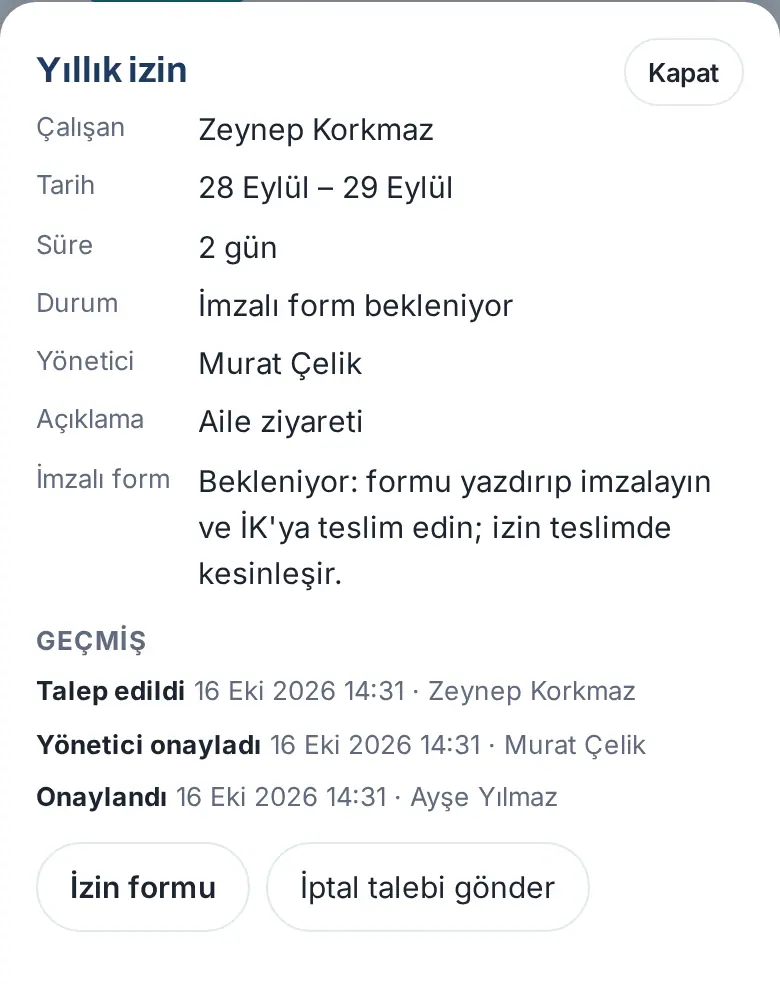
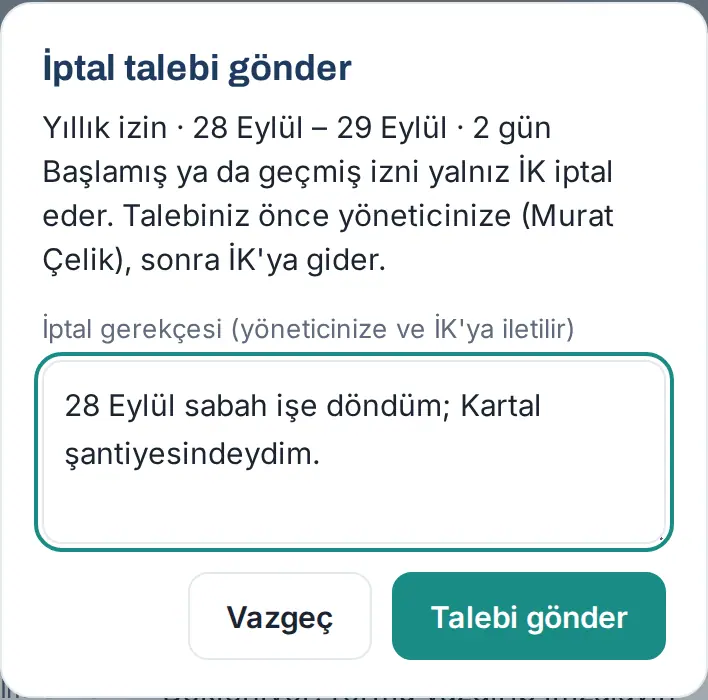
- Tap Request cancellation. The window with the same name shows the summary of the leave and "Only HR can cancel leave that has started or ended. Your request goes to your manager (Murat Çelik) first, then to HR." If you have no manager set, it says "Talebiniz İK'ya iletilir." ("Your request is sent to HR.").
- Write the reason in the Reason for cancellation (sent to your manager and HR) box. The reason must be at least 10 and at most 500 characters (the box says "At least 10 characters"). Do not write health information.
- Tap Send request. The message "Your cancellation request was sent to your manager." appears (if you have no manager, "Your cancellation request was sent to HR."). To stop, tap Go back.
Following the request: In the leave details, a yellow box shows below the status rows:
- Awaiting manager — "Cancellation requested (16 Oct 2026) · Awaiting manager approval: Murat Çelik" and, below it, Reason:. If your manager is on leave today and selected a person to cover, "(deputy …)" shows next to the name; that person decides.
- Awaiting HR — when your manager approves, the box changes to "Cancellation requested (…) · Awaiting HR" and the row "Manager approval: Murat Çelik · 16 Oct 2026 · …" is added (with the manager's note).
- If you have no manager or your manager has left the company, the request goes straight to Awaiting HR.
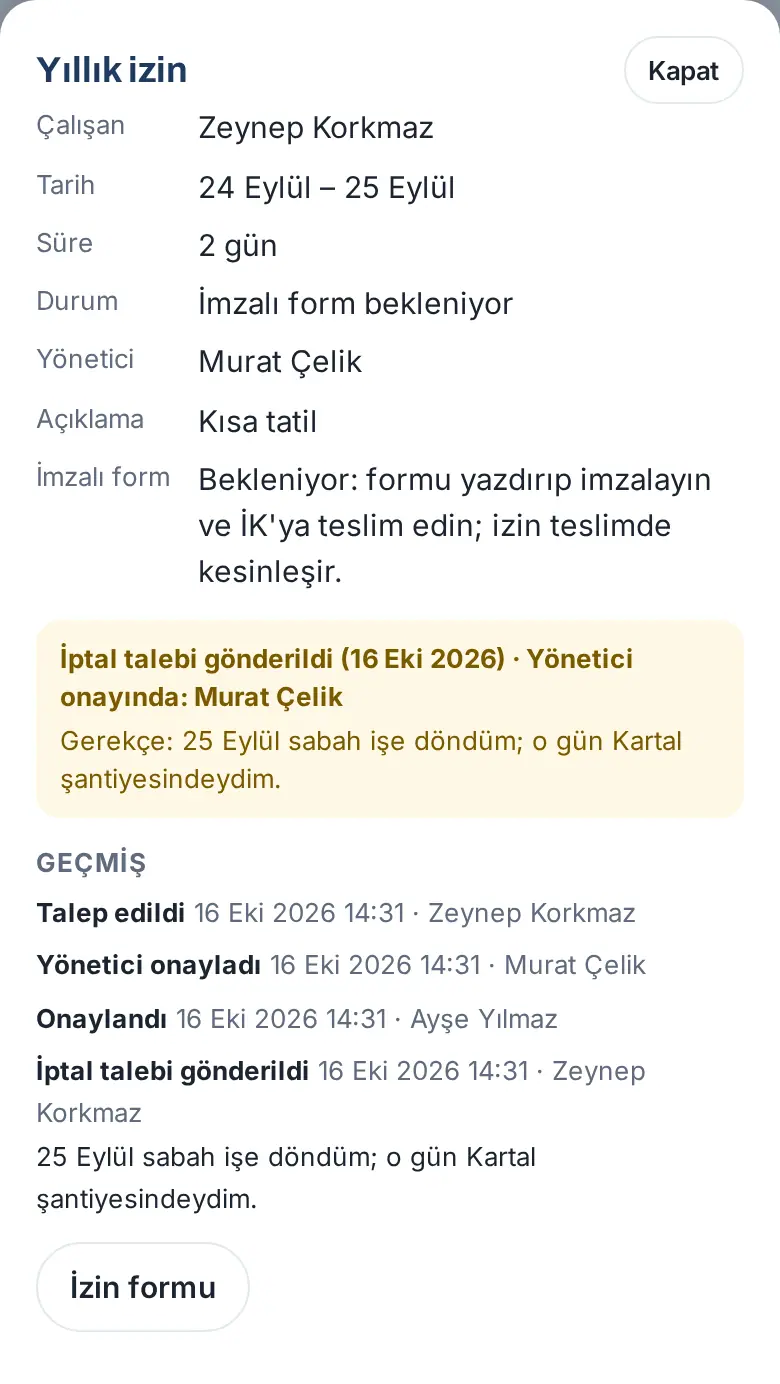
In the request lists, the Cancellation request badge shows next to the leave. Each step is written to History: Cancellation requested, Manager approved the cancellation request, Cancellation request rejected, Cancelled.
In My requests: In My Area → My requests, the row of the leave shows who has the request now (see 06. Board and intranet):
- At the manager step: "Now: Awaiting manager approval: Murat Ç. · iptal talebi" ("cancellation request"), and below it "Next: HR decision".
- At the HR step: "Now: Awaiting HR approval: Ayşe Y. · iptal talebi", and below it "HR will decide on your cancellation request".
While a cancellation request is open, the pending signed form does not count as "sizden bekleniyor" ("waiting for you").
Result:
- Accepted: HR cancels the leave. The leave becomes Cancelled, it is removed from the calendar and the days go back to your balance; you and your manager get the notification "Approved leave cancelled" (with HR's reason). The box says "Cancellation request accepted (date)".
- Rejected: If your manager or HR rejects it, you get the notification "Your leave cancellation request was rejected". The box says "Cancellation request rejected (date)", and the Manager's reply: or HR response: row shows the reason. The leave stays approved. If necessary, you can send a new cancellation request; the new request starts again at the manager step.
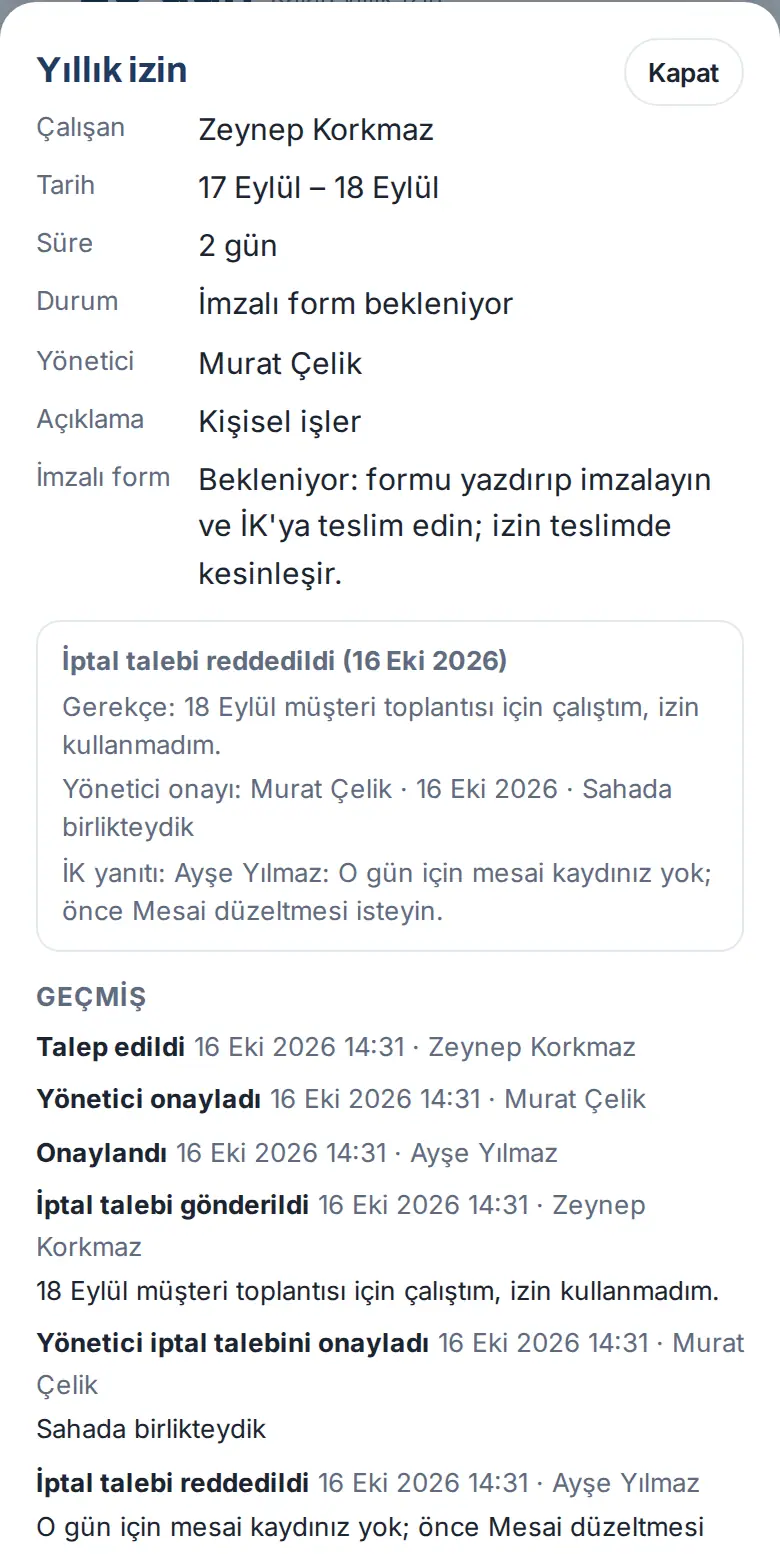
Common errors and warnings:
- "Enter the reason for cancellation (at least 10 characters)." — the reason is shorter than 10 characters.
- "A cancellation request for this leave is already awaiting a decision." — a request is open; wait for its result.
- "You can cancel this leave yourself; use "Cancel"." — the leave has not started yet (if the screen is old, refresh it).
- "Today's cancellation request limit has been reached." — you can send at most 20 cancellation requests a day.
Important:
- When your manager approves your cancellation request, you do not get a separate notification; follow the step in the leave details or in My requests.
- While the request waits at the manager step, HR cannot cancel the leave; your manager must decide first.
- Only HR's decision cancels the leave. Until the request is accepted, the leave stays approved on the calendar and in your balance.
Resubmitting a rejected request
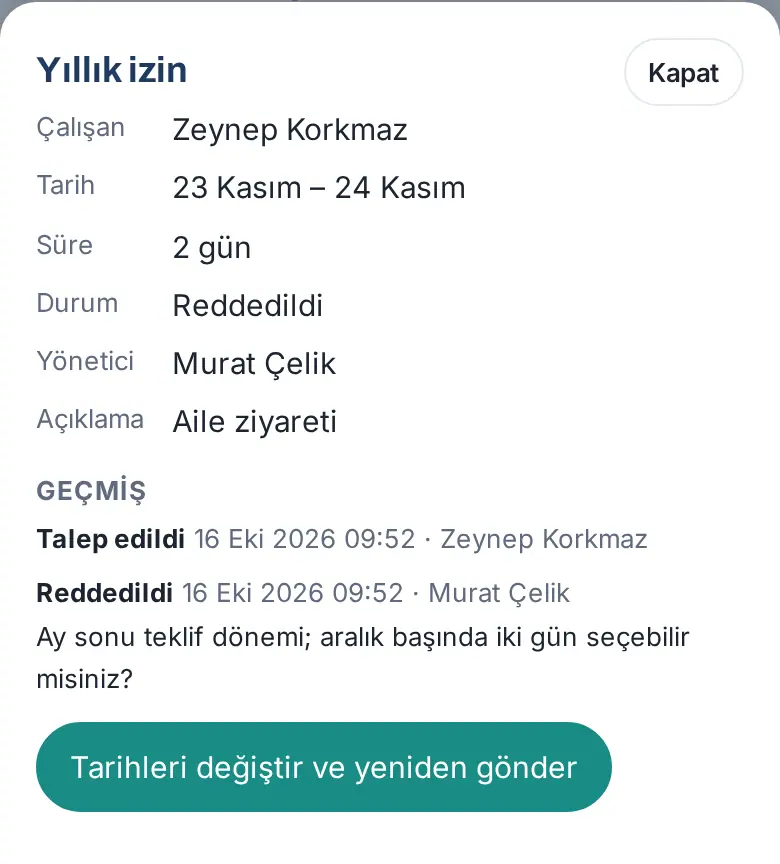
Who: Employee · Where: My leave → the rejected request → Change dates and resubmit
What it does: You resubmit your rejected request without writing it again, only by changing its dates. The type, the description and the person who covers for you come from the previous request.
- Tap the notification "Your leave request was rejected" or open the rejected request in My leave requests.
- In History, read the approver's reason below the Rejected row.
- Tap Change dates and resubmit.
- The Resubmit leave window opens. At the top, it says "Rejected request: 23 November – 24 November. Pick new dates and submit; the type and note were copied from the previous request."
- Select the new Start and End (last day of leave) dates; if necessary, change the type or the description.
- Tap Send request.
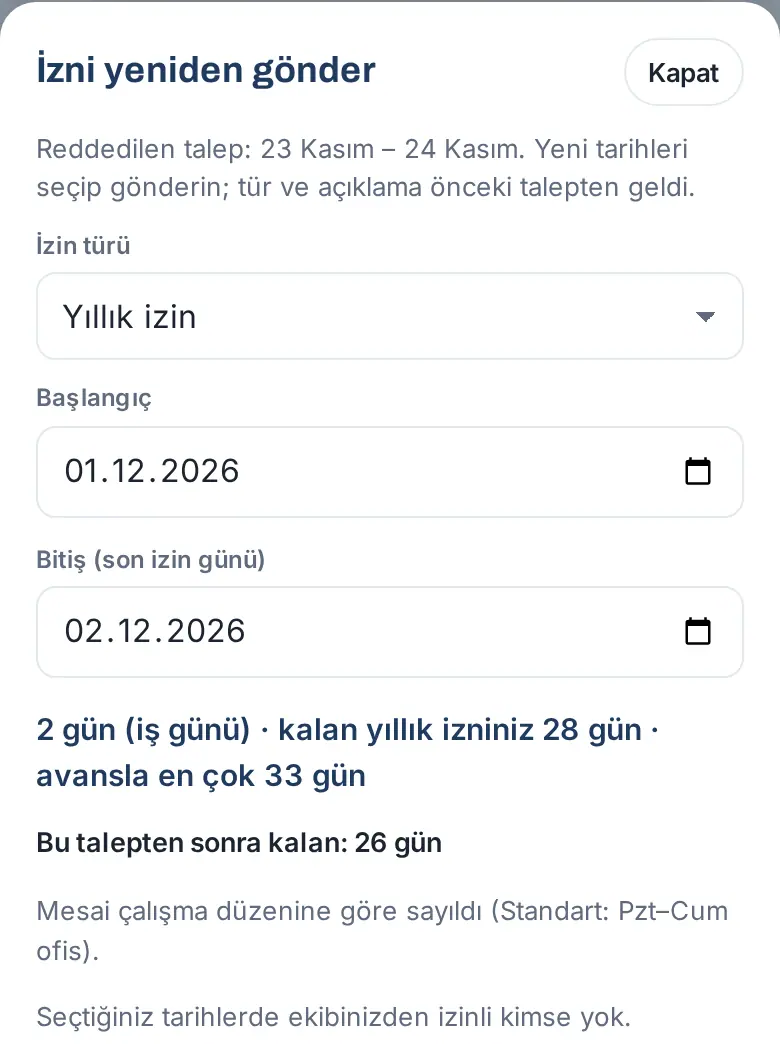
Result: The new request goes for approval, and its history says "Resubmitted in place of the rejected request (IZ-…)."
Important: A rejected request can be resubmitted only once: "This rejected request has already been resubmitted." If your company turned off the type, the button does not show.
Printing and signing the approved leave form
Who: Employee · Where: Leave details → Leave form
What it does: An A4 leave form is prepared for each approved leave. You, your line manager and HR sign the form; it is kept in your personnel file. If your company turned on signed form tracking, your leave is finalized when the signed form is handed in.
Before you start: The form exists only for approved leave. The Leave form button does not show on a request that waits for approval.
- When the final approval is given, the PDF of the form also comes to your email (subject: "İzniniz onaylandı — imzalı form bekleniyor (IZ-…)" — "Your leave is approved — signed form pending (IZ-…)"). You can print the attachment in the email or follow the steps below.
- In My leave, tap your approved leave.
- Tap Leave form. The form opens in a new tab.
- Check the form: Çalışan ("employee"), İzin ("leave": type, start, end, return to work, duration, covering person, description), Yıllık izin bakiyesi (onay anında) ("annual leave balance at the time of approval"), Onay geçmişi (sistem kaydı) ("approval history (system record)"), the three signature boxes (Çalışan, Birim yöneticisi ("line manager"), İnsan kaynakları ("human resources")) and, at the bottom, the QR code and the verification code. The form page shows only in Turkish.
- Tap Yazdır / PDF olarak kaydet ("print / save as PDF"). The button and the note at the top are not printed.
- Sign the form, have your manager sign it and hand it in to HR (see Signing and handing in the form, and "Finalized").
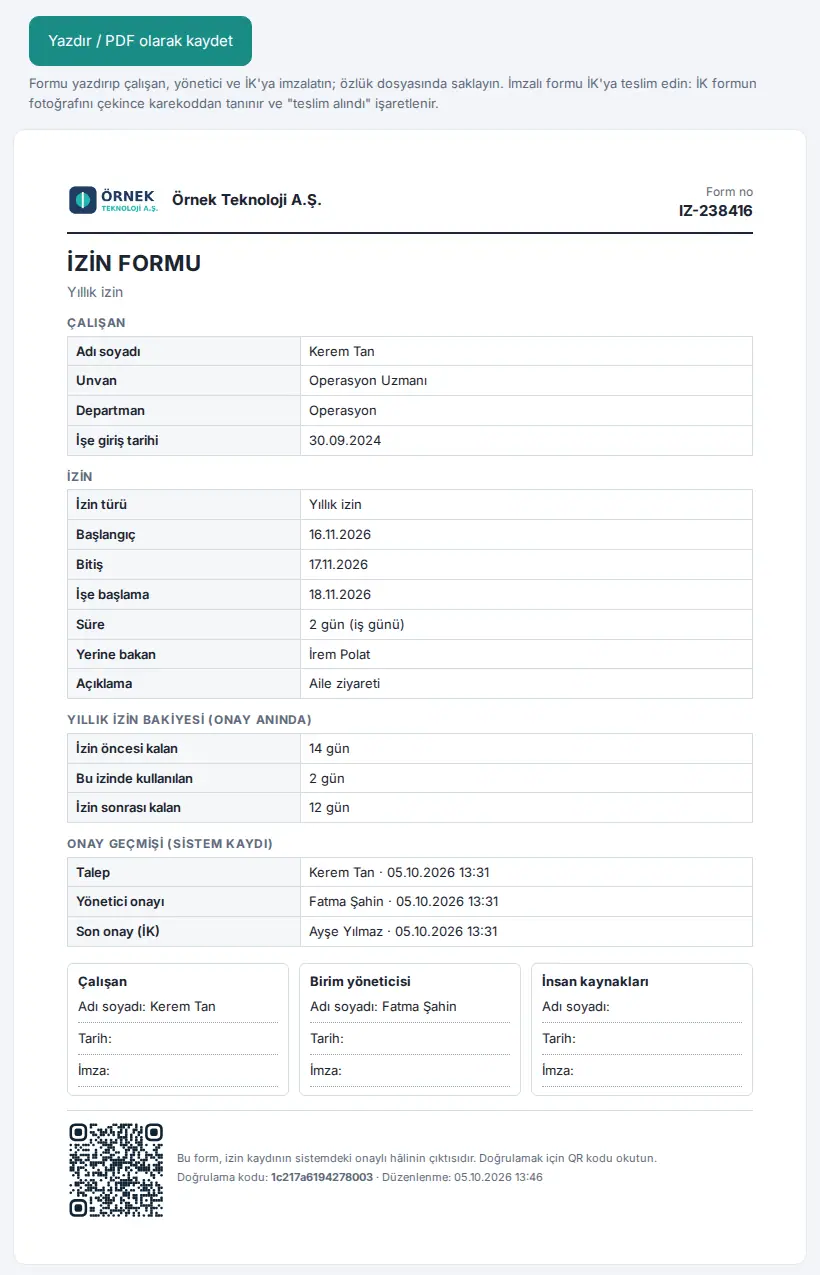
Result: Until the form is handed in, your leave is Signed form pending. The My leave box shows the warning "The signed form of 1 approved leave(s) is pending: print, sign and hand it to HR; your leave is finalized on delivery."
Reminder: Until the form is handed in, you get a reminder every working day at 09:30: a phone notification ("İmzalı izin formu bekleniyor" — "signed leave form pending"), an email with the PDF attached and (if your company set up an SMS provider) an SMS. No reminder is sent on the day of approval, on weekends or on public holidays. Your company selects the channels.
Important:
- The form of leave approved before 0.99.2 has no balance section.
- If the leave changes after you print the form (e.g. the dates), the old form cannot be received; print the current form and sign it again.
Verifying the form with the QR code
Who: Employee, manager, anyone who sees the form · Where: The QR code at the bottom of the form
What it does: Shows whether the paper form is the same as the approved record in the system.
- Scan the QR code on the form with your phone's camera.
- The page that opens needs no sign-in and shows only summary information: Form no ("form number"), Şirket ("company"), Çalışan (first name and the initial of the surname), İzin, Tarih ("date"), Süre ("duration"), Onay ("approval"). The page shows only in Turkish.
- Read the title of the page:
- Geçerli izin formu ("valid leave form") — "Bu form sistemdeki onaylı izin kaydıyla aynıdır." ("This form is the same as the approved leave record in the system.")
- Bu izin iptal edildi ("this leave was cancelled") — the leave was cancelled after the form was issued; the form is not valid.
- Form doğrulanamadı ("the form could not be verified") — the leave record changed after the form was issued; print the current form.
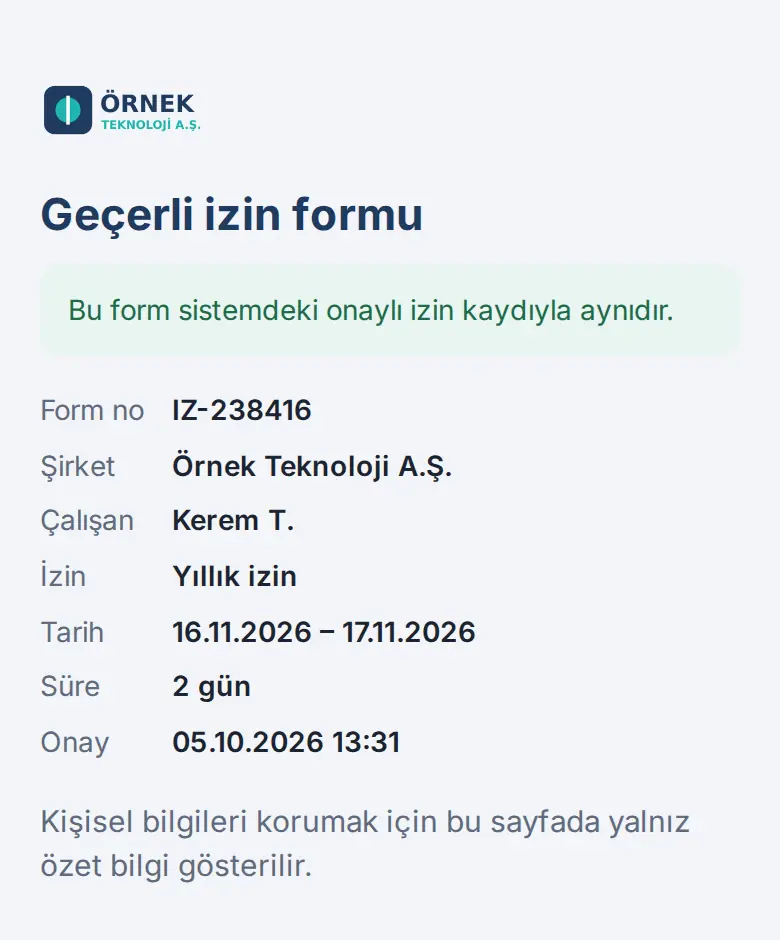
Important: For sick leave / medical certificate, maternity leave and leave for a disabled child, the verification page does not show the leave type; it says only "İzin".
Signing and handing in the form, and "Finalized"
Who: Employee · Where: Paper form to HR
What it does: When you give the signed form to HR, HR takes a photo of the form; your leave is recognized from the QR code and marked as "received". Your leave is then finalized.
- Give the signed form to HR.
- When HR receives it, you get the phone notification "İzin formunuz teslim alındı" ("your leave form has been received").
- In My leave, tap your leave. The Status row says Finalized, and the Signed form row says "Teslim alındı · tarih · teslim alan" ("received · date · received by").
- If you want, tap View signed form to open the photo that HR took.
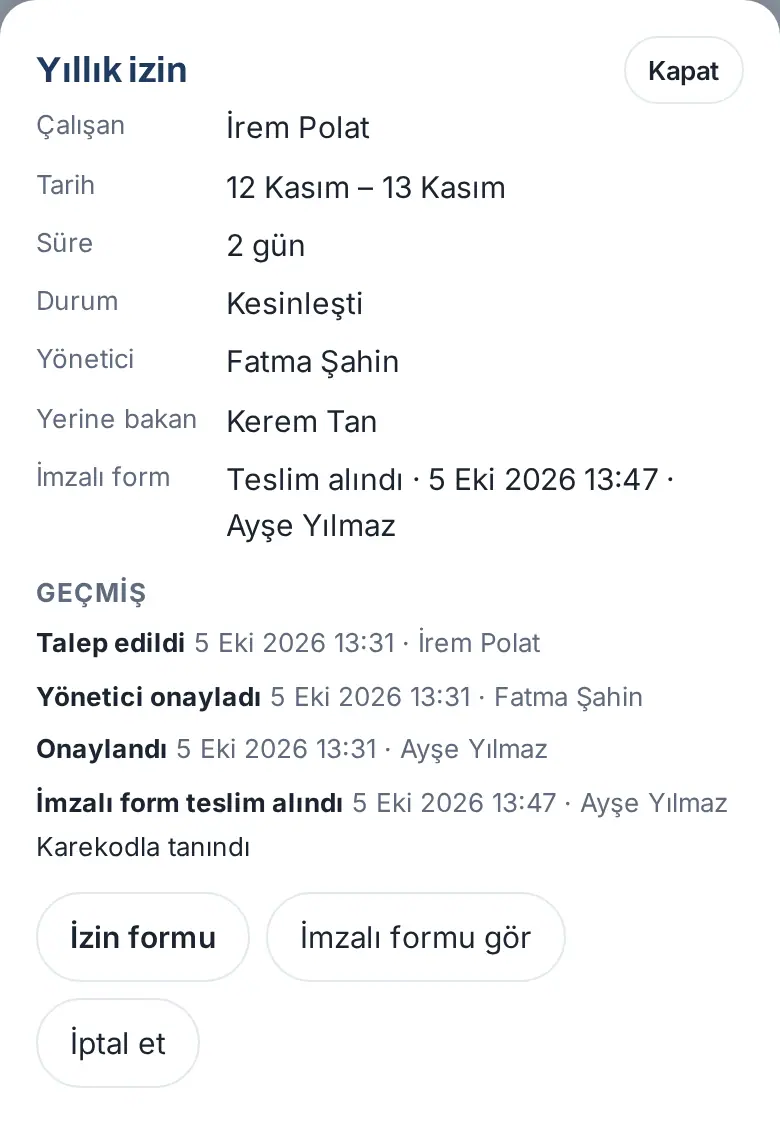
Tip: The history says "Karekodla tanındı" ("recognized from the QR code") or, if HR matched the form manually, "matched manually".
Approving leave as a manager
Who: Manager (a person who has a team in the organization chart), approver · Where: My Area → My leave → Awaiting approval (N)
What it does: You approve or reject your team's leave requests. A request you approve goes on to HR approval.
- Tap the notification or the email "Leave request awaiting your approval". Or, in the My leave box, tap Awaiting approval (N). Pending requests also show in the bell (Waiting for you) and on the Today card (see 09. Notifications).
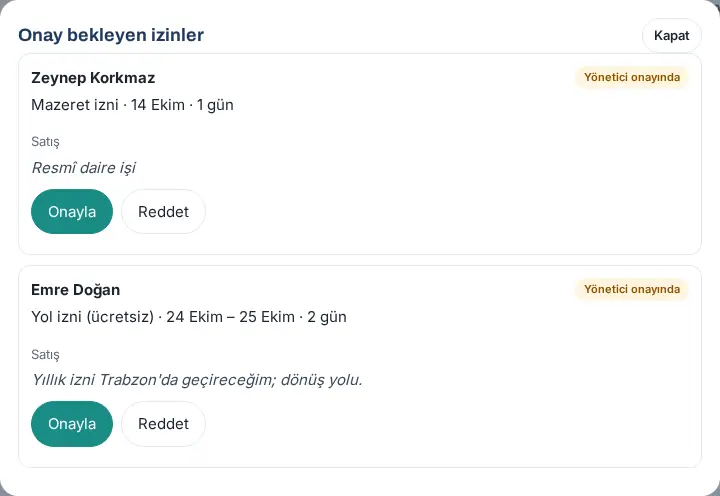
- In the Leave awaiting approval window, each card shows the person, leave type, dates, number of days, department, remaining annual leave, description and the person who covers. For a request with an advance, the warning "… days of this request are advance (leave not yet earned)." appears. If the employee attached a document, you can open it with the Belge: … ("document: …") button (each opening is recorded). The card also has the team capacity box (1.5.0): it shows how many people from your department will be on leave on those dates if you approve (see "Team capacity box" below). Read it before you decide; if you want, see all the leave of the team in the Color-coded leave calendar with My team.
- To approve, tap Approve. In the Approve window, read the summary of the request and the "Manager approval" row, write a Note if you want and tap Approve again. The message "Approved; now with HR." appears.
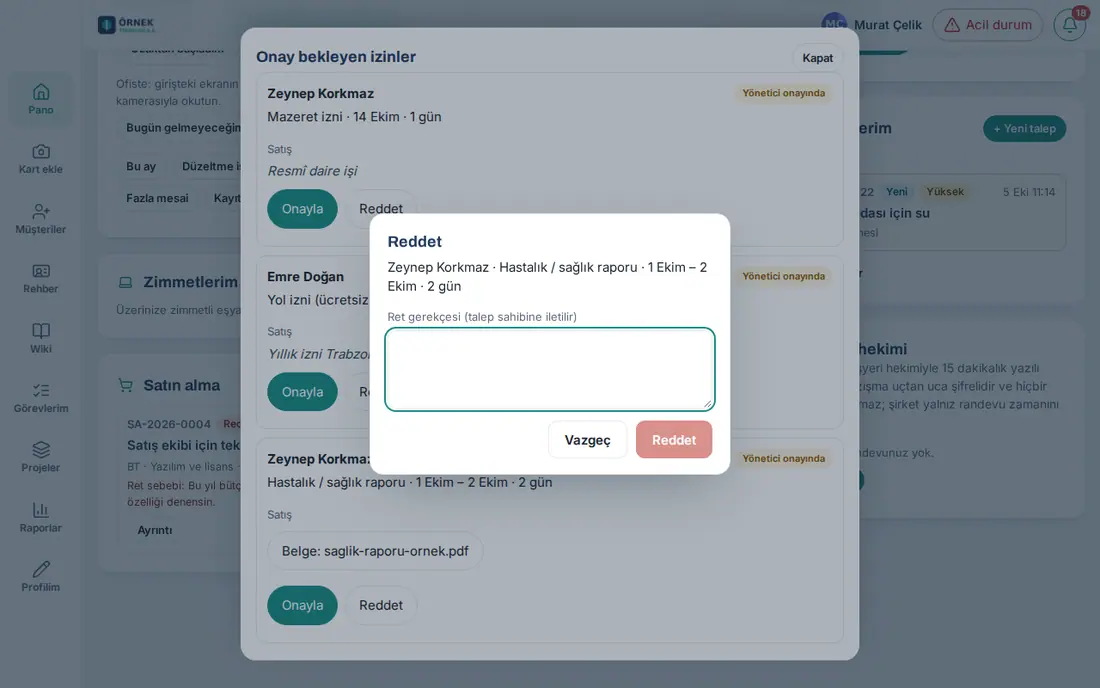
- To reject, tap Reject. In the Reject window, fill in the Reason for rejection (sent to the requester) box; the Reject button is not active until a reason is written. Tap Reject. The message "Rejected; the reason was sent to the employee." appears.
Team capacity box (1.5.0): On the approval card and in the request details, the person who can approve the request sees this box:
- First line: "If you approve, N / M people (X%) from the team will be on leave on these dates." M is the number of employees in the requester's department (including the requester, excluding people who have left). N is the total of the department employees who are on approved leave or have an "On leave" entry on the same dates, plus the owner of this request.
- Second line: the name of the department · "K on approved leave + this request" (if there is no other approved leave, "No other approved leave; only this request") · if other requests wait for approval, "B requests awaiting approval" · "Threshold: 30%".
- Third line (only the manager of the request and HR see it): the names of the people after "On leave:" and "Awaiting approval:".
- If the percentage is above the threshold set by the company (default 30%), the box is highlighted with an orange background and an Above threshold badge at the start.
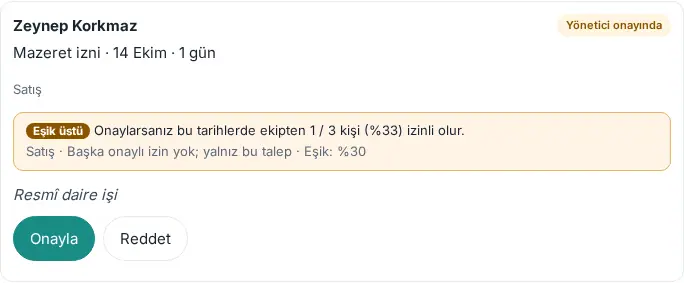
The box only gives information; you can also approve a request that is Above threshold. Only approved leave and this request count in the percentage; other requests that wait for approval are counted on a separate line, because they are not decided yet.
When does the box not show?
- If your company turned the capacity warning off (threshold 0; see 14. Services and human resources management).
- If the requester has no department, or there are no other employees in the department.
- If the request is approved or decided; never to the requester or to people who cannot approve the request.
Common errors and warnings:
- "You cannot approve your own request." / "You are not allowed to approve this request."
- "This request is no longer awaiting approval." — someone else decided on the request, or it was cancelled; the list is refreshed.
- "Bu talep şu anda işleniyor; birkaç saniye sonra yeniden deneyin." ("This request is being processed; try again in a few seconds.") — two decisions cannot be given on the same request at the same time (a double tap is blocked).
Tip: For a request that waits for more than 2 days, you get the reminder "Pending leave request". If the requester's manager has left the company or is not set, HR approves the request. For HR approval, see 30. Employee leave management.
Deputy approval while the manager is on leave
Who: The person who covers for a manager who is on leave · Where: My Area → My leave → Awaiting approval (N)
What it does: If the manager is on leave today, the person the manager selected as the cover person in the leave record approves or rejects the team's pending leave requests at the manager step, on the manager's behalf. Requests do not wait until the manager comes back.
Before you start: The manager must have approved leave or an "On leave" record for today, and a cover person must be selected in this record (see Selecting the person who covers for you).
- Tap the notification "Leave request awaiting your approval as deputy (on behalf of …)" or, in the My leave box, tap Awaiting approval (N).
- On each card, read the note "You are deciding as deputy: Murat Çelik is on leave; your decision is logged as "on behalf of Murat Çelik (deputy)"."
- Decide on the request with Approve or Reject, as in a normal approval (see Approving leave as a manager).
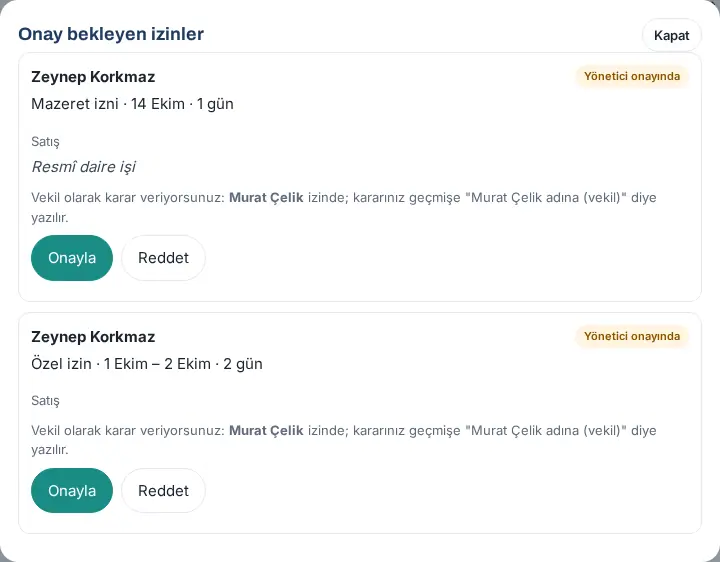
Result: The request goes on to HR approval; in the history of the request, the Manager approved row shows the note "on behalf of Murat Çelik (deputy)".
Important:
- The deputy decides only at the manager step; the deputy cannot give HR approval.
- For private types (sick leave / medical certificate, maternity, disabled child), the deputy does not see the type name, the description or the document; the card says "Private leave".
- You cannot approve your own request as a deputy.
- In the team capacity box, the deputy sees only the numbers; the names of the people on leave and waiting for approval are not shown to the deputy (1.5.0).
Deciding on a cancellation request as a manager
Who: Manager (the manager on the leave request); if the manager is on leave, the person who covers · Where: My Area → My leave → Awaiting approval (N) or the notification
What it does: When someone in your team sends a cancellation request for approved leave that has started or is in the past, you give the first decision. If you approve, the request goes to HR and HR cancels the leave; if you reject, the request is closed and the leave stays approved. You do not cancel the leave yourself.
- Tap the notification "Leave cancellation request awaits your approval" or, in the My leave box, tap Awaiting approval (N). The number includes the cancellation requests that wait for your manager approval. The request also shows on the Today card (Awaiting your approval) and in the bell (Waiting for you) as the row "1 leave cancellation request(s) await your decision".
- Cancellation request cards are at the top of the Leave awaiting approval window: the employee's name, the Cancellation request badge, the leave (type, dates, days), Reason: and "Cancellation requested (date)". To see the leave and its history, tap Details.
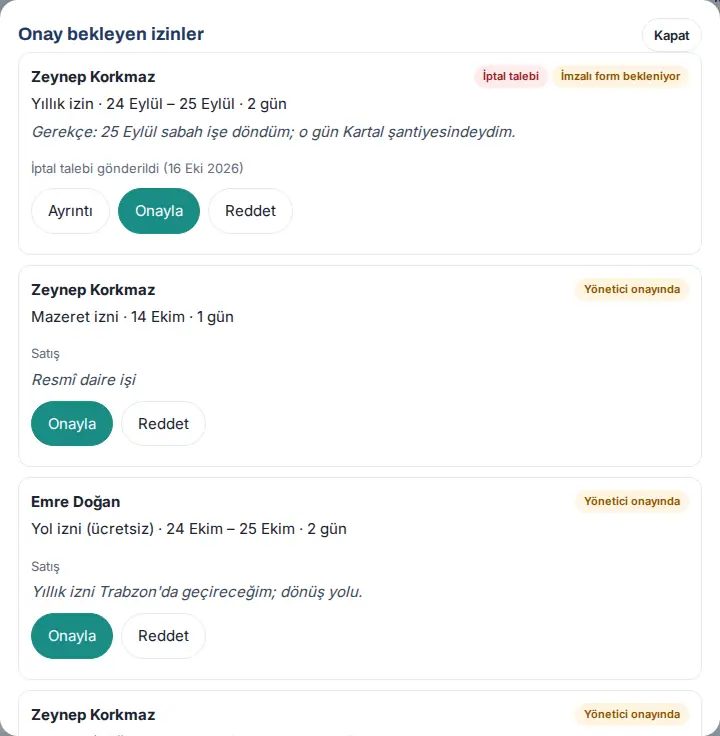
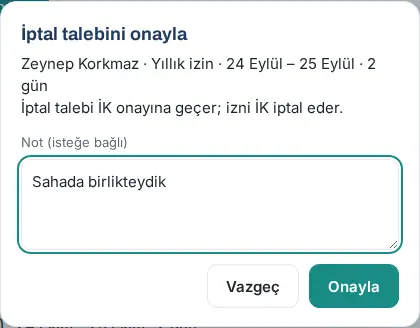
- To approve, tap Approve. In the Approve cancellation request window, read the summary and the line "The cancellation request moves to HR approval; HR cancels the leave.", write a Note (optional) if you want and tap Approve. The message "Approved; the cancellation request moved to HR approval." appears.
- To reject, tap Reject. In the Reject cancellation request window, fill in the Reason for rejection (sent to the employee) box (Reject is not active until a reason is written) and tap Reject. The message "Cancellation request rejected; the reason was sent to the employee." appears.
Result: When you approve, the HR decision makers get the notification "Leave cancellation request awaits your decision" with the note "Manager approved: <your name>"; the row "Manager approval: …" appears in the employee's details. When you reject, the employee gets the notification "Your leave cancellation request was rejected"; HR gets no notification and the leave stays approved.
Deputy (while the manager is on leave): If the manager is on leave today and selected a cover person in the leave record, the decision goes to that person (see Deputy approval while the manager is on leave). The deputy gets the notification "Leave cancellation request awaits your approval as deputy (on behalf of Murat Çelik)"; the card shows the note "You are deciding as deputy: Murat Çelik is on leave; your decision is logged as "on behalf of Murat Çelik (deputy)"." For private types (sick leave / medical certificate, maternity, disabled child), the notification to the deputy does not show the type name or the reason; it says only "Private leave".
Common errors and warnings:
- "You cannot decide on your own cancellation request."
- "Only the employee's manager (or their deputy while on leave) decides the manager step of the cancellation request."
- "This leave has no cancellation request awaiting a decision (it may have just been decided). Refresh the screen." — someone else decided on the request, or the employee had the leave cancelled.
- "Write the reason for rejection; it is sent to the employee." — the reason must be at least 3 characters.
Important:
- The manager of the request is the manager on the record of the leave request. If this manager leaves the company, the request moves to the HR step automatically.
- HR cannot cancel the leave until you decide. Do not keep the request waiting.
- If you have HR permission and you approved the manager step of the cancellation request, another HR user, if there is one, gives the HR decision (see 30. Employee leave management).


