08. Directory and organization
Screenshots show the Turkish interface of Prozence with fictional "Örnek Teknoloji A.Ş." data; the English interface has the same layout.
The company directory collects the phone numbers, email addresses and extension numbers of all your colleagues in one place. The organization chart shows who reports to whom. On a teammate's profile you see what they do, their areas of expertise, their manager and their team. If a person is on leave, the directory shows "On leave" and who is covering for them.
The directory and profiles are for internal use only: only employees who are signed in can see them. To edit your own information, see 00. Getting started. Customer cards are not the subject of this chapter; they are the subject of 04. Customer directory.
Who: Employee (one task also for team managers; the role and pay change tasks for managers, HR and approvers)
In this chapter
- Opening the company directory
- Searching the directory and "Who knows about this?"
- Seeing who is on leave and who is covering in the directory
- Viewing the organization chart
- Opening a teammate's profile
- Viewing your own profile
- The Our team list
- Requesting a role and pay change
- Reviewing and approving a role and pay change request
- Adding your expertise and profile details
- Entering leave and cover in My profile
- People who left their details on your card (Left details)
Opening the company directory
Who: Employee · Where: Team → Directory
What it does: Lists all employees in alphabetical order. Each person has a job title and Email, mobile phone, Extension and Card (digital business card) buttons. The person's name is a link that opens their internal profile.
- In the bottom menu, tap Team.
- In the strip at the top, select Directory. The List tab opens; the number of people shows below the Company directory title.
- To send an email to a person, tap Email; to call them, tap the phone number.
- If the person wrote an introduction, About shows below their name; tap it to open the text.
- To open the person's internal profile, tap their name; to open their digital business card, tap Card (see Opening a teammate's profile).
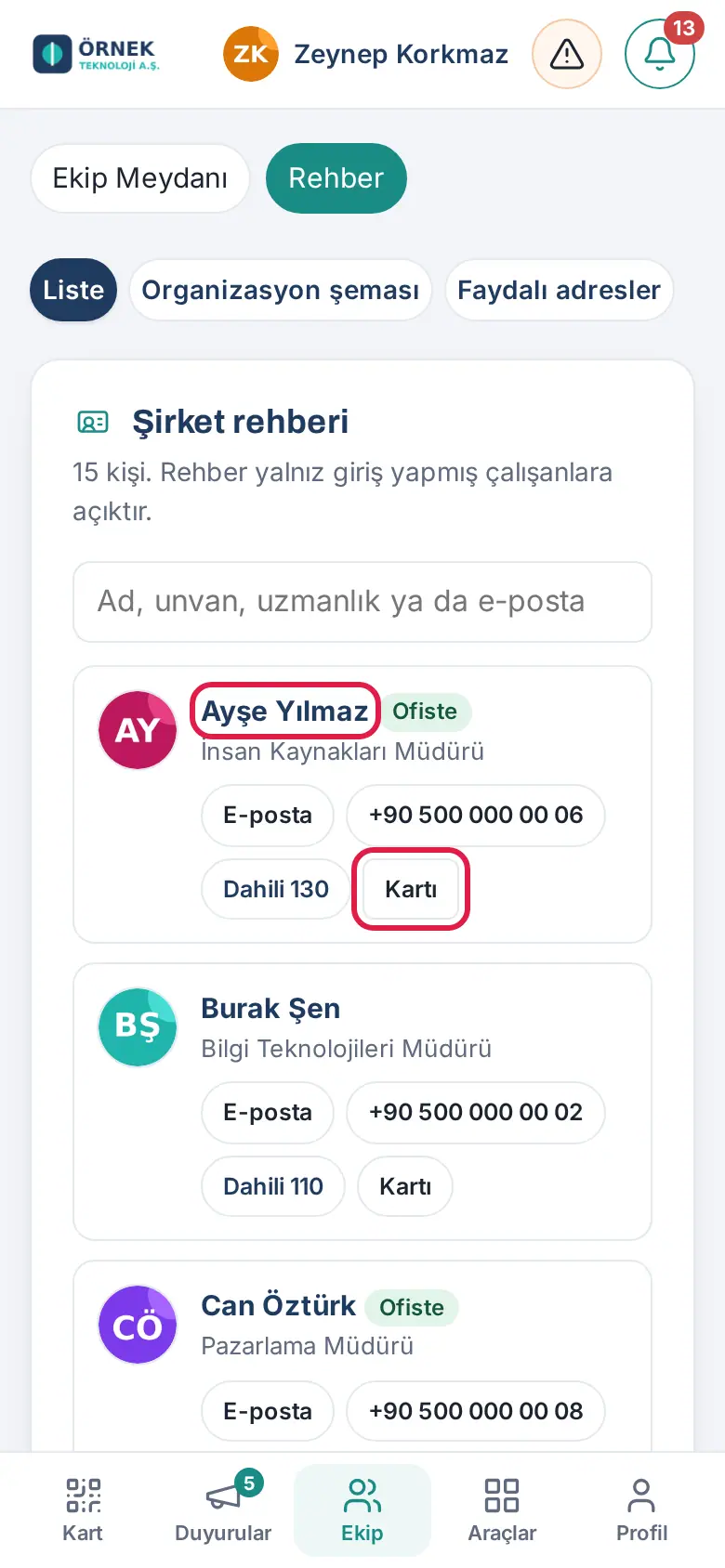
Tip: On a computer, click Directory in the left menu. The Employee directory and Organization chart buttons below the Team box on Team Square also bring you here.
Important: Your company decides whether mobile phone numbers show in the directory. If your company turned off the directory, this screen does not show.
Searching the directory and "Who knows about this?"
Who: Employee · Where: Team → Directory → List
What it does: In addition to finding a person by name, you can find a teammate who knows about a subject.
- Type a few letters in the Name, title, expertise or email box. The list is filtered as you type.
- The search looks in: name, job title, email, the About text, and expertise and interest tags. For example, if you type "automation", the people who have this word in their About text or in their expertise are listed.
- If no person matches your search, "No one matches your search." shows.
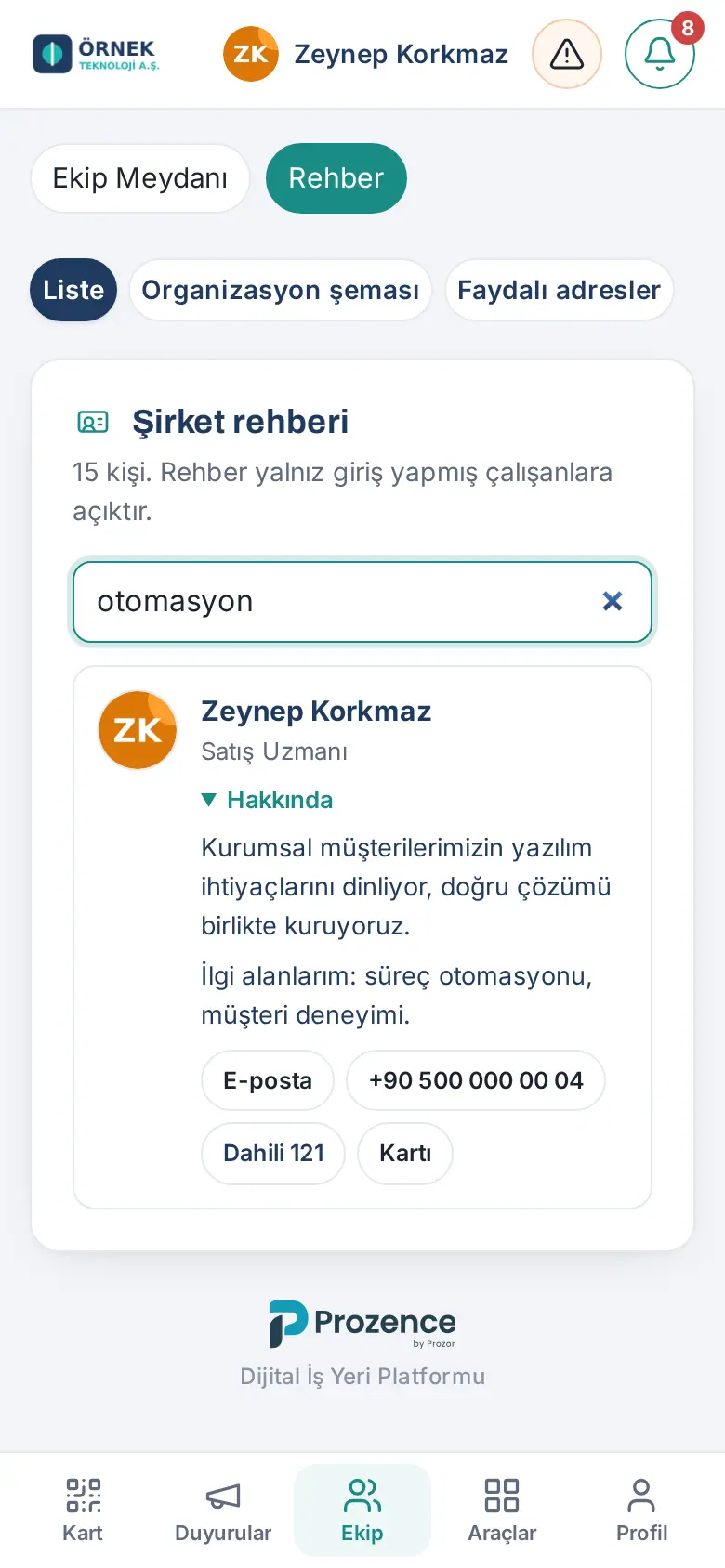
Tip: If you tap an Expertise or Interests tag on a person's profile, the directory is searched with that tag; you see everyone who knows about the same subject.
Seeing who is on leave and who is covering in the directory
Who: Employee · Where: Team → Directory
What it does: If a teammate is on leave, you see until when they are on leave and who to contact for urgent matters.
- Find the person in the directory.
- If the person is on leave, a yellow row below their name shows On leave · "until …" · "Covering: …".
- Tap the name of the person who is covering; that person's profile opens.
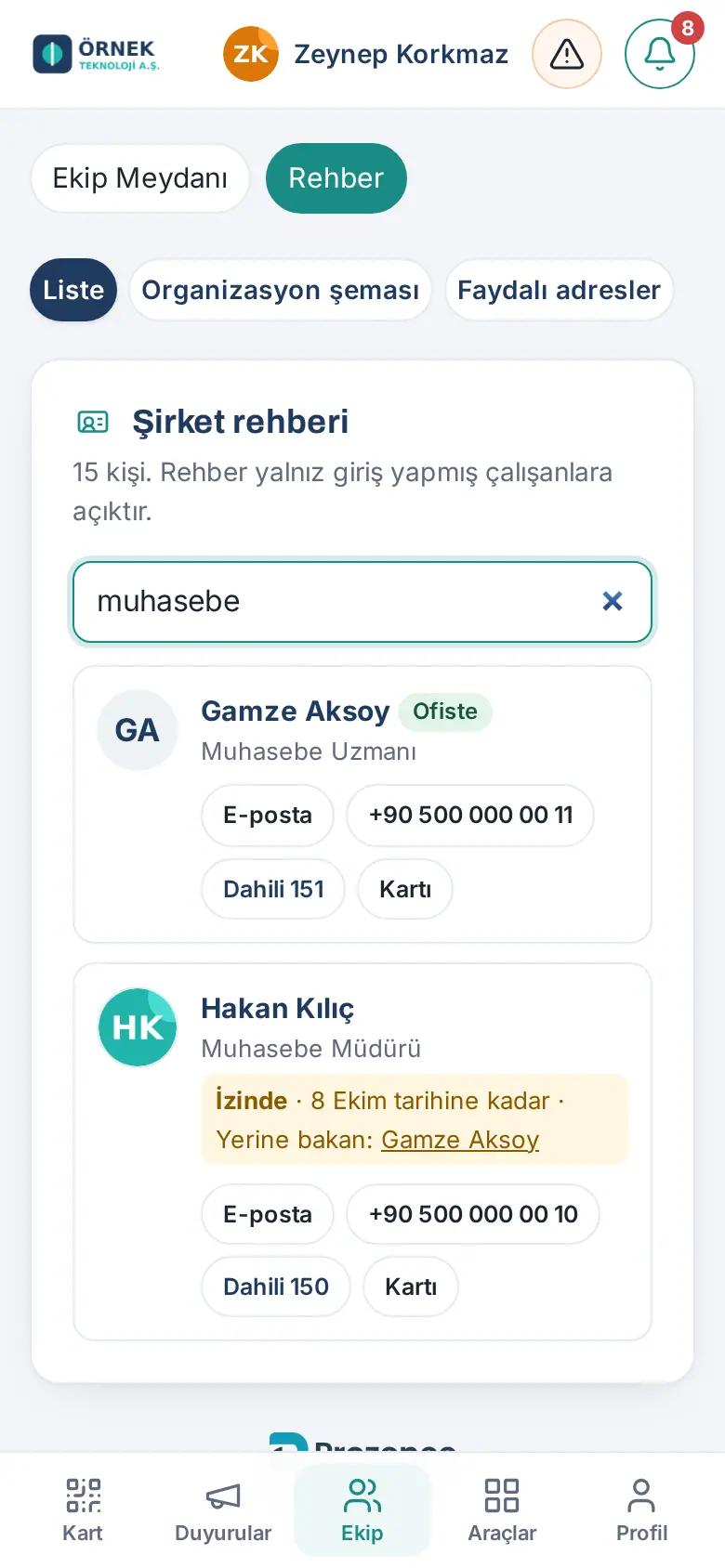
Tip: If your company uses work time recording, the person's status for that day can also show next to their name: At the office, From home, Remote or In the field (see 22. Time and attendance).
Important: The leave type or reason is never shown; only "On leave" shows.
Viewing the organization chart
Who: Employee · Where: Team → Directory → Organization chart
What it does: Shows the management structure of the company as a tree: who reports to whom and how many people are in each team.
- On the Directory screen, tap the Organization chart tab at the top.
- The top manager is at the top. Each box shows the name, job title, department and team size (e.g. 2 ▾).
- To open a person's team, tap the number in their box; the person's contact buttons and their team open below it. To close, tap again.
- To open the person's profile, tap their name. The top of the screen also says: "Who reports to whom: tap a name to open the profile; tap the number to open the team."
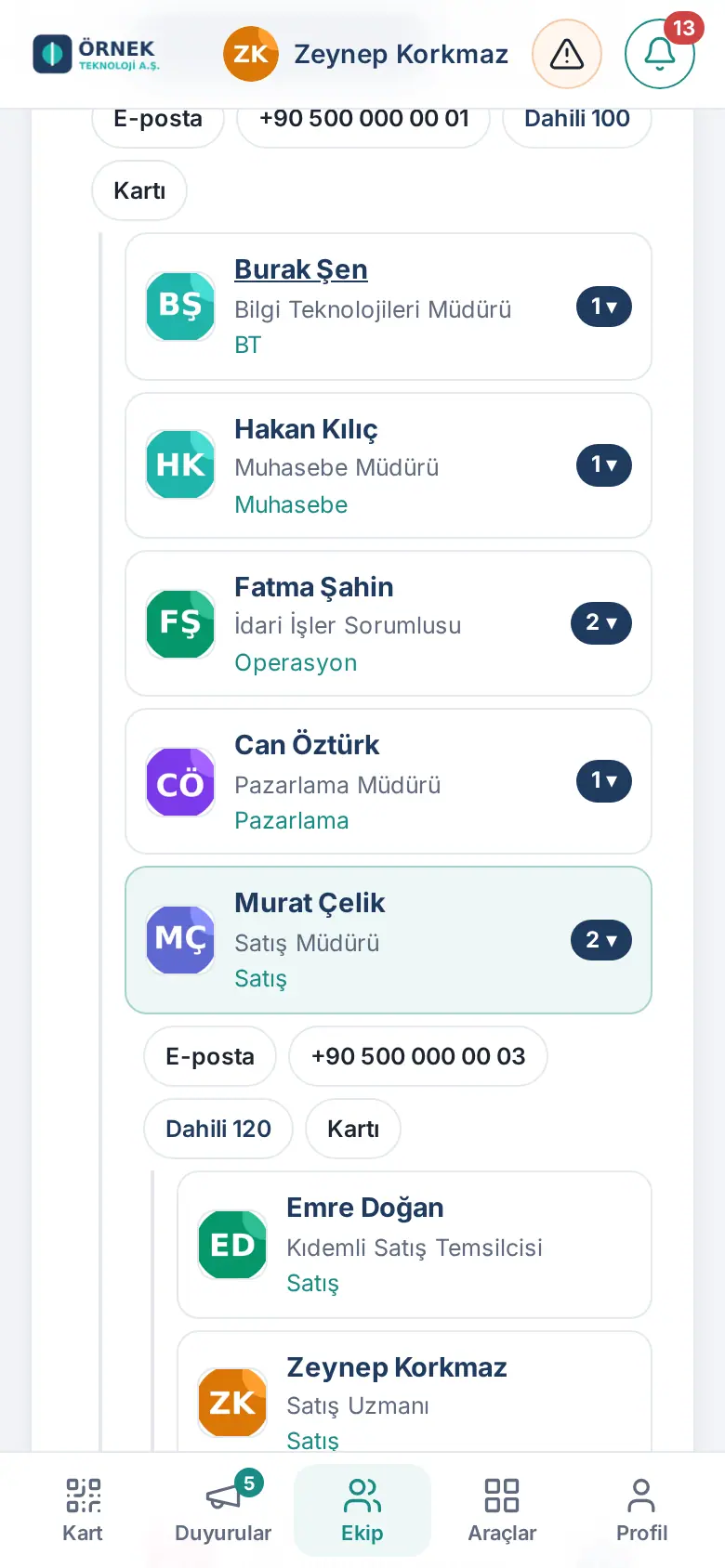
Tip: The chart is created automatically from the manager information of the employees. If your company uses Google Workspace or Microsoft 365, this information comes from there. If your manager or department looks wrong, tell HR or the app administrator.
Opening a teammate's profile
Who: Employee · Where: Tap a person's name or photo in the directory, the organization chart, Team Square, announcements, Messages or the leave / expense lists
What it does: Shows on one page everything you need to get to know a colleague: what they do, their experience, their expertise, their contact details, their digital business card, their manager and their team.
- In the app, tap a person's name or photo. The person's profile page opens. In a browser, the profile opens in a new tab; in the app added to the home screen and in the Prozence mobile app, it opens on the same screen. The top and bottom menus stay in place.
- The top section shows the cover, the photo (or the initials if there is no photo), the name, the profile headline, the job title and the department. Below them are the person's status today (e.g. At the office, On leave), their time at the company and the buttons: Email, Call, Business card; Send message if your company turned on Messages, and LinkedIn if the person entered it.
- Scroll down to see (if the person entered them):
- About (See more for a long text)
- Experience: their positions in the company and their previous employers (job title, company, date range, city, description)
- Education, Licenses & certifications (with the Show credential link)
- Skills and Languages: tap a skill tag to search the directory for people who know about that subject
- Interests & hobbies, Ask me about, Currently reading
- Their posts: the announcements and posts they wrote (only the ones you can see)
- On a phone at the top of the page, on a computer in the right column, you find:
- Digital business card: the card with a QR code, Share card, WhatsApp, Copy link, Open card (see 01. Digital business card and Identity Kit)
- Contact: email, mobile (depending on the company setting), extension, working hours, fastest way to reach them, start date, birthday (if the person shares it)
- Team: Manager and Team. Tap a name to open that person's profile on the same page.
- To go back to the app, select a section in the bottom or left menu.
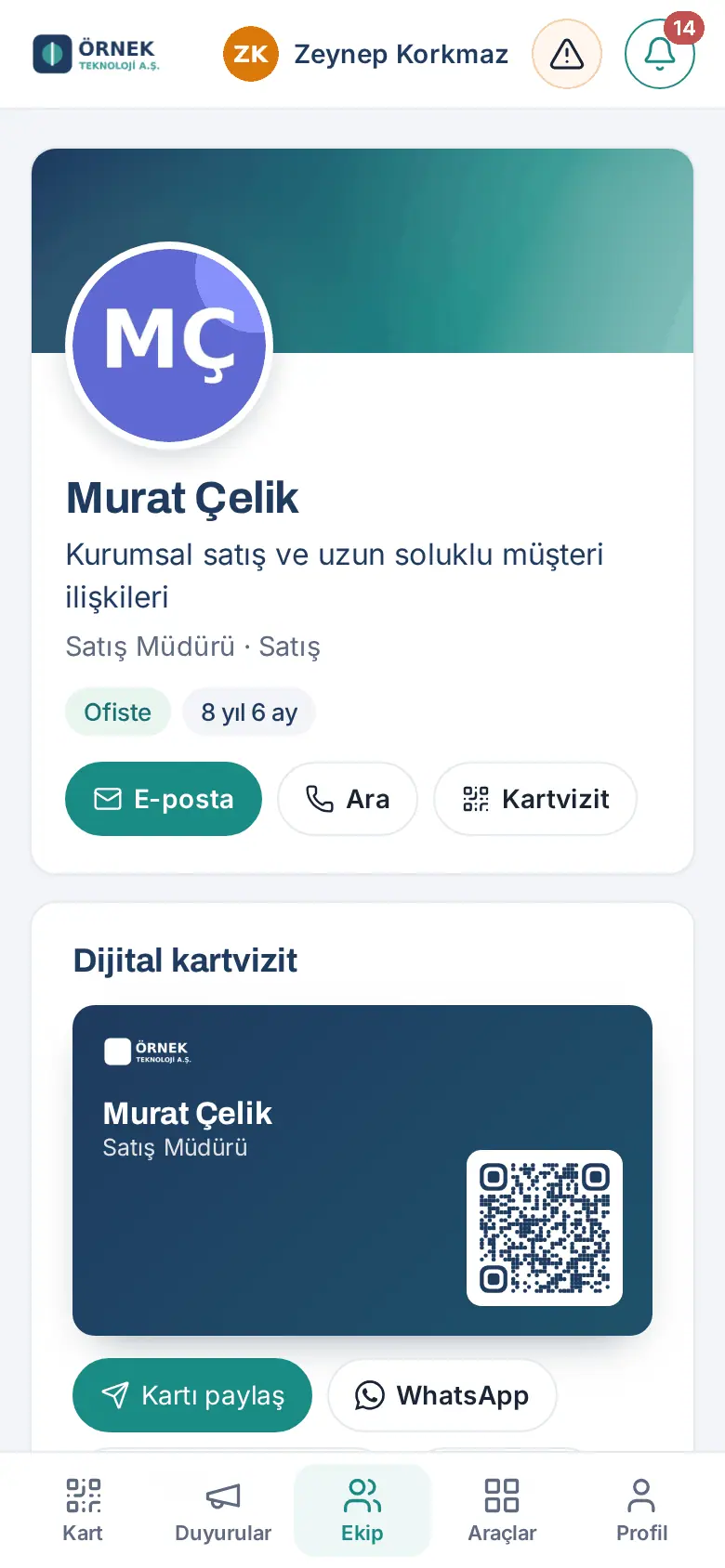
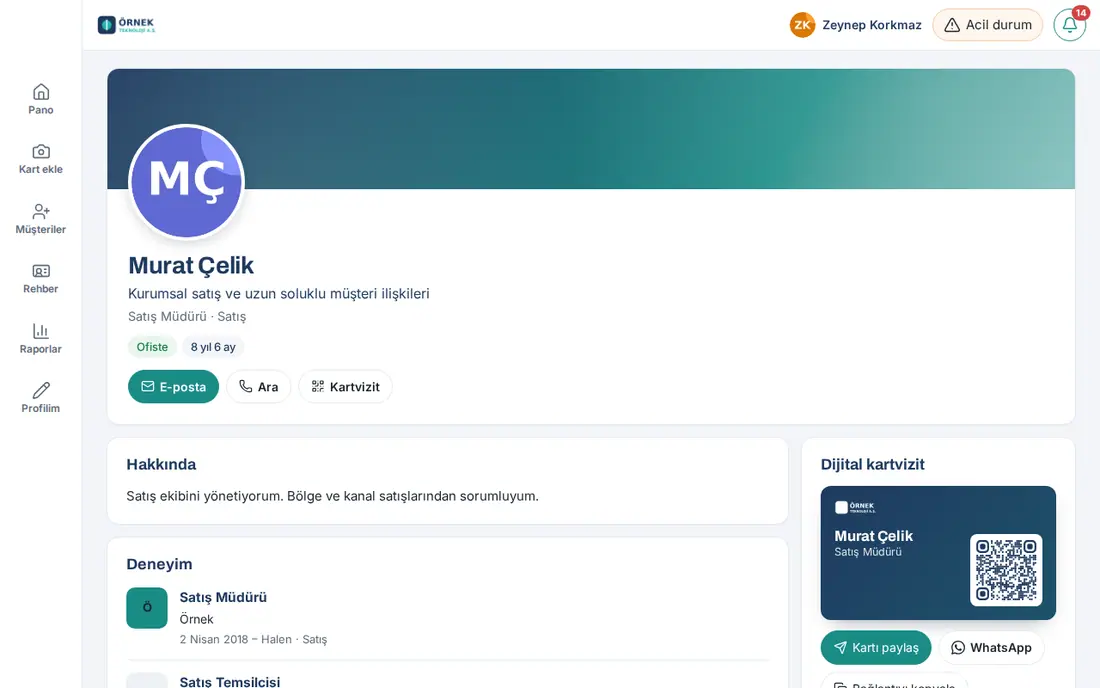
Tip: The profile address has the form …/kartvizit/uygulama/profil/<person>/. If you send this address to a colleague, the same profile opens for them too. Old links that end with ?kp= also go to the profile page.
Important:
- The profile is for internal use only: only employees who are signed in can see it; search engines cannot see it. If you are not signed in, the sign-in screen opens first; after you sign in, you go back to the profile.
- Each person selects who can see their education, previous experience and personal information; these sections may not be visible to everyone. The birthday shows only if the person allowed it.
- The address of a person who left or does not exist shows "Profile could not be opened". If your company turned off the directory, you see only your own profile.
Viewing your own profile
Who: Employee · Where: Profile → My profile → View my profile / How do my colleagues see it?
What it does: You check how your profile page looks to your colleagues.
- In the bottom menu, tap Profile. At the start of the My profile tab there are two buttons.
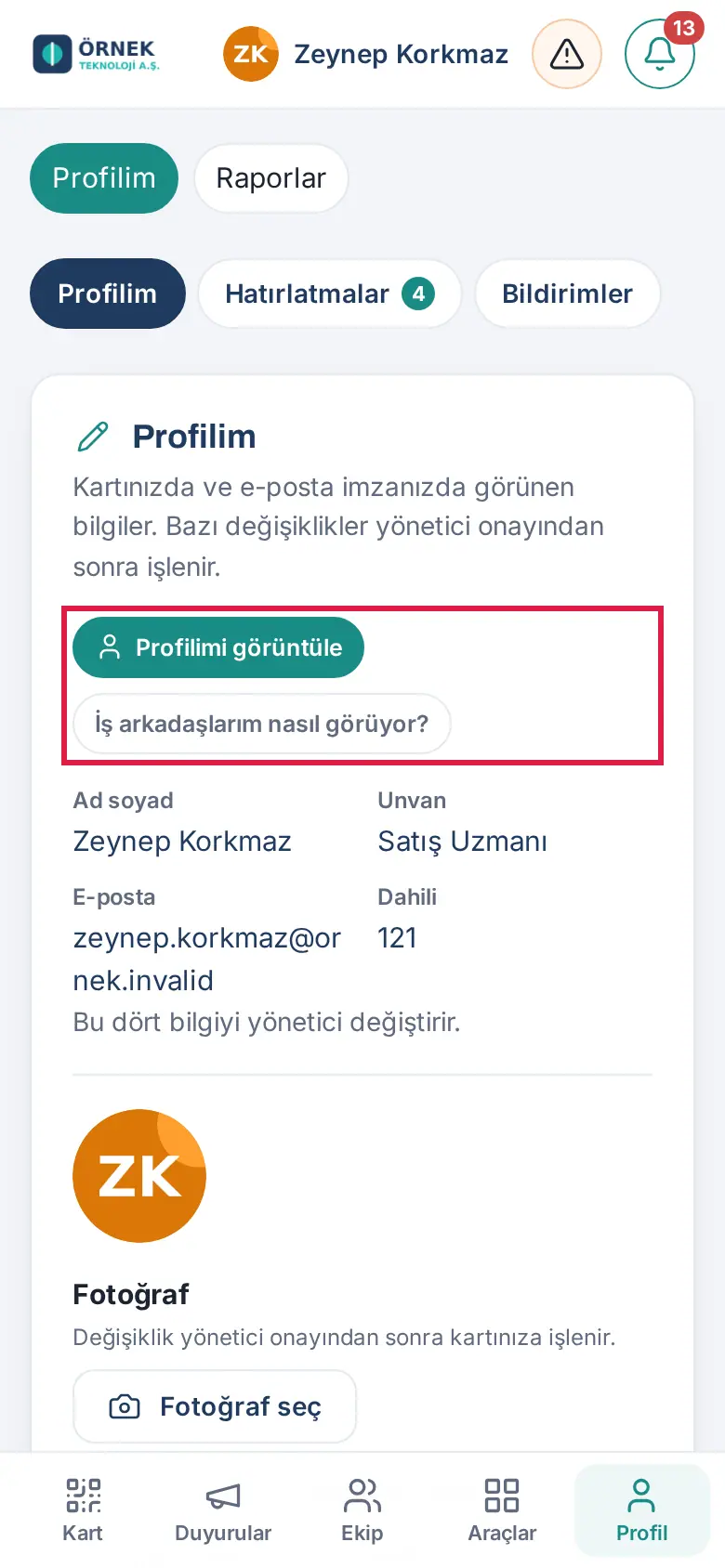
- Tap View my profile. Your profile page opens; at the top there is the "This is your profile." strip, and the identity card has an Edit profile button.
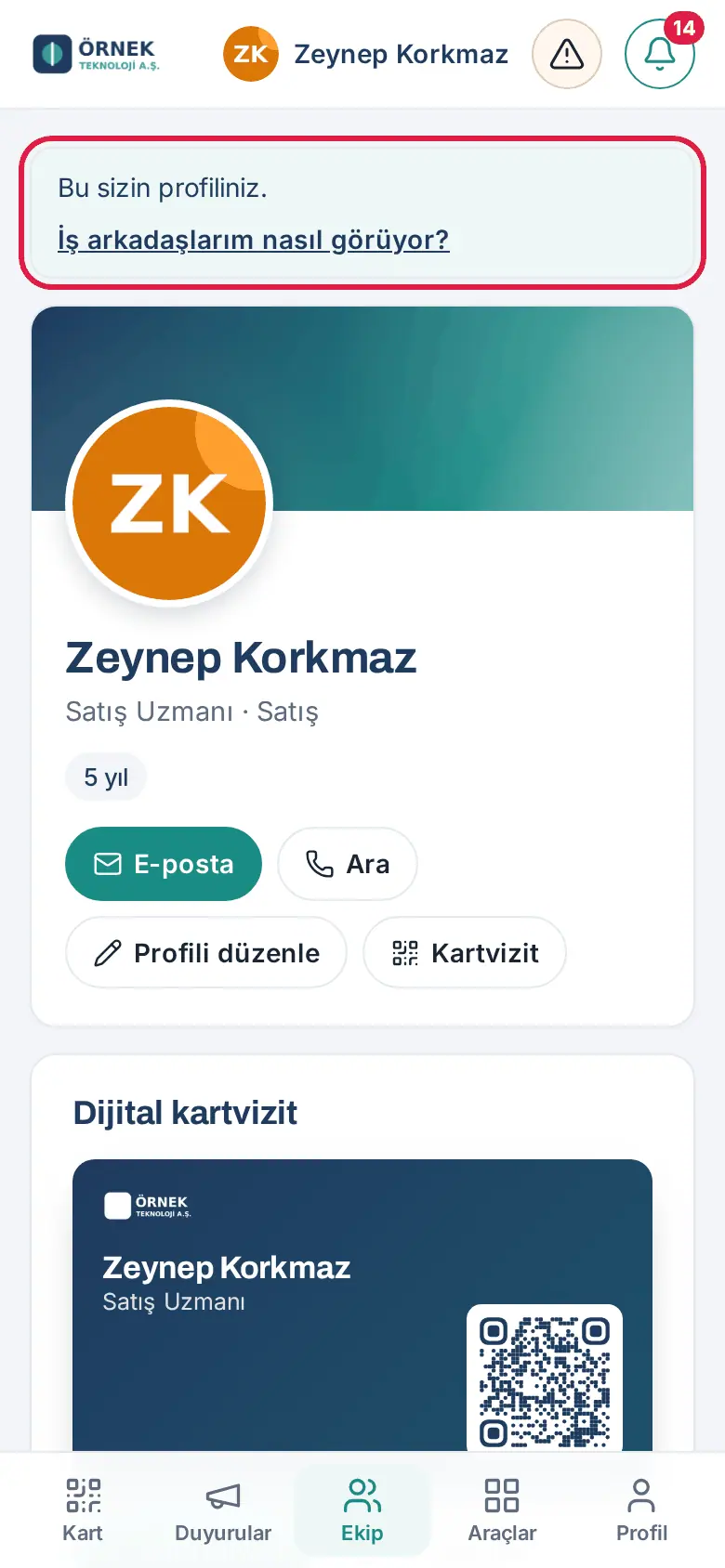
- Tap How do my colleagues see it? in the strip or in My profile. The Preview opens: "This is how your profile looks to a colleague in another department. Sections you set to "Only me" or "Only my department" are not shown here."
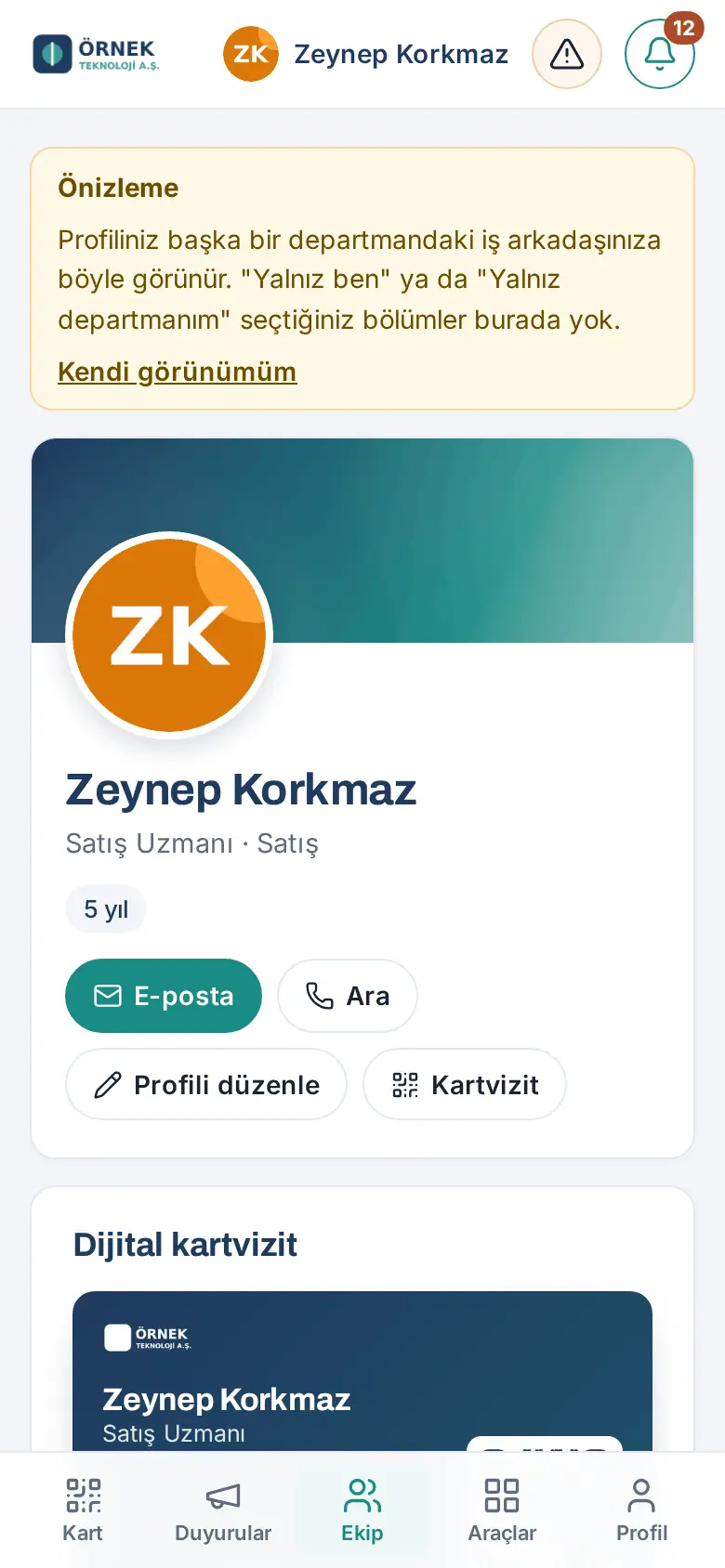
- To leave the preview, tap My own view.
- To change information, tap Edit profile; My profile opens (see Adding your expertise and profile details).
Tip: You can share your card from the Digital business card box on your own profile (see 01. Digital business card and Identity Kit).
The Our team list
Who: Employee · Where: Team → Team Square → Team
What it does: Shows the whole team in a short list with job title, department and start date. You can easily see who joined recently. In companies with more than 100 employees, the box is called My close team and lists only your manager, the colleagues who report to the same manager and the people who report to you; the whole company is in the Employee directory.
- In the bottom menu, tap Team and scroll down to the Team box on Team Square.
- Select the sort order of the Our team list: Hierarchy (by title level and chart), Most recently joined or Earliest joined.
- People who started in the last 30 days show New next to their name; people on leave show On leave.
- To see more of the list, tap Show more. If you tap a person, their profile opens.
- If you are a manager, in HR or an Admin, and your company turned on the role and pay change workflow, the Request role / pay change button also shows in the rows of the people on your team (updated in 1.7.0; see Requesting a role and pay change).
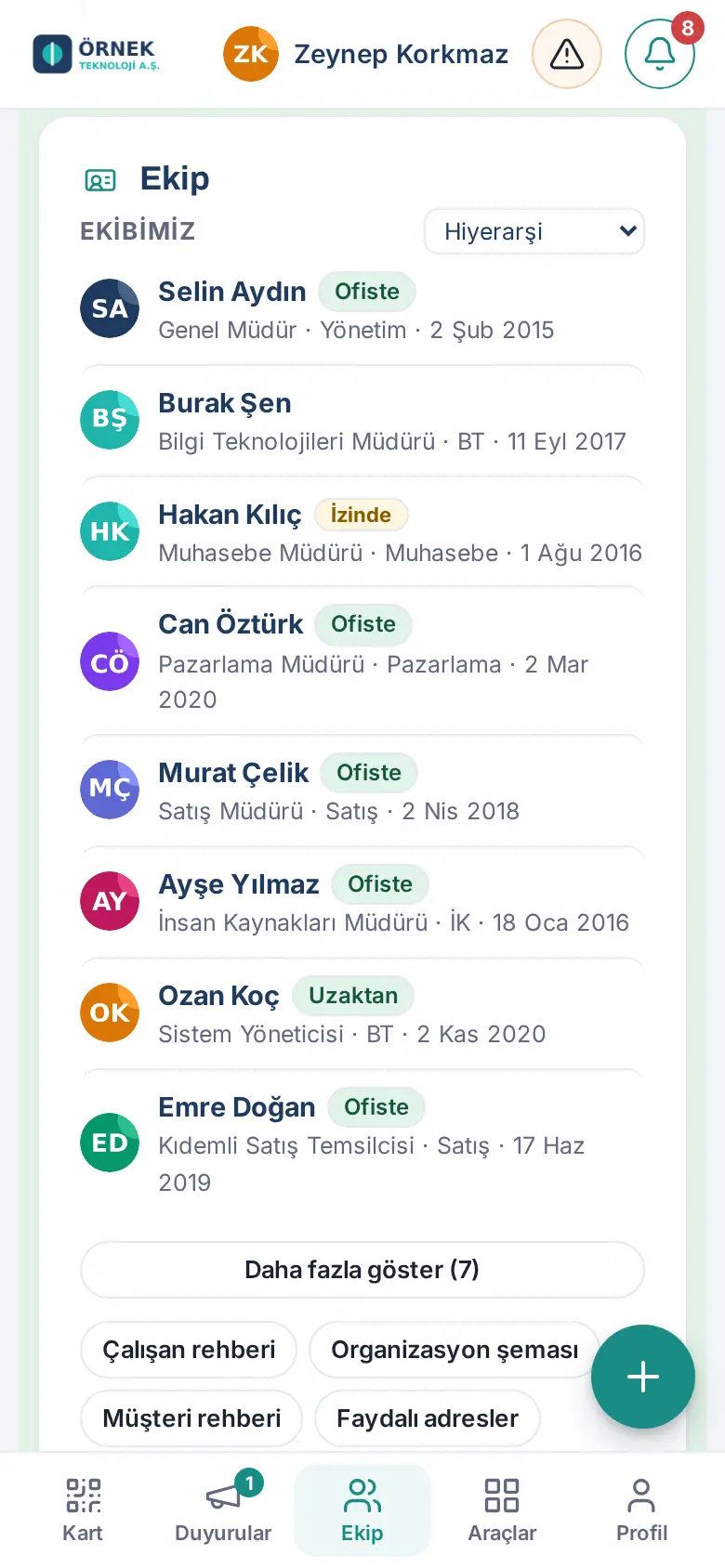
Tip: The Employee directory, Organization chart, Customer directory and Useful contacts buttons below the box open the related screens.
Requesting a role and pay change
Who: The employee's manager and their manager's manager · HR · Admin · Where: Team → Team Square → Team → the person's row → Request role / pay change
What it does: You request a change of job title, department, manager or pay for an employee on your team. The request does not travel by email and spreadsheet: it goes in turn to HR review and management approval, a second approval is obtained for a high increase, the employee record is updated automatically on the effective date and a task is opened for the payroll owner. The pay amount is stored encrypted; the employee themselves and the technical Admin cannot see the amount.
Before you start:
- The button shows only if your company turned on the Role and pay change template in Admin → Modules → Workflows (see 40. Workflows).
- Only that person's manager in the organization chart, their manager's manager, HR and Admin see the button. There is no button in your own row or in your manager's row.
Steps:
- Tap Team in the bottom menu and scroll down to the Team box in Team Square. If the person is not in the list, tap Show more.
- Tap Request role / pay change below the person's row. The request form opens, not the person's profile.
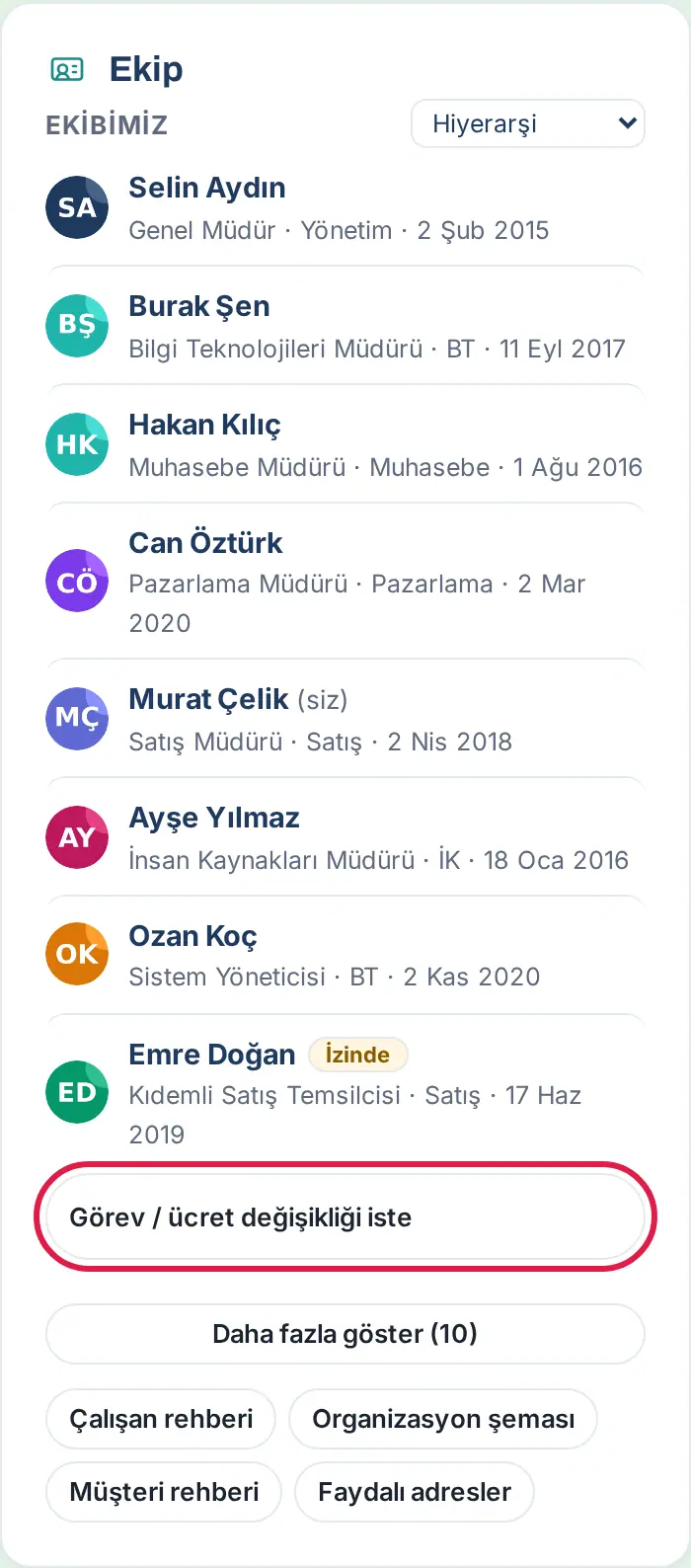
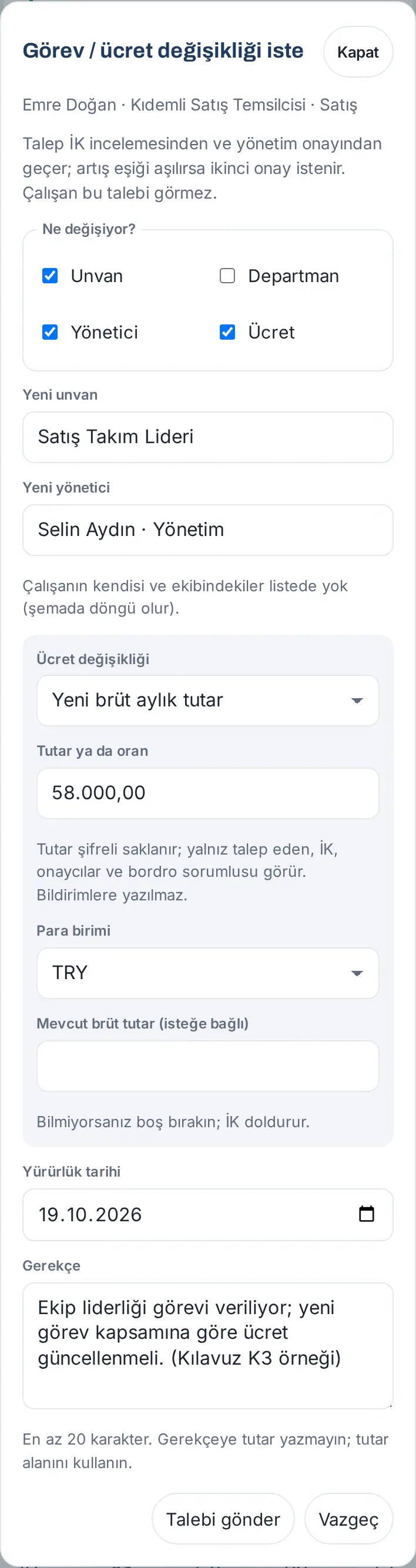
- At the top of the Request role / pay change window are the person's name, job title and department. Below is the note "The request goes through HR review and management approval; if the increase threshold is exceeded, a second approval is required. The employee does not see this request." (the threshold is inclusive: a second approval is also required when the increase equals the threshold).
- Under What is changing?, tick one or more boxes: Job title, Department, Manager, Pay. Only the fields you ticked open.
- Fill in what you selected:
- New job title: enter the new job title.
- New department: select from the list.
- New manager: start typing the new manager's name and select from the list (e.g. "Selin Aydın · Yönetim"). The employee themselves and the people on their team are not in the list (it would create a loop in the chart).
- Pay change: select New gross monthly amount or Increase rate (%); enter the value in the Amount or rate field (e.g. 62.500,00 or 12,5). Select the Currency. You can enter today's gross pay in the Current gross amount (optional) field; if you do not know it, leave it blank, HR enters it during the review.
- Select the Effective date: it must be between today and 180 days from now. The default is today.
- Write an explanation of at least 20 characters in the Reason field. Do not write the amount in the reason; the amount is entered only in the pay field.
- Tap Send request. To give up, tap Cancel; what you wrote is deleted.
Result: The message "Request sent for HR review." appears. The request shows in My requests with the type Workflow; in the "Now:" row you follow who has the step (see 06. Board and intranet).
How does the request progress?
| Order | Step | Who | What happens |
|---|---|---|---|
| 1 | HR review | HR | "Role change request under HR review: …" — HR approves, sends back for correction or rejects. |
| 2 | Management approval | The management approver selected in the template; if none is selected, the requester's manager | "Role change request awaiting your approval: …" |
| 3 | Second approval | The second approver selected in the template | Only if the pay changes and the increase is at or above the threshold (default 20%): "Pay change awaiting your second approval: …" |
| 4 | Effective date | — | The workflow waits for the effective date (if the date is today, it passes immediately). |
| 5 | Employee record | — | The new job title, department and manager are written to the employee record automatically. The pay is not written to the employee record. |
| 6 | Record in payroll | Payroll owner | The task "Record in payroll: … · effective …" is opened; its description says only "Ayrıntı: İş akışları → #… (yalnız yetkililer görür)" ("Details: Workflows → #… (only authorized people can see it)"). |
| 7 | Notice to requester | The requester | The notification "Role change completed: …". If your company turned it on, the employee also gets the notification "Your job details have been updated", which has no amount (off by default). |
How is the increase rate calculated? If you entered Increase rate (%), that rate is used. If you entered New gross monthly amount and Current gross amount, the rate is calculated from the two. If you left the current amount blank, HR enters it during the review and the rate is calculated with it. If the current amount is never entered, the rate cannot be known; the request stays on the safe side and also goes to the second approval.
Privacy:
- The pay amount and the reason are stored encrypted. Only the person who opened the request and the people assigned to the workflow's steps (HR, approvers, payroll owner) see the amount; every view is written in the audit log.
- The technical Admin and the employee themselves cannot see the amount. The employee never sees the request. The workflow owner and the Workflows module admin also see only the summary if they are not assigned to a step.
- The amount is not written in notifications, emails or the description of the opened tasks.
- The amount and the reason are deleted 90 days after the workflow ends (your company can change this between 30 and 365 days). Only the information that the pay changed remains in the record.
Common errors:
- "Choose a change type: job title, department, manager or pay."
- "The effective date must be between today and 180 days from now."
- "The reason must be at least 20 characters."
- "Enter the new job title." / "The department must be in the list." / "Choose the new manager from the list." (if you typed the name but did not select from the list)
- "The amount must be greater than zero and a reasonable monthly amount." / "The rate must be between −99.99% and 1,000% and not zero."
- An invalid entry in the Current gross amount (optional) field: "The current amount must be greater than zero (e.g. 52,500.00)." (updated in 1.7.0)
- If the reason contains an amount or currency, the question "The reason seems to contain an amount or currency. The reason is plain text visible to approvers; enter the amount only in the pay field. Send anyway?" appears. Change the reason with Correct.
Important:
- If the request is rejected, the notification "Your role change request was rejected: …" arrives; the reason is not in the notification but in the step note in the workflow's window.
- If the request is sent back for correction, the notification "Your role change request was sent back to you for correction: …" arrives. Correct the request with the steps below and send it again.
- Admin can also open a request; as the person who opened it, they see the amount of their own request. Admin cannot see the amount of requests they did not open and are not assigned a step in.
To correct a request that was sent back:
- Tap the notification "Your role change request was sent back to you for correction: …" or open the Workflow row in My requests. The workflow's window says "Your request was sent back to you for correction. The correction note appears in the steps; correct it and send it again.".
- In the Steps list, read the Note row of the Sent back for correction step.
- Tap Correct and resend the request. The Correct the request form opens filled with the previous change types, new values and effective date. At the top it says "For security, pay and reason are entered again.".
- Change what is needed; if there is a pay change, enter the amount or rate again and fill in the Reason again.
- Tap Send request. The message "The corrected request was sent for HR review again." appears; the workflow starts again from HR review.
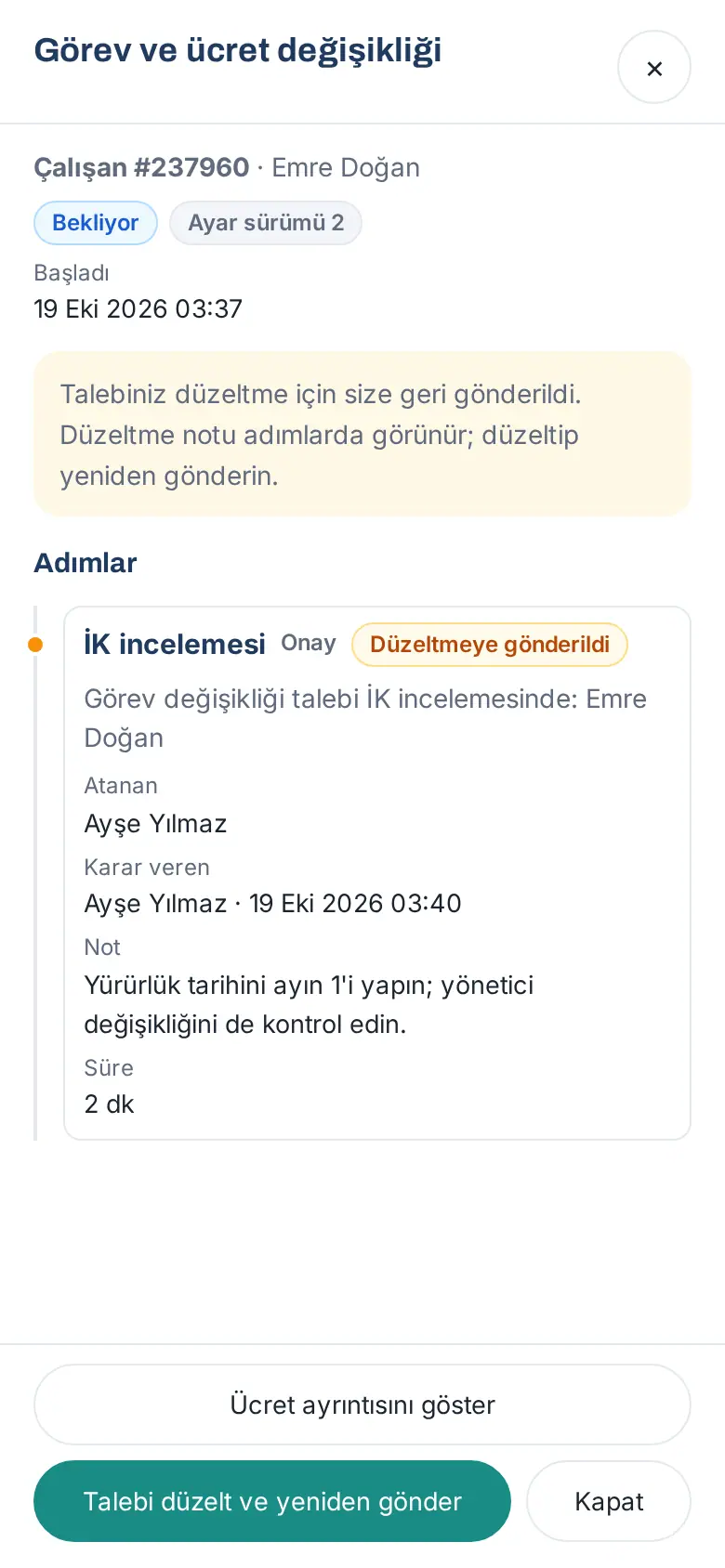
Only the person who opened the request sees the button. The current pay that HR entered earlier is kept in the correction (if the pay change is still selected and the currency is the same; updated in 1.7.0); if you enter an amount yourself in the Current gross amount (optional) field, yours applies. If you change the currency, the old amount is cleared; the notification Current pay must be re-entered goes to HR and the workflow's details say why (you do not see this note). If you remove the pay change and add it again, the amount is also cleared (no notification is sent; HR sees it in the details). The amount is not in the notification.
Reviewing and approving a role and pay change request
Who: HR · Management approver · Second approver · Where: My Space → Today → Awaiting your approval → Open
What it does: You approve, send back for correction or reject the role and pay change request that came to you, seeing the pay details.
- Tap Open in the row "Awaiting your approval: Role change request under HR review: …" (in the management step "… awaiting your approval: …", in the second approval "Pay change awaiting your second approval: …"). The Role and pay change window opens.
- In the Steps list, read the decisions and notes of the previous steps.
- To see the amount, tap Show pay details at the bottom. In the question "Opening the pay details is recorded in the audit log as "pay viewed".", tap Show.
- The Pay details window shows New gross monthly, Current gross monthly (if entered), Increase rate or Change and Reason. Below is the note "This view has been recorded in the audit log.". Close the window with Close.
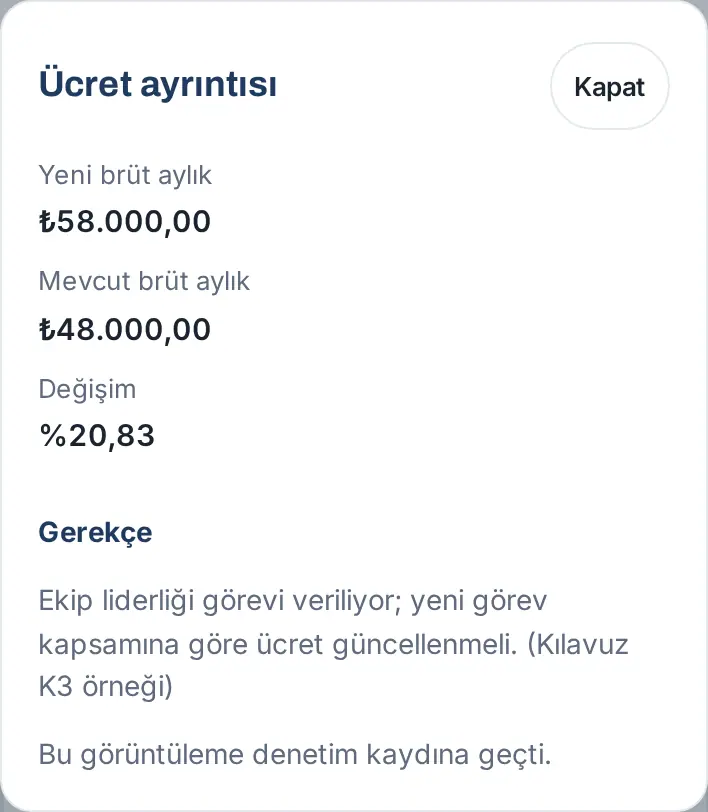
- Give your decision: Approve, Send back for correction or Reject (a note is required when rejecting or sending back). For details, see 06. Board and intranet.
Result: If you approve, the request moves to the next step and a notification goes to the next person. After the last approval, the workflow waits for the effective date.
Important:
- The person who opened the request cannot decide in any step. The person who decided in the HR step cannot decide in the management step, and the people who decided in these two steps cannot decide in the second approval (if there is another approver).
- You cannot approve these requests with the button in the phone notification; the decision is always given in the window where the amount can be seen.
- Notes appear in the workflow history; do not write the amount in a note.
- If the current amount is blank, the increase rate cannot be known and the request also goes to the second approval. To prevent this, HR enters the current pay (see Entering the current pay (HR) below).
- If the retention period has ended, the window says "The pay details were deleted because the retention period ended.".
Entering the current pay (HR): If the request has no current gross amount, the Enter current pay button shows at the bottom of the window in the HR review step.
- Tap Enter current pay. The Current gross pay window opens.
- Enter the employee's current gross monthly pay in the Current gross monthly (TRY) field (e.g. 48.000,00) and tap Save. The message "Current pay saved." appears.
- See the change rate with Show pay details; check it before you decide.
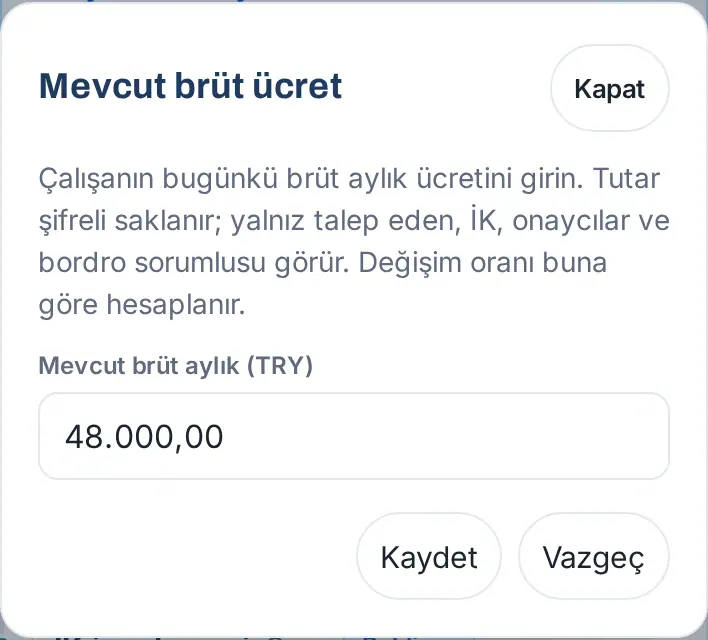
After the amount is entered, the button's name becomes Correct current pay. Only the person assigned to the HR review step sees the button, only while the review is in progress and only in a request where a pay change is selected; the requester, the technical Admin and the workflow owner cannot see it. The amount is stored encrypted and written in the audit log as "Current pay entered", without the amount.
Adding your expertise and profile details
Who: Employee · Where: Profile → My profile → Profile details
What it does: You add your profile headline, areas of expertise, languages, education, previous experience and interests. Your teammates find you in the directory by these subjects. This information does not show on your business card; all of it is optional.
- In the bottom menu, tap Profile and scroll down to the Profile details section in My profile.
- Work details (everyone in the company can see them):
- Profile headline: a short description that shows below your name on your profile page (e.g. "Corporate sales · Customer relations"; up to 120 characters).
- My areas of expertise (up to 15): type a subject in the box and press Enter on the keyboard (on a phone, "Go" / "Done"); the subject becomes a tag. To delete a tag, tap the × next to it.
- Languages: add a language and level with + Add language.
- My working hours, Fastest way to reach me, LinkedIn.
- Education and certificates:
- + Add school: school, field of study, degree (e.g. Bachelor's), start and end year.
- + Add certificate: certificate, issuing organization, year and an optional Credential URL. The link shows on your profile as Show credential.
- Previous experience: add your previous employers with + Add employer (up to 15): company, job title, start (e.g. 2018), end (if you leave it empty, "Present"), city / country and an optional "What did you do?" description (up to 600 characters). Your position history in the company comes from the HR record.
- Personal: My interests and hobbies (up to 15), Ask me about, Currently reading.
- In the Education and certificates, Previous experience and Personal sections, select from the Who can see list: Whole company, My department only or Only me.
- Tap Save. The message "Profile details saved." appears.
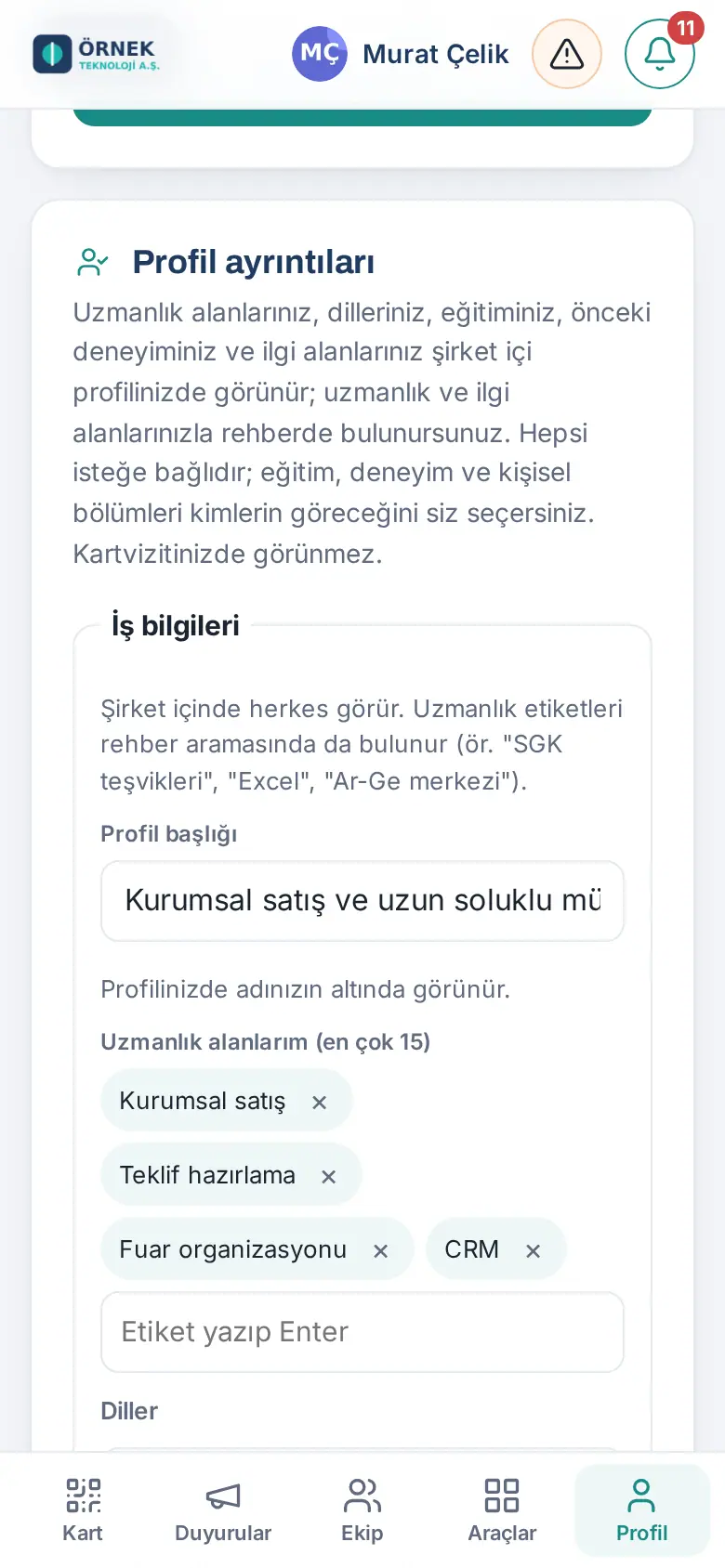
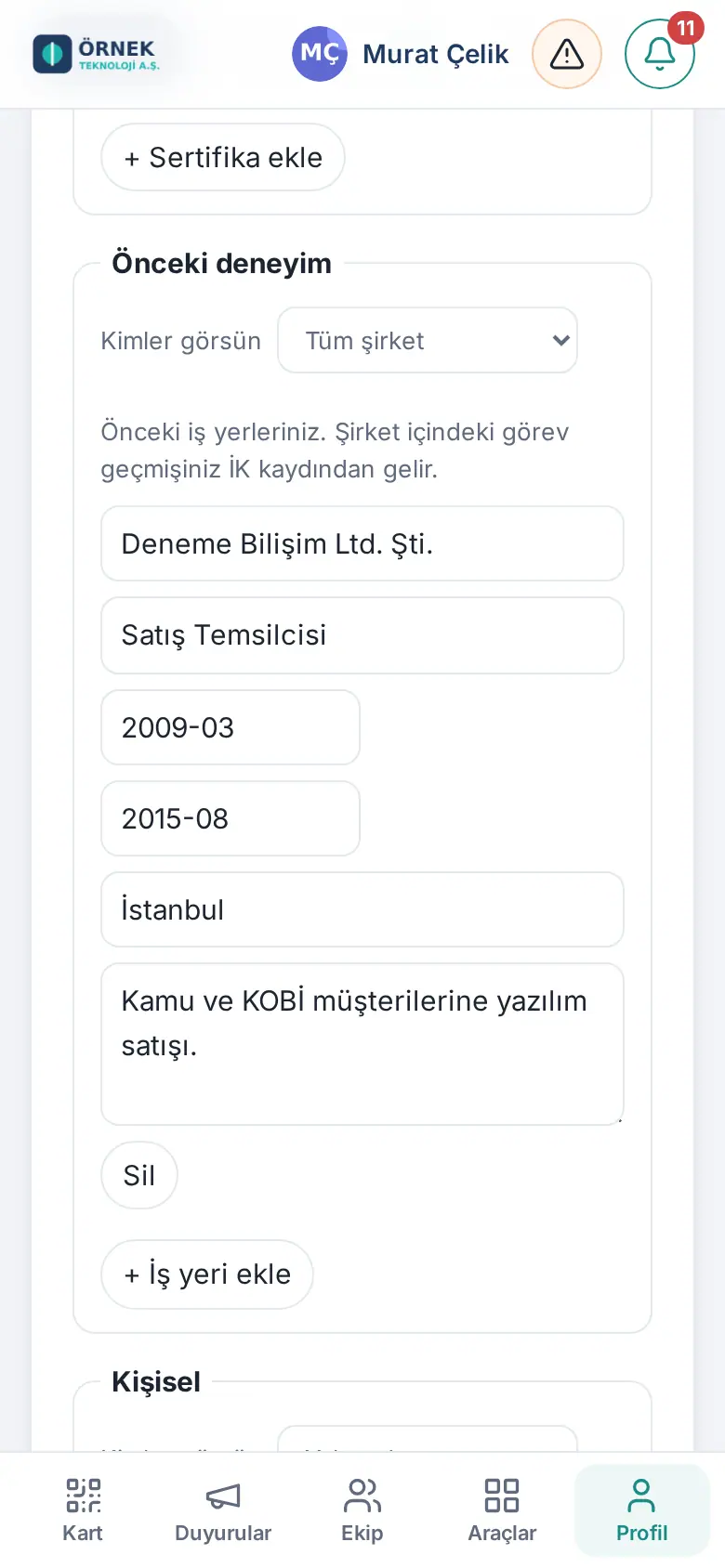
Result: The information shows on your profile page. To check how it looks, see Viewing your own profile.
Important: The certificate link must be a valid web address; https:// is added at the start. With an invalid address, the record is not saved.
Tip: Select short, searchable tags (e.g. "Excel", "SGK incentives" (SGK: Turkey's social security institution), "Process automation"). Your About me text is also found in the directory search (see 00. Getting started).
Entering leave and cover in My profile
Who: Employee, team manager · Where: Profile → My profile → Leave and cover
What it does: You enter the dates of your leave and the teammate who will cover for you during this time. You show as "On leave" in the directory, on your profile, in the Our team list and on the company calendar. If you want, people who open your business card see an "out of office" note and the card of the person covering for you.
Before you start: If your company uses the leave request module and you requested your leave with Request leave (see 21. Employee leave), this record is created automatically when your leave is approved; you do not need to enter it. Use this section in companies that do not use leave requests, for short out-of-office days and to see the records.
- In the bottom menu, tap Profile and scroll down to the Leave and cover section in My profile.
- Select the Start and End (last day of leave) dates.
- Select a teammate from the Covering for me list (optional).
- If you do not want people who open your business card to get this information, clear the Show people who open my card an "out of office" note and the card of the person covering for me box.
- Tap Save leave. The record shows in the list (e.g. "1 Oct 2026 – 5 Oct 2026 · you are currently on leave", "Covering for you: …").
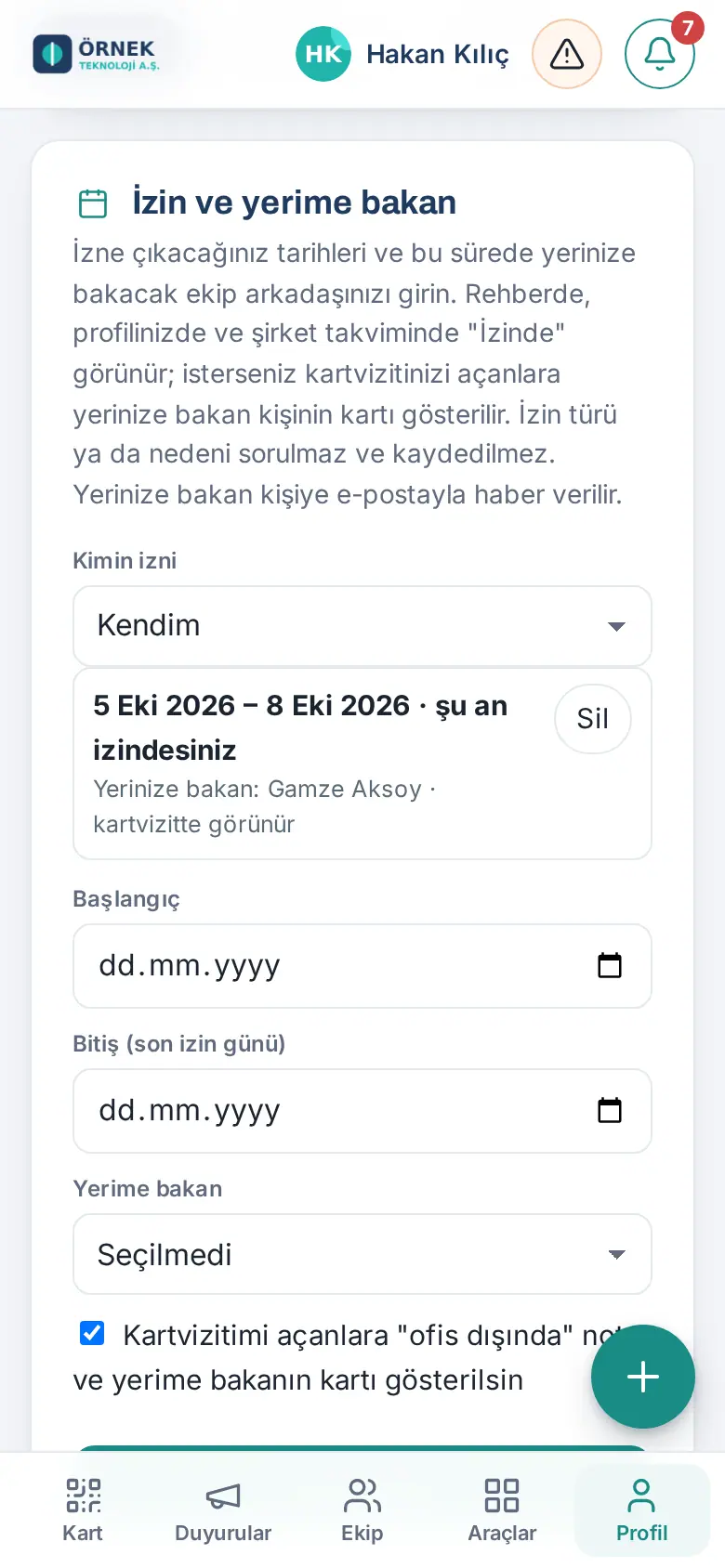
The person covering for you is told by email and phone notification. To remove a record, tap Delete next to it.
For team managers: If employees report to you in the organization chart, a Whose leave list shows at the start of the section. Select a team member instead of Myself to enter their leave; the person gets a "Your leave has been saved" notification.
Important:
- The leave type or reason is not asked and not saved.
- A record can be a maximum of 90 days. You cannot enter leave whose end date is in the past. You cannot open a second record for the same dates ("… arasında zaten bir izin kaydı var", "there is already a leave record between …").
People who left their details on your card (Left details)
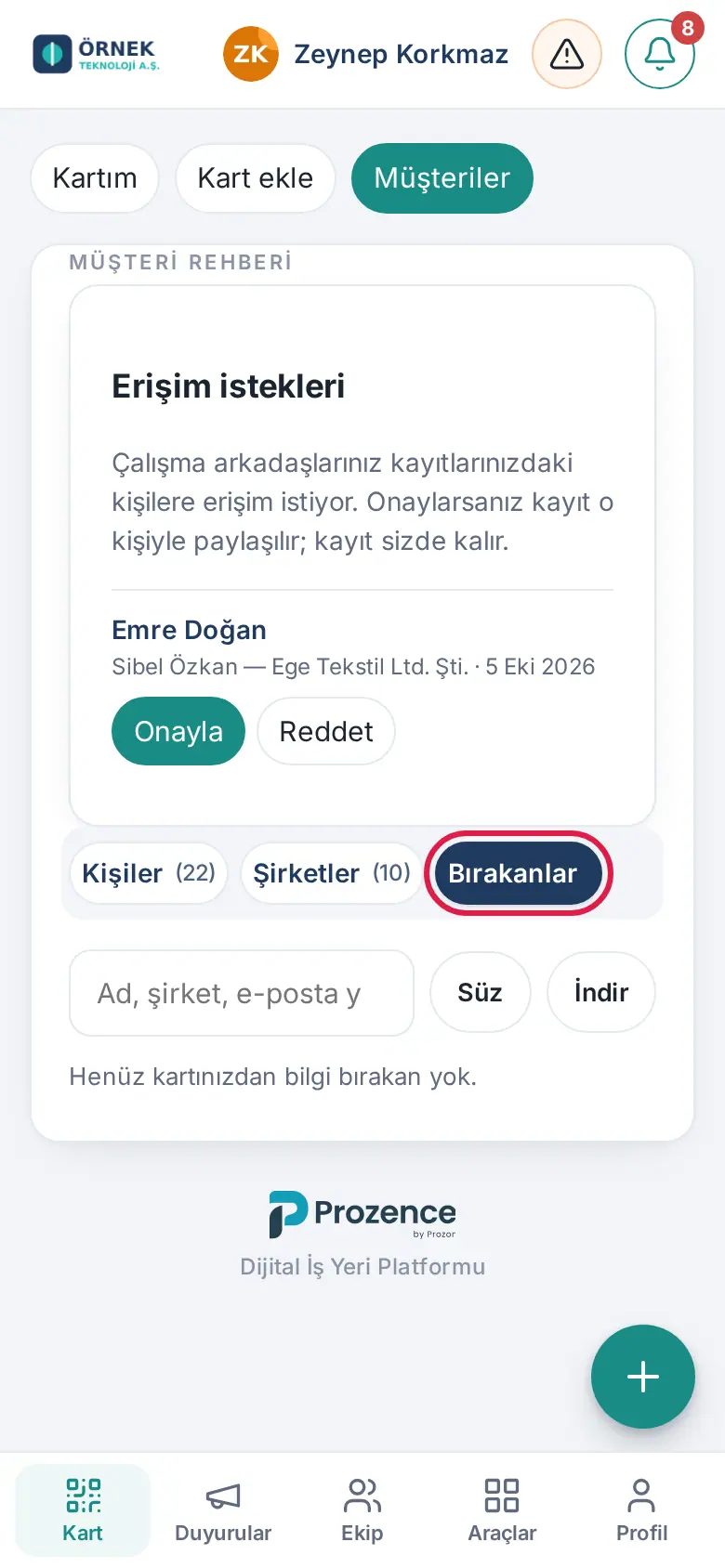
Who: Employee · Where: Card → Customers → Left details
A person who opens your digital business card can leave you their name and contact details with Leave my details. These people are collected in your customer list, not in the company directory: they show in the Left details tab of the Customers screen. On older personal area screens, this list is called People who added me.
For details, see 01. Digital business card and Identity Kit and 04. Customer directory.


