07. Internal services
Screenshots show the Turkish interface of Prozence with fictional "Örnek Teknoloji A.Ş." data; the English interface has the same layout.
Most of this chapter has moved to new chapters. Leave, work time, requests, parcels, purchasing, shuttle, canteen, meeting rooms, visitors, emergencies, occupational safety and assets are now described in their own chapters, with current screens and more detailed steps. The moved headings below stay so that old links keep working, and they send you to the related task in the new chapter. The Services screen, your company vehicle and the onboarding steps are still described in this chapter.
New chapters:
- 20. Prozence mobile app: installing the Prozence app, connecting to your company, phone notifications, location and office Wi-Fi for work time records
- 21. Employee leave: remaining leave, leave types and rules, annual, half-day and travel leave, advance leave, the leave form and handing it in with a QR code
- 22. Time and attendance: starting and ending work time in the office, from home, remotely or in the field, monthly summary, corrections, location tracking, My team
- 23. Requests: opening, following and approving requests; incoming requests and the Overview board for the people who handle requests
- 24. Parcels, mailroom and purchasing: picking up your delivery, sending a parcel or courier, the Mailroom desk, purchase requests and approval
- 25. Shuttle and canteen: shuttle route and stop, not riding today and riding another shuttle, meal menu, attendance, rating, canteen QR code
- 26. Meeting rooms and visitors: booking a meeting room or parking space, visitor pre-registration, the reception desk
- 27. Emergencies, occupational safety and the occupational physician: emergency plan and banner, I’m Safe, near-miss reports, appointments with the occupational physician
- 28. Fixed assets and asset assignment: My assets, receipt confirmation, incident reports, inventory counts; Assets for asset owners
For the management of these services, see 14. Services and human resources management. Expenses and business advances are in a separate chapter: 17. Expenses, business advances and per diem.
Who: Employee
In this chapter
This chapter covers:
- Opening the Services screen
- Maintenance and document dates of your vehicle
- New starters: onboarding steps
- Expenses and advances
Moved to new chapters (the heading takes you to a short note that sends you to the new location):
- Viewing the meal menu → 25
- Reporting lunch attendance → 25
- Rating the menu → 25
- Selecting a shuttle route and stop → 25
- I’m Safe: replying to an emergency check-in → 27
- Opening a request (IT, administrative affairs, supplies, building) → 23
- Following and closing a request → 23
- Picking up your parcel → 24
- Requesting a parcel shipment → 24
- Booking a meeting room or parking space → 26
- Pre-registering a guest (visitor) → 26
- Reporting a near miss or hazard → 27
- Starting and ending work time (PDKS) → 22
- Checking your monthly work time summary → 22
- Requesting a work time correction → 22
- Location tracking (field): explicit consent, pausing and route → 22
- Confirming receipt of an assigned item → 28
- Reporting a problem with an assigned item → 28
- Checking your remaining annual leave → 21
- Requesting annual or other leave → 21
- Printing the approved leave form → 21
Opening the Services screen
Who: Employee · Where: My Space → Services
What it does: This screen holds the boxes of all services that are turned on in your company: Requests, Safety report, Visitors, Booking, Parcels and mail, Meal menu, Shuttle and My vehicle.
- In the bottom menu, tap My Space.
- In the strip at the top, select Services.
- Scroll down to move between the boxes.
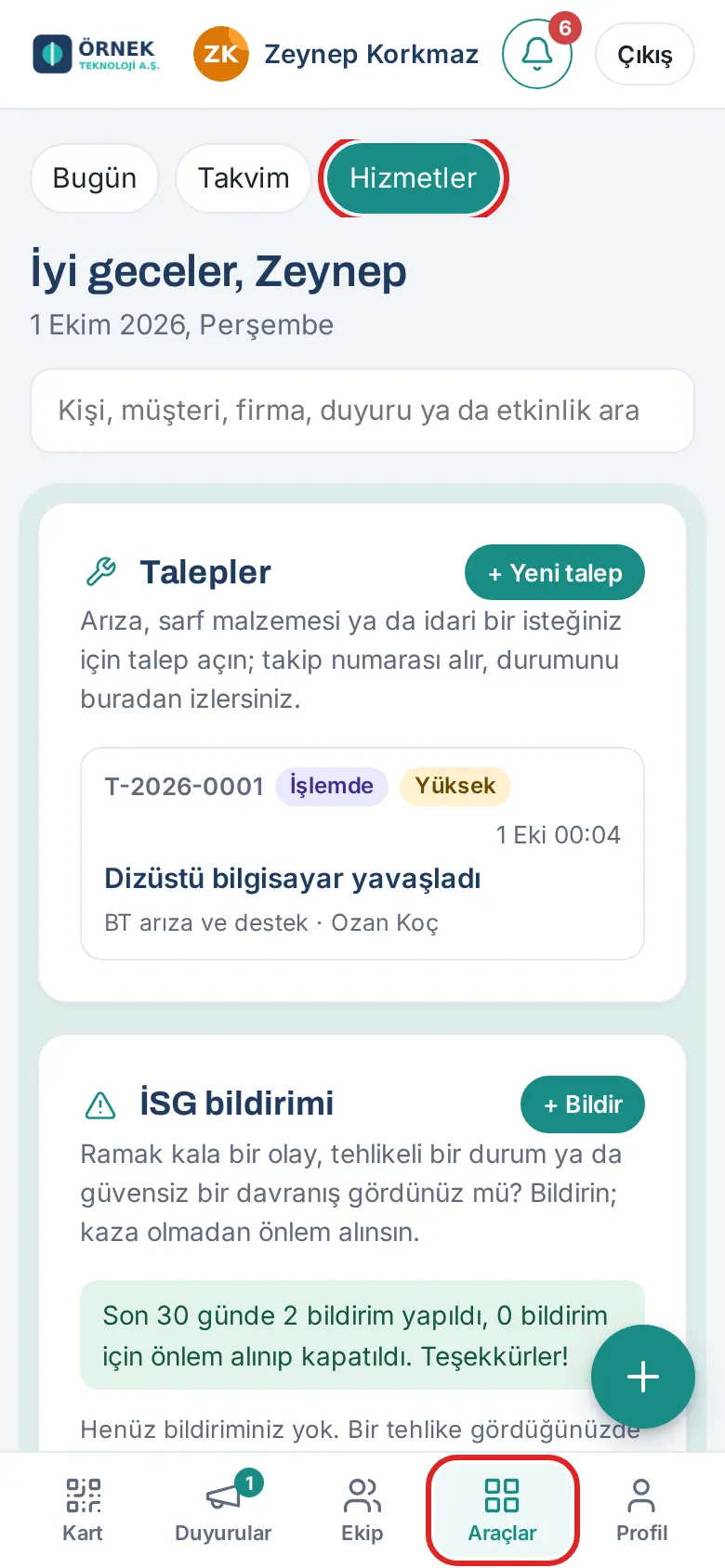
The work time, leave, expense, asset, purchasing, occupational physician and onboarding boxes are not in Services. They are in My Space → My Area (Work time, My leave, My expenses, My assets, Purchasing, Occupational physician, Onboarding; see 06. Board and intranet). A short list of your open requests also appears there, in the My service requests box; the whole requests module is here, in the Requests box. The Today’s lunch and shuttle box on the Today screen also summarizes the day's menu and your shuttle; its Services button brings you to this screen.
Tip: On a computer, open Board in the left menu and click the Services tab at the top. The single-page layout has no tabs; Services is a full-width row at the bottom of the Board, and the boxes are spread over several columns.
Viewing the meal menu
You see this month's canteen menu day by day. This task has moved to the 25. Shuttle and canteen chapter; see Viewing the meal menu.
Reporting lunch attendance
You tell the kitchen before the cut-off time that you will not attend lunch that day. This task has moved to the 25. Shuttle and canteen chapter; see Reporting lunch attendance.
Rating the menu
You rate the meal you ate with 1–5 stars and, if you want, write a short anonymous comment. This task has moved to the 25. Shuttle and canteen chapter; see Rating the menu.
Selecting a shuttle route and stop
You select your shuttle route and stop, and you report that you will not ride the shuttle that day. This task has moved to the 25. Shuttle and canteen chapter; see Selecting a shuttle route and stop, Reporting that you will not ride today and Live shuttle notifications.
Maintenance and document dates of your vehicle
Who: Employee with an assigned company vehicle · Where: My Space → Services → My vehicle
What it does: Shows the license plate of the company vehicle assigned to you and the dates for the tire change, periodic maintenance, vehicle inspection, compulsory traffic insurance and comprehensive insurance (kasko).
Before you start: Your company must have turned on vehicle assignment, and administrative affairs must have assigned a vehicle to you. If you do not have a vehicle, this box does not appear.
- On the Services screen, scroll down to the My vehicle box.
- The license plate and the model are at the top.
- Each date row shows the number of days left: … days left, Today or Overdue. Upcoming dates are shown in orange and past dates in red.
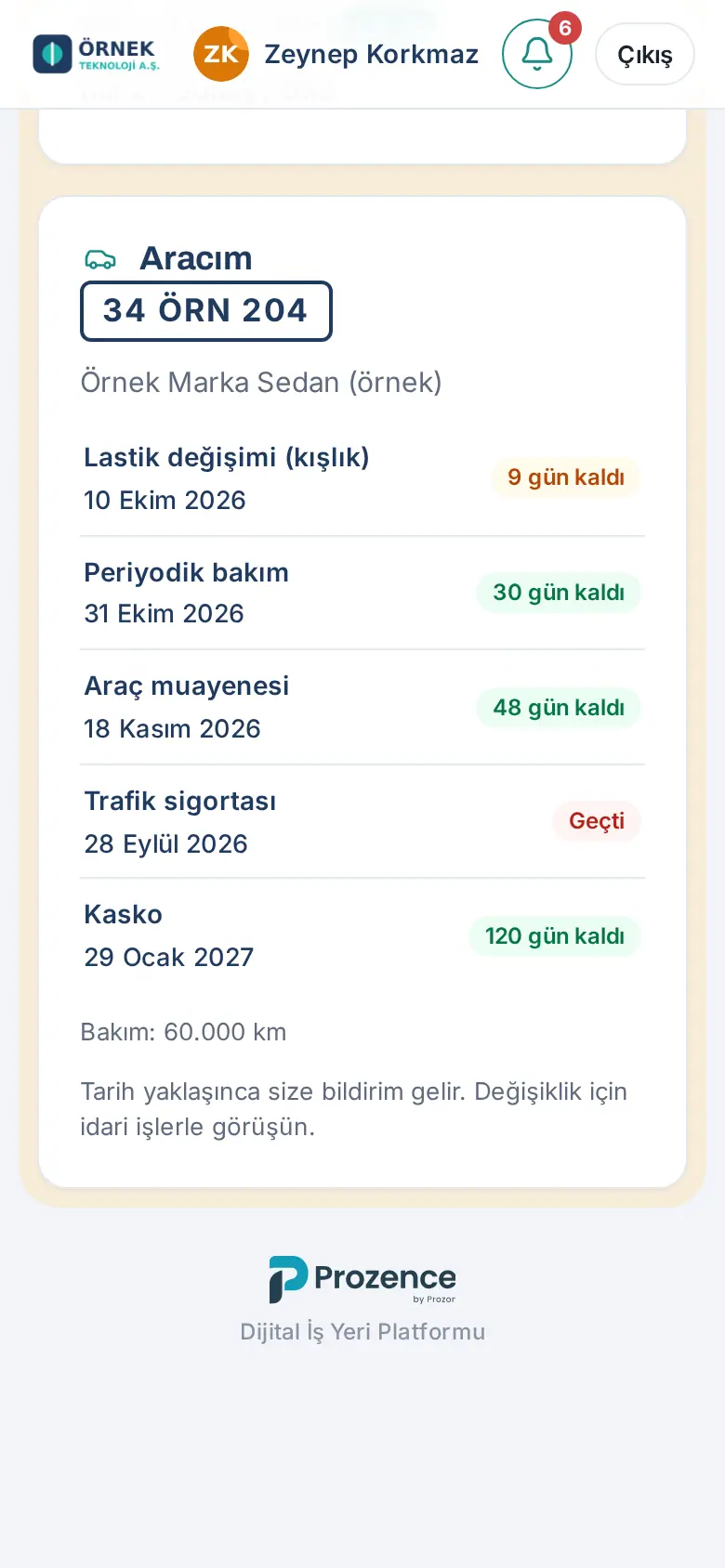
Tip: When a date is near (a company setting, usually 14 days), you get a phone notification and an email.
Important: You cannot change this information. If you see a wrong date, contact administrative affairs.
I’m Safe: replying to an emergency check-in
After an emergency or a drill, you report with one tap that you are safe or that you need help. This task has moved to the 27. Emergencies, occupational safety and the occupational physician chapter; see Replying to an I’m Safe check-in and Emergency banner: what you see in an emergency.
Opening a request (IT, administrative affairs, supplies, building)
You send a problem or a need (IT, administrative affairs, supplies, building) to the related team; each request gets a tracking number. This task has moved to the 23. Requests chapter; see Opening a request.
Following and closing a request
You follow the status of your request, reply if you are asked for information, and confirm it or reopen it when it is resolved. This task has moved to the 23. Requests chapter; see Following the status of your request, Replying to a request that is waiting for information, Confirming or reopening a resolved request and Cancelling a request.
Picking up your parcel
You pick up a delivery addressed to you with the 4-digit pickup code in the notification. This task has moved to the 24. Parcels, mailroom and purchasing chapter; see Picking up a delivery for you.
Requesting a parcel shipment
You open a request to the mailroom to send a parcel or courier on behalf of the company, and you follow your shipment until it reaches the recipient. This task has moved to the 24. Parcels, mailroom and purchasing chapter; see Requesting a parcel or courier shipment and Following your shipment and marking it delivered.
Booking a meeting room or parking space
You book a meeting room or a parking space, add your booking to your calendar or cancel it. This task has moved to the 26. Meeting rooms and visitors chapter; see Booking a meeting room, Booking a parking space and My bookings: adding to the calendar and cancelling.
Pre-registering a guest (visitor)
You tell reception in advance about a guest you are expecting; you are notified when your guest arrives. This task has moved to the 26. Meeting rooms and visitors chapter; see Visitor pre-registration (expecting a guest) and When your guest arrives: Arrived, check in or No-show.
Reporting a near miss or hazard
You report a near miss, a hazardous situation or an unsafe behavior to the OHS (occupational health and safety, İSG) team. This task has moved to the 27. Emergencies, occupational safety and the occupational physician chapter; see Reporting a near miss or hazard and Following the status of your report.
Starting and ending work time (PDKS)
You start and end your work time in the office (with the office network or the QR code at the entrance), from home, remotely or in the field. This task has moved to the 22. Time and attendance chapter; see The Work time box and today's plan, Checking in at the office: office network and QR code, Starting from home, remotely or in the field, Starting work with a shortcut and Ending work and "Why are you leaving the office?".
Checking your monthly work time summary
You see this month's check-ins and check-outs, your total time, late arrivals and missing check-outs. This task has moved to the 22. Time and attendance chapter; see This month: monthly work time summary and map.
Requesting a work time correction
You send the correct times of a check-in or check-out that you forgot or recorded wrongly to your manager for approval. This task has moved to the 22. Time and attendance chapter; see Requesting a work time correction.
Location tracking (field): explicit consent, pausing and route
As a field employee, you give explicit consent to location tracking, pause tracking for the day or withdraw your consent; managers see the team's route. This task has moved to the 22. Time and attendance chapter; see Location tracking (field): explicit consent and route.
Confirming receipt of an assigned item
You confirm a company item assigned to you with I've received it; your confirmation becomes the digital handover record. This task has moved to the 28. Fixed assets and asset assignment chapter; see Confirming receipt of an assigned item.
Reporting a problem with an assigned item
You report the loss, damage or fault of an item assigned to you; in 0.99.42 the Report a problem button was replaced by Report an incident (loss, damage, fault). This task has moved to the 28. Fixed assets and asset assignment chapter; see Reporting loss, theft, damage or a fault (incident report) and Item details and handover record.
Checking your remaining annual leave
In the My leave box you see your remaining annual leave and the status of your requests. This task has moved to the 21. Employee leave chapter; see Seeing your remaining leave and your requests.
Requesting annual or other leave
You send your leave request from the app; the request goes first to your manager, then to HR. This task has moved to the 21. Employee leave chapter; see Requesting annual leave, Paid and unpaid leave types and their rules, Requesting a half day of leave and Requesting travel leave.
Printing the approved leave form
You print the QR-coded form of your approved leave, sign it and hand it in to HR. This task has moved to the 21. Employee leave chapter; see Printing and signing the approved leave form, Verifying the form with the QR code and Signing and handing in the form, and "Finalized".
New starters: onboarding steps
Who: New employee · Where: My Space → My Area → Onboarding (on a computer, Board → My Area)
What it does: When you start work, HR starts an onboarding process for you. Everything to do in the first days (contract, computer, access card, meeting the team, trainings…) appears in one list, with the person responsible and the date.
- Open the My Space → My Area screen. Onboarding is the first box and appears as a short card.
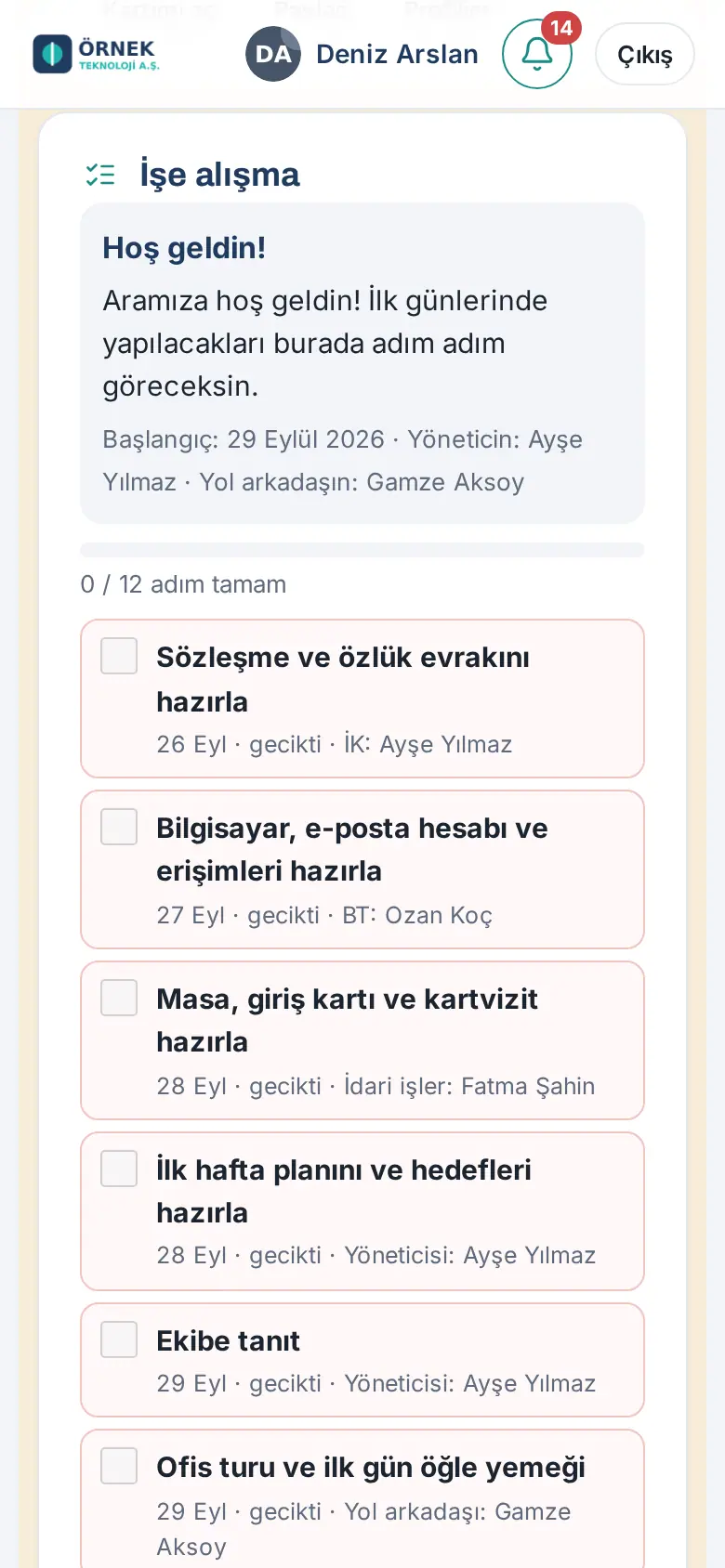
- At the top, you see the Welcome! message, your start date, your manager and your buddy (the colleague who will help you in the first days).
- Below the progress bar, you see how many steps are done (e.g. "0 / 12 steps done").
- The short card shows only the next 3 steps that are not done. Each step shows the date and who will do it (e.g. "BT: Ozan Koç", where BT is IT). Steps whose date has passed show gecikti ("overdue").
- When you finish the steps that are yours (e.g. completing your profile, setting up your email signature, reading the policies), tick their box. The Open my profile and Open policies buttons take you to the related screen.
- To see the welcome text, the completed steps and all steps, tap Open all; to make the card smaller, tap Collapse. If you come from an onboarding notification or from Waiting for you in the bell, the card opens fully.
Tip: The people responsible for other steps (e.g. the computer that IT prepares) tick those steps; you only follow the progress. When all steps are done, the process closes and the Onboarding box disappears from My Area.
Expenses and advances
For entering expenses, adding receipts, business advances and per diem (harcırah), see 17. Expenses, business advances and per diem. The My expenses box is in My Space → My Area (on a computer, Board → My Area).


